Overview
This module is mainly used by tracking developers. During tracking development, the 「Tracking Code Associated with the Tracking Scheme」 is automatically generated for developers. Developers only need to copy and paste it into the development code and assign values.
The tracking plan and the tracking API are fixed before development. What the developer does is to assign each event code and event attribute key in the tracking plan, and then report it through the same tracking API. Therefore, QuickTracking provides a code template module. Developers can directly select a tracking plan and a tracking code template in the product background to generate tracking code, and paste it into the project code for modification. Reduces duplication of effort and avoids misspellings in event codes or property keys.
Code templates are divided into two modules: code template management and code generation. This article will explain how to use it in detail.
Actions guide
1. Code template
The management and creation of code templates are as follows: data collection-tracking development-development tracking-code template.
The location where the tag code is generated using the code template is in 「data collection-tag management-event /attribute /plan management」.
1) Default Template
After the module is entered, seven types of basic templates are provided by default:
Template Name | Technology stack | Template Description |
Android PX Series Preset Templates | Android NATIVE | Default code templates for page view events, click events, custom events, global properties, and user properties generated by standard official APIs of Android PX series SDKs (SDKs whose version numbers end with PX) |
Android P Series Preset Templates | Android NATIVE | Default code templates for page view events, click events, custom events, global attributes, and user attributes generated by standard official APIs of Android P series SDKs (SDKs whose version numbers end with P) |
iOS PX Series Preset Templates | iOS NATIVE | Default code templates for page view events, click events, custom events, global properties, and user properties generated by the standard official APIs of the iOS PX series SDKs (SDKs whose version numbers end with PX) |
iOS P Series Preset Templates | iOS NATIVE | Default code templates for page view events, click events, custom events, global attributes, and user attributes generated by standard official APIs of iOS P series SDKs (SDKs whose version numbers end with P) |
Preset template for mini programs version 1.x | Mini Programs | Default code templates for page view events, click events, custom events, global properties, and user properties generated by the standard official API of the SDK version 1.x for mini programs |
Preset templates for mini programs 2.x and above | Mini Programs | Default code templates for WeChat applet page browsing events, click events, custom events, global attributes, and user attributes generated by the standard official API of the SDK version 2.x |
Web/H5 Preset Templates | H5 | Default code templates for page view events, click events, custom events, global properties, and user properties generated by the H5/Web SDK standard official API |
The preceding template is the default template. You can directly use or view the template, but cannot edit or delete it.
2) Create a template
If you wish to create your own code template, you can click 「New Code Template」 to start creating it.
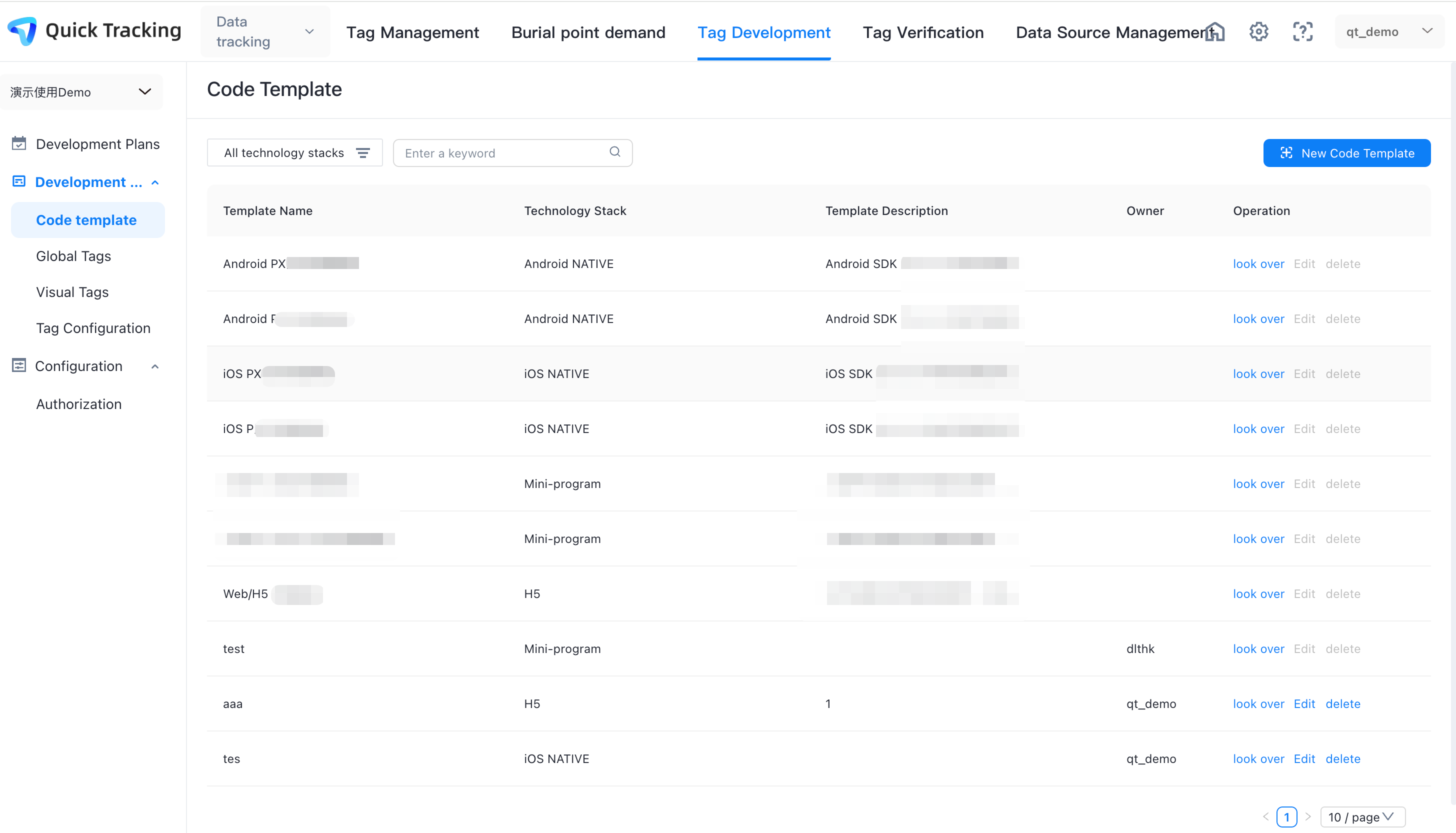
You can create code templates for page browsing events, control click events, control exposure events, custom events, global properties, and user properties.
When creating a template, you need to fill in the basic information:
Template Name: Name your template with a dedicated name.
Technology stack: provides four types of technology stacks: "Android NATIVE", "iOS NATIVE", mini programs, and H5. When you create different basic stacks, different basic templates are provided for you to modify and edit,
Owner: The owner is responsible for subsequent editing or deletion of the template.
Template Description: You can enter information about the template. This field is optional.
After completing the basic information, you can start to write a code template. The template language used by the QuickTracking platform is velocity (a Java-based template engine). After you select the event type for which the template takes effect, the basic template code is displayed. You can edit the code based on the template. After the code is written, you can click Template Test to check whether the generated template code is correct.
2. Code generation
All the above descriptions are about the management and creation of code templates. The location where the tag code is finally generated using the code template is in 「data collection-tracking management-event /attribute /plan management.
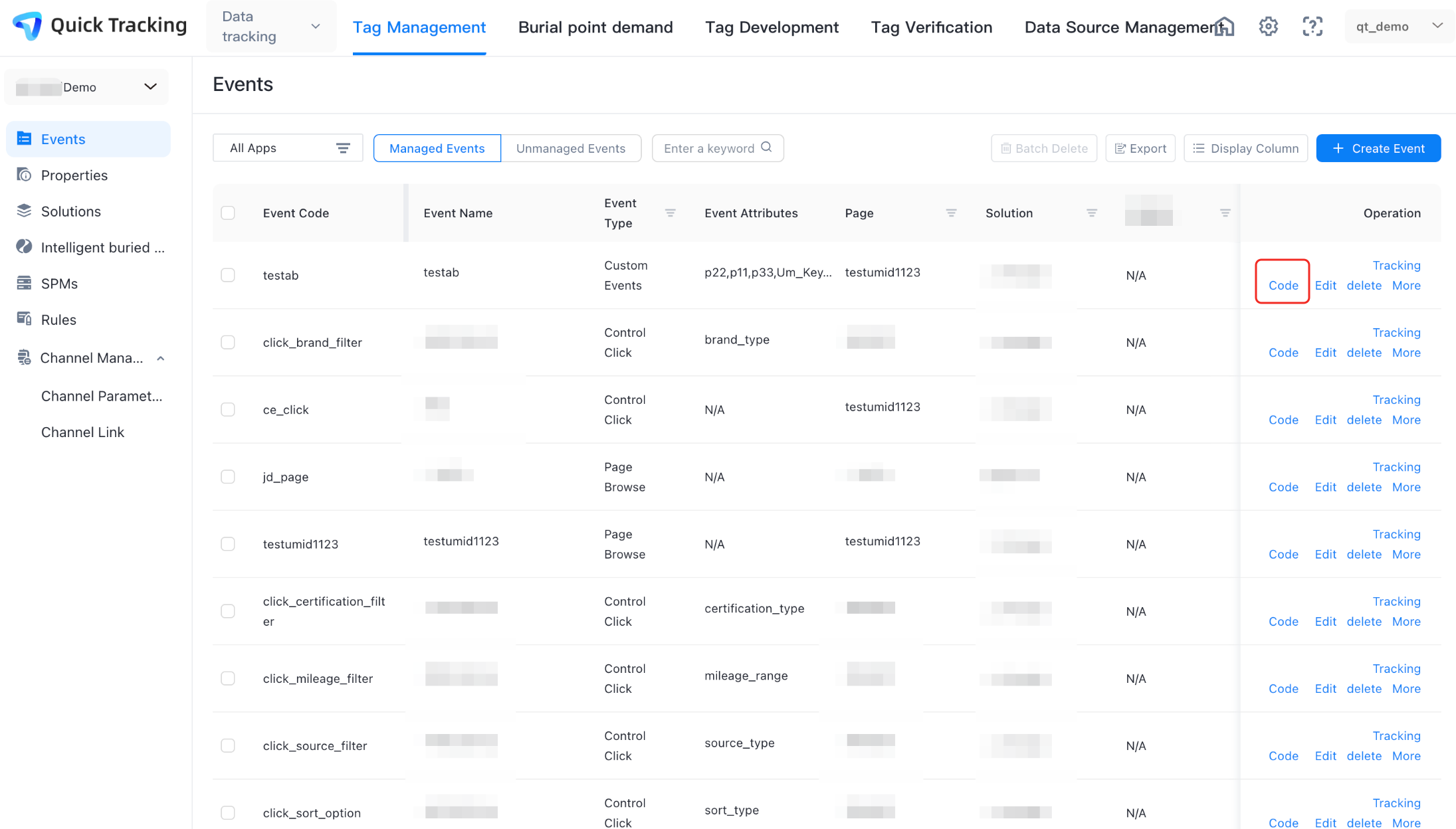
In Global Attributes and User Attributes of Event Management, Plan Management, and Attribute Management, you can select the events and attributes that you want to anchor.
Click 「Tracking Code」 to view the tag code of the current event or attribute. Click 「Generate Code」 to view the tag codes of all currently selected events or attributes.
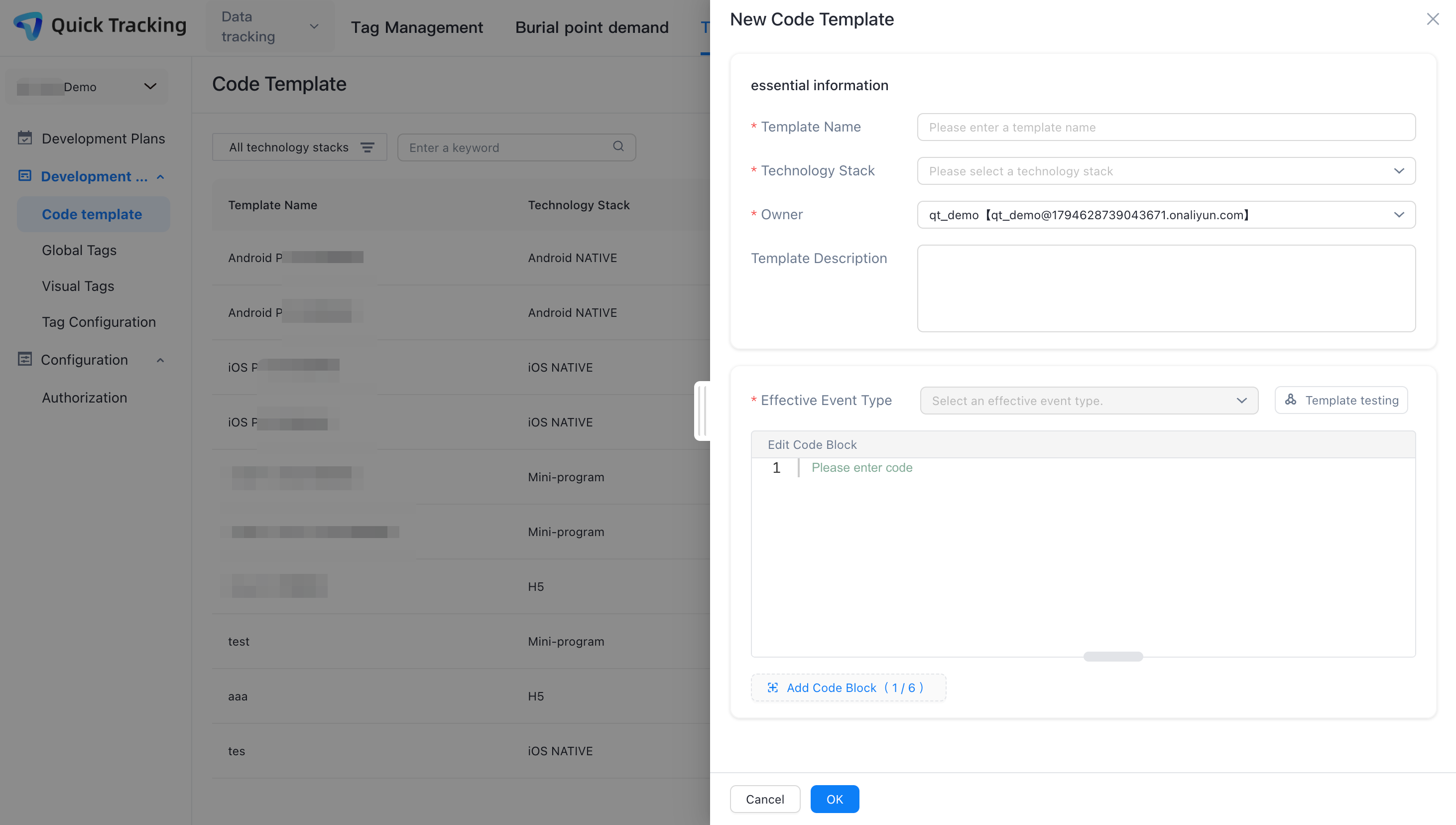
Before you generate code, you can select a code template. Platform generates tracking based on the code template and events /attributes. After it is generated, you can view the copy directly on the platform or download it as an Excel file.