Overview
Applications are actual tracking programs. The Quick Tracking system supports three types of applications: apps, websites, and mini programs.
Operating Instructions
1. Page composition
"Application management" is mainly composed of 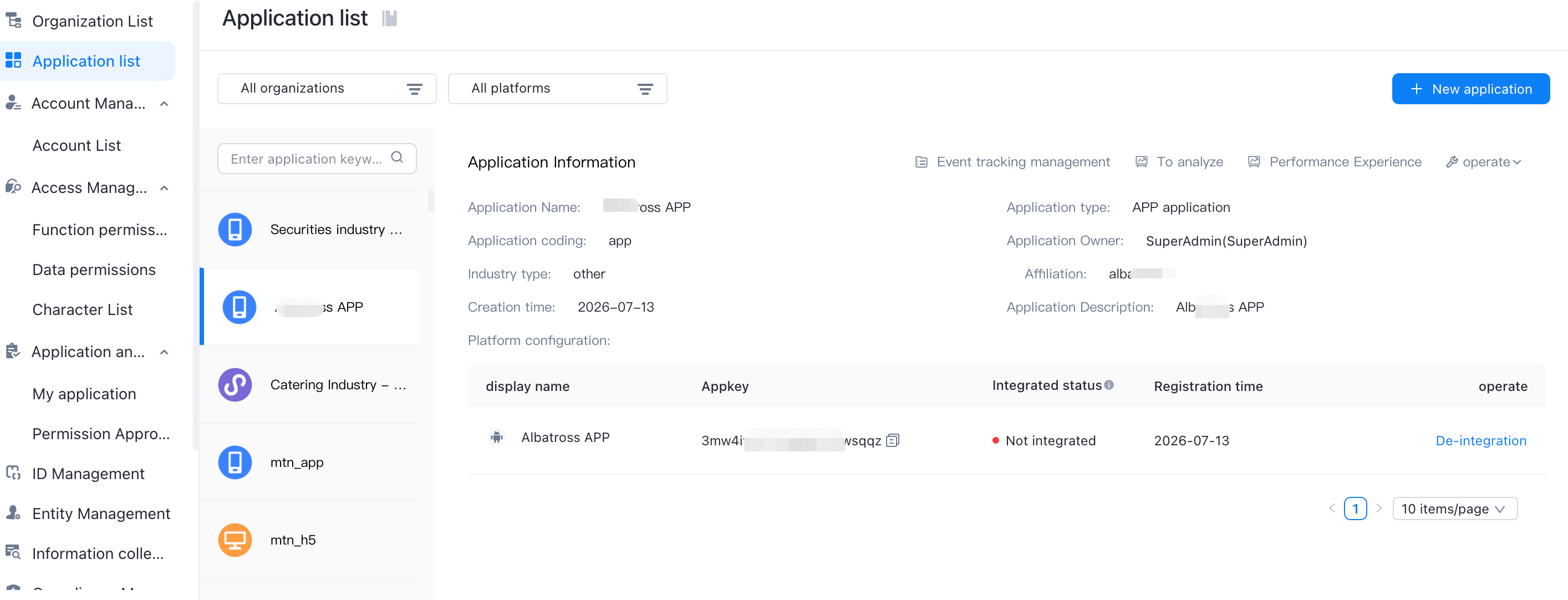 the following parts
1. Organization filter box: All organizations are displayed by default. After the organizations are filtered here, the applications under these organizations will be displayed correspondingly.
2. Platform Filter Box: All platforms are displayed by default. You can filter platform types (app, web, and applets) here. After filtering, the following application list will display all applications of the corresponding platform type;
3. Application list: All applications are displayed by default, and will be displayed according to the above filtering situation.
4. Application information display area: You can click the application in the application list on the left. After clicking, the detailed information of the current application will be displayed here.
5. Functional operation area: here you can create, edit and delete applications, and you can also perform basic integration operations on applications. You can also click the corresponding button to jump to the tracking point management and analysis platform.
2. Functional operations
"2.1" New application
Click the Create Application button in the upper-right corner. The Create Application window appears.
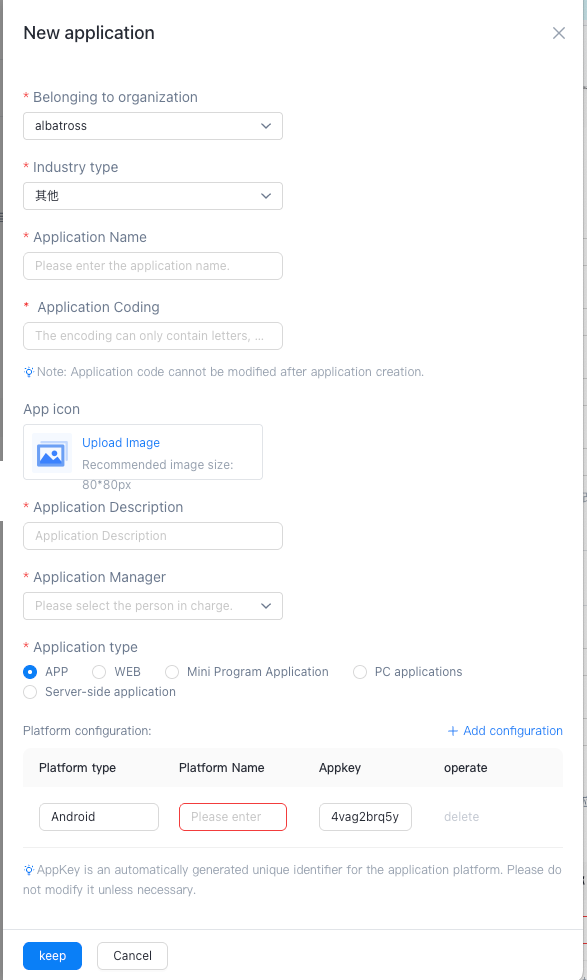
Then fill in the corresponding application information:
1. Fill in the basic information of the application. Pay attention to the following when filling in the application code. This item has rules and requirements and cannot be modified after filling in. Other information can be filled in according to the actual situation.
2. Select the application type. Currently, three application types are supported, APP, WEB and applet. After selecting the corresponding type, the platform entry options will be different.
APP:APP type applications need to select the platform type. Currently, there are Android and IOS platform types. After selecting the type, the platform name needs to be entered. If an application has different versions on the same platform, it can be distinguished by name, such as xxx full version, xxx lightweight version, and finally appkey system will automatically generate; 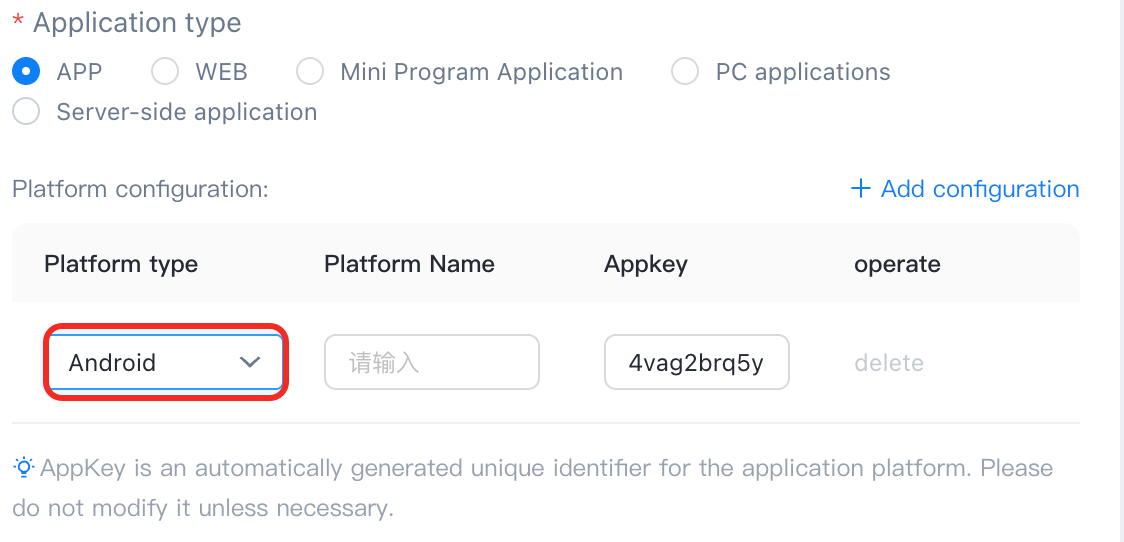
WEB: Just fill in the platform name, appkey system will automatically generate; 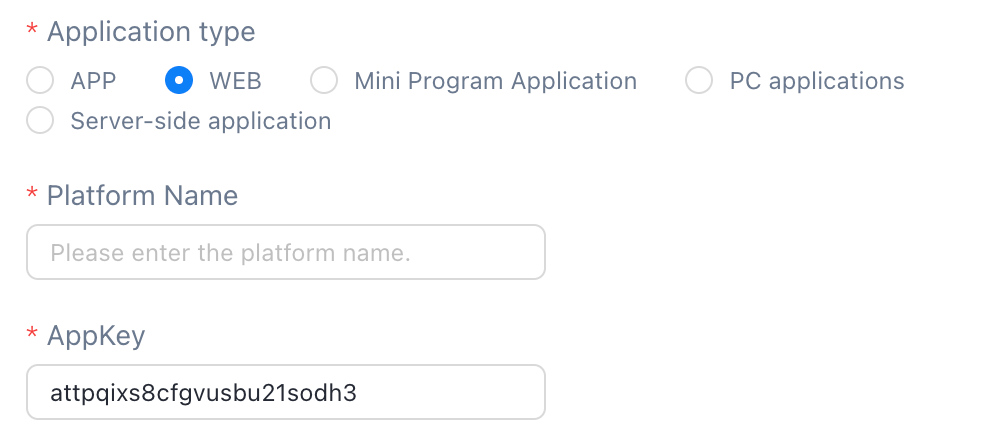
Small programs: small program applications need to select the platform type, currently there are Alipay, Taobao, WeChat, DingTalk, Baidu and byte beat six types, select the type and fill in the platform name, appkey system will automatically generate; 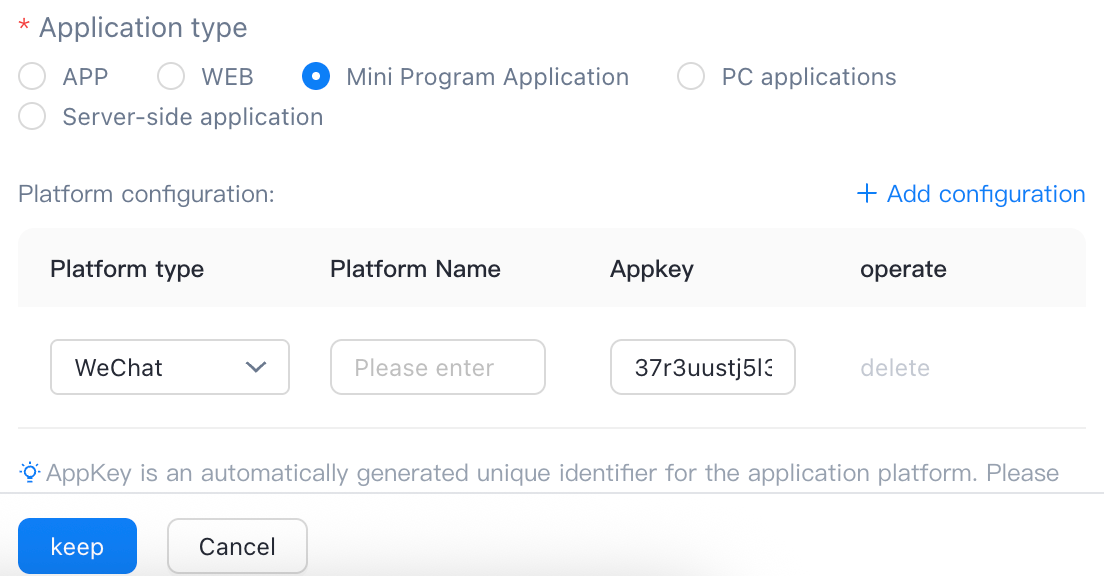
"2.2" Other operation function introduction 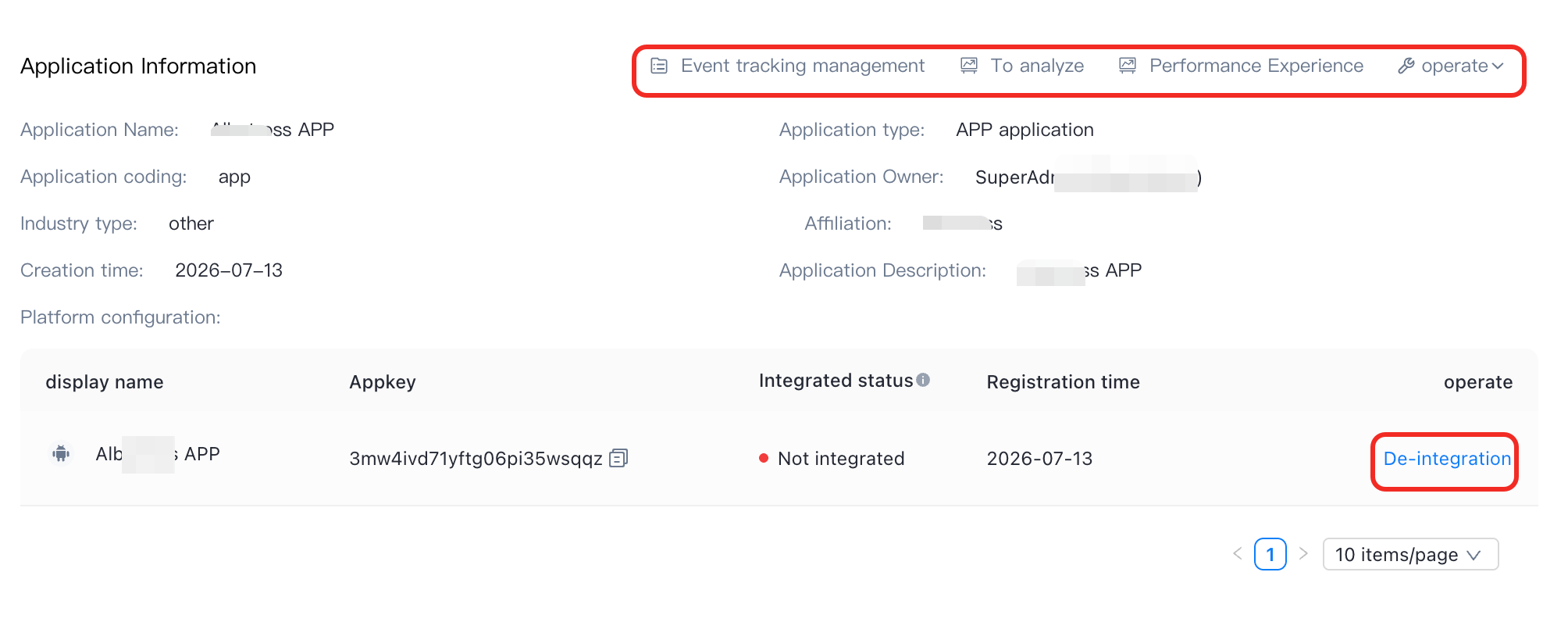
1. Buried point management: Click this button to jump directly to the collection management module;
2. To analyze: Click this button to jump to the data analysis module, you can directly view and analyze the data of the current application;
3. Go to performance experience: Click this button to jump to the performance analysis module, where relevant functions can be analyzed;
3. Operation: Click the operation button to edit, modify and delete the application information;
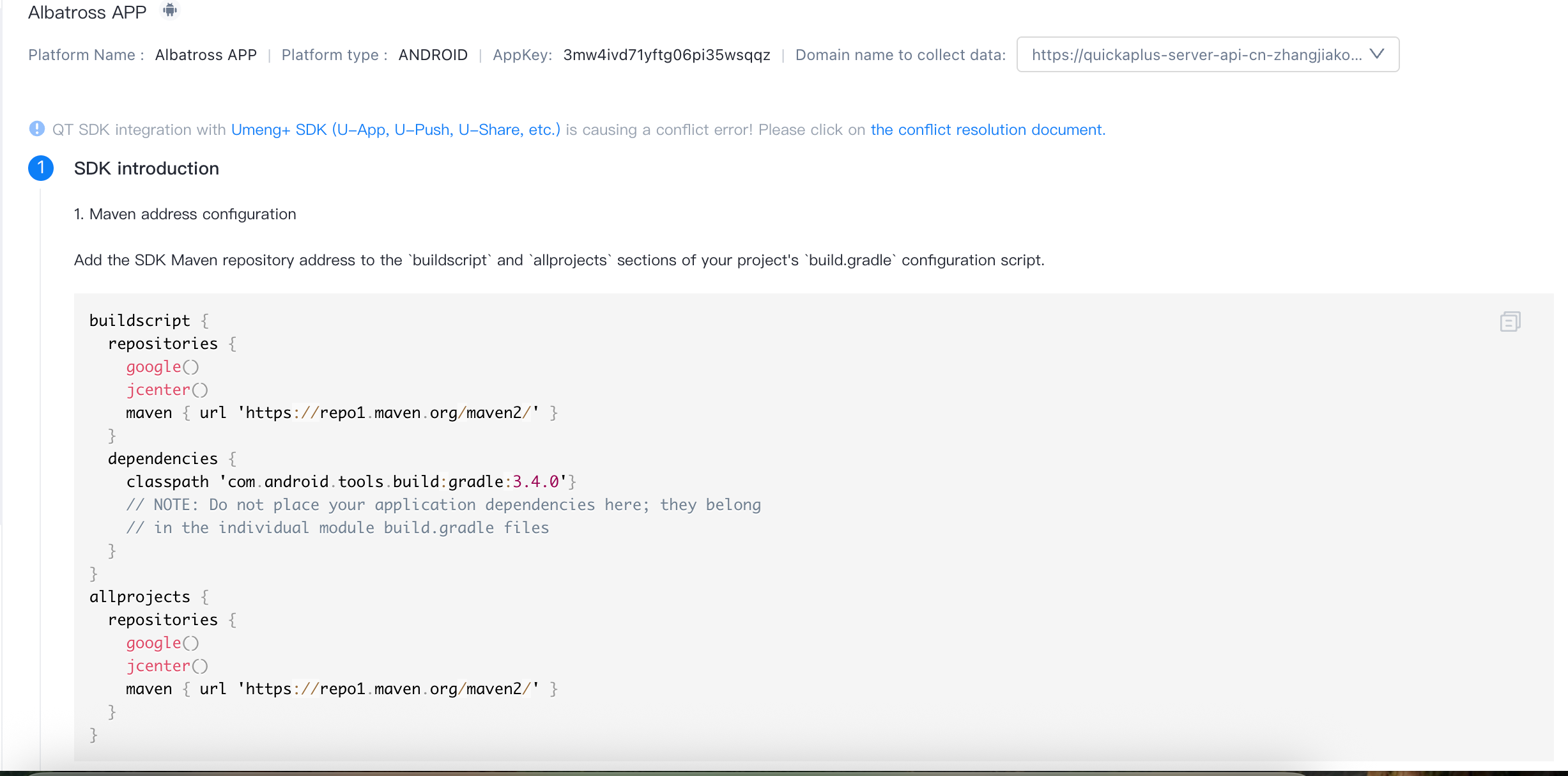
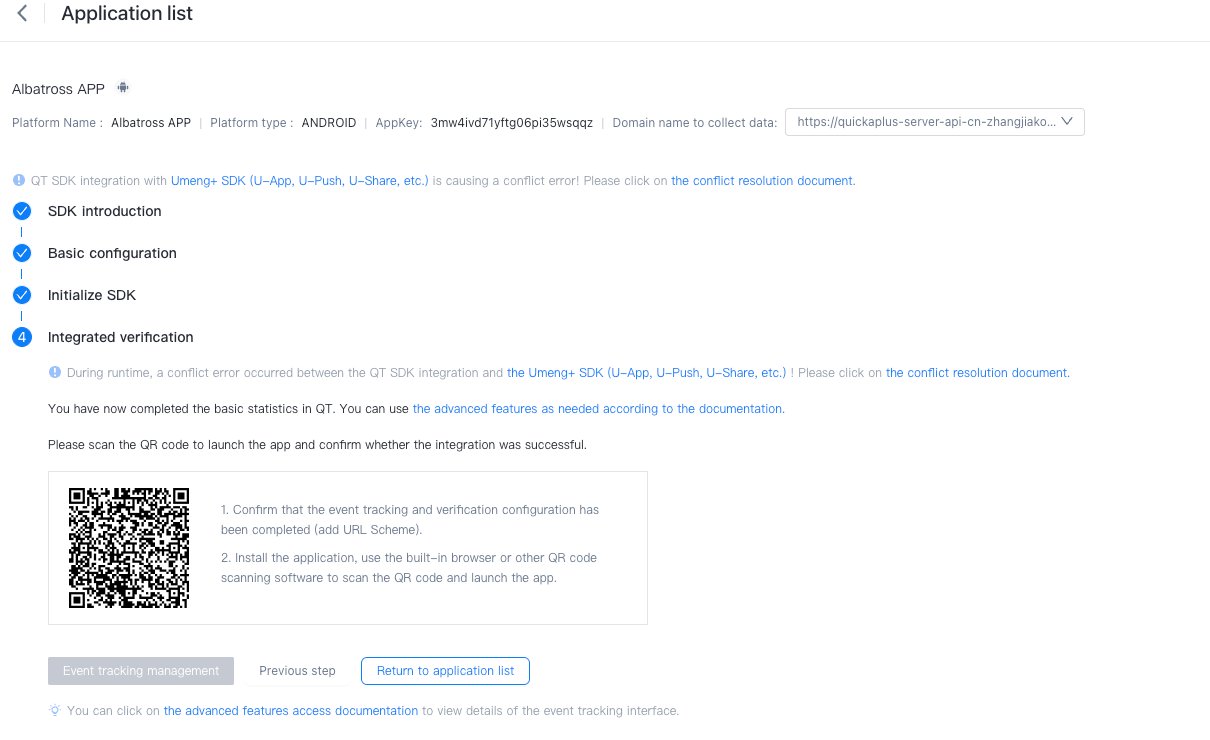
4. de-integration: clicking this button will enter the guidance interface of application basic integration, which guides the user to do development according to the three steps of SDK introduction, basic configuration and SDK initialization, and there will be a corresponding demo in each step. after the user completes these three steps, the user can verify whether the basic integration has been completed through integration verification.