If you use a template from the template marketplace or need to replace data fields in batches for all components in a workbook, manual updates can be inefficient. This is especially true for complex table configurations, such as those with free-form cells. You can use the Quick BI data replacement feature to improve efficiency and reduce the effort required to switch datasets. This feature supports both global and component-level data replacement. This topic describes how to replace datasets.
Prerequisites
Log on to the Quick BI console and go to the workbook editing page. For more information, see Create a Workbook.
Global dataset replacement
Procedure
On the workbook editing page, click the
 icon on the menu bar to display a list of all datasets in the workbook.
Click Used Datasets to view all fields used in the dataset. These fields include Dataset Fields and New Fields in Report.
NoteDataset Fields include native fields, calculated fields, and grouped dimensions created in the dataset.
New Fields in Report include calculated fields and grouped dimensions created in the report.
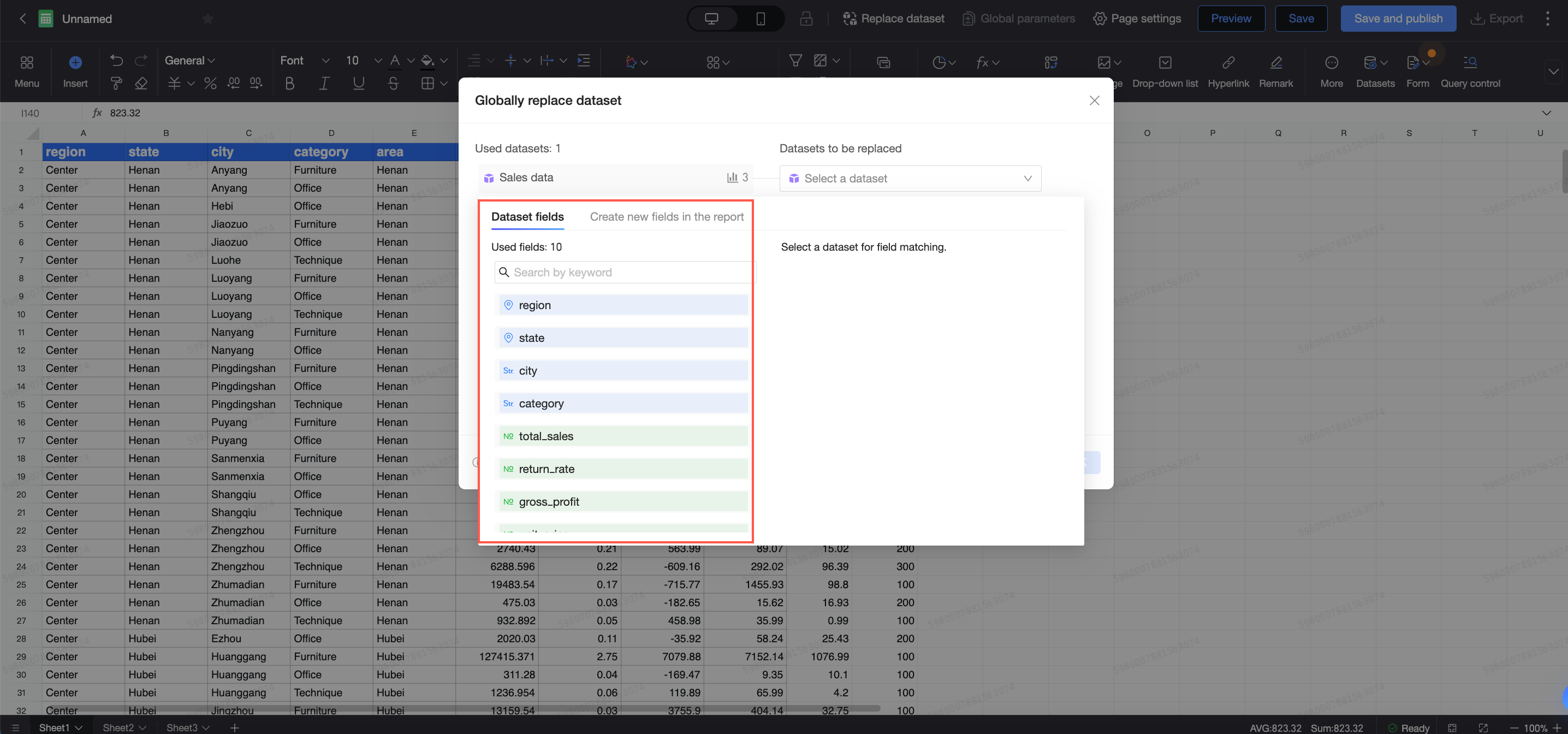
Click the
 icon to view the list of components that use the dataset.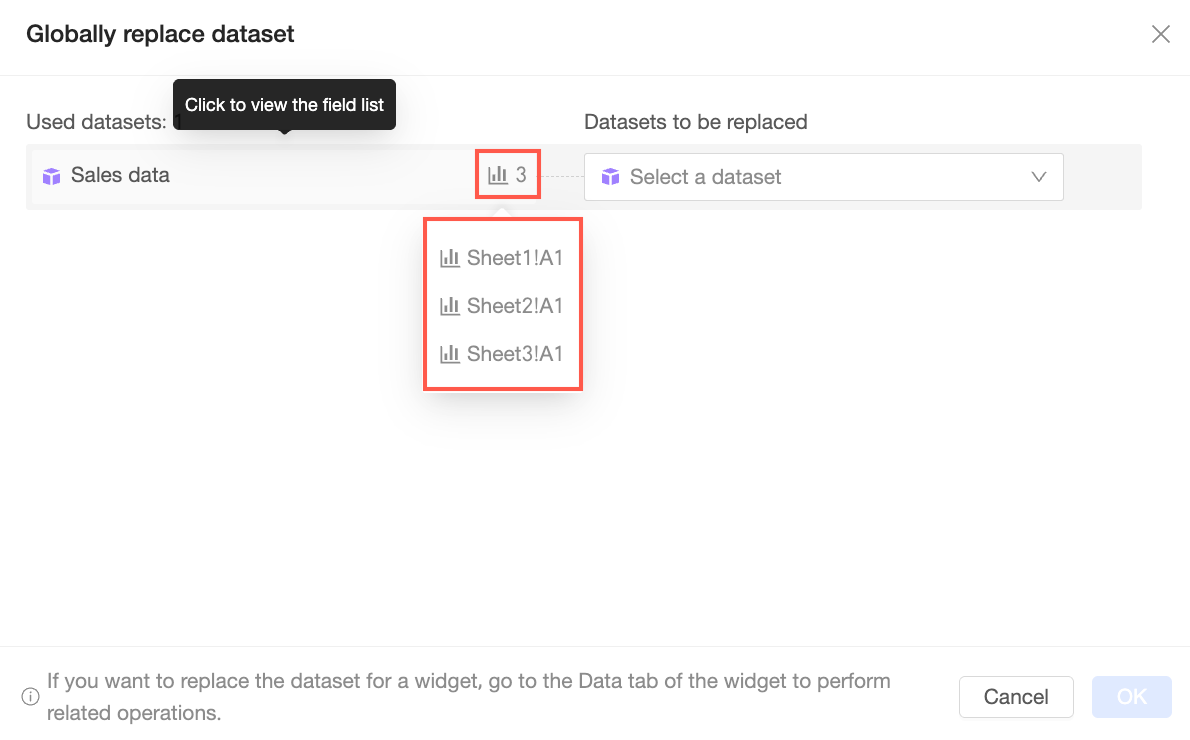
If a dataset in the Used Datasets list needs to be replaced, you can select an existing dataset from the same space in the Replace Dataset section on the right.

After you select a dataset, match the Dataset Fields and New Fields in Report between the two datasets.
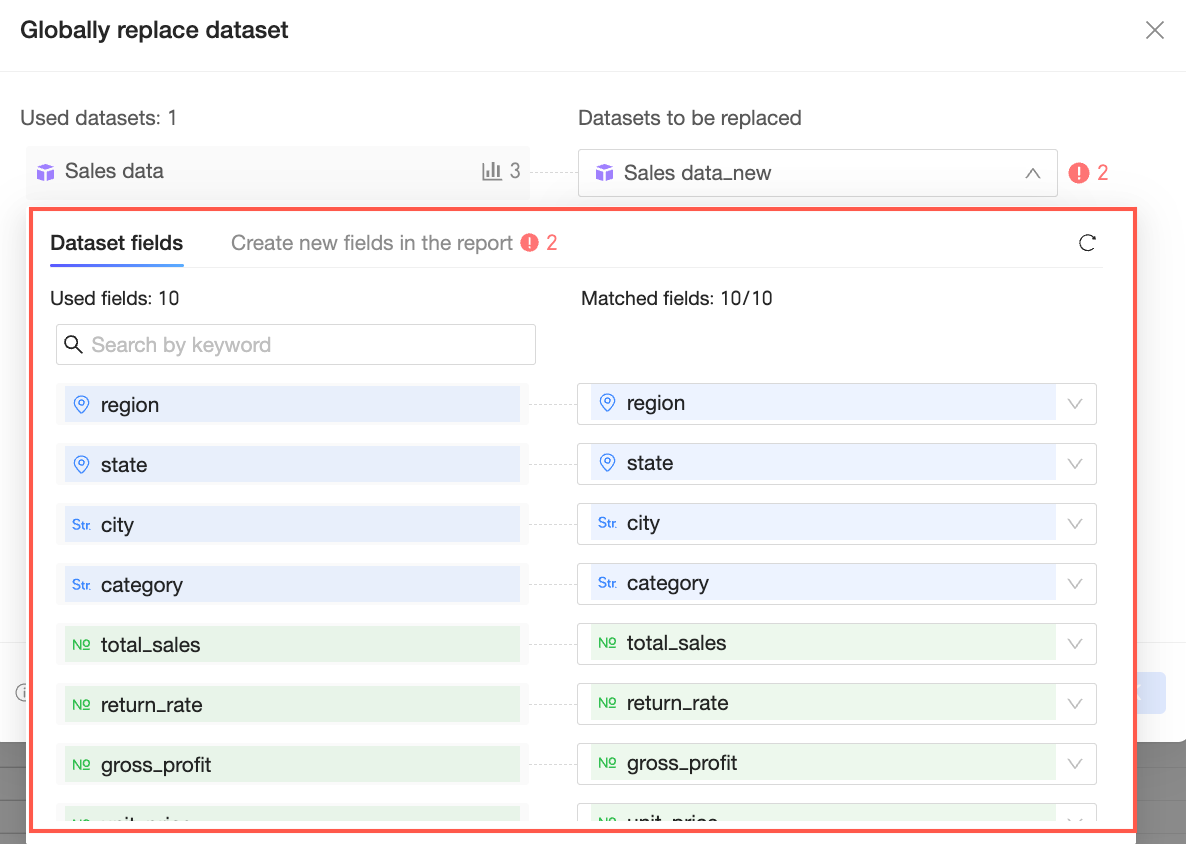
Match dataset fields
Dataset fields with the same name and type are automatically matched.
Dataset fields with different names but the same type can be manually matched.

The field matching list displays only fields of the same type. If the target dataset does not contain a field of a matching type, the match fails. If a match fails, you must replace the dataset with a different one or delete the unmatched fields from the report.

Match new fields in the report
Overall Replacement and Split Replacement are supported.
Overall Replacement: The matching logic is the same as for dataset field matching.

Split Replacement: The system parses the expression for the new field in the report. You can then match the fields and placeholders used in the expression. The system automatically creates a field with the same expression in the target dataset to use for the replacement.

If a new field in the report uses a placeholder, Create and Replace is supported. In this case, an identical placeholder is automatically created in the target dataset.
 Note
NoteIf a field, such as "Profit Amount", already exists in Dataset Fields, it is automatically matched during Split Replacement for New Fields in Report and cannot be changed.
Component-level data replacement
Component-level data replacement is supported for dataset tables and chart components in a workbook that are configured based on datasets.
Component-level data replacement currently supports only overall replacement.
Scenarios
When you copy dataset tables or chart components from other workbooks, you must reconfigure all fields and their related settings. This process can be time-consuming.
Component-level dataset replacement is useful when you need to change the dataset for a component in a report. It improves the efficiency of component configuration and reduces the effort required to switch datasets.
Procedure
Replace data in a dataset table
Entry point for replacement
To replace the data in a dataset table, follow the steps shown in the figure.

To replace the dataset and keep the field configuration, follow these steps to replace the current dataset.
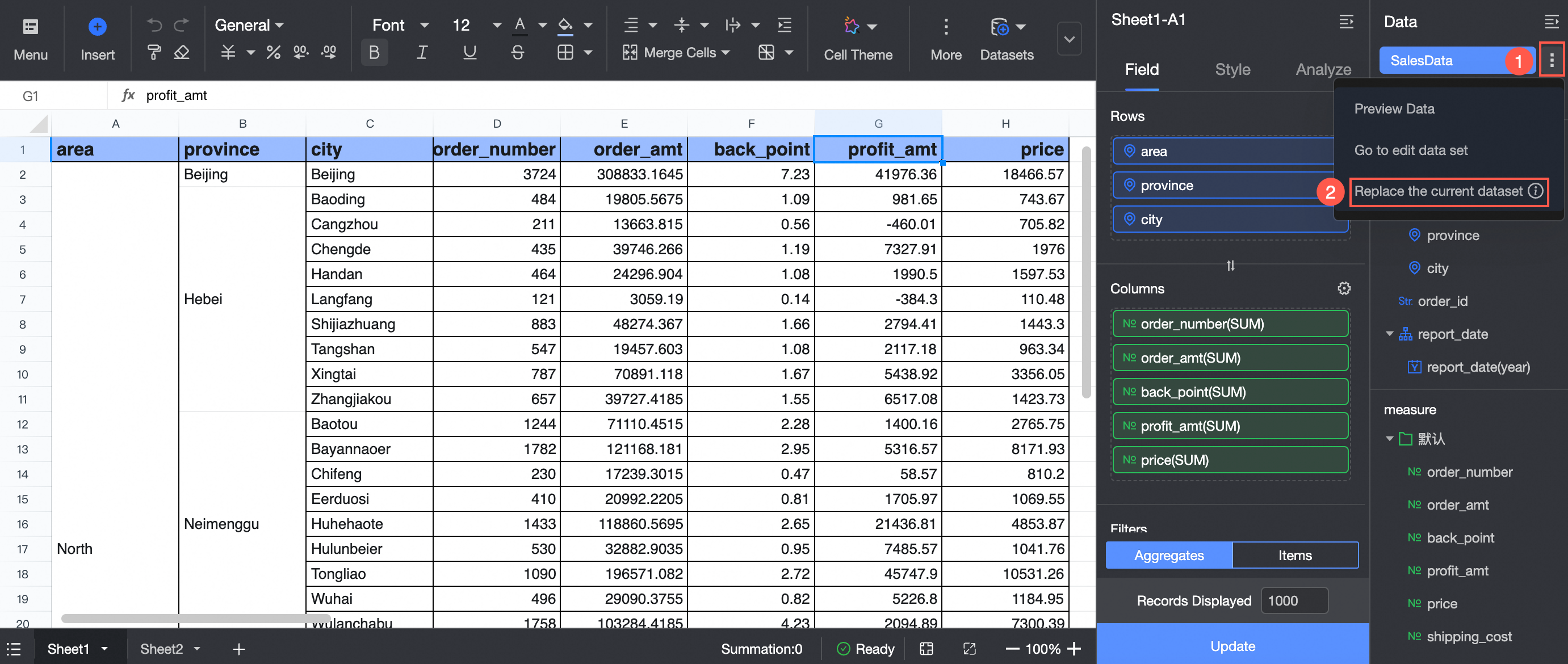
Select Replace Current Dataset to replace the dataset.
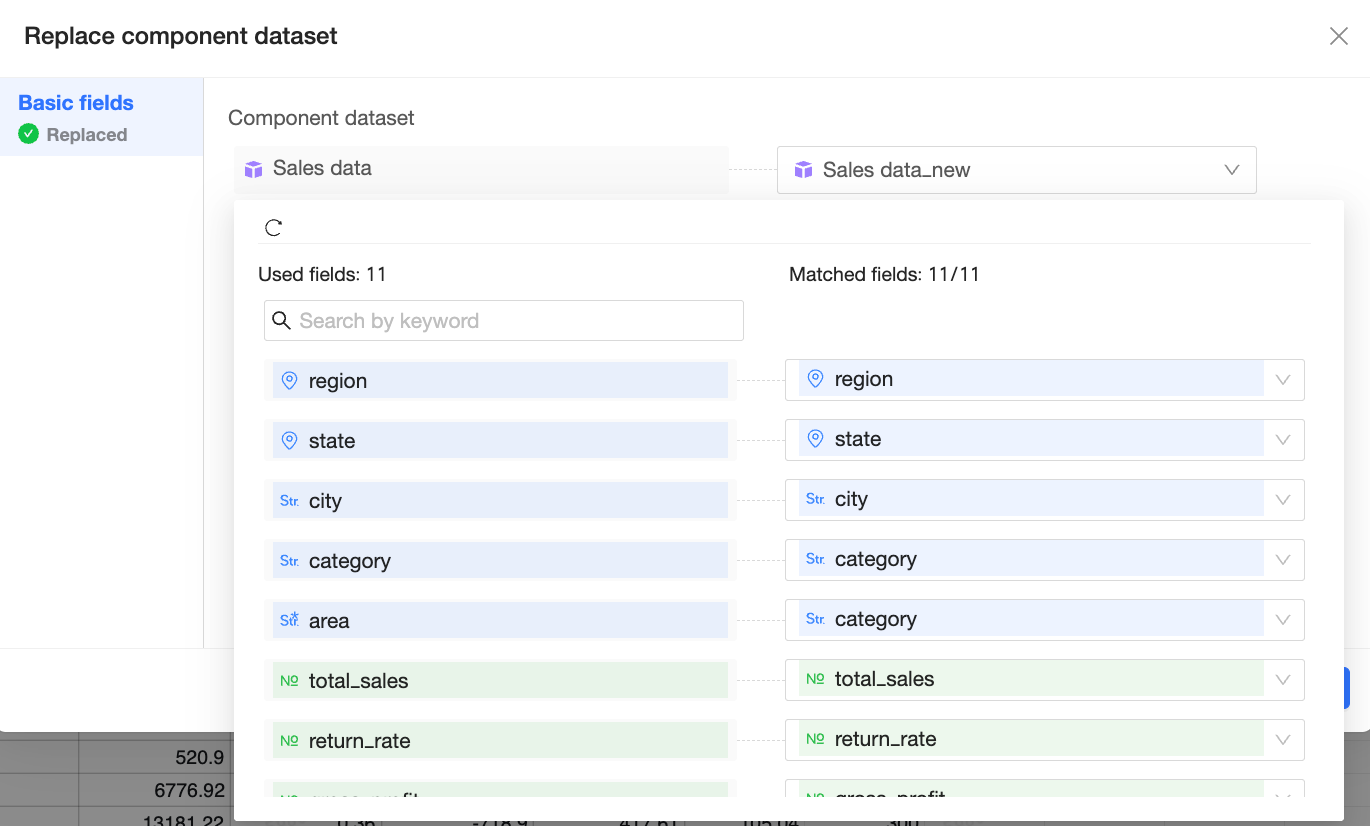
Replace data in a chart component
Data replacement is supported only for chart components that are configured based on a dataset. The Area Configuration button must be turned off.
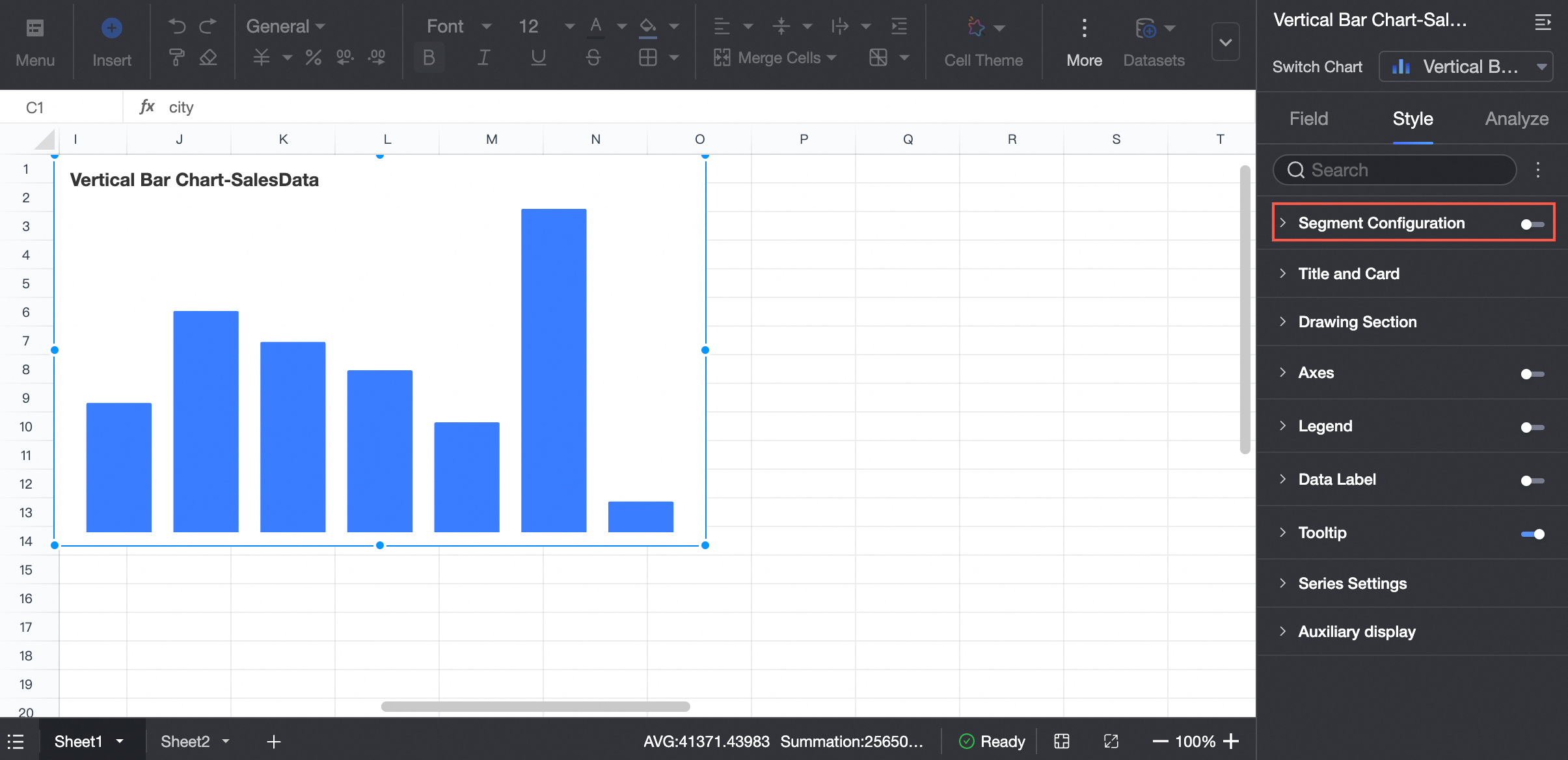
Entry point for replacement
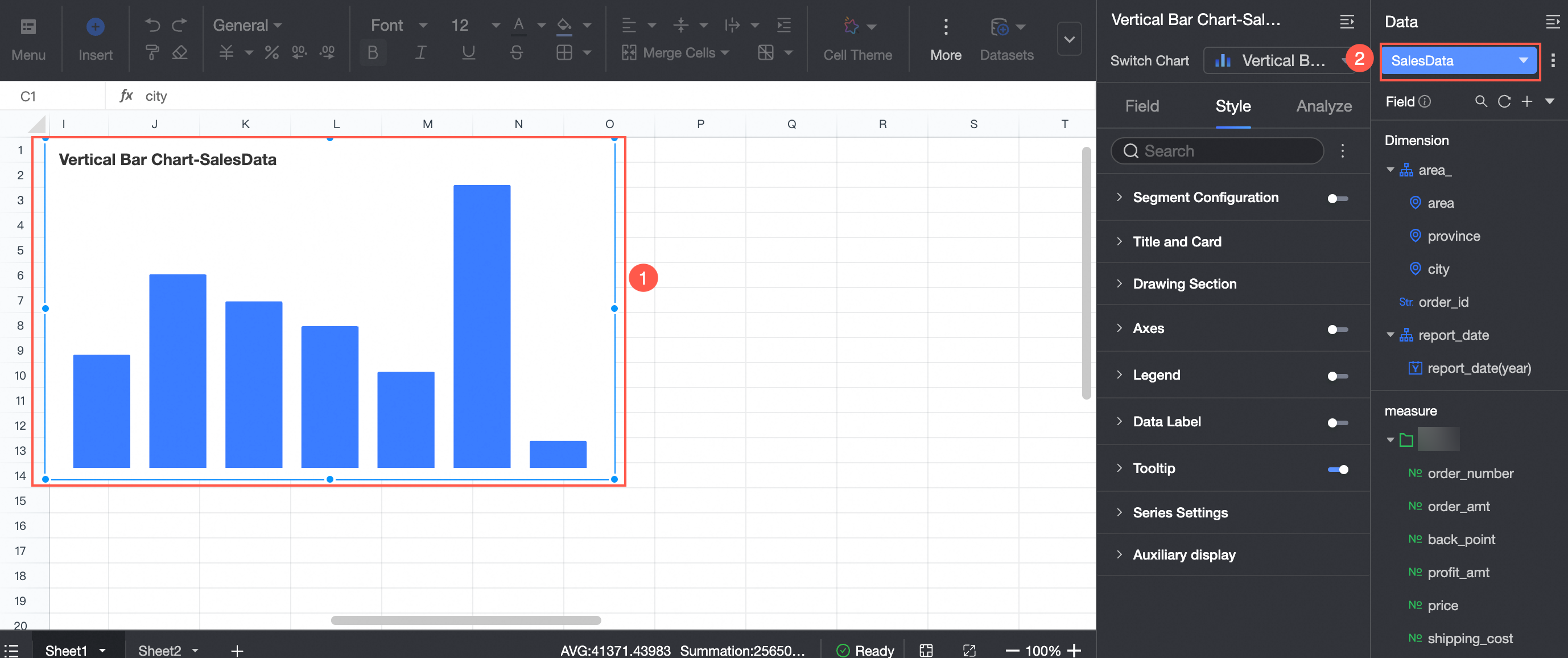
Click the switch box to switch between used datasets and all datasets. This action clears the field configuration.

To replace the dataset and keep the field configuration, follow these steps to replace the current dataset.
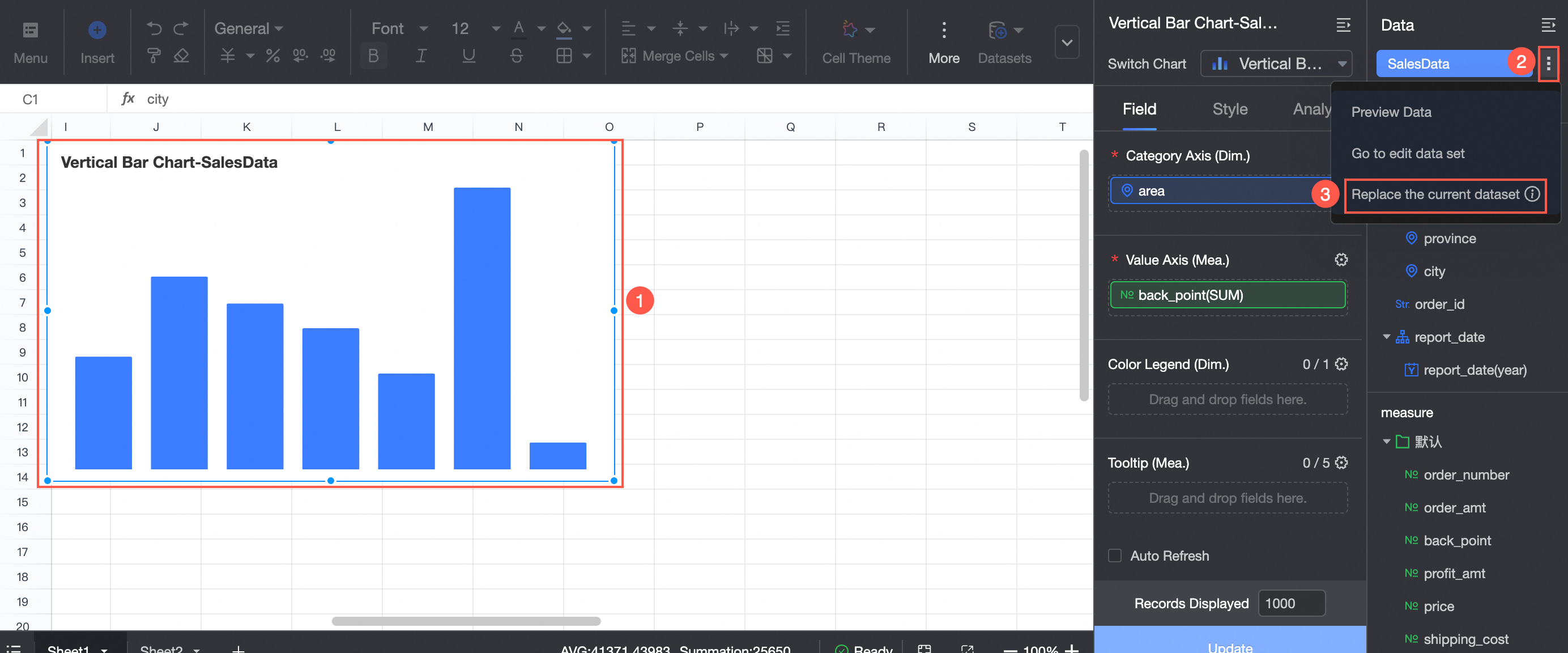
Select Replace Current Dataset to replace the dataset.
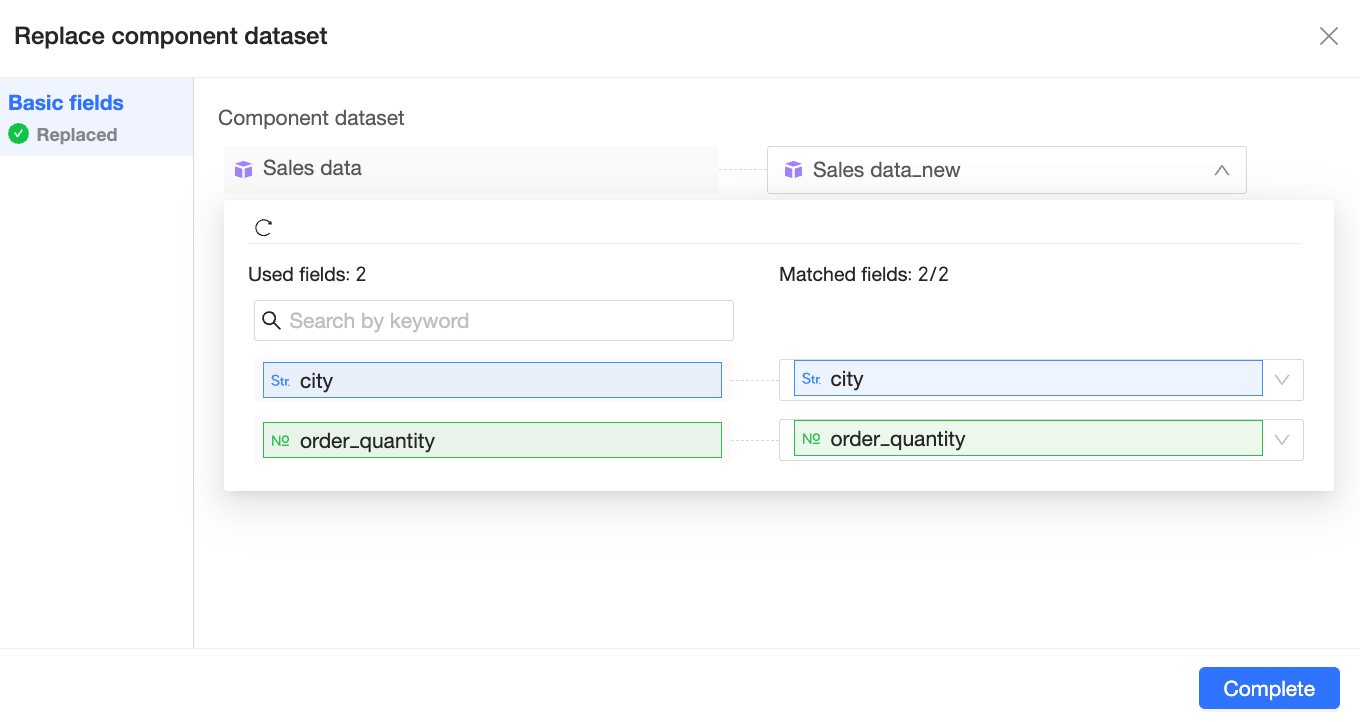
Notes
Special components
The following components do not support component-level data replacement: free-form cells, card views, pivot tables, chart components based on area configuration, query controls, or workbook data entry components that depend on a dataset, such as single-select, multi-select, and tree dropdowns. The data for these components can be replaced during global data replacement.
Special configurations
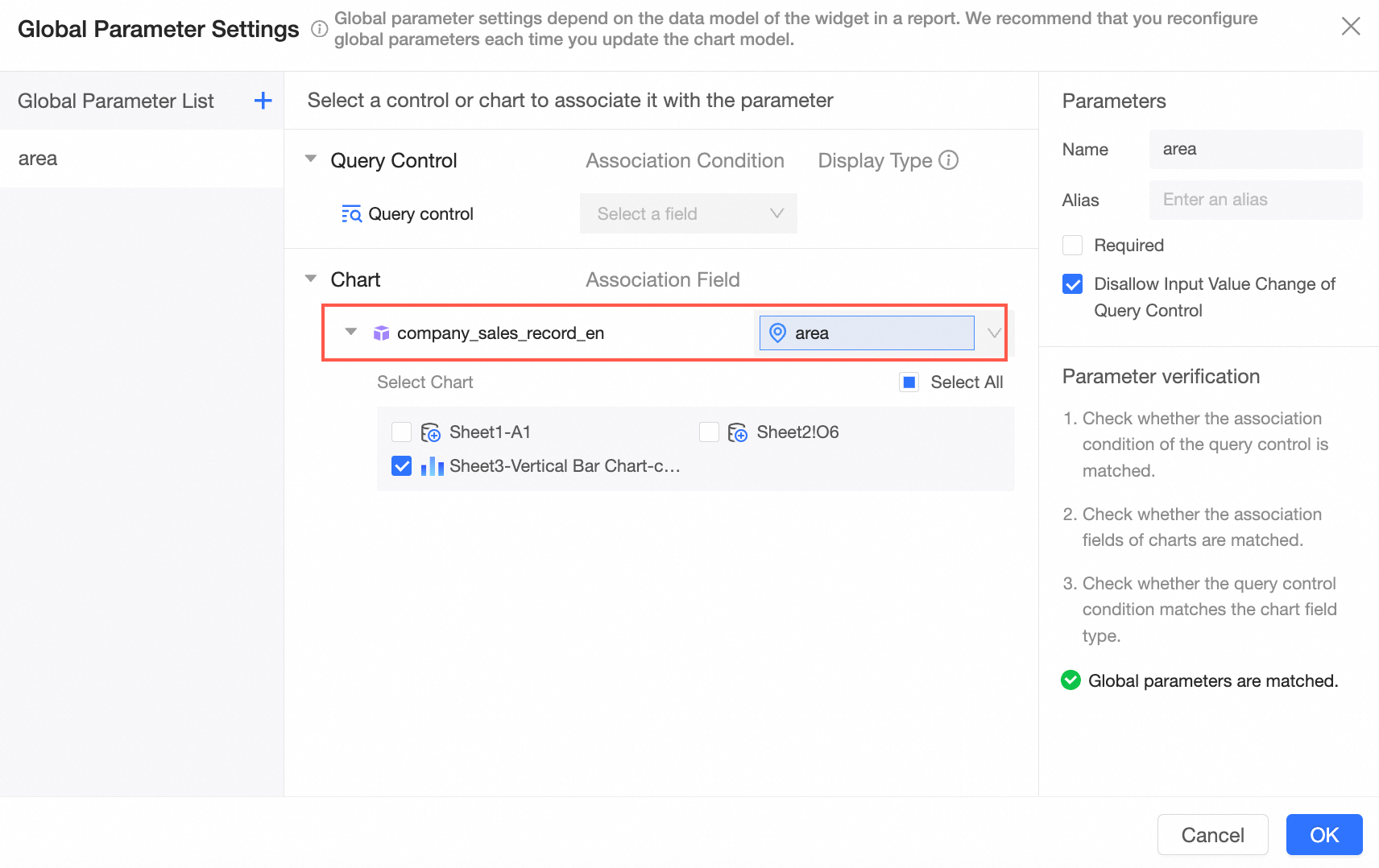
Global parameters are replaced during global data replacement. For example, if you replace the Sample Sales Data dataset with the Sales Dataset, the foreign key field for the global parameter changes from Region in the source dataset to area in the new dataset.
After a global data replacement, cascade conditions are retained for non-same-source cascade configurations. However, same-source cascade configurations become invalid, and you must reconfigure the cascade conditions manually.
For more information, see Configure query control cascade.