Overview
To push data reports from Quick BI to Slack, create a dedicated app on the Slack platform. This app acts as a bridge between Quick BI and Slack, handling authentication, authorization, and message delivery.
After configuration, the architecture involves the following three communication paths:
Direction | Credentials | Purpose |
Quick BI → Slack (OAuth) | client ID + client secret | Exchanges an authorization code for a token. |
Quick BI → Slack (API) | bot token / user token | Calls APIs such as |
2. Create a Slack app
2.1 Go to the developer console
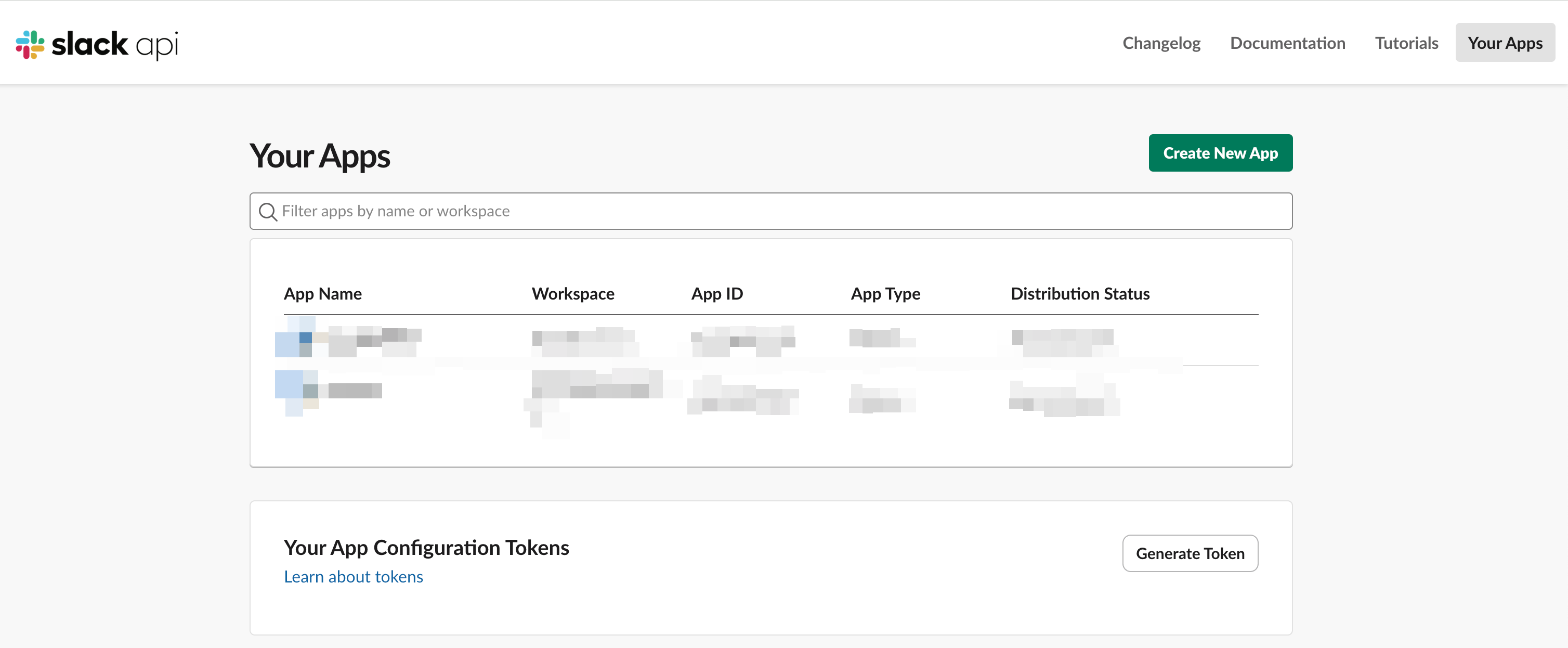
Go to https://api.slack.com/apps, sign in as a Workspace administrator, and click Create New App.
2.2 Choose a creation method
Slack provides three creation methods. The From scratch method lets you configure the app manually.
Method | Description | Recommended |
From scratch | Manually configure all features for full control. | |
From a manifest | Quickly create an app from a JSON or YAML template. Ideal for repeatable deployments. | ✅ Recommended |
From an app template | Use an official Slack template with limited functionality. | Not recommended |
If you create the app from a manifest, use the following sample configuration:
{
    "display_information": {
        "name": "QuickBI"
    },
    "features": {
        "bot_user": {
            "display_name": "QuickBI",
            "always_online": false
        }
    },
    "oauth_config": {
        "redirect_urls": [
            "https://bi-cn-hongkong.alibabacloud.com/api/v2/slack/oauth/callback",
            "https://bi.aliyun.com/api/v2/slack/oauth/callback",
            "https://bi-cn-hangzhou.alibabacloud.com/api/v2/slack/oauth/callback",
            "https://bi-ap-southeast-1.alibabacloud.com/api/v2/slack/oauth/callback",
            "https://bi-ap-southeast-3.alibabacloud.com/api/v2/slack/oauth/callback",
            "https://bi-ap-southeast-5.alibabacloud.com/api/v2/slack/oauth/callback",
            "https://bi-eu-central-1.alibabacloud.com/api/v2/slack/oauth/callback",
            "https://bi-ap-northeast-1.alibabacloud.com/api/v2/slack/oauth/callback",
            "https://bi-us-east-1.alibabacloud.com/api/v2/slack/oauth/callback",
            "https://bi-me-central-1.data.aliyun.com/api/v2/slack/oauth/callback"
        ],
        "scopes": {
            "user": [
                "users:read",
                "chat:write",
                "files:write",
                "files:read",
                "im:write"
            ],
            "bot": [
                "chat:write",
                "files:write",
                "files:read",
                "users:read",
                "im:write"
            ]
        },
        "pkce_enabled": false
    },
    "settings": {
        "org_deploy_enabled": false,
        "socket_mode_enabled": false,
        "token_rotation_enabled": false,
        "is_mcp_enabled": false
    }
}
2.3 App information
Field | Description | Example |
App name | The name of the app, which is displayed in your Slack Workspace. | Quick BI |
Pick a workspace | Select the Workspace for development and testing. | Your current Workspace |
The app name must be unique within your Workspace. We recommend using Quick BI or Quick BI Notifications.
3. Configure OAuth and permissions
OAuth is the core of this integration. Once configured, users can authorize the app in Slack, allowing Quick BI to send messages.
3.1 Redirect URLs
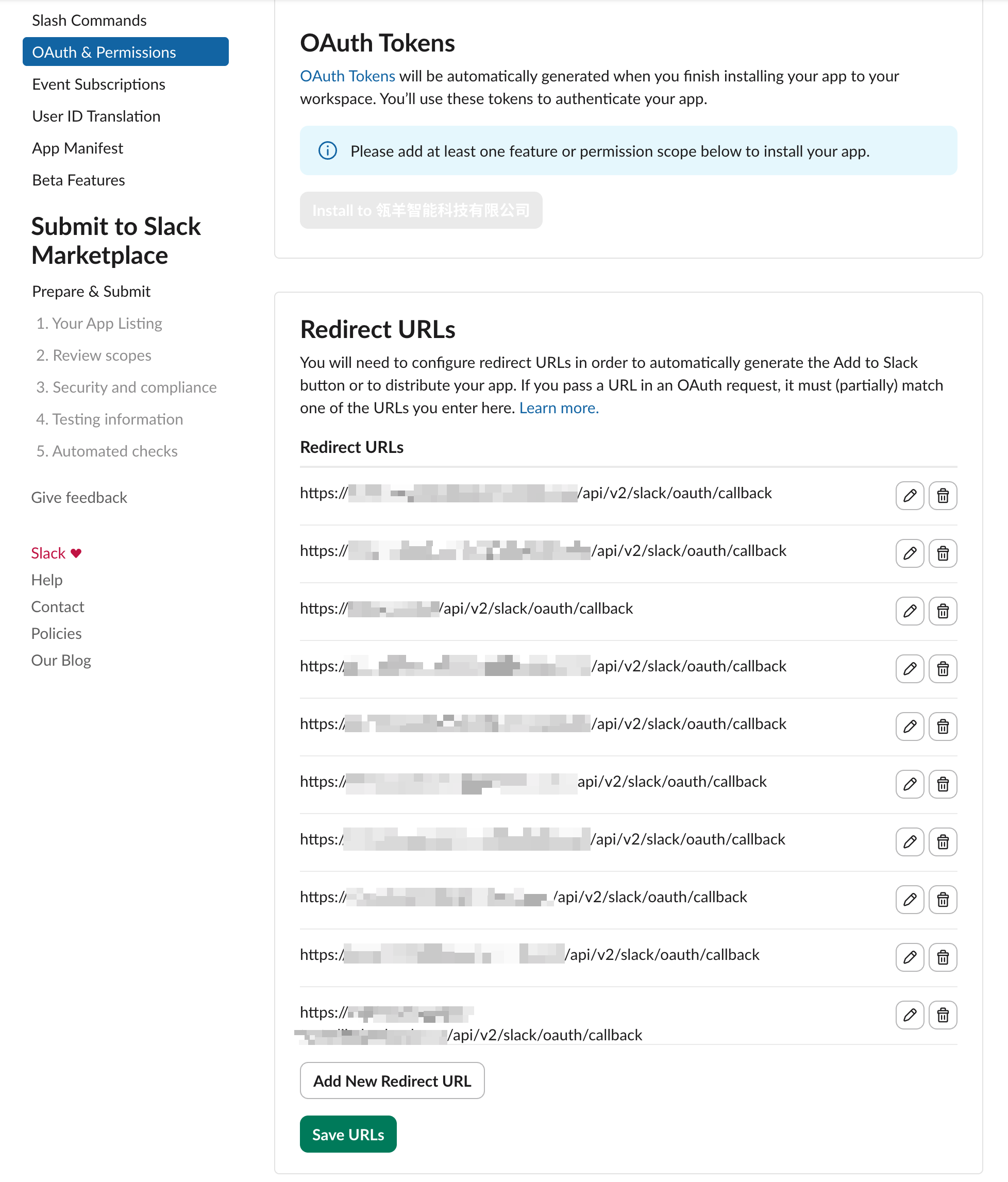
In the left navigation pane, go to Settings > OAuth & Permissions. In the Redirect URLs section, click Add New Redirect URL.
Configuration Rules:
Enter the OAuth redirect URL in the following format: https://{domain-name}/api/v2/slack/oauth/callback
The domain name must match the domain of your Quick BI environment.
Quick BI site domain names by region:
Region | Domain name | Example |
Chinese mainland | https://bi.aliyun.com https://bi-cn-hangzhou.alibabacloud.com | https://bi.aliyun.com/api/v2/slack/oauth/callback |
Singapore | https://bi-ap-southeast-1.data.aliyun.com https://bi-ap-southeast-1.alibabacloud.com | https://bi-ap-southeast-1.alibabacloud.com/api/v2/slack/oauth/callback |
China (Hong Kong) | https://bi-cn-hongkong.data.aliyun.com https://bi-cn-hongkong.alibabacloud.com | https://bi-cn-hongkong.alibabacloud.com/api/v2/slack/oauth/callback |
Malaysia (Kuala Lumpur) | https://bi-ap-southeast-3.data.aliyun.com https://bi-ap-southeast-3.alibabacloud.com | https://bi-ap-southeast-3.alibabacloud.com/api/v2/slack/oauth/callback |
Indonesia (Jakarta) | https://bi-ap-southeast-5.data.aliyun.com https://bi-ap-southeast-5.alibabacloud.com | https://bi-ap-southeast-5.alibabacloud.com/api/v2/slack/oauth/callback |
Germany (Frankfurt) | https://bi-eu-central-1.alibabacloud.com | https://bi-eu-central-1.alibabacloud.com/api/v2/slack/oauth/callback |
Japan (Tokyo) | https://bi-ap-northeast-1.alibabacloud.com | https://bi-ap-northeast-1.alibabacloud.com/api/v2/slack/oauth/callback |
US (Virginia) | https://bi-us-east-1.alibabacloud.com | https://bi-us-east-1.alibabacloud.com/api/v2/slack/oauth/callback |
UAE (Dubai) | https://bi-me-central-1.data.aliyun.com | https://bi-me-central-1.data.aliyun.com/api/v2/slack/oauth/callback |
After adding the URLs, click Save URLs.
3.2 Bot token scopes
On the same page, in the Bot Token Scopes section, click Add an OAuth Scope and add the following scopes:
Scope | Purpose |
chat:write | Allows the app to send messages to channels and conversations it is a member of. |
files:write | Allows the app to upload files and attachments. |
files:read | Allows the app to read information about files in the Workspace. |
users:read | Allows the app to view basic information about users in the Workspace. |
im:write | Allows the app to start direct message conversations with users. |
3.3 User token scopes
To push messages as a user instead of a bot, add the following scopes in the User Token Scopes section:
Scope | Purpose |
chat:write | Allows the app to send messages on behalf of the user. |
files:write | Allows the app to upload files on behalf of the user. |
files:read | Allows the app to read information about files accessible to the user. |
users:read | Allows the app to view basic information about the user. |
im:write | Allows the app to open direct message conversations on behalf of the user. |
4. Bot user configuration
4.1 Bot basics
Parameter | Description | Recommendation |
Display name | The name displayed in Slack. | Quick BI |
Default username | The username shown in messages. | Quick BI-bot |
Icon | The bot's profile picture. We recommend using the Quick BI logo. | Upload a 512 × 512 PNG file. |
Always show my bot as online | Determines if the bot always appears online. | Enabled |
A bot user is created automatically when you add your first Bot Token Scope. If this section is not visible, you have not yet configured any bot scopes.
5. Credentials
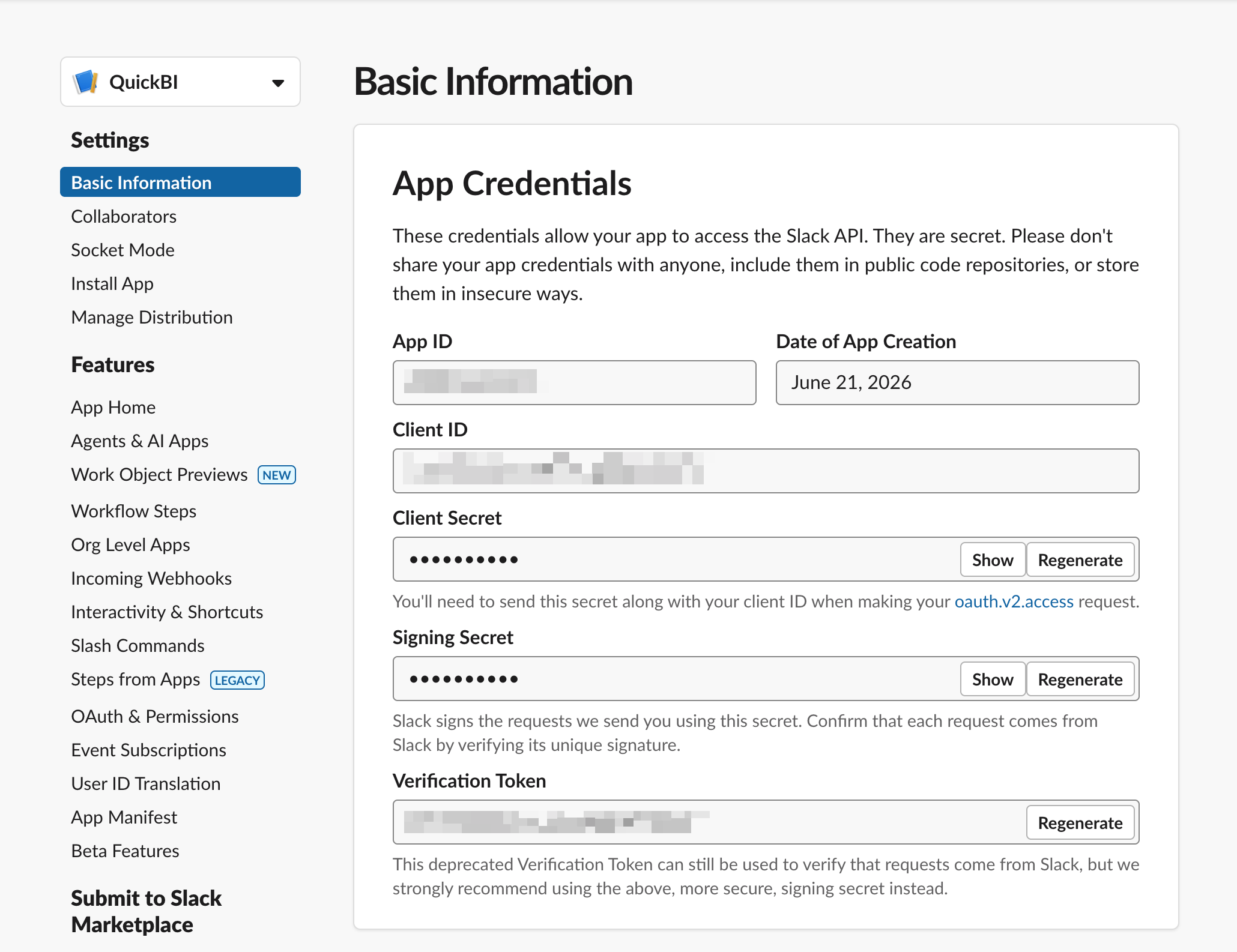
In the left navigation pane, go to Settings > Basic Information. On this page, copy the following credentials, store them securely, and then enter them into Quick BI.
Credential | Location | Purpose |
Client ID | Basic Information | Used to build the OAuth authorization URL. |
Client secret | Basic Information | Used to exchange an authorization code for a token. |