To prevent invalid data entry and ensure accuracy, use the receipt approval feature to verify and approve data before it is stored.
Limits
Only the Professional Edition supports warehousing approval.
1. Approval precondition
1.1 System approval enabled
1.1.1 Operation entry
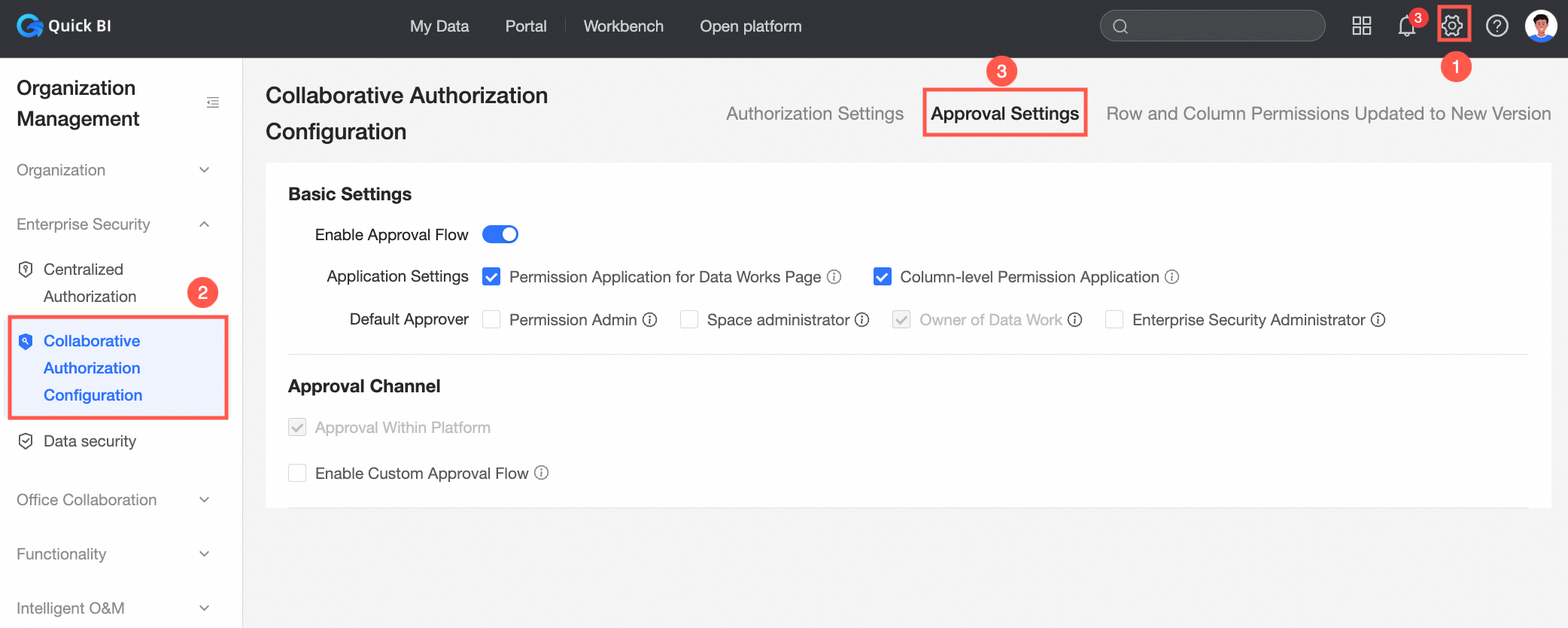
Enable the approval process, and select the corresponding Application Settings, Approval Channel, and Default Approver. You can then configure receipt approval settings on the Operation Data Filling page.
1.2 Receipt Approval
1.2.1 Receipt approval for a single data form setting
1.2.1.1 Limits
Only the workspace administrator and the owner of the form can view and configure the approval settings.
1.2.1.2 Procedure
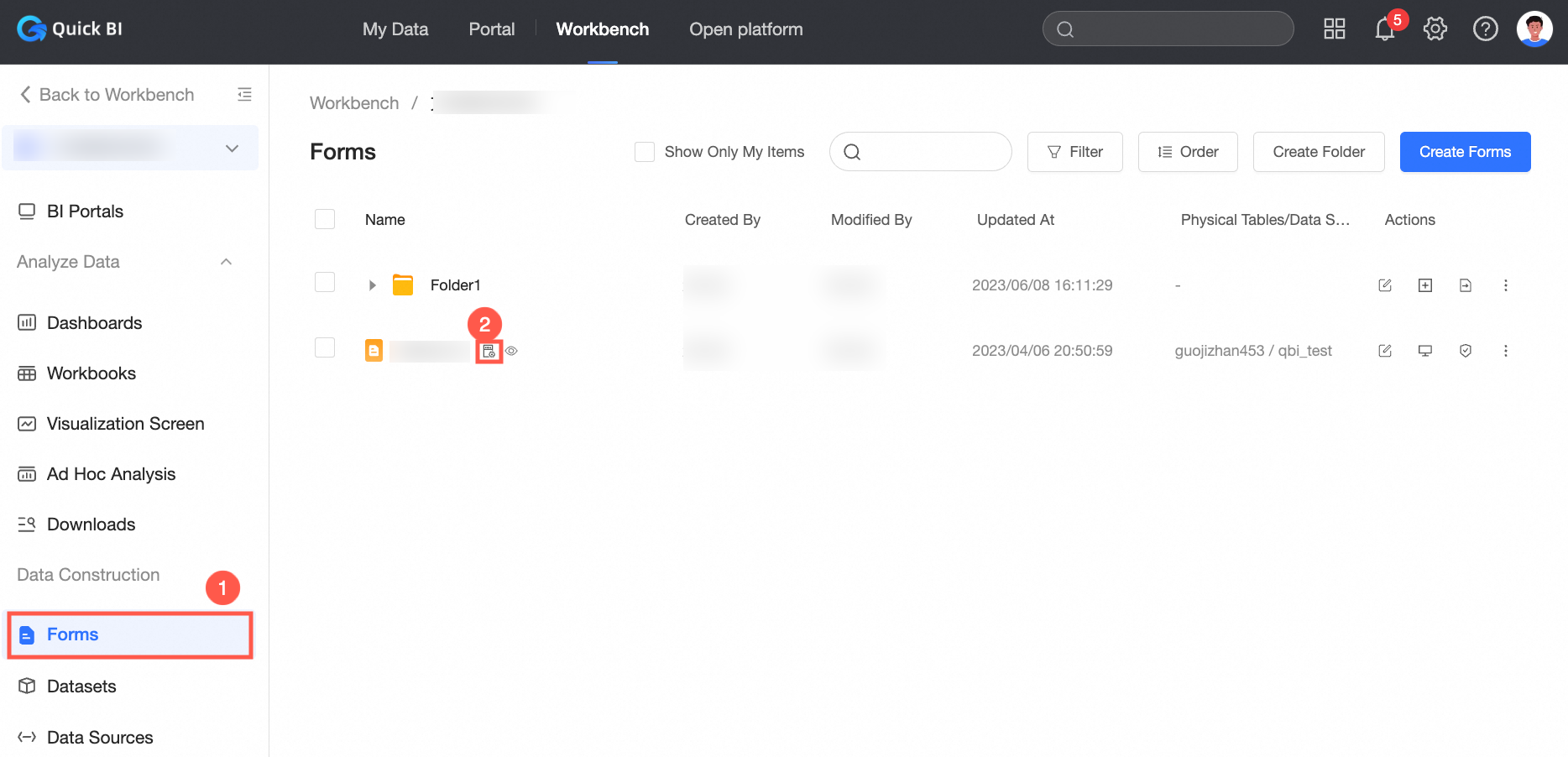
Step 1: Click console. In the left-side navigation pane, select a group workspace.
Step 2: In the left-side navigation pane, click Forms.
3. Use the dig command to obtain the result of resolving a domain name. Expected result 2 is displayed.
-
Select the form that you want to configure, click the icon in the Actions column
 , and then click Receipt Review.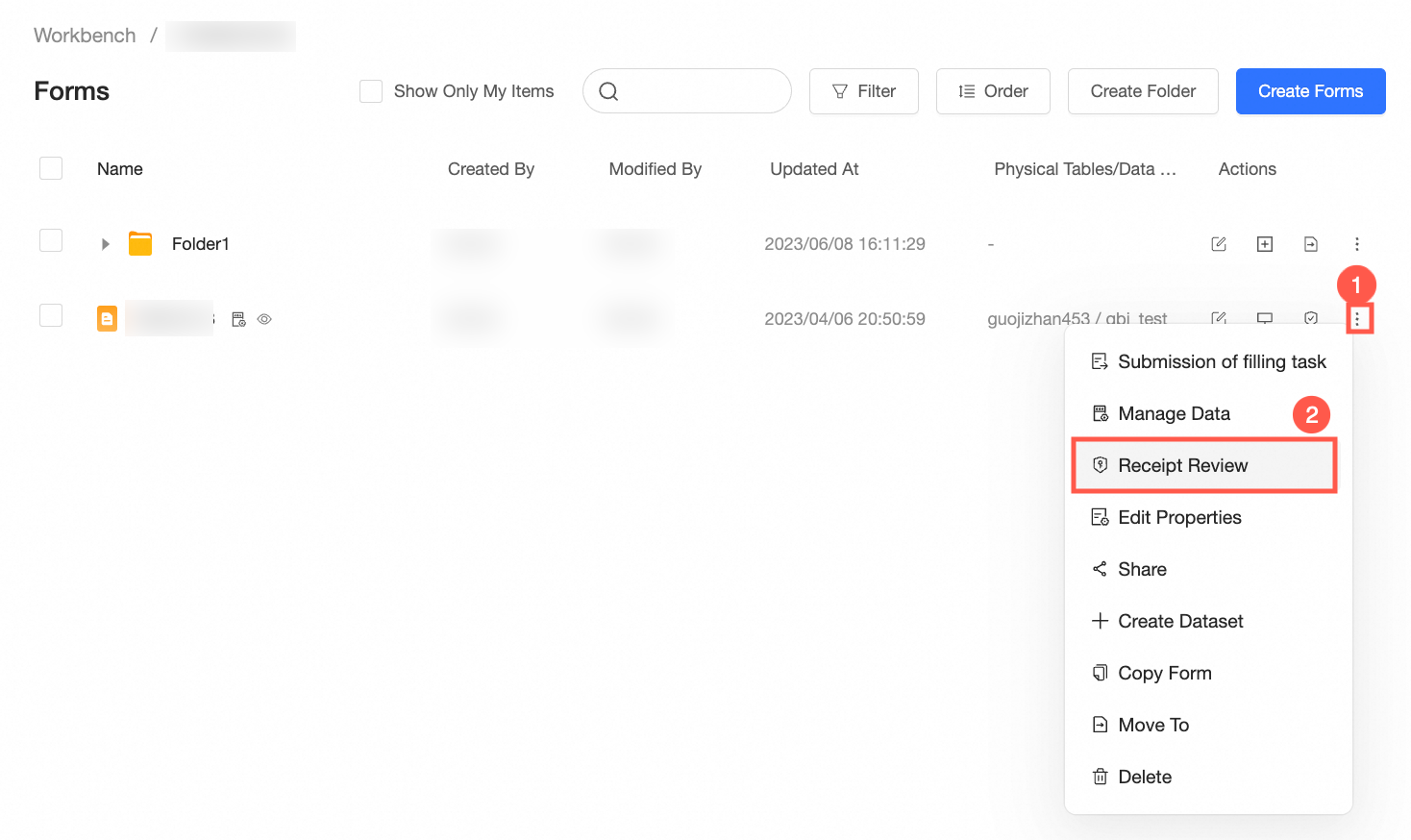
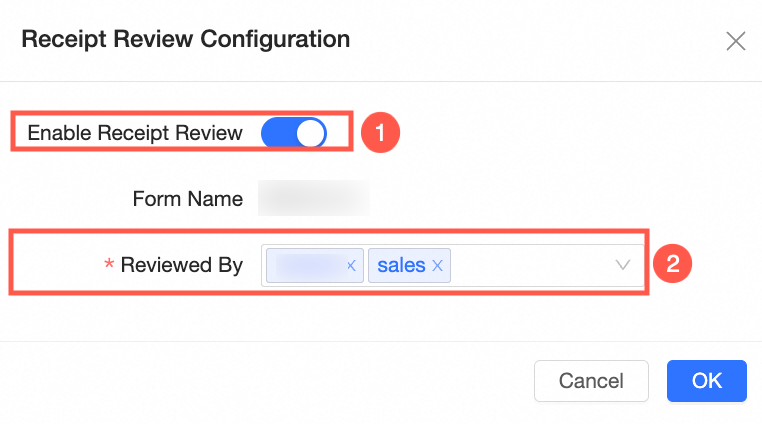
Step 4: On the Receipt Approval Configuration page, click Enable Receipt Review. In the dialog box that appears, select Reviewed By (Multiple choices allowed) and click OK.
Note: The Approver Range includes all internal users in the current organization.
2. Trigger approval
2.1 Submission for approval
2.1.1 Prerequisites
Receipt approval must be enabled for the current data filling form.
2.1.2 Procedure
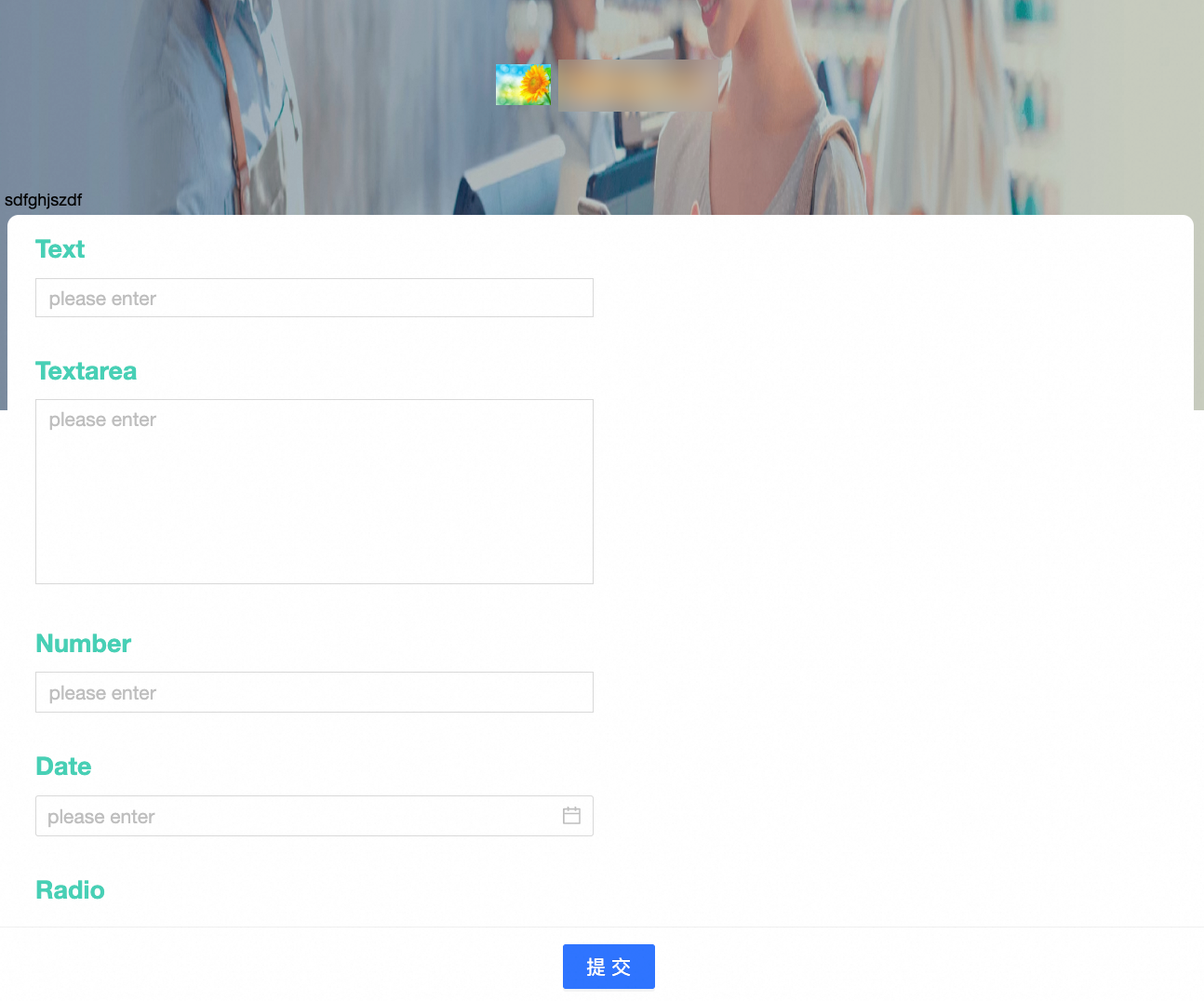
Step 1: Enter the information on the Form Filling page.
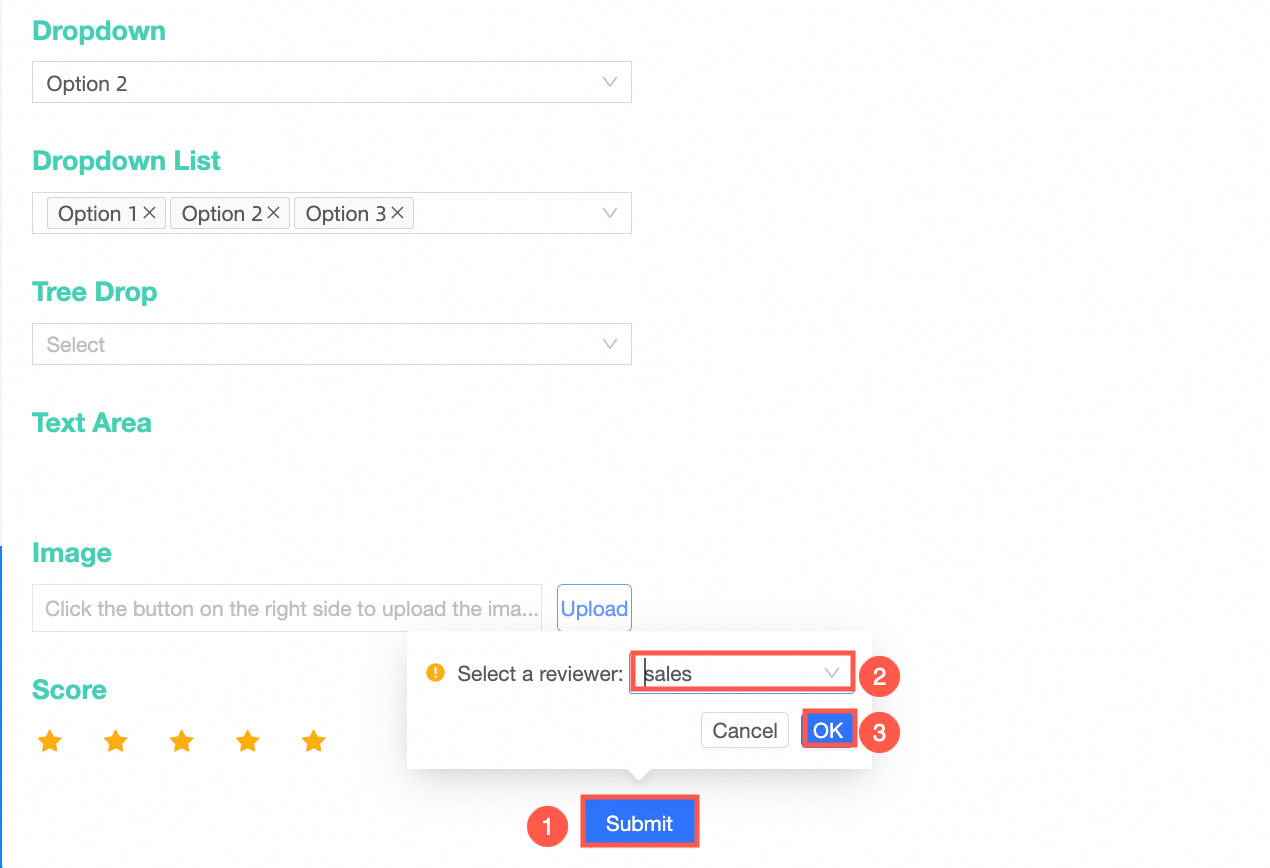
Step 2: Click Submit.(①) The Select a reviewer(②) dialog box appears. If you select multiple approvers when you set the warehousing approval parameter, you must select one approver from the drop-down list. Click OK. (③)
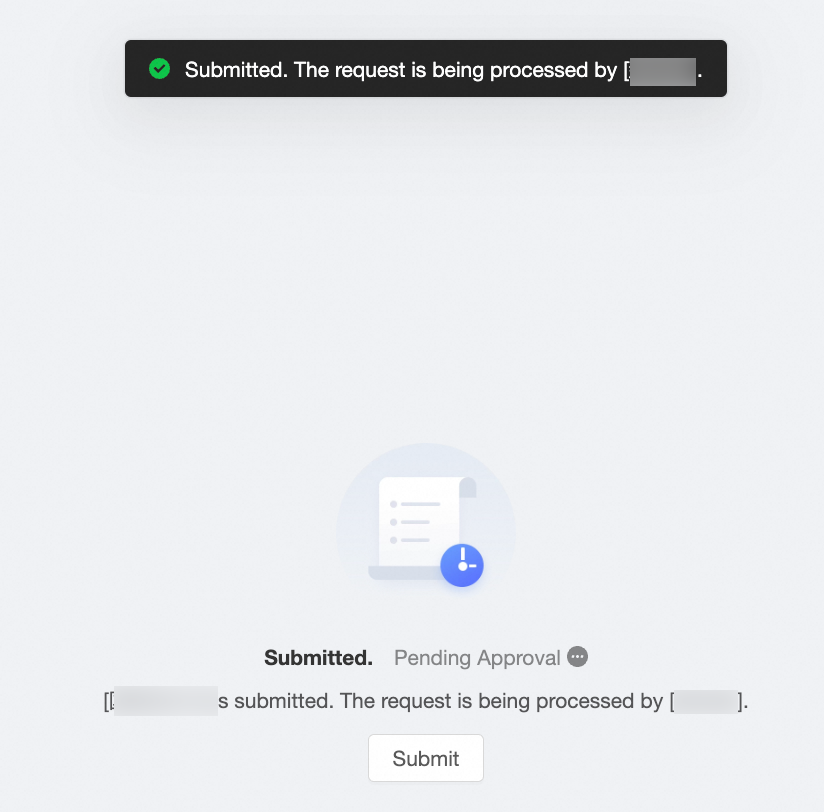
Step 3: Click OK. The Submitted for Approval page appears. Click Submit to continue to enter the Submit page of the form.
2.2 Data management page for approval
When you add, delete, or modify data on the Data Management page, you must submit a receipt for approval.
2.2.1 Management page entry
2.2.2 Add data
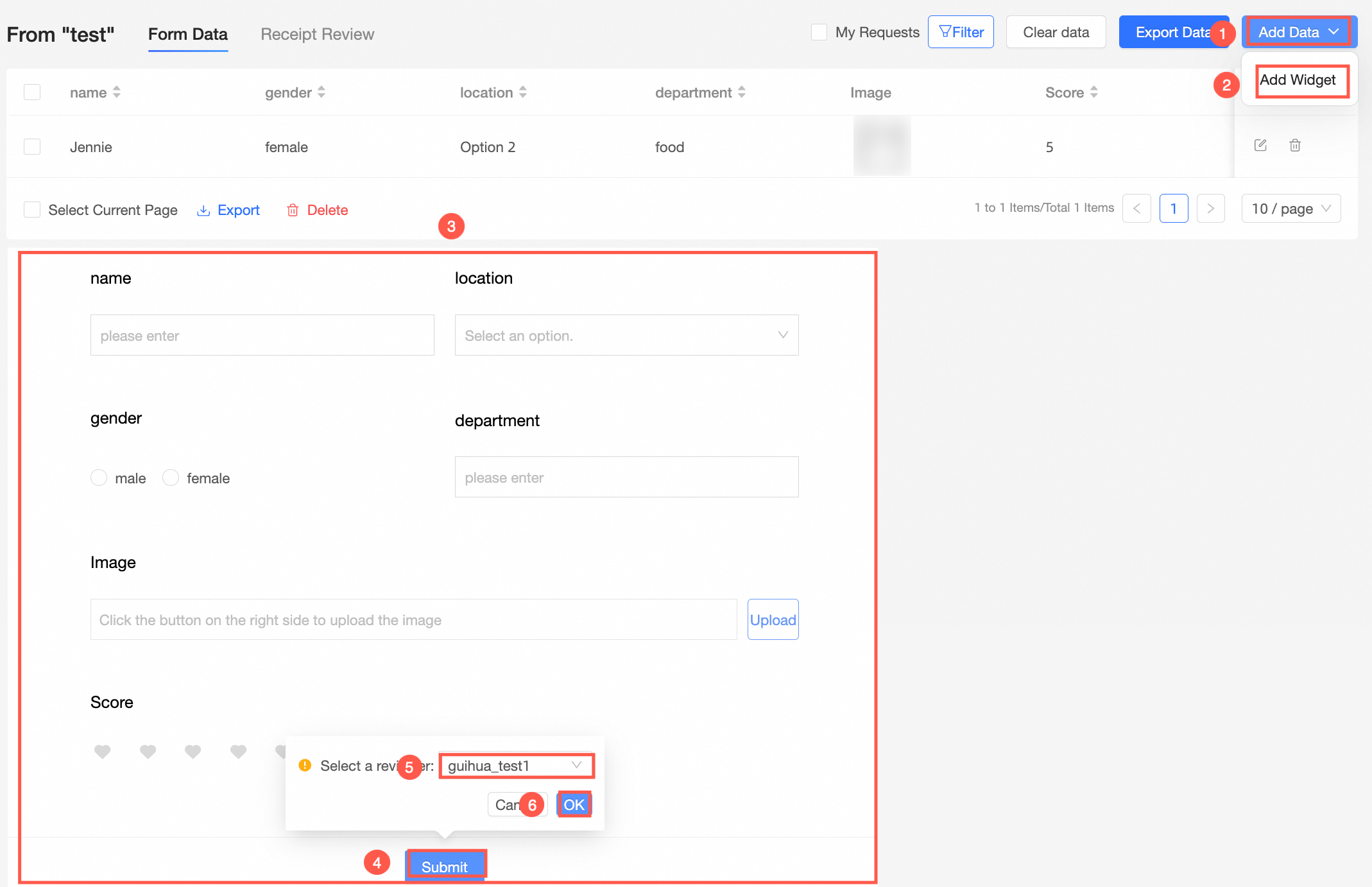
Step 1: Click Add Data(①). We select Add Widget (②)in this example.
Step 2: After you select this option, the Fill in Form dialog box appears. (③)
Step 3: Click Submit.(④) In the Select a reviewer(⑤)dialog box, select one of the approvers. Click OK. (⑥)
2.2.3 Modify data
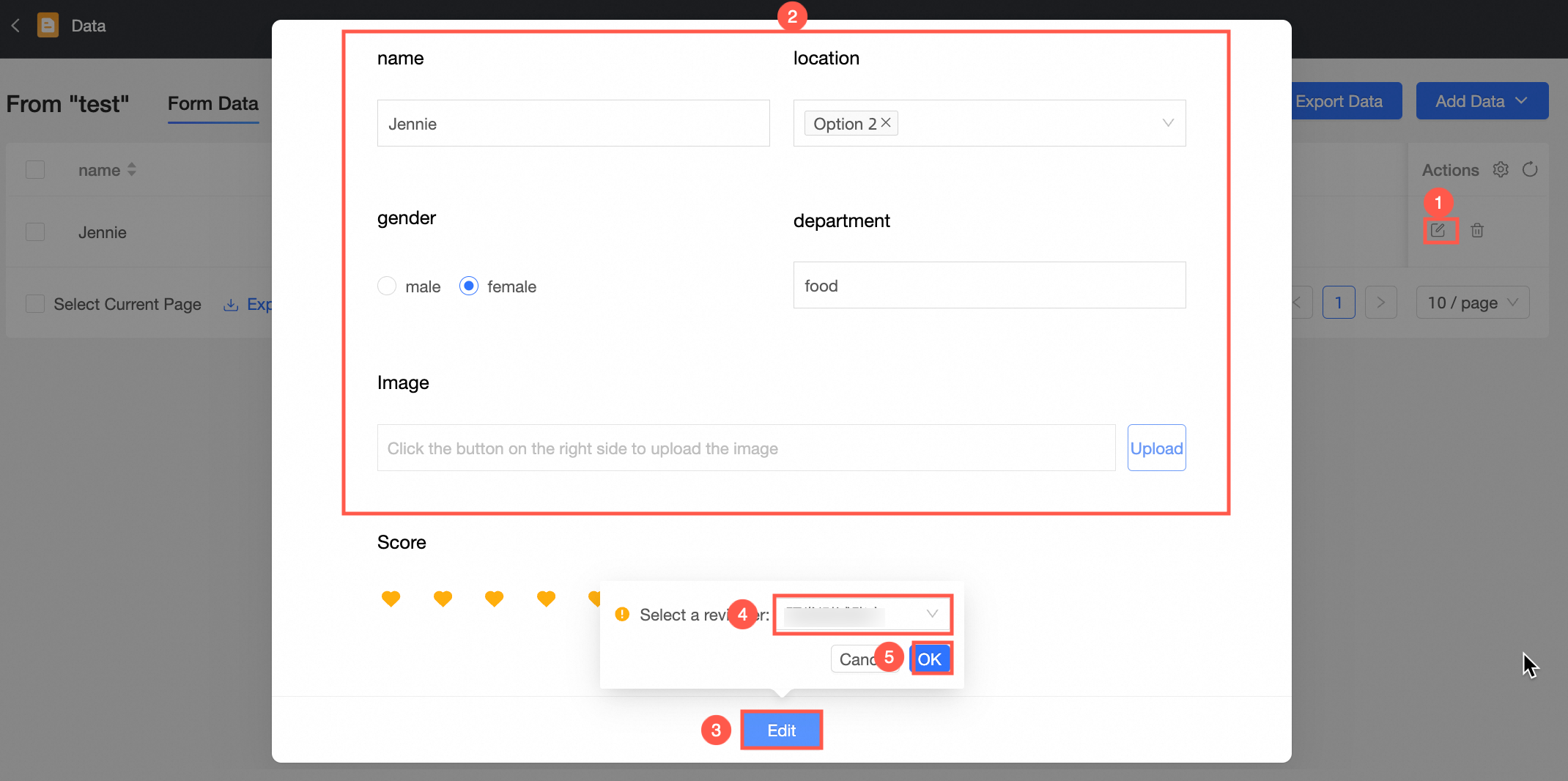
Step 1: Select the corresponding data in the form data, and click the icon in the  Actions column to modify the data. (①)
Step 2: In the dialog box that appears, modify the information. (②)
Step 3: Click Submit. (③)In the dialog box that appears,Select a reviewer. (④)Click OK. (⑤)
2.2.3 Delete data
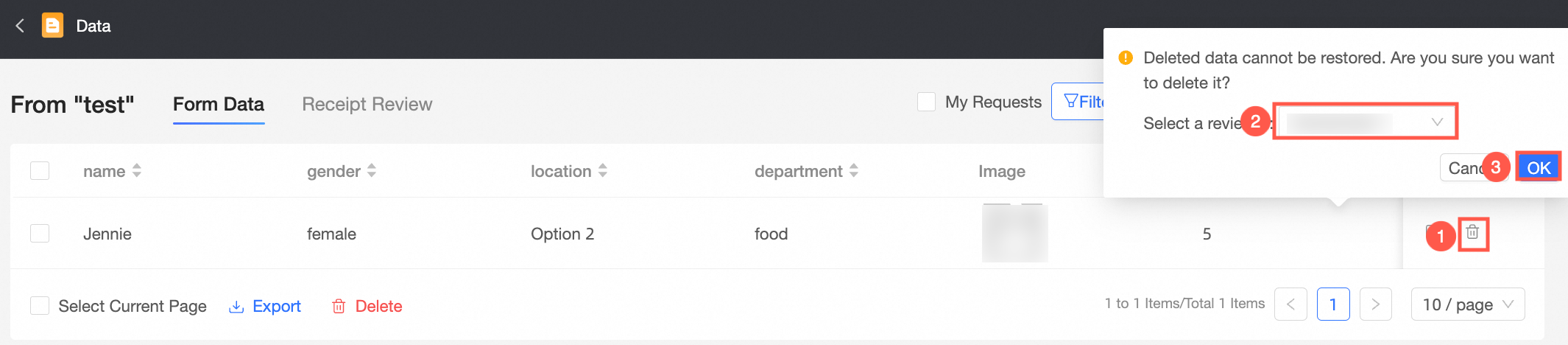
Step 1: Select the corresponding data in the form data, and click the icon in the  Actions column to delete the data.
Step 2: The Approval dialog box appears. Select an approver from the Select a reviewer drop-down list and click OK.
3. Process approval
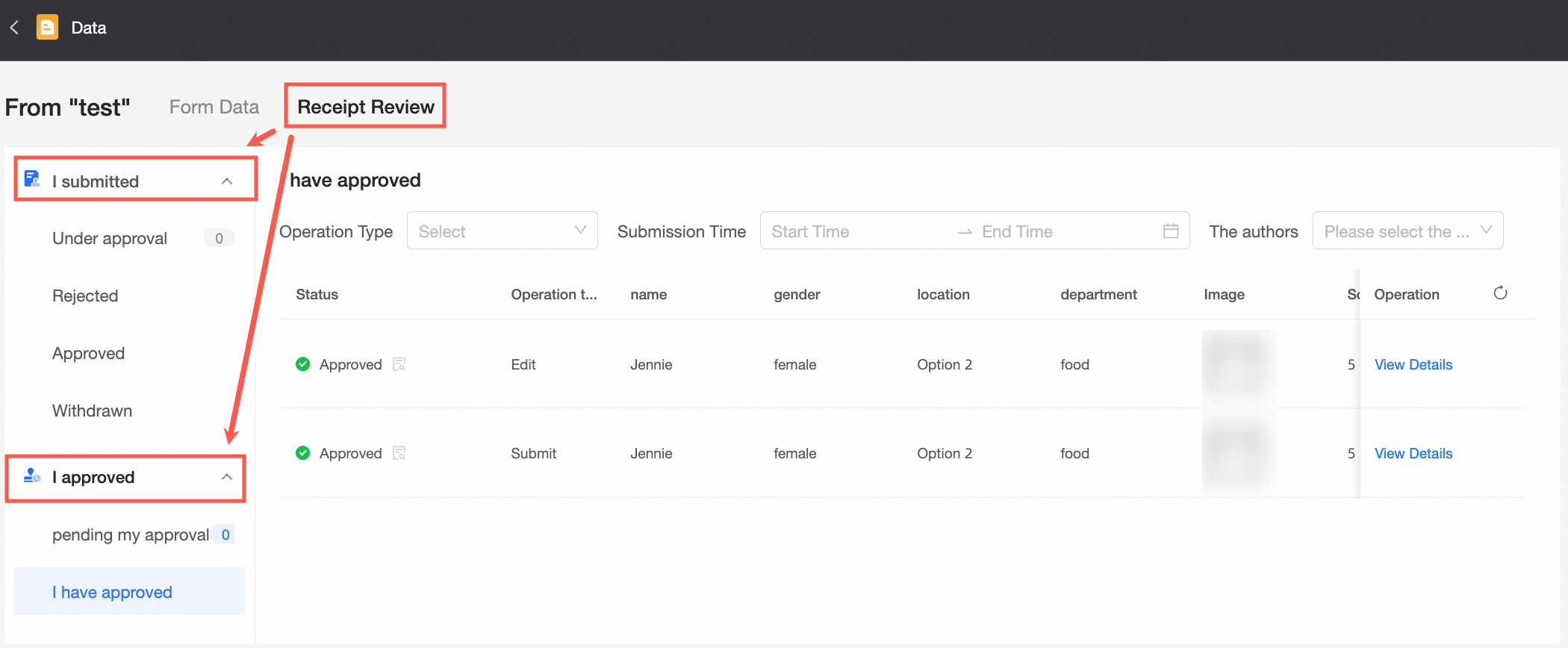
The Data Management page has two tabs: Form Data and Receipt Review. On the Receipt Review tab, you can manage approvals under I submit and I approved.
3.1 I submitted
3.1.1 Pending Approval
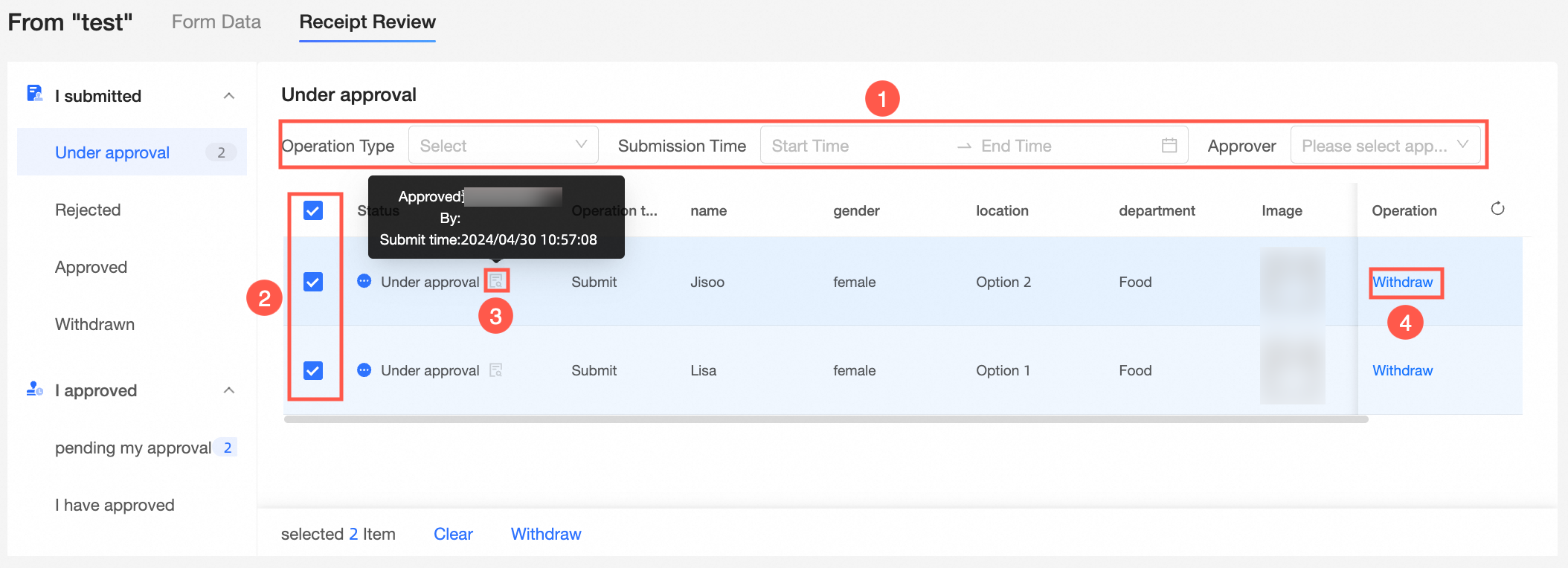
This page lists forms with a Pending Receipt Approval status.
(1) Top Filter Box: You can filter by Operation Type (Edit, Submit, and Delete), Submission Time, and Approver.
(2) Batch operation: You can select and withdraw multiple approval forms from the list.
(3) Hover approval status details: Hover over the approval status  icon to view the details (approver and submission time).
(4) Withdraw: Click Withdraw in the Actions column to withdraw the approval. You can then view it on the Withdrawn page.
3.1.2 Rejected
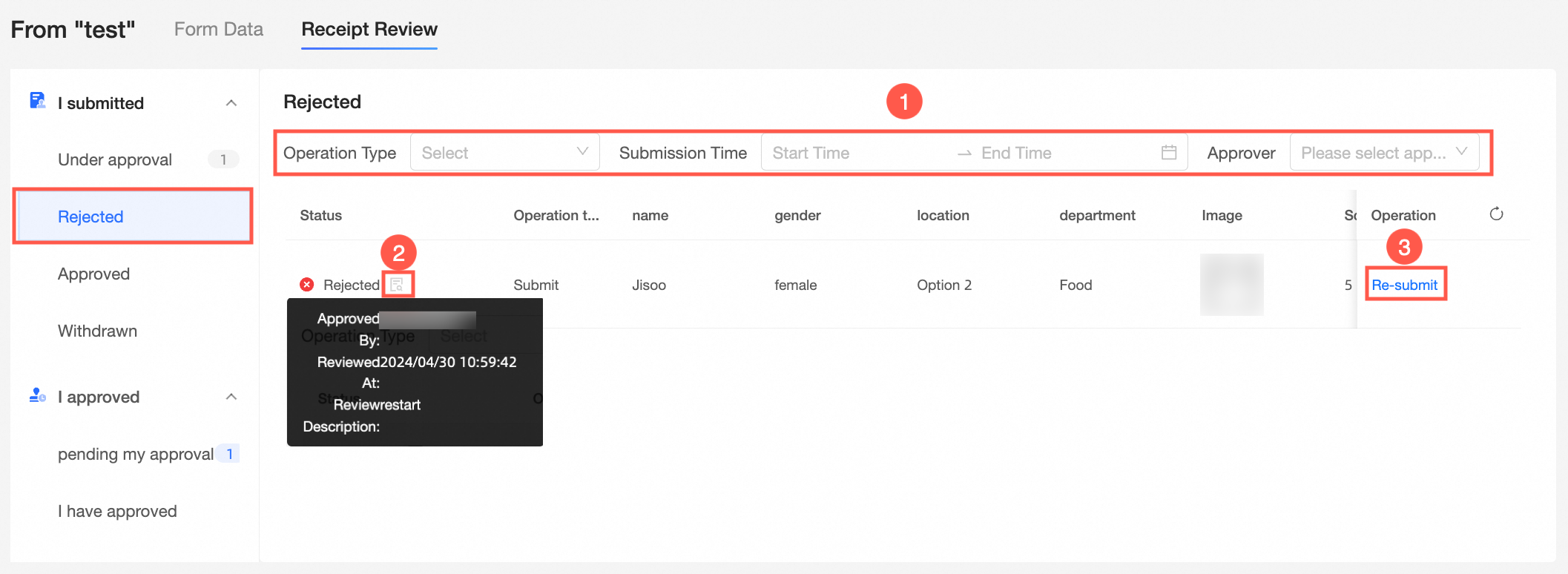
This page lists forms with a Rejected Receipt Approval status.
(1) Top Filter Box: You can filter by Operation Type (Edit, Submit, and Delete), Submission Time, and Approver.
(2) Approval status hover details: Move the pointer over the approval status icon to view the details (approver, approval time, approval comment).
(③) Re-submit: Click Re-submit in the Actions column to resubmit the form after modifying it based on the approver's comments.
3.1.3 Approved
This page lists forms with an Approved Receipt Approval status.
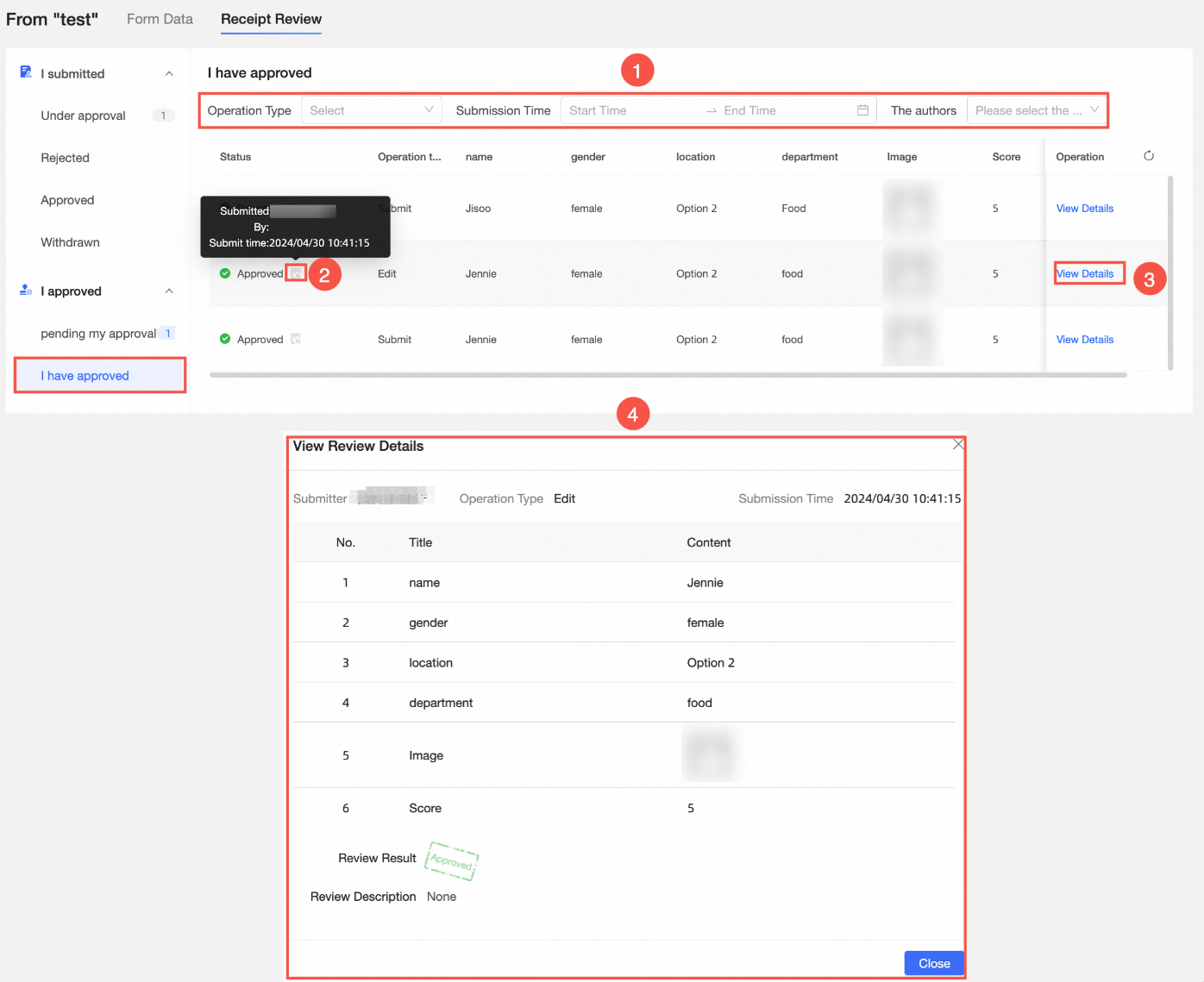
(1) Top Filter Box: You can filter by Operation Type (Edit, Submit, and Delete), Submission Time, and Approver.
(2) Approval status hover details: Move the pointer over the approval status icon to view the details (approver, approval time, approval comment).
(③) View details: Click View Details in the Actions column. The View Approval Details dialog box appears.
(4) View approval details: The pop-up window displays approval information, including Submitted by, Operation Type, Submission Time, Form Details, Approval Result, and Approval Remarks.
3.1.4 Withdrawn
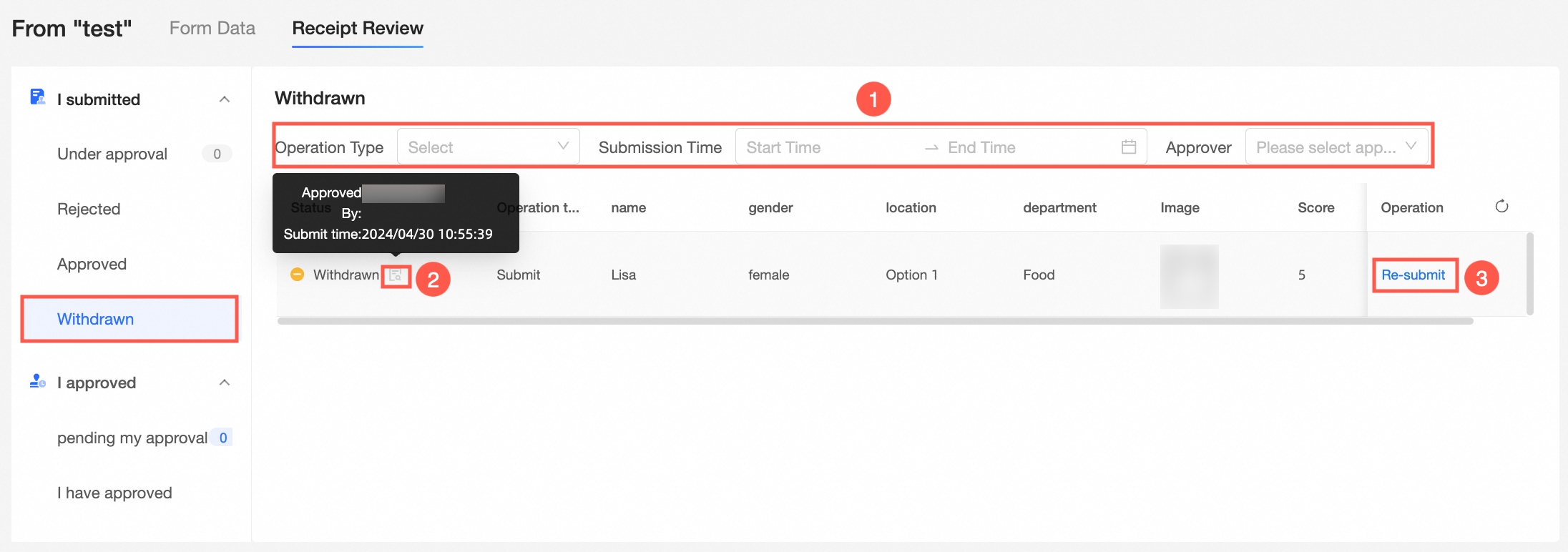
This page lists forms with a Withdrawn approval status.
(1) Top Filter Box: You can filter by Operation Type (Edit, Submit, and Delete), Submission Time, and Approver.
(2) Approval Status Hover Details: Hover the approval status icon to display the details (Approver and Submission Time ).
(③) Re-submit: Click Re-submit in the Actions column corresponding to the form.
3.2 I approved
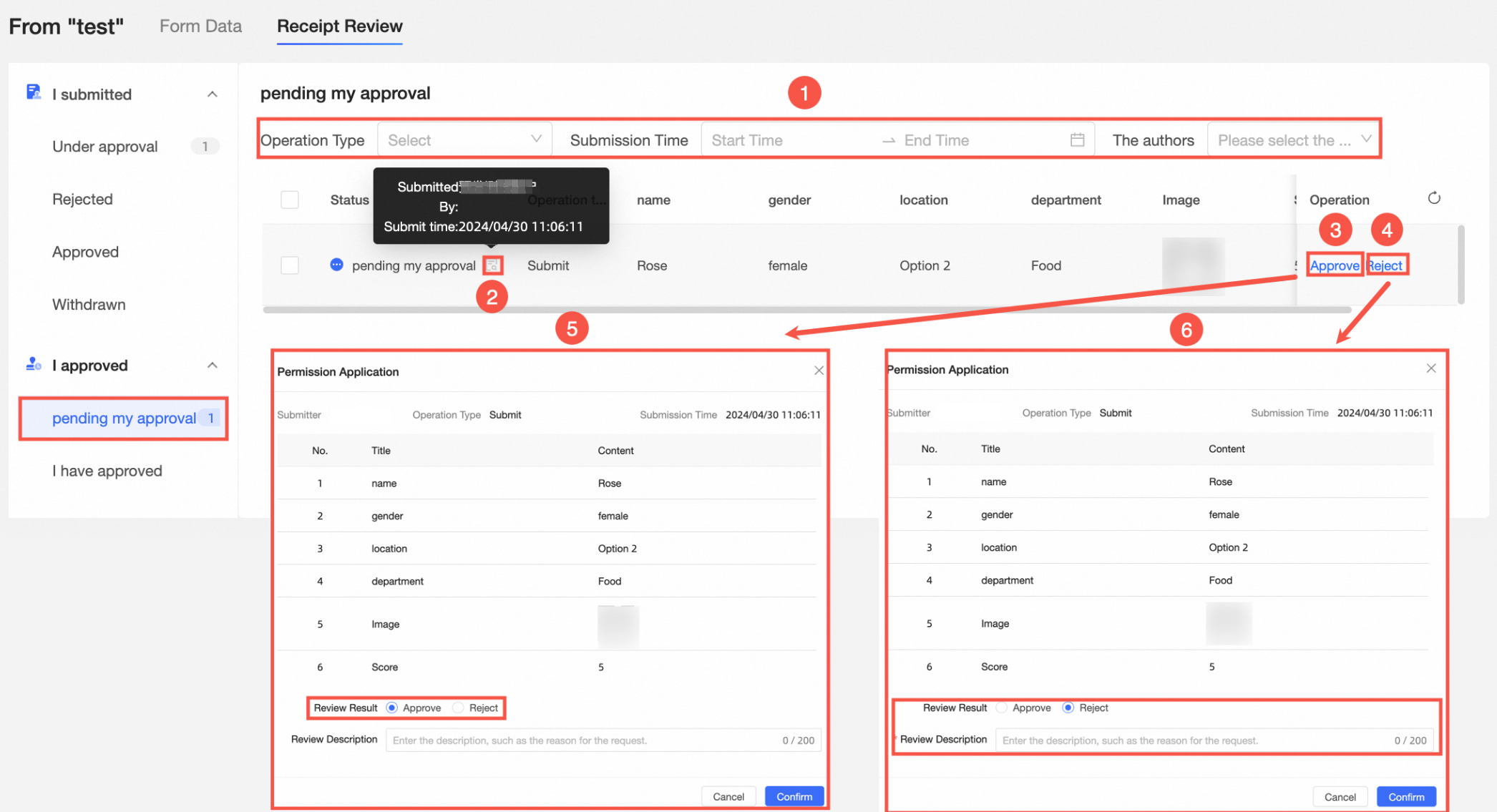
3.2.1 Pending My Approval
This page lists forms pending your approval.
(1) Top Filter: Operation Type (Edit, Submit, and Delete), Submission Time, and Submitted By.
(2) Approval Status Hover Details: Hover the approval status icon to display the details (Submitted by, Submitted at ).
(③) Approve: Click Approve in the Actions column to view the Approve dialog box. Approve is selected by default.
(⑤) Approval details: The pop-up page shows the submitters, operation types, submission time, form details, and approval results and approval remarks. By default, Approve is selected for the approval result. Approval remarks are optional. Then, click OK.
(4) Reject: Click Reject on the right side of the list. The Approval pop-up window appears. By default, Reject is selected.
(⑥) Rejection details: The pop-up window displays approval information, including the submitter, operation type, submission time, form details, approval result, and Approval Remarks. By default, Reject is selected for the approval result. Approval remarks are required. Click OK.
3.2.2 I Approved
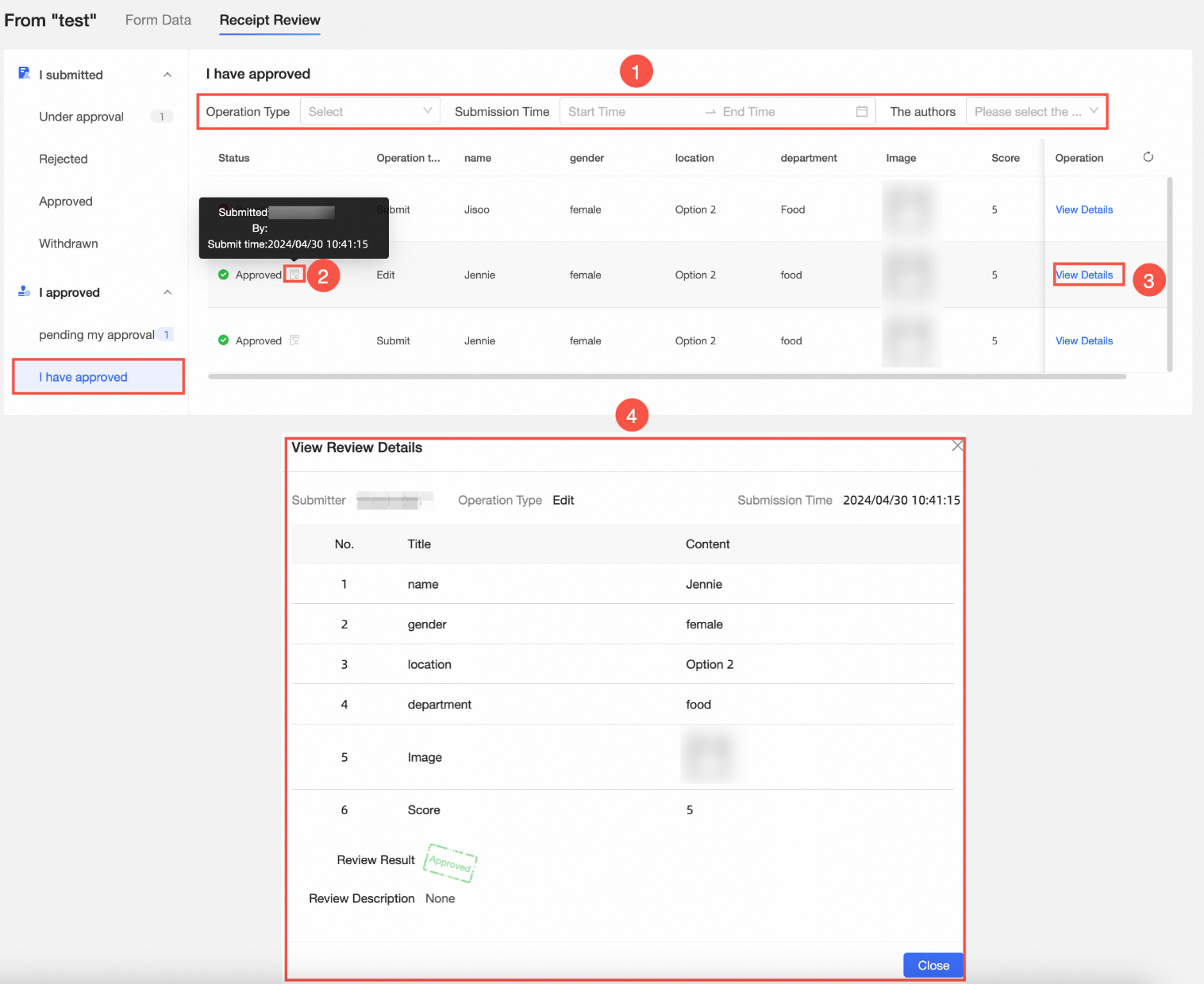
This page lists forms that you have approved or rejected.
(1) Top Filter: Operation Type (Edit, Submit, and Delete), Submission Time, and Submitted By.
(2) Approval Status Hover Details: Hover the approval status icon to display the details (Submitted by, Submitted at ).
(③) View details: Click View Details in the Actions column. The View Approval Details dialog box appears.
(4) View approval details: The pop-up window displays approval information, including Submitted by, Operation Type, Submission Time, Form Details, Approval Result, and Approval Remarks.