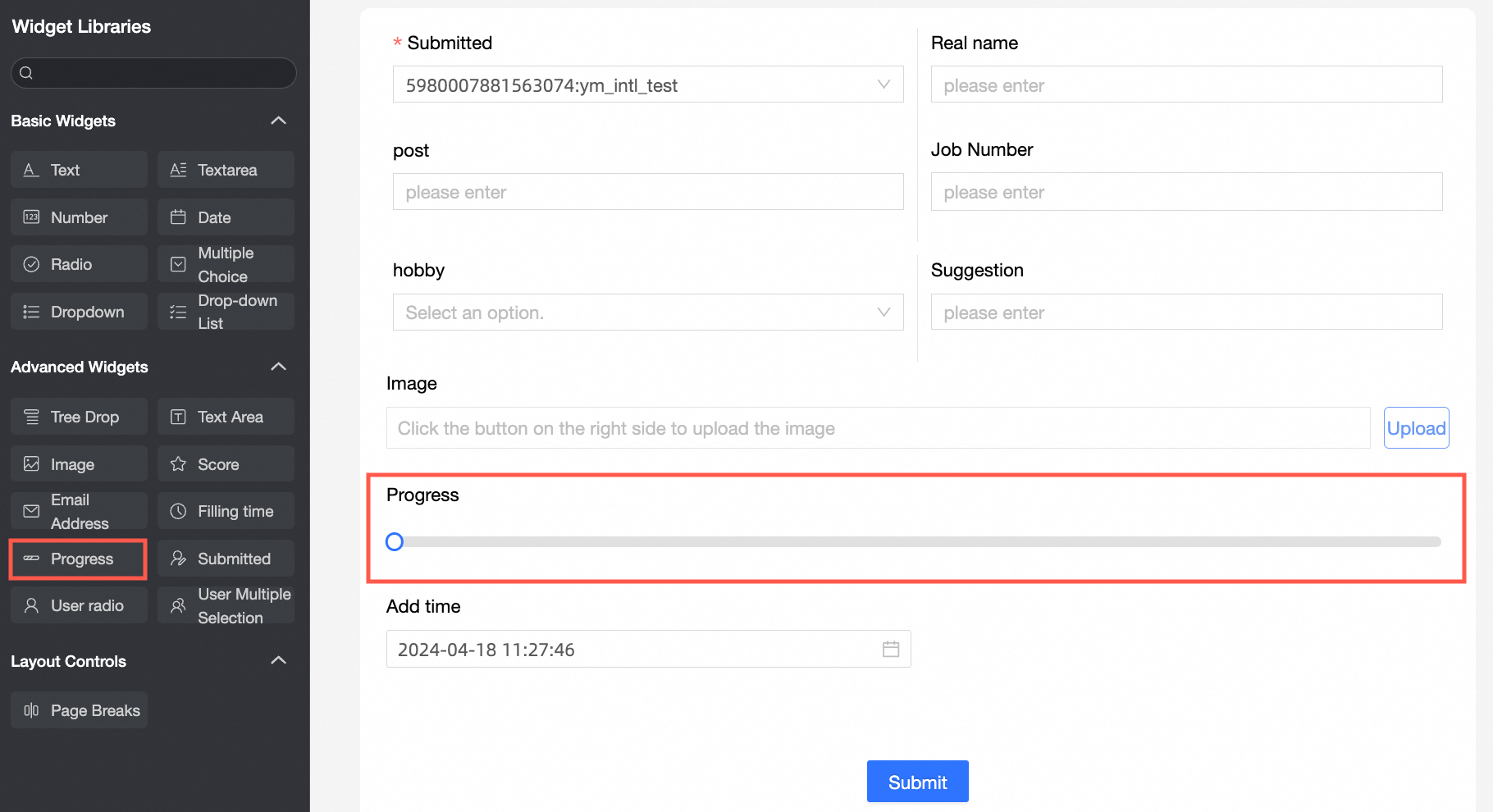
An advanced control that visually represents task progress and completion in data forms.
Scenarios
Use the progress control to visualize percentage values. For example:
-
In a project progress record form, visually represent project completion with the progress control.
-
In a sales analysis form, display sales target achievement for different products with a progress bar.
TensorBoard
Control configuration
Basic parameters
|
Parameter |
Description |
|
|
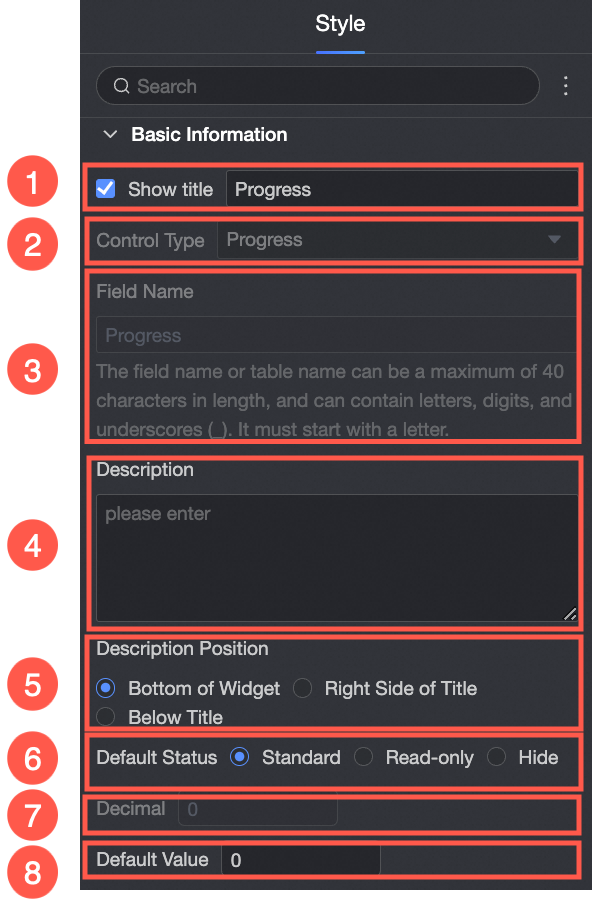
① Display Title: Specifies whether to display the control title. You can customize the display name, which serves as the column name in the data form. |
|
② Control type: Replaces the current control type. The drop-down list provides other basic and advanced control types. |
|
|
③ Table Field Name: The name of the corresponding field in the table created from the data form. Note
The field or table name must start with a letter and can contain letters, digits, and underscores (_). The name can be up to 40 characters in length. |
|
|
④ Description: A custom description of the control. |
|
|
⑤ Description Information Location: The position of the description text. Valid values: Control Bottom, Title Right, and Title Below. |
|
|
Default State: The default state of the control. Valid values: Normal, Read-only, and Hidden. |
|
|
⑦ Decimal: The number of decimal places displayed in the progress bar.
|
|
|
⑧ Default: The default value displayed in the progress bar. The default value is 0. |
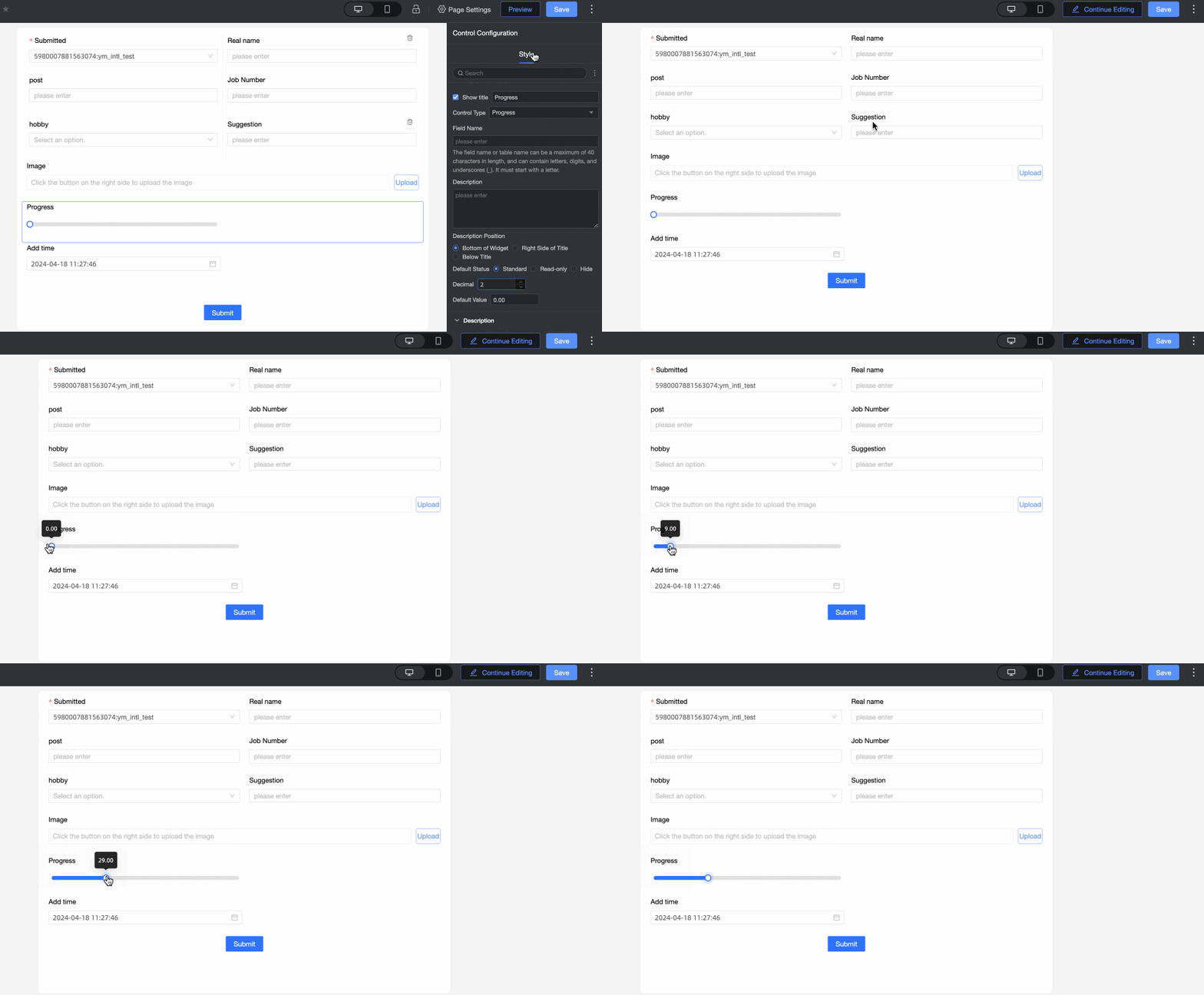
The content of the index.
|
Description |
Sample graph |
|
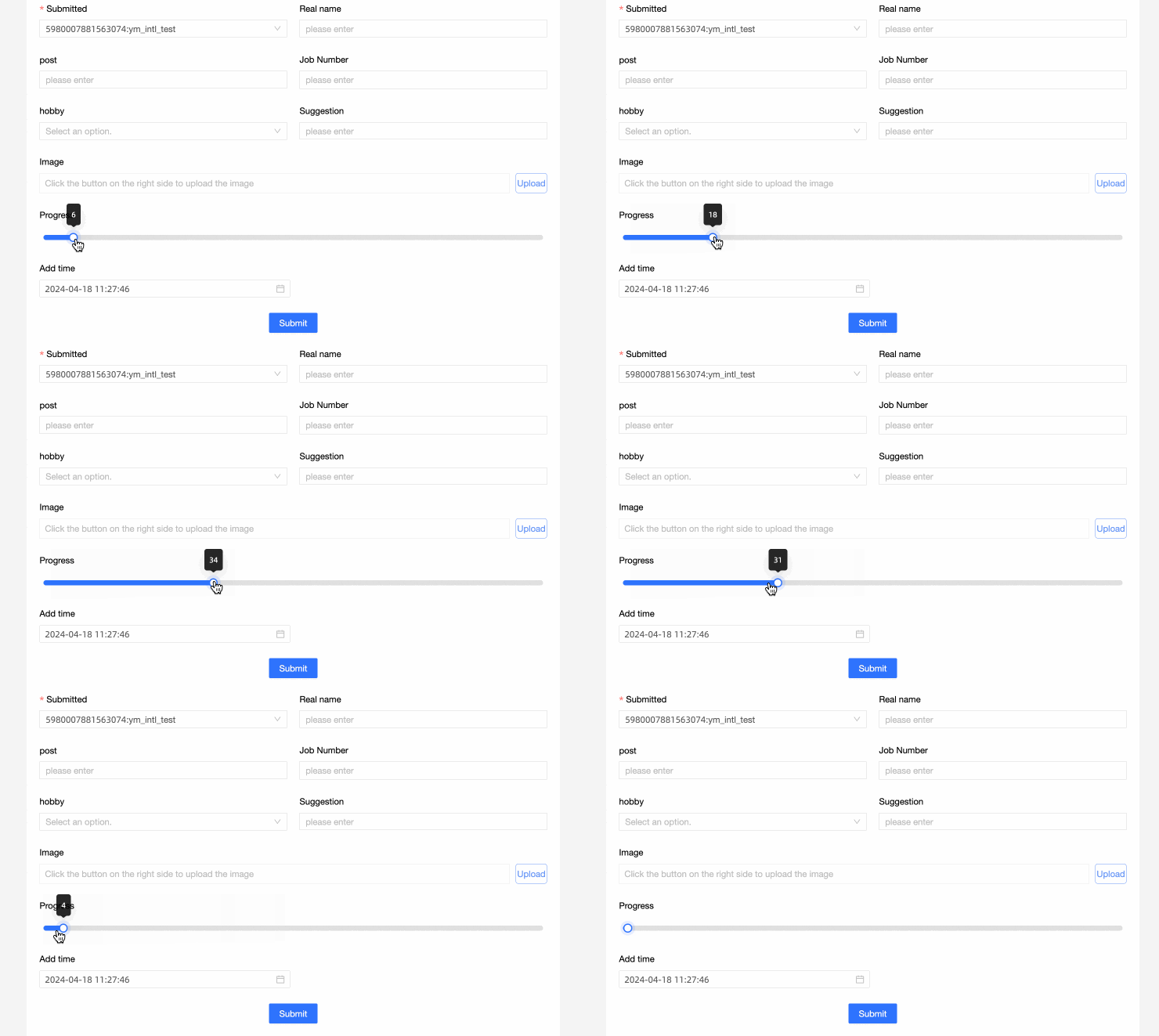
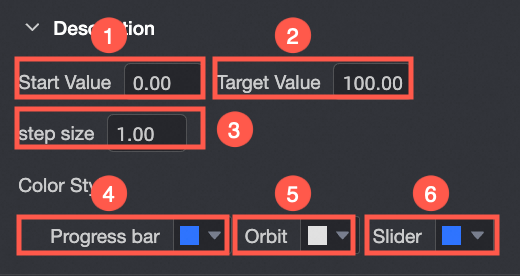
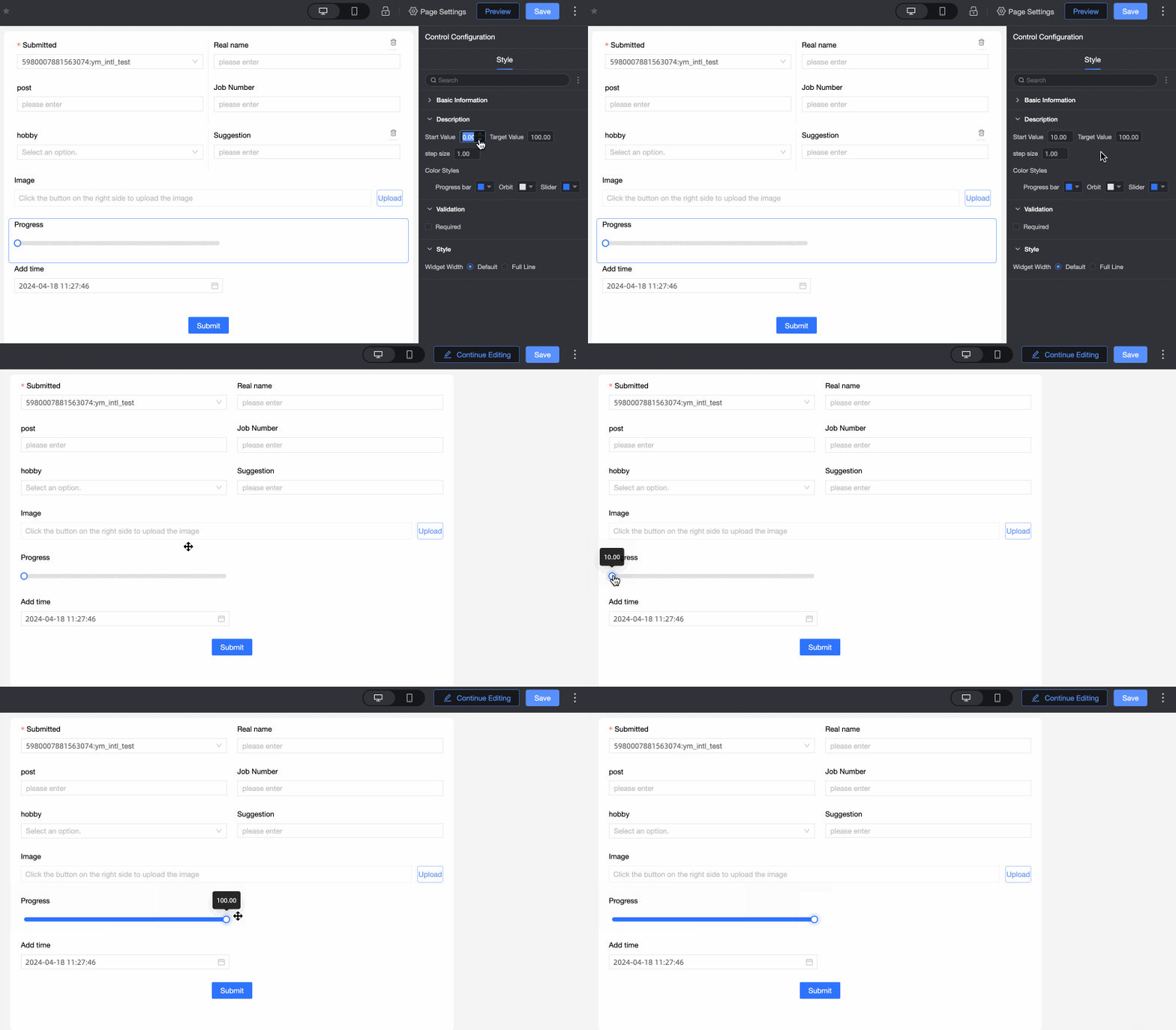
① Initial Value: The initial value of the progress bar. Default: 0. The initial value must be lower than the target value. |
|
|
② Target Value: The final value of the progress bar. Default: 100. The target value must be higher than the initial value. |
|
|
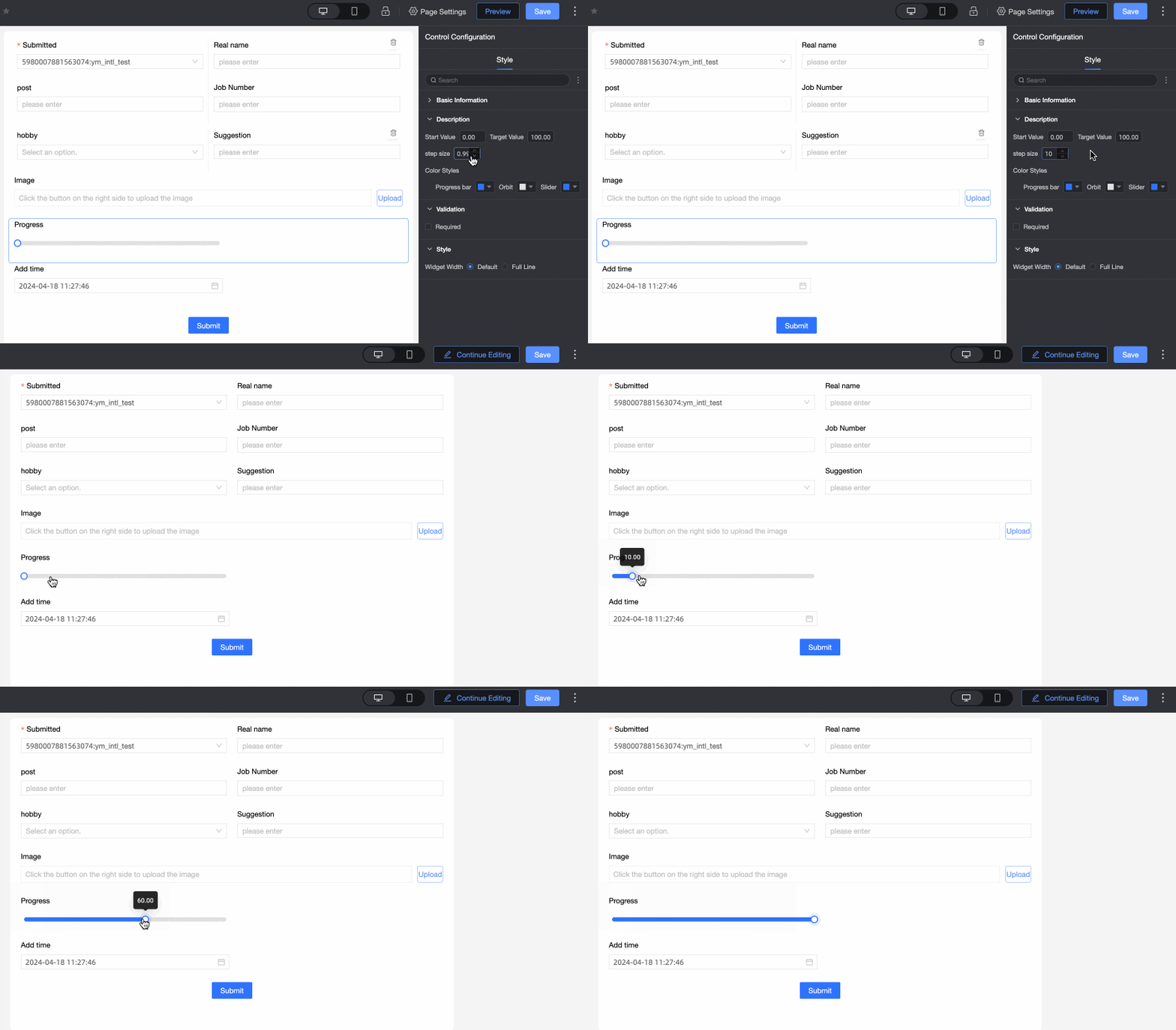
③ step size: The increment by which the progress bar advances on each update. Default: 1. |
|
|
④ progress bar color: The color of the progress bar. Supports solid color and gradient effects. |
|
|
⑤ Track Color: The color of the progress bar track. |
|
|
⑥ Slider Color: The color of the slider on the progress bar. |
|
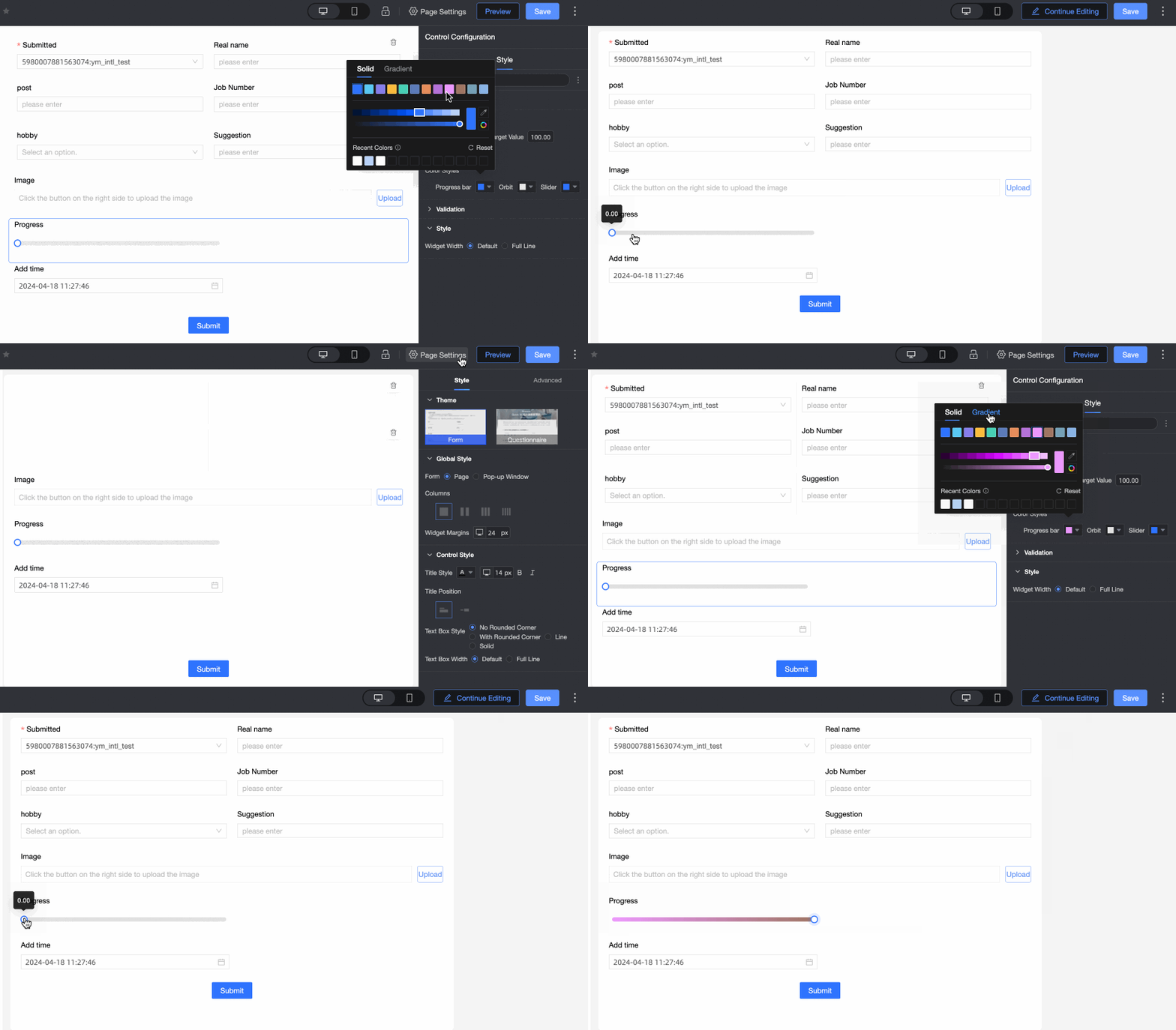
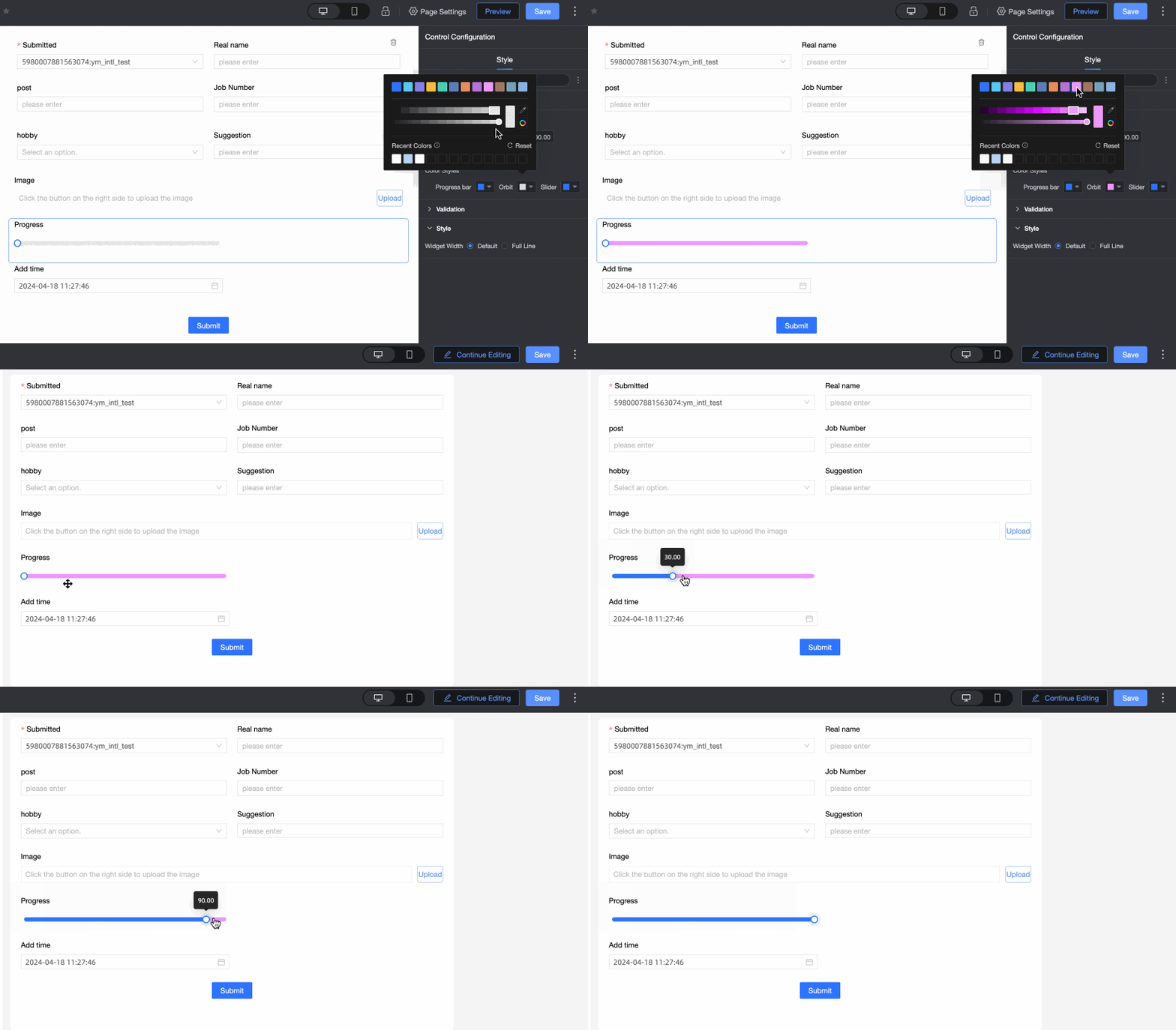
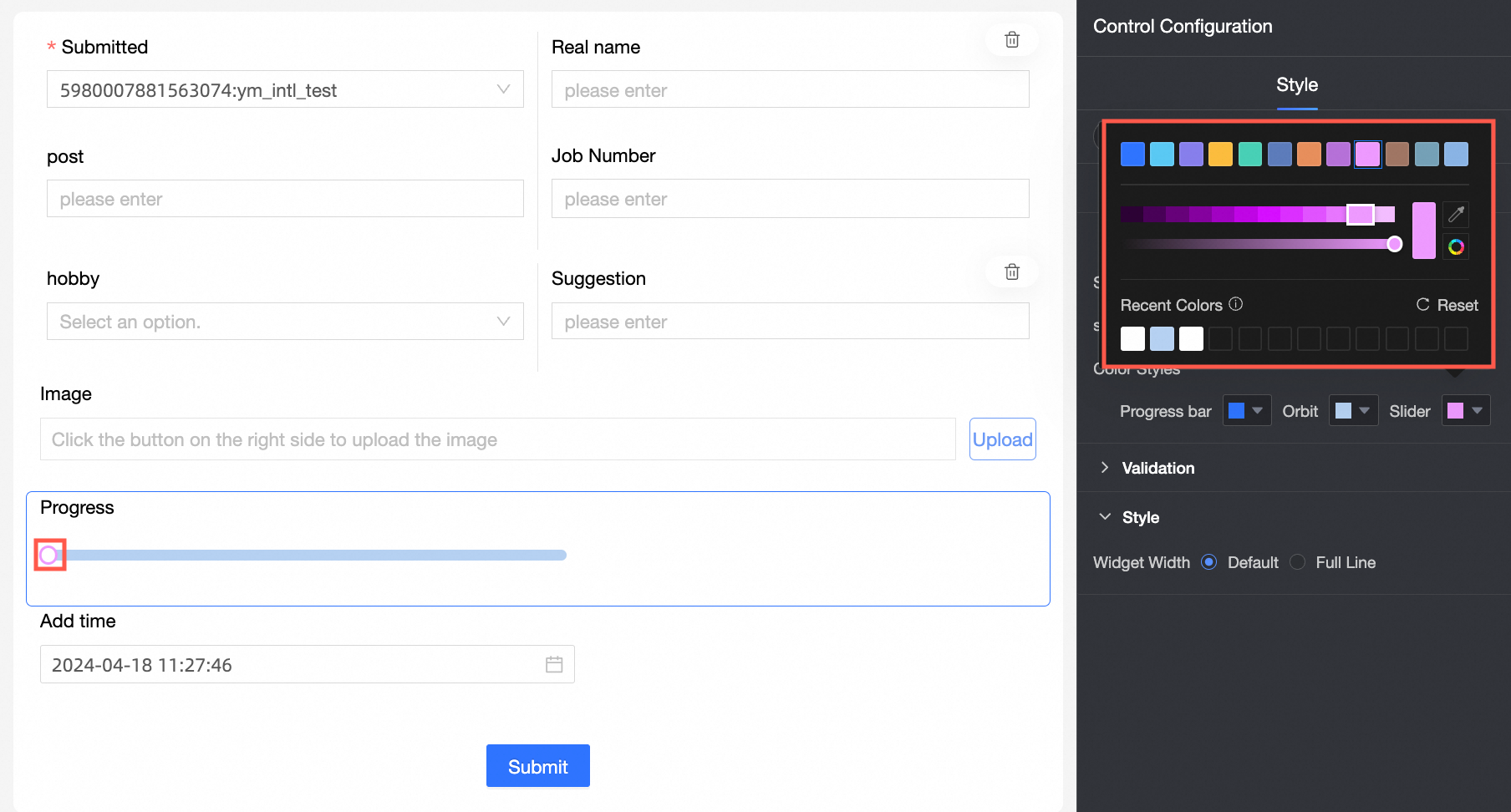
Yes
|
Parameter |
Description |
|
|
① Required: Specifies whether the control is required. If selected, the control is set to Required. |
|
② Input data invalid prompt text: Takes effect only when a validation condition is triggered. For example, if Required is selected and no value is provided, a custom error message is displayed. |
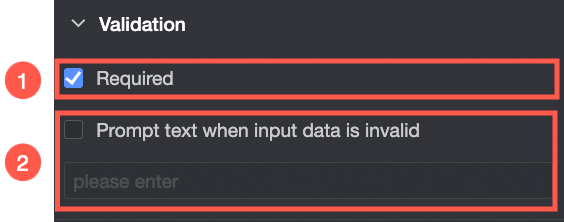
styles
|
Parameter |
Description |
|
|
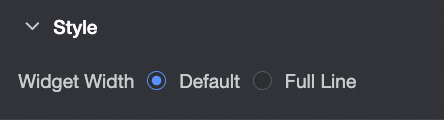
Widget Width: Valid values: Default or Whole Line. Note
You can also drag the control border to manually adjust the width. |