Pinboard consolidates cards from multiple dashboards into a single view, so you can track the metrics you care about without switching between dashboards.
Pinboard is not supported in Internet Explorer. Use Chrome or Safari.
Use cases
When you or your team monitor data from multiple dashboards daily, Pinboard consolidates your preferred cards into one place. You can arrange the layout, apply filter conditions, and return to the same focused view every day.
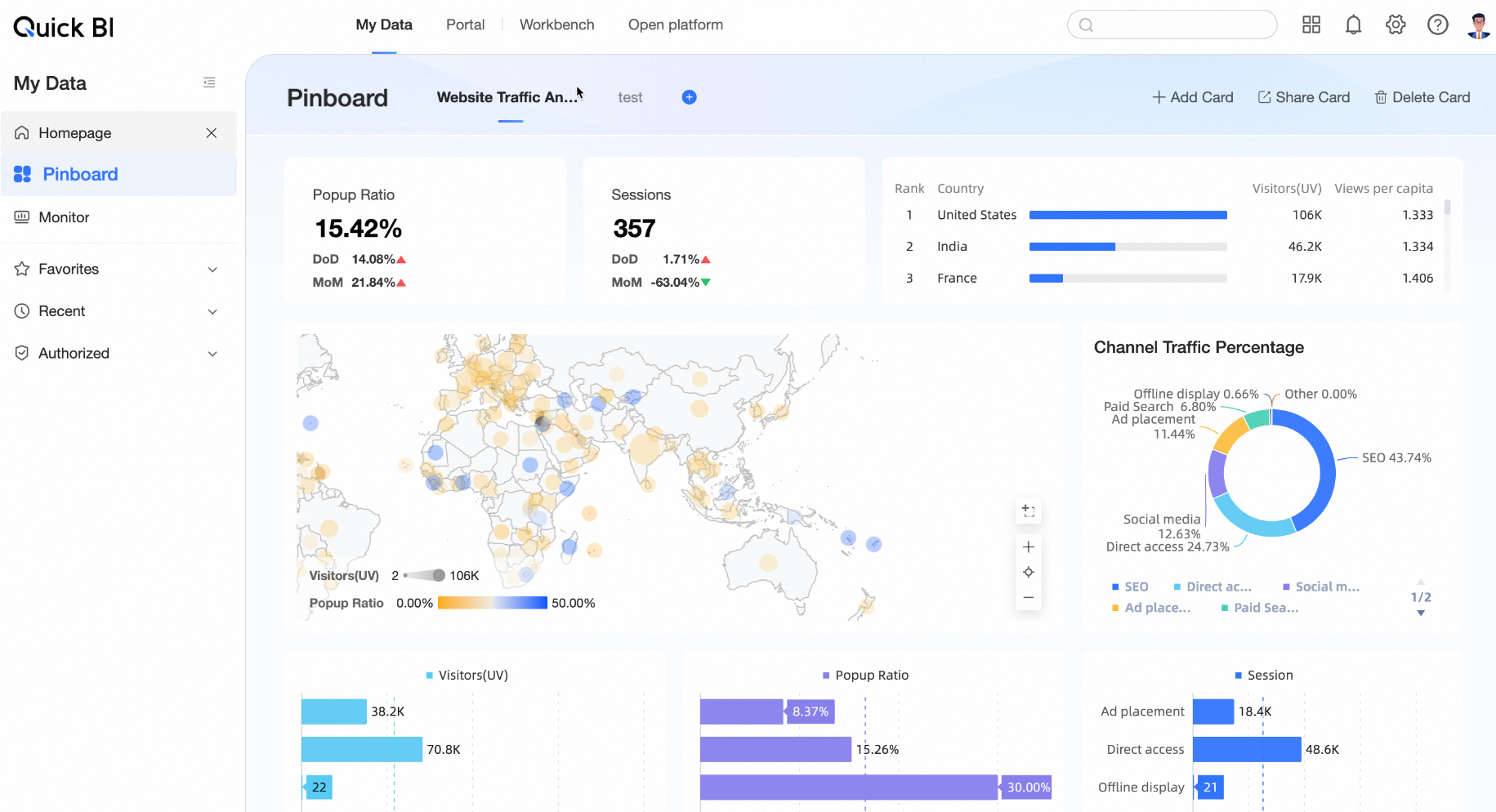
Access Pinboard
Go to My Dashboard > Pinboard.
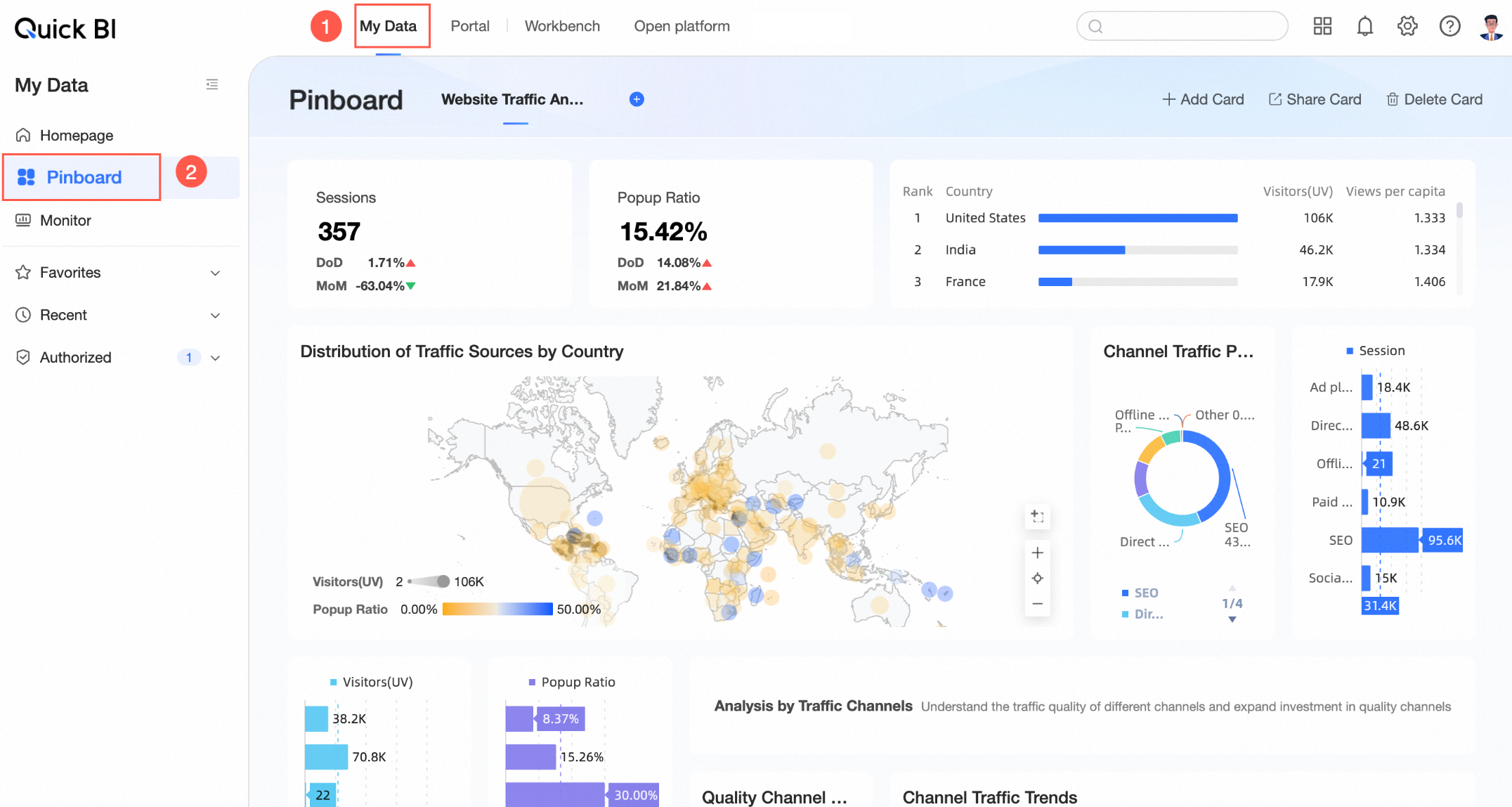
Create a Pinboard
A maximum of 10 Pinboards are supported.
-
Click the
 icon on the right side of the Pinboard tab bar to create a new Pinboard.
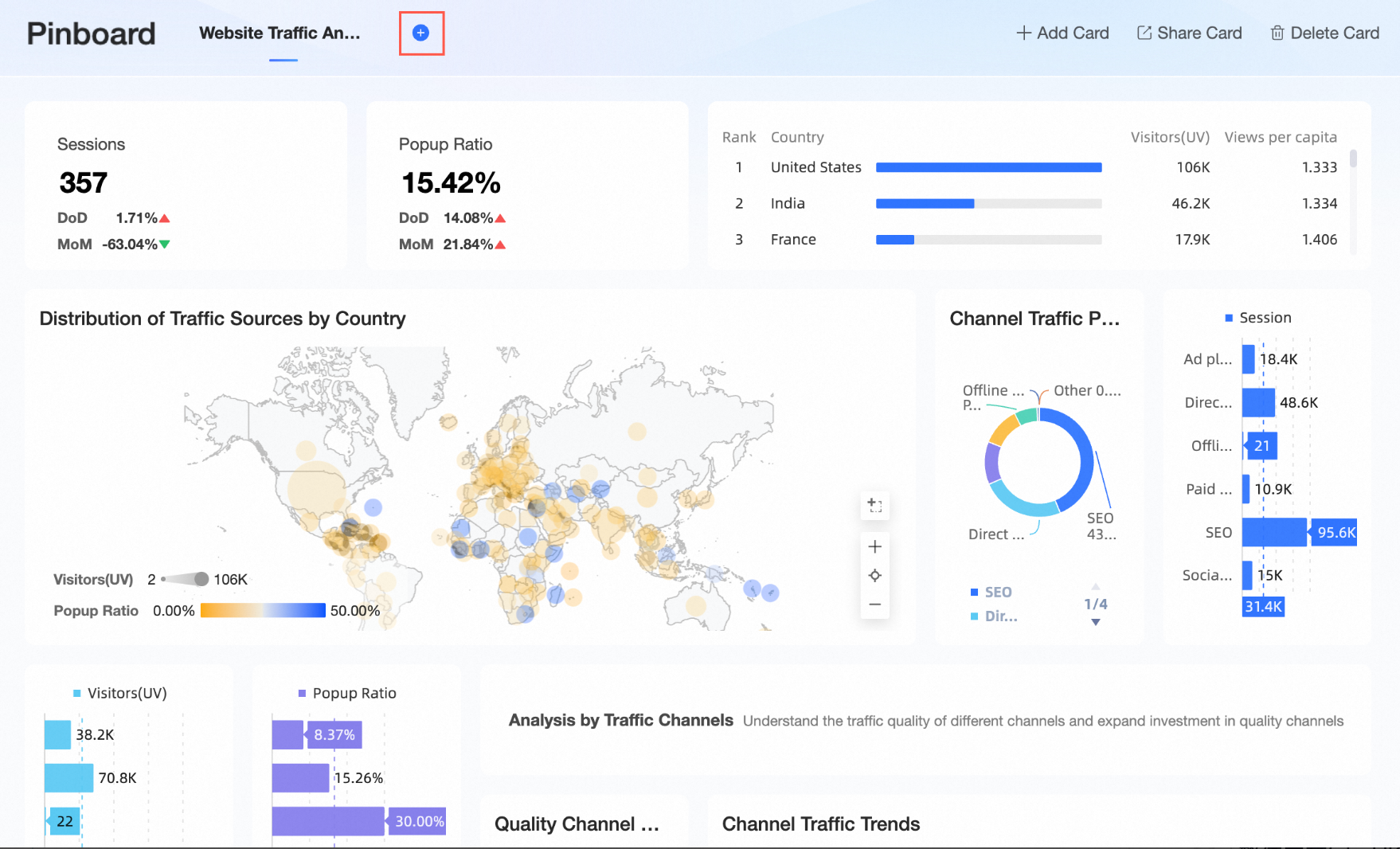 If no Pinboard exists yet, click Create Now.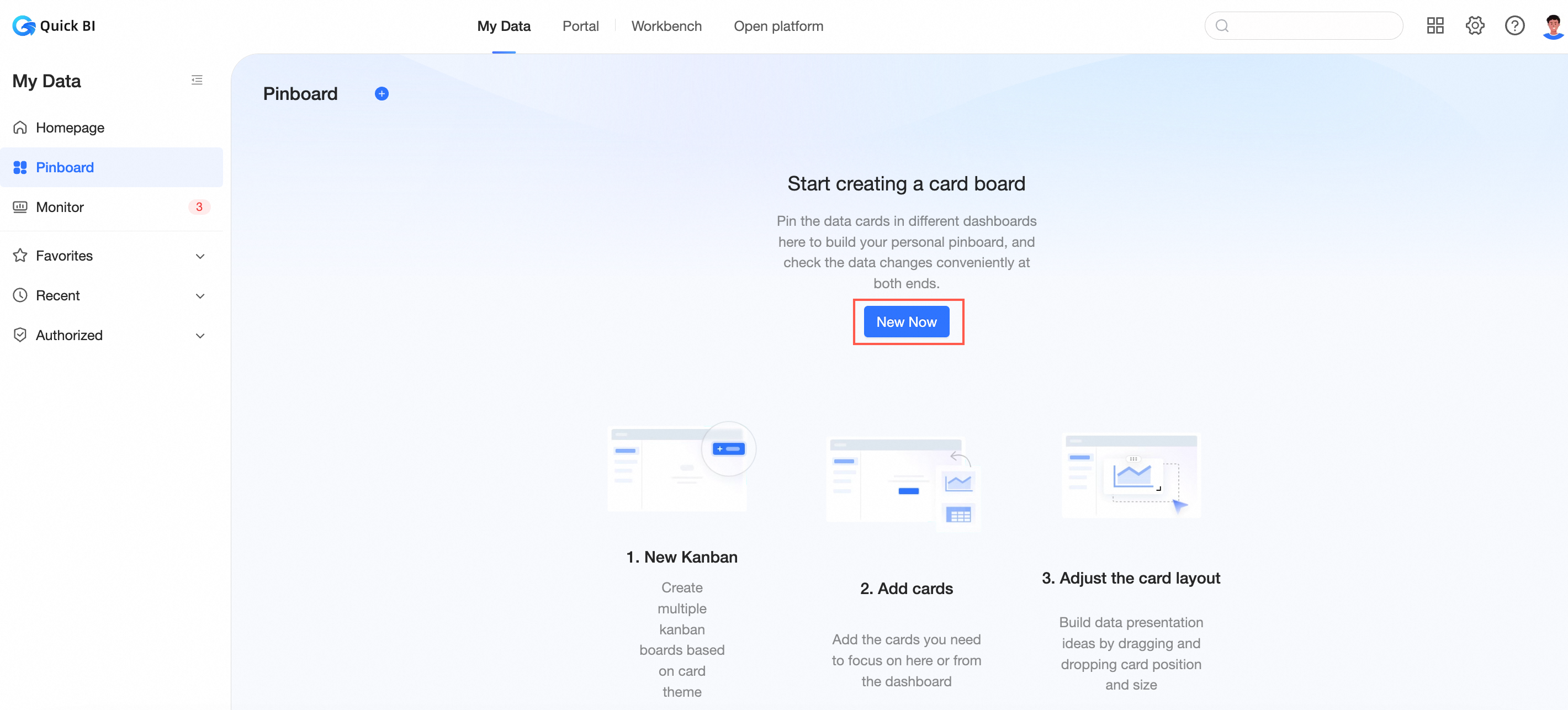
-
Enter a name for the Pinboard.
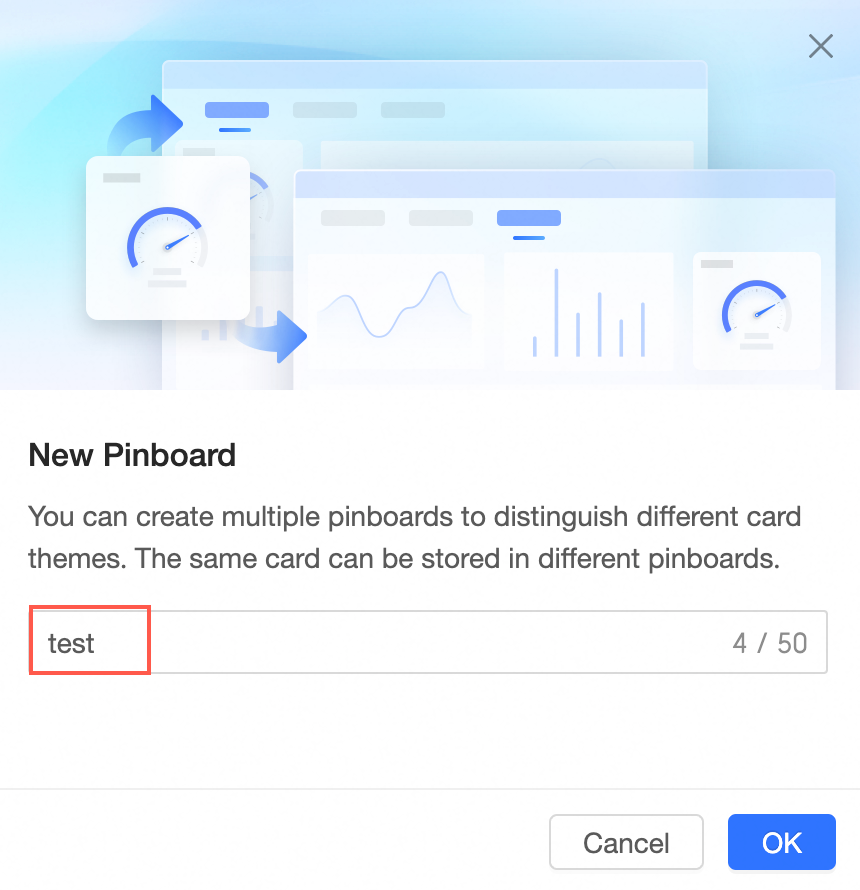
Click OK.
-
Click Add Now or Add Card in the upper right corner to add cards.
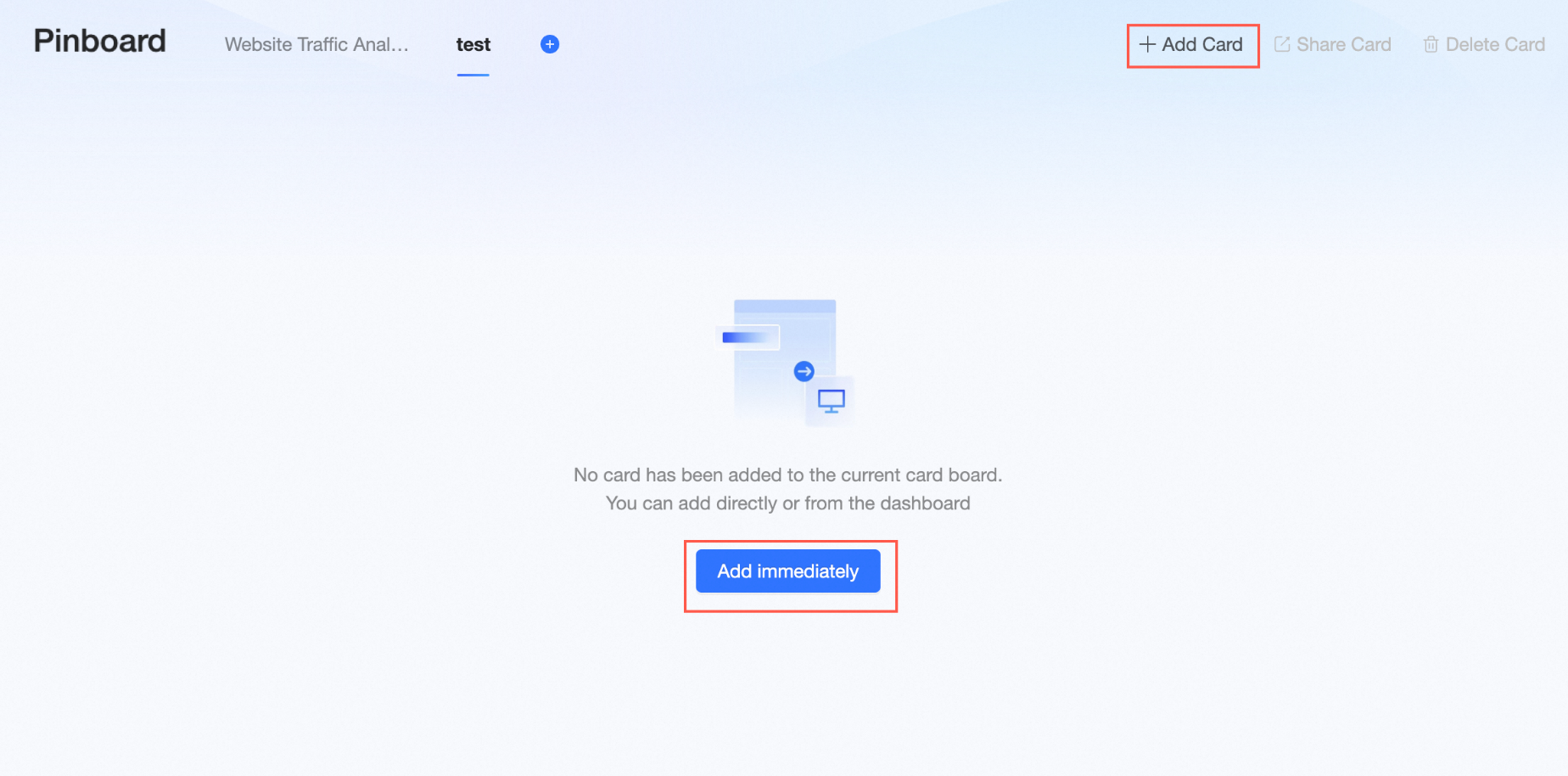
For more information, see Add Card.
-
To rename or delete a Pinboard, hover over it and click the
 icon.
icon.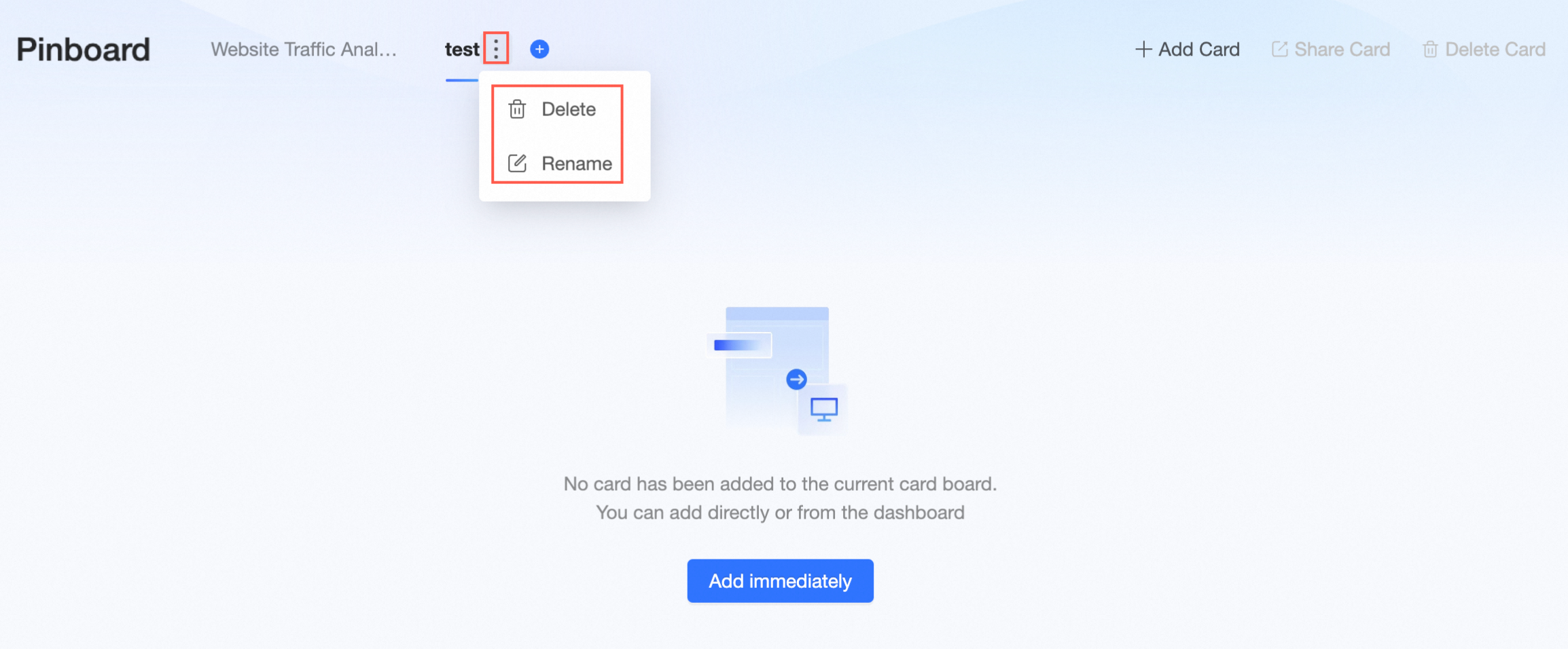
-
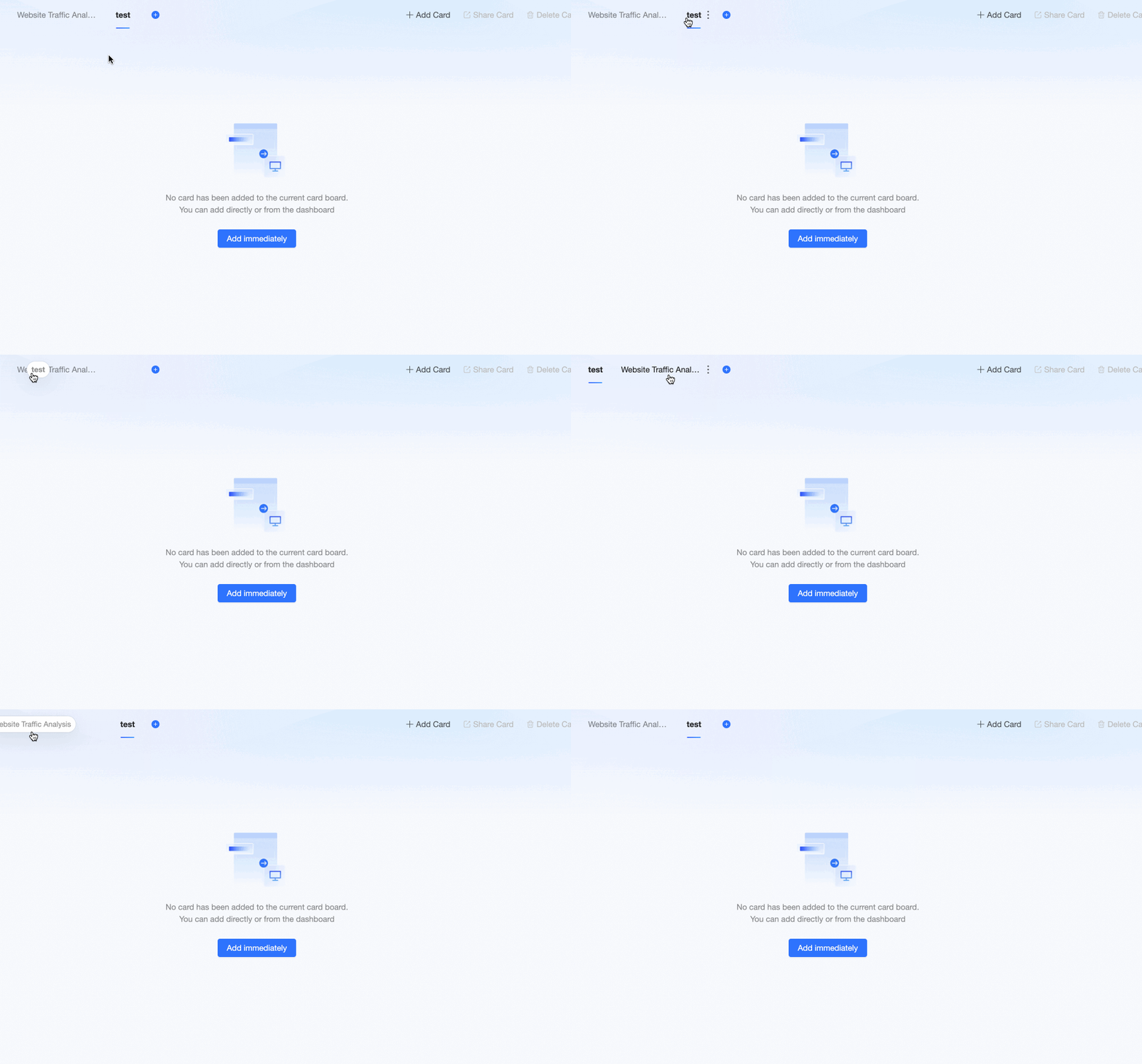
To reorder multiple Pinboards, drag them into the desired order.
Add cards
-
Add cards using any of the following methods:
-
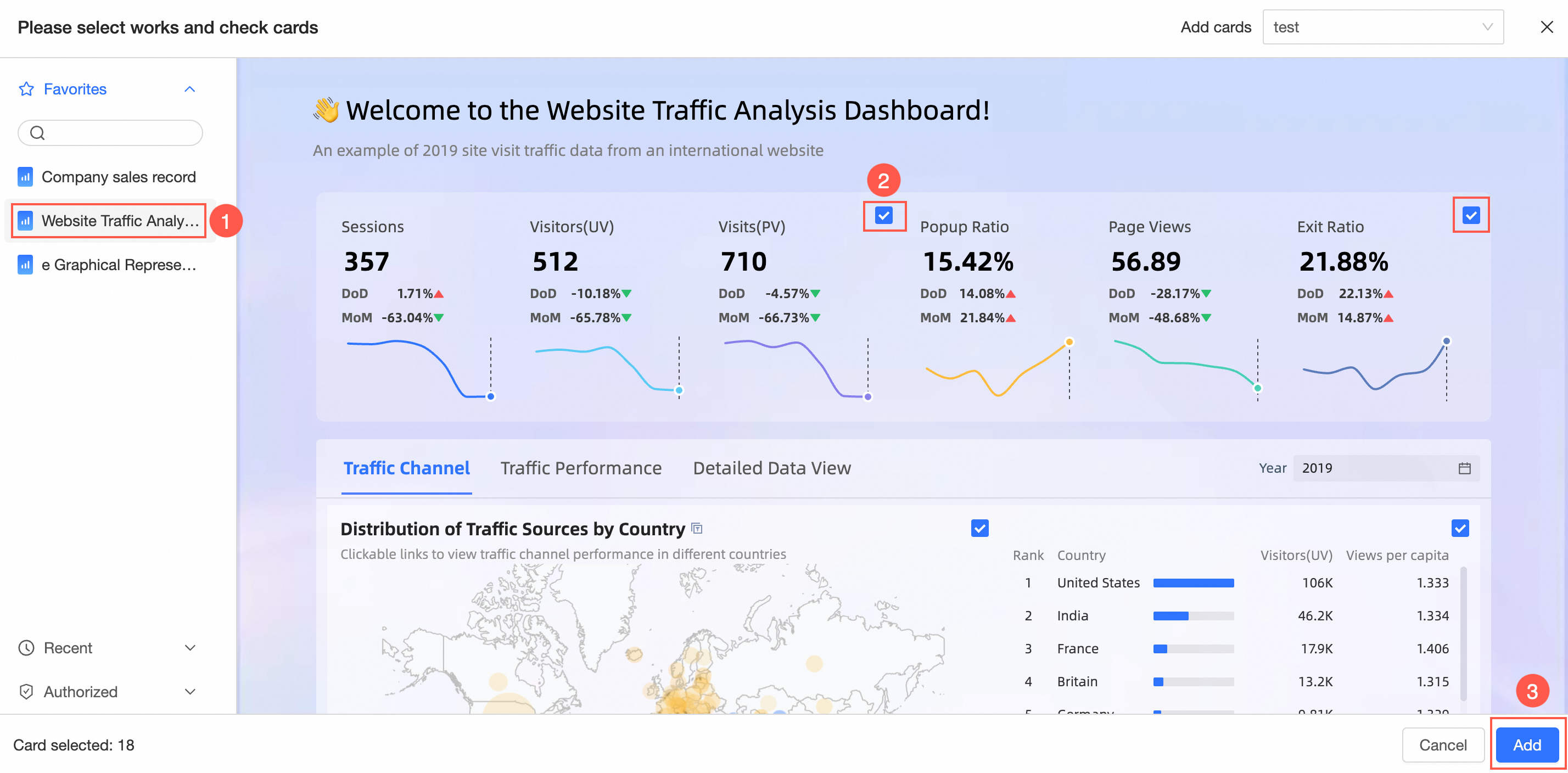
From the Pinboard: Click Add Card, select a dashboard or a dashboard within the BI portal, check the cards you want, and click Add.
-
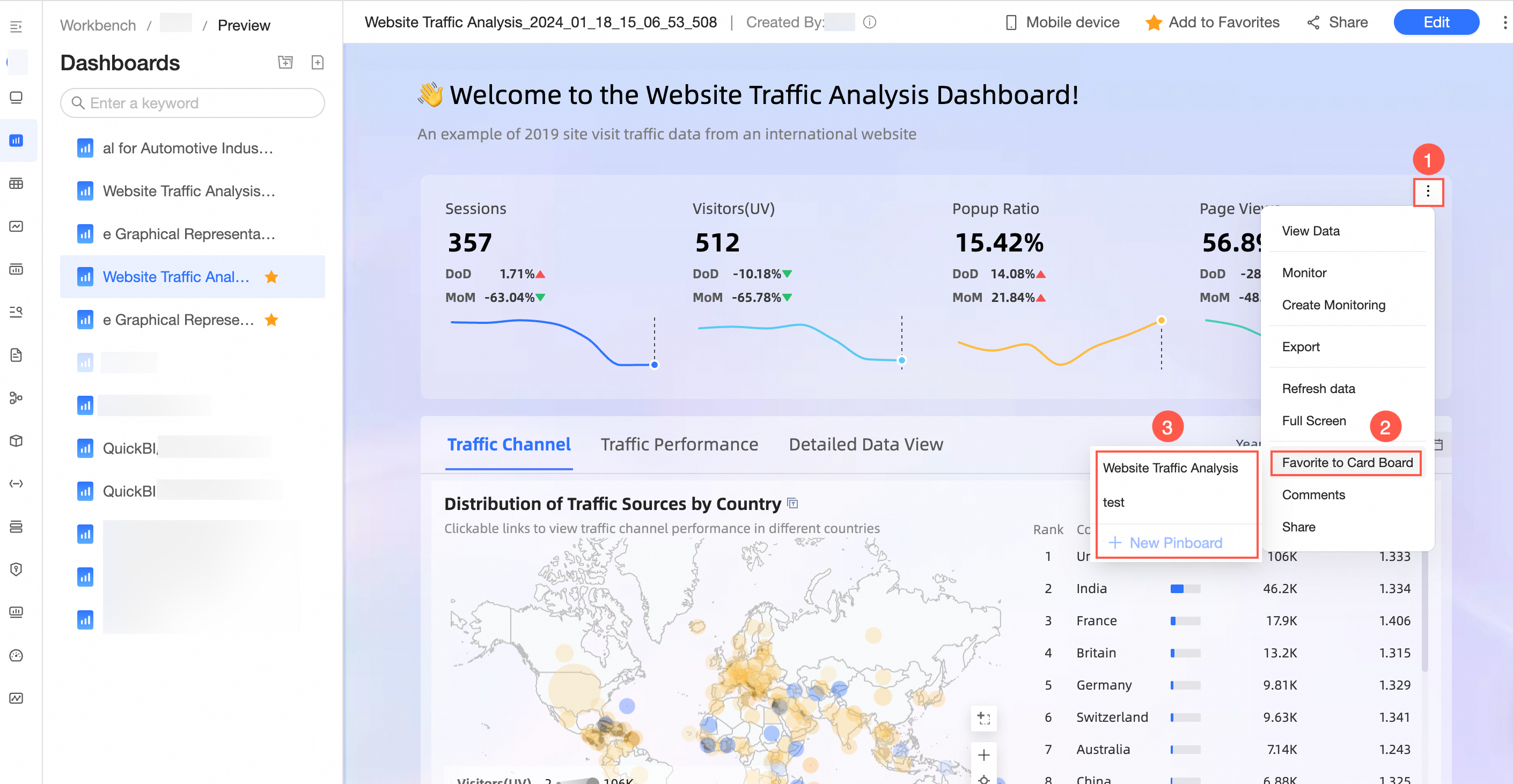
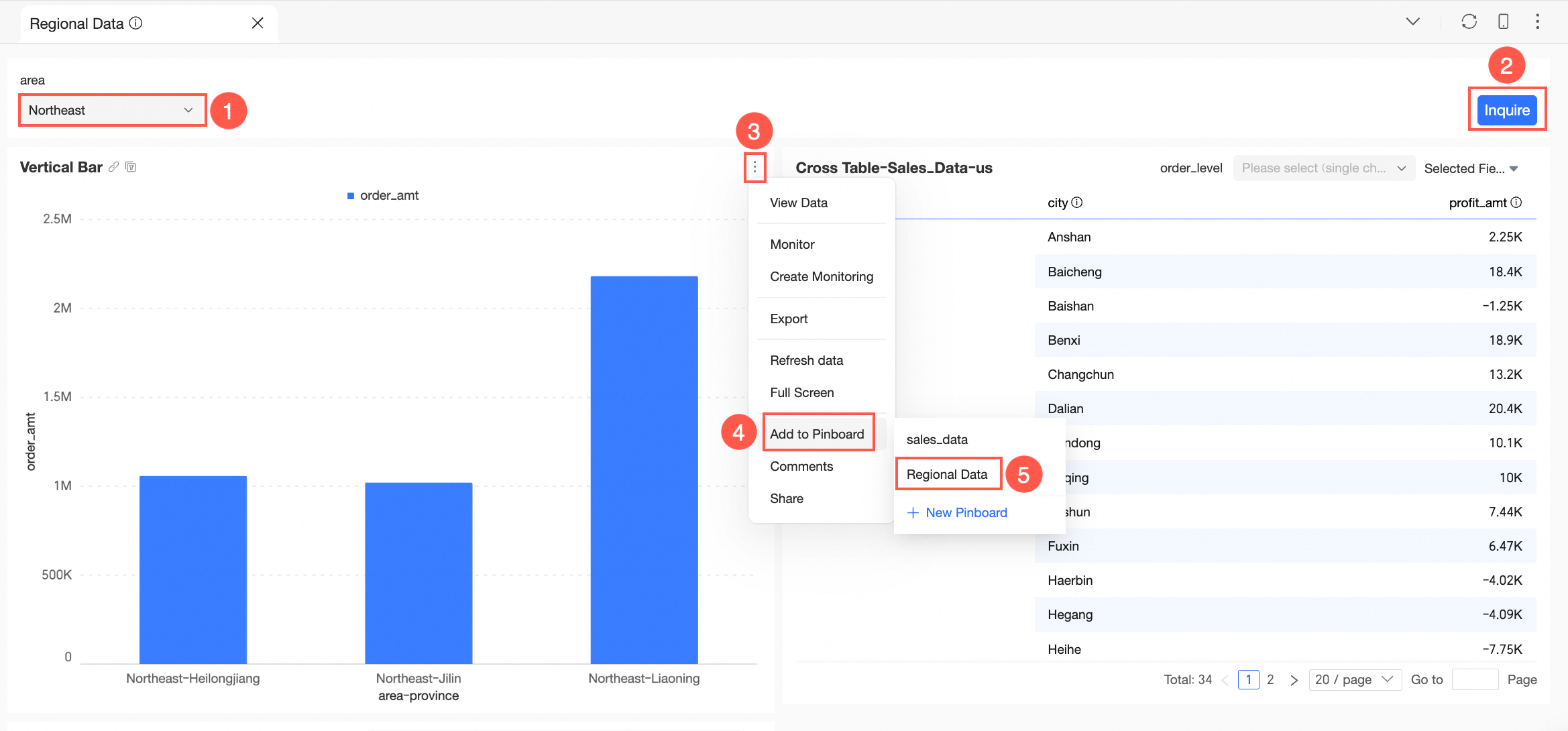
From the dashboard preview page: Follow the steps in the diagram to add cards to an existing Pinboard or create a new one.
-
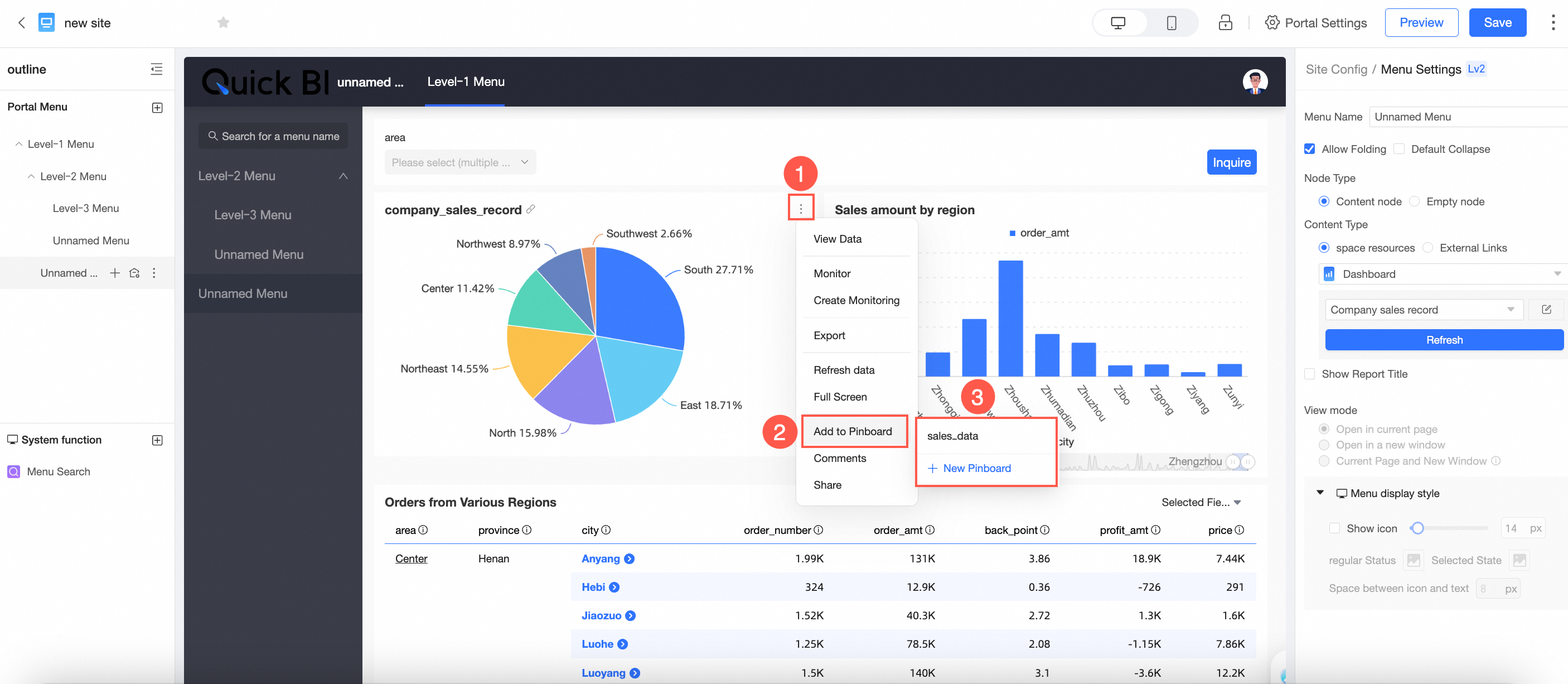
From the BI portal: On the BI portal preview page, follow the steps in the diagram to add cards to an existing Pinboard or create a new one.
NoteAfter a card is added, its data syncs with the source card. The chart style automatically adjusts to fit the Pinboard layout.
-
-
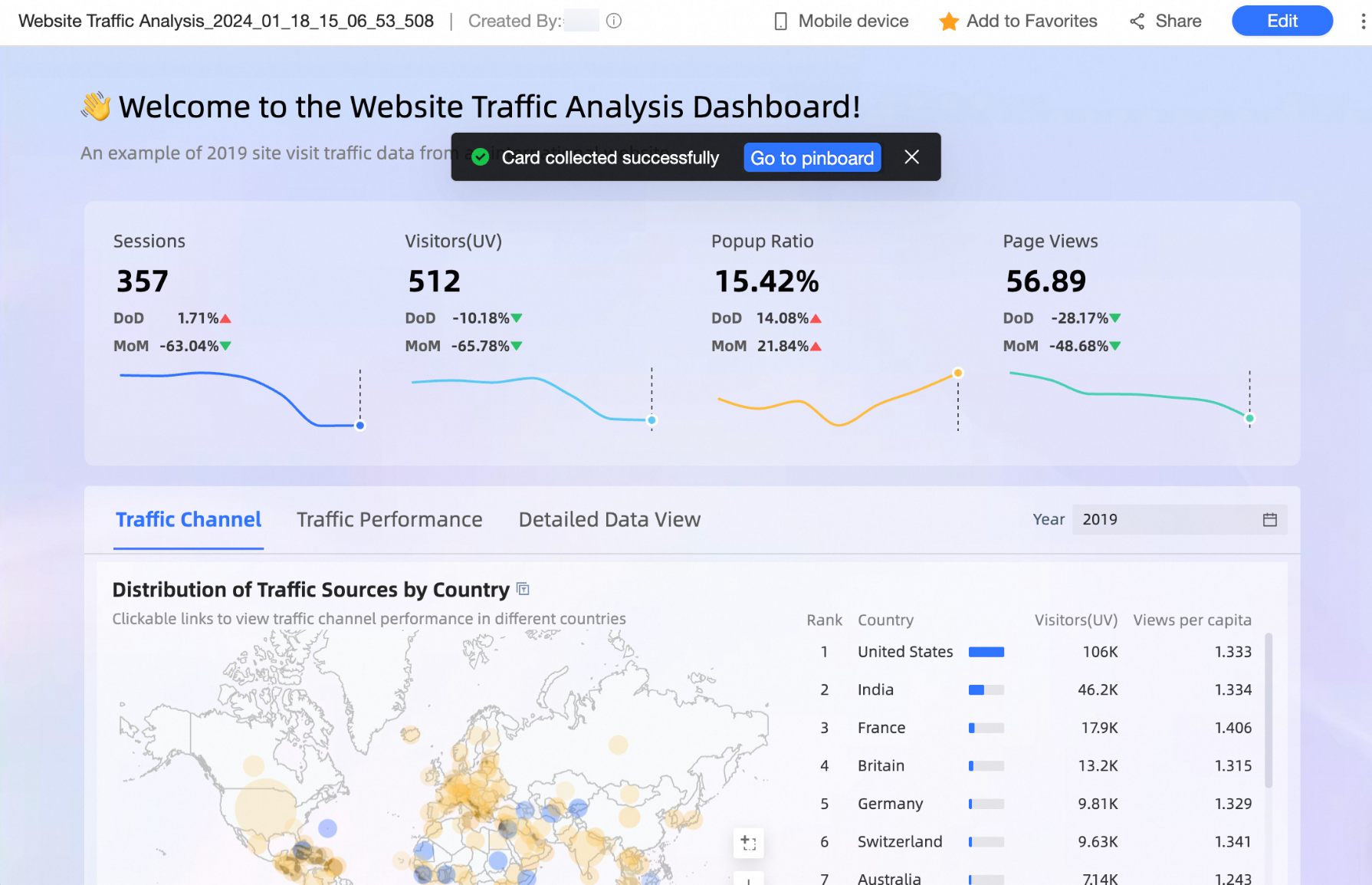
Click Go to Dashboard to open the Pinboard.
-
The added cards appear in the Pinboard.
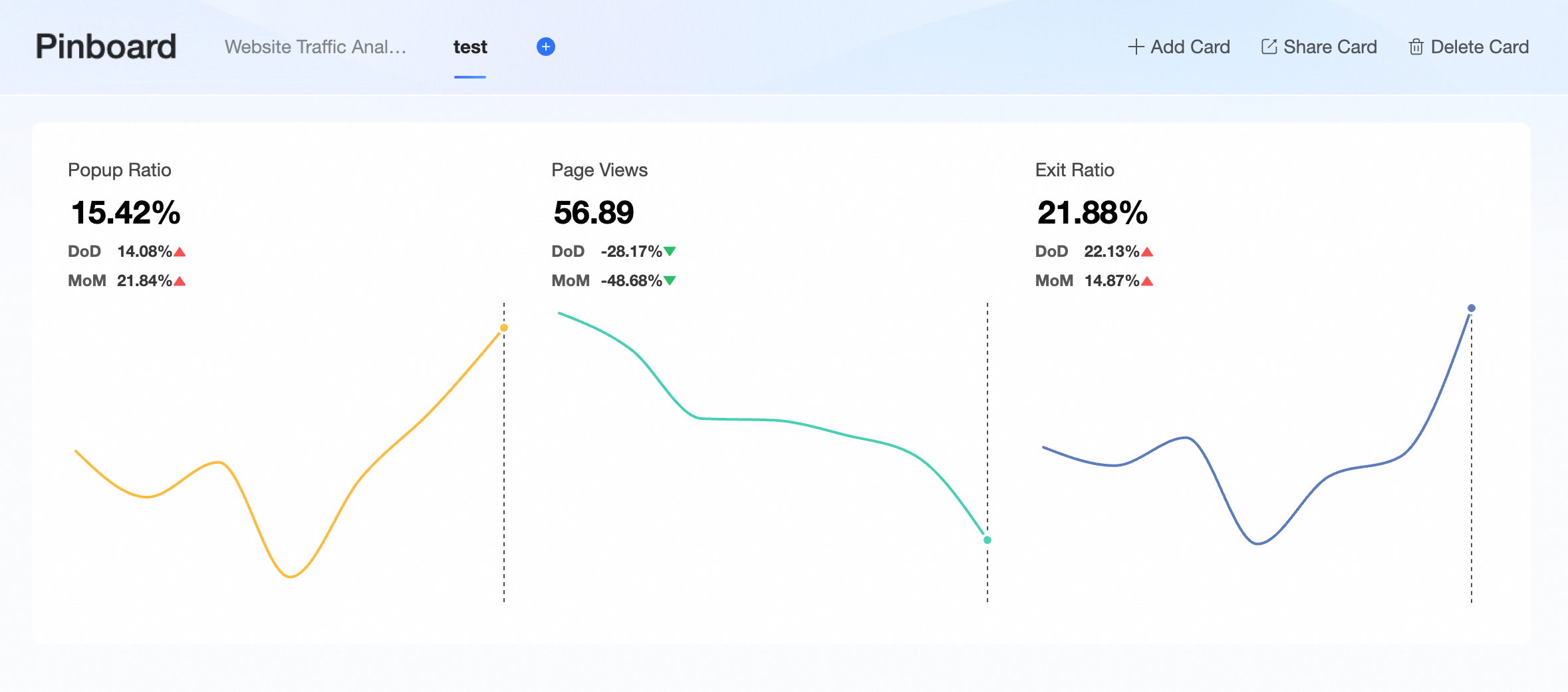
Card operations
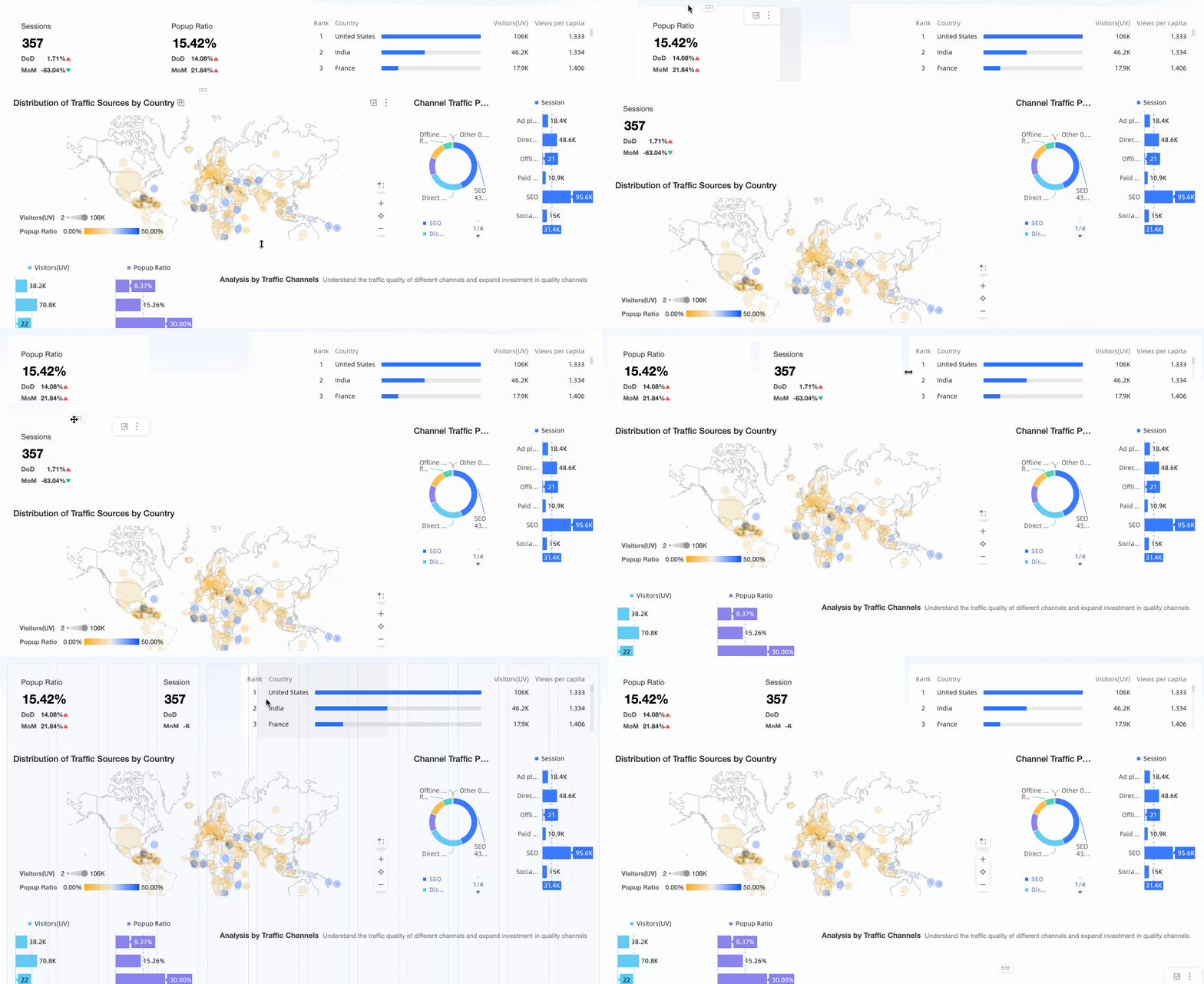
Card layout
Drag cards to reposition and resize them.
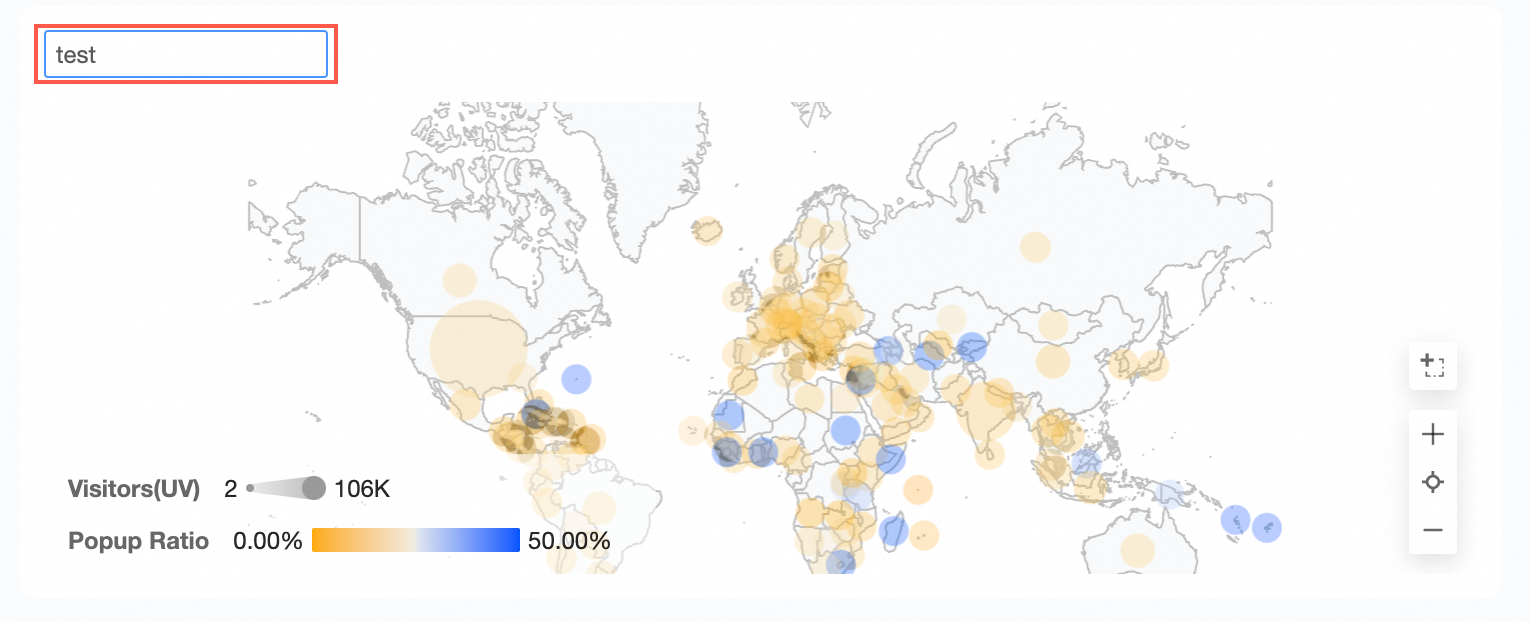
Card renaming
Double-click a card title to rename it.
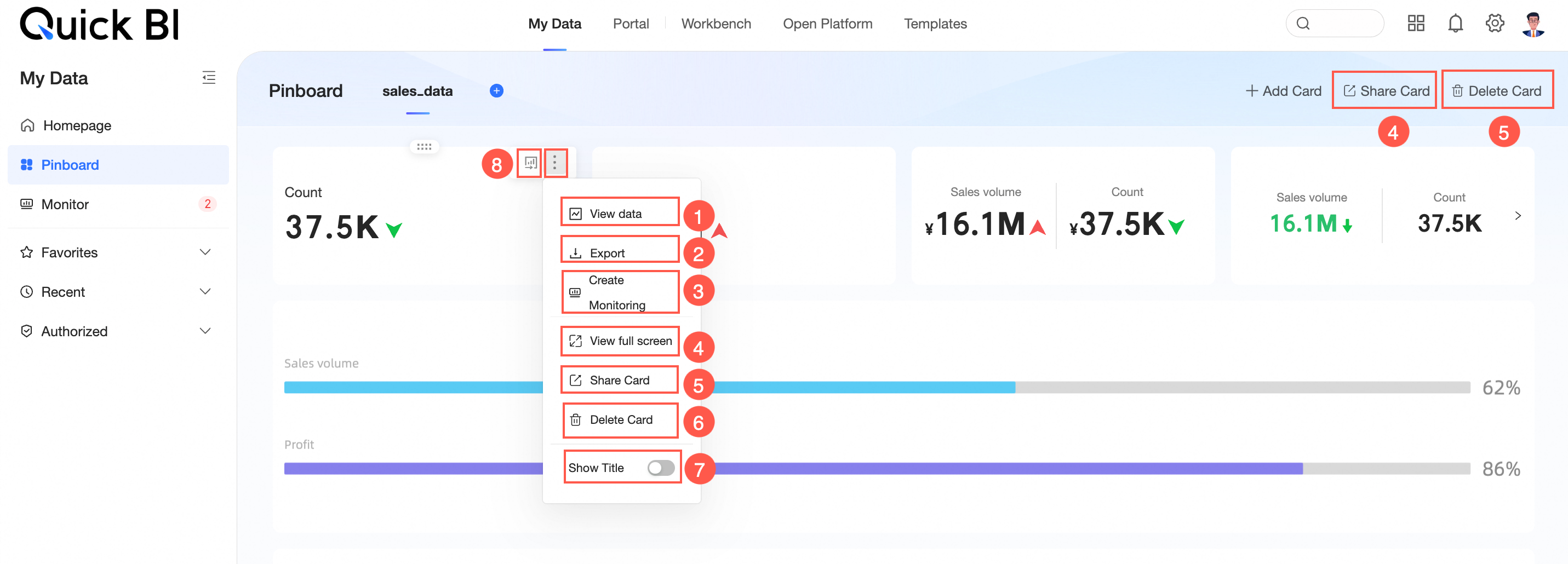
Each card also supports the following operations:
-
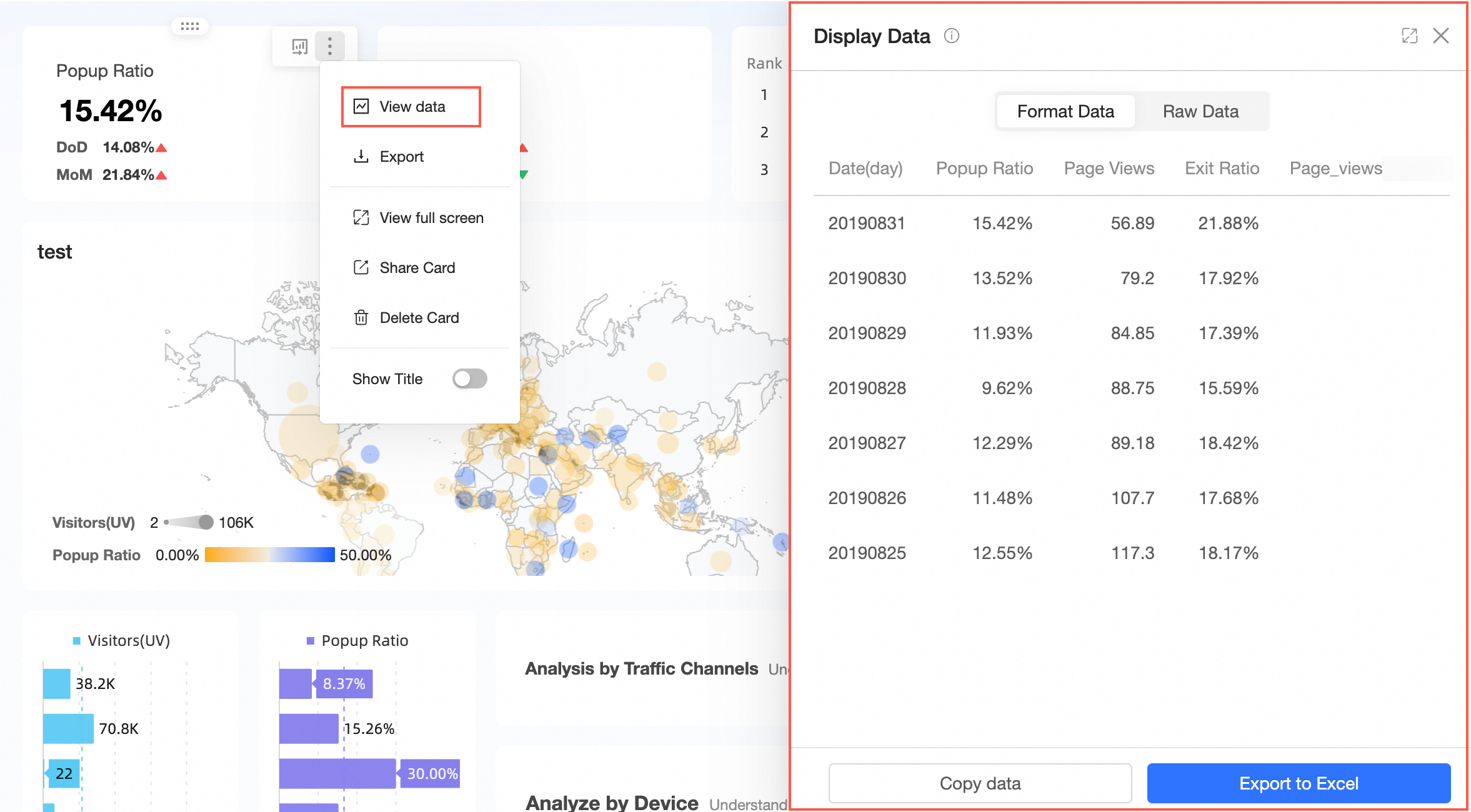
① View data
View formatted or raw data, copy data, or export to Excel.
-
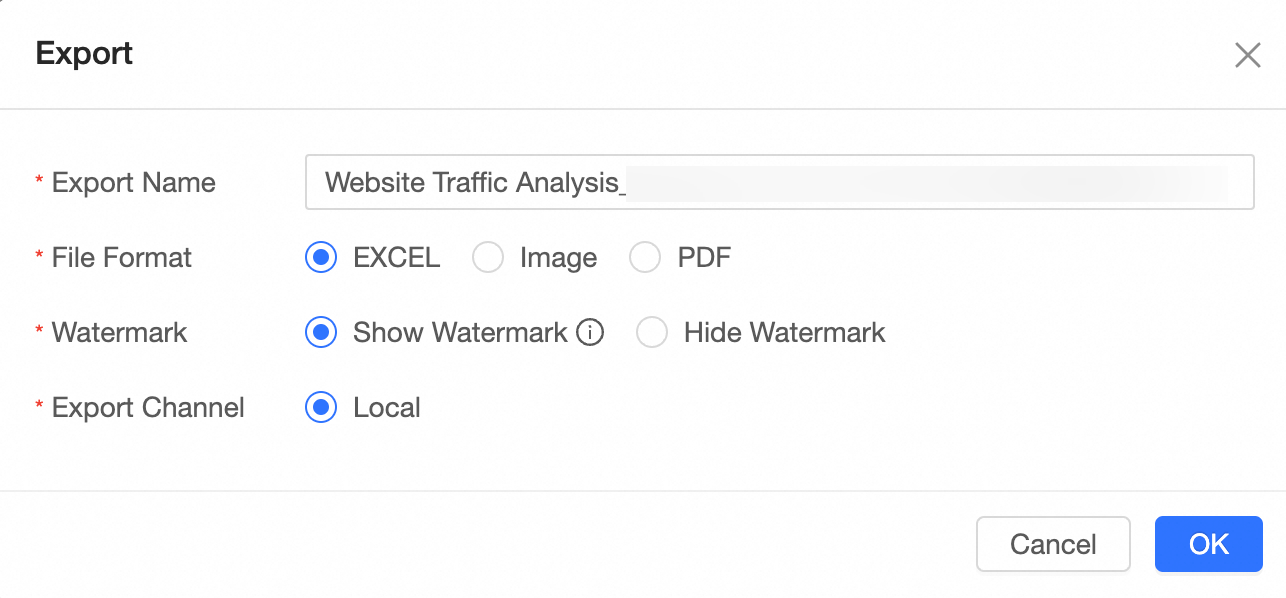
② Export
Export to Excel, Image, or PDF. When exporting to Excel, choose whether to include or hide the watermark.
-
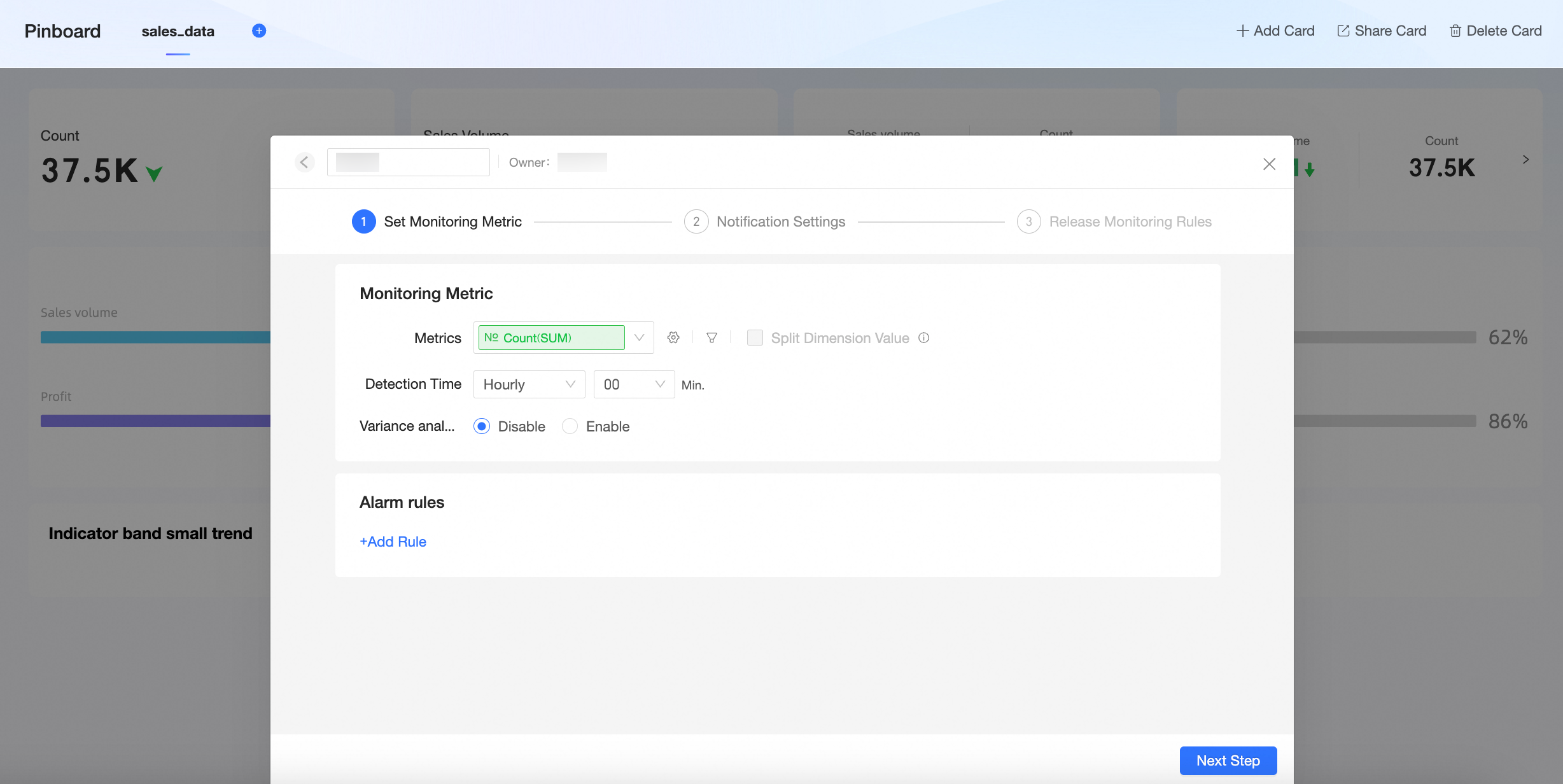
③ Create monitoring
Set up monitoring for the card. For details, see Monitoring Indicators.
-
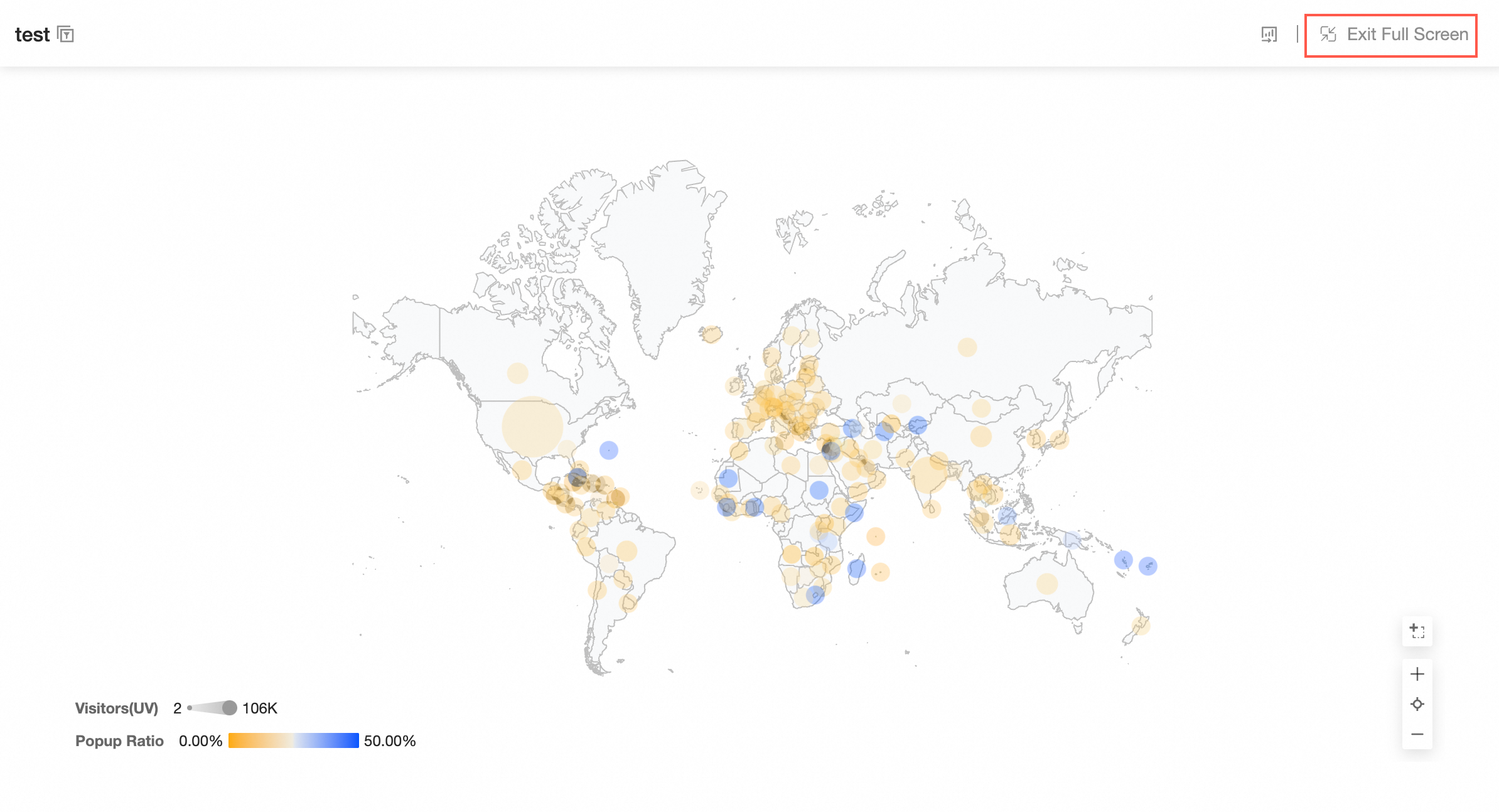
④ Full-screen view
View the card in full screen. Click Exit Full Screen to return to the Pinboard.
-
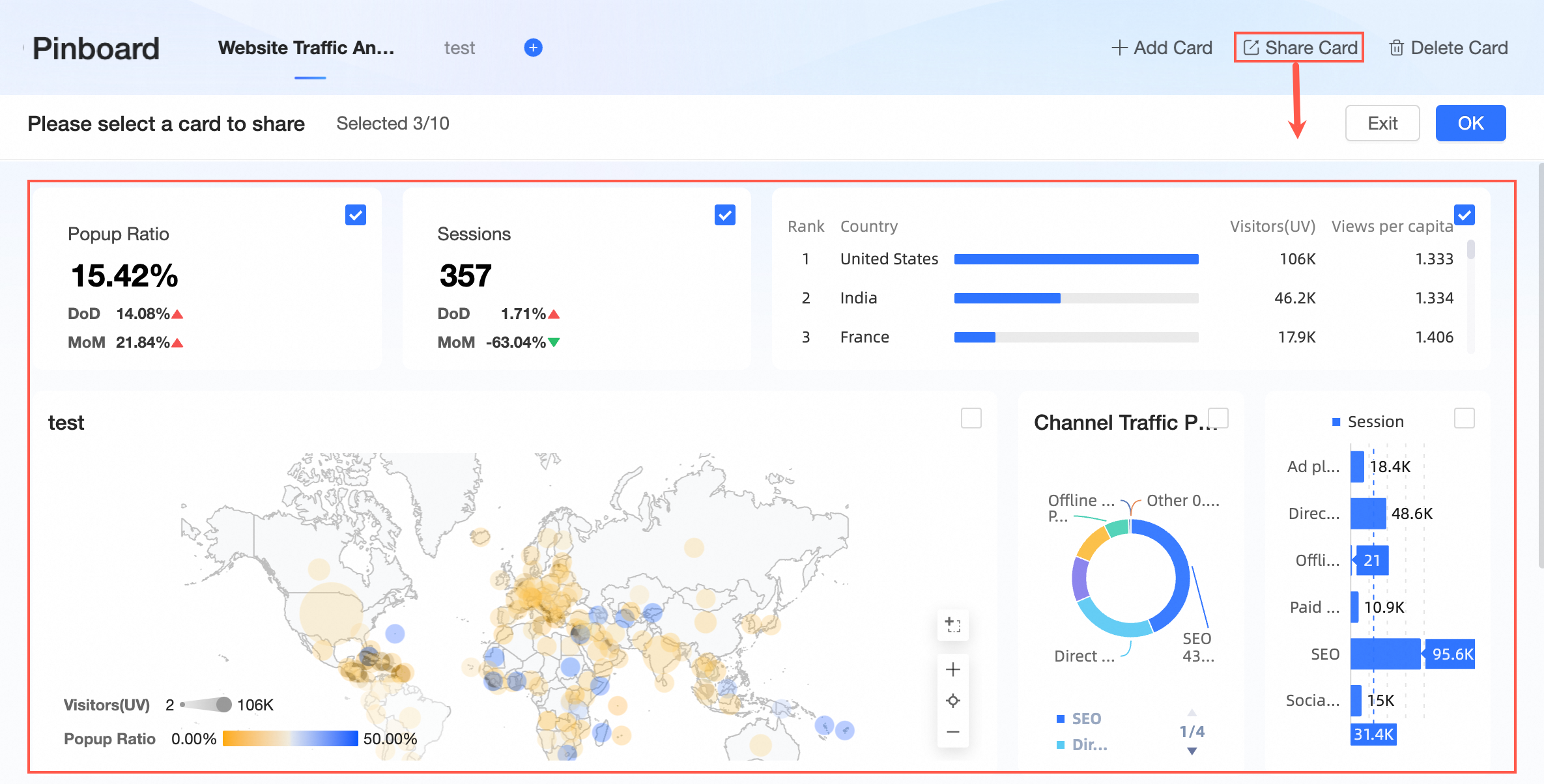
⑤ Share card
-
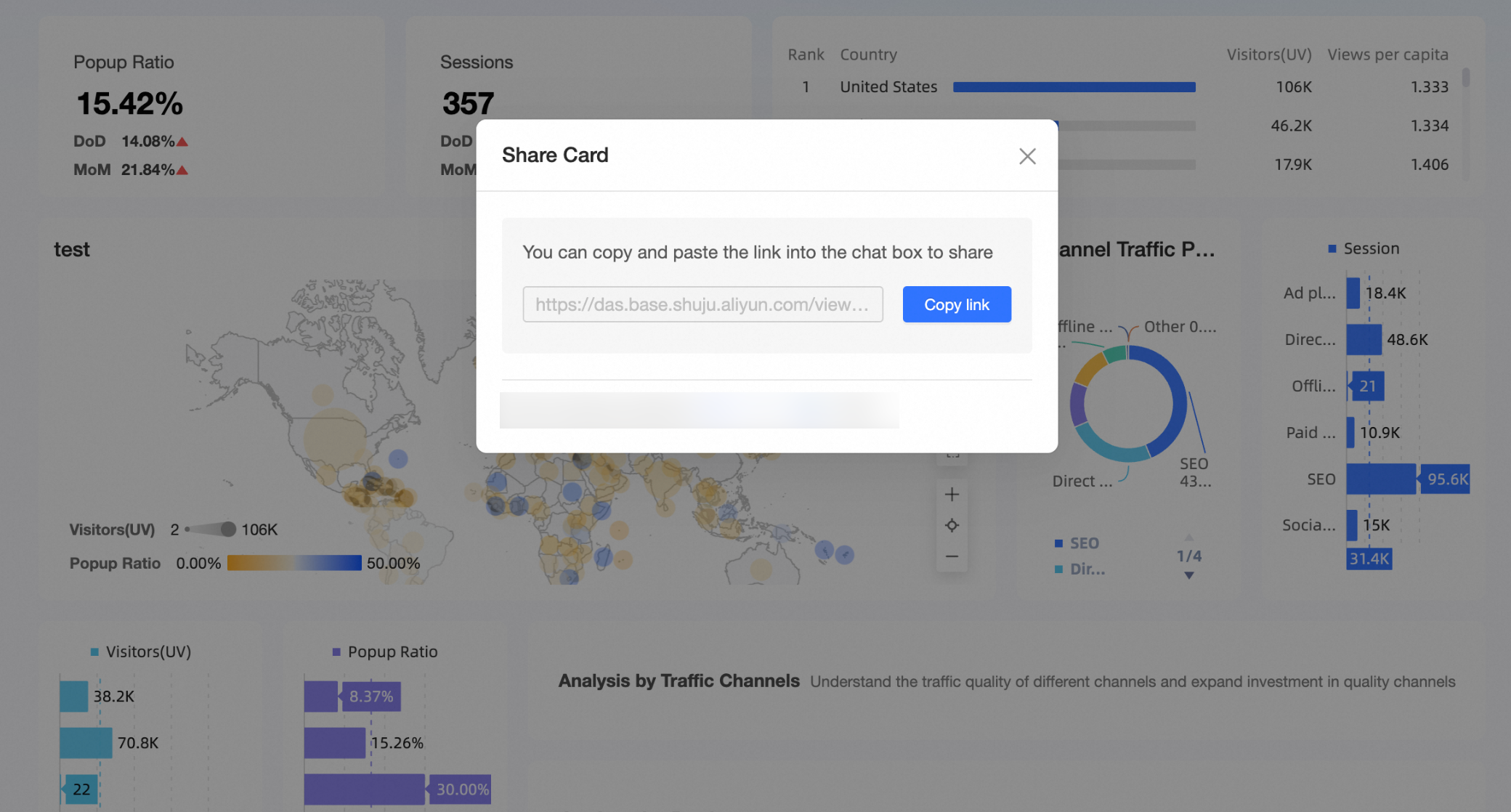
Share individual cards or select multiple cards to share at once.
NoteSharing is not supported for indicator relationship graphs or indicator decomposition trees.
-
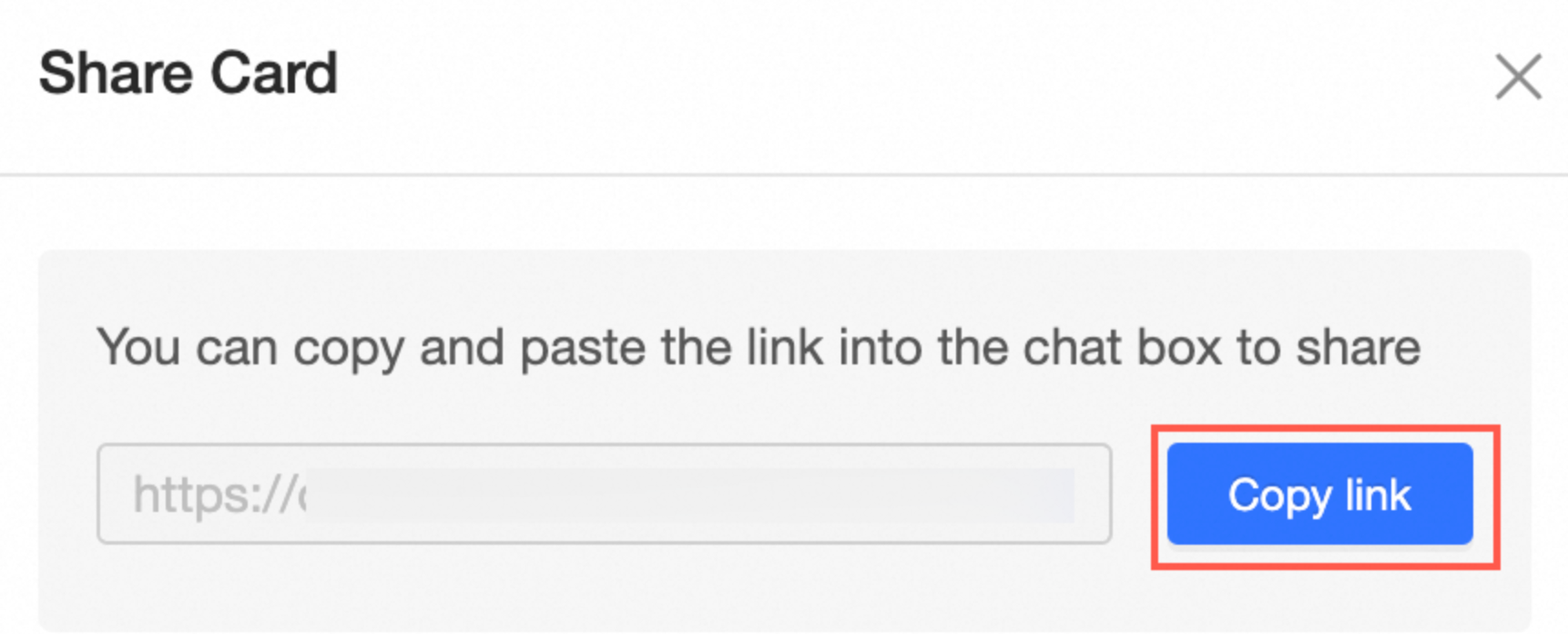
Copy and share a card link.
-
-
⑥ Delete card
Delete individual cards or select multiple cards to delete at once.
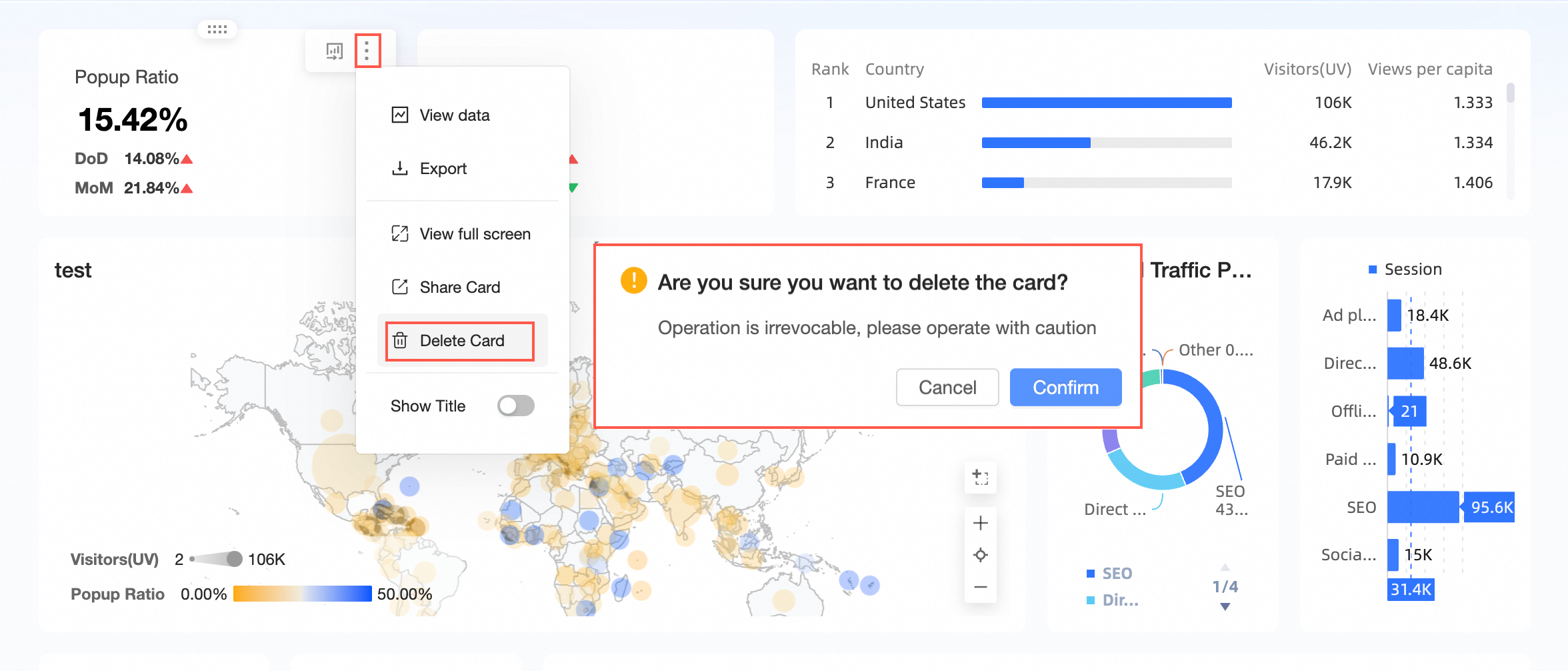
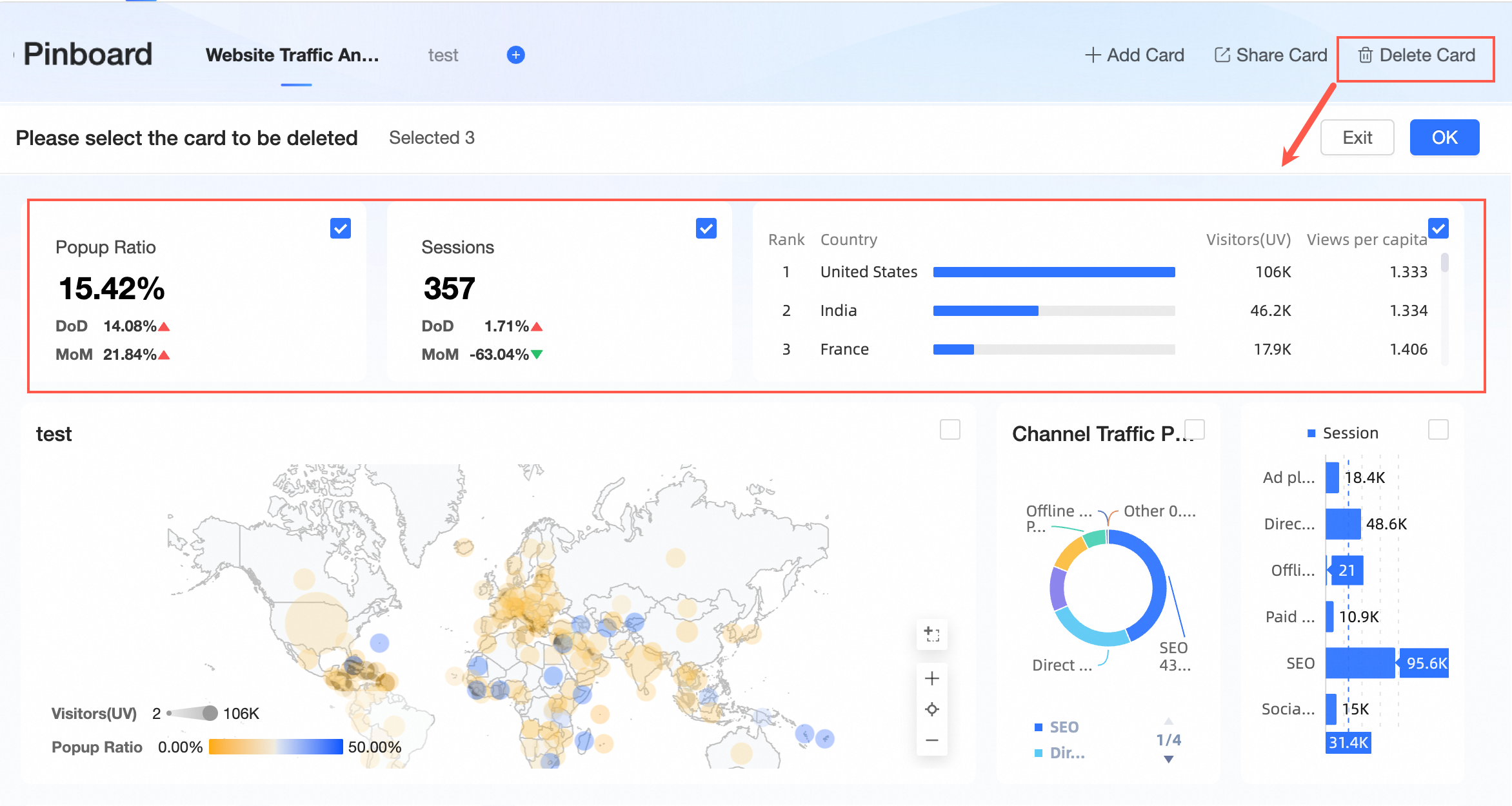
Deleting a card removes it from the Pinboard only. The original card on the source dashboard is not affected.
-
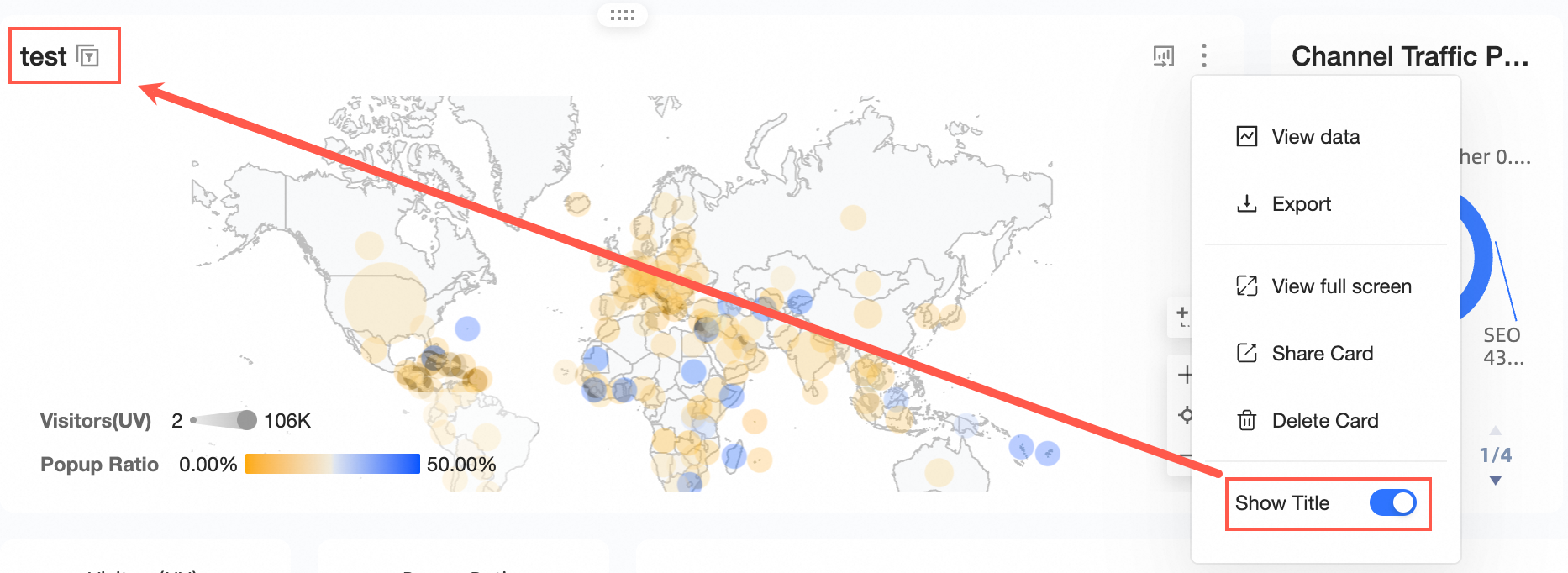
⑦ Display title
Show or hide the card title.
-
⑧ Jump to source dashboard
Hover over the card and click the
 icon to open the source dashboard.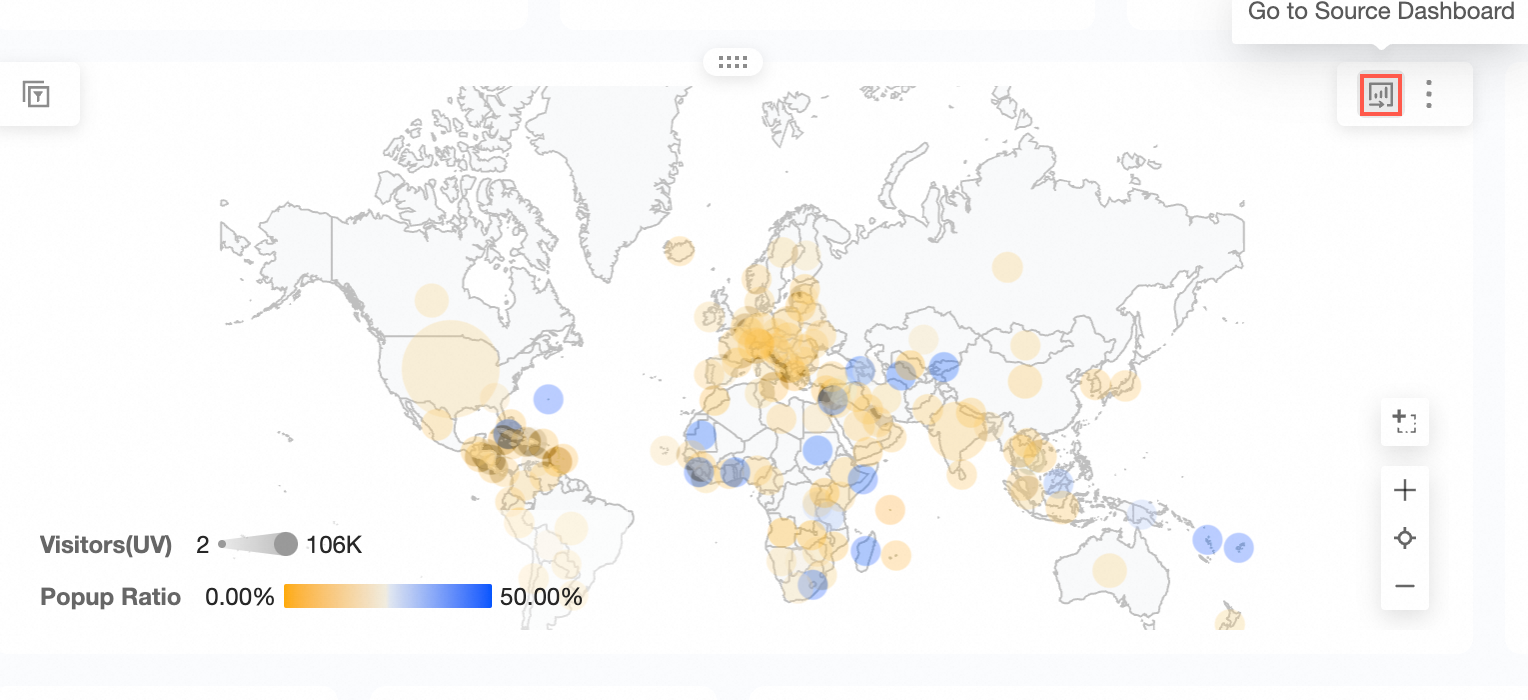
Card data and filter conditions
-
Filter condition capture and behavior
When you add a card to a Pinboard, all active filter conditions for that card are captured—including dashboard-level, tab-level, and widget-level conditions.
For example, the card "Bar Chart - Annual Sales Data" has three active filter conditions: region and province at the dashboard level, and year as an internal card condition.
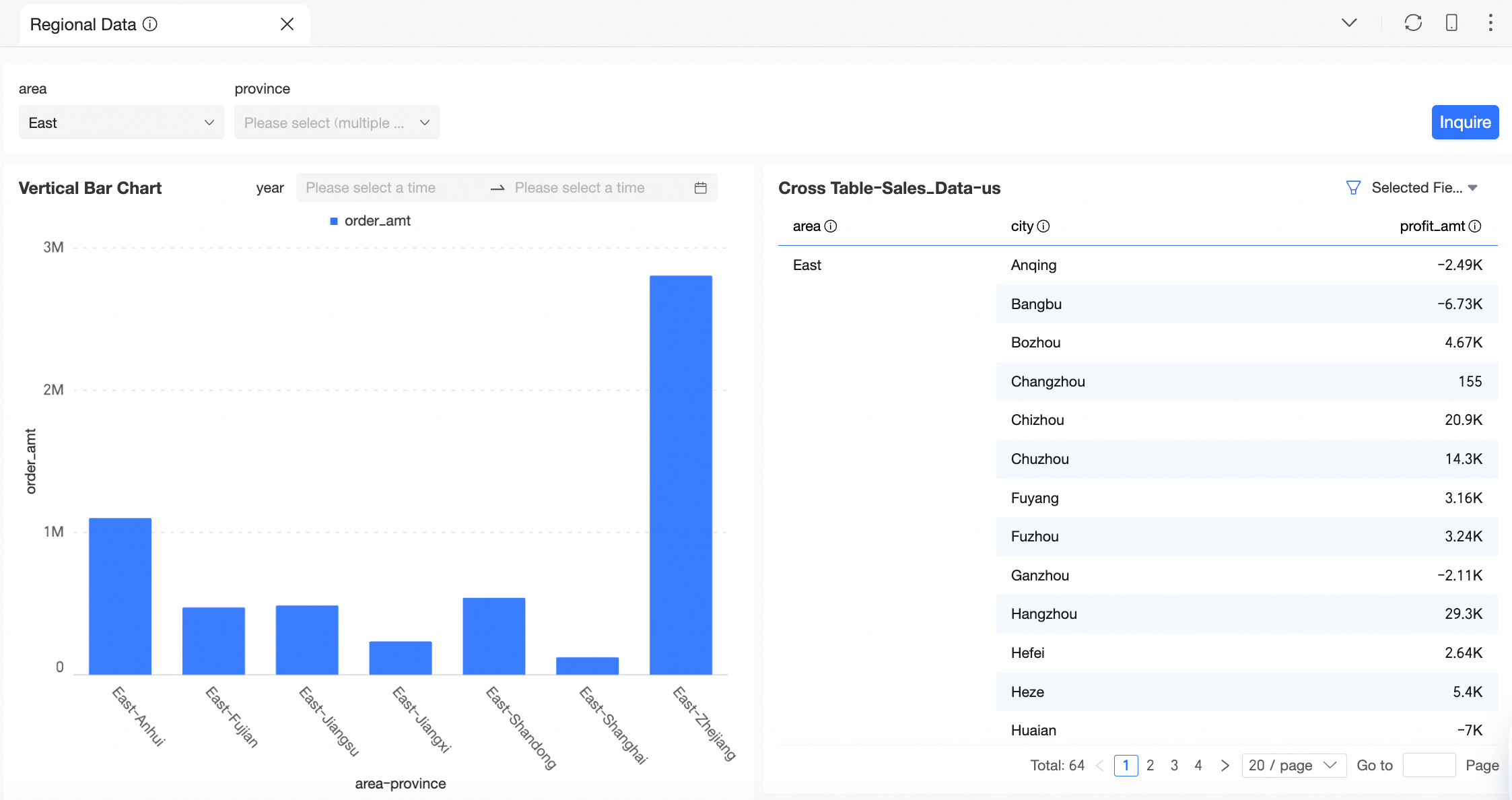
After adding this card to the Pinboard, all three conditions are visible and editable.
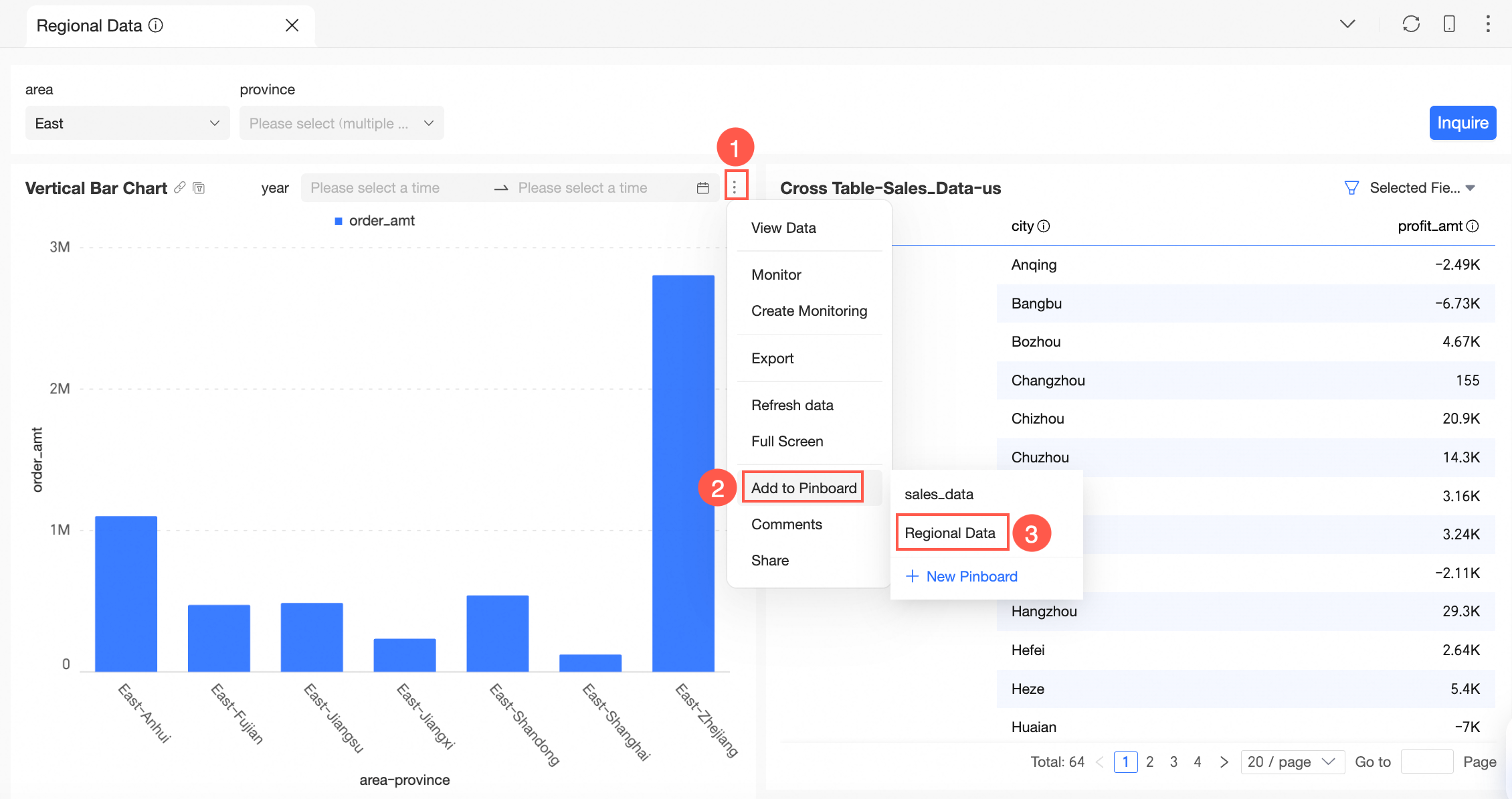
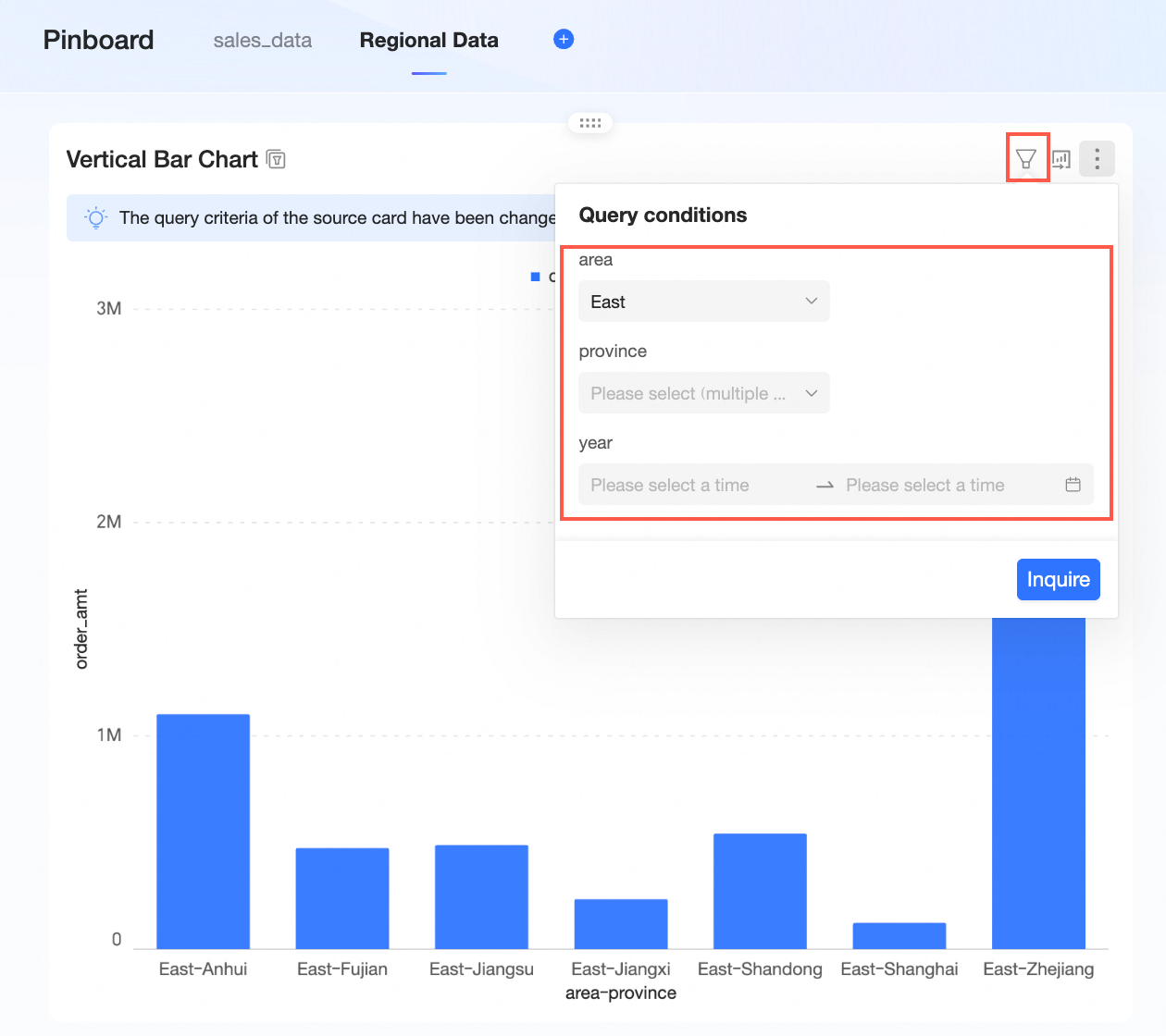
The following table summarizes how different types of filter conditions behave on the Pinboard:
Filter condition type
Behavior on Pinboard
Persisted after refresh?
Non-date selection (e.g., region, province)
Captured at the value active during collection; editable on the Pinboard
Yes—changes persist across sessions
Date selection (e.g., T-1)
Always defaults to the configured default on each visit; editable per session
No—last selected date is not saved
-
Non-date selection conditions
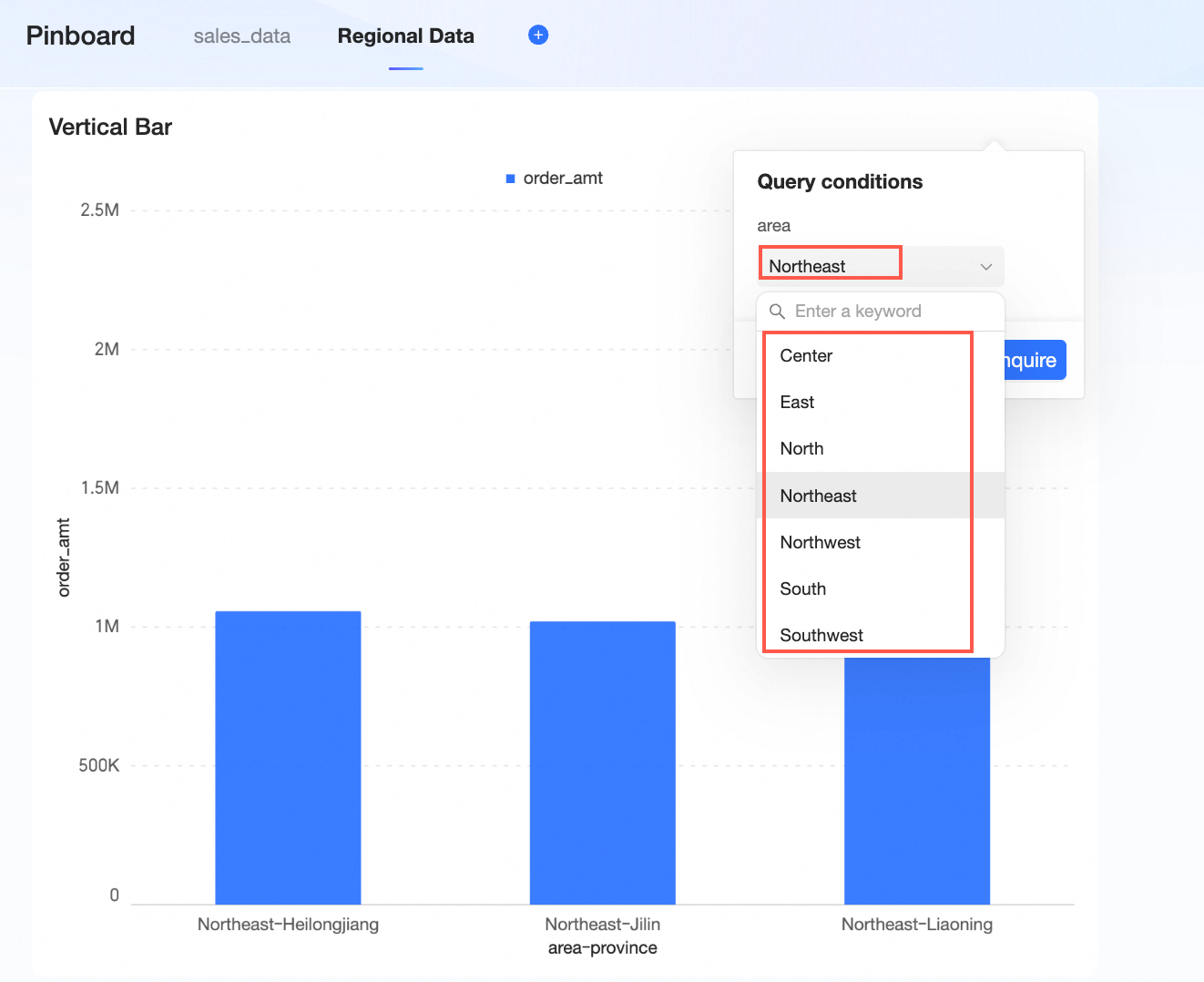
The condition value active at collection time is captured and displayed on the Pinboard. It can be changed, and changes persist after refresh.
-
Example: If you add a card with the region filter set to Northeast, the Pinboard shows Northeast as the filter condition. You can change it, and the new value is retained on subsequent visits.
-
Date selection conditions
The default value is shown on each visit and updates automatically. You can change the date for the current session, but the change is not saved—next time you open the Pinboard, the date reverts to the default (for example, if configured to T-1, it always shows the latest data).
-
Example: A card is configured with a default date of T-1. On 2023-11-22, you select 2023-11-19 and add the card to the Pinboard.
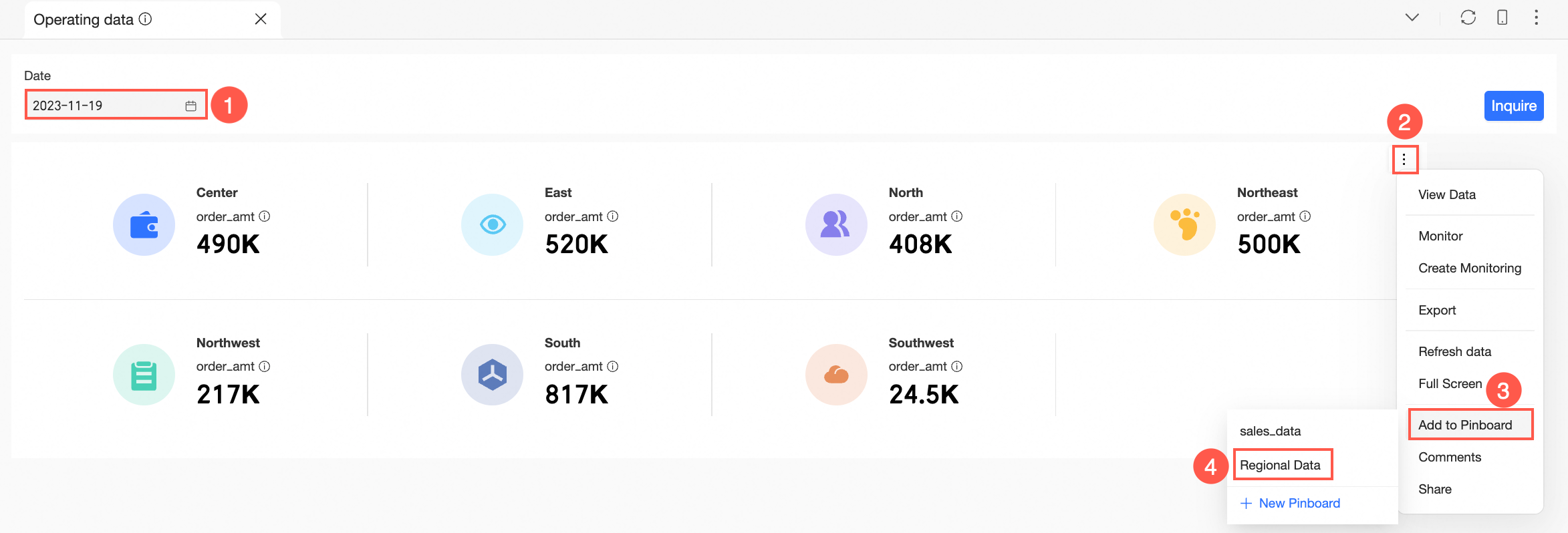
After the card is added, the date automatically updates to 2023-11-21 (T-1 on that day). On future visits, the date always defaults to T-1.
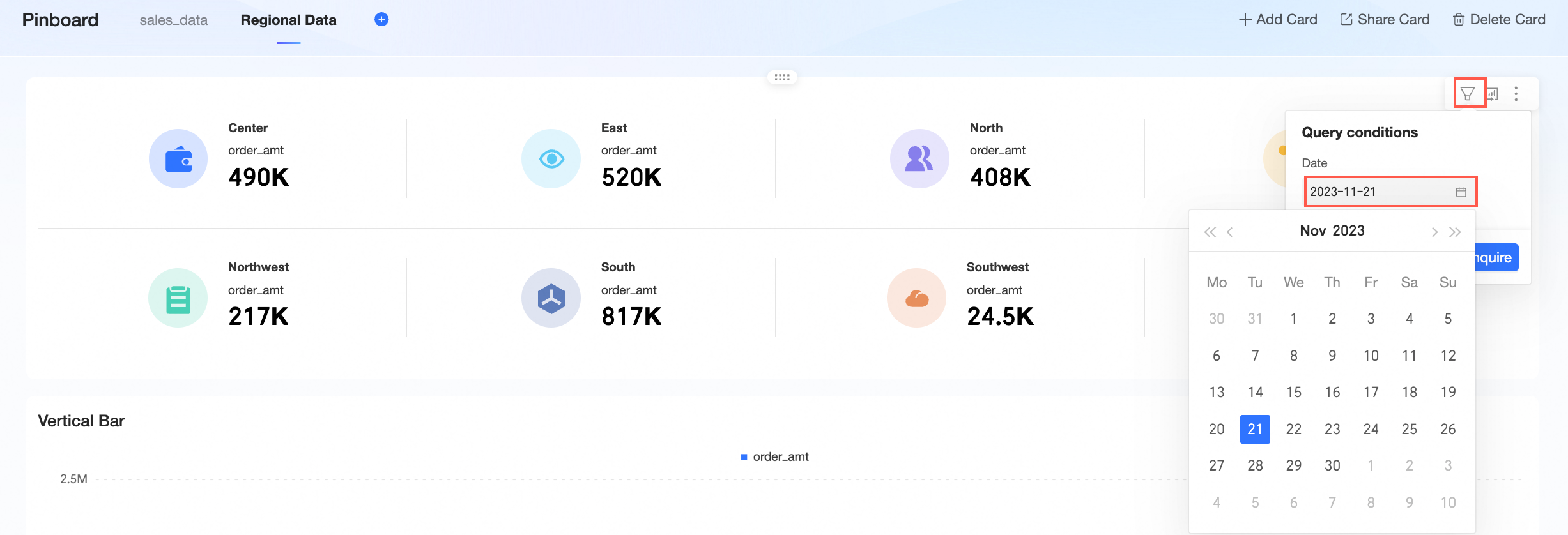
-
Sync with source dashboard
When filter conditions on the source dashboard are added, modified, or deleted, the Pinboard syncs those changes automatically. The card indicates that its conditions have been updated.
-