Quick BI integrates with Intelligent Q's enterprise-level data agent to let you ask data questions in natural language and get instant analysis results.
Currently, this feature is available only for the China (Hong Kong) and Malaysia sites. Support for other sites is being rolled out.
Limits
My Agents is a value-added module. To use it, purchase the Q-Query module first.
Agents are available on Premium Edition and Professional Edition only. Personal Edition does not support agents.
Embedding and mobile scenarios are not supported.
Prerequisites
Before you begin, ensure that you have:
A configured agent with the required permissions. For more information, see Agent management.
The required permissions for Q-Query. For more information, see Organization roles.
Access an agent
Open an agent from the navigation pane
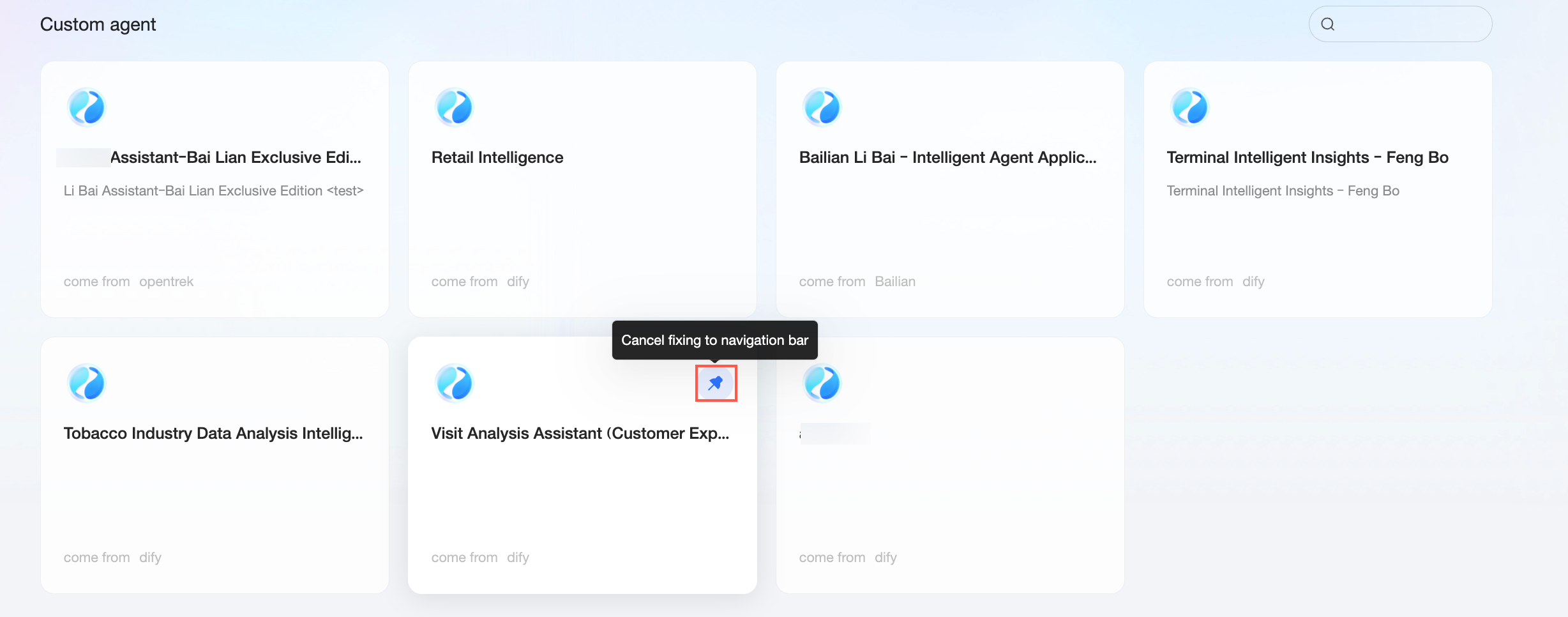
On the Intelligent Q homepage, click Custom Applications in the left navigation pane and select the agent you want to use.
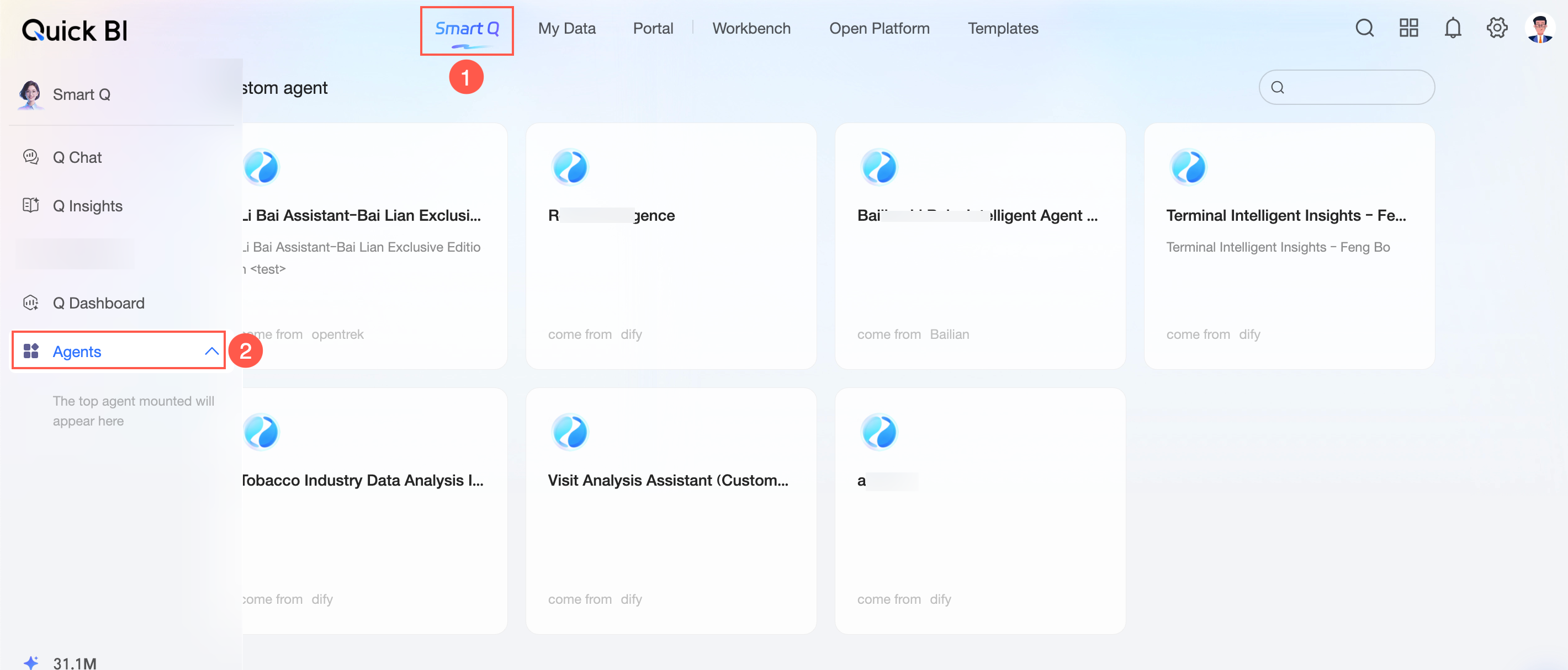
You can also pin an agent to the navigation bar so it appears directly in the left navigation pane.
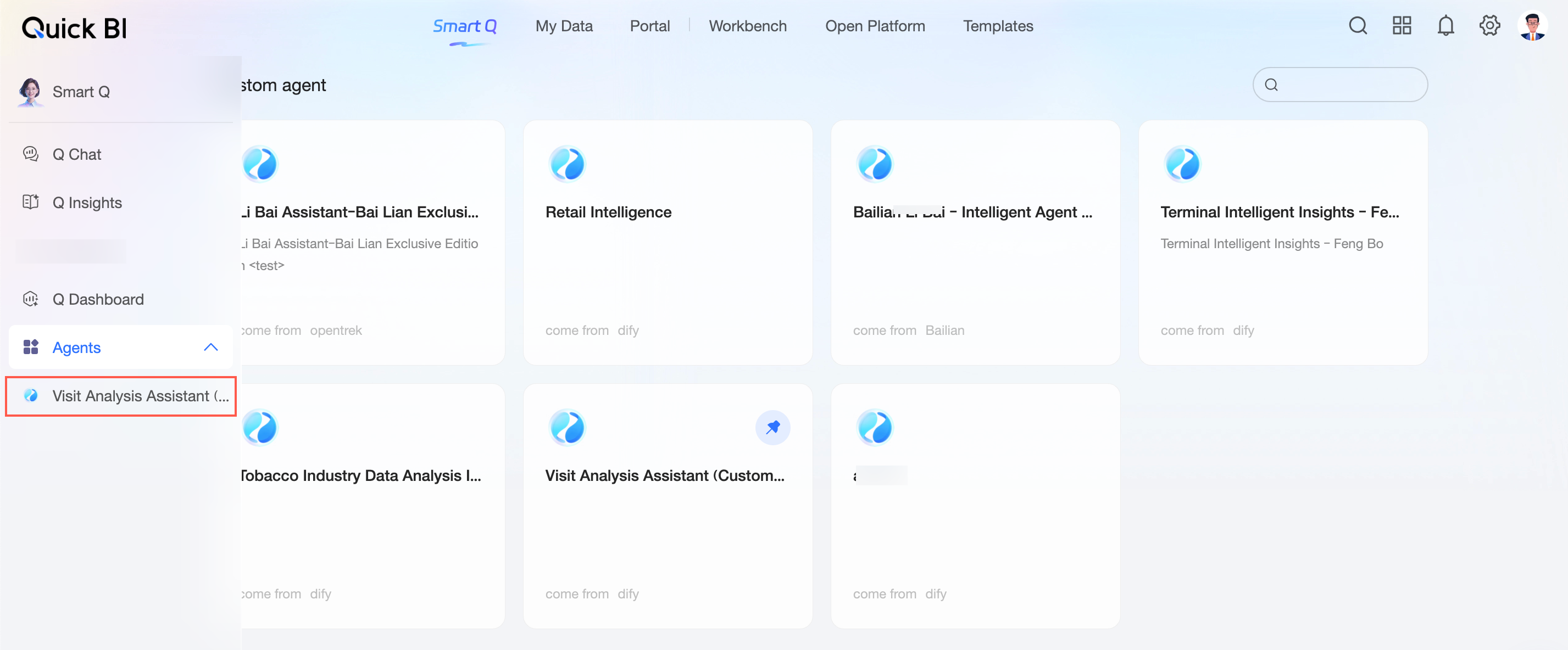
To pin or unpin an agent:
Hover over the agent and click the
 icon to pin it to the navigation bar.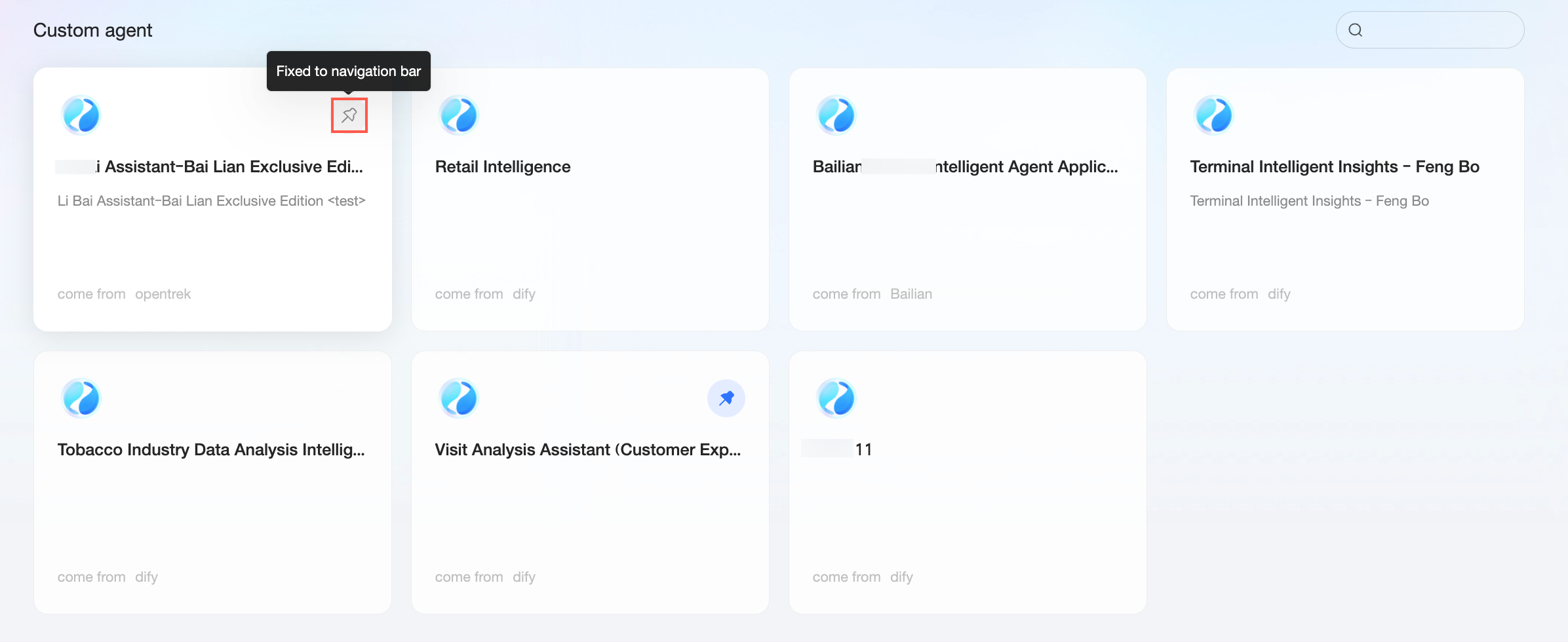
To remove it from the left navigation pane, click Unpin from navigation bar.
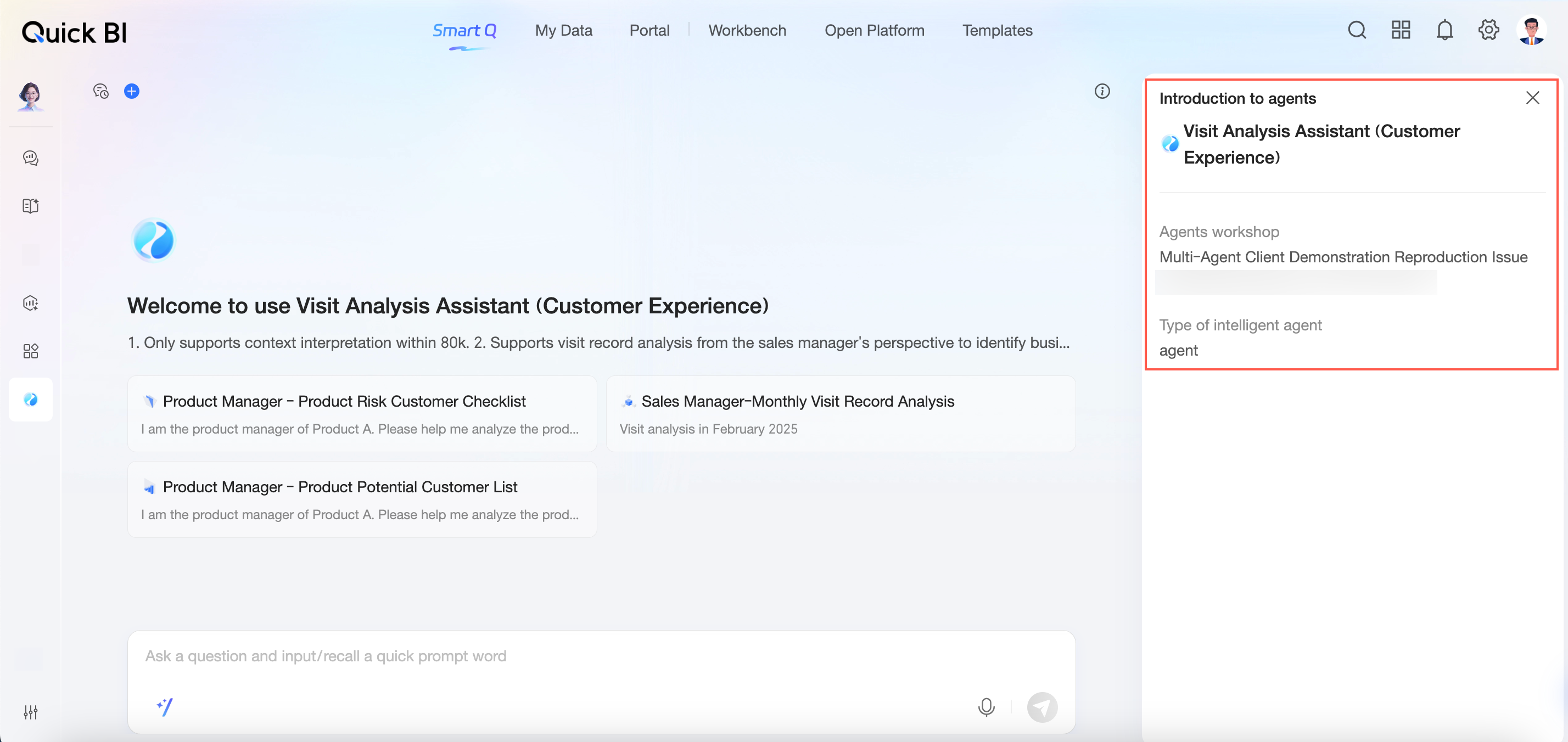
View the agent introduction
After you open an agent, its introduction is displayed automatically.
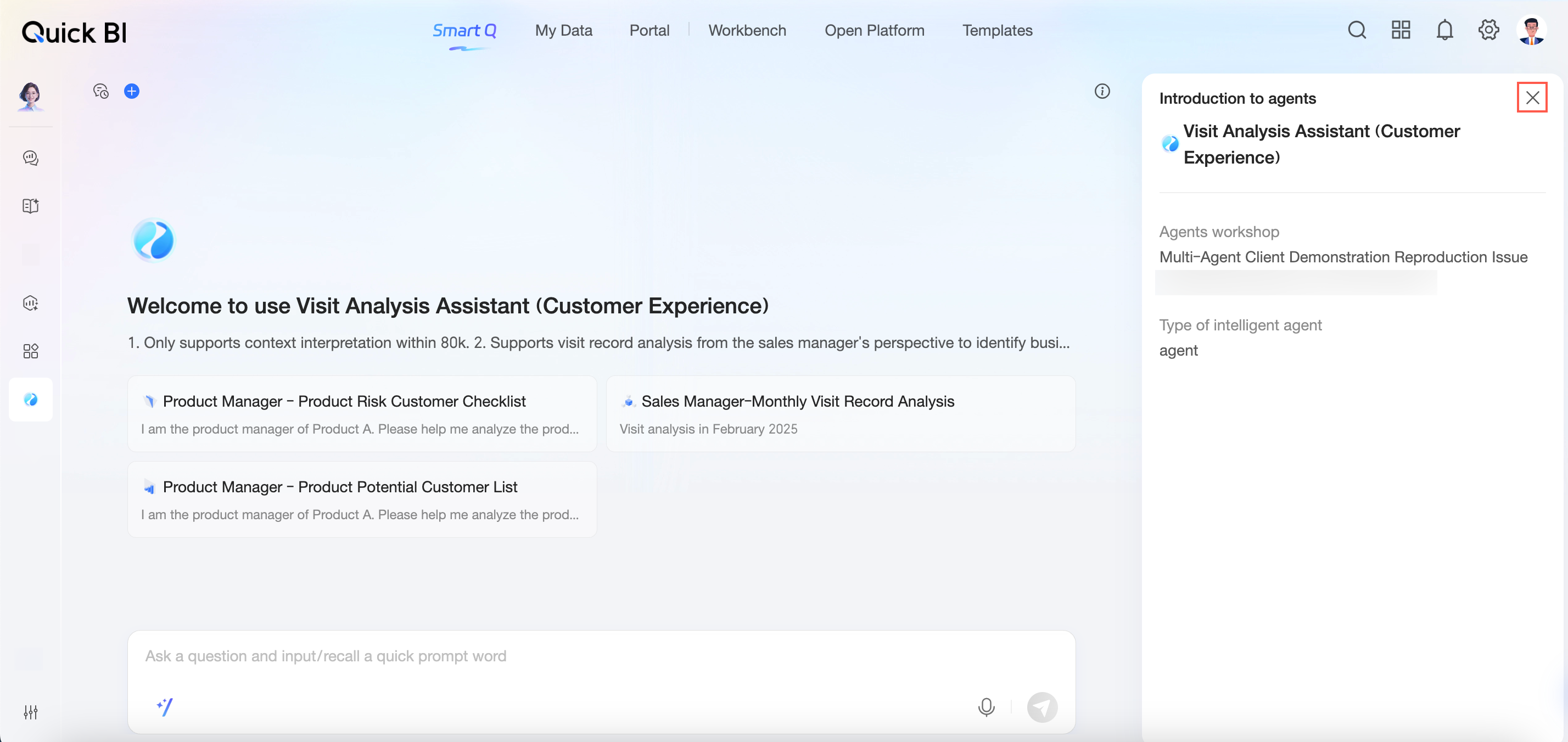
Click the  icon in the upper-right corner to close the introduction.
Ask questions
After you select an agent as described in Access an agent, ask questions in the agent dialog box. The following input methods are available:
-
Type a question directly
Type your question in the dialog box and click the
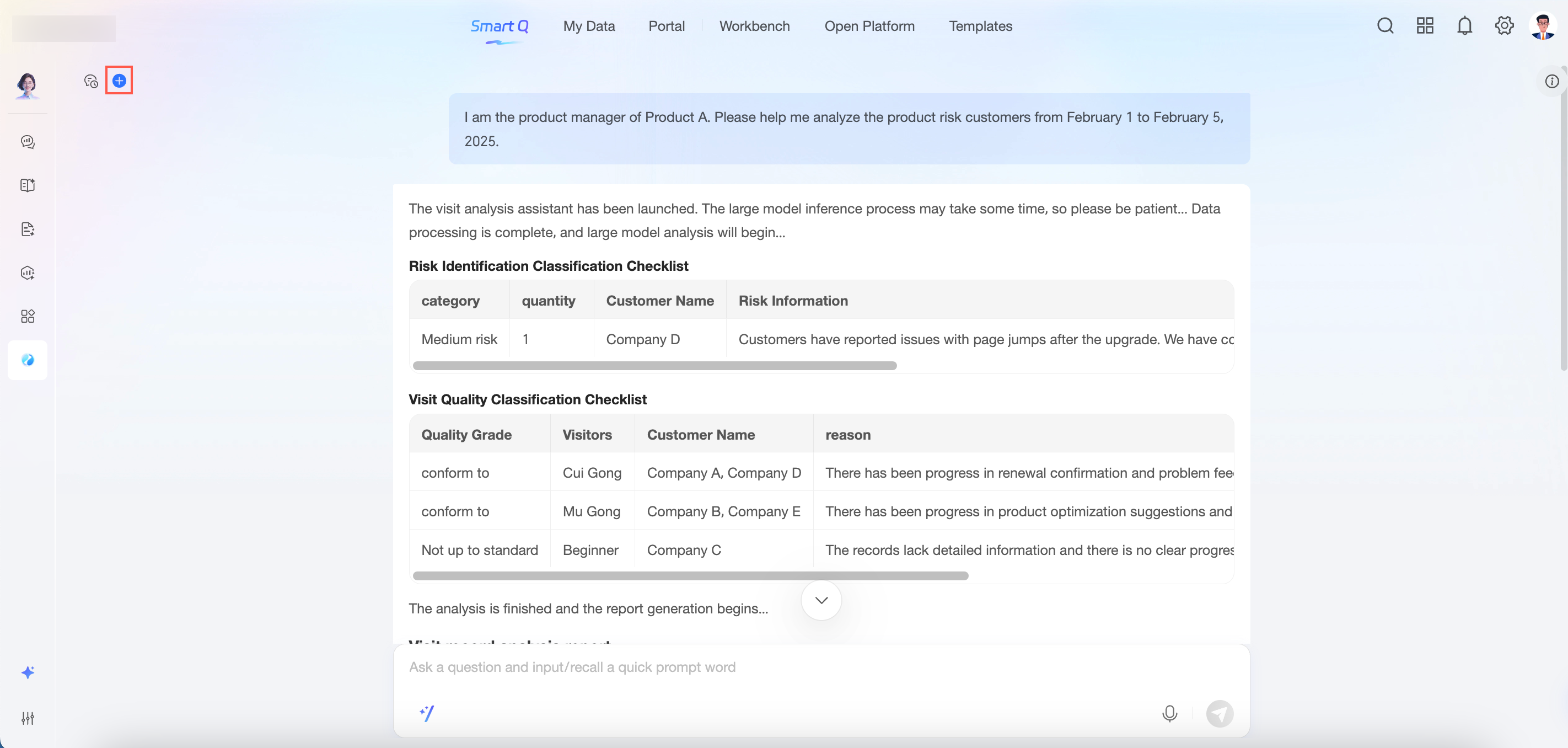
 icon or press Enter to submit. For example: "I am the product manager of Product A. Help me analyze the high-risk customers of the product from February 1 to February 5."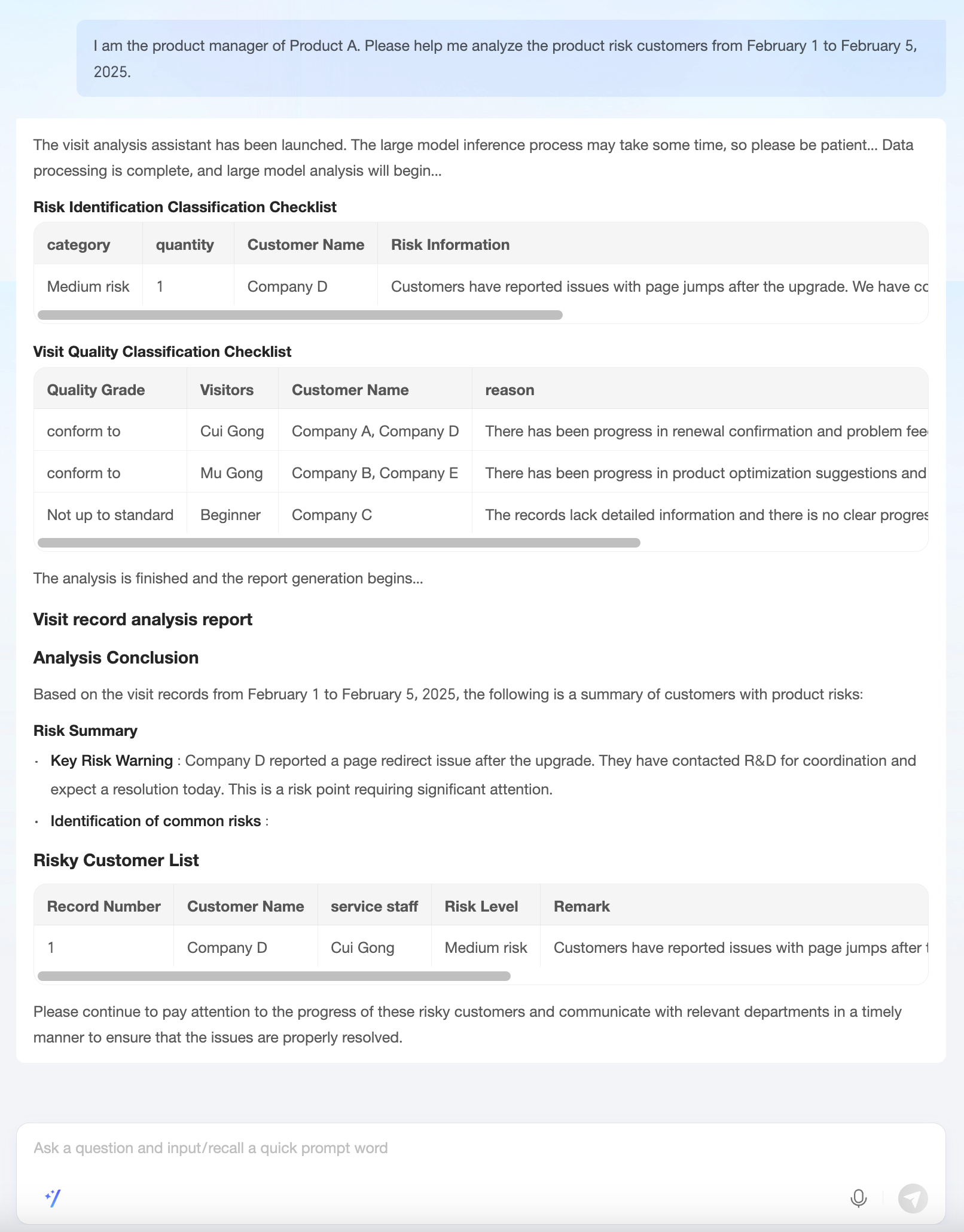
While the agent is responding, click the
 icon in the lower-right corner to stop the response.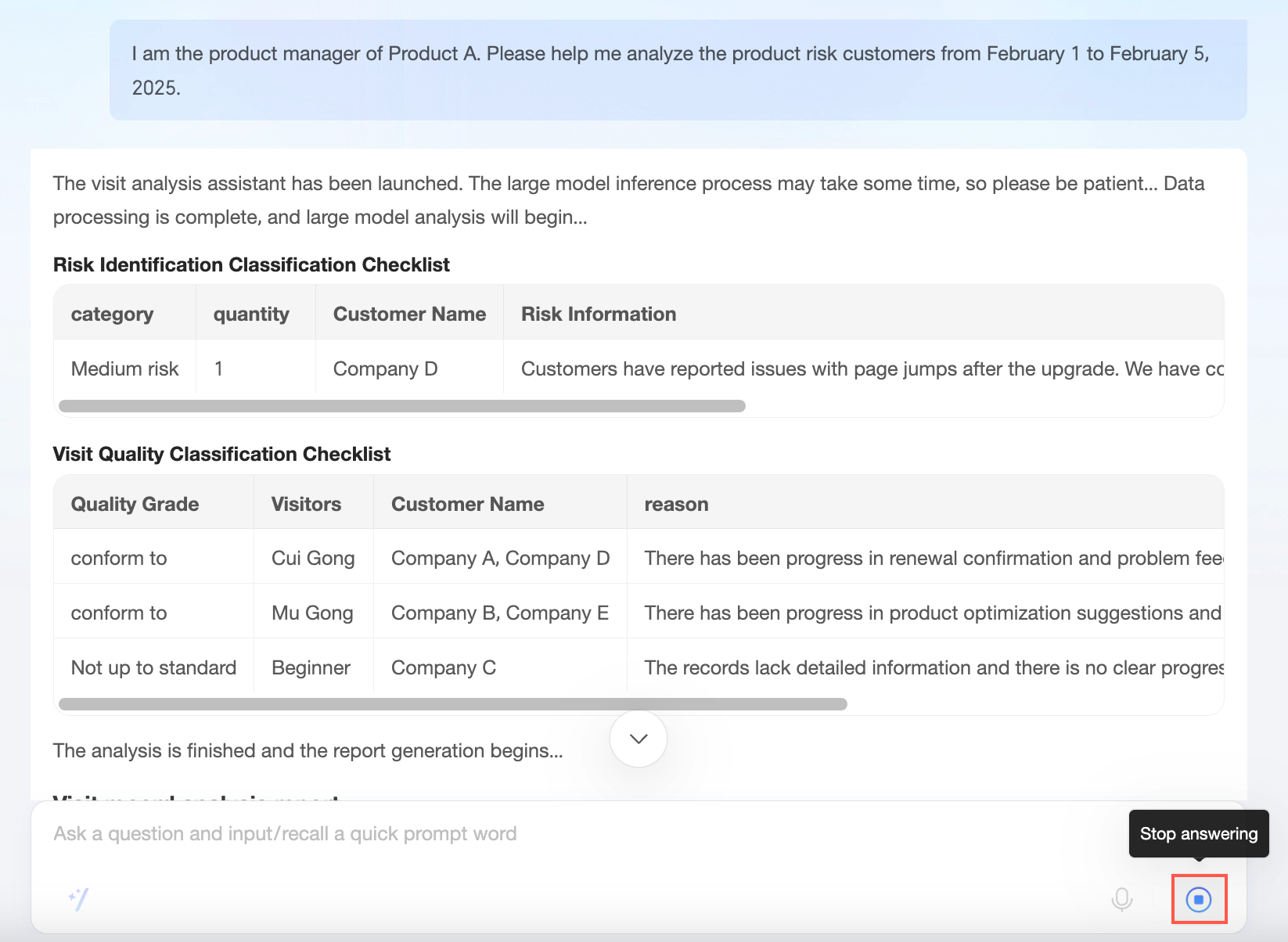
-
Click an example question
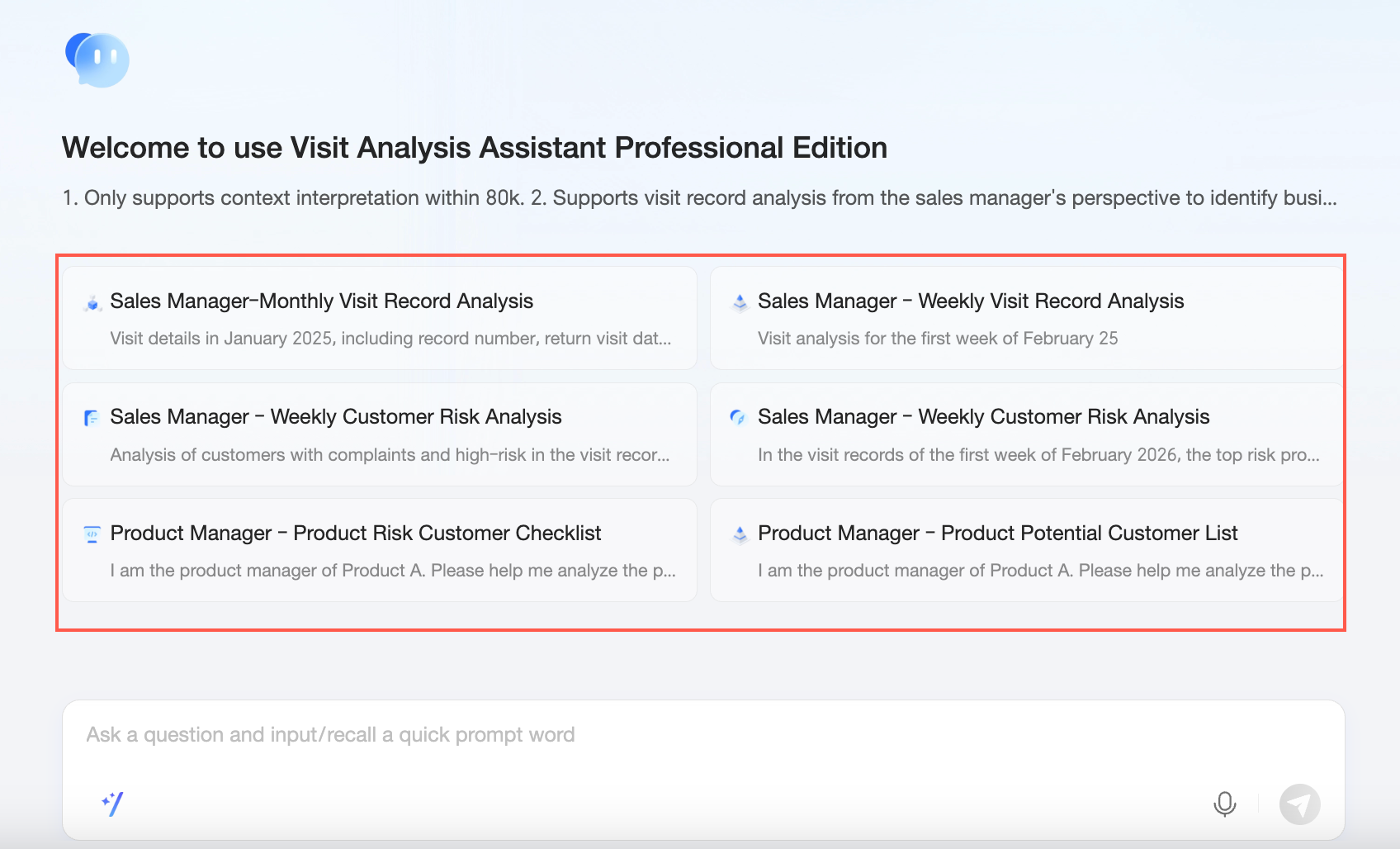
-
Use quick questions
Click the
 icon in the lower-left corner of the question box to open the quick questions panel, then click a question under Recommended questions or Recent questions.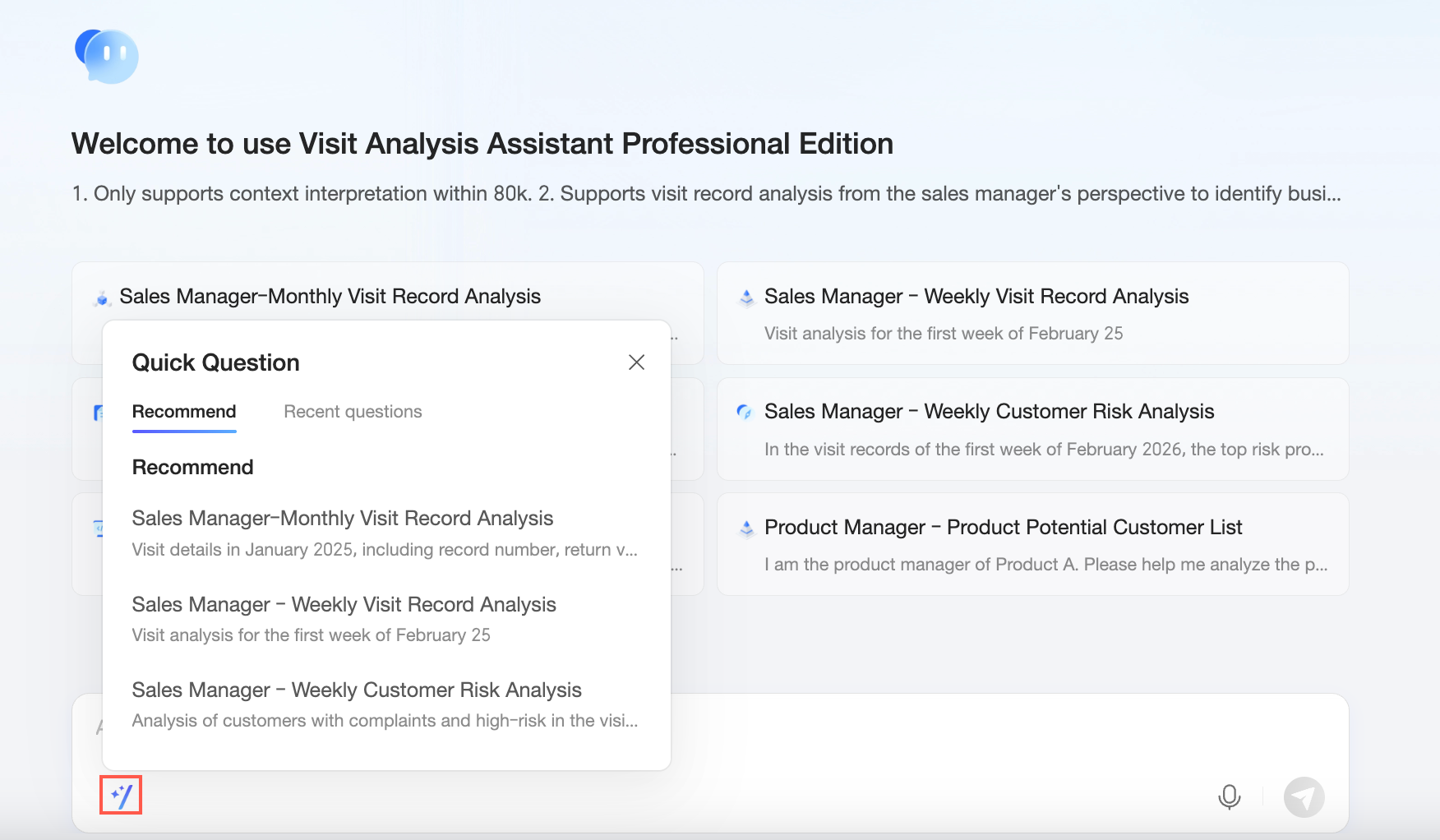
-
Use speech input
-
Click the Speech input icon to open the voice conversation interface.
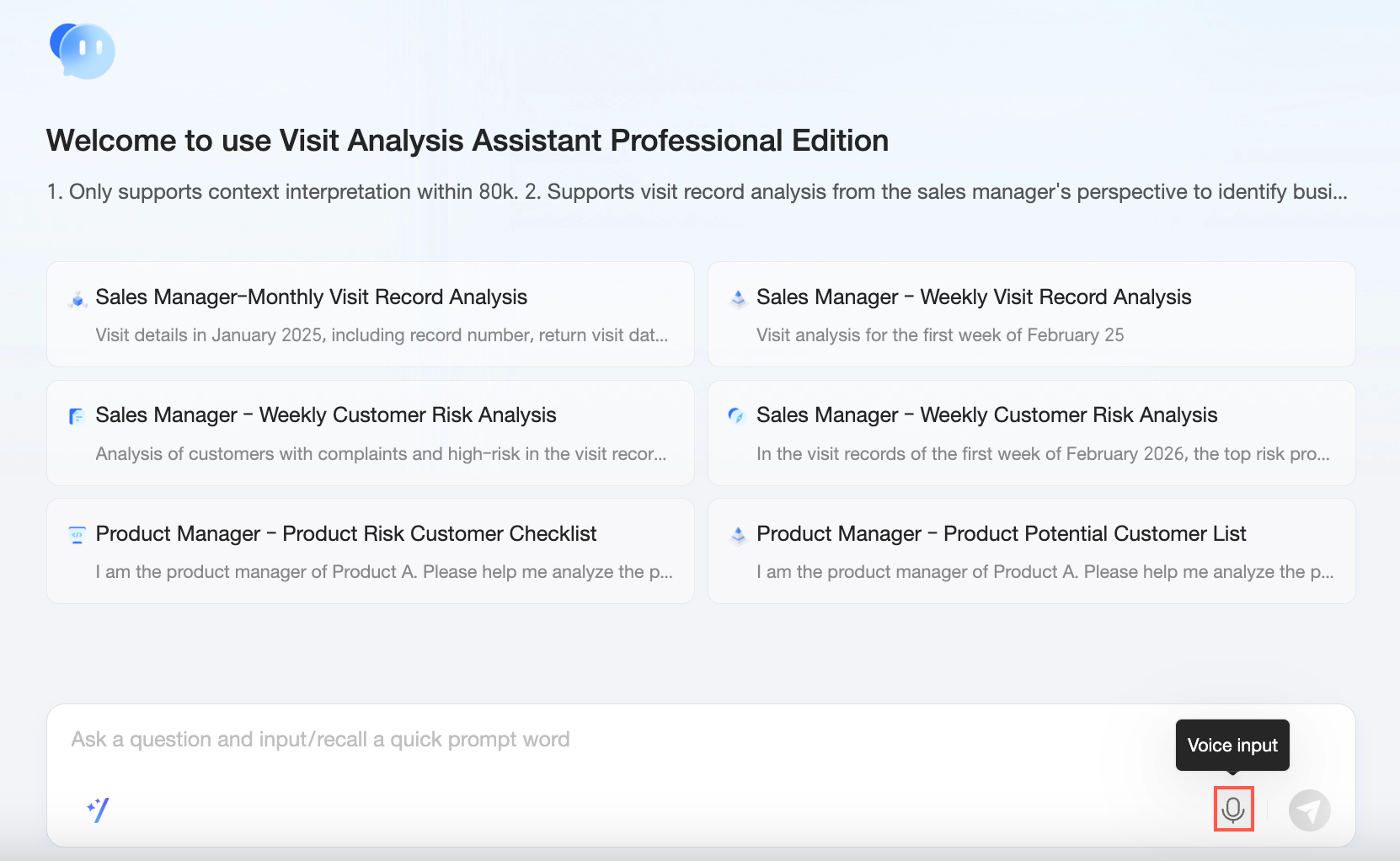
-
Speak your question. The system converts your speech to text automatically.
Click the
 icon to cancel input, or click the
  icon to switch to text input.
 Click Send or press Enter to submit your question.
-
Conversation history
-
Click the
 icon in the upper-left corner to view your conversation history with the agent.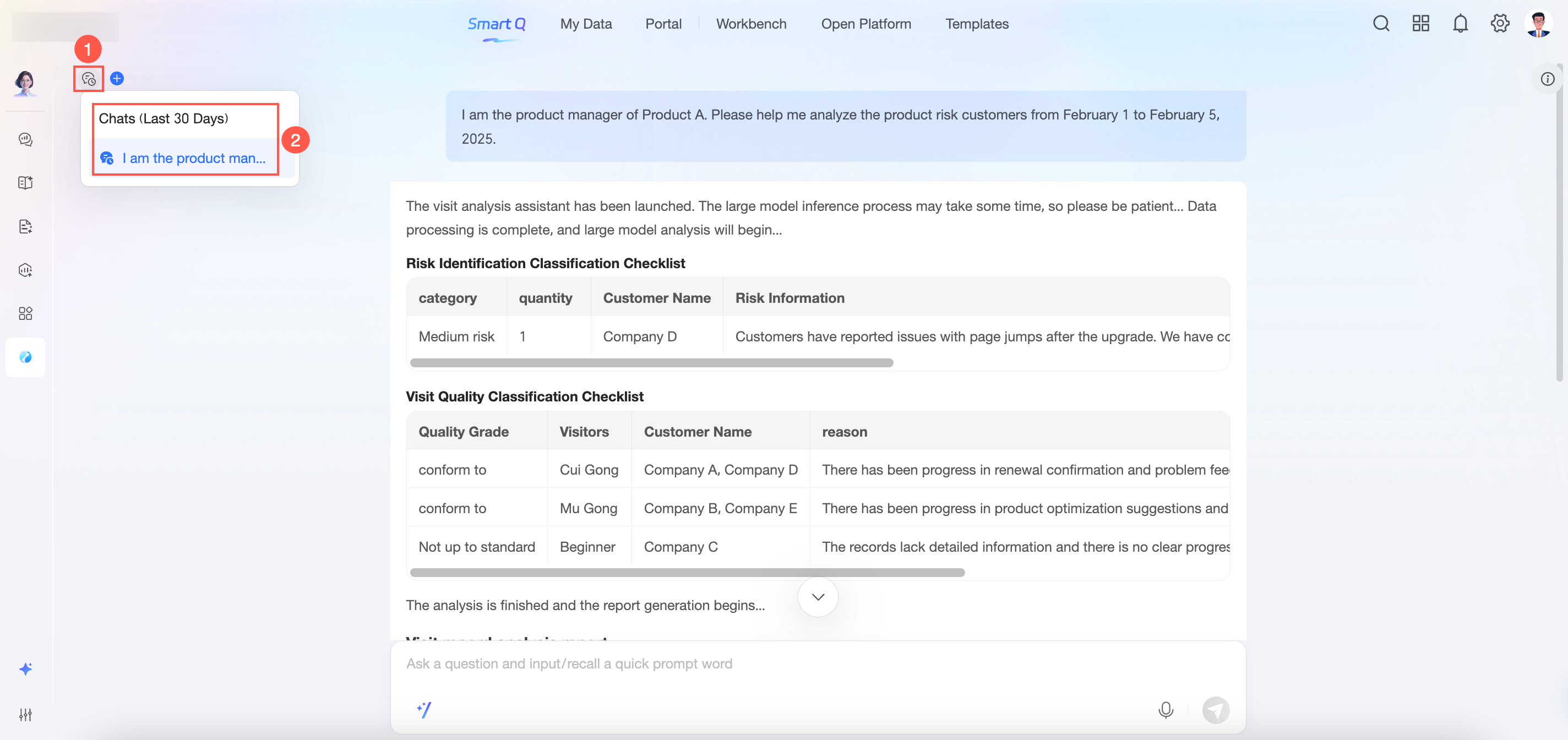
-
Click the
 icon to start a new conversation.