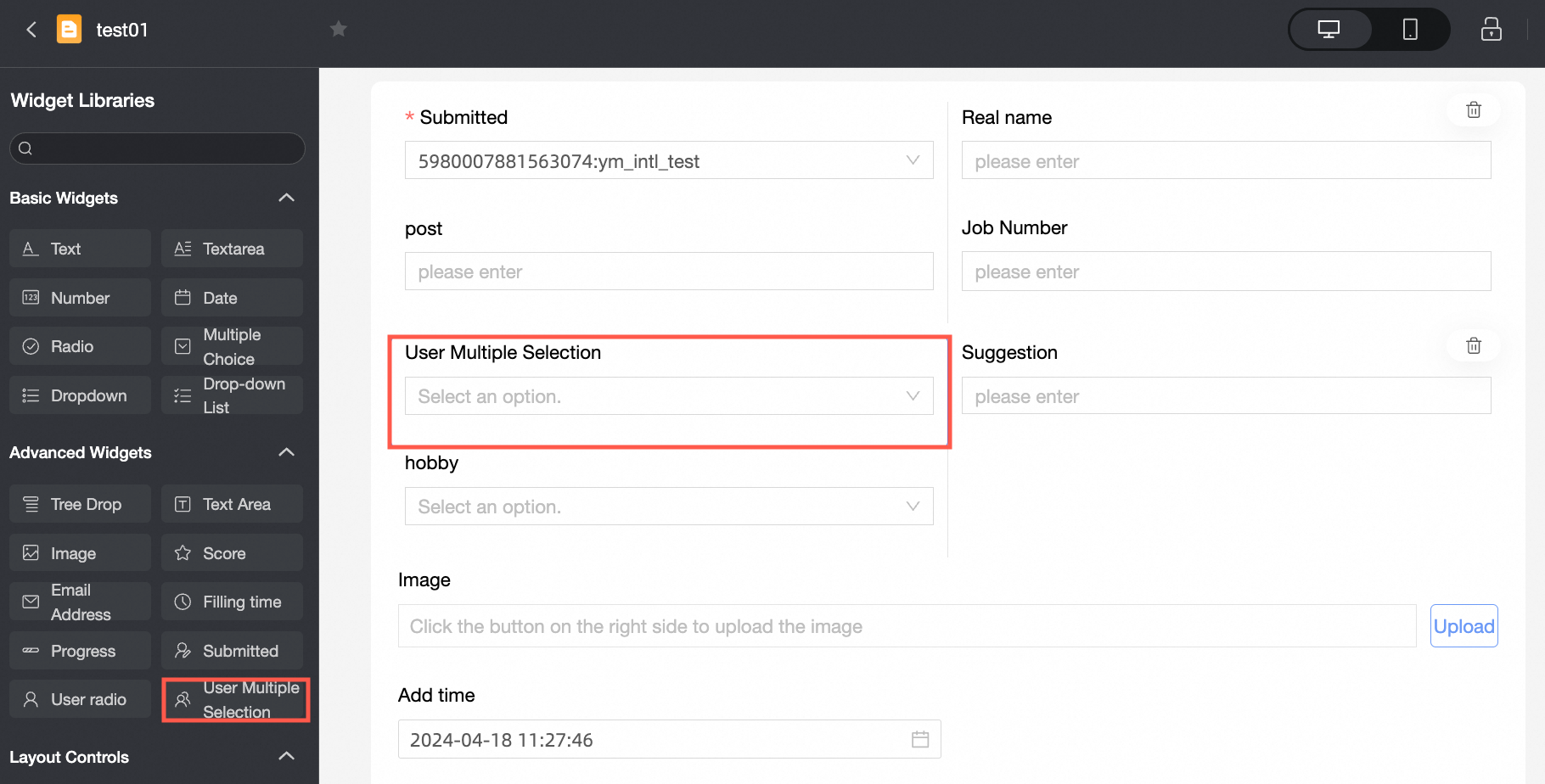
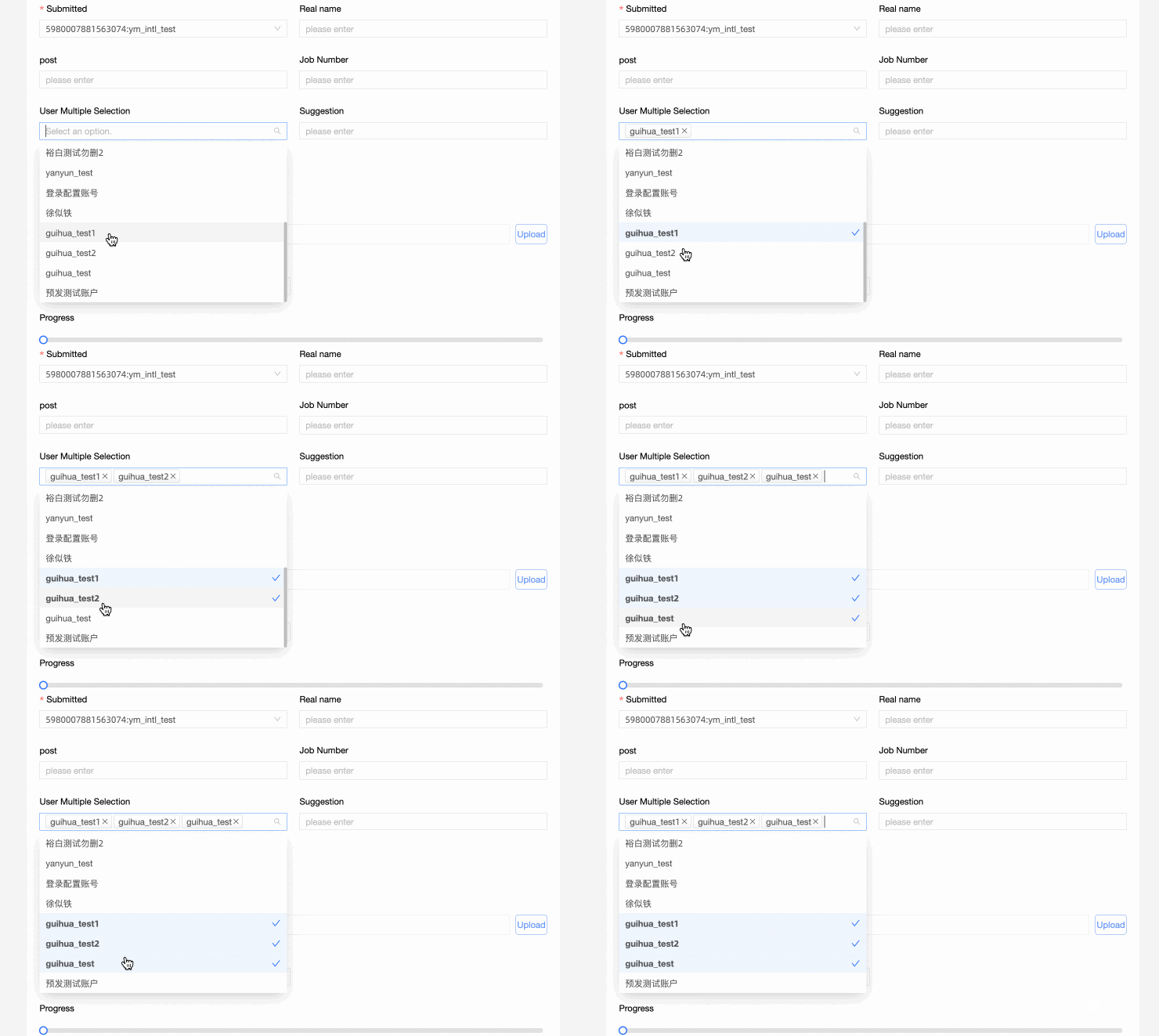
The User Multiple Selection advanced control allows you to select multiple usernames from a drop-down list.
Scenarios
-
Select the usernames of multiple project members when filling out a project progress table.
-
Select multiple participants when filling out an activity participation form.
TensorBoard
Control configuration
Basic parameters
|
Parameter |
Description |
|
|
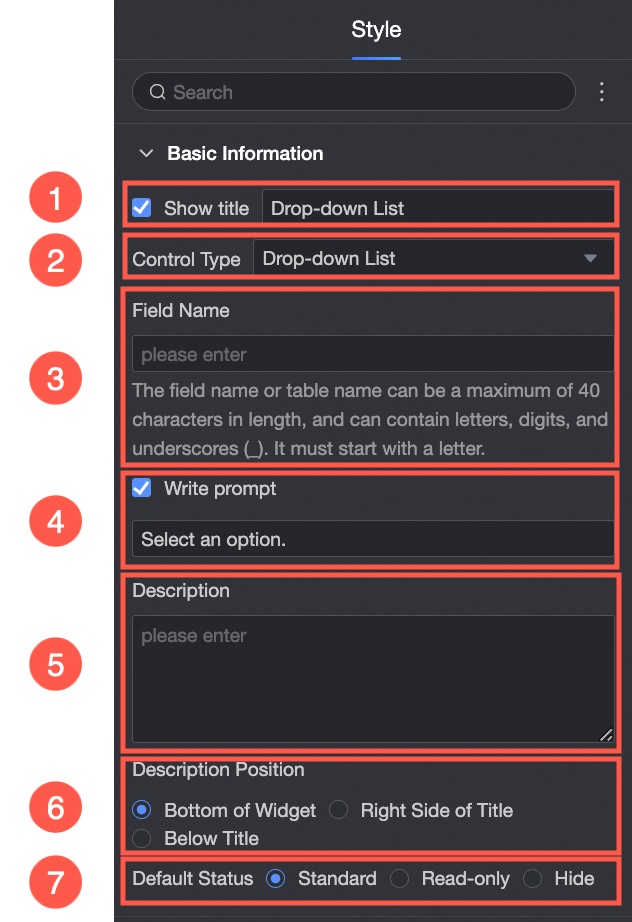
① Display Title: Specifies whether to display the control title. You can customize the display name, which serves as the column name in the data form. |
|
② Control type: After you select a control, you can change its type. The drop-down list supports switching to other basic and advanced control types. |
|
|
③ Table Field Name: The name of the corresponding field in the table created from the data form. Note
The field or table name must start with a letter and can contain letters, digits, and underscores (_). The name can be up to 40 characters in length. |
|
|
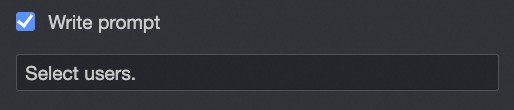
④ Prompt: The placeholder text displayed in the control. For example: Select a user name
|
|
|
⑤ Description: A custom description for the control. |
|
|
⑥ Description Information Location: The position where the description is displayed. Valid values: Control Bottom, Title Right, and Title Below. |
|
|
Default State: The initial state of the control. Valid values: Normal, Read-only, and Hidden. |
|
Define options for an extension
|
Parameter |
Description |
|
|
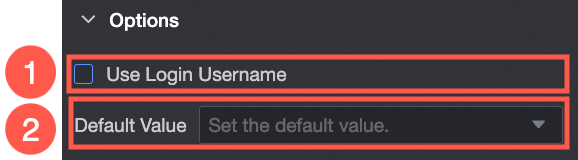
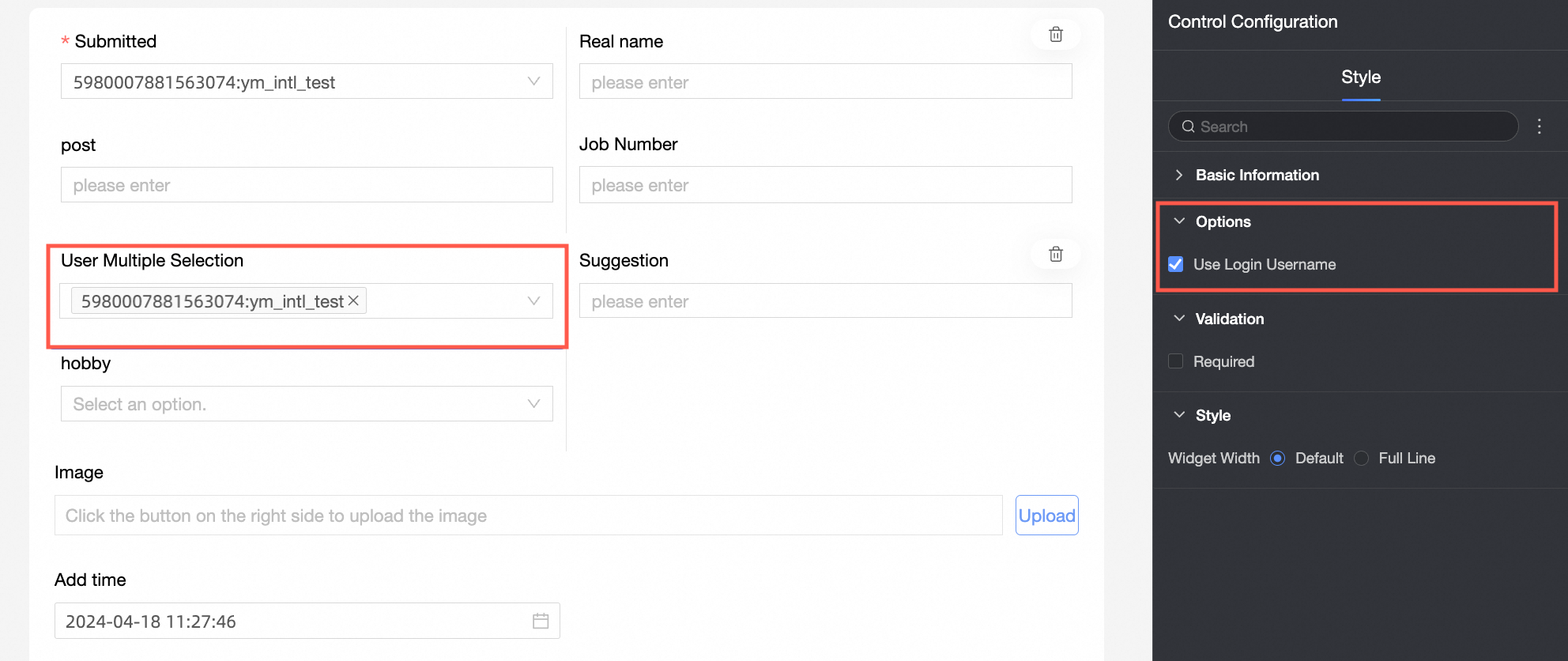
① Use Logon Username: If selected, the current logon username is automatically populated. |
|
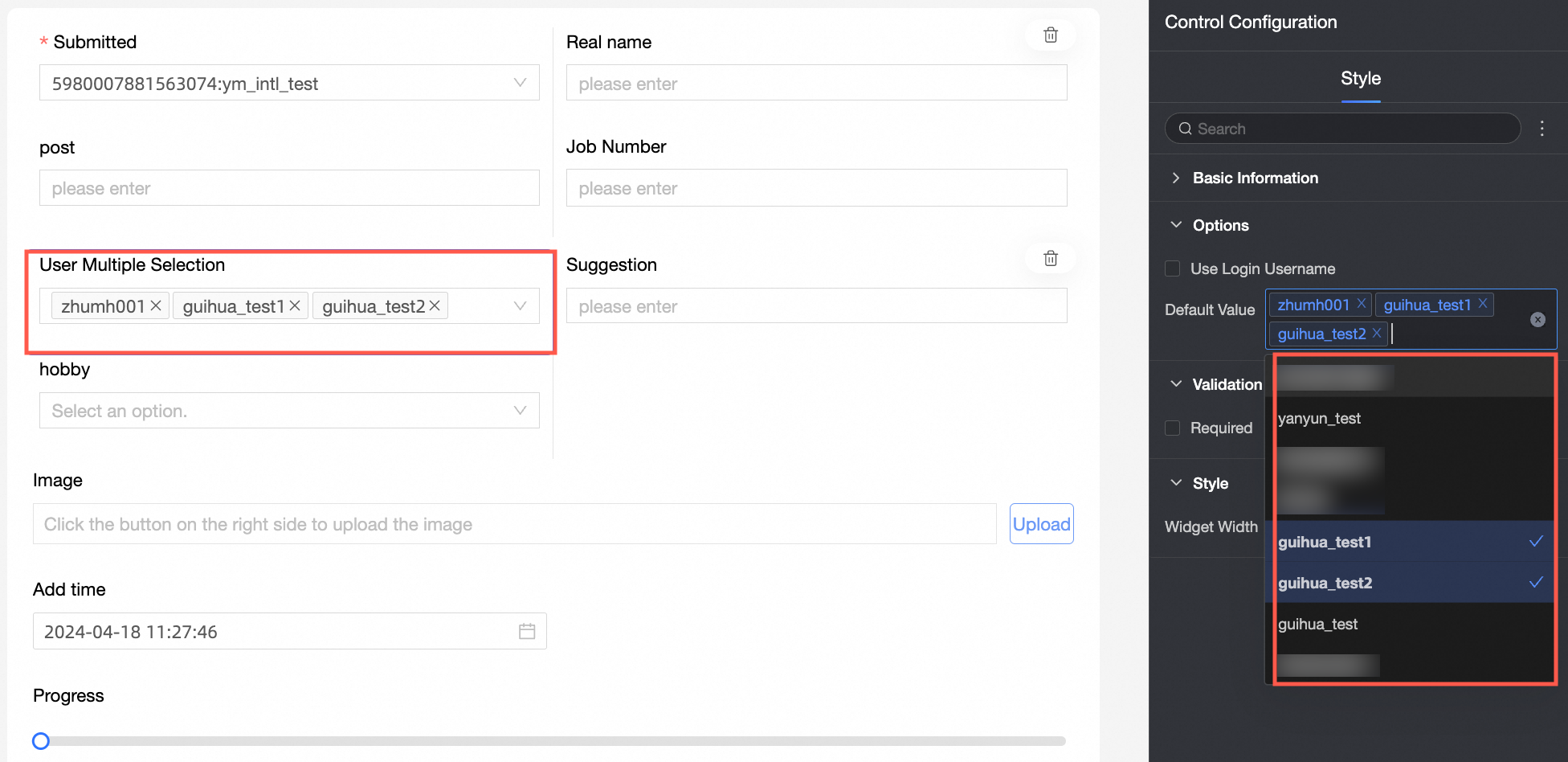
② Default Value: The default value for the username field. You can select multiple Usernames.
|
Yes
|
Parameter |
Description |
|
|
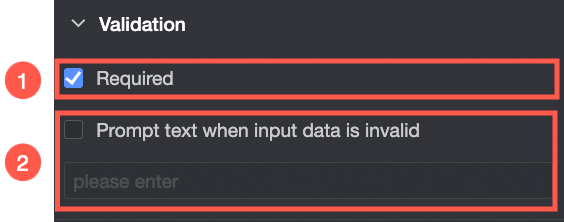
① Required: Specifies whether this field is required. If selected, the control is marked as Required. |
|
② Input data invalid prompt text: The error message displayed when a validation rule is triggered. For example, if Required is selected and no value is specified, a custom error message is displayed. |
styles
|
Parameter |
Description |
|
PC
|
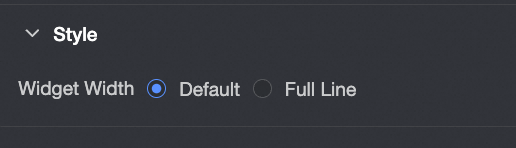
Widget Width: Select Default or Whole Line. Note
You can also use the Manual Drag Control widget to adjust the border width. |
|
Mobile platform
|
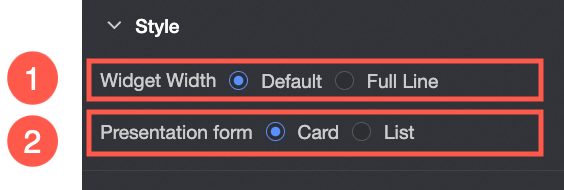
① Control width: Same as the PC-side setting. |
|
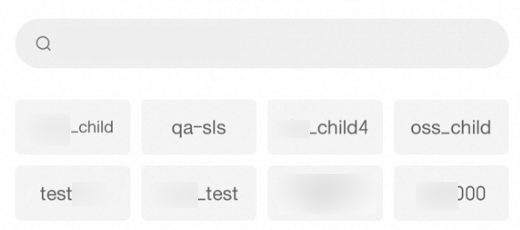
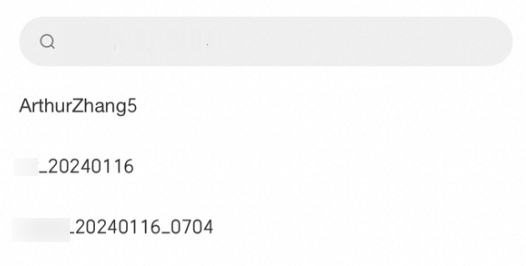
Display form: Options can be displayed in two formats: Card and List. Example of the card display effect:
List:
|