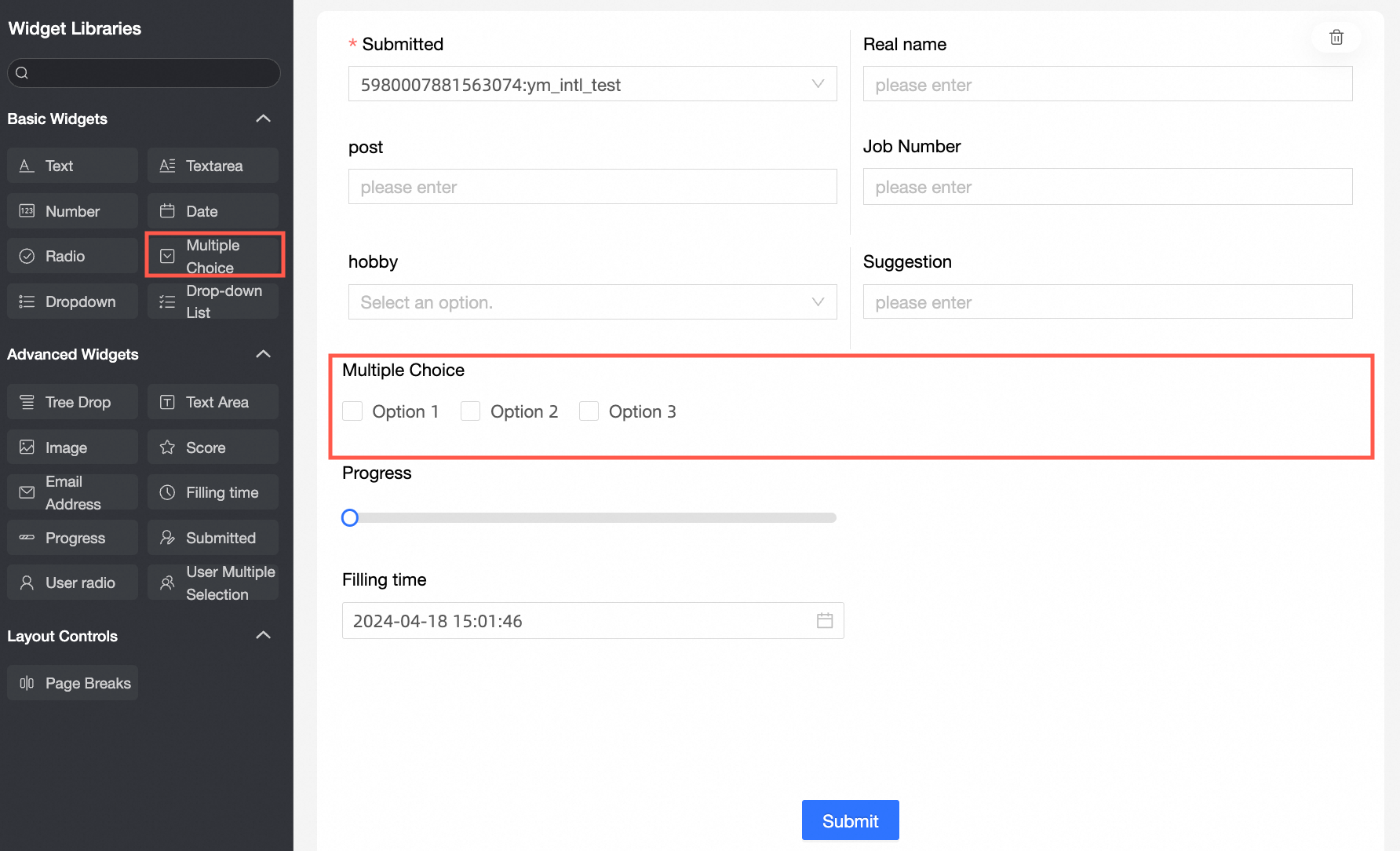
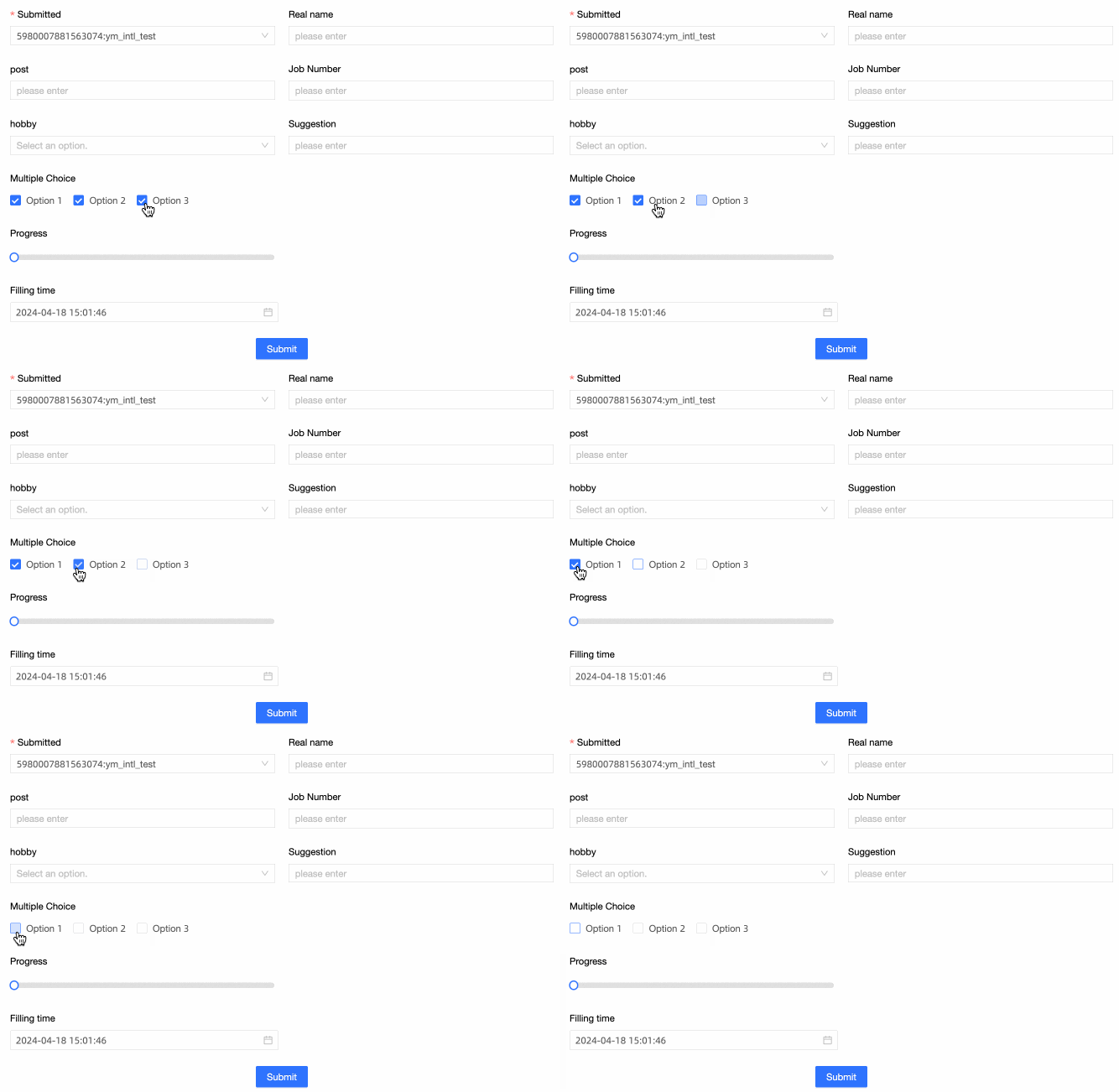
Multiple selections are used as the basic control. You can select multiple data items from the options menu. This parameter is used in scenarios where you need to select multiple data items at the same time and have many options.
Scenarios
The multi-select widget is commonly used in scenarios with a large number of data options. Example: Satisfaction Survey.
TensorBoard
Control configuration
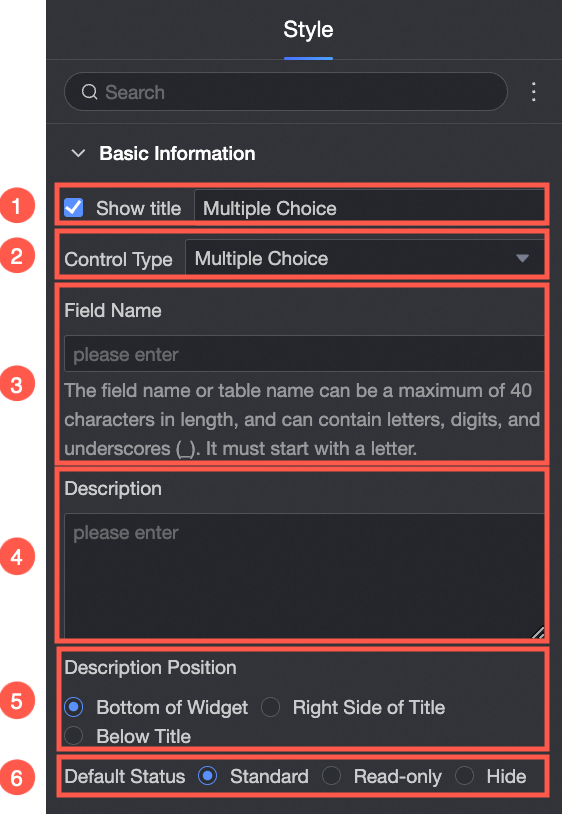
Basic parameters
Parameter | Description |
| ① Display Title: Select whether to display the title of the drop-down multi-choice control. You can customize the display name as the column name of the data form. |
② Control type: After you select a control, you can replace the control type. The drop-down options can be replaced with other basic and advanced control types. | |
③ Table Field Name: the name of the corresponding field in the table created based on the data form. Note The field or table name must start with a letter and can contain letters, digits, and underscores (_). The name can be up to 40 characters in length. | |
Description: the description of the custom control. | |
⑤ Description Information Location: specifies the location of the description information. The following options are available: Control Bottom, Title Right, and Title Below. | |
Default State: specifies the default state of the widget. The valid values are Normal, Read-only, and Hidden. |
Parameter
From: You can select Custom Data, Data Source, or Dataset.
Parameter | Description |
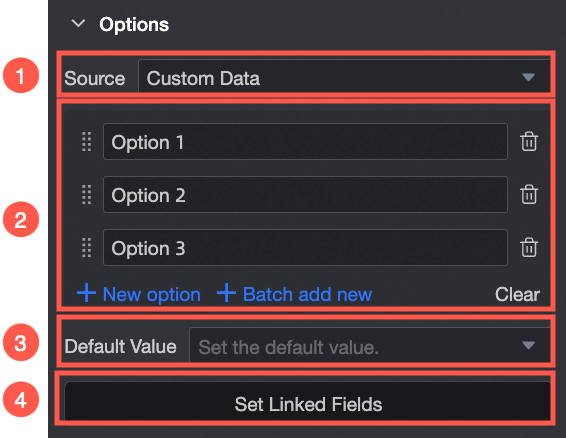
Select Custom Data from the Source drop-down list.
| ① From Custom Data: If you select Custom Data, you can set Display Name and Correlation ID as required. |
② Option Name: You can add, edit, and delete options. | |
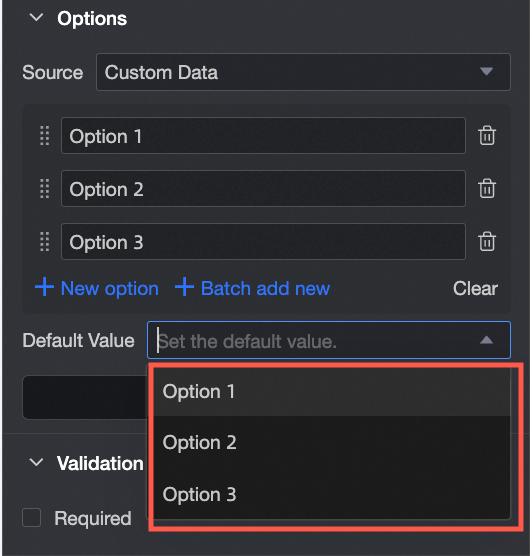
③ Default Value: Select a value based on the Options drop-down list.
| |
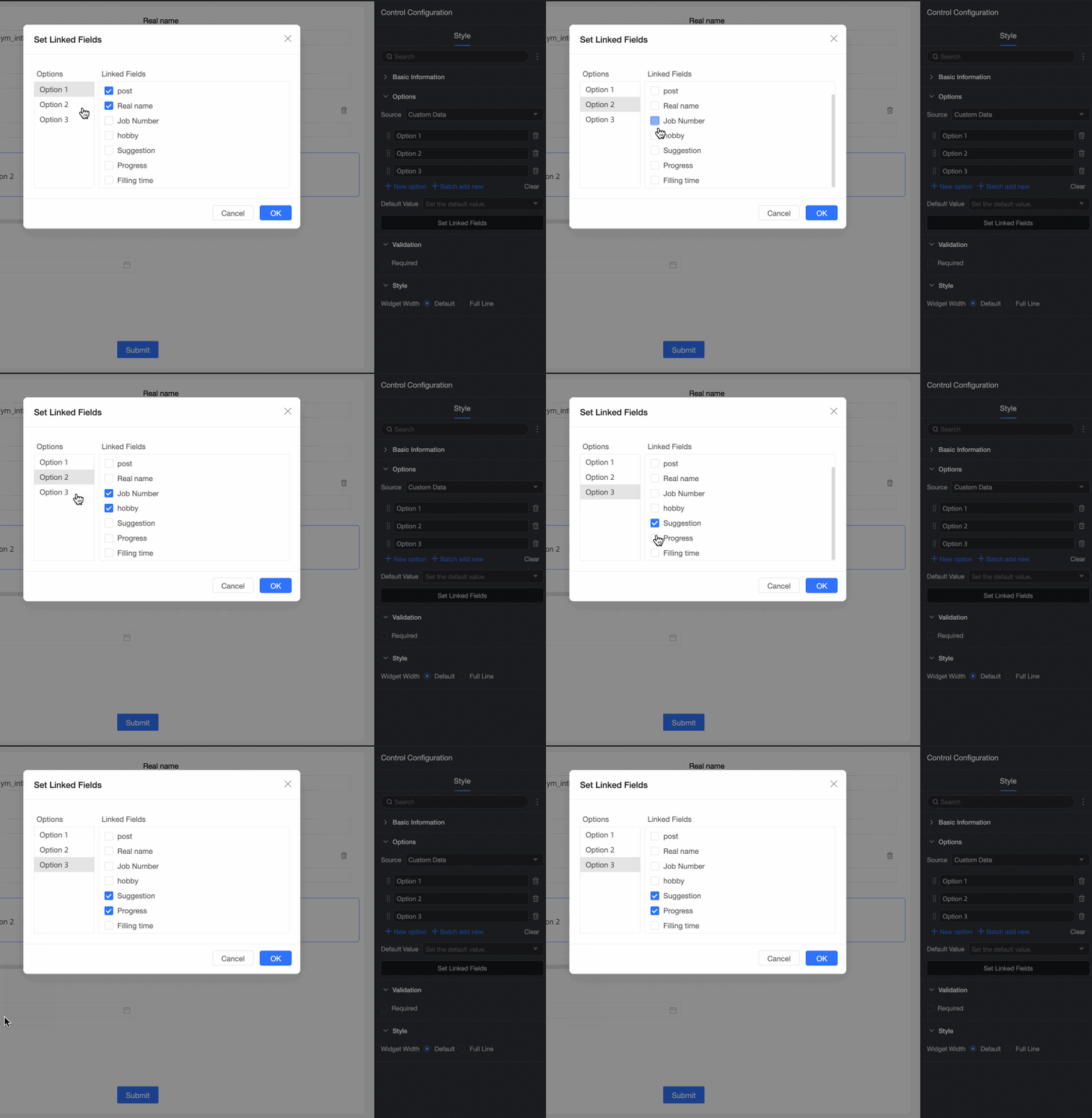
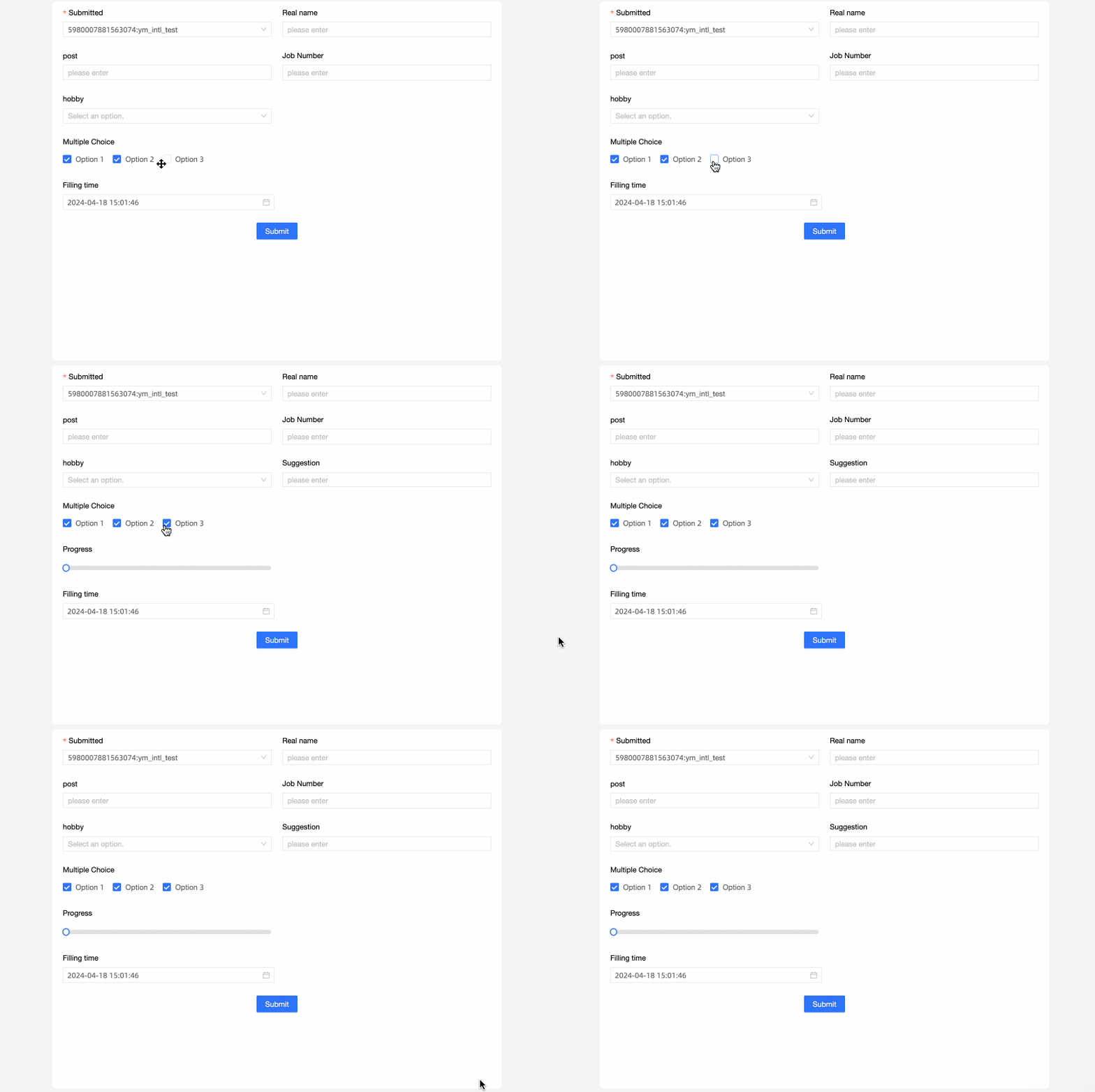
④ Associated option settings: If the current form contains two or more single-choice, single-choice, or multiple-choice drop-down controls, you can configure the associated option settings. Note Only fields after the current field can be associated.
| |
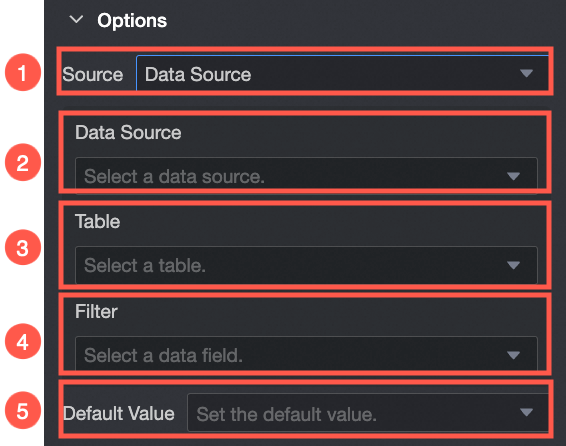
Select Data Source from the Source drop-down list.
| ① From Data Source: If you select Data Source, you can select the required options for the data table in the data source. |
② Data Source: Select a data source from the drop-down list. | |
③ Data Table: Select a data table from the drop-down list. | |
④ Data field: Select a data field from the drop-down list. | |
⑤ Default Value: Data Field Content.
| |
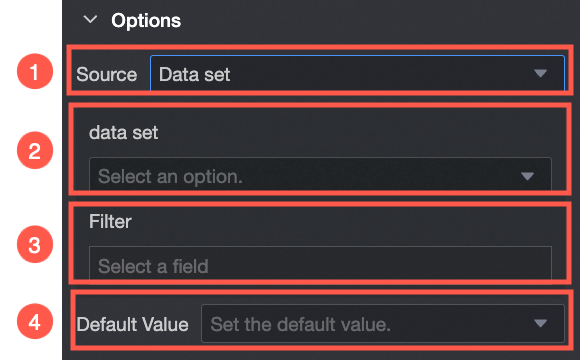
Select Dataset from the Source drop-down list.
| ① From Dataset: If you select Dataset, you can select Data Fields in the dataset. |
② Dataset: Select a dataset from the drop-down list. | |
③ Data Field: Select a data field from the drop-down list. | |
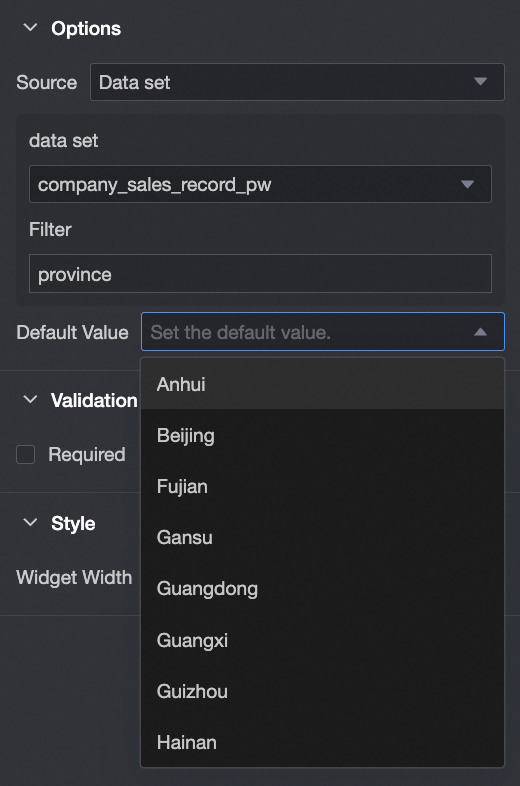
④ Default Value: Select a value based on the Data Field Content drop-down list.
|

Yes
Parameter | Description |
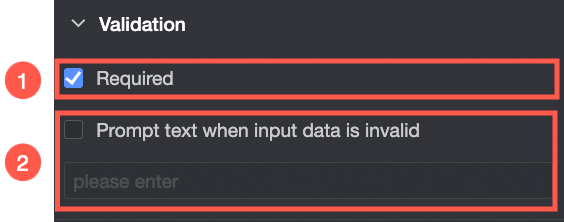
| ① Required: Select whether to set this configuration items. If you select this option, the control is set to Required. |
② Input data invalid prompt text: This configuration items takes effect only when a verification condition takes effect. For example, if Required is selected and no option value is specified, a custom error copy is displayed. |
Section
Parameter | Description |
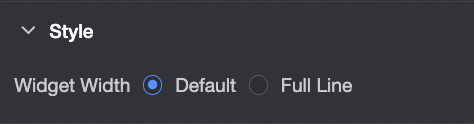
| Widget Width: You can select Default or Whole Line. Note You can also use the Manual Drag Control widget to adjust the border width. |