Bot channels are used to manage the various push channels for an enterprise. To send alert information to enterprises through multiple channels, Quick BI provides a channel for pushing messages through Lark bots. You can create a Lark bot channel and reference it multiple times in metric monitoring alerts to improve the efficiency of adding bot channels. This topic describes how to create a Lark bot channel.
Prerequisites
You have added a Lark bot to the target Lark group.
Background information
When you configure metric monitoring alerts, if you set the Alerting Method to Lark Group, you must also configure the Bot Webhook and Key. Configuring the same group bot for multiple metrics individually can be time-consuming. To simplify this process, Quick BI lets you create enterprise bot channels. For example, you can add a Lark bot channel. Then, when you configure subsequent metric monitoring alerts, you only need to select this bot channel, and the corresponding Lark group will receive notifications.
Create a Lark bot channel
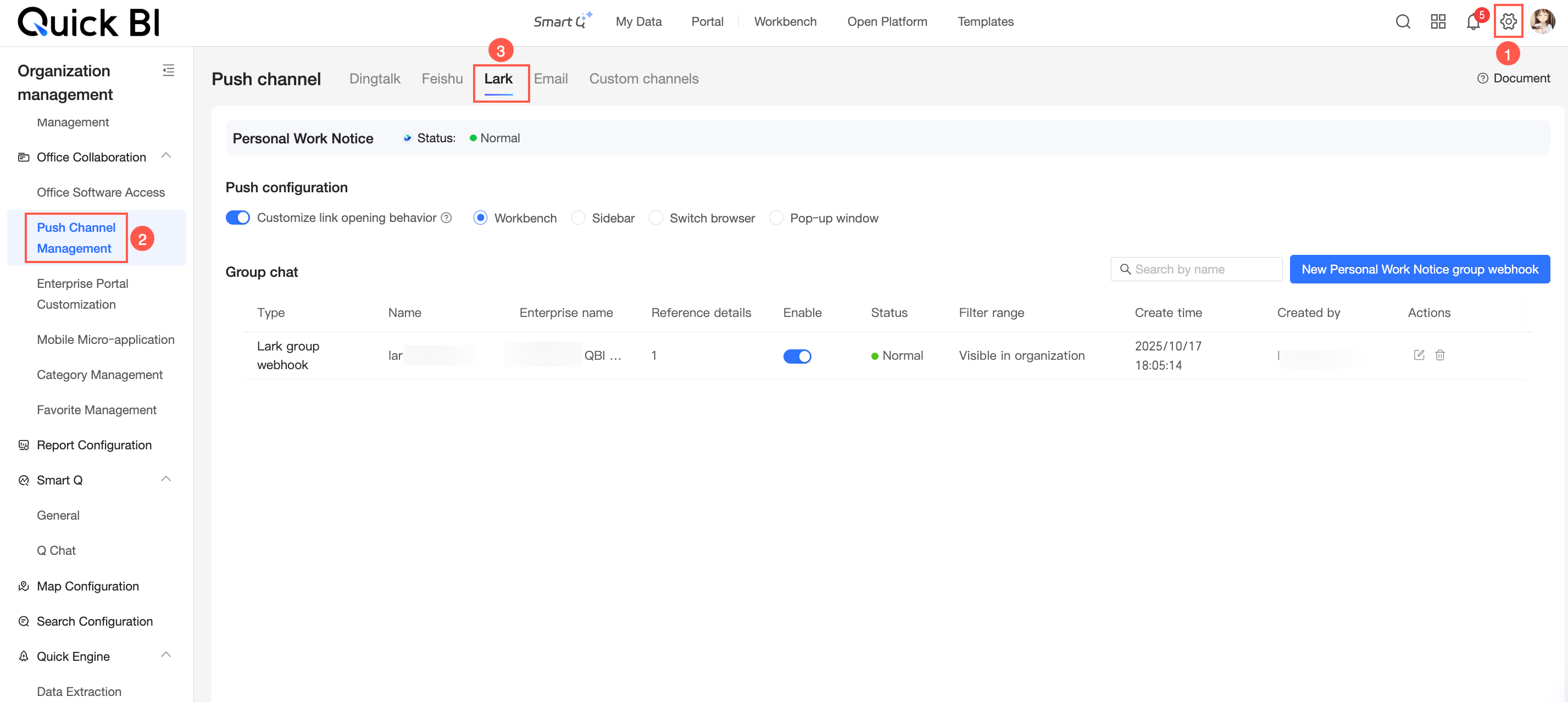
On the Quick BI homepage, follow the steps shown in the following figure to navigate to the Create Lark Group Webhook page.
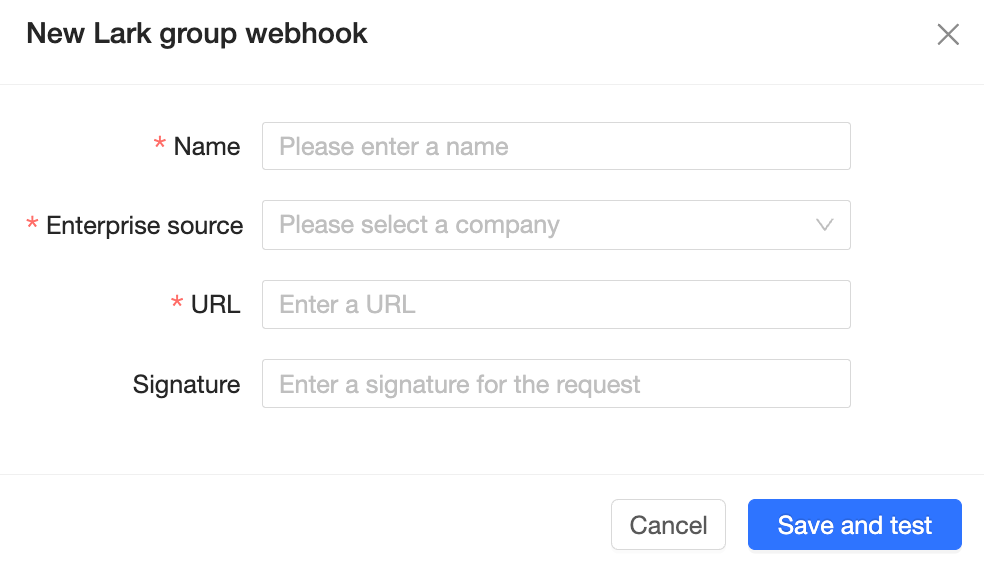
In the Create Lark Group Webhook dialog box, you can configure the following parameters.
Parameter
Description
Name
Enter the name of the Lark group bot.
If you have multiple Lark group bots, we recommend that you name them in the
LarkGroupName_BotNameformat to distinguish them.Enterprise Source
Select the enterprise to which the current Lark bot belongs. You can click the
 icon in the drop-down list and select the relevant Lark organization.
Push Address
Enter the webhook address of the target Lark group bot.
Add Signature to Request
If the messages you send contain sensitive internal information, you can configure a signature to ensure the security of message sending.
Click Save and Test.
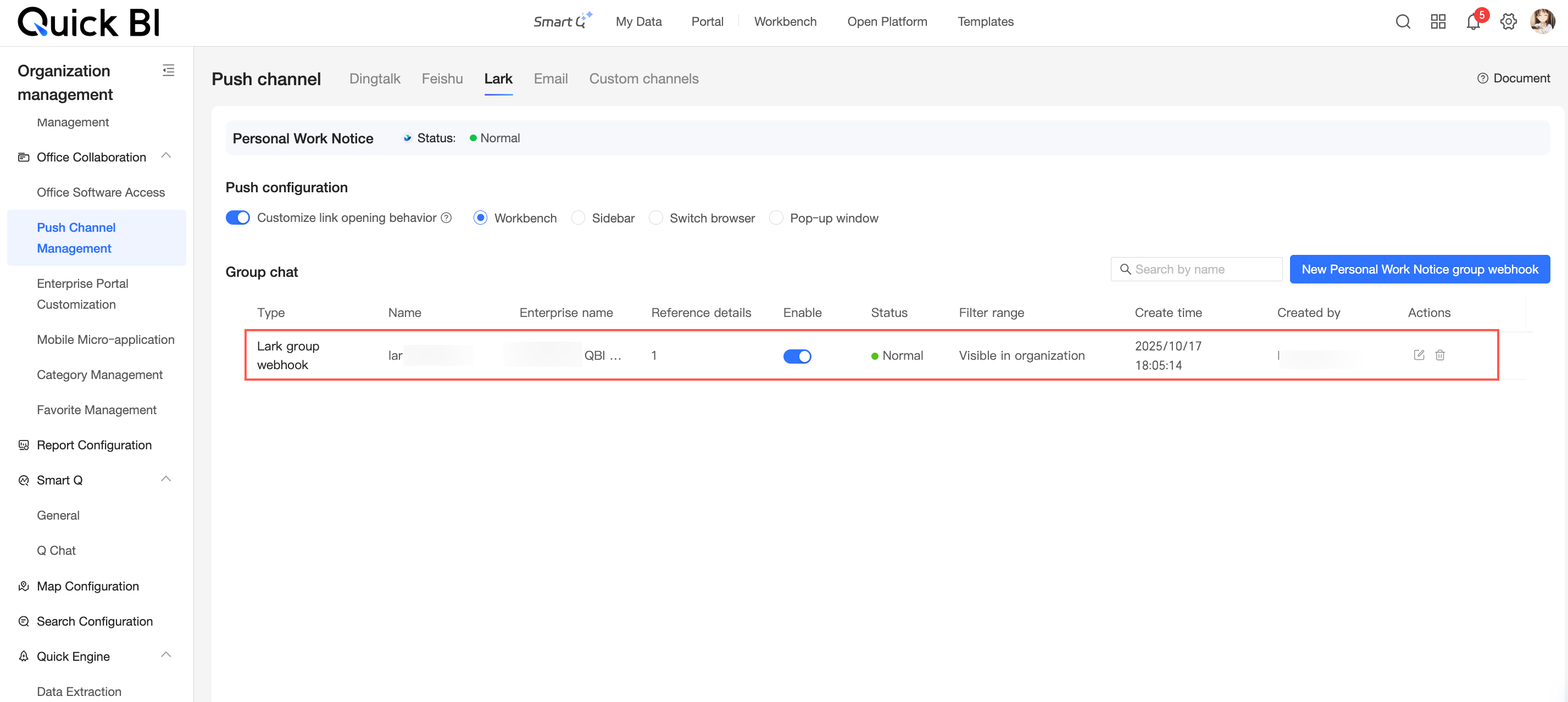
After you save the settings, the new Lark group bot appears in the bot channel list.
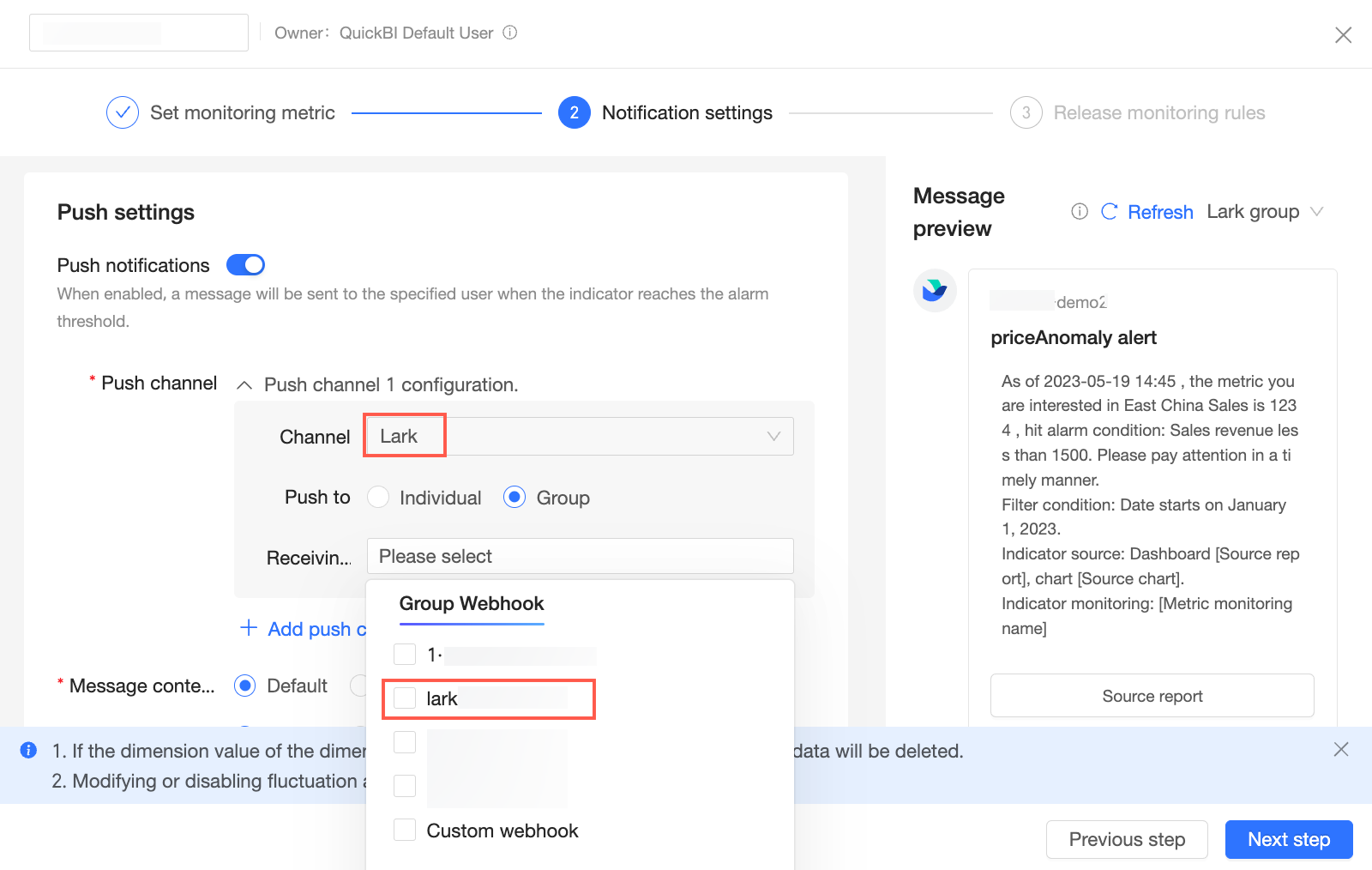
Configure a Lark bot in the push channel for receiving alerts
When you configure metric monitoring, you can select the Lark bot you created as the push channel for alerts.
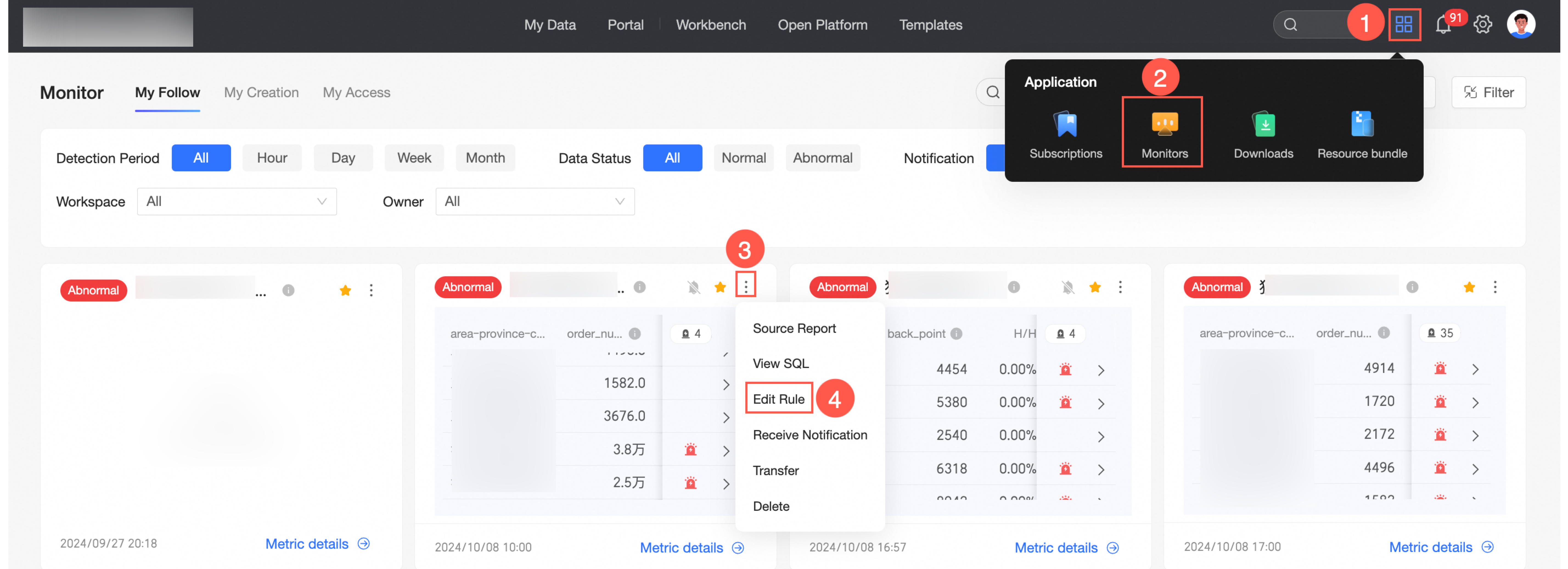
On the Quick BI homepage, follow the steps shown in the following figure to navigate to the metric monitoring page.
In the Monitoring Alert Settings → Push Message Settings dialog box, if you select Lark as the push channel for an audience group, you can select the newly created Lark bot.