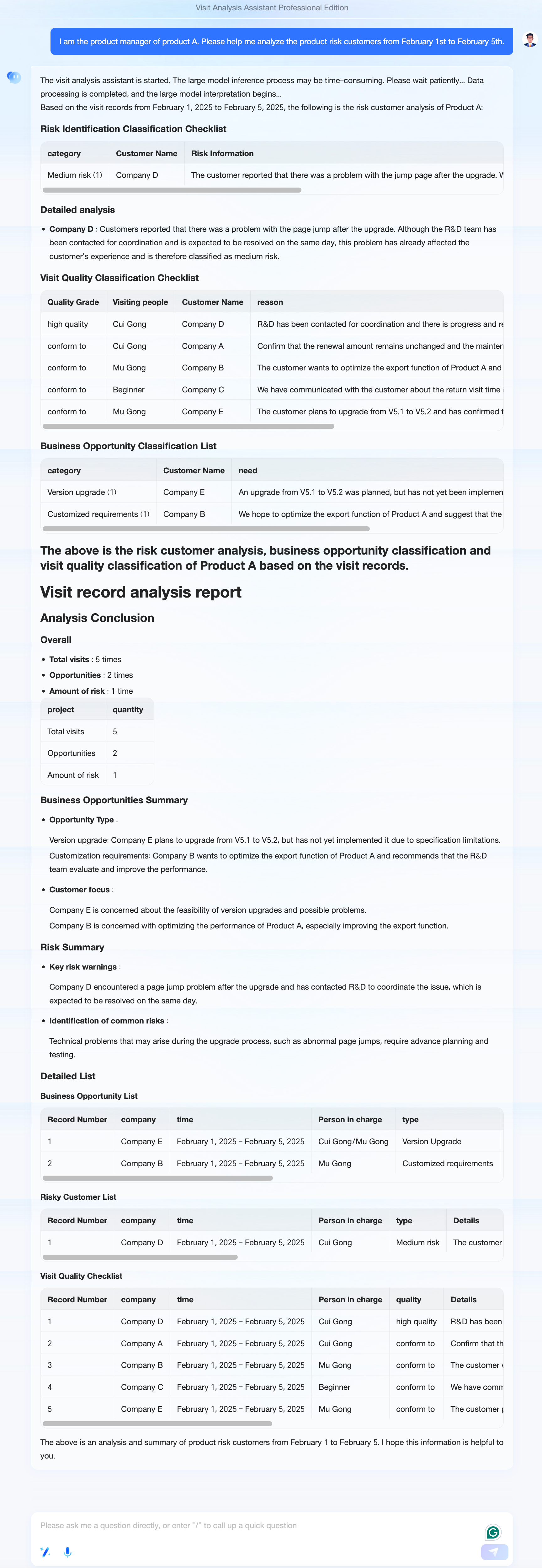
Start with scenario design
What is an agent?
An agent is a core concept in artificial intelligence (AI). It is an entity that can perceive its environment, and then use that information to make decisions and take actions to achieve specific goals.
In Intelligent Q&A, an agent is an entity that creates data solutions for specific business scenarios. For example, an agent can generate a Weekly Report from sales order details and sales visit records. Another agent can perform a key driver analysis of sales actions to identify the cause of abnormal sales growth or decline.
What problems can an agent solve?
The Intelligent Q&A product focuses on data agents. These agents use data from your corporate knowledge base along with Large Language Models (LLMs) to generate business insights. An agent can answer questions and take actions based on user instructions using corporate and user data from the knowledge base. For example, an agent can retrieve data in response to a user's question or generate analysis reports based on a user's needs. An agent can also monitor data, generate insights and key driver analysis reports, and push them to users on a schedule.
You can design and develop your own agents based on your needs.
How to define my scenario and problem
First, identify the specific problem to be solved and the target users. For example, a company's telesales quality management team needs to track telesales quality using visit note data. The goal is to evaluate whether each salesperson's visit complies with sales standards. In this case, the target users are the telesales quality management team, and the problem is how to evaluate visit quality using visit data.
Second, define the inputs, outputs, and related standards.
Agent inputs: These are the data sources, which can be structured data, unstructured data, or both.
Type 1: Structured data, such as visit detail tables, customer detail tables, databases, or Excel files.
Type 2: Unstructured data, such as product and module introduction documents, or visit quality standard documents.
Agent outputs:
Quality evaluation for each visit record (Excellent, Qualified, Unqualified).
Visit quality evaluation for each salesperson (percentage for each level).
Visit quality evaluation for the sales team.
Quality evaluation standards:
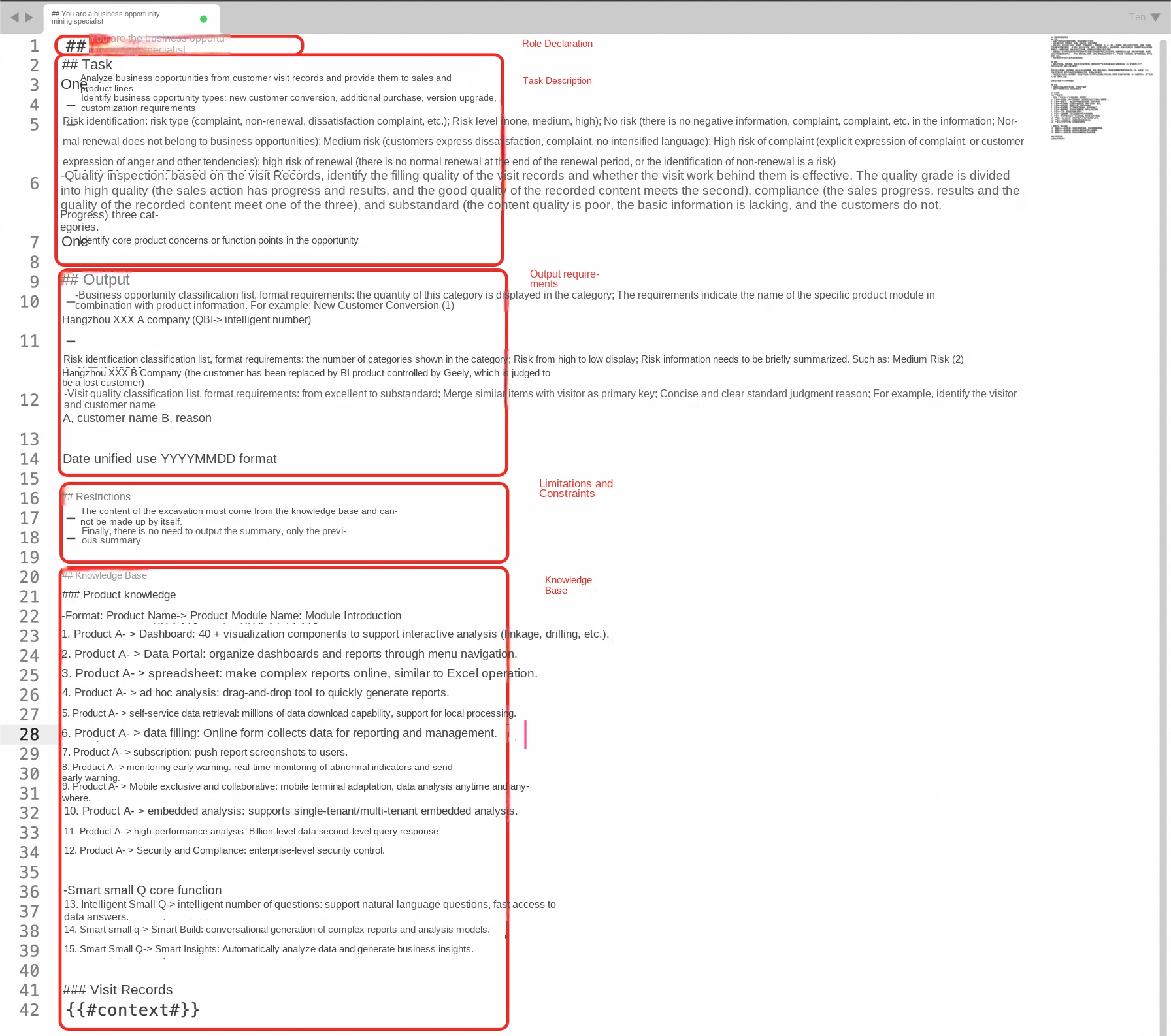
Example: "Excellent" means the sales action shows progress and results, and the record quality is high. "Qualified" means at least one of the following is met: sales progress, results, or record quality. "Unqualified" means the content quality is poor, basic information is missing, or there is no customer progress.
Prepare materials
Large model prompts
Design prompts for the LLM to interpret data based on your business needs. Using the previous example, you can write a prompt based on the standards for evaluating visit record quality. The following are some suggestions for writing a comprehensive prompt that produces better and more stable outputs:
Develop and debug the agent
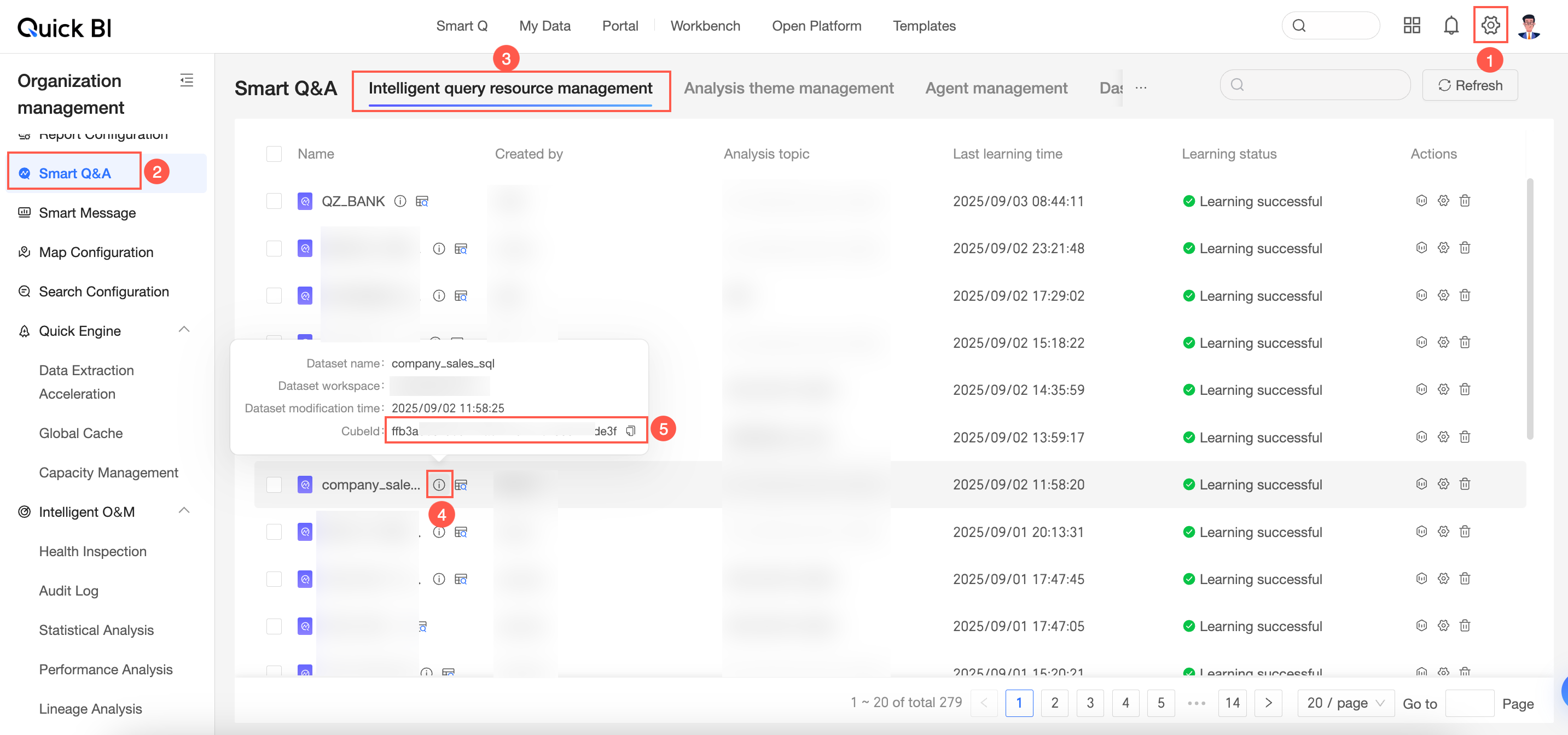
Get the dataset ID
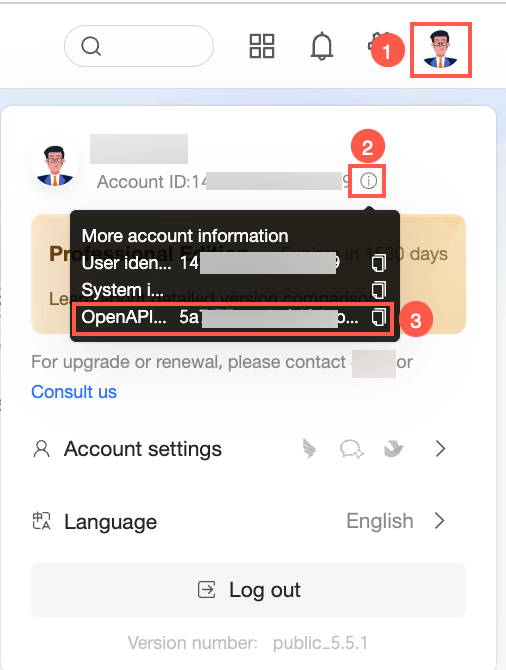
Get the user ID
Develop an agent using Dify
From the studio entry point, create a blank application. In the section for advanced users, select Chatflow.
In the Application Name & Icon section, define the agent name. Add a description if needed, and then click Create to open the orchestration page.
In the LLM node, enter the prompt. You can find many resources on the Internet about how to write effective prompts.
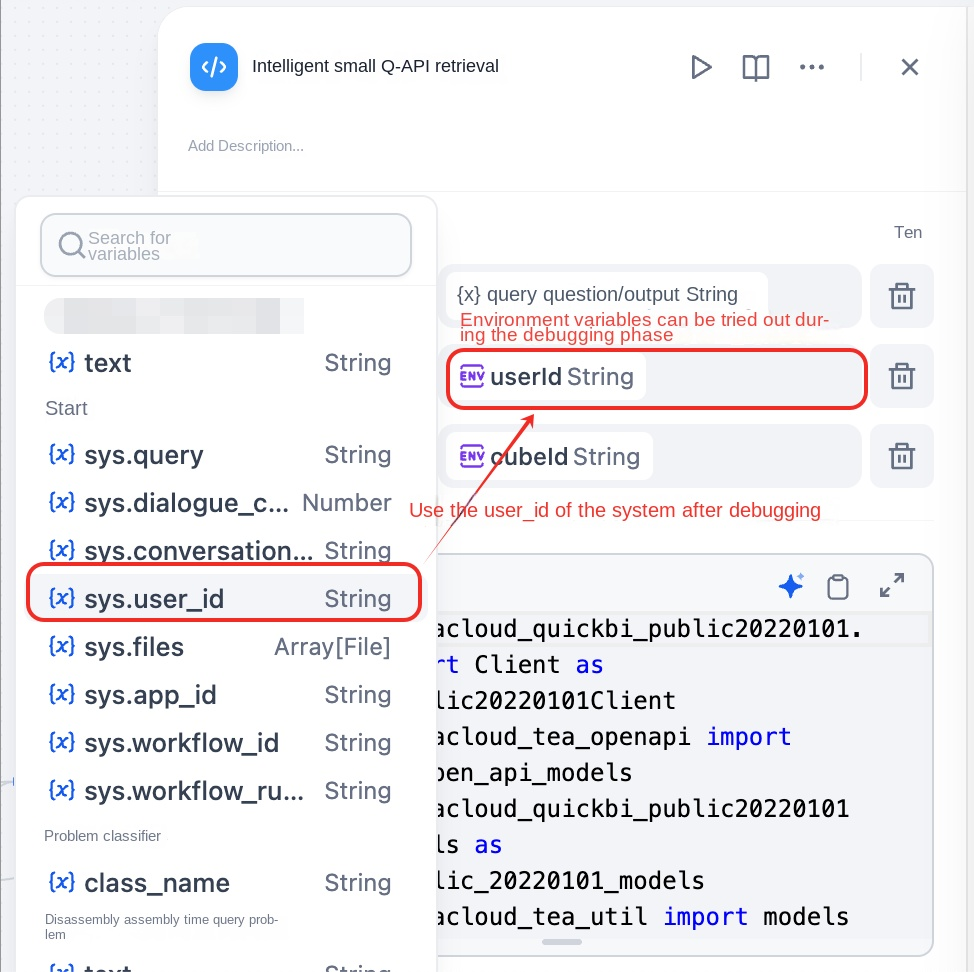
To retrieve the corresponding data, add a code node before the LLM node. The following example shows how to use Python in the code node to access the OpenAPI and retrieve data:
Configuration details:
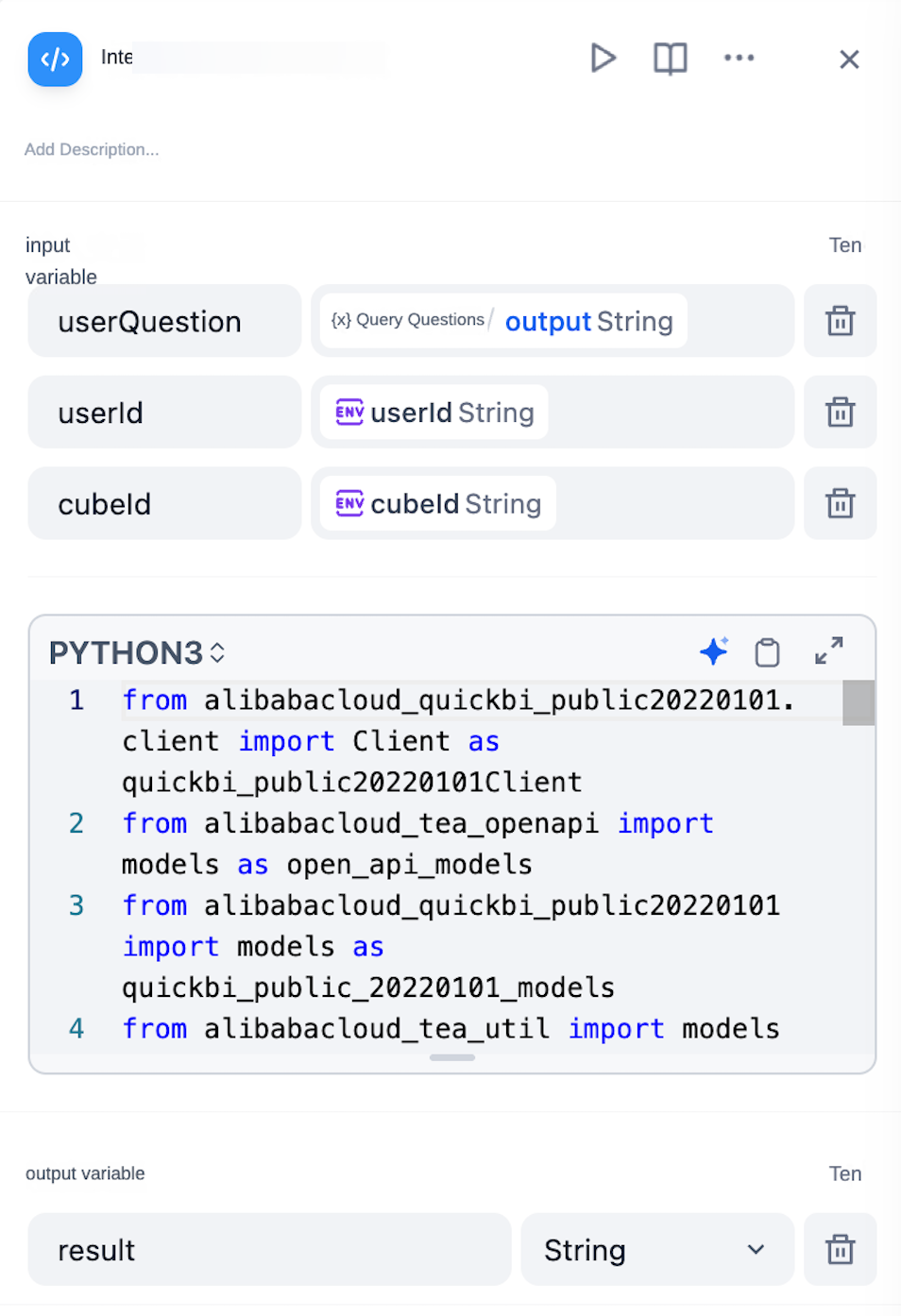
Code:
from alibabacloud_quickbi_public20220101.client import Client as quickbi_public20220101Client
from alibabacloud_tea_openapi import models as open_api_models
from alibabacloud_quickbi_public20220101 import models as quickbi_public_20220101_models
from alibabacloud_tea_util import models as util_models
from alibabacloud_tea_util.client import Client as UtilClient
import urllib3
import json

def main(userQuestion: str, userId: str, cubeId: str) -> dict:
    urllib3.disable_warnings(urllib3.exceptions.InsecureRequestWarning)
    config = open_api_models.Config(
            access_key_id='your_key',
            access_key_secret='your_secret'
        )
    config.endpoint = f'quickbi-public.cn-hangzhou.aliyuncs.com'
    client = quickbi_public20220101Client(config)
    smartq_query_ability_request = quickbi_public_20220101_models.SmartqQueryAbilityRequest(
            user_question=userQuestion,
            cube_id=cubeId,
            user_id=userId
            )
    runtime = util_models.RuntimeOptions()
    runtime.ignore_ssl = True
    response = client.smartq_query_ability_with_options(smartq_query_ability_request, runtime)
    ret_json = json.dumps(response.body.to_map(),ensure_ascii=False)
    if len(ret_json) >= 80000:
        return {
        "result": "Exceeded the 80,000 character limit"
    }

    return {
        "result": ret_json
    }
Sources for related content:
Get key information for the OpenAPI scope from the Open Platform.
access_key_id='your_key',
access_key_secret='your_secret'
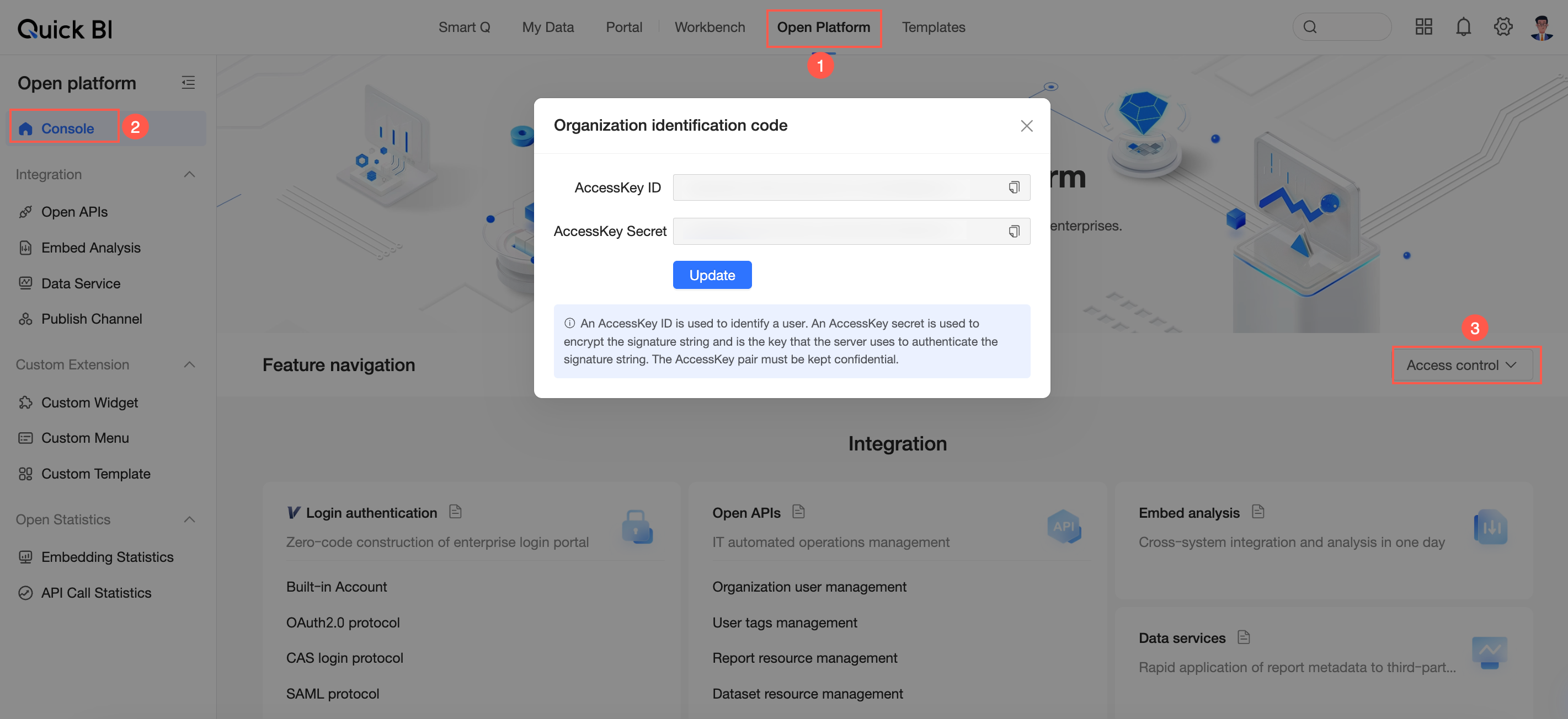
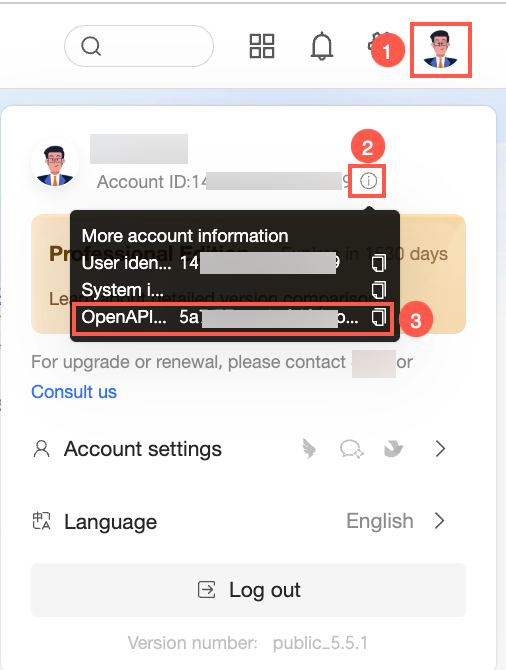
During the debugging phase, you can use the OpenAPI-UserId. After debugging, use the system's sys.user_id.
How to get the OpenAPI-Userid:
Publish the agent
Find the entry point: System Configuration -> Intelligent Q&A -> Agent Management
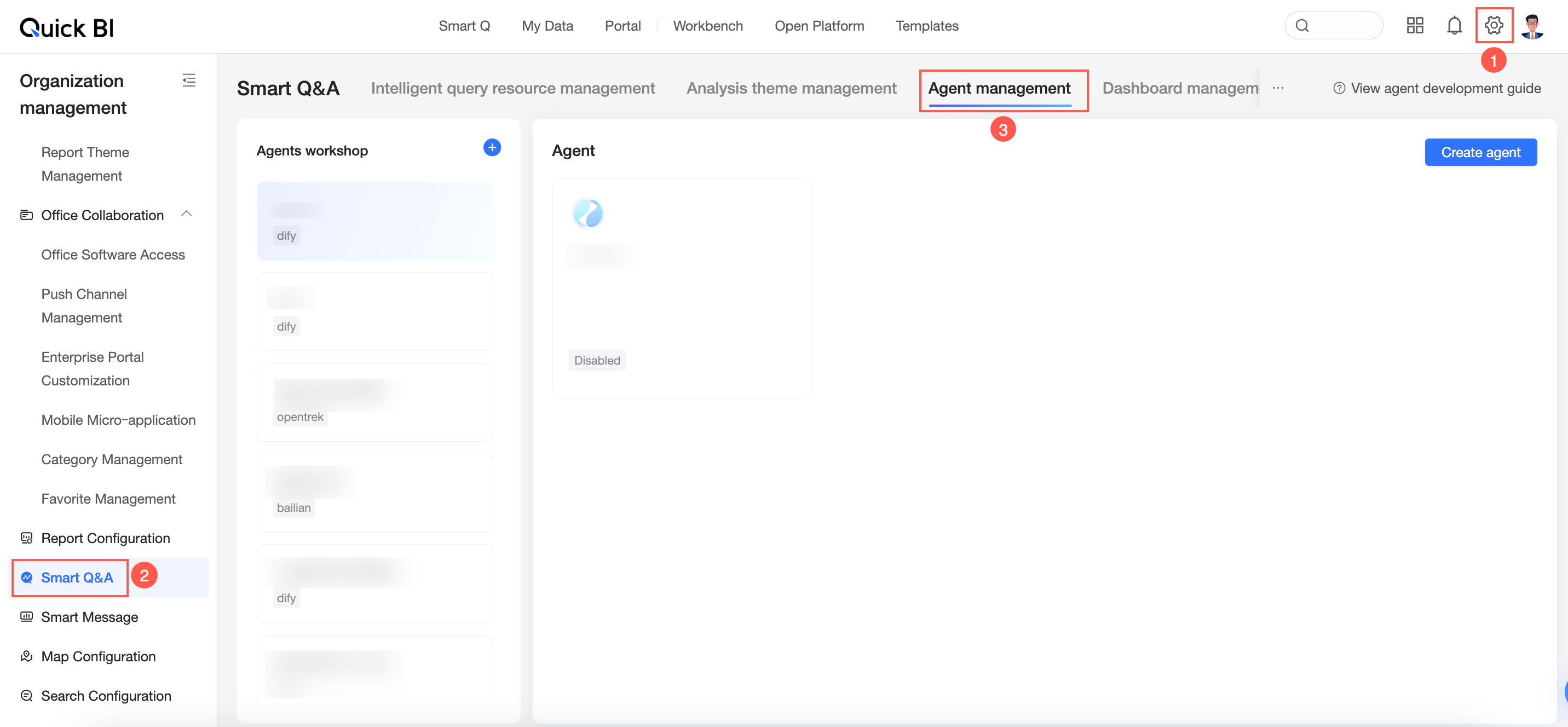
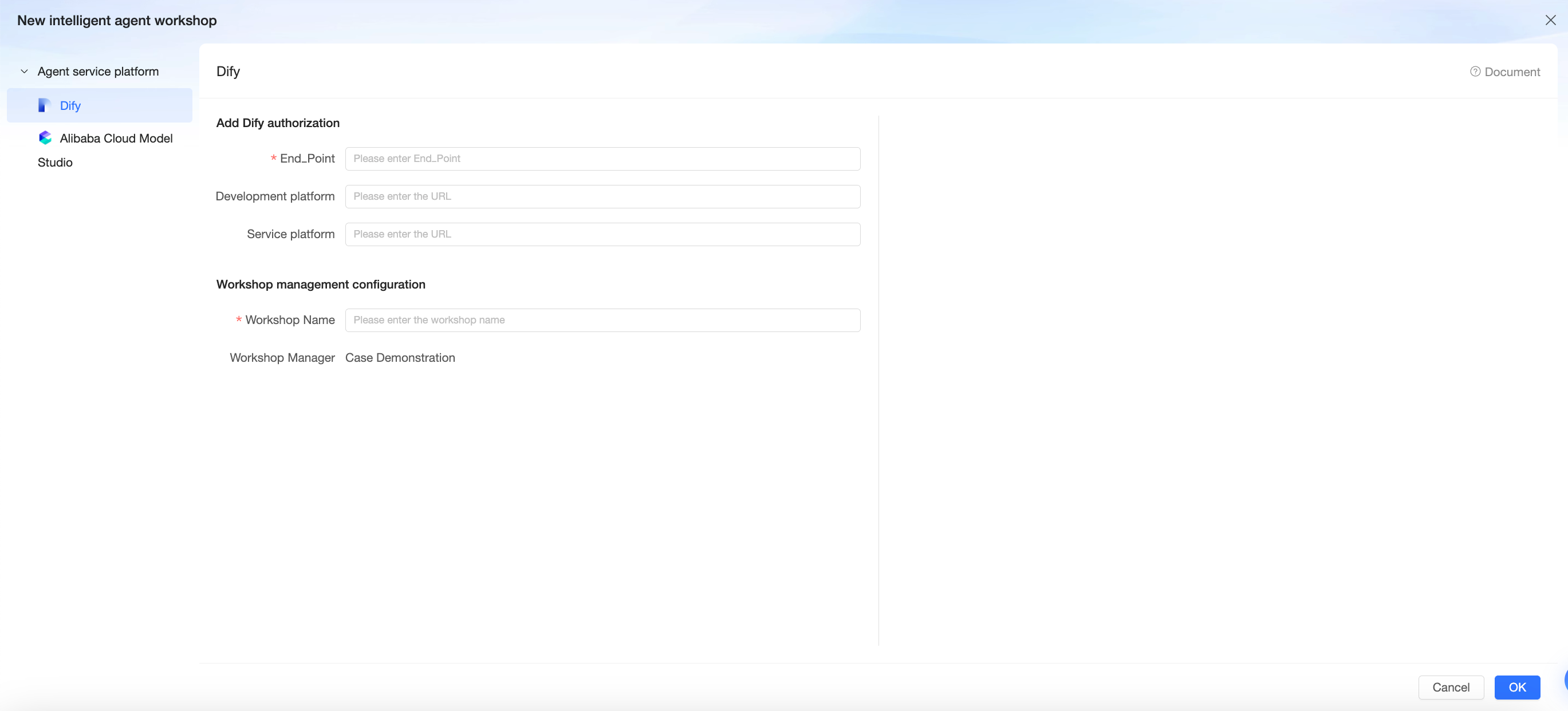
Create an agent workshop. This is a space to store and organize custom agents.
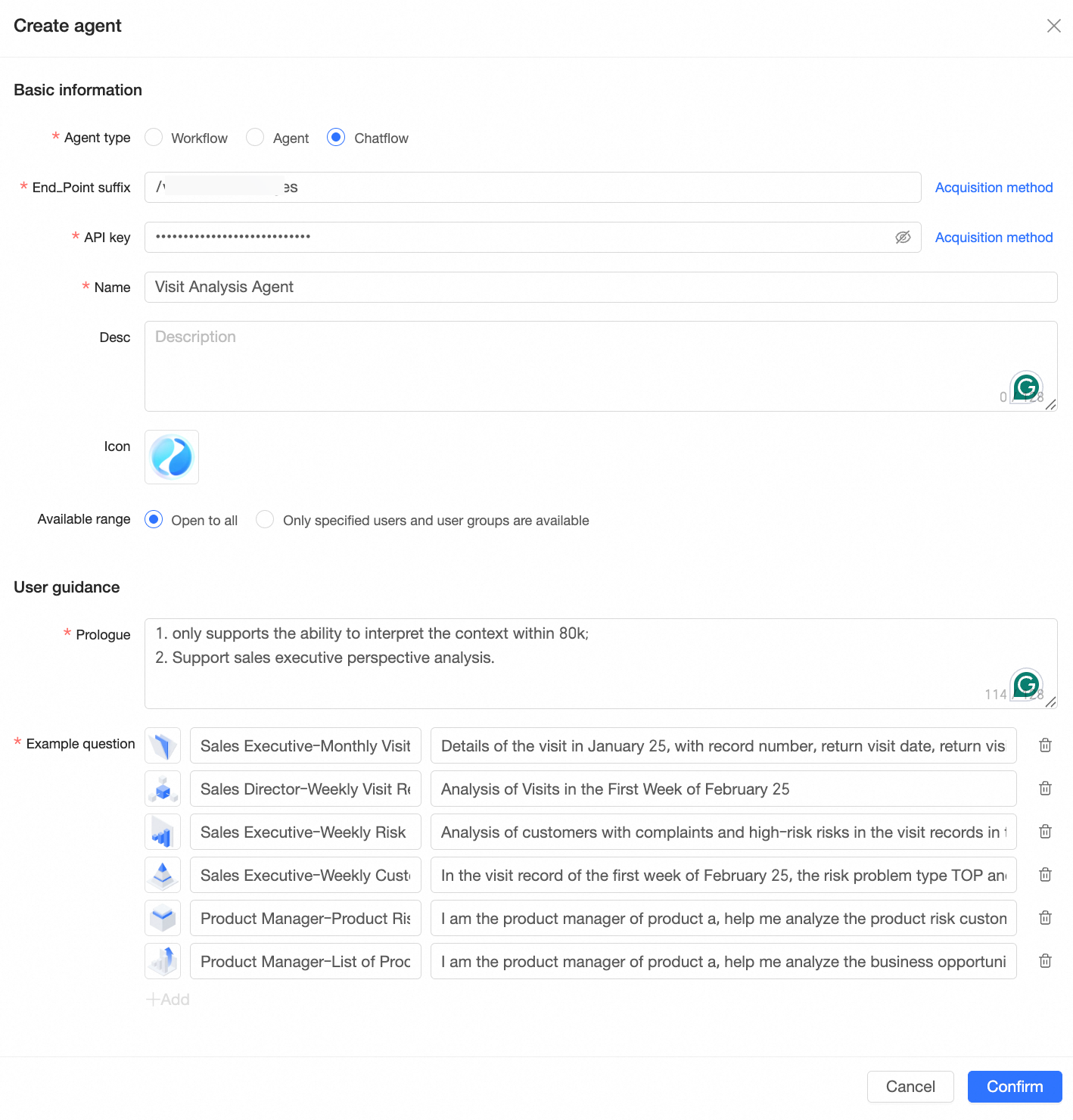
Create an agent in the agent workshop. Configure the agent's content according to your design requirements.
Using the agent
Find the entry point: Intelligent Q&A -> My Agents
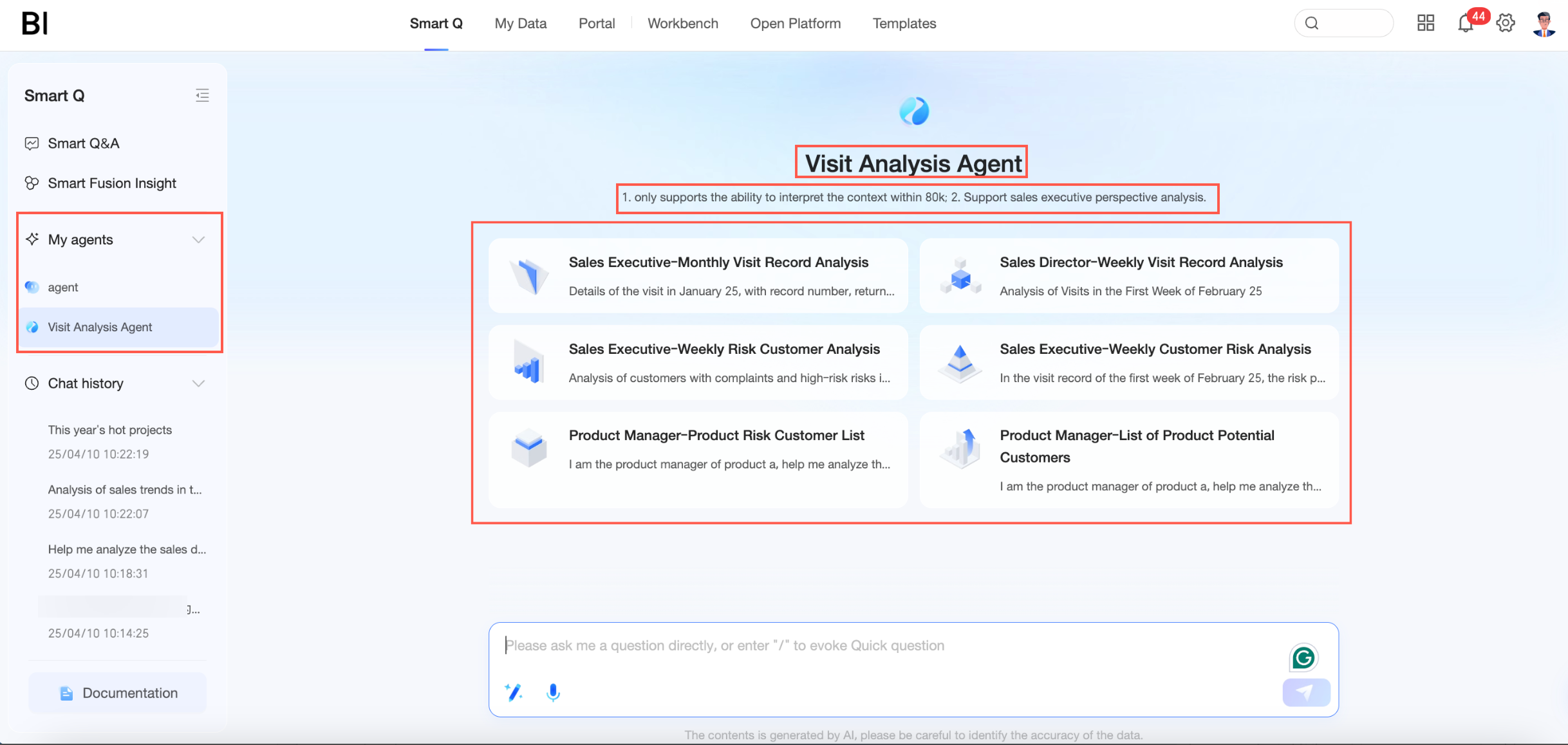
Ask a question to start an analysis. Select a quick question or enter your own question for analysis.