This topic describes how to import and export resource package.
Go to the resource package Management page
Log on the Quick BI console.
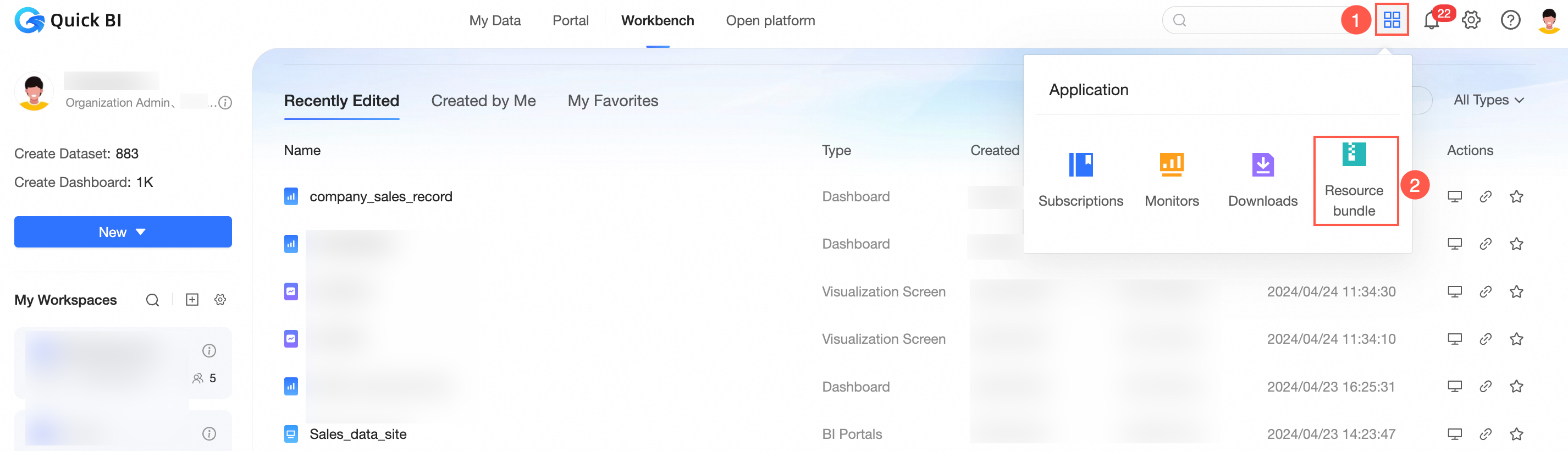
On the Quick BI homepage, follow the instructions shown in the following figure to go to the Resource Package Management page.
Export resource package
On the Resource Package Configuration tab of the Resource Package Management page, select a resource package and click the Export icon.

On the resource package Export page, enter the export resource package name and validity period, and save the resource package extraction code.

The resource package extraction code is used in the import resource package and can also be viewed in the export record, as shown in the following figure.

The import resource package can be successfully imported within the validity period, and the import resource package will fail after the specified validity period.
Click the
 icon in the Export Logs section to View Export Logs. In the Export Logs section, you can view Export Resource List.
You can click the
 icon to download the resource package details.
 The resource package details include the resource name, modifier, and time. The details are parsed in real time and must be downloaded as soon as possible.
 Note
NoteWorks that s\
pport the exploration of space.
Click OK.
After the resource package is exported, it is downloaded to your local computer as a compressed package.
Import resource package
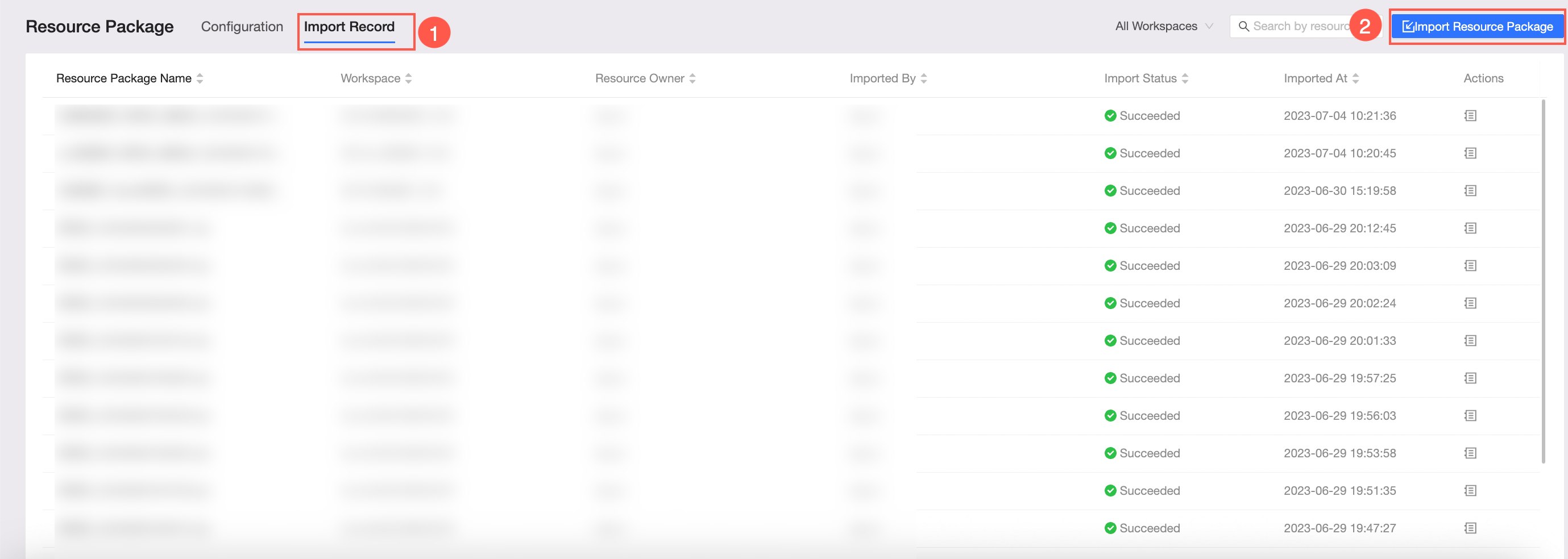
On the Import Records tab of the Resource Package Management page, click Import Resource package.
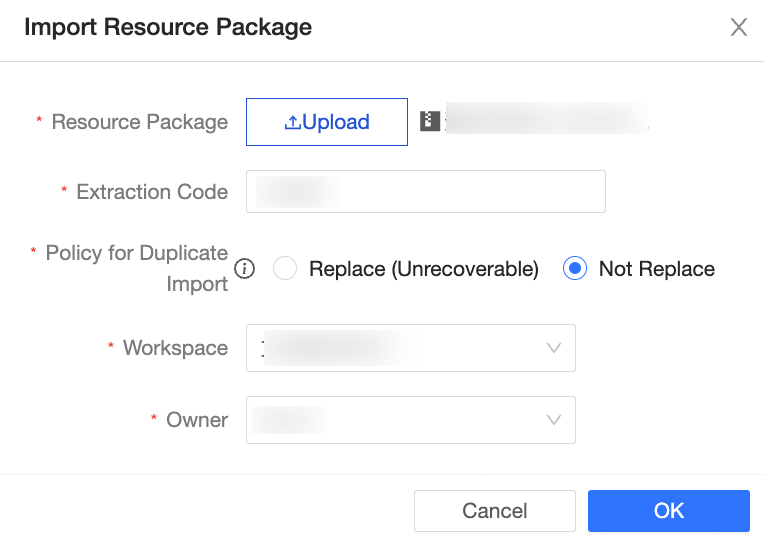
On the resource package Import page, select the resource package to be uploaded, enter the resource package extraction code, and select the duplicate import policy, workspace, and owner, as shown in the following figure.
NoteYou cannot copy resources in the same workspace. For example, you cannot import resources from Workspace A to Workspace A.
Click OK.
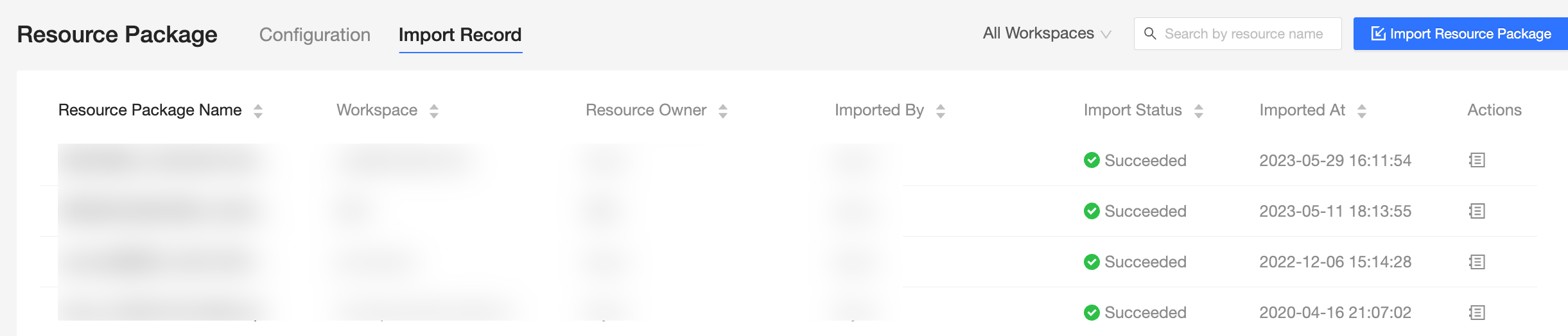
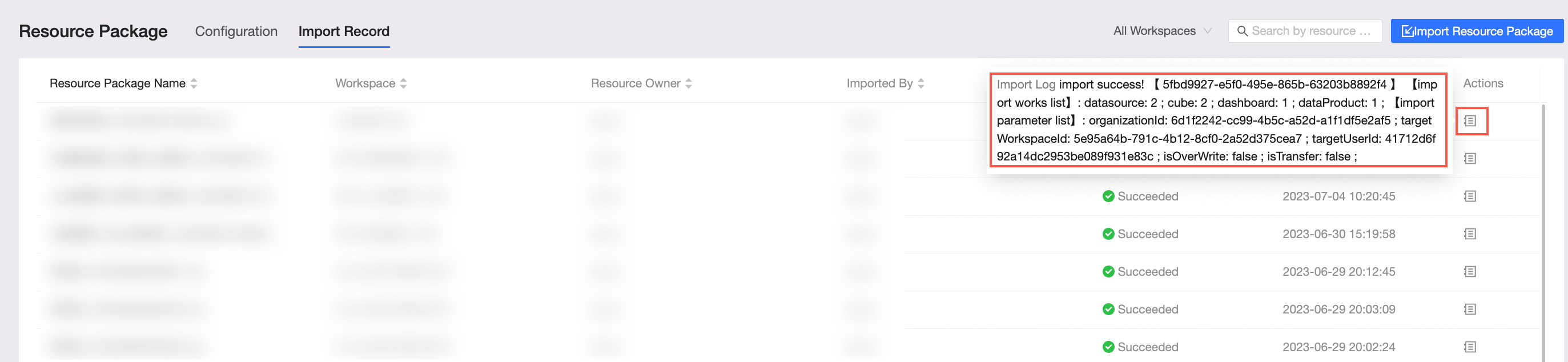
After the import is complete, you can view the data in the imported resource package in the corresponding workspace. On the Import Records page, you can view the imported resource package, workspace, resource owner, importer, import status, import time, and import logs, as shown in the following figure.
 Click the
  icon in the Import Logs section to view import logs. In the Import Logs section, you can view Import Resource List and Import Parameter List.
  Note
NoteDuplicate import policy: If the same data object is imported multiple times, the comparison is performed based on the object ID. Replaces objects in resource package over objects in space. If you do not replace the existing data object in the space, the data object is not processed. For more information, see Principles.
If the resource package contains works to explore space:
Import Space No Exploration Space: resource package can import datasets, dashboards, and other works without creating data sources.
If you use an exploratory space, resources in non-exploratory spaces are directly imported. If you use an exploratory space, you can import datasets, dashboards, and other works. In addition, you can import data from an exploratory space. In an exploratory space, a file with a size of 0 is uploaded. You can append a file.
For more information, see Create a file data source.
Data source changes
To ensure data security, the resource package does not include the account and password information of the data source. After the resource package is imported, you must initialize the data source before you can use the data source.
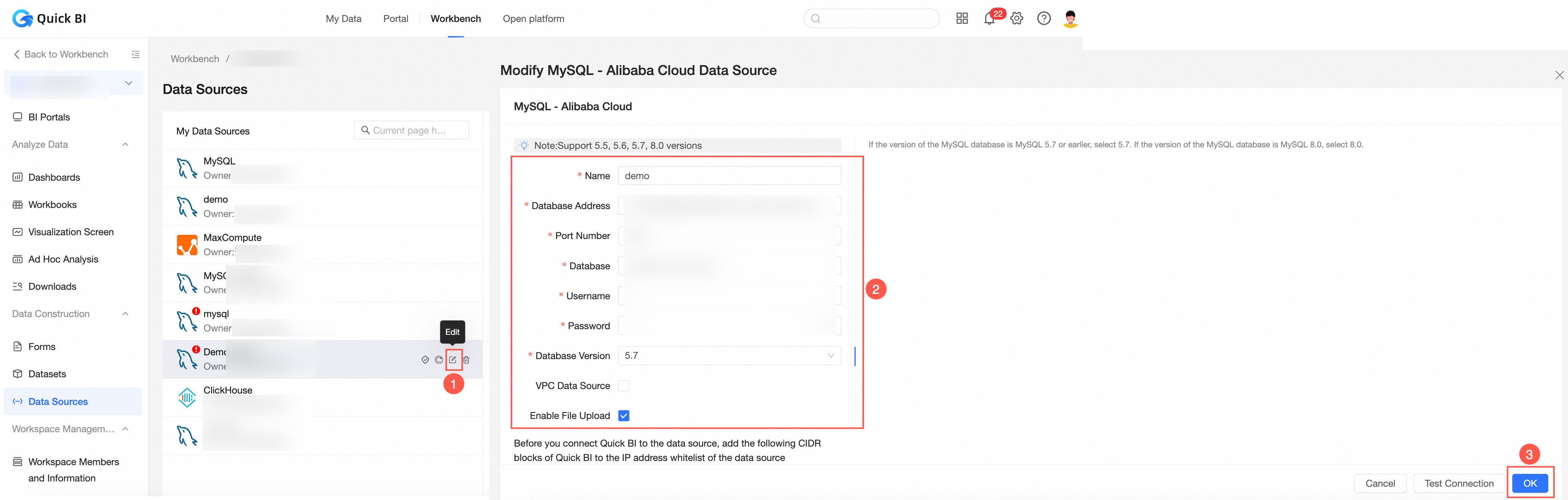
In the destination workspace of the import resource package, click Data Source and select the data source involved in the import resource package.
Click the Edit icon.
In the Modify Data Source dialog box, enter accurate data source information and click OK.
Cross-workspace Import
On the resource package Configuration tab of the Resource Package Management page, click the
 icon to go to the Cross-workspace Import page.
On the Cross-workspace Import page, select the duplicate import policy, select the workspace to which the workspace belongs, and select the resource package owner.
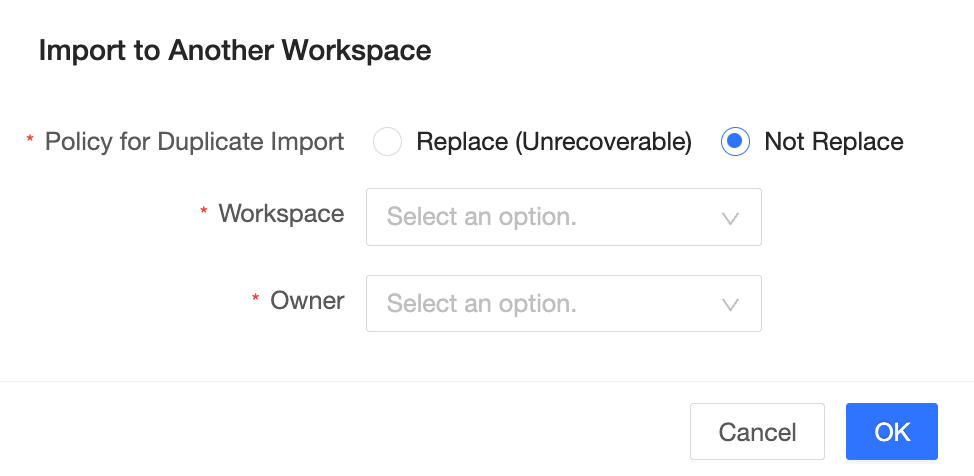
Click OK.
Differences between cross-space import and general import: Cross-space import belongs to resource package import in the same organization and different spaces. You do not need to enter the password of the data source account again.