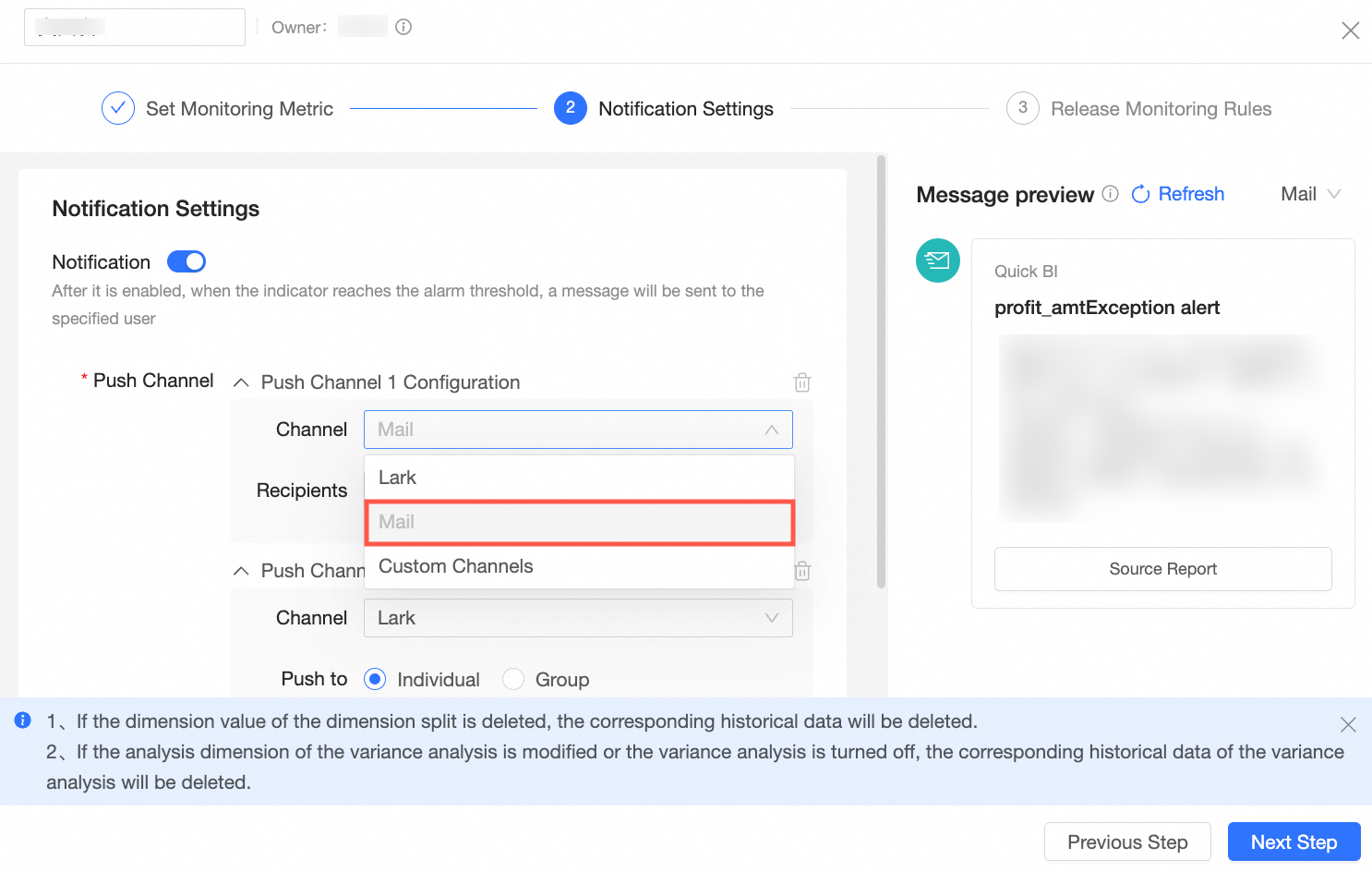
Background information
If you set the Alert Method parameter to Email, you must configure an email server.
Configure email channels
After you log on to the
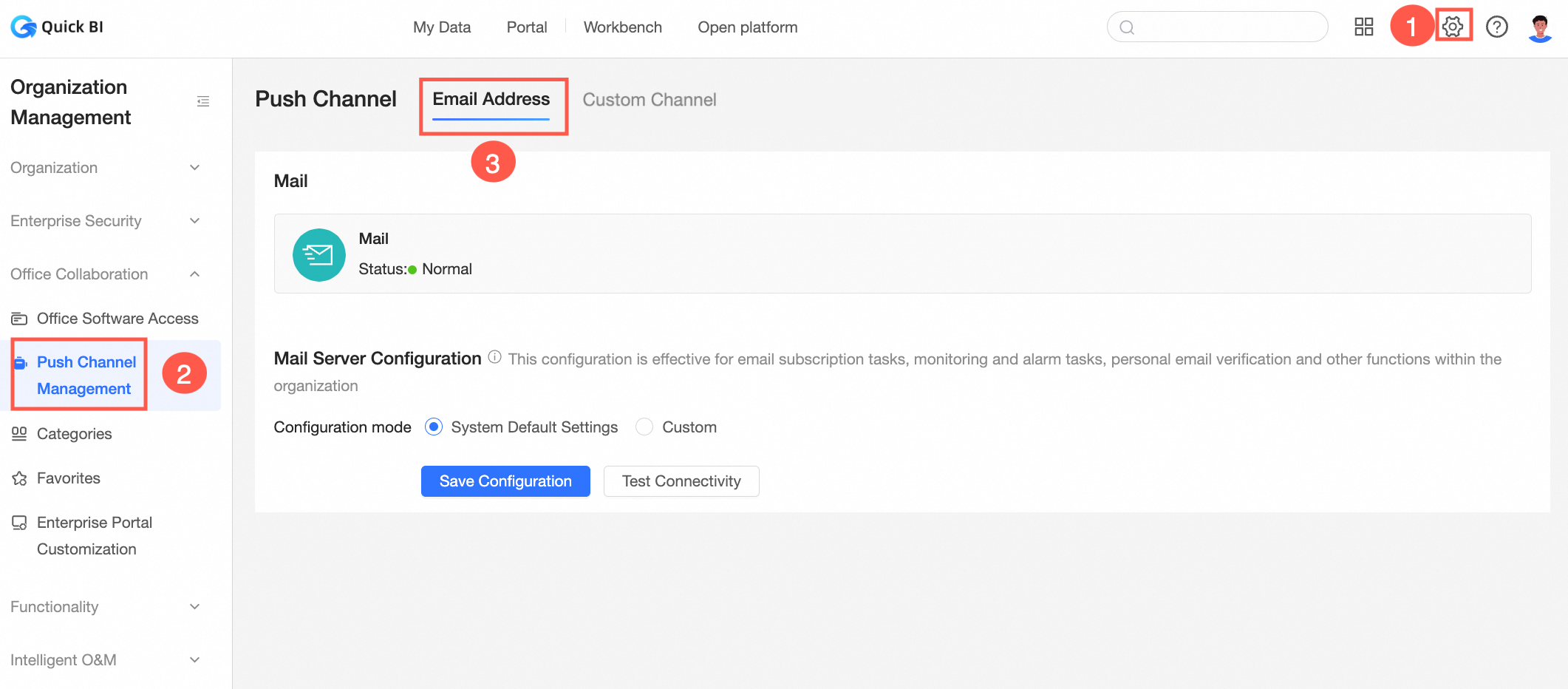
Quick BI console.On the Quick BI product homepage, follow the instructions shown in the following figure to go to the Email Configuration page.
NoteThis configuration takes effect on email subscription tasks, monitoring alert tasks, and personal email verification in an organization.
Select Configuration Mode.
Valid values: Default Settings and Custom.
Default System Configuration
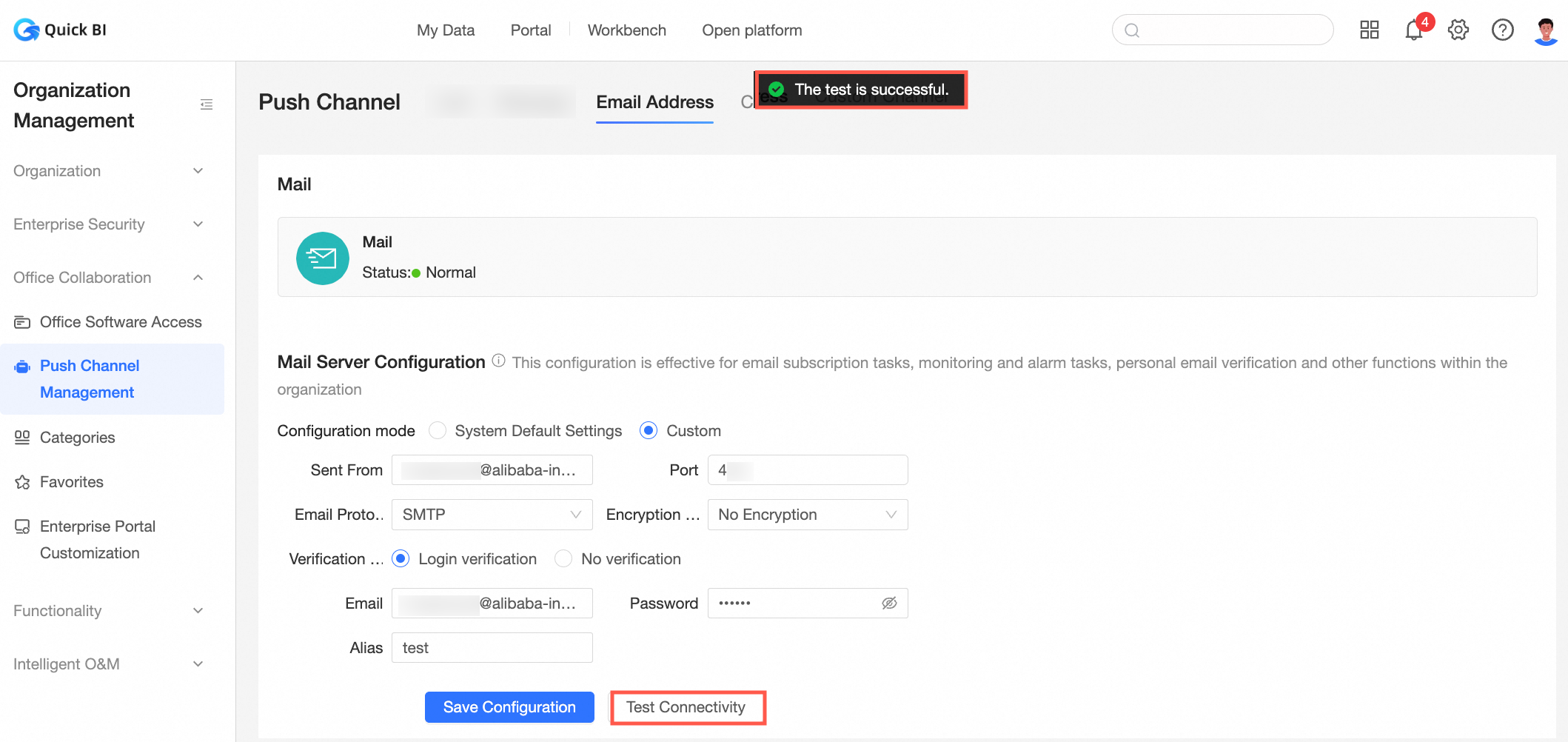
Quick BI the Alibaba Cloud email service, you can click Test Connectivity to test whether the email server is connected.
Custom
If you set Configuration Mode to Custom, you must complete the following configuration items:
Property
Parameter
Sent From
The sending server of the mailbox.
Port Number
The port of the mailbox.
Protocol
Supports SMTP and SMTPS.
Encryption method
Supports no encryption, SSL, and STARTTLS
Email
You can select Logon Verification or No Verification.
Password
The password of the email address.
Nickname
The nickname of the custom email address.
Click Connectivity Test and Save.
Configure an email channel in the push channel that receives alerts
When you monitor metrics, you can add an enterprise WeChat robot in the custom channel that you configure for the alert method.
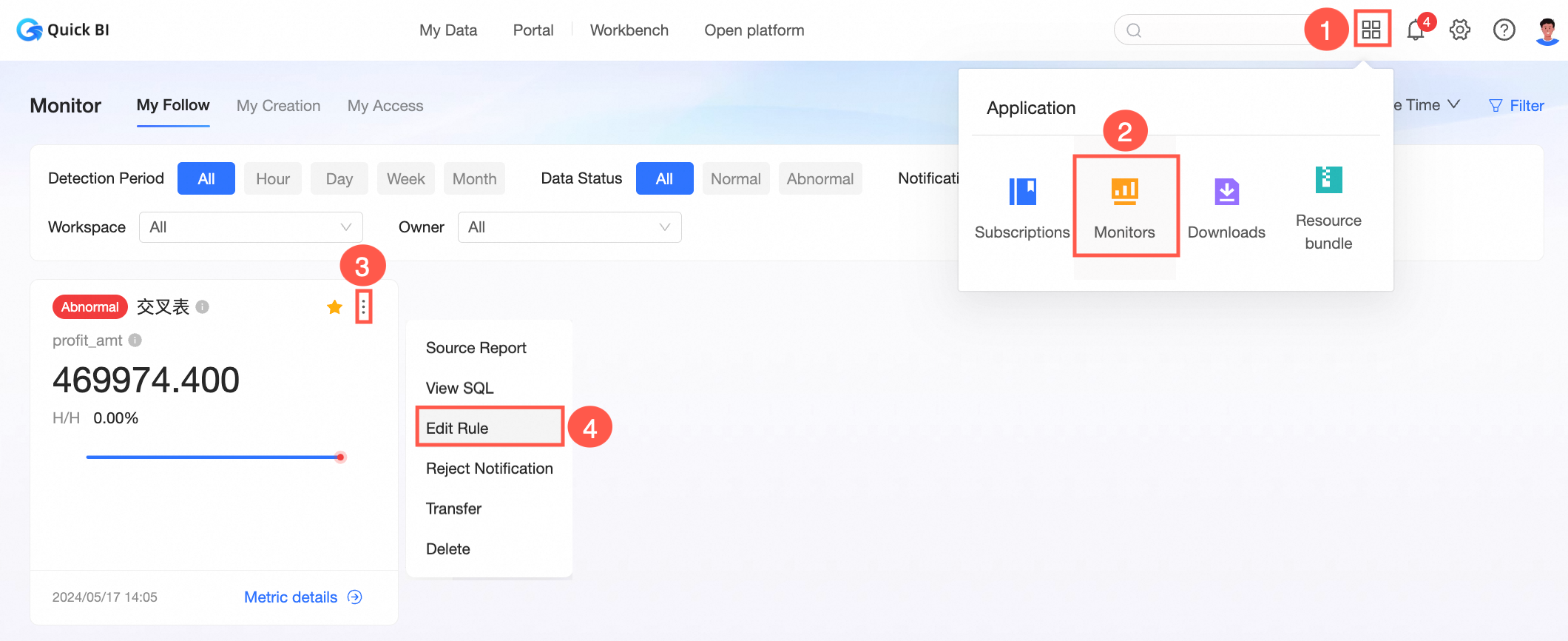
On the Quick BI homepage, follow the instructions in the following figure to go to the Metric Monitoring page.
In the Alert Settings-> Push Message Settings dialog box, select Email.