Permission administrators can grant users the permissions to edit download tasks, and view or export data of download tasks.
Background information
When a permission administrator grants permissions to a user, the permission attributes in the Collaborative state and the Private state are different, as shown in the following figure.

Take note of the following points on collaborative authorization:
Edit: If a user is granted the Edit permission on a specified download task, the user can edit the download task, and view and export the result of the download task.
Export (Including View): If a user is granted the Export (Including View) permission on a specified download task, the user can create a download task and export the result of the download task.
View: If a user is granted the View permission on a specified download task, the user can only view the result of the download task.
Use scenarios
Scenario | Expected effect |
This allows Analyst A (Analyst A is in the same workspace as the resource) to edit the self-service retrieval data in the workspace.
| |
Scenario 2: Grant the export and view permissions on data retrieval |
|
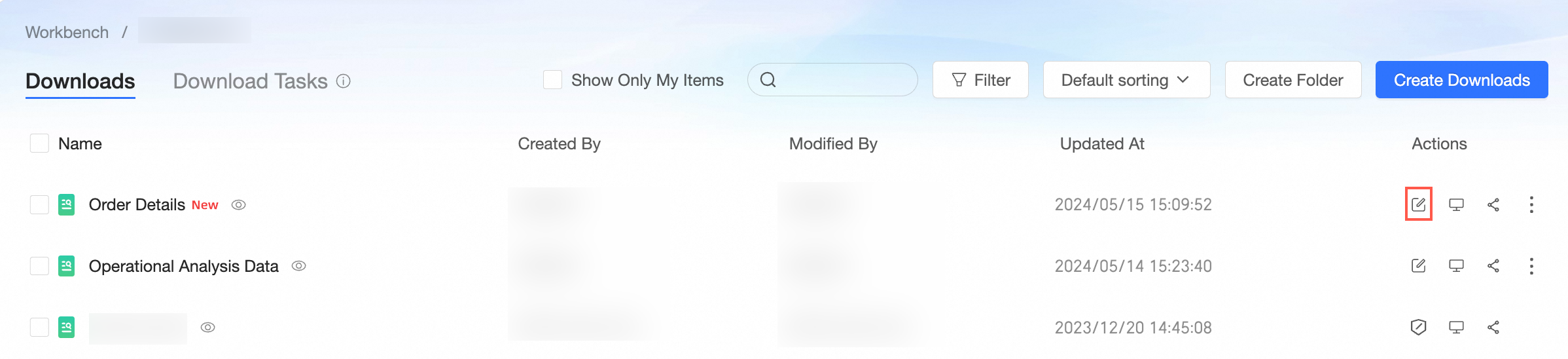
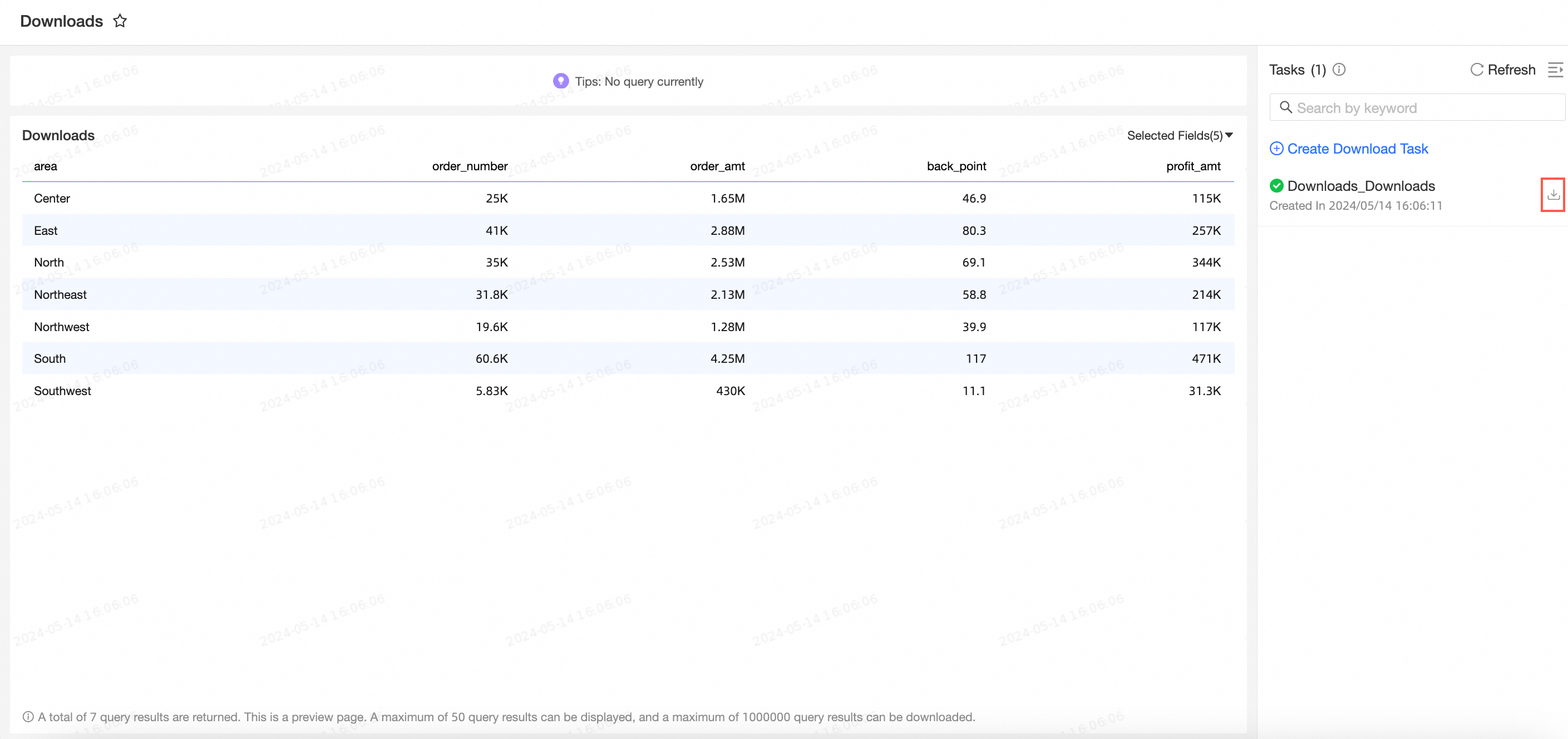
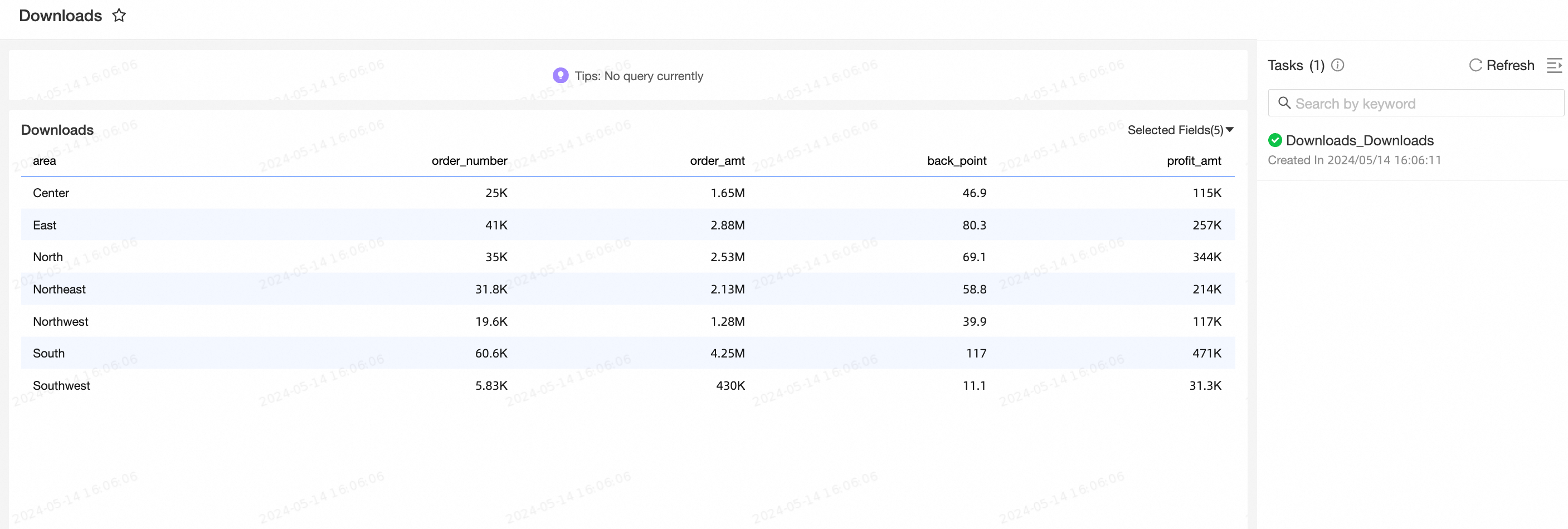
Scenario 1: Grant a user the permissions to edit a specified download task
Permission administrators can grant an analyst in the workspace the permissions to edit a specified download task only when Specified Members or All Workspace Members(except members with the view permission) is selected for Editing Permission in the Collaborative Authorization pane.
On the Centralized Authorization page, select the target workspace and select the self-service access resource.
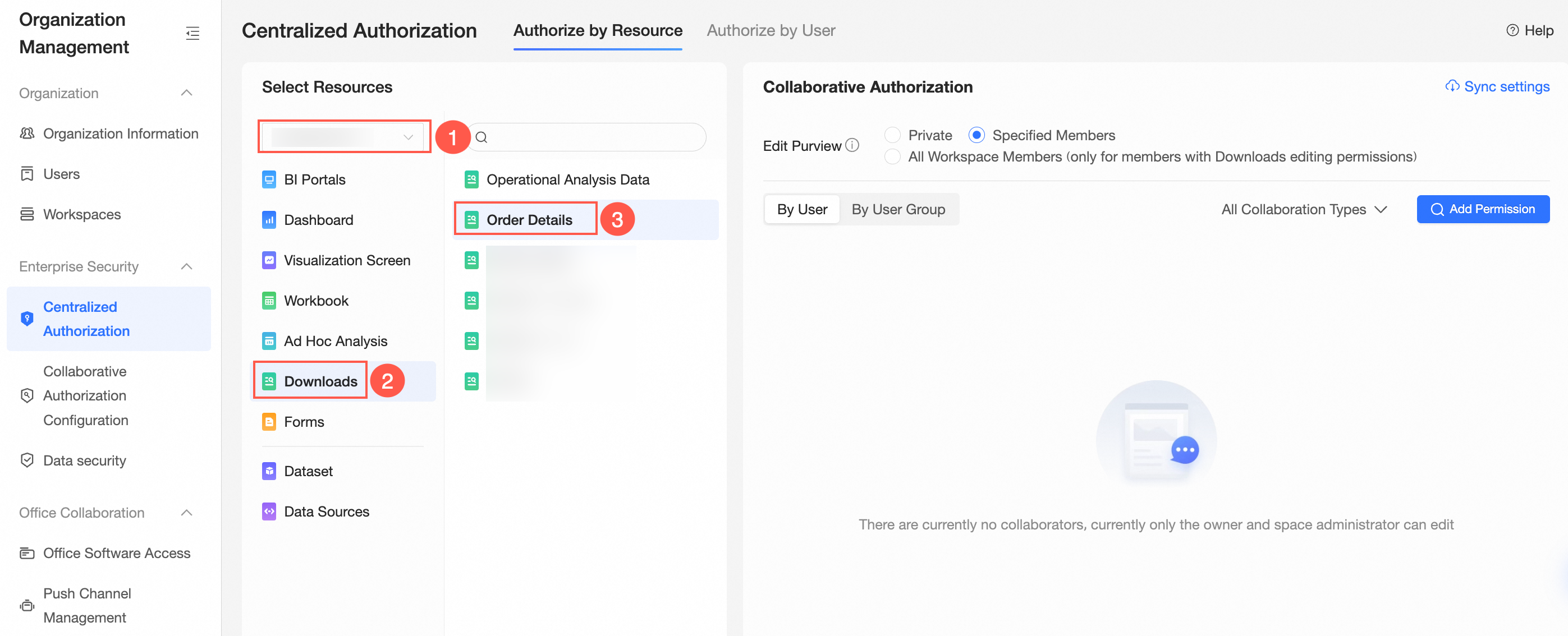
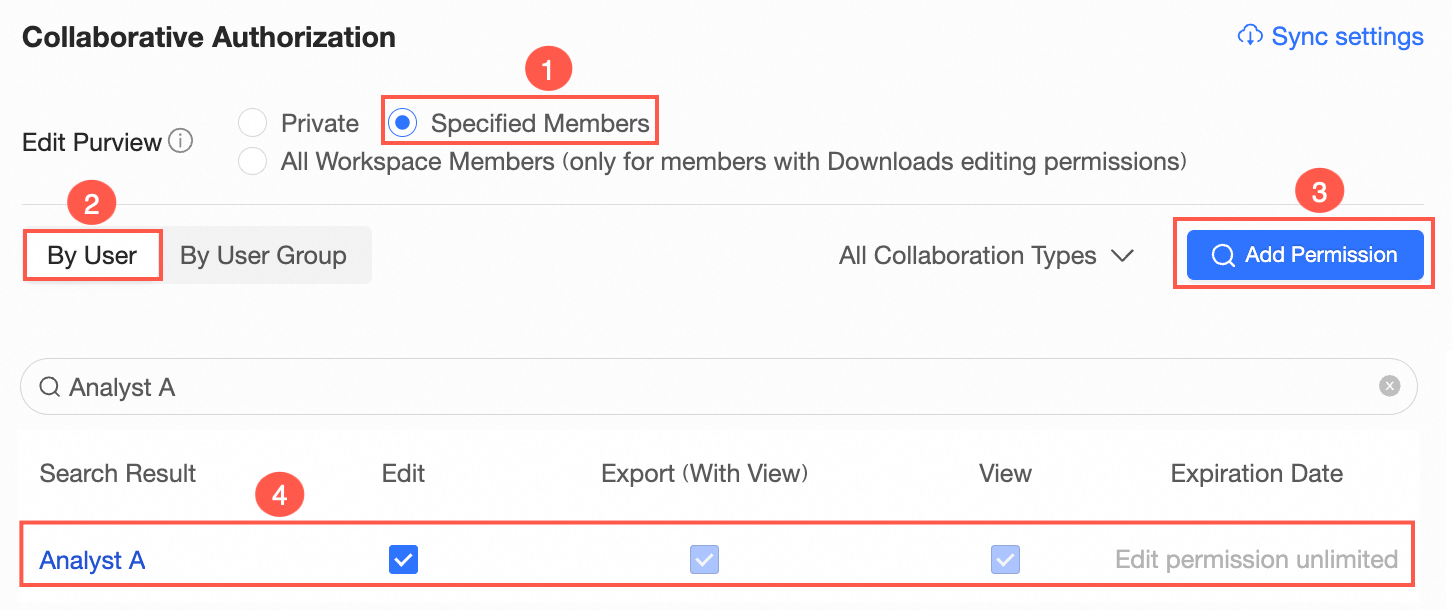
On the Collaboration Authorization page, select Edit Permission and grant permissions.
The following figure shows that Specified Members is selected for Editing Permission and Analyst A is granted the Edit permission.
 Note
NoteAfter you select Edit for Analyst A, Analyst A can also view and export the result of the download task. You can also select Export (Including View) or View later to change the permissions that are granted to Analyst A on the download task.
Optional: Synchronize permissions.
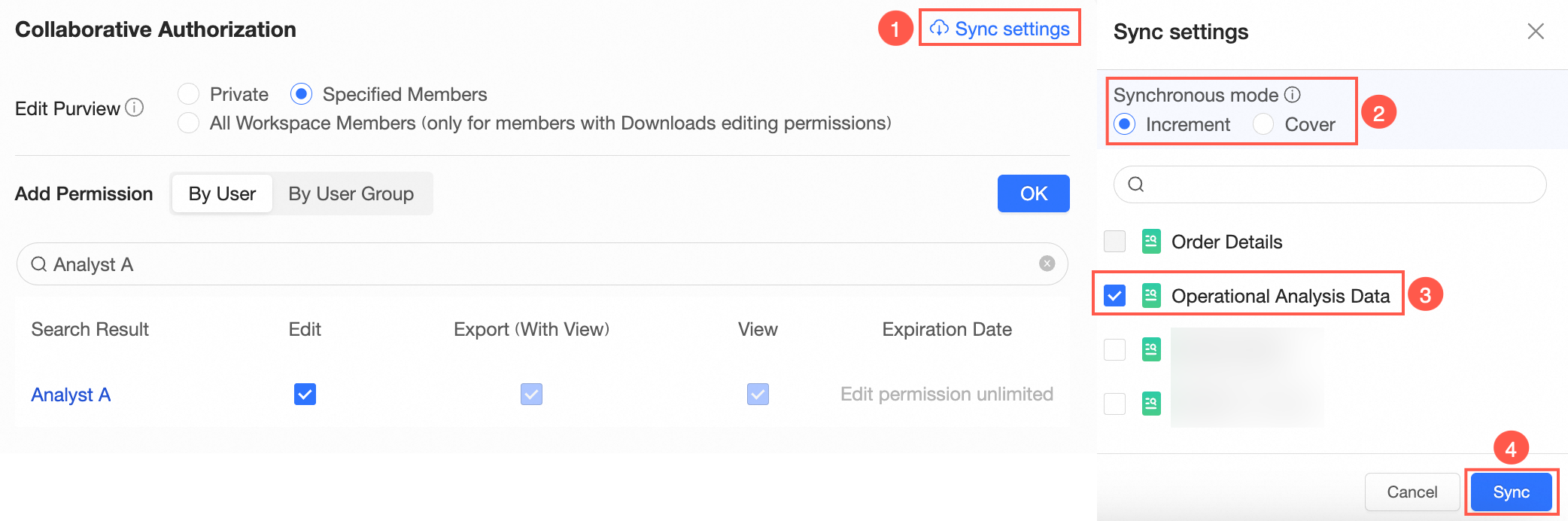
If Analyst A needs to edit another download task in the workspace, you can click Synchronization Settings in the Collaborative Authorization pane. Then, select the download task that Analyst A needs to edit and click Sync in the Synchronization Settings panel.
For example, Analyst A is granted the Edit permission on Order Details. After the permission is synchronized, Analyst A can also edit Operation Analysis Data.
 Note
NoteSynchronization Mode supports Incremental Synchronization and Overwrite Synchronization.
Incremental Synchronization: The original permissions of the resources to be synchronized are not affected.
Overwrite Synchronization: clears the original permissions of the resource to be synchronized and overwrites the permissions of the resource with the permissions of the current resource.
Scenario 2: Grant a user the permissions to view and export the result of a specified download task
If Private is selected for Editing Permission, permission administrators can grant a visitor the Export (Including View) or View permission on the download task.
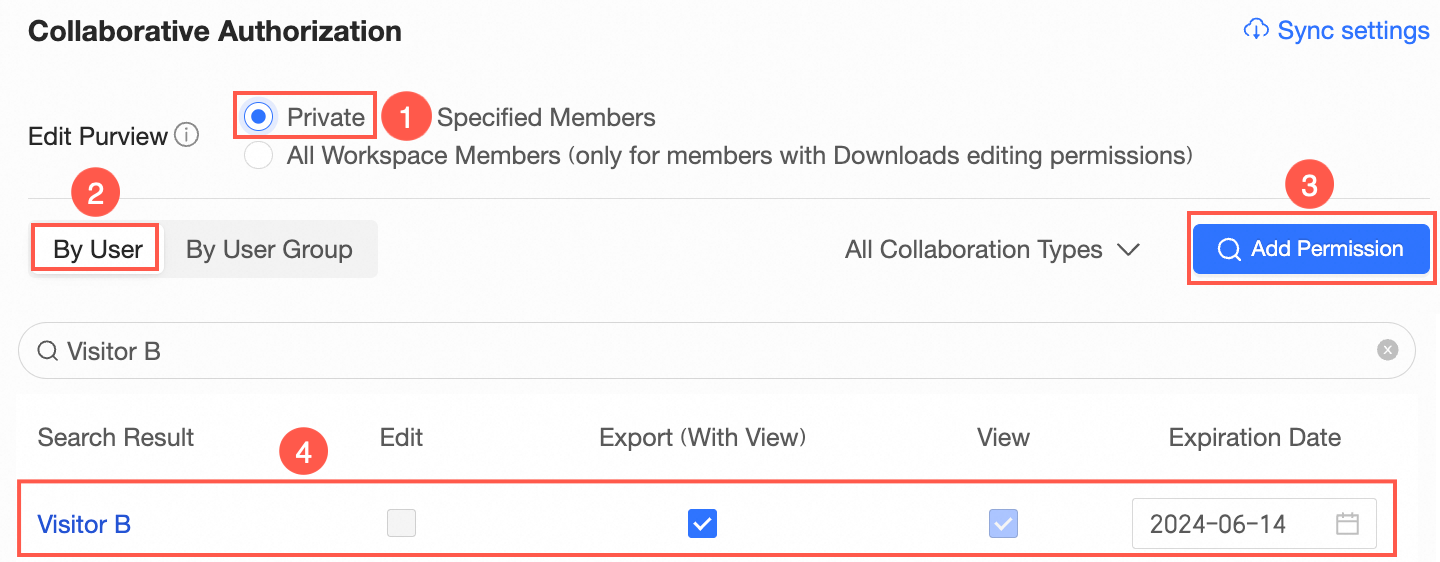
In this example, Visitor B is granted the Export (Including View) permission on the Downloads download task.
On the Centralized Authorization page, select the target workspace and select the self-service access resource.
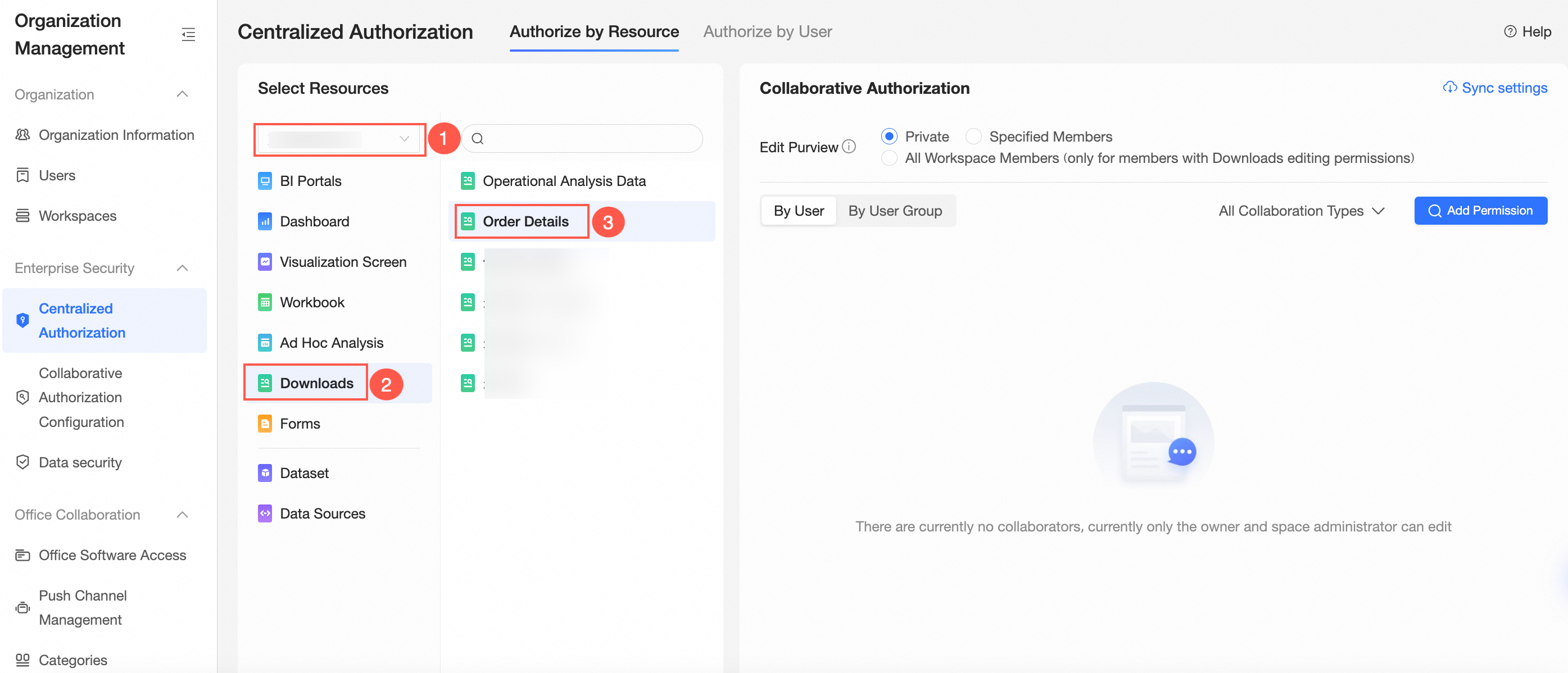
On the Collaboration Authorization page, select Edit Permission and grant permissions.
The following figure shows that Private is selected for Editing Permission and Visitor B is granted the export permission.
 Note
NoteYou can also select View for Visitor B. If you select View, Visitor B can only view the result of the download task.
Optional: Synchronize permissions.
If Visitor B needs to export the result of another download task in the workspace, you can click Synchronization Settings in the Collaborative Authorization pane. Then, select the download task whose result Visitor B needs to export and click Sync in the Synchronization Settings panel.