Permission administrators can grant users the permissions to edit business intelligence (BI) portals, and view and export the menus or content of BI portals.
Background information
Permission administrators grant user permissions that vary between collaborative and private states, as illustrated below.

Consider the following points regarding collaborative authorization:
Edit permissions: Users with Edit permissions can edit BI portals, and export and view the menus or content of BI portals.
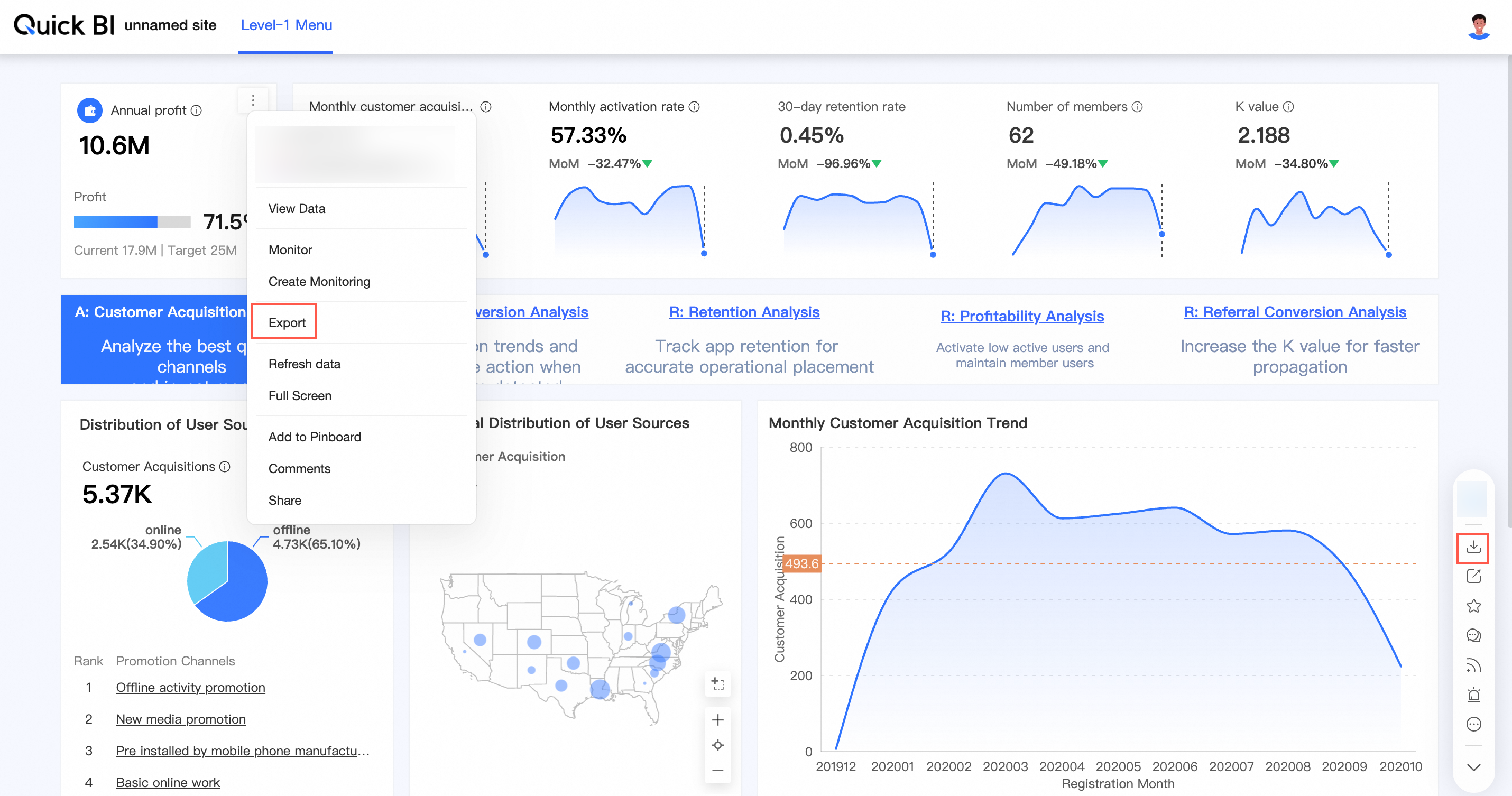
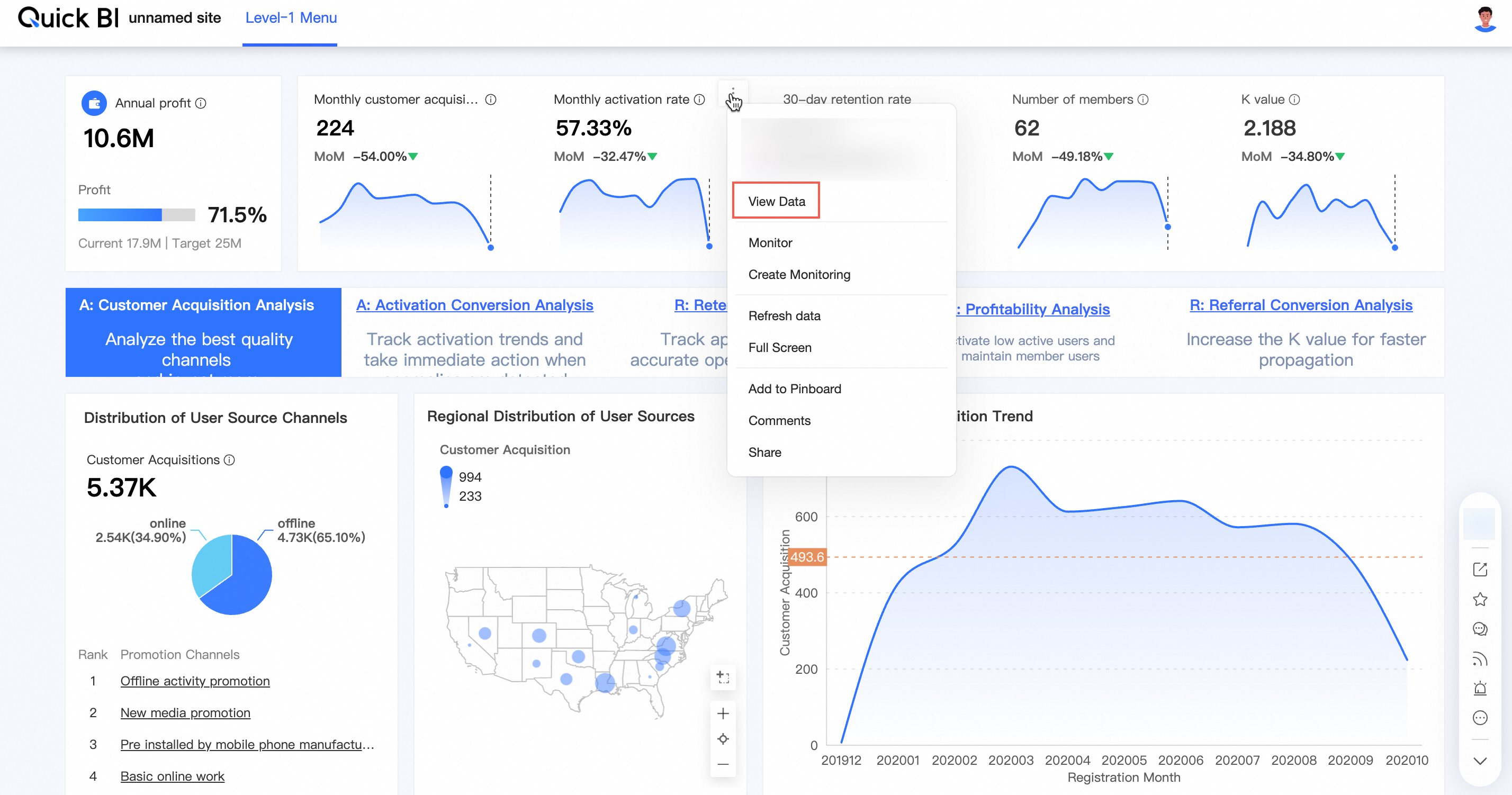
Export permissions: Users with Export (including View) permissions can export and view the menus or content of BI portals.
View permissions: Users with View permissions can only view the content of BI portal menus.
Scenarios
Quickly reuse permission configurations, which can be synchronized to resources of the same type to make configurations more efficient.
Scenario description | Expected outcome |
Scenario 1: Grant a user the permissions to edit a specified BI portal | Allow Analyst A (Analyst A and the resource are in the same workspace) to edit BI portals in the workspace.
|
Scenario 2: Grant a user the permissions to view and export the menus or content of a specified BI portal |
|

Scenario 1: Grant a user the permissions to edit a specified BI portal
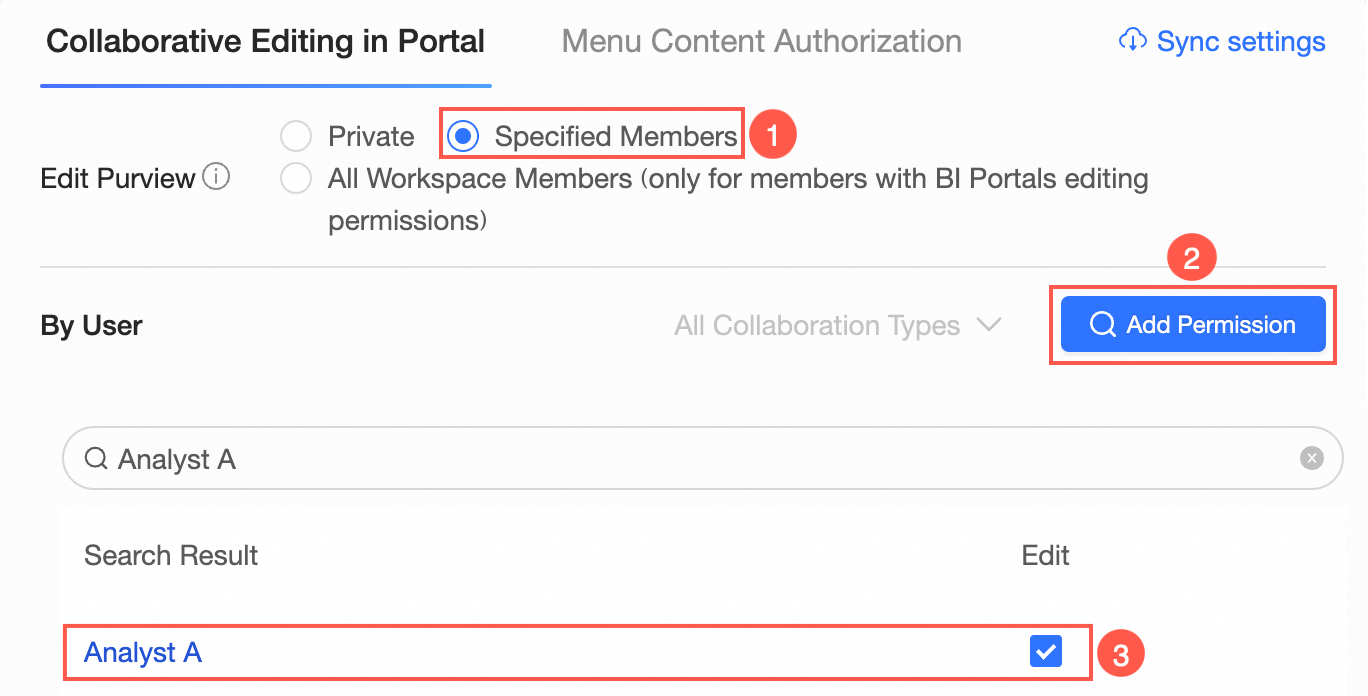
Under Collaborative Editing Of Portals, permission administrators can grant analysts in the workspace the permissions to edit BI portals only when the Edit Permission Properties are set to Specified Members or All Workspace Members.
On the centralized authorization page, select the target workspace and choose the BI portal resource.
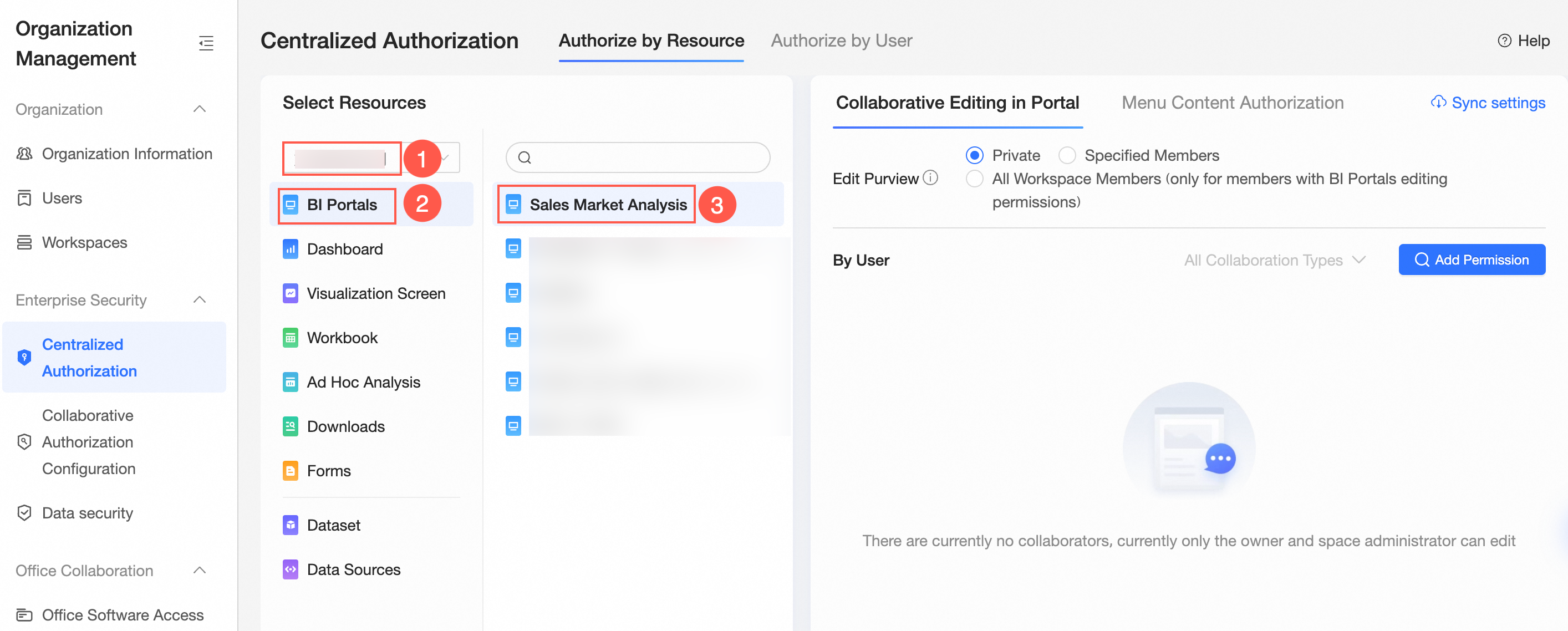
On the right side of the Collaborative Editing Of Portals page, select the edit permission properties and assign permissions.
The following figure shows an example of selecting Edit Permission Properties as Specified Members to grant Analyst A the permissions to edit BI portals.
Optional:Set permission synchronization.
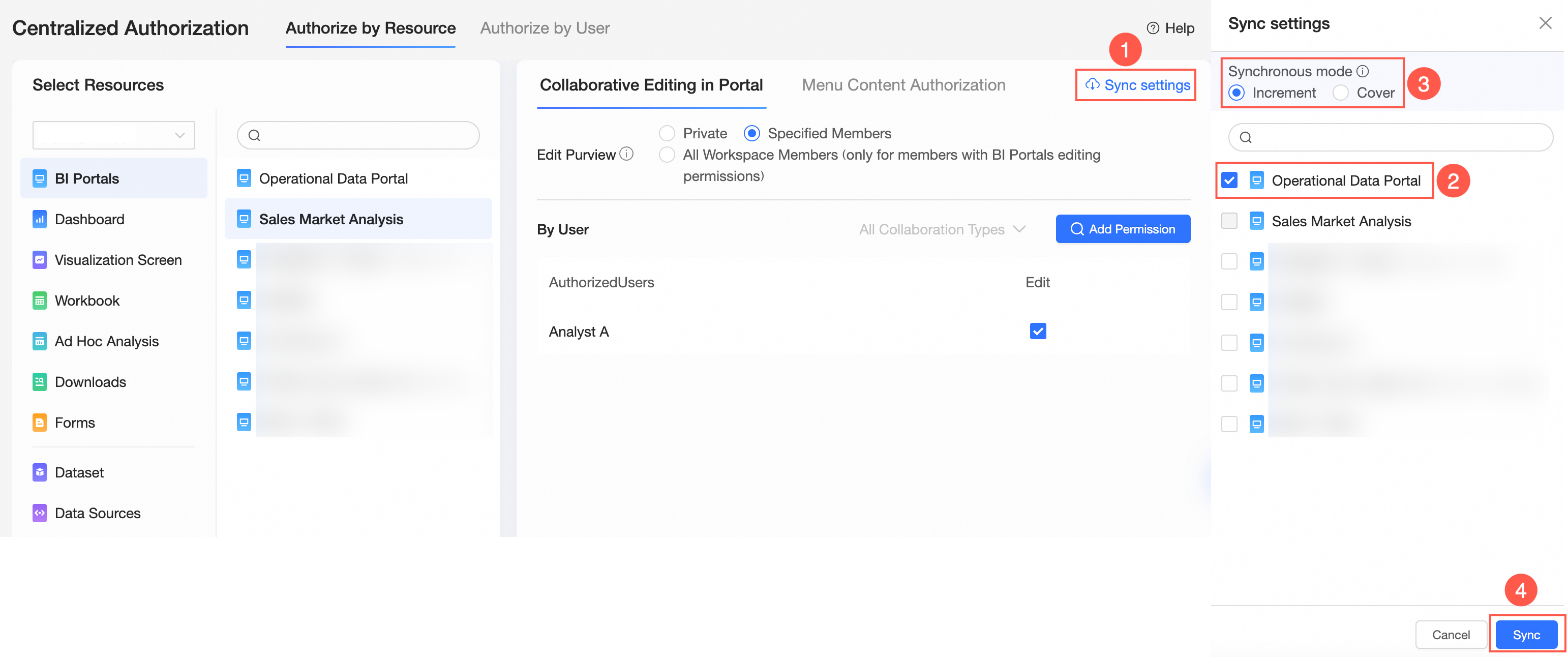
If Analyst A needs to collaboratively edit other BI portals in the workspace, click Synchronization Settings, select the target portal, and click Synchronize.
For example, if Analyst A is granted edit permissions for sales dashboard analysis, after synchronizing permissions, Analyst A can also edit the operations BI portal.
 Note
NoteThe synchronous mode supports incremental synchronization and overwrite synchronization.
Incremental synchronization: Does not affect the original permissions of the synchronized resource. Only adds missing permissions.
Overwrite synchronization: Clears the original permissions of the synchronized resource and overwrites them with the current resource's permissions.
The synchronization rule "hide menu entry for users without permissions" cannot be synchronized.
Scenario 2: Grant a user the permissions to view and export the menus or content of a specified BI portal
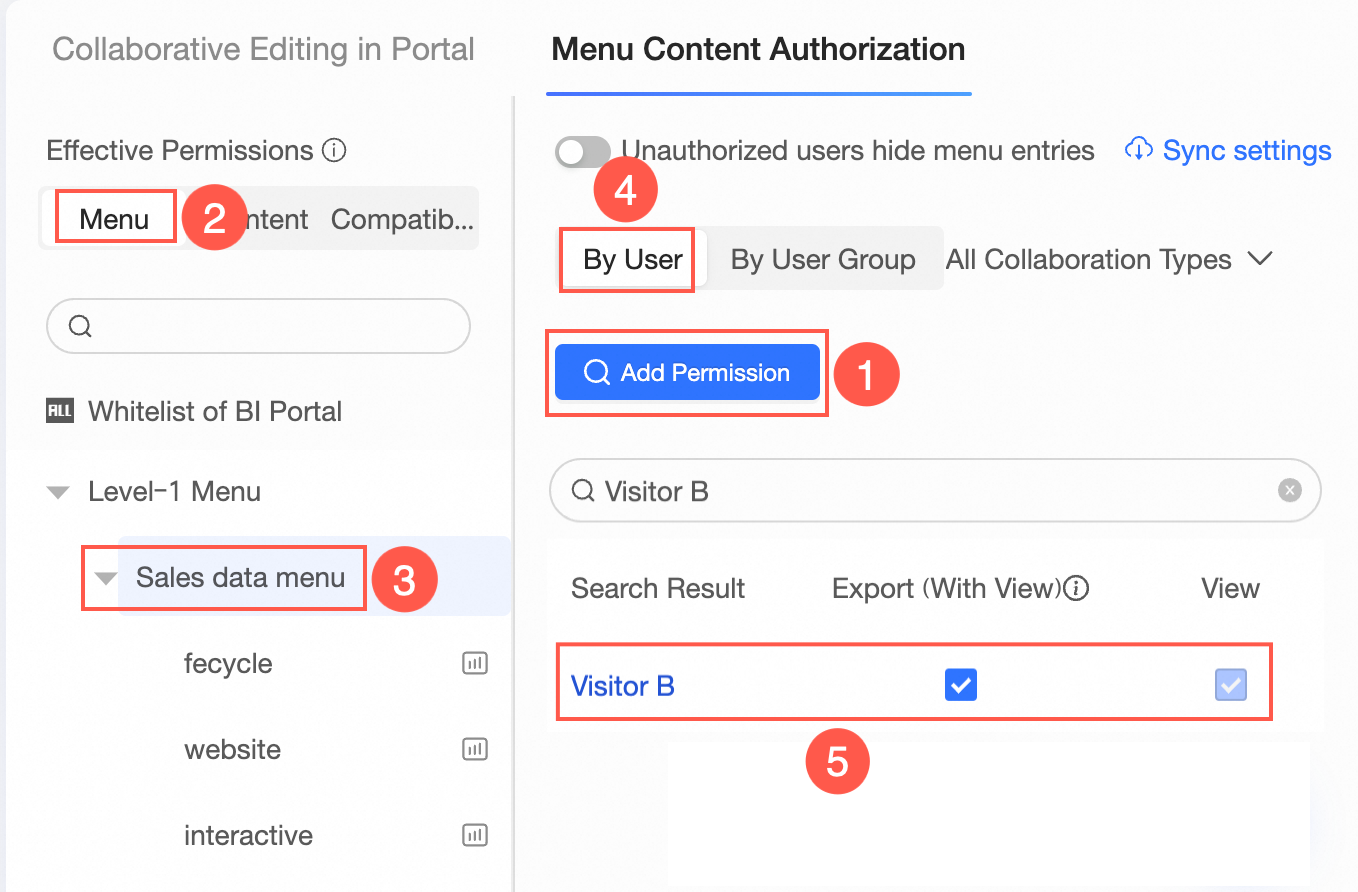
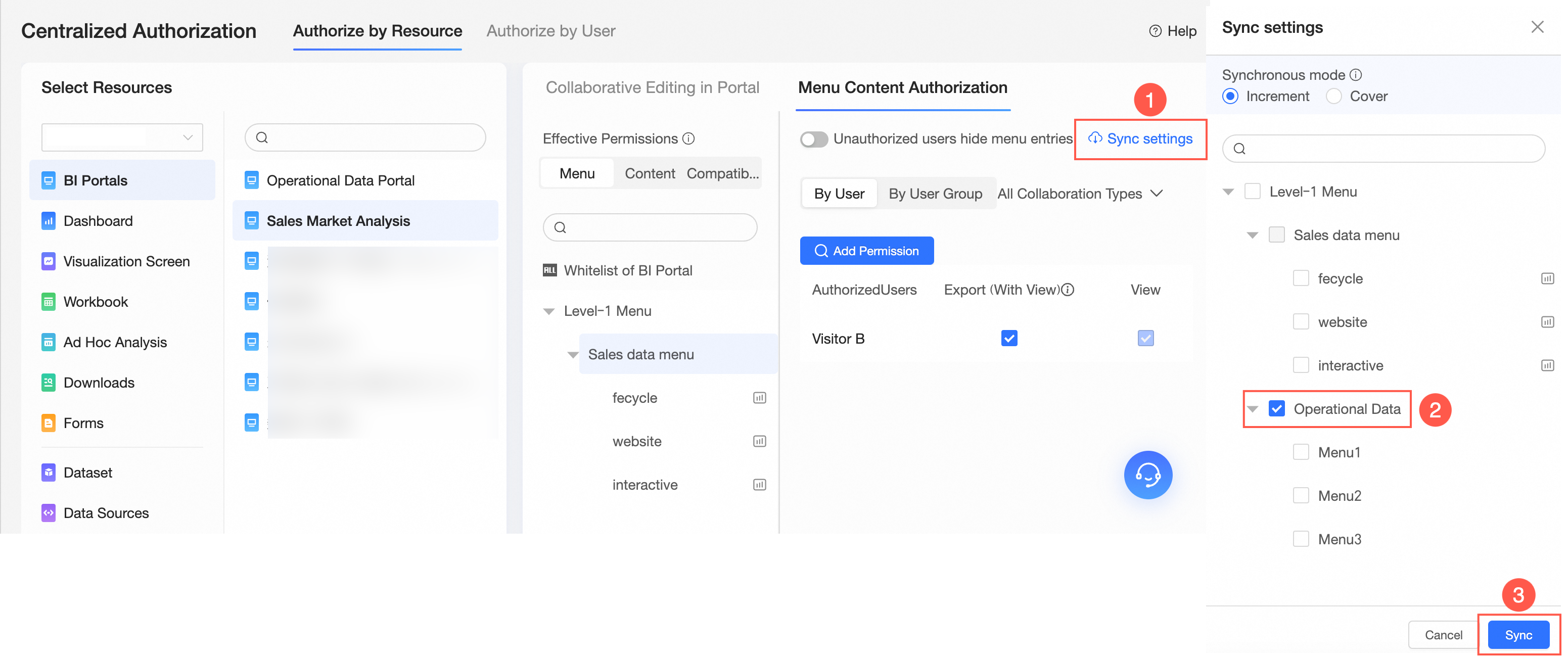
In this example, assign Visitor B the permissions to export and view the content of the menu under sales dashboard analysis.
On the centralized authorization page, select the target workspace and choose the BI portal resource.
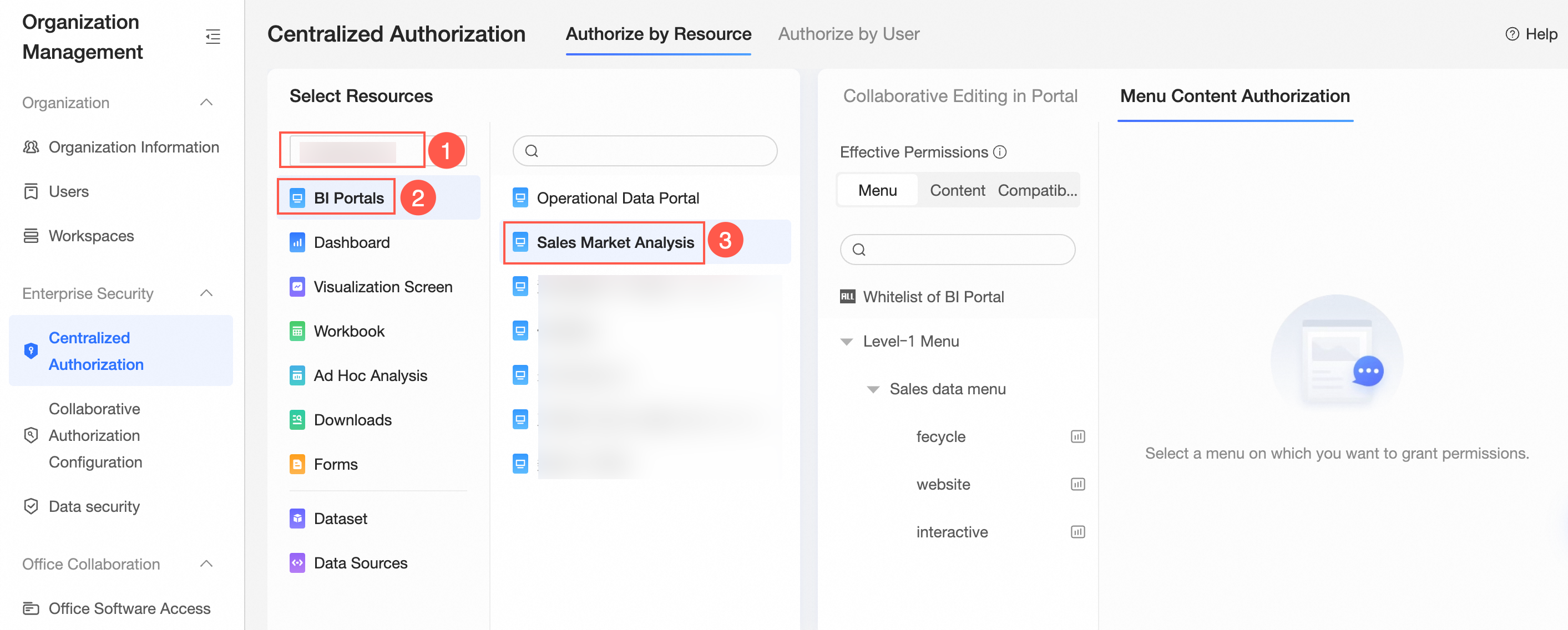
On the right side of the Menu Content Authorization page, select the target menu and set the authorization object.
The following figure shows an example of selecting Final Effective Permissions as Menu to grant Visitor B the permissions to export the content of BI portal menus.
 Note
NoteYou can also select the View permissions. In this case, Visitor B can only view the BI portal.
You can also set the following parameters as needed.
Parameter item
Description
Effect description
Synchronization Settings
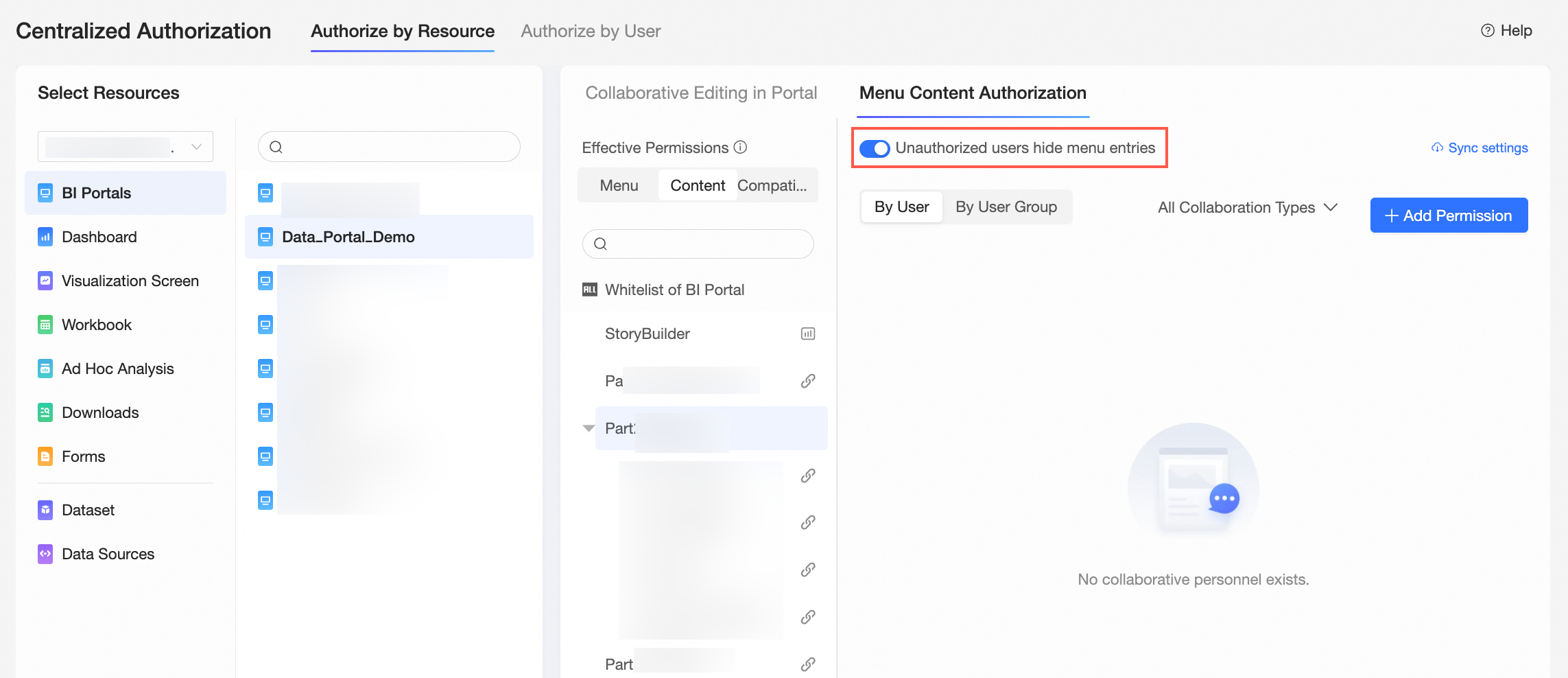
If the permission effective person needs to view or export reports under other menus of the portal, click Synchronization Settings.
Visitor B is granted export permissions for the sales data menu. After synchronizing permissions, Visitor B can also export report content from the operations data menu.
Hide Menu Entry For Users Without Permissions
If you want users without permissions to not see the menu, select hide menu entry for users without permissions.
After enabling Hide menu entry for users without permissions, when users do not have BI portal permissions, they cannot see the menu or request menu permissions.