Quick BI custom visualization relies on a set of core concepts: component structure, hosts, and asset panels.
Component Structure
In Quick BI, custom components, custom menus, and custom pages are collectively referred to as custom visualization components. Each custom visualization component consists of two parts: lifecycle and metadata.
Lifecycle
The custom visualization lifecycle describes how a component, menu, or page renders at each stage. It is a JavaScript object with the following properties:bootstrap, mount, unmount, and update Its interface is as follows:
interface Lifecycle {
  bootstrap?: LifecycleBootstrap;
  mount?: LifecycleMount;
  unmount?: LifecycleUnmount;
  update?: LifecycleUpdate;
}
Bootstrap
The bootstrap lifecycle runs when you access a Quick BI host page. Quick BI pulls and registers the custom visualization component, then calls the bootstrap function. The interface is:
type LifecycleBootstrap<T = LifecycleProps, P = any> = (props?: LifecycleProps<T>) => void | Promise<P>;Mount
The mount lifecycle runs when the custom visualization component renders for the first time. Quick BI calls the mount function. The interface is:
type LifecycleMount<T = LifecycleProps, P = any> = (props?: LifecycleProps<T>) => void | Promise<P>;Unmount
The unmount lifecycle runs when a custom visualization component is removed. Quick BI calls the unmount function. The interface is:
type LifecycleUnmount<T = LifecycleProps, P = any> = (props?: LifecycleProps<T>) => void | Promise<P>;Update
The update lifecycle runs when the props of the custom visualization component change. Quick BI calls the update function. The interface is:
type LifecycleUpdate<T = LifecycleProps, P = any> = (props?: LifecycleProps<T>) => void | Promise<P>;LifecycleProps
LifecycleProps defines the type of the props parameter passed to each lifecycle method. It includes two properties: container and customProps. The interface is:
interface LifecycleProps {
  container?: HTMLElement;
  customProps?: CustomProps;
}
Container
container is a DOM element on the host page where the custom visualization component renders. If Shadow DOM is enabled, the container’s parent becomes a ShadowRoot element.
CustomProps
customProps contains contextual information that the host page injects into the custom visualization component. Different visualization types provide different context. For more information, see the sections for specific visualization types.
The following code shows a simple example of a custom visualization component lifecycle:
export {
  bootstrap: (props: LifecycleProps) => {},
  mount: (props: LifecycleProps) => {
    console.log(props); // { container: DOMObject, customProps: {} }
    props.container.textContent = `hello word`;
  },
  unmount: (props: LifecycleProps) => {},
  update: (props: LifecycleProps) => {
    props.container.textContent = `hello word updated`;
  },
}
Metadata
Custom visualization metadata is a JavaScript object that defines configuration settings outside of rendering. Different visualization types support different configurations. For example, metadata for a custom component can configure the data panel, style panel, and advanced panel. For more information, see the sections on specific visualization types.
// Example of custom component metadata
export default {
  propsSchema: {
    // Data panel configuration
    dataSchema: {},
    // Style panel configuration
    styleSchema: {},
    // ...
  }
}
Host
A host page in Quick BI is any page that embeds a custom visualization component.
The same custom visualization component can be embedded in multiple host pages. For example, a "custom line chart" can appear on both a dashboard and a data dashboard.
A single host page can embed a custom visualization component only once, but it can create multiple instances of that component. For example, a dashboard can include multiple "custom line charts," each displaying different data from different datasets.
Asset Panel
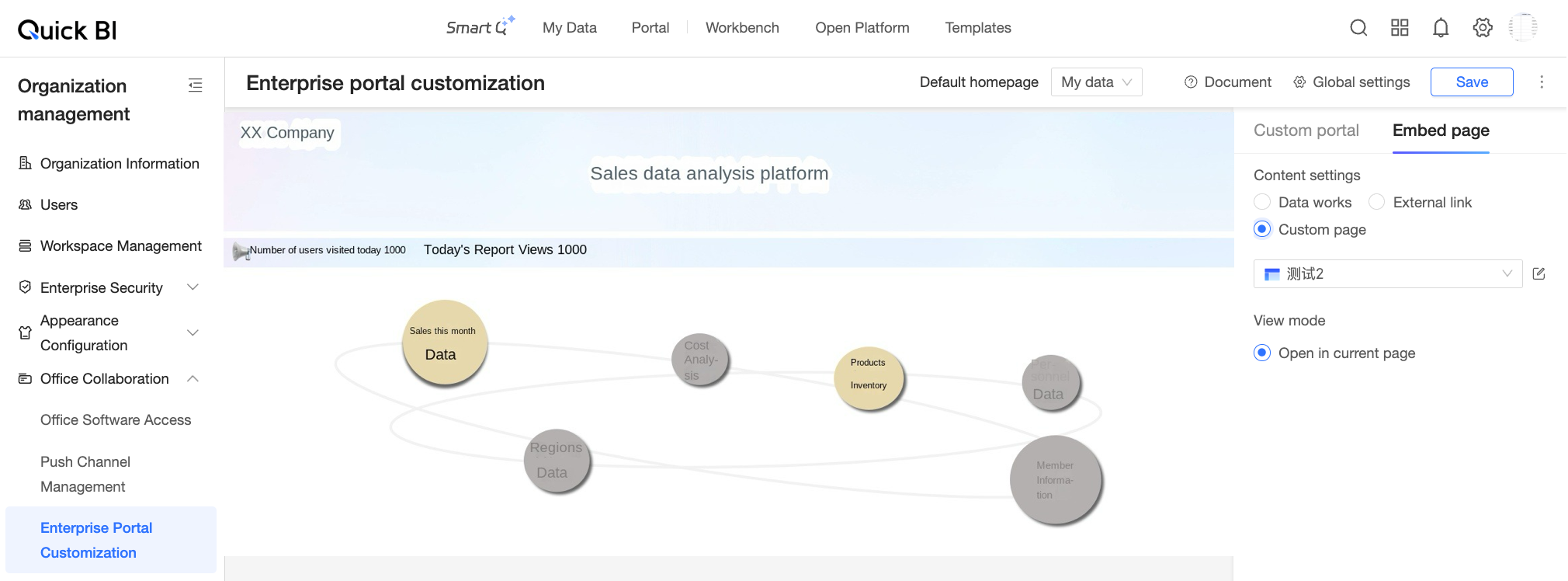
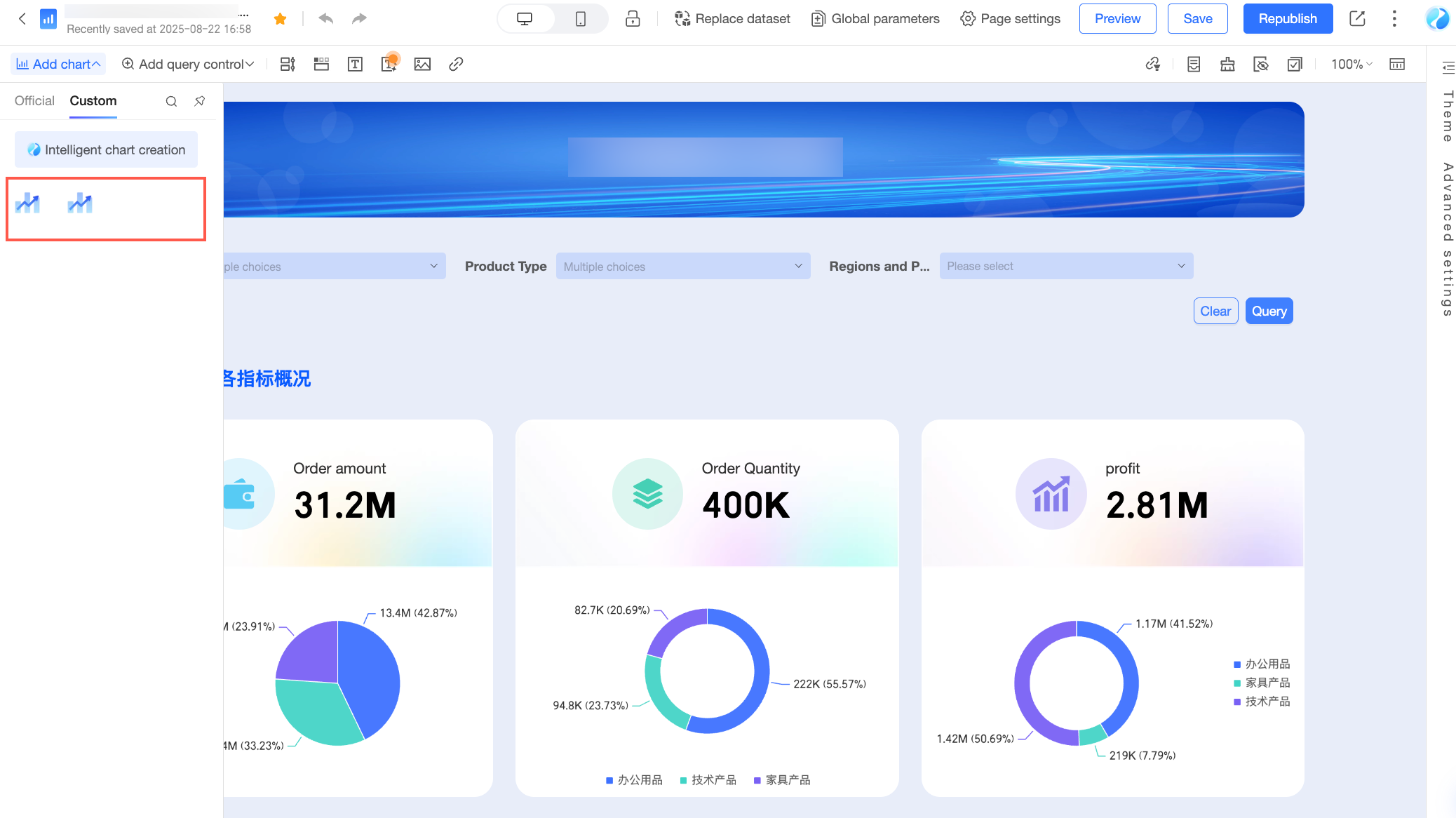
The asset panel is the entry point in a Quick BI host page for configuring custom visualization components. Examples include the dashboard editor page and the enterprise portal configuration page.
Dashboard asset panel
Enterprise portal asset panel