The data query operations interface supports recording user query behaviors and selecting use cases to track from query records. This topic describes how to perform data query operations.
This feature is available only in the China (Hong Kong) and Malaysia sites. This feature will be available in other sites soon.
Overview
When a user asks a question, the system records the user's query behavior, such as the question asked, the time of the query, and any feedback provided. You can then view and track these behaviors on the Question operations page.
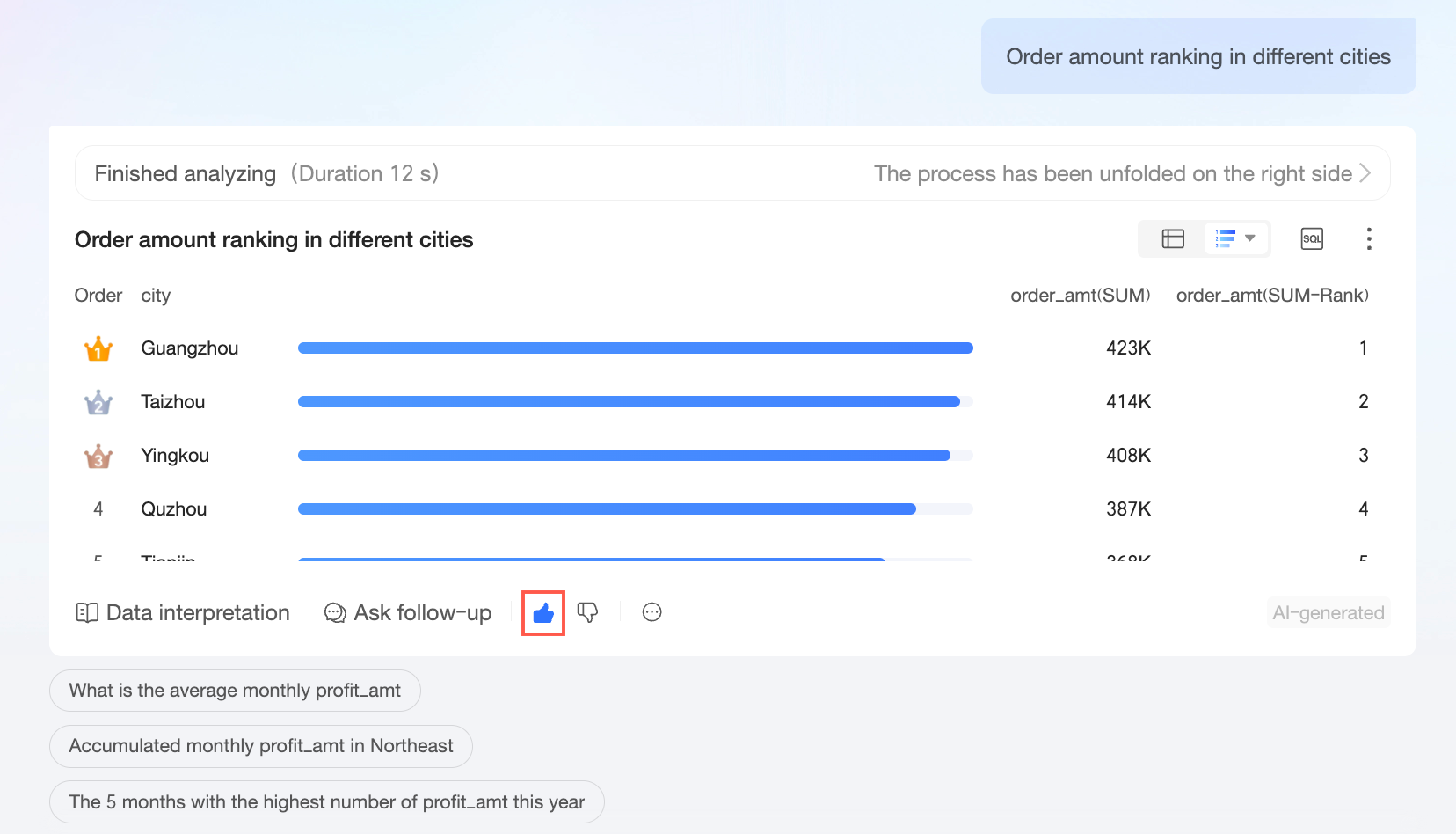
For example, a user named 'Demo User' asks "Rank order amounts by city" in the intelligent question dialog box and provides positive feedback on the analysis result.
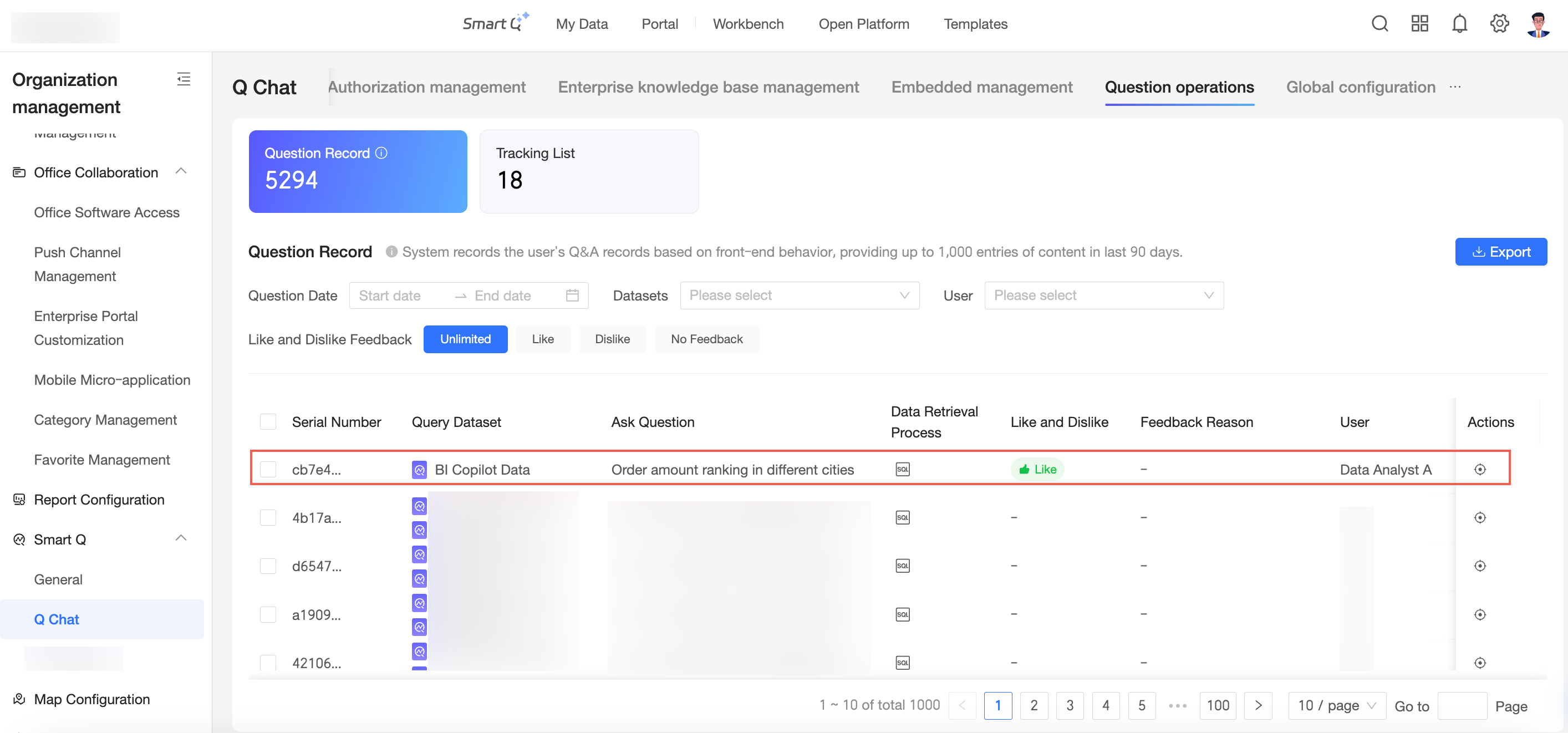
This behavior is then recorded on the Question operations page as follows:
Procedure
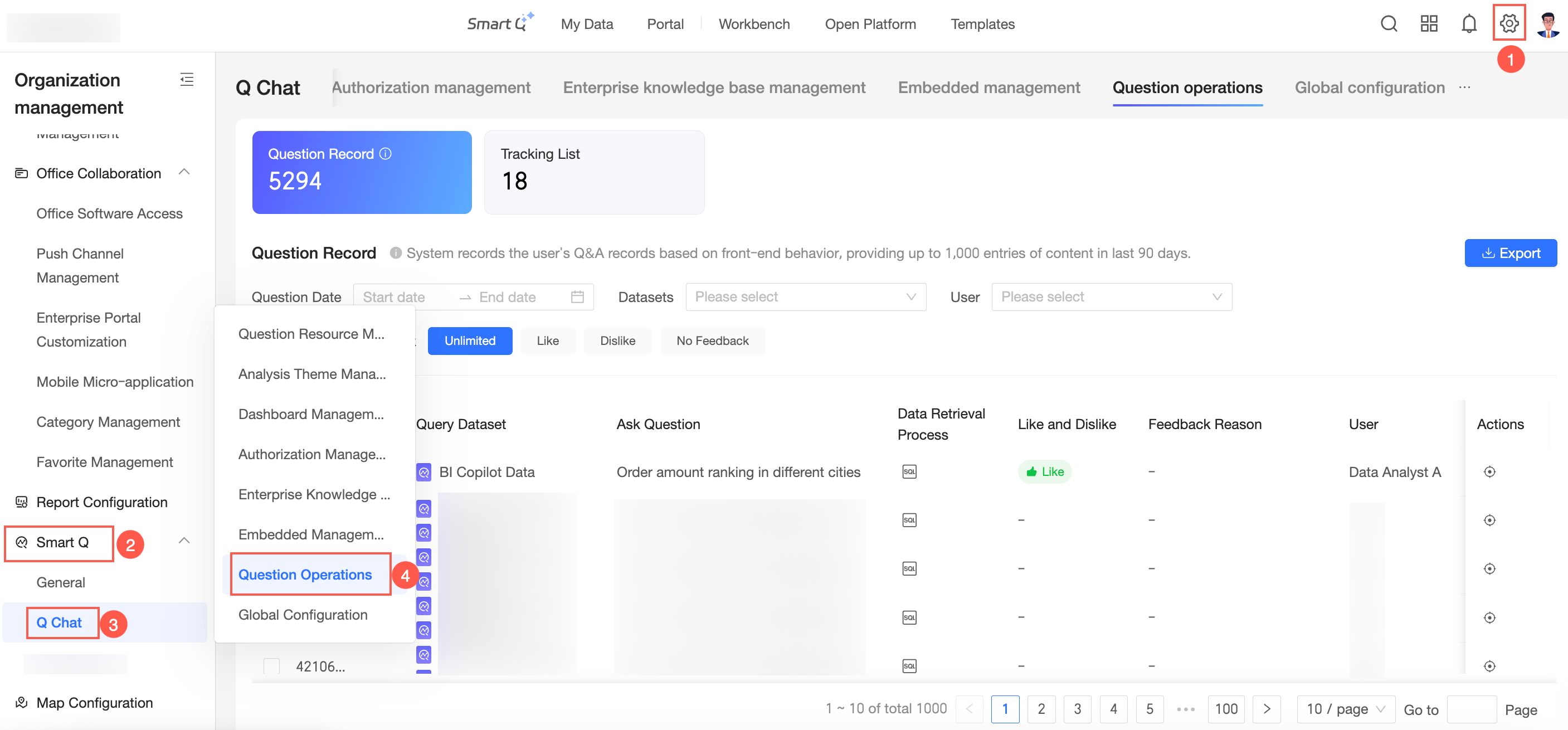
You can access the Data query operations interface as shown in the following figure.
Query records
Based on user query behaviors, the system provides statistics on the total number of query records in the past 90 days and displays up to 1,000 detailed records.
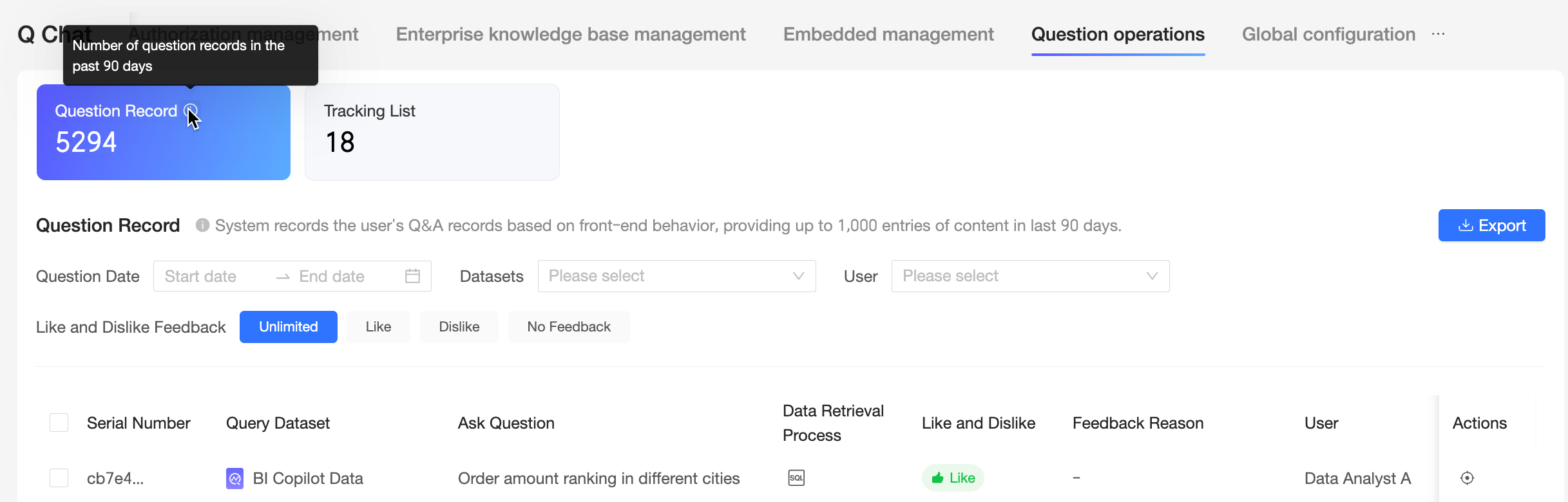
In the query records interface, you can view ID, Queried dataset, Question, Query process, Feedback, and perform operations to add records to the tracking list.
Move your mouse to the target ID and click the
 icon to copy the ID.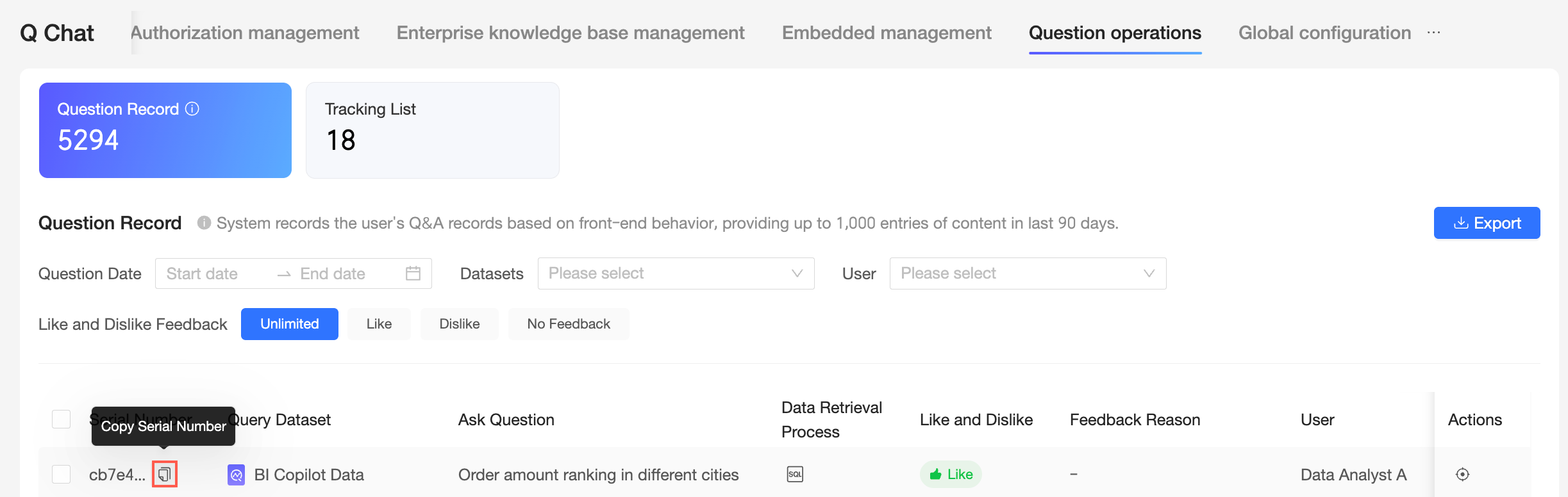
Move your mouse to the target Queried dataset and click the
 icon to preview data.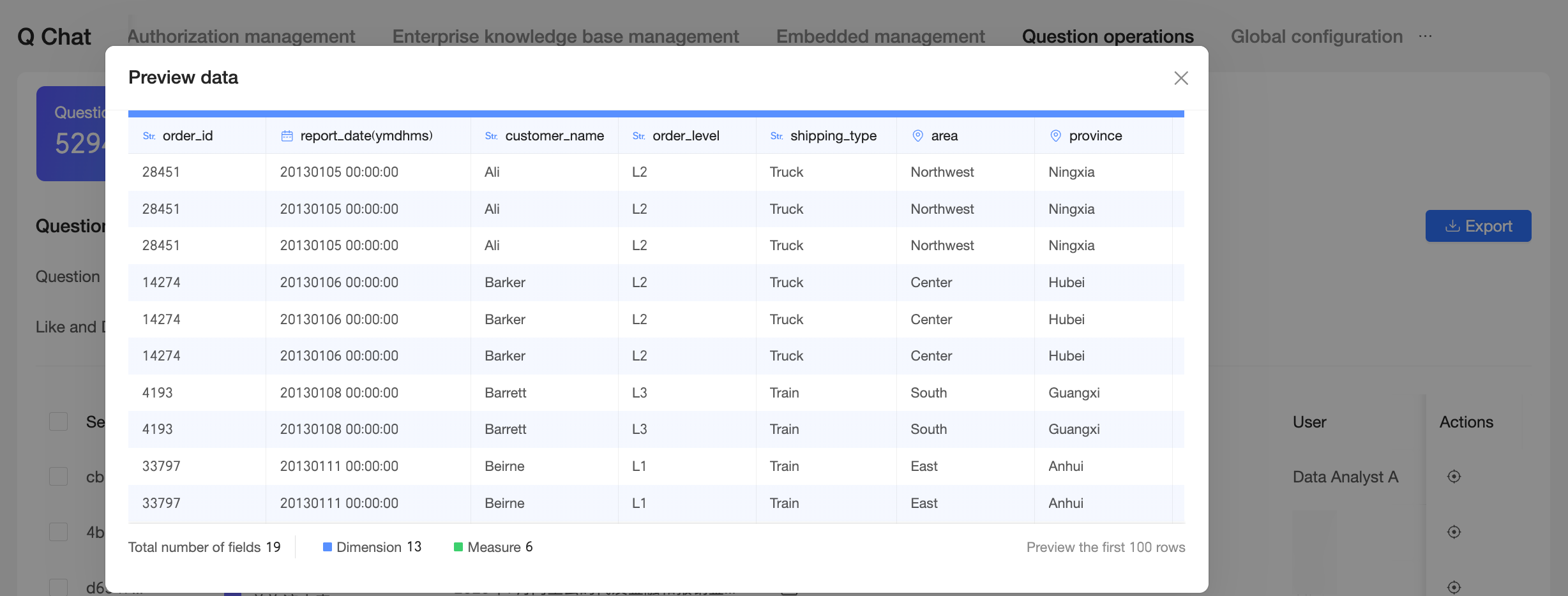
Click the
 icon to view the Query process for the record. You can view the business logic SQL and the executed SQL.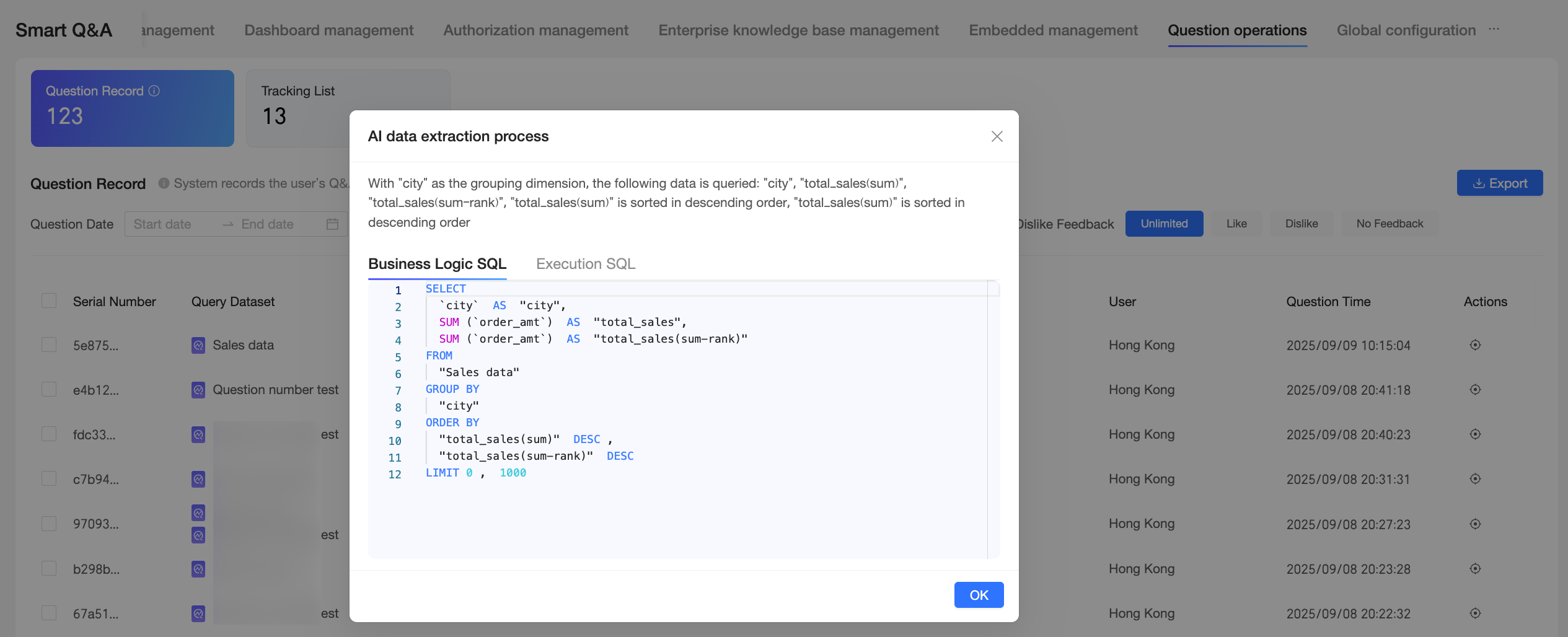
Click the
 icon in the operation column to add the query record to the tracking list.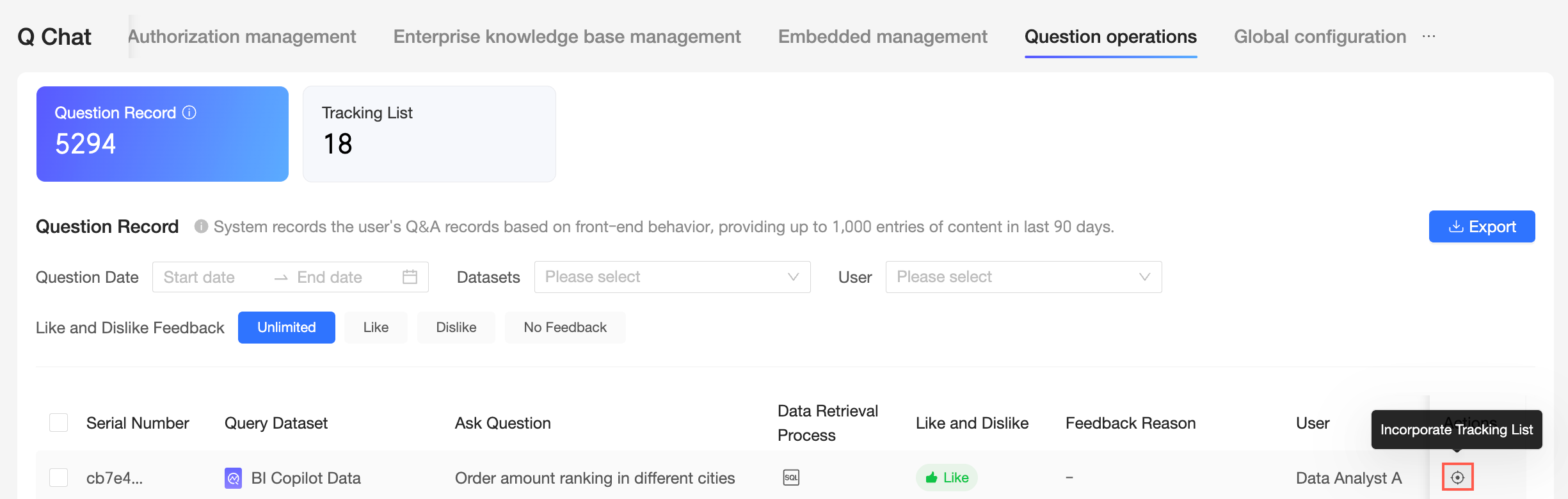
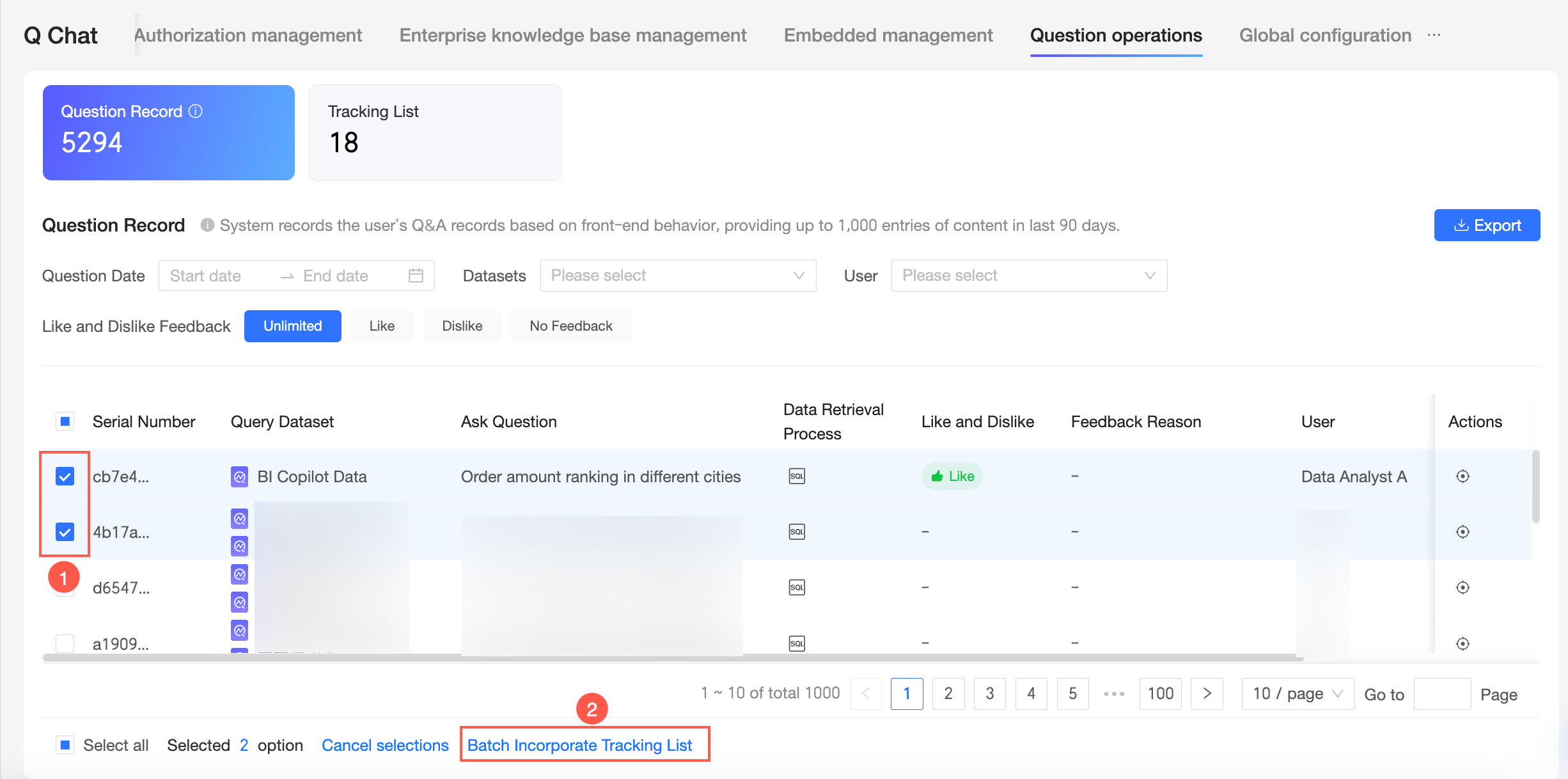
You can select multiple query records and add them to the tracking list in batch.
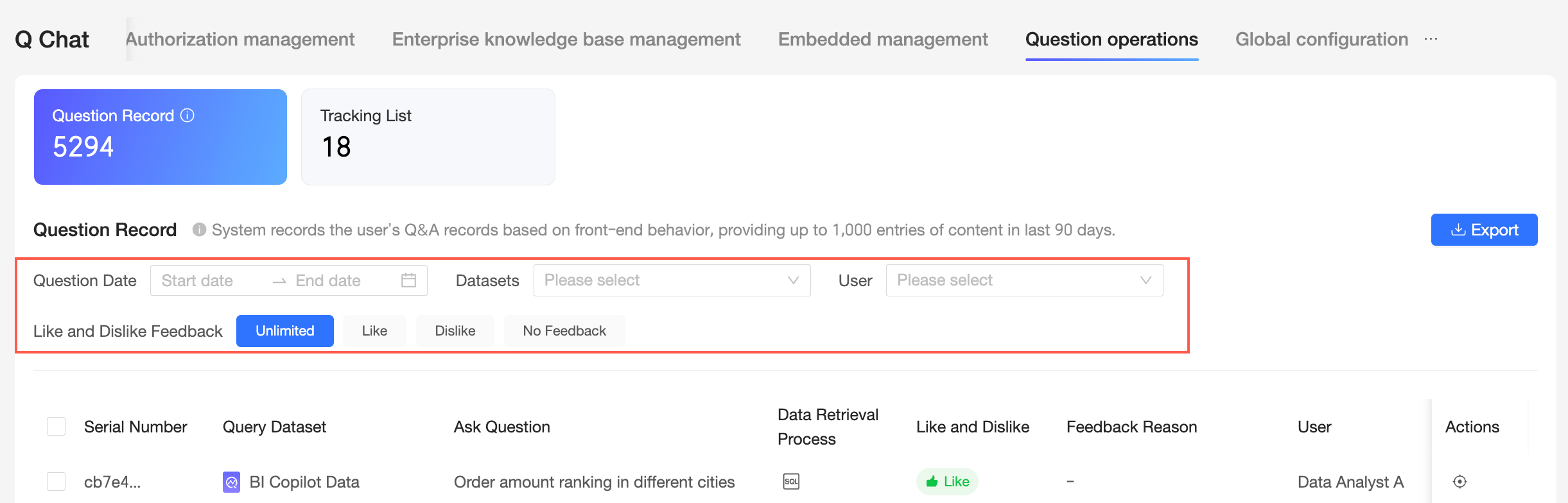
You can filter by Question date, Query resource, User, and Feedback.
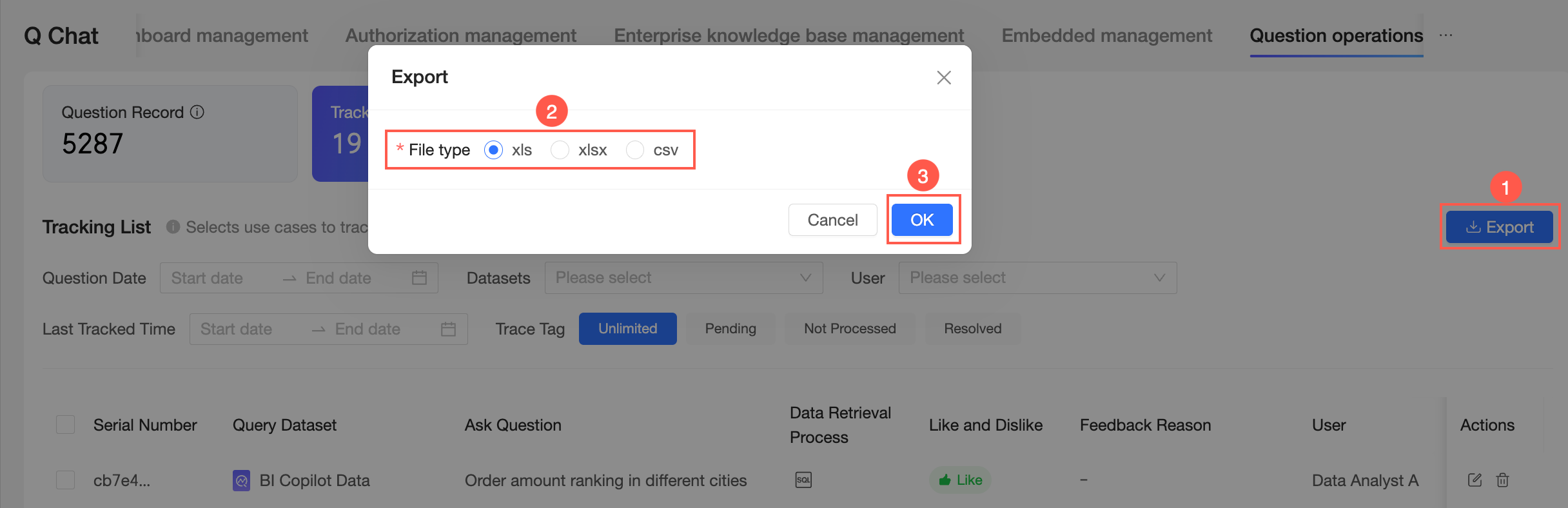
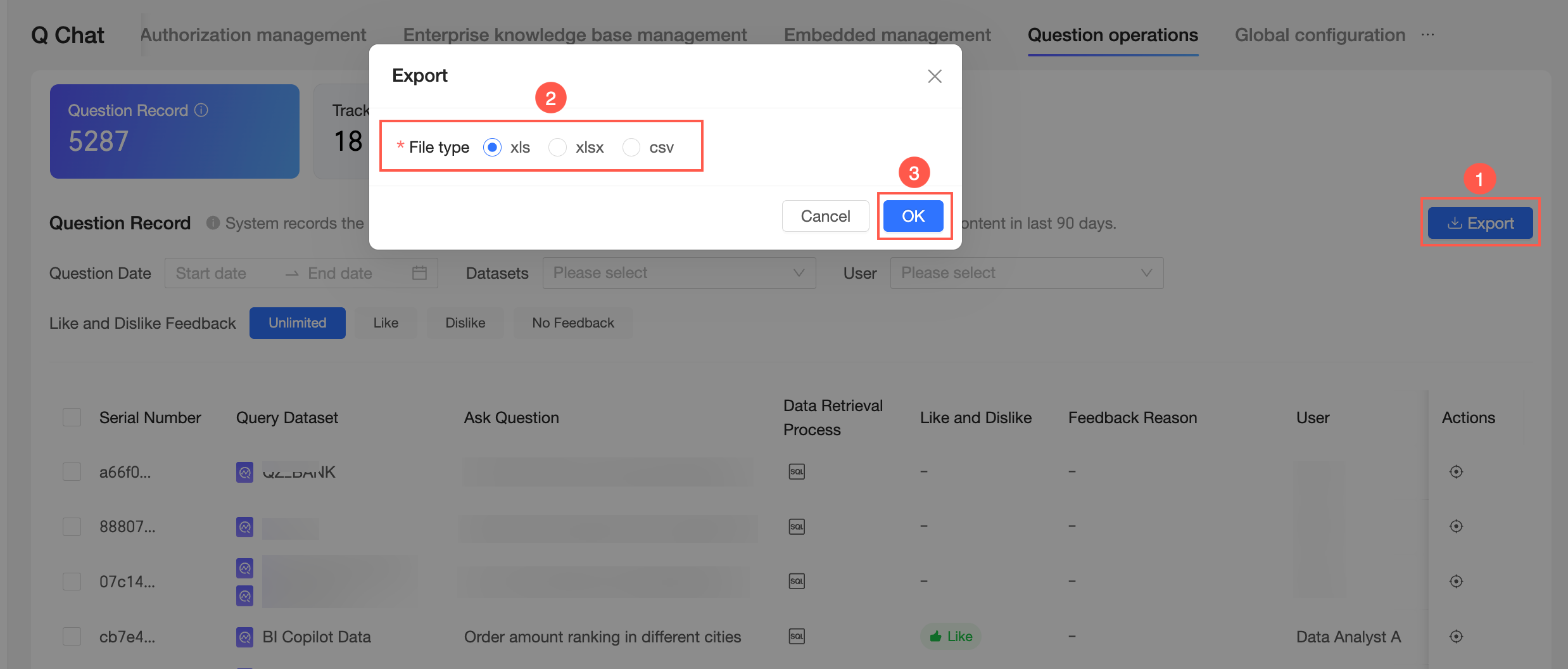
You can export query records in xls, xlsx, or csv format.
Tracking list
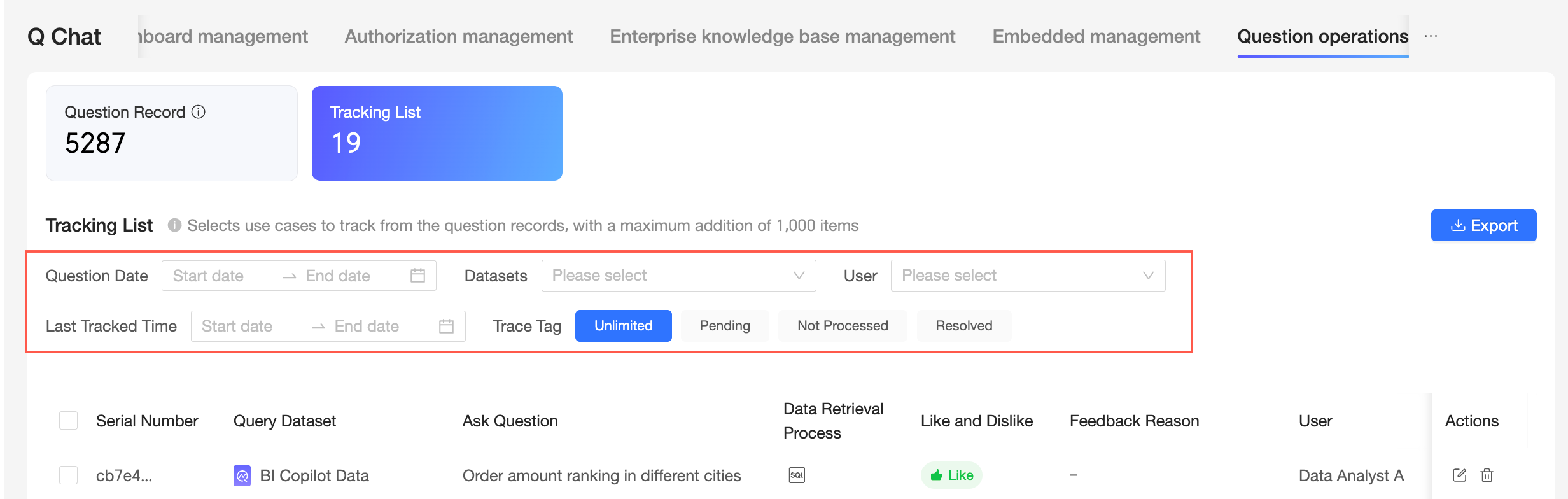
You can select use cases to track from query records. You can add up to 1,000 records.
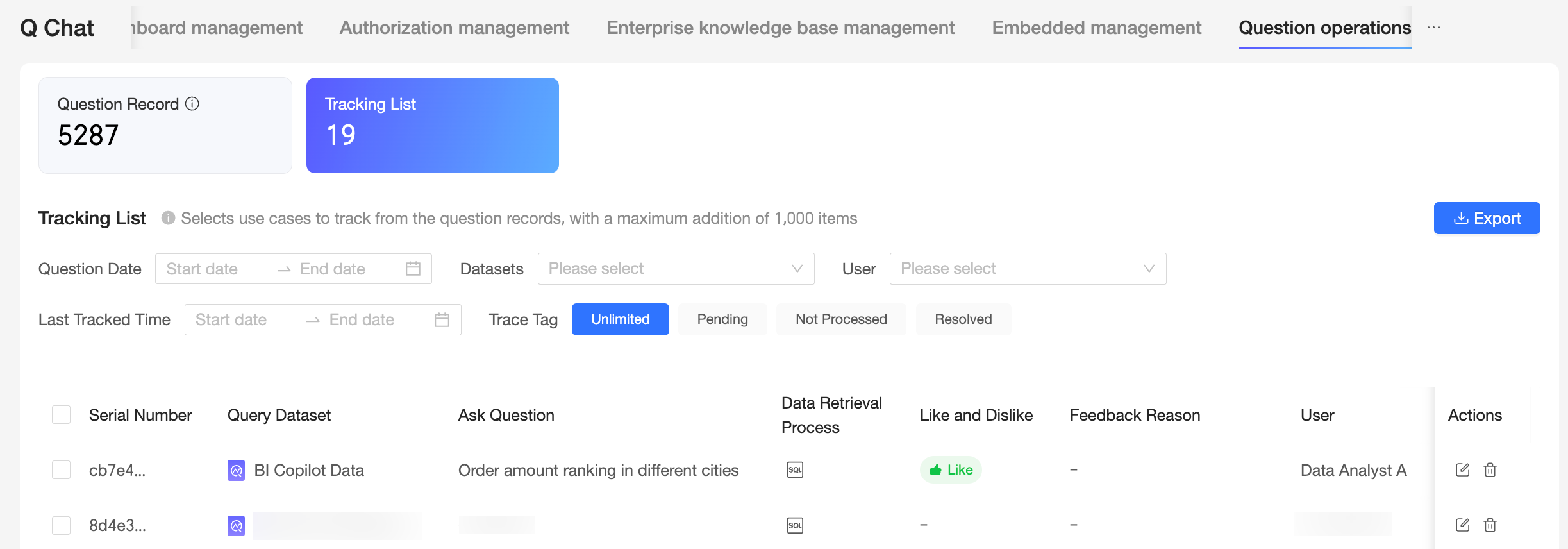
In the tracking list interface, you can view ID, Queried dataset, Question, Query process, Feedback, and perform edit and untrack operations.
NoteThe ID, queried dataset, question, query process, and feedback are the same as those in query records. The following sections describe only the edit and untrack operations.
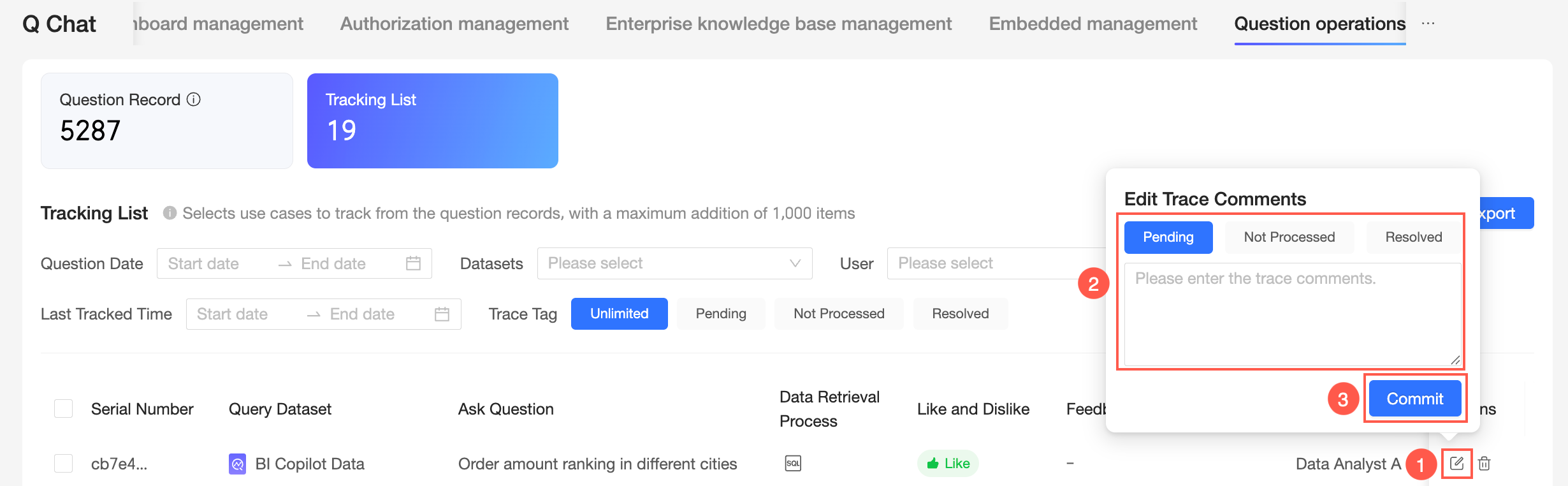
You can edit tracking records as shown in the following figure.
You can mark tracking records as To be processed, Not to be processed, or Resolved, and add custom tracking notes.
Click the
 icon to untrack a record.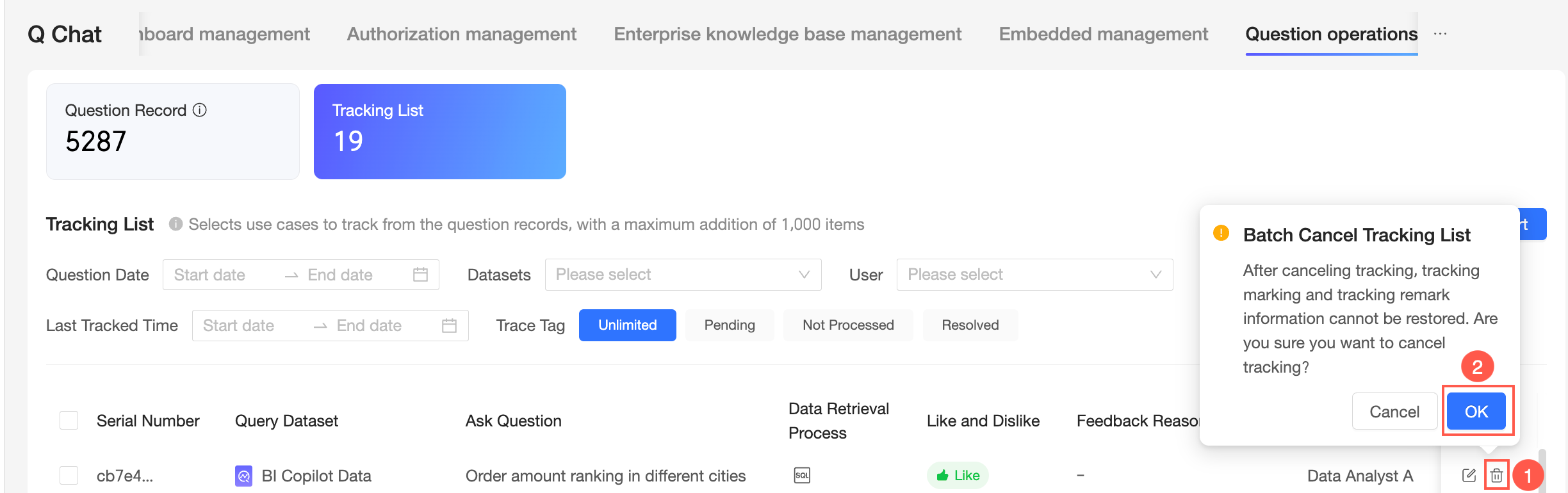
You can select multiple tracking records and untrack them in batch.
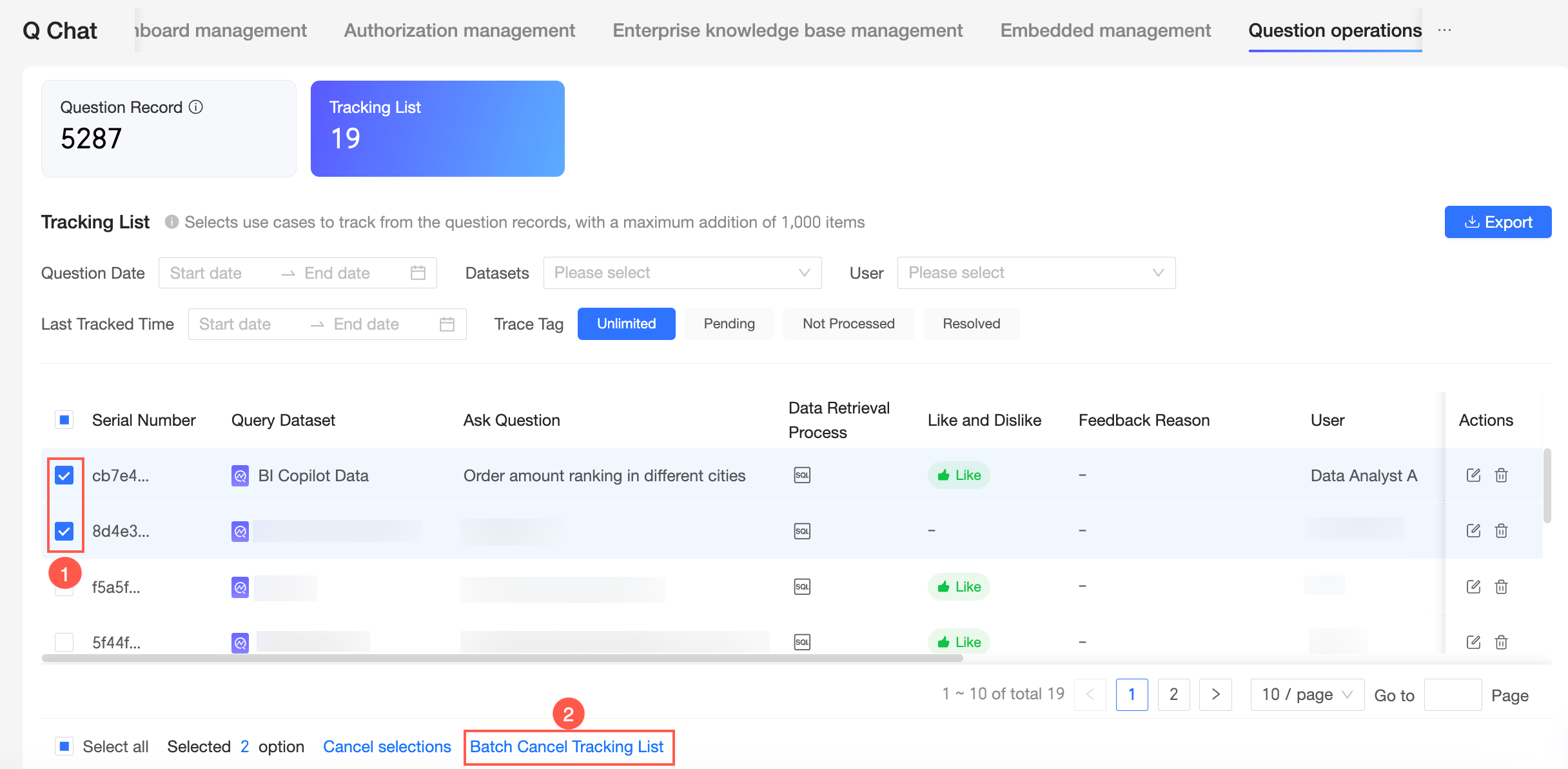
You can filter by Question date, Query resource, User, Last tracking processing time, and Tracking tag.
You can export the tracking list in xls, xlsx, or csv format.