This guide is for organization administrators and business users who are new to Quick BI AIPro. It walks you through the entire process, from activating the service to initiating your first AI-driven conversational analysis, all within 30 minutes.
Quick BI AIPro is currently in a targeted beta phase and is only available to select customers. If you want to try AIPro, activate Quick BI first, and then submit an activation request through the "Online Consultation" button in the lower-right corner of the Quick BI console.
Background
Traditional BI relies on data analysts to create dashboards, while business users passively consume charts. When a business question goes beyond existing reports, a new request must be submitted and scheduled for development. Quick BI AIPro deeply integrates large language model (LLM) capabilities with its core BI platform, allowing business users to drive data analysis directly through conversation. This covers the entire decision-making path: Overview → Breakdown → Root Cause → Diagnosis → Action.
Differences between Quick BI AIPro and traditional BI:
Dimension | Traditional BI | Quick BI AIPro |
Usage model | Drag and drop fields, write SQL, view static dashboards | Ask questions in natural language and conduct multi-turn follow-up inquiries |
Response time | Request fulfillment takes from days to weeks | Returns data and insights in seconds |
Analysis model | Business users rely on analysts to generate root cause conclusions | AI breaks down questions and performs automated reasoning to generate in-depth, comprehensive root cause analysis |
Analysis method | Manual drill-down, data linking, and manual creation of analysis reports | Explore and analyze through conversation, using a canvas to connect ideas and focus the analysis. Results are generated automatically. |
Learning curve | Requires SQL and BI modeling skills, familiarity with various module configurations, and a steep learning curve | No learning curve for business users |
Asset persistence | Dashboards | Analysis deliverables that update dynamically (reports, documents), one-time analysis reports, and recurring subscription tasks |
Typical use cases:
A business leader asks "What were the year-over-year sales changes by region last week?" five minutes before a morning meeting and instantly receives charts with root cause analysis.
An operations specialist asks "Why did GMV drop in East China?" and the AI automatically performs a three-level drill-down for root causes by category, channel, and store.
A finance specialist uses conversation to generate a "Monthly Operations Dashboard" and then sets up a recurring task to push the report on the first of every month.
AIPro workflow overview
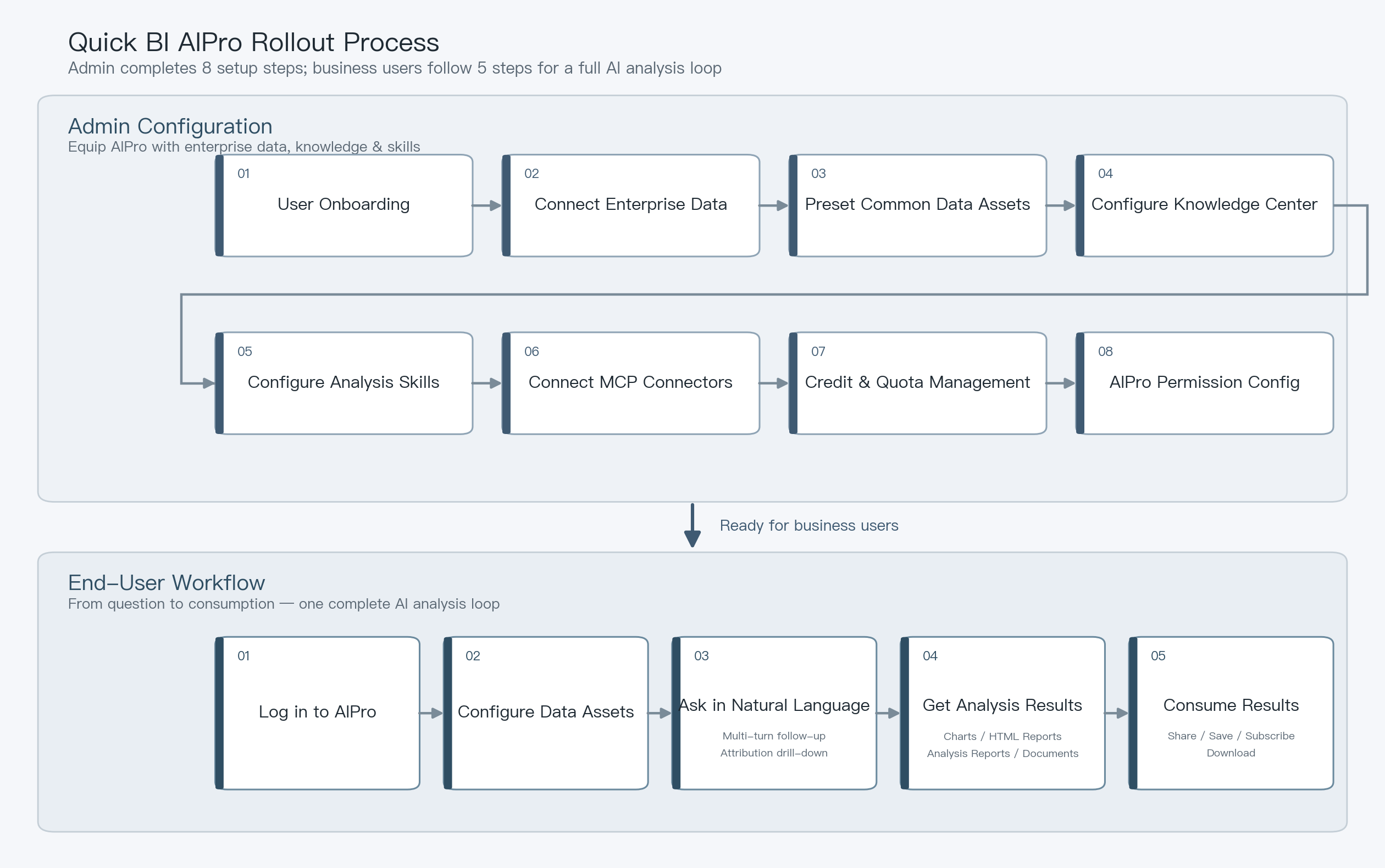
Implementing Quick BI AIPro involves two main tracks: administrator configuration and user operation. We recommend following the order shown in the diagram below to complete the initial setup.
AIPro procedure (administrator)
The following steps are for an organization administrator or workspace developer. They cover managing users and configuring your organization's data, knowledge, and skills in AIPro to ensure a ready-to-use experience for business users.
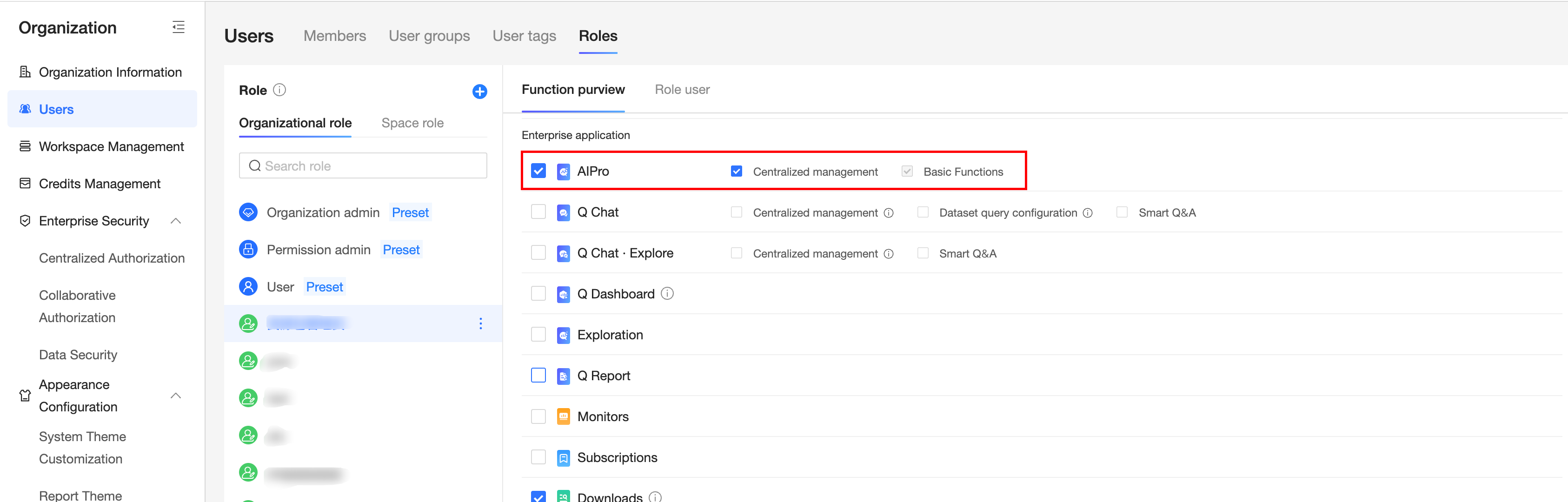
1. User permissions
Sign in to the Quick BI Admin Center as an organization administrator.
Go to Organization Management → Role Management.
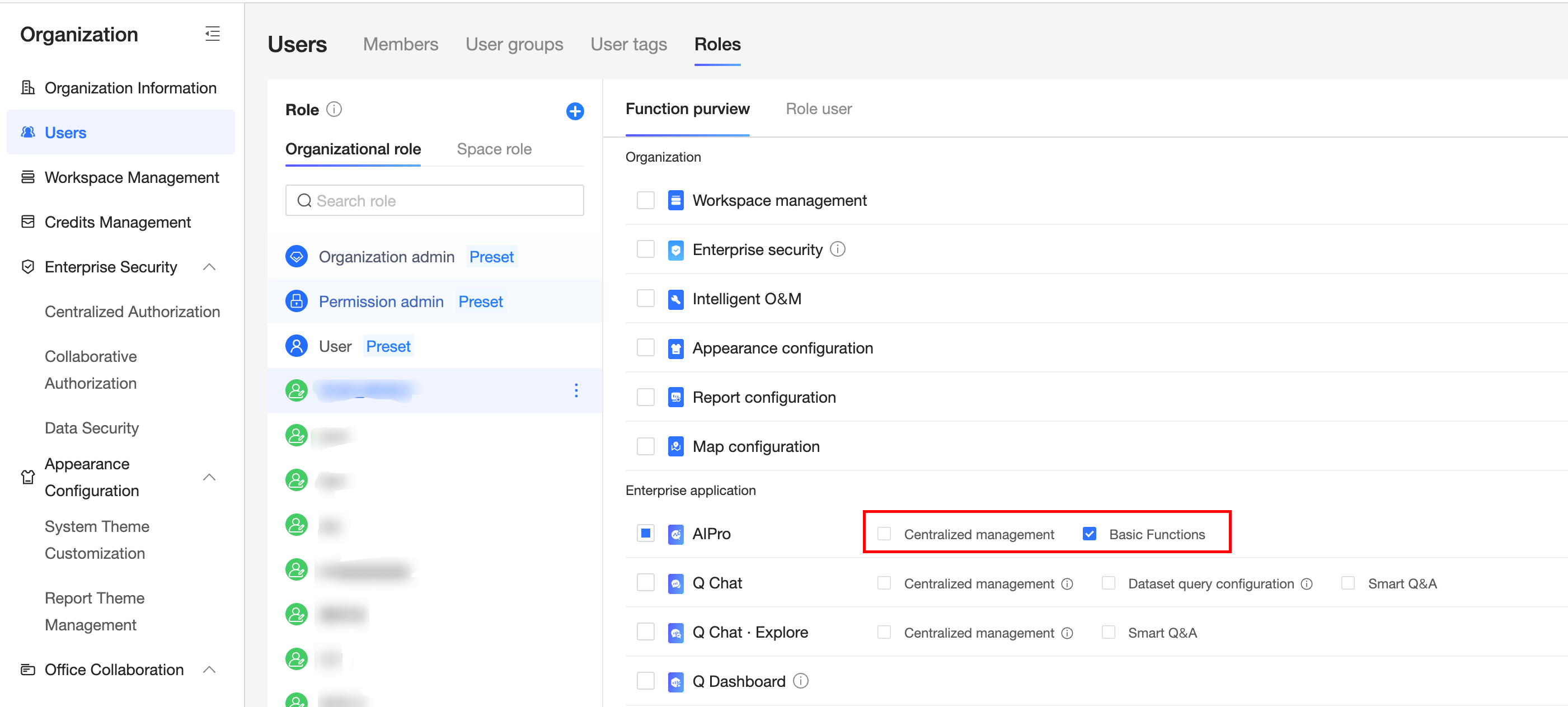
Configure AIPro-related permissions for a custom role.
 Note
NoteBy default, the preset roles in Quick BI include the necessary AIPro permissions:
The organization administrator has Centralized management and Basic functions permissions by default.
The permission administrator has Basic functions permissions by default.
The standard user has Basic functions permissions by default.
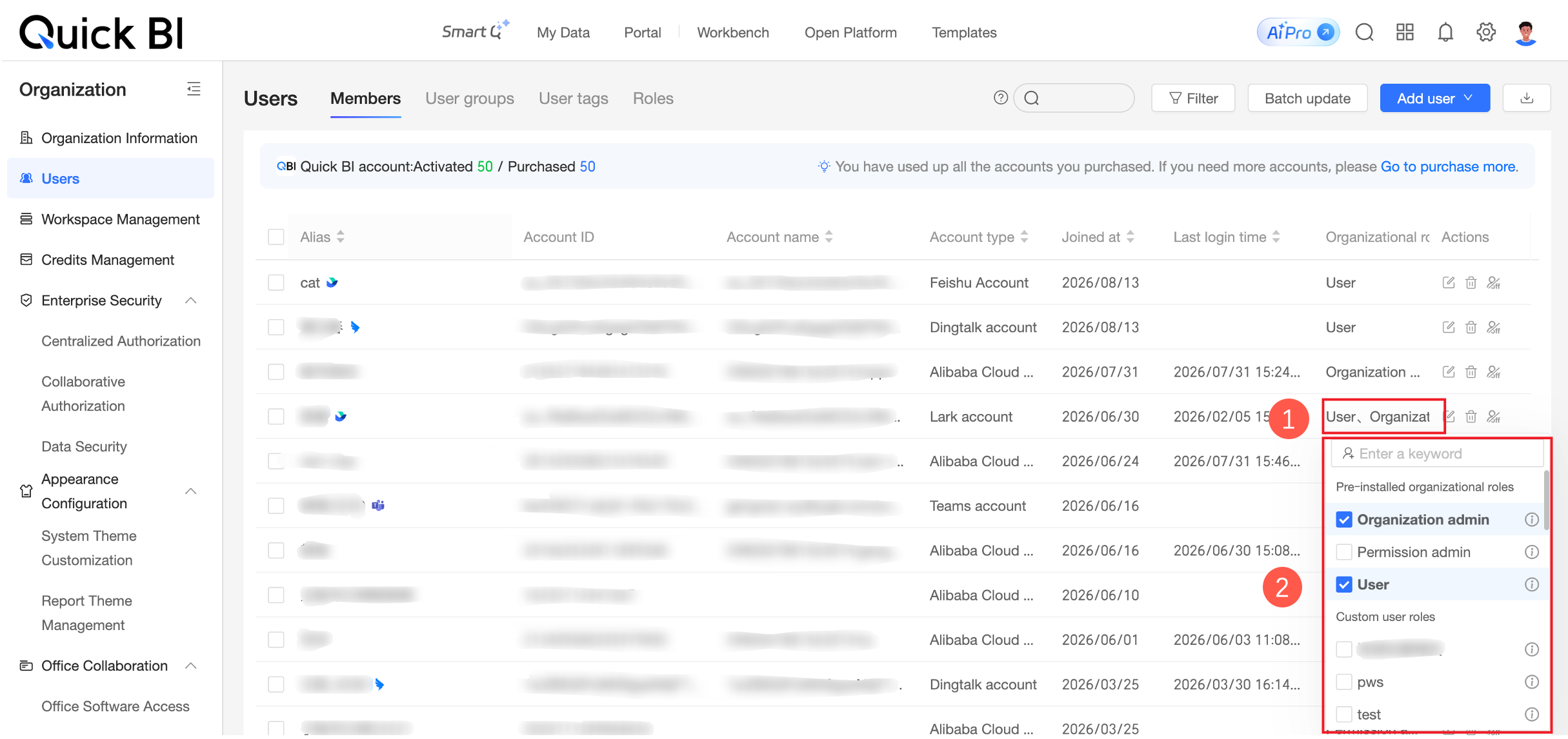
On the Member Management page, assign roles with AIPro permissions to members as needed.
2. Connect enterprise data
Goal: Allow business users to find and use your organization's predefined data, including data tables, datasets, files, and API data assets.
Create data source and dataset resources in a workspace.
As an administrator, go to a Quick BI workspace.
Create a data source: In the workbench, go to Data Sources and add a database connection (such as MySQL, MaxCompute, PostgreSQL, or Oracle).
Create a dataset: In the workbench, go to Datasets and configure a dataset.
In Workspace Management, grant permissions for the dataset to the required members or roles.
Create file, data table combination, and API data resources in AIPro.
Go to AIPro > Enterprise > Data Management.
Create data table combinations, files, and API data.
Select a data resource, click More, and grant collaborative permissions to users.
3. Pre-configure common data assets (optional)
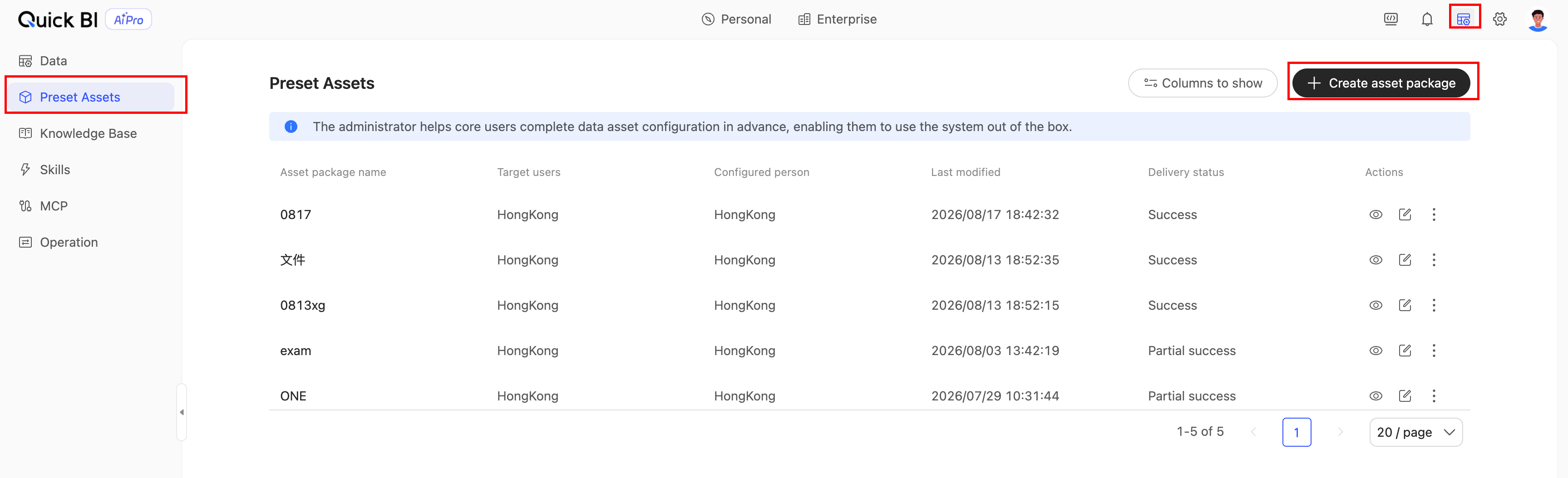
Goal: Enable business users to see commonly used departmental data assets immediately after they sign in, without needing to configure or search for data sources.
As an administrator, go to Admin Center → Pre-configured Data Assets (path:
ai/org/pre-asset).Select "New Asset Package" to configure the datasets or data tables to recommend to business users.
After saving, business users will see these data assets prioritized when they type @ in the conversation input box.
4. Configure knowledge center
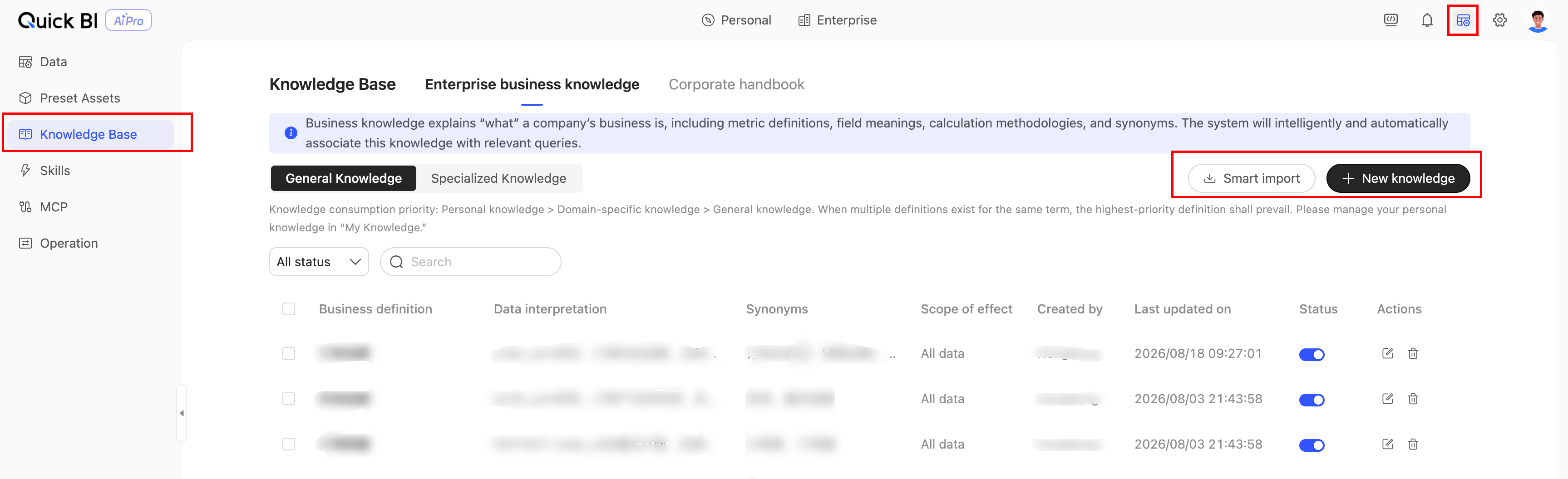
Goal: Populate the knowledge center with your organization's business definitions, metric definitions, and field descriptions. This ensures that AI analysis results align with your company's standards.
Go to Admin Center → Knowledge Management (path:
/ai/org/knowledge).Click "Add Knowledge" to create knowledge that contains business logic.
Click Smart Import to parse and learn business logic from documents and import it as enterprise knowledge.
After saving, the AI will retrieve and reference this knowledge during conversations about datasets.
5. Configure skills (optional)
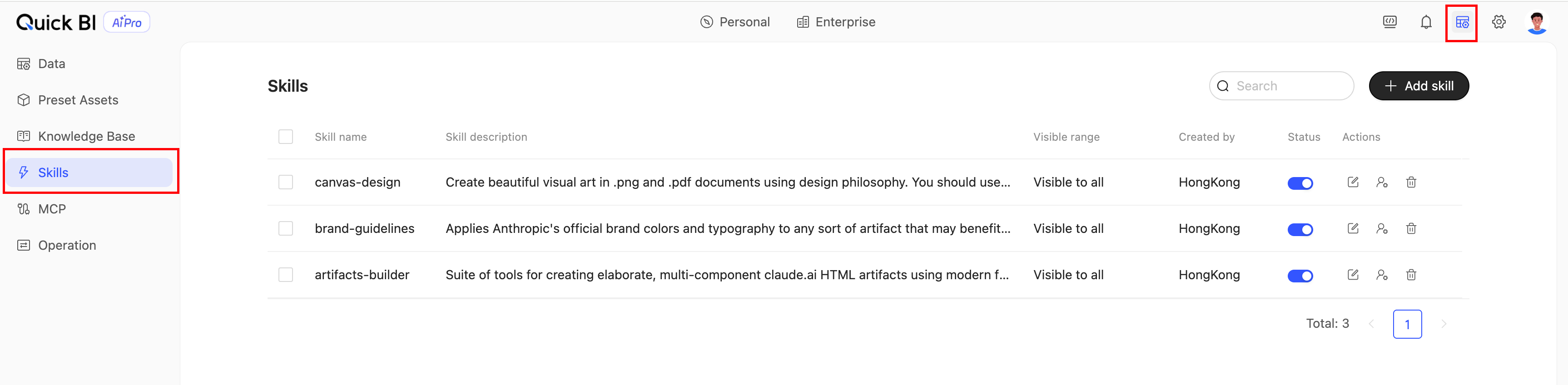
Goal: Transform standard analytical frameworks and methods (such as monthly business reviews, anomaly root cause analysis, or store performance dashboards) into reusable AI skills.
Go to Admin Center → Skill Management (path:
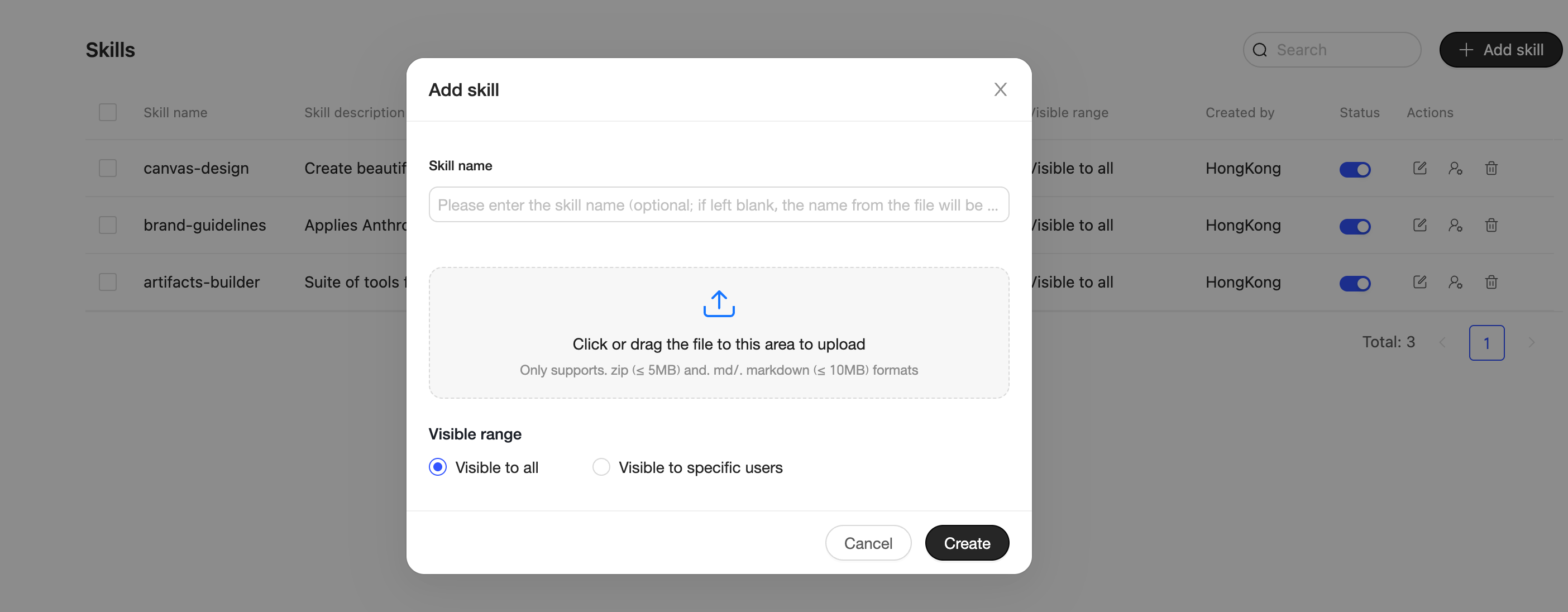
/ai/org/skill).Click Add Skill and upload the skill's ZIP package.
Set the skill's Visibility (all users / specific users).
After saving and publishing, business users can find and use the skill in Enterprise → Skill Square. They can also call the skill by typing
/in the conversation input box.
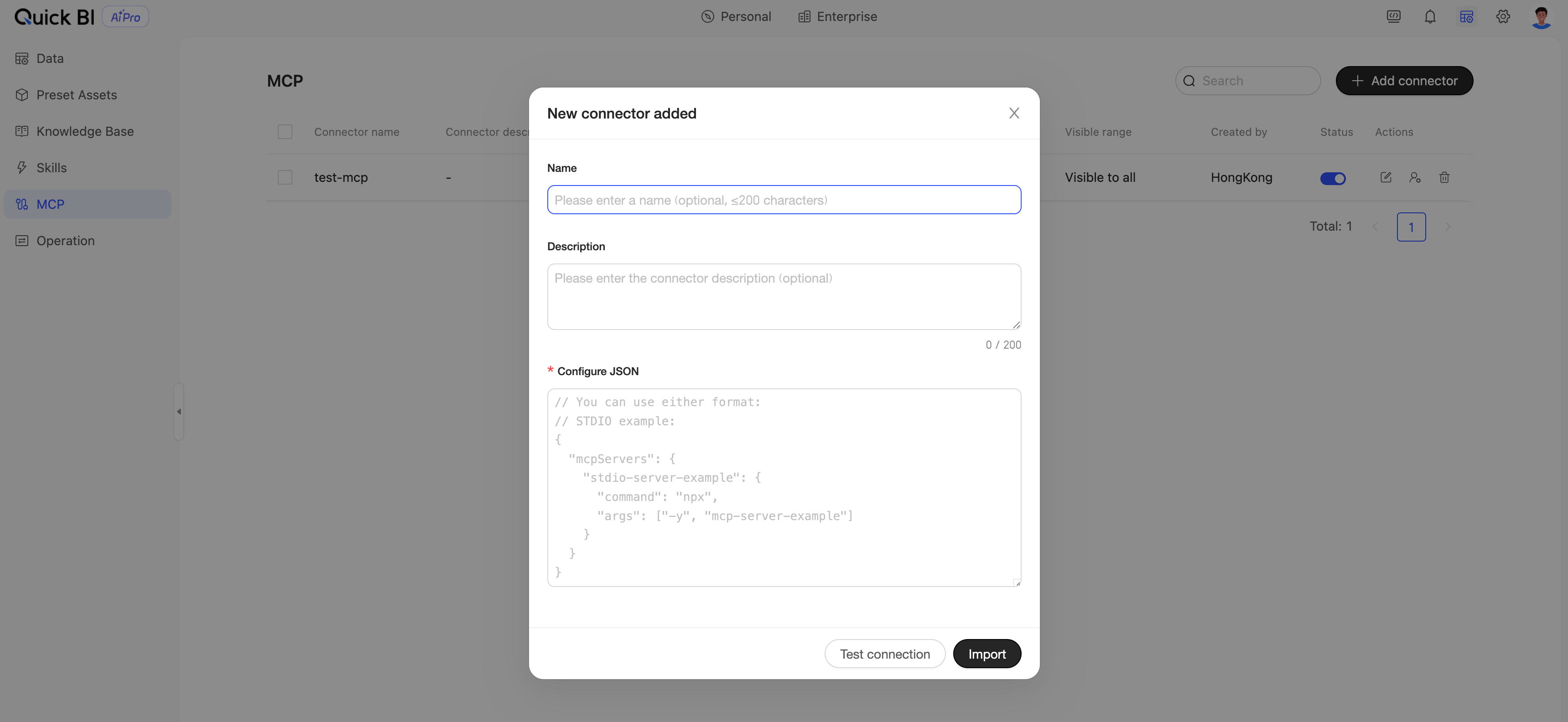
6. Connect MCP connectors (optional)
Goal: Integrate external tools (such as DingTalk, Feishu, internal APIs, or industry data sources) into the AI analysis workflow through the MCP (Model Context Protocol) to extend analytical boundaries.
Go to Admin Center → MCP Management (path:
/ai/org/mcp).Click Add Connector and enter the configuration information for the MCP.
Set the connector's visibility and invocation permissions.
Business users can enable and invoke the connector from Enterprise → MCP Square during a conversation.
7. Credit and quota management
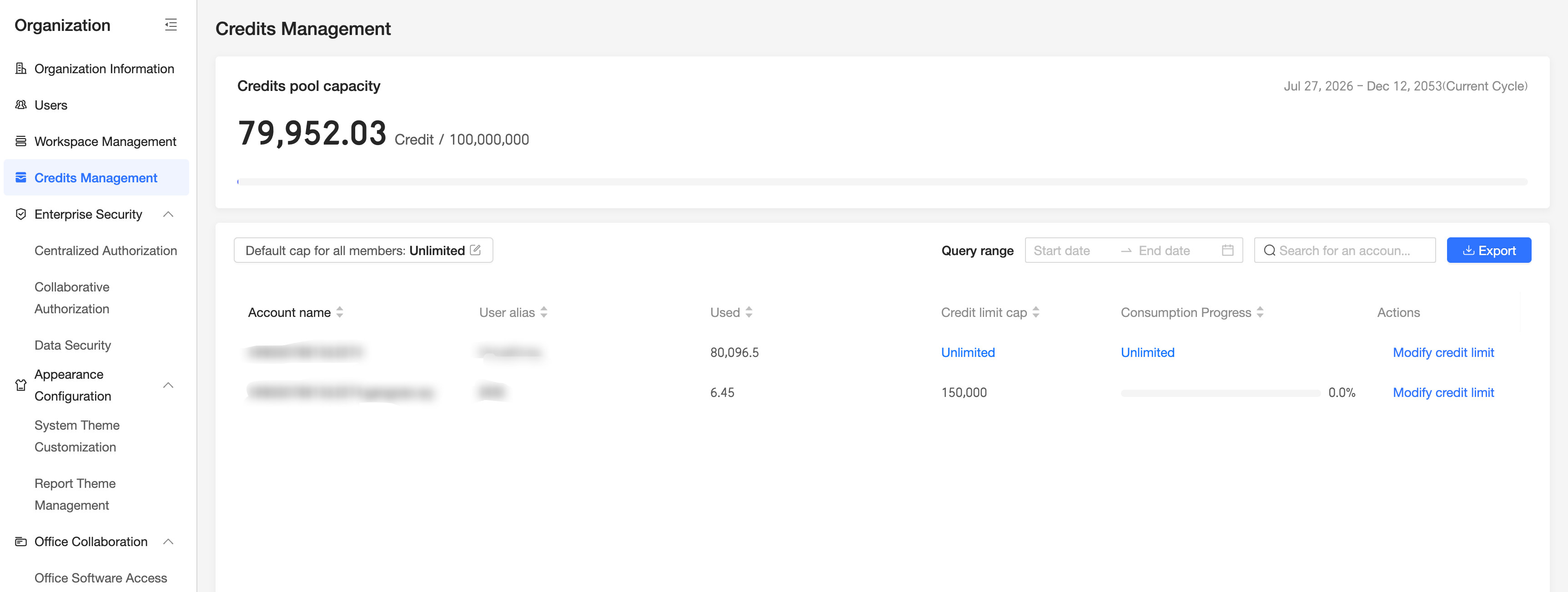
Goal: Control and audit resource usage by users across the organization.
Go to Organization Management → Credit Management (path:
/org/admin/creditManage).View the Credit balance and consumption details for users in your organization.
8. Configure AIPro management permissions
Goal: Ensure data visibility and operational permissions comply with corporate governance requirements. You can grant users AIPro administrator privileges by using a custom role.
Go to Admin Center → Organization Management → Role Configuration (path:
/org/admin/user/role).Quick BI AIPro provides the following preset roles:
Role | Primary permissions | AIPro admin capabilities |
Organization administrator | Organization administrator | Yes |
Workspace administrator | Manages members, data assets, deliverables, and subscriptions within a workspace | No |
Workspace developer | Creates datasets, reports, and skills, and publishes assets to the enterprise | No |
Custom role | Enable AIPro permission configuration to assist the organization administrator in managing AIPro capabilities. | Yes |
AIPro procedure (user)
For business users who have been assigned an AIPro seat, complete your first AI conversational analysis.
1. Sign in to AIPro
Sign in to Quick BI with your Alibaba Cloud account.
Click AIPro in the top navigation bar to enter the AIPro homepage.
The homepage displays two view tabs: "My" and "Enterprise." The default view is "My."
2. Configure data assets
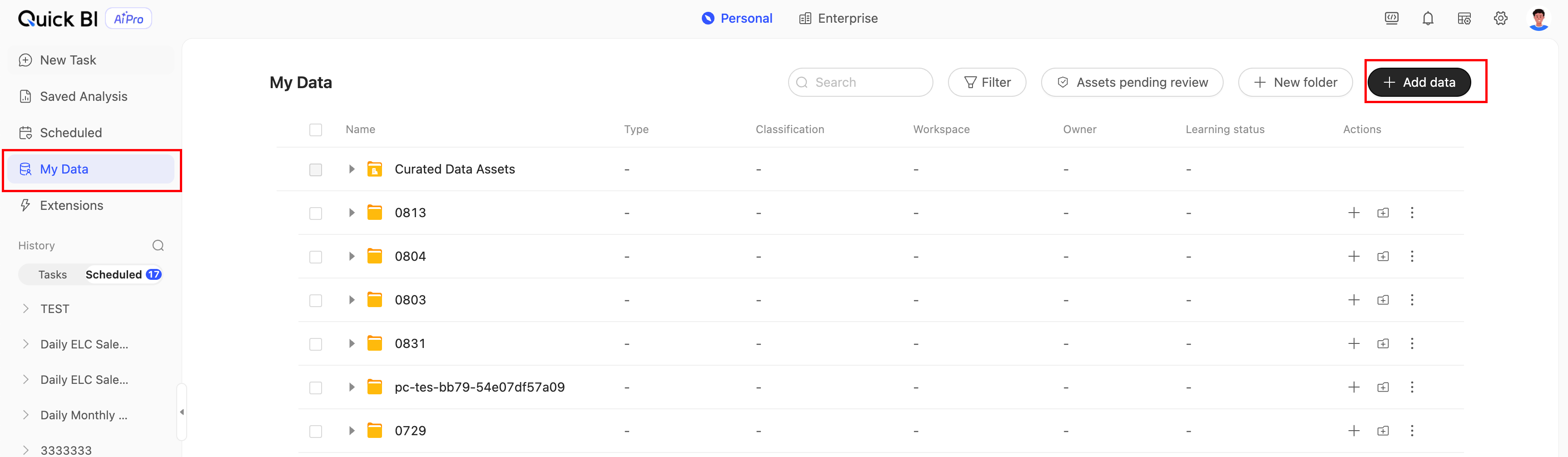
Go to My Data.
Add data: You can add enterprise data from the enterprise data market, or upload personal local files. Supported file types include Excel, PDF, Word, Markdown, and TXT.
Data learning: After adding data, the AI will perform a learning process of 1 to 2 minutes to understand the data semantics. After learning is complete, you can go to Create a task to use the data for analysis.
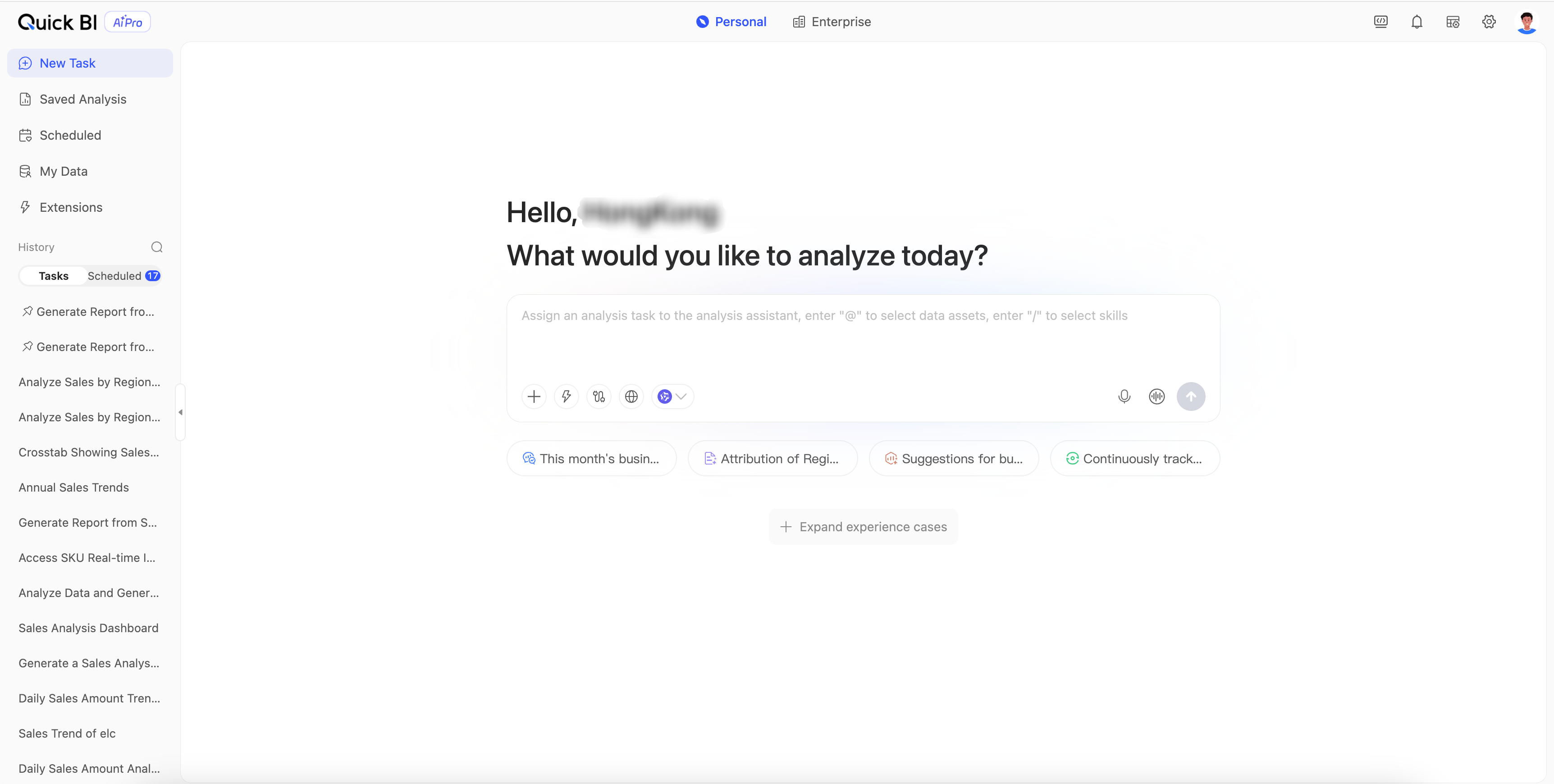
3. Ask questions in natural language
Go to Create a task and enter your analysis question in the input box. Examples:
"Year-over-year sales changes by region this month"
"Main reasons for the GMV decline in East China"
"Generate a Q2 2026 business analysis report"
Multi-turn follow-up questions are supported. For example:
"Sales by category in June"
"What are the top 5 categories by growth?"
"Analyze the reasons for the growth"
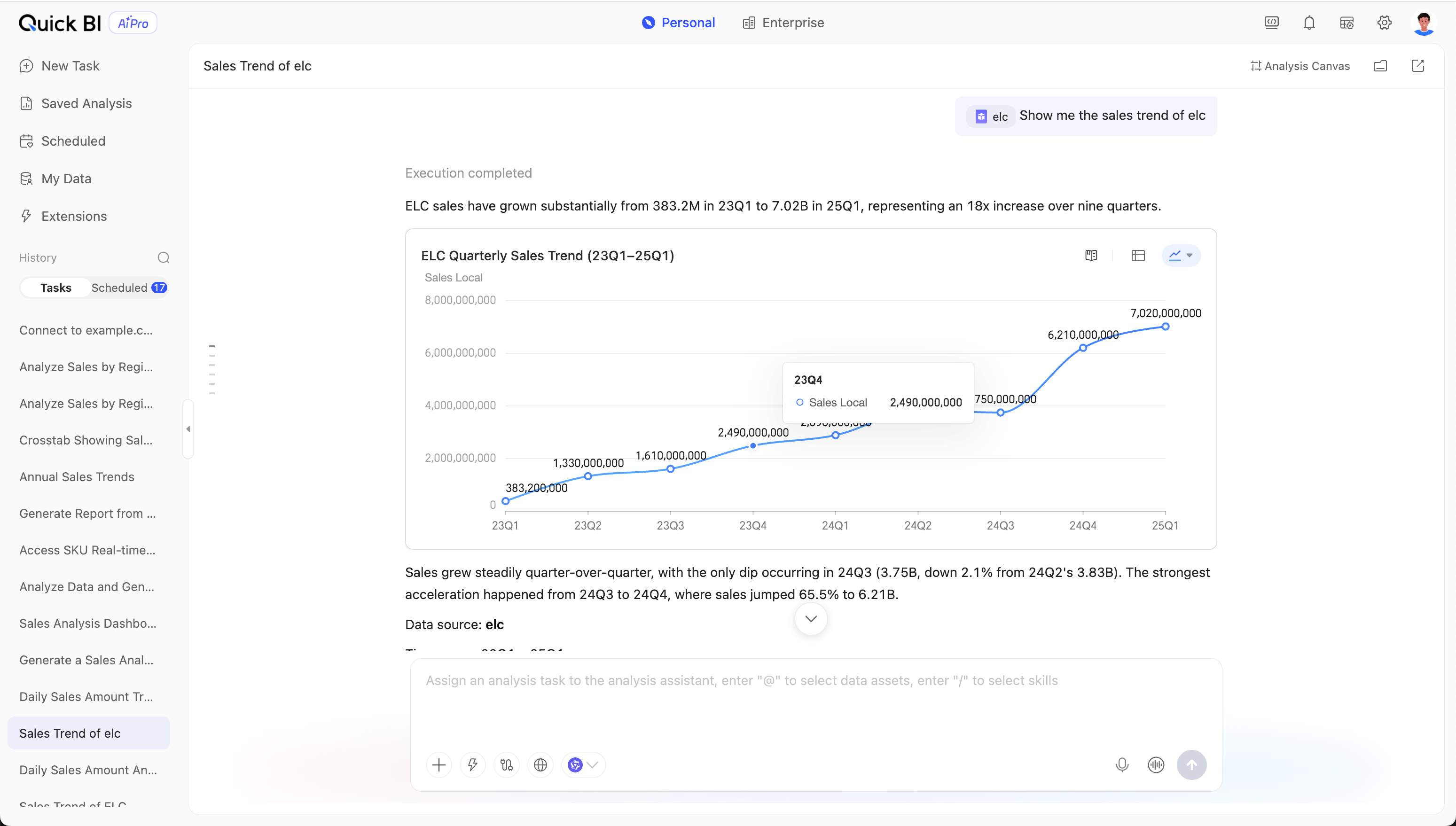
After you enter your question, the AI will return structured analysis results (charts, tables, and text conclusions).
4. Obtain analysis results
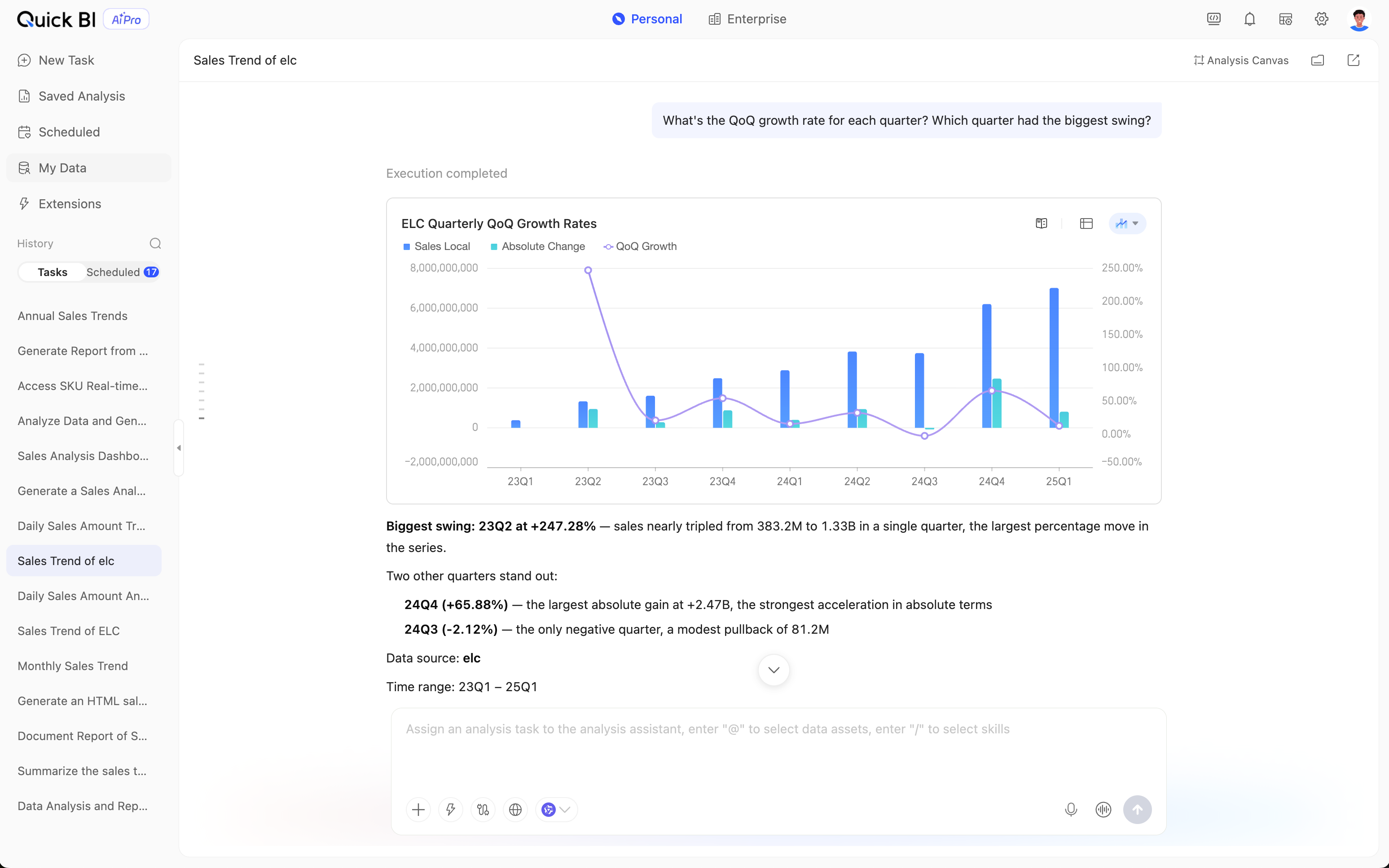
Based on the user's question, analysis results are generated.
Charts and explanatory text: Data is retrieved and visualized.
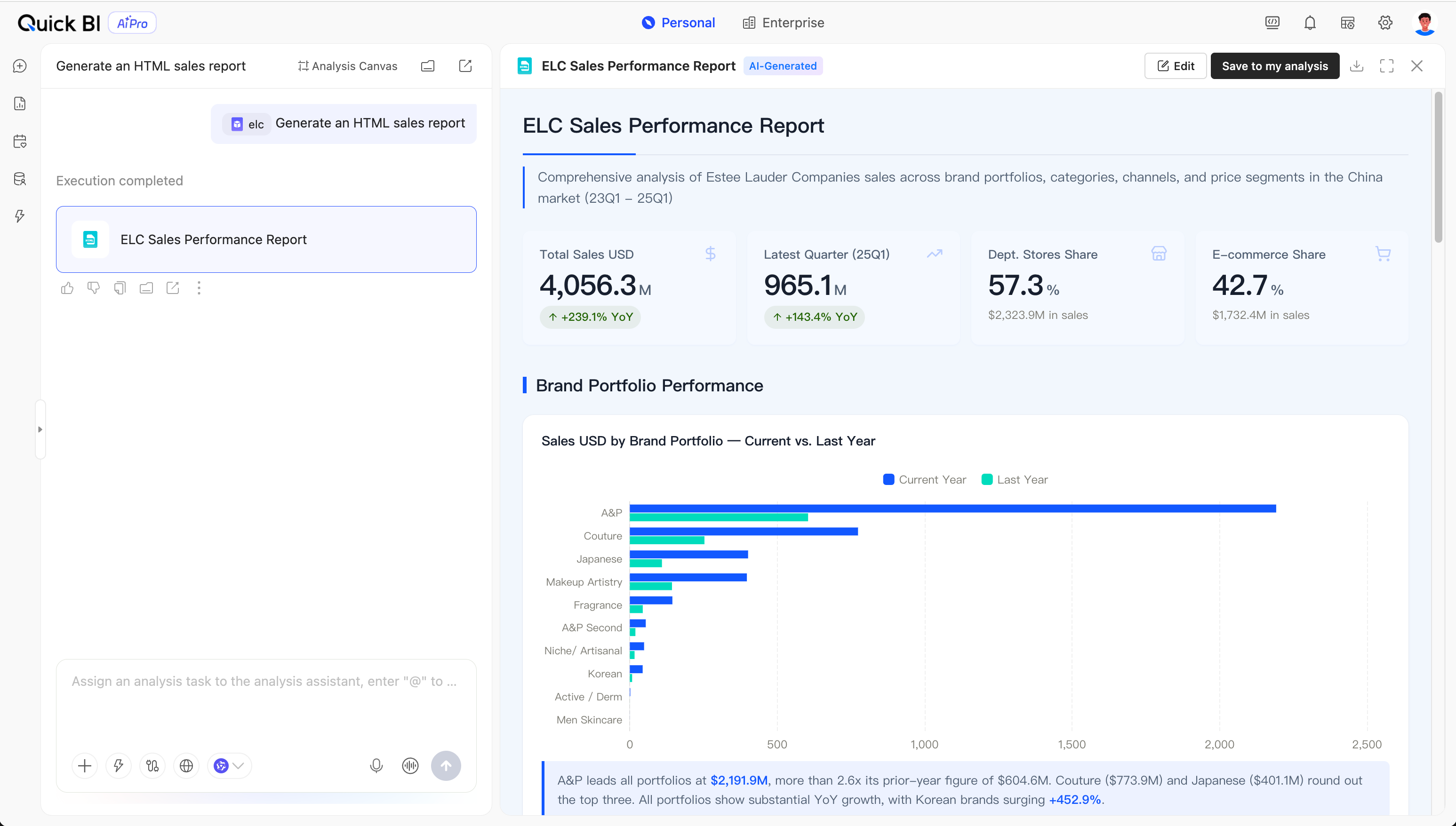
HTML reports: Visualize the conclusions of this analysis, commonly used for one-time exploratory analysis and personalized report creation.
Analytical Report: Supports dynamic updates, filtering, and interactive drill-down analysis. Commonly used in scenarios that require periodic data refreshes and collaborative data sharing within an organization.
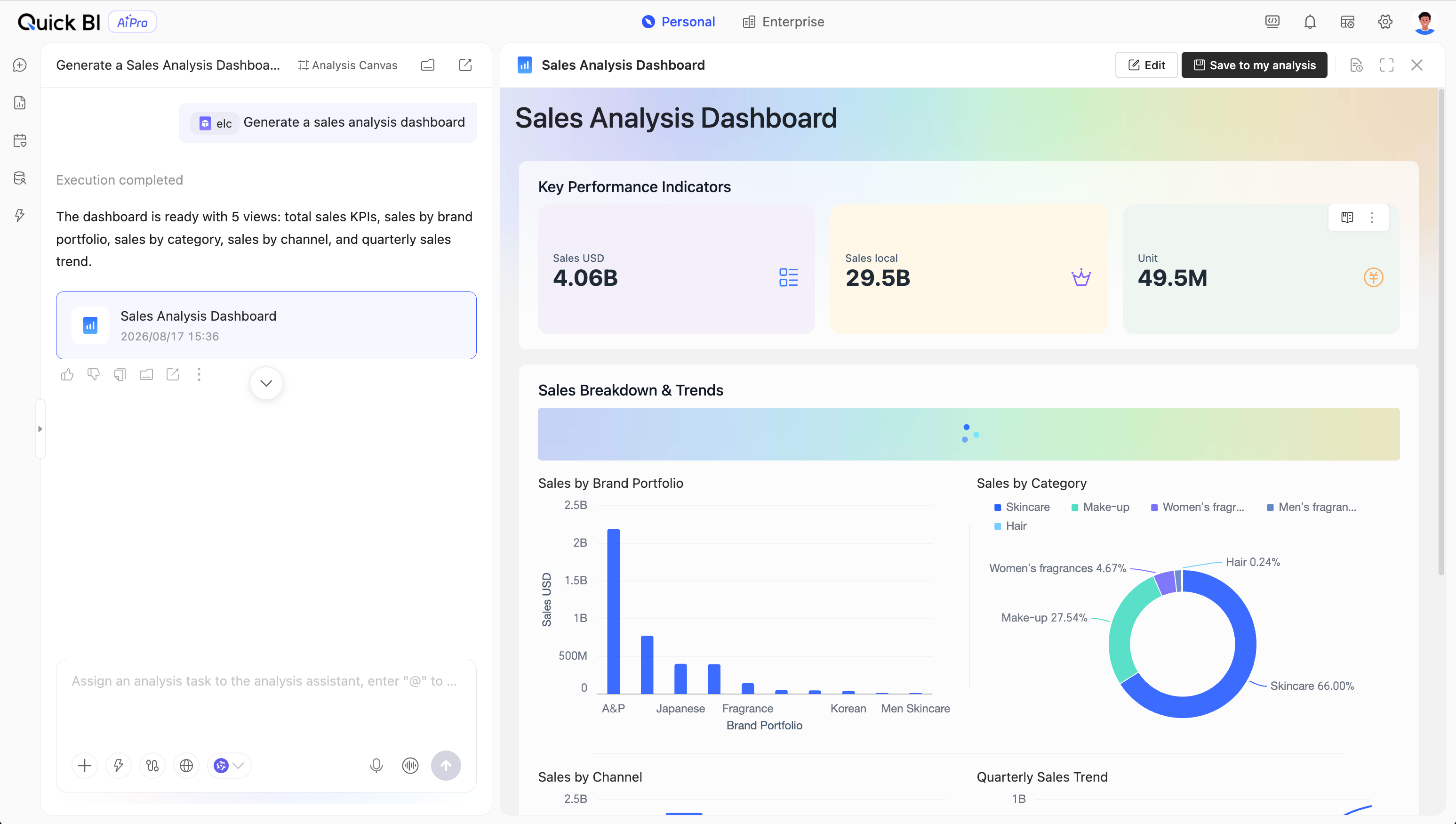
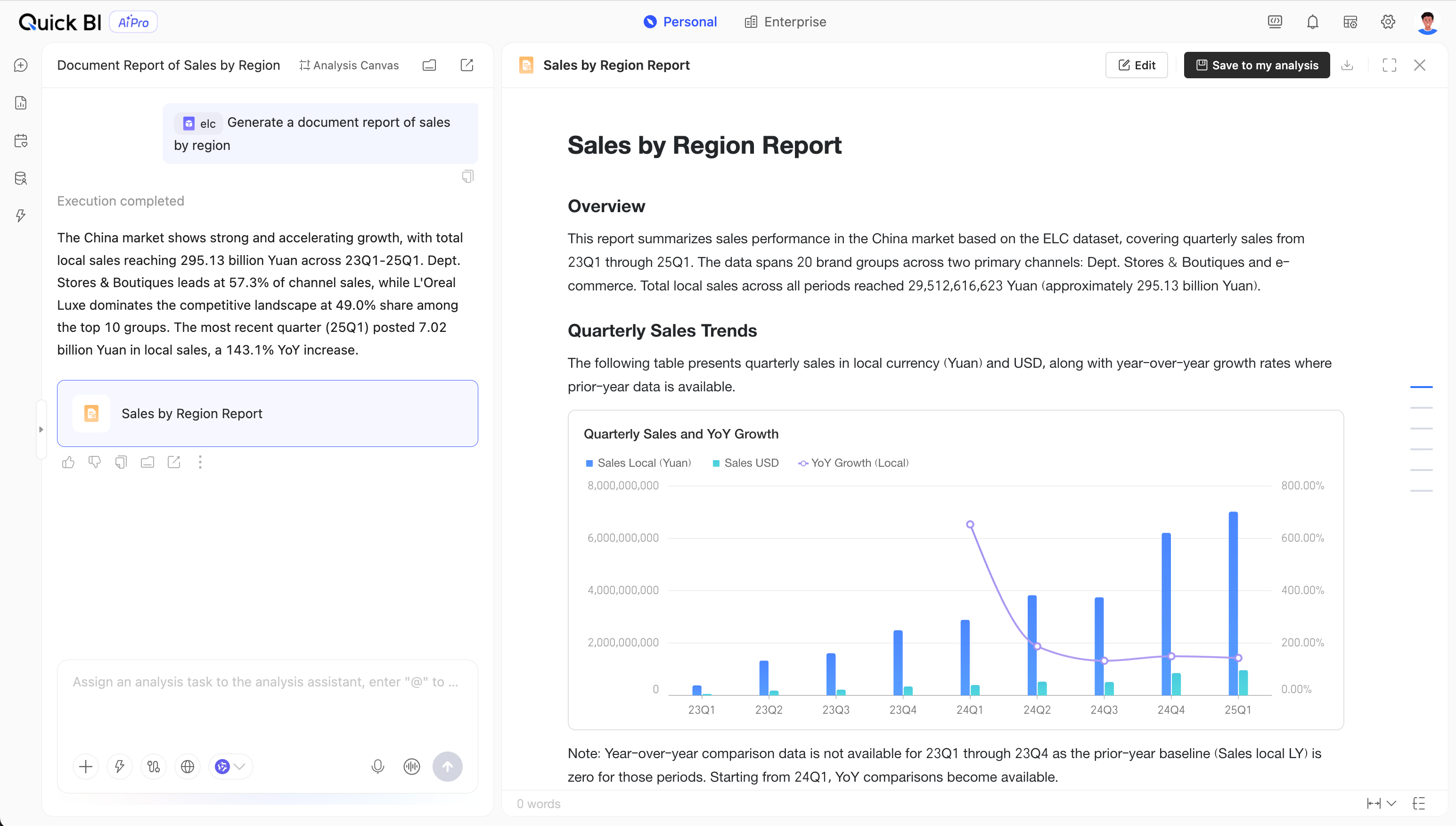
Document reports: Based on charts and explanatory text, you can generate document-style analysis results with a high degree of editing flexibility.
5. Consume analysis results
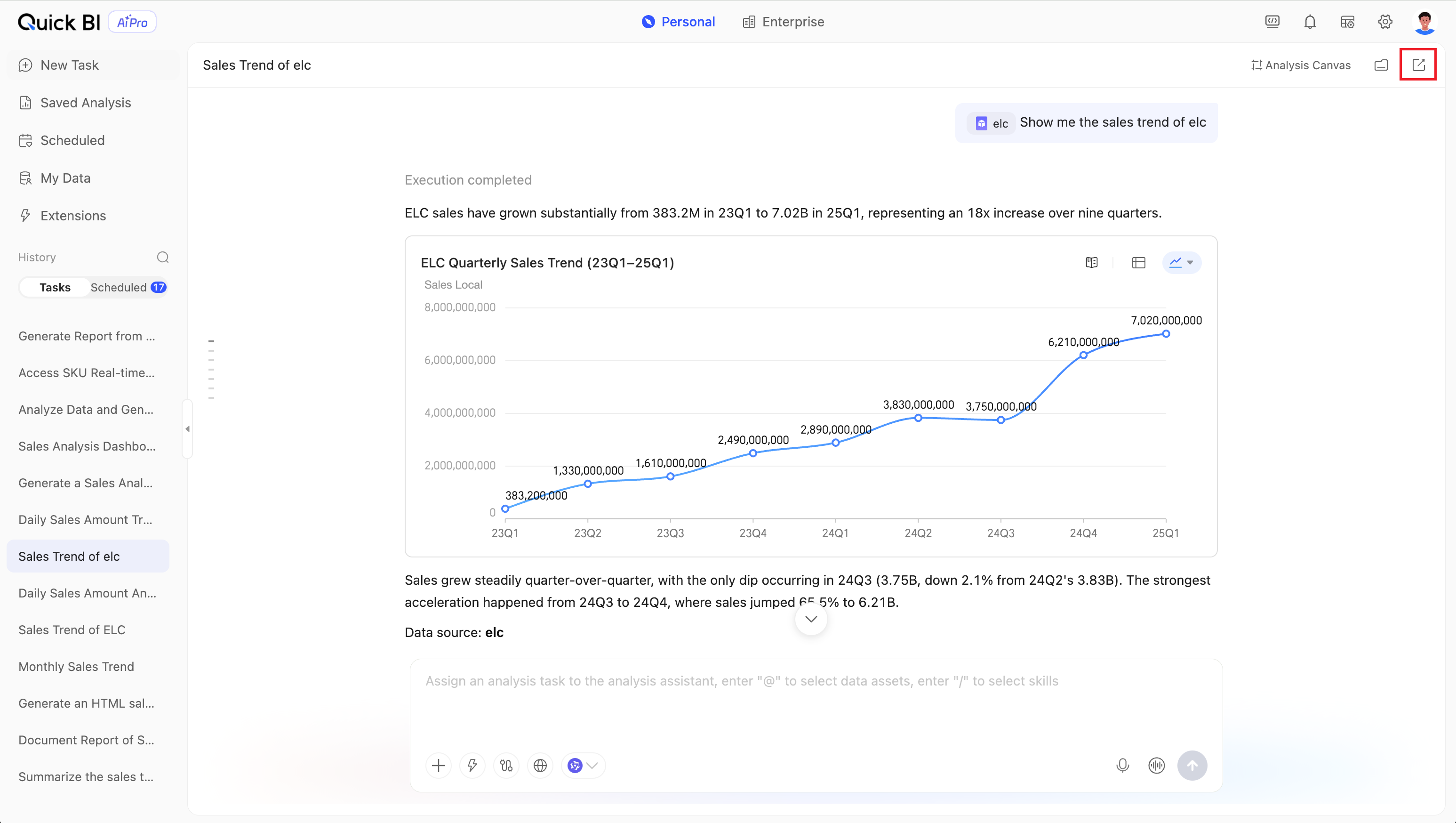
Share: Conversation results can be shared, supporting private and public sharing. You can configure the sharing validity period.
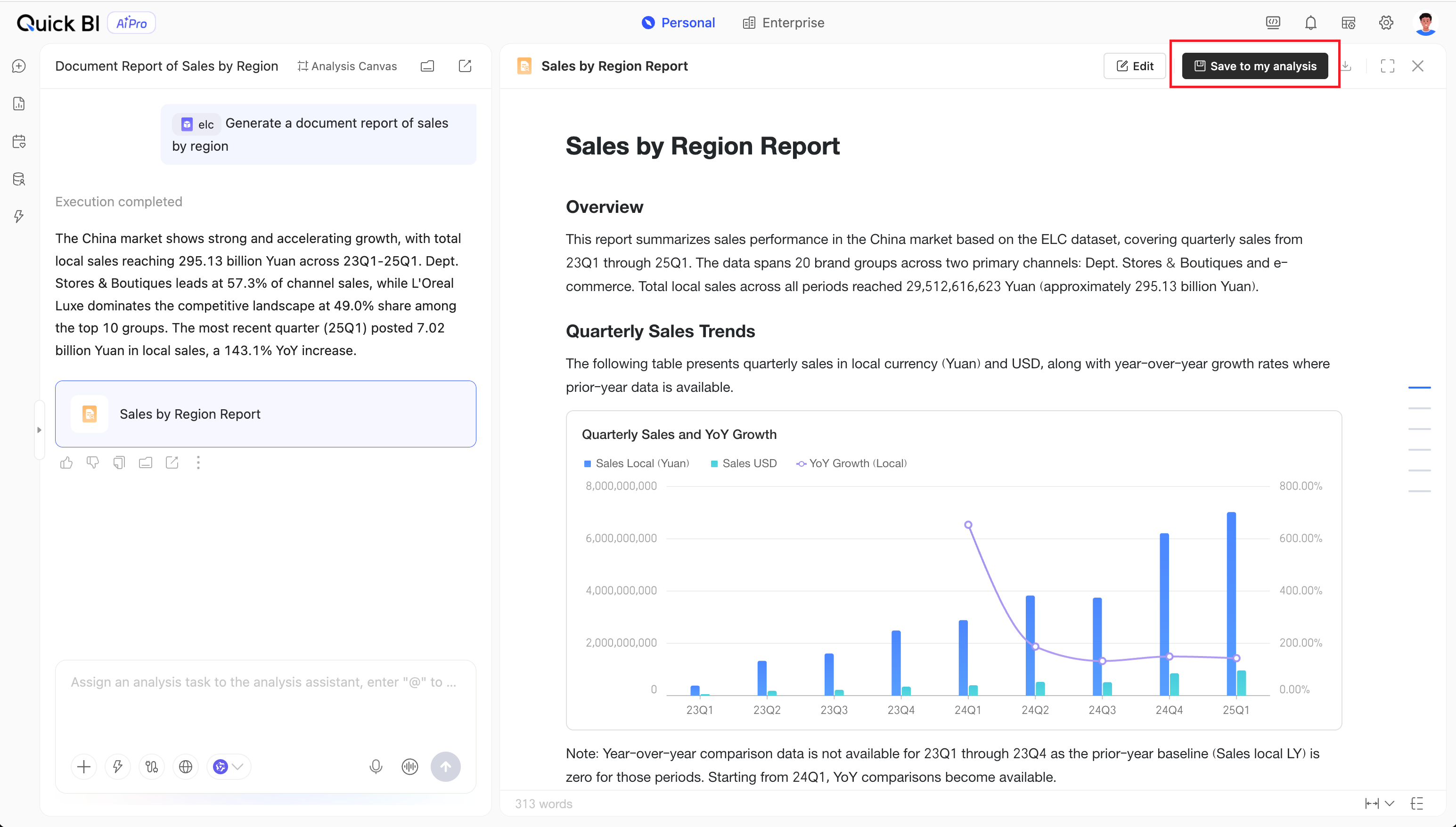
Save: For documents and analysis reports, click Save to My Analysis in the upper-right corner to save the results to your personal works library.
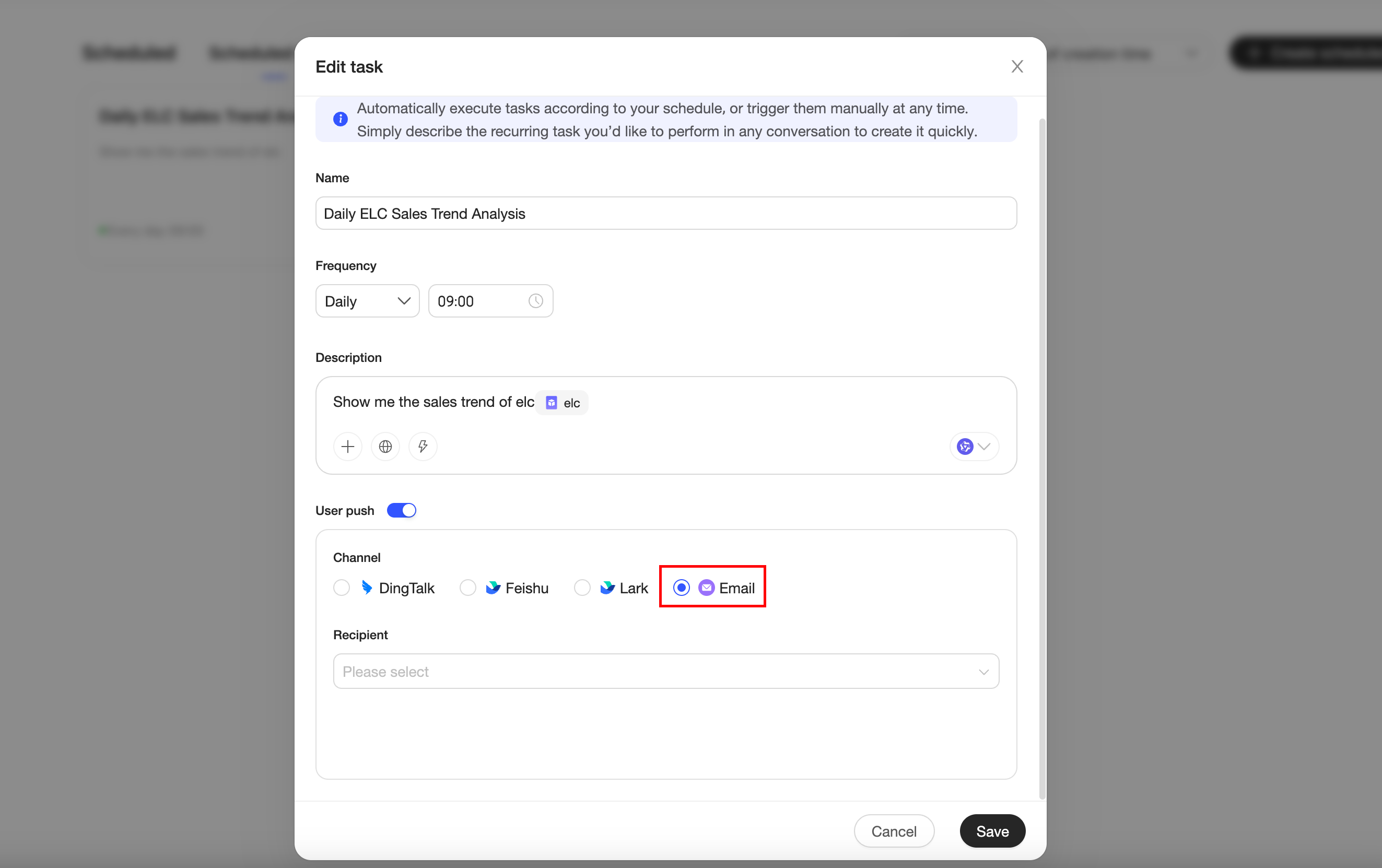
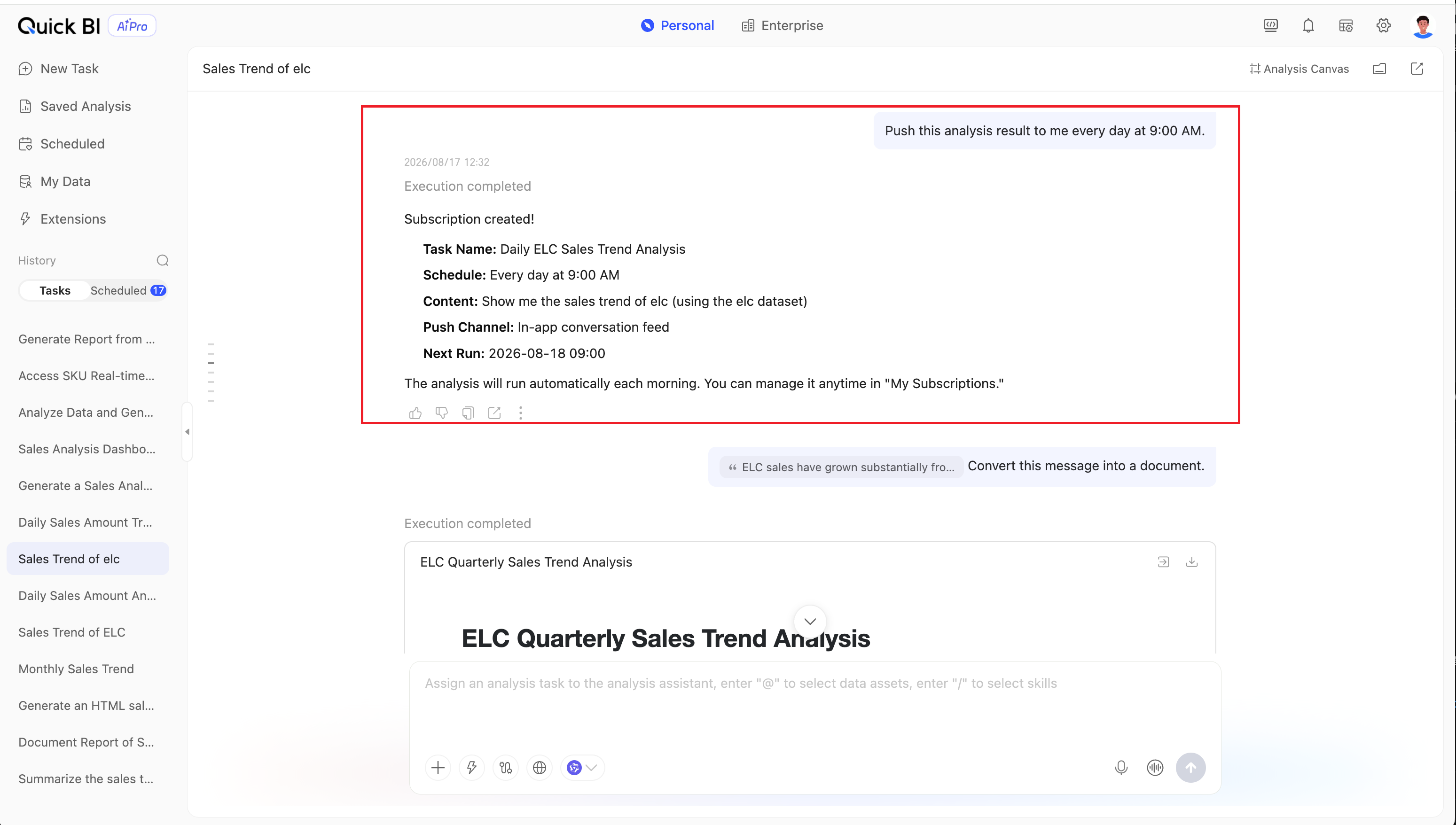
Subscribe: Set up subscription tasks through conversation. AIPro will run the task on a schedule and push the latest results. You can manually modify the push frequency and push channel.
Download: For HTML reports and document reports, you can download them as local files.
Module overview
Quick BI AIPro consists of the following modules, covering the entire chain of "Personal Use → Enterprise Assets → Management Configuration."
View | Module | Core purpose | Primary users |
My | Create a task | Drive AI analysis with natural language to produce charts, reports, and PPTs | Business users |
My | My analysis | Store personal analysis works, supporting secondary editing and sharing | Business users |
My | My subscriptions | Manage scheduled push tasks, supporting multi-channel distribution | Business users |
My | My data | Manage personal uploaded data files and data assets | Business users |
Enterprise | Data Market | Browse datasets, data tables, files, and API data published by the enterprise | All users |
Enterprise | Skill square | Browse AI analysis skills published by the enterprise. Enable with one click to use in conversations. | All users |
Enterprise | MCP Square | Browse MCP connectors integrated by the enterprise to extend AI analysis boundaries | All users |
Admin Center | AIPro management | Configuration of data, knowledge, skills, and MCP | Organization administrators, management roles with AIPro module access |
Admin Center | Role configuration | Organization role and permission management | Organization administrators |
Organization Management | Credit management | View AI computing power package balance and consumption details | Organization administrators |
More capabilities
After completing the basic configuration and conversations, you can further explore the following advanced capabilities:
Free canvas: Drag charts, tables, and conclusion cards from multiple conversations onto the canvas. Arrange and combine them freely to form a thematic analysis dashboard. The canvas supports generating HTML snapshots, reports, and PPTs.
Scheduled subscription push: Convert any analysis result into a subscription task. Select the push frequency (daily, weekly, monthly, Cron expression) and push channel (email, DingTalk, Feishu group, Webhook). The AI will run the task on schedule and push the latest data snapshot.
PPT presentation generation: Generate PPTX files based on data asset analysis results, which can be used directly for business presentations.
FAQ
Q1: Business users cannot see the AIPro entry after logging in?
Confirm that the user type is Developer or Analyst. Contact the organization administrator to assign the corresponding seat.
Q2: The list is empty when selecting data with @?
Confirm that there is at least one data asset file in My Data and that learning after import has been completed.
Q3: A "Quota exceeded" message appears during a conversation?
Your personal monthly Credit has been exhausted. Contact the organization administrator to apply for additional quota, or wait for the next billing cycle.
Q4: The results returned by the AI do not match the business terminology?
Contact the administrator to configure enterprise knowledge. You can also configure personal knowledge. If satisfied with the analysis results, you can apply them to enterprise knowledge.
Q5: How do I automatically push analysis results to my email or DingTalk?
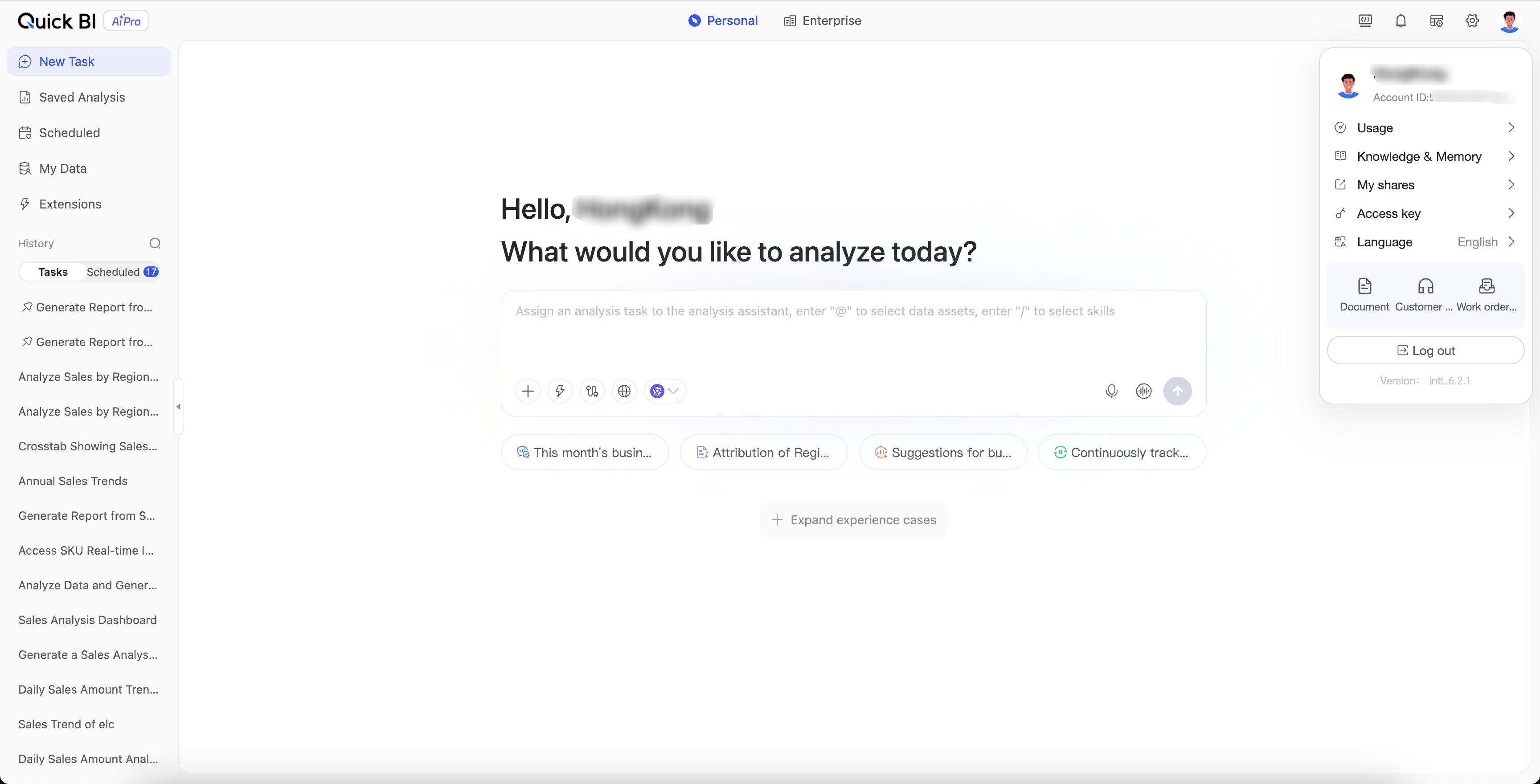
In My subscriptions, enable Specified user push and configure the push recipient.