Go to Workspace> User Marketing > Reach Marketing > Webhook > Normal Tasks to view execution information for normal Webhook tasks.
Tasks
The task list displays associated sub-activities (hover over the number to view all), crowd name, ID type, total sent, successful sends, sending type, and status. 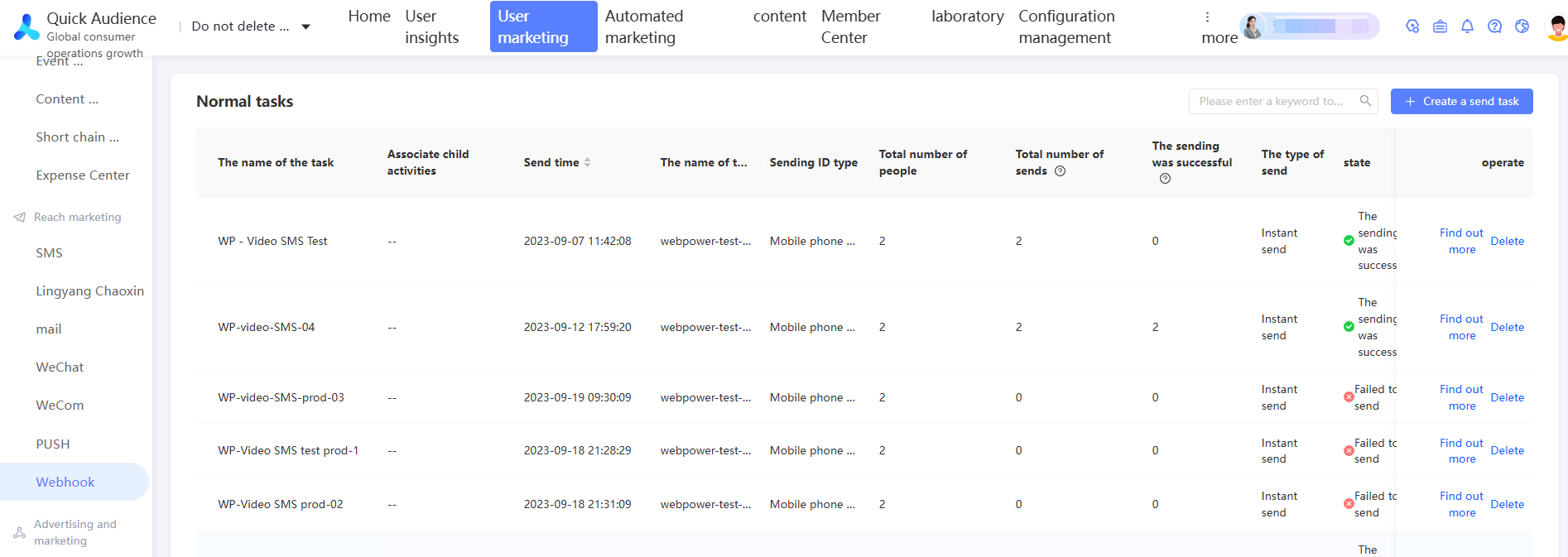
The status can be:
-
To be sent
-
Sending
-
Ended
-
Failed Invocations
The following operations are supported:
-
View Details: View the sending status of a task. For more information, see View Details.
-
Edit: Edit a task if the scheduled sending time is more than 10 minutes away.
-
Delete: Delete completed or failed tasks, or tasks whose scheduled sending time is more than 10 minutes away.
View details
Click View Details in the Actions column of a task to open the task details page. 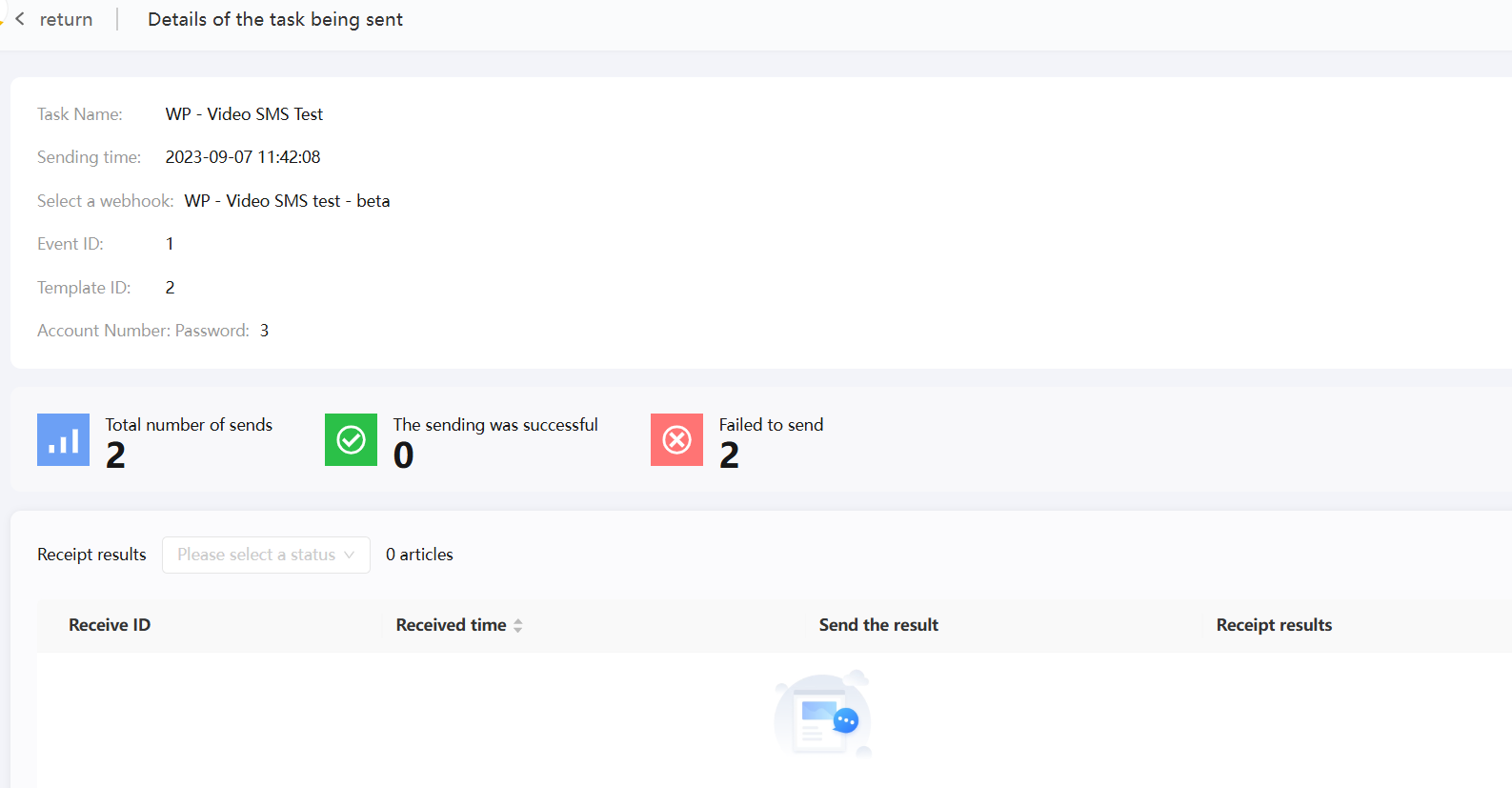
The page displays:
-
The task name, sending time, Webhook name, and parameter value.
-
The total number of sent tasks, and the counts in the Sent and Failed states.
NoteStatus types such as Successful and Failed are defined in Webhook Management. One or three systems send a receipt to return the corresponding data. The receipt must be sent within the defined data reclaim cycle (the countdown time is displayed on the right side). Otherwise, the receipt is not received.
-
Receipt details, including the receipt ID, receipt time, sending result (status value), and receipt result.
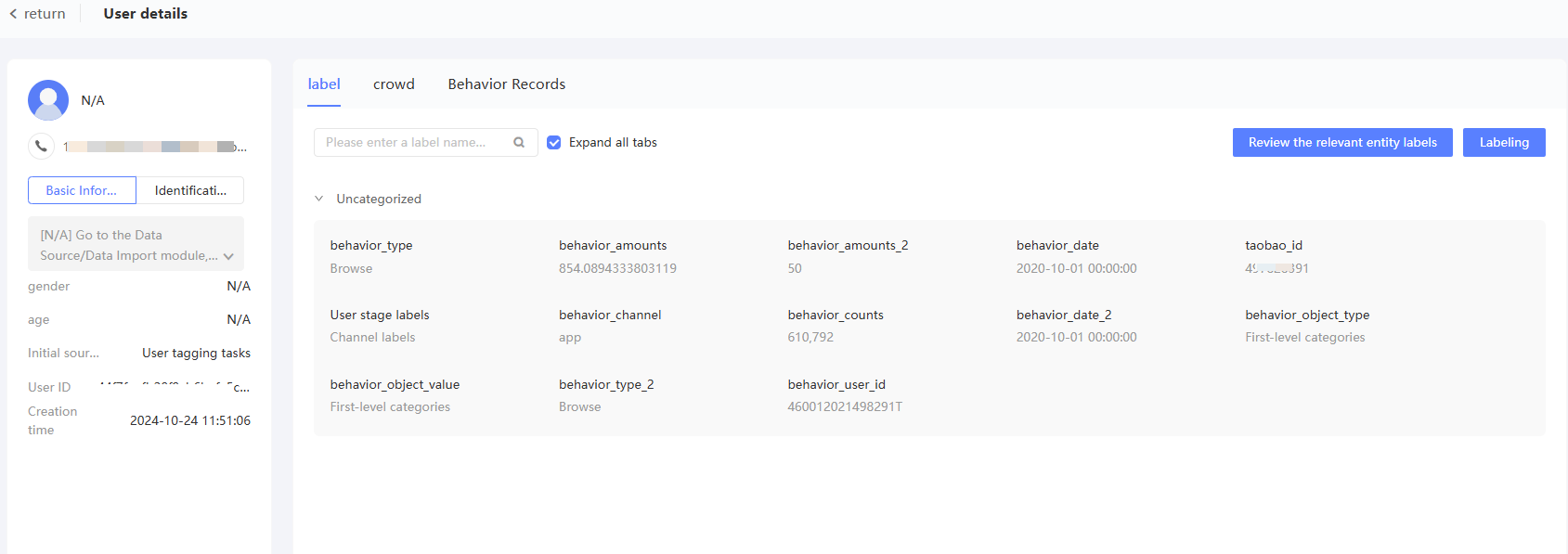
Click a user ID in the receipt list to go to the User 360 details page and view the user's 360 profile.