Create and manage Kafka, Data Bank, and Damengpan push APIs for your workspace.
Create a Kafka API
Procedure
-
In the upper-right corner of the page, click the
 icon and choose Workspace > Workspace > Workspace API Configuration.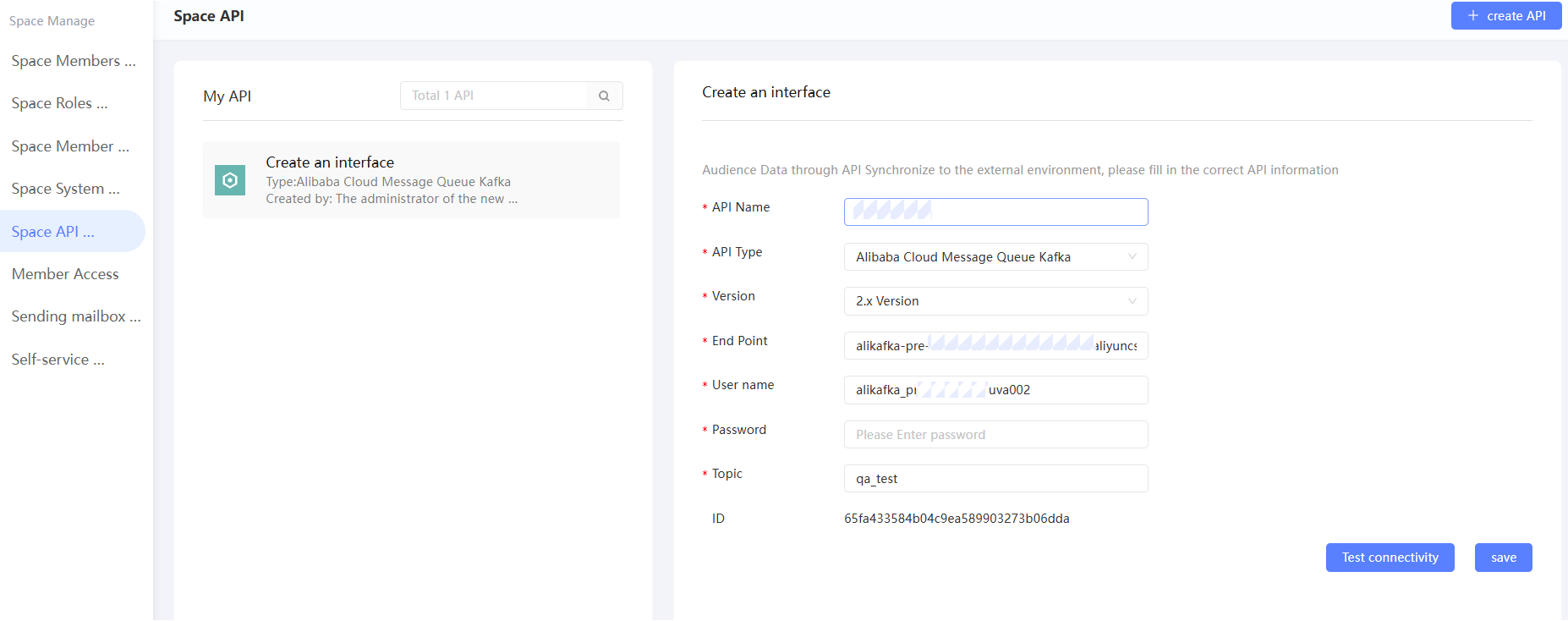
-
Click Create Kafka API.
-
Configure the API parameters as described in the following table.
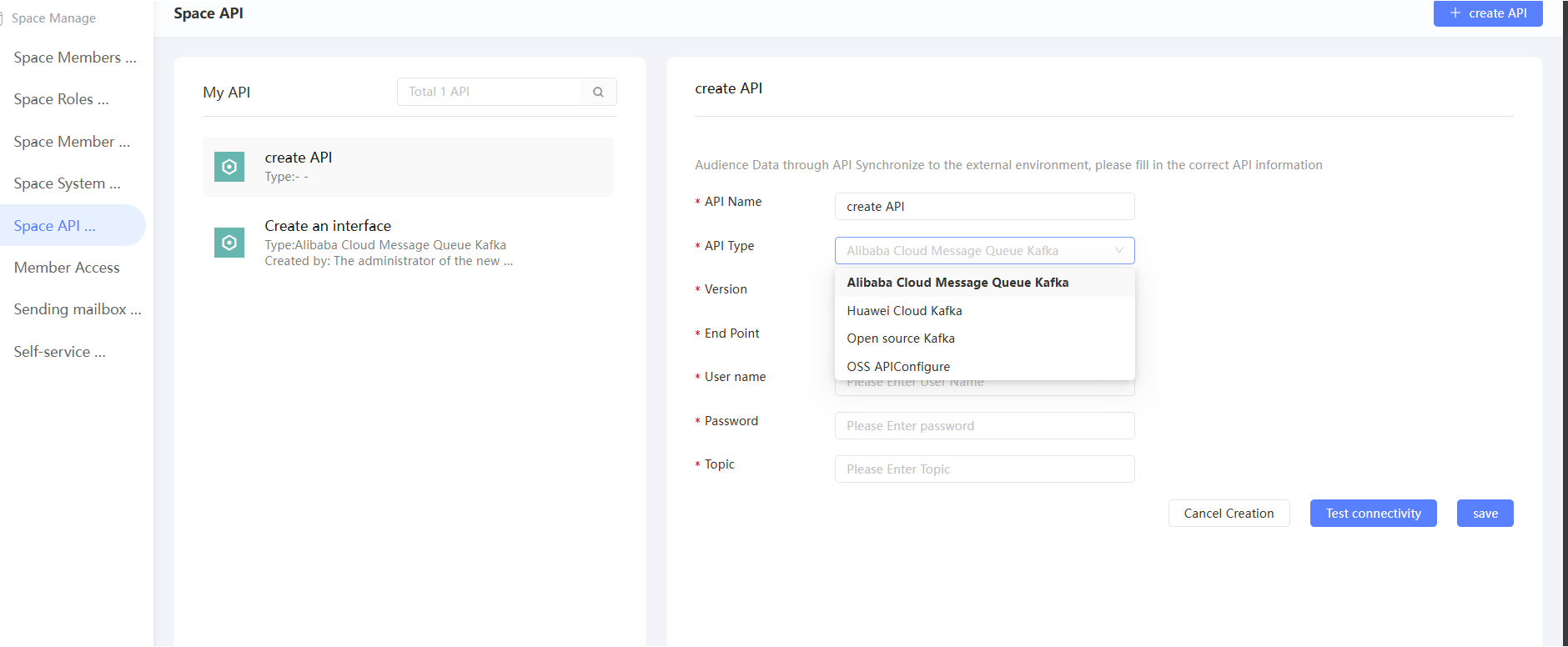
Parameter
Description
API name
Enter a display name for the API.
API types
Select Alibaba Cloud Message Queue for Apache Kafka or Open Source Kafka.
NoteYou can find the endpoint and other details on the Alibaba Cloud Message Queue for Apache Kafka instance details page.
Supported versions
Select the Kafka version: 0.10 or 2.x.
End Point
Enter the endpoint address of the Kafka message receiver.
Username
enter the username.
Password
enter the password.
Topic
Enter the Kafka topic name.
Encrypted Transmission
-
For open source Kafka in the , enable encrypted transmission, upload the encryption file for your Kafka, and enter the SSL truststore password.

-
Alibaba Cloud Message Queue for Apache Kafka encrypts data during transmission by default. No configuration is required.
-
-
Click Test Connectivity. After the connection succeeds, click Save.
Manage APIs
This page lists Kafka, Data Bank, and Damengpan APIs. Click an API name to view its details. For more information about how to configure a data bank and a Damengpan API, see Bind Data Bank and Bind Damengpan
Kafka APIs support the following operations: 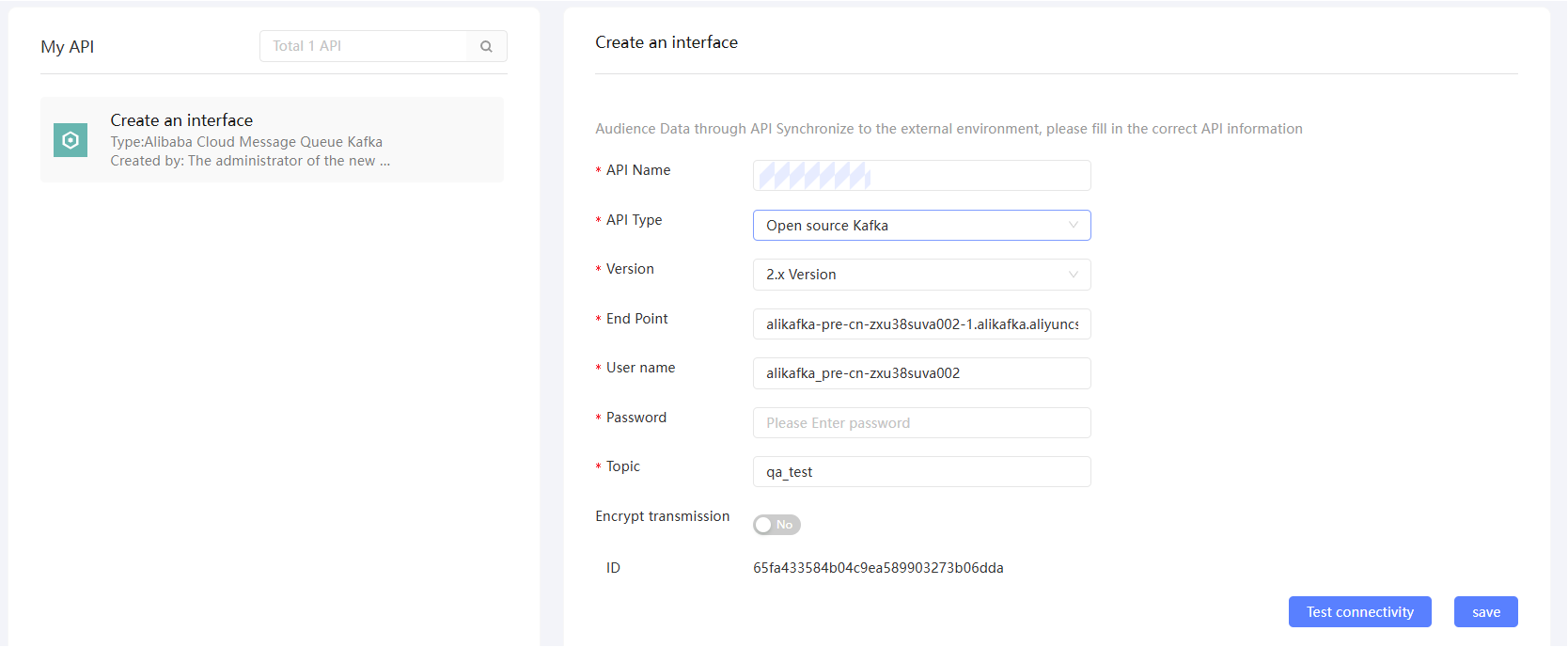
-
Obtain an API ID: Each Kafka API is assigned a unique API ID for creating push tasks. Click a Kafka API name to view its details, including the API ID.
-
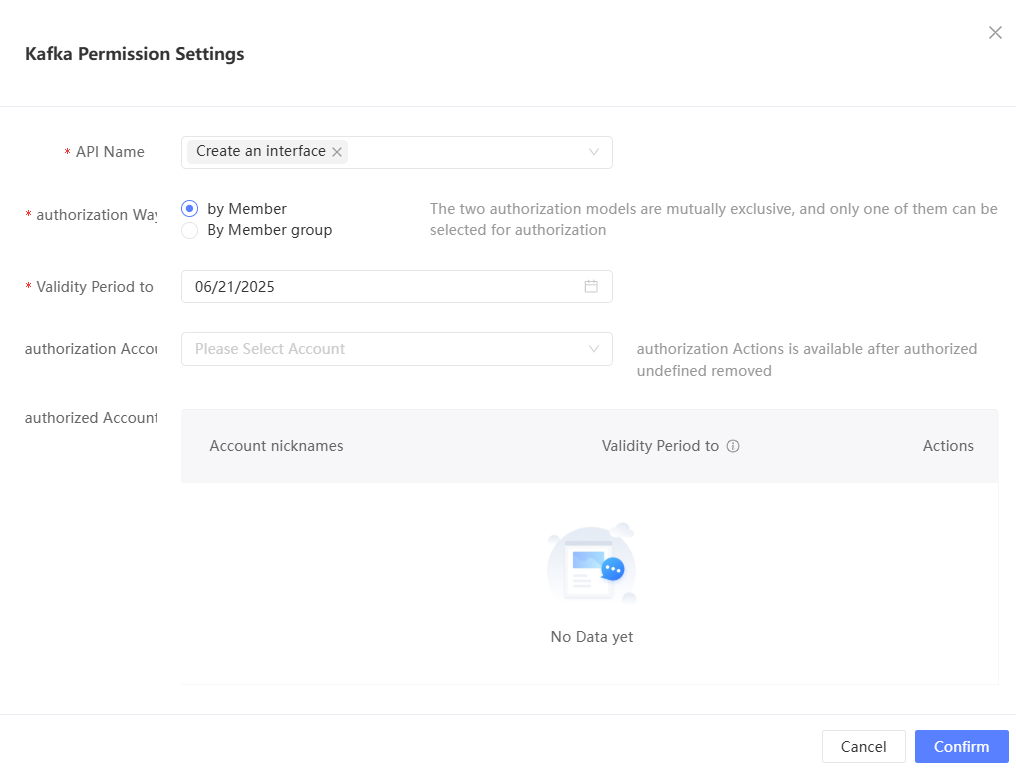
Authorize: Hover over the Kafka API name and click the
 icon to authorize other members to use the API.Note
Without authorization, only the administrator can use this API for push tasks.
You can authorize by member, by member group, or remove existing authorizations.
-
Edit: Modify the configuration and click Test Connectivity. After the connection succeeds, click Save.
-
Remove: Hover over the API name, click the
 icon, and confirm the removal.