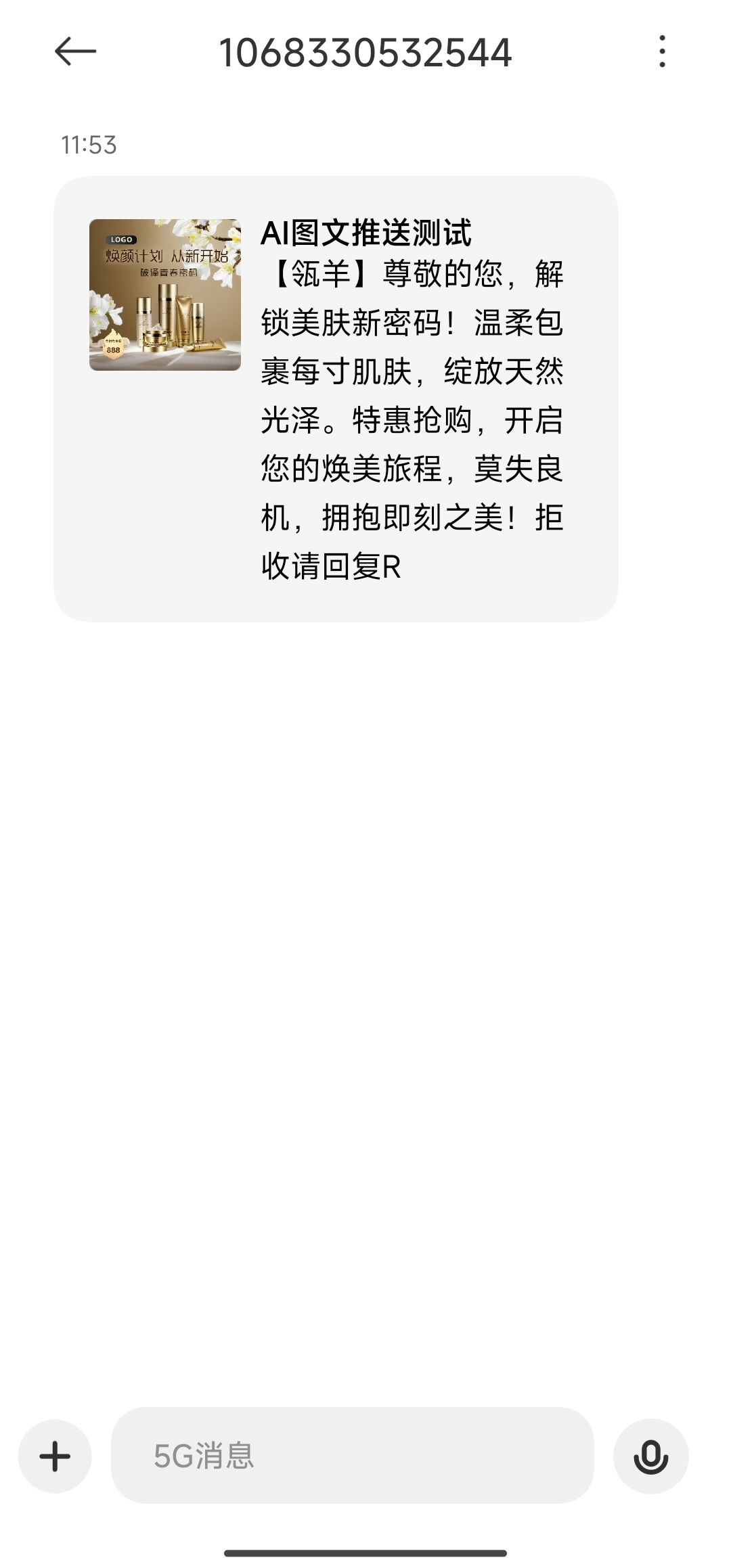
1. Overview
One-click generation of marketing posters that can be used for promotional purposes.
2. Scenarios
AI colleagues can help you quickly complete the production of marketing posters. You only need to take a photo of the goods and upload it to the template platform, and select the poster template you like. The system can quickly realize automatic marketing poster generation, slightly adjust the copy and content, and a delicate poster will be released.
3. Actions guide
3.1 Actions Entry
Entry 1: Laboratory-Marketing Template Entry. You can go to the template editor.
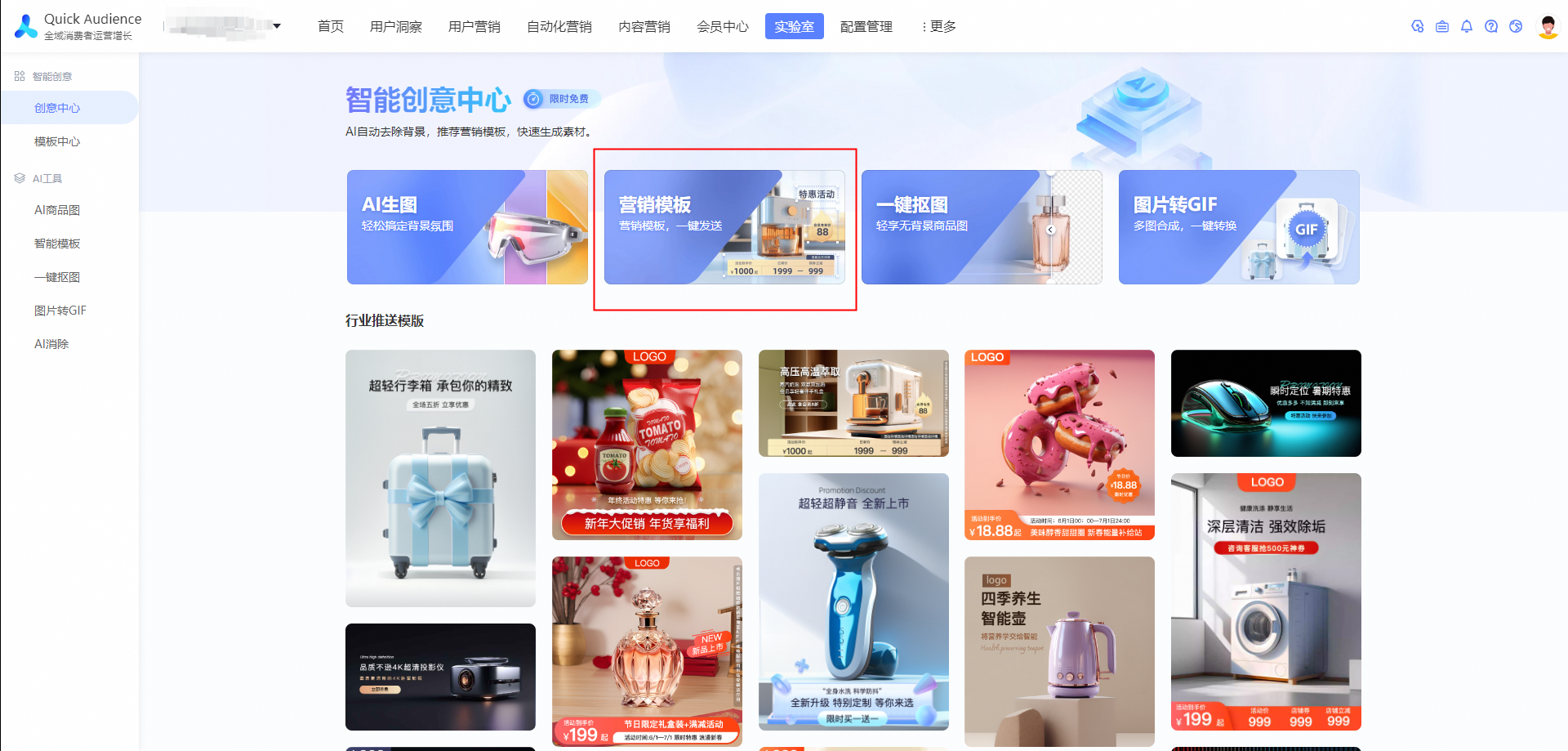
Entry 2: Laboratory-Industry Push Template, click to make the same model.
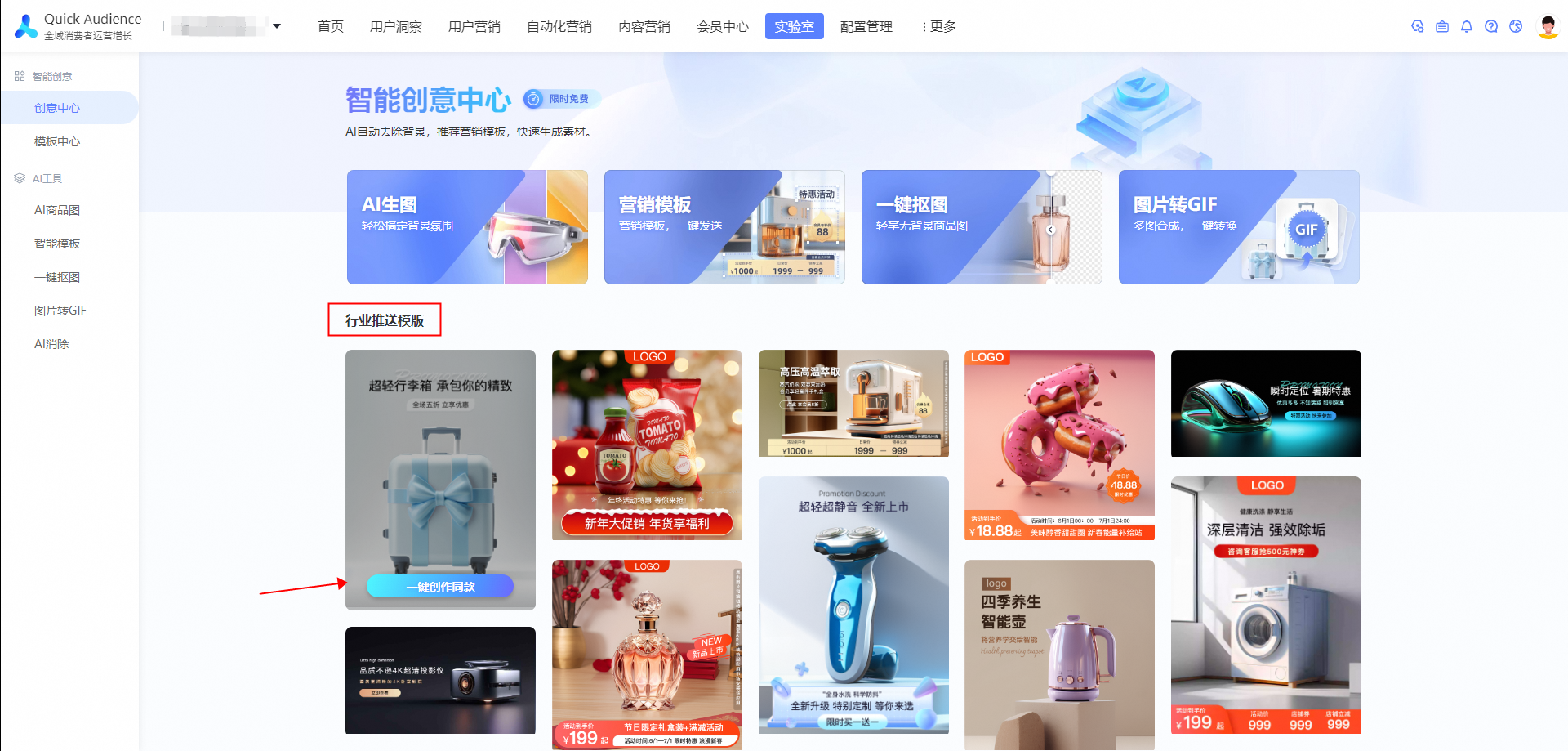
Entry 3: When using the material library, select the poster template on the right and click to make the same model.
3.2 Apply the main image slicing template to the image
Click the AI raw map feature to upload a local product image. The marketing template opens the marketing poster editor.
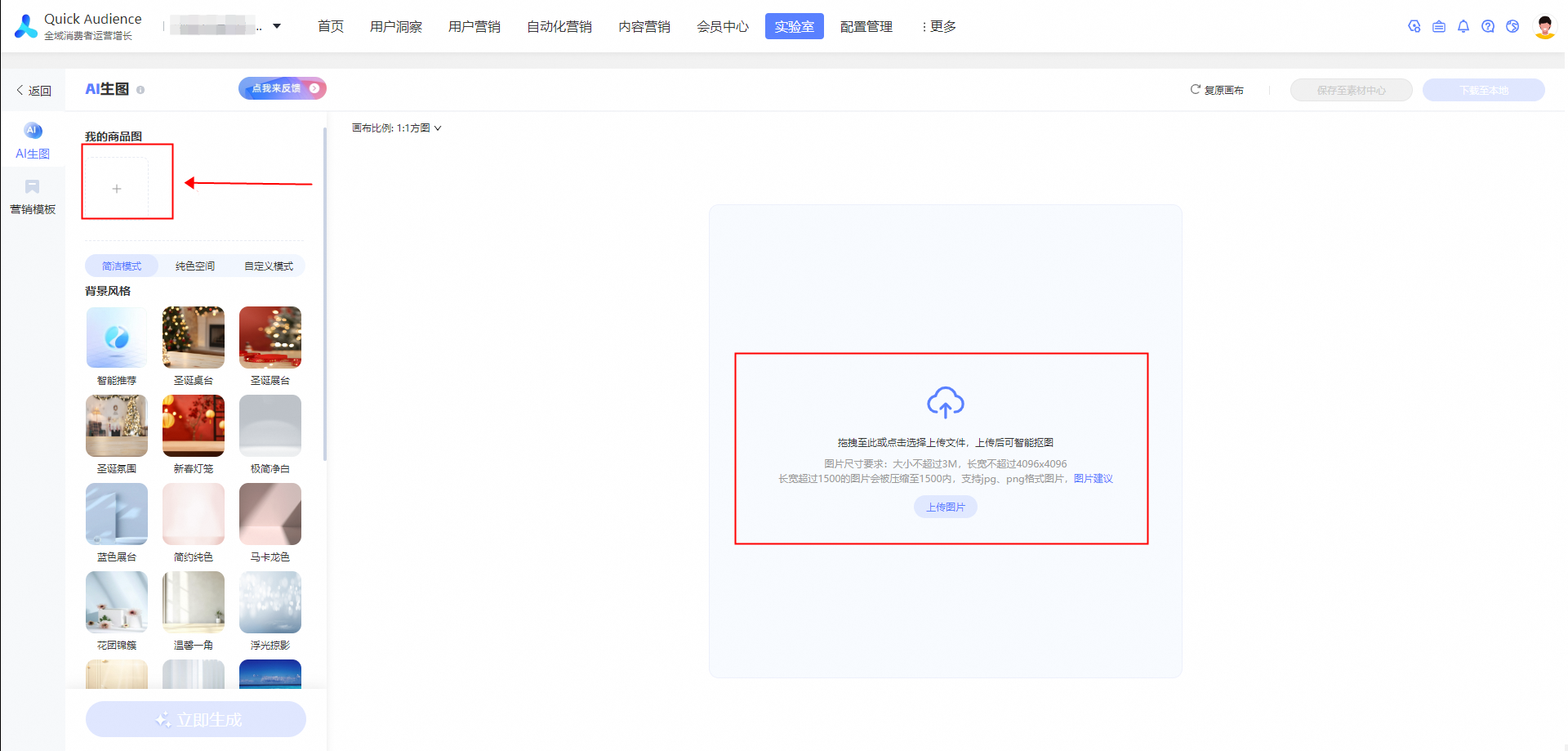
After the product is uploaded, you can click Scenario or Custom Scenario to generate a product map. Then, click Create Marketing Template to go to the Create Marketing Template module. If you do not need to create a marketing template, click Create Marketing Template.
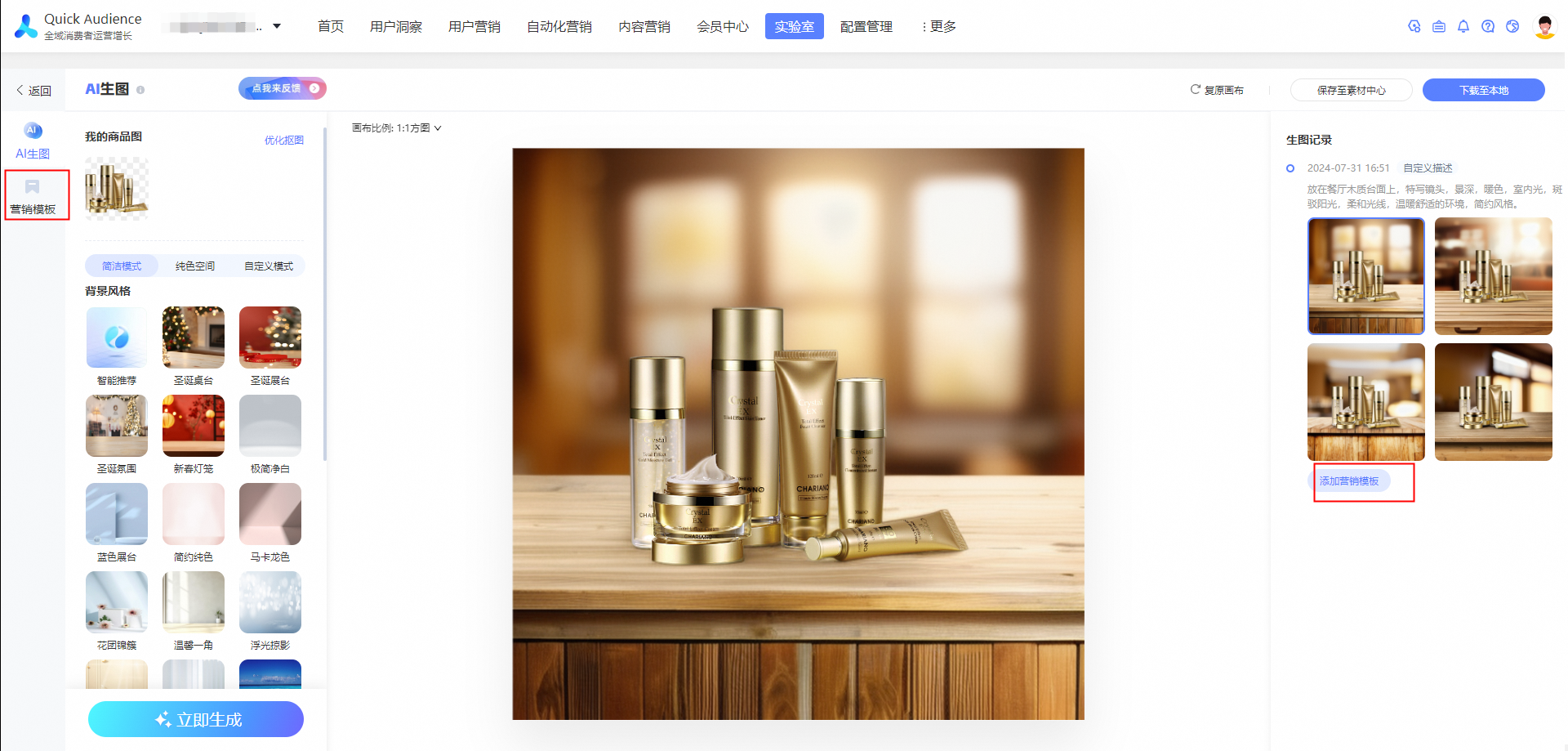
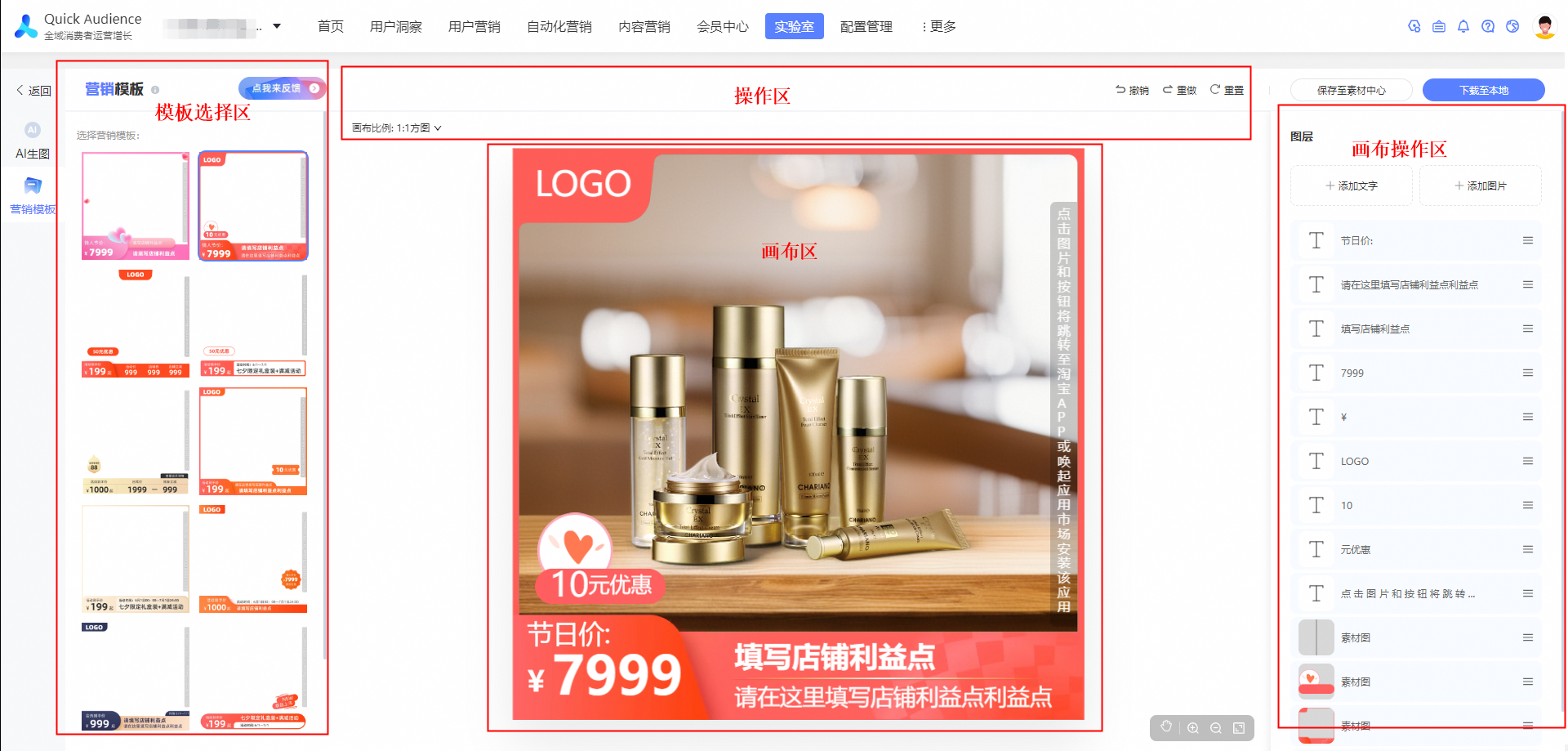
The following section shows the functions of the Marketing Template module.
Template selection area: You can select the desired template here.
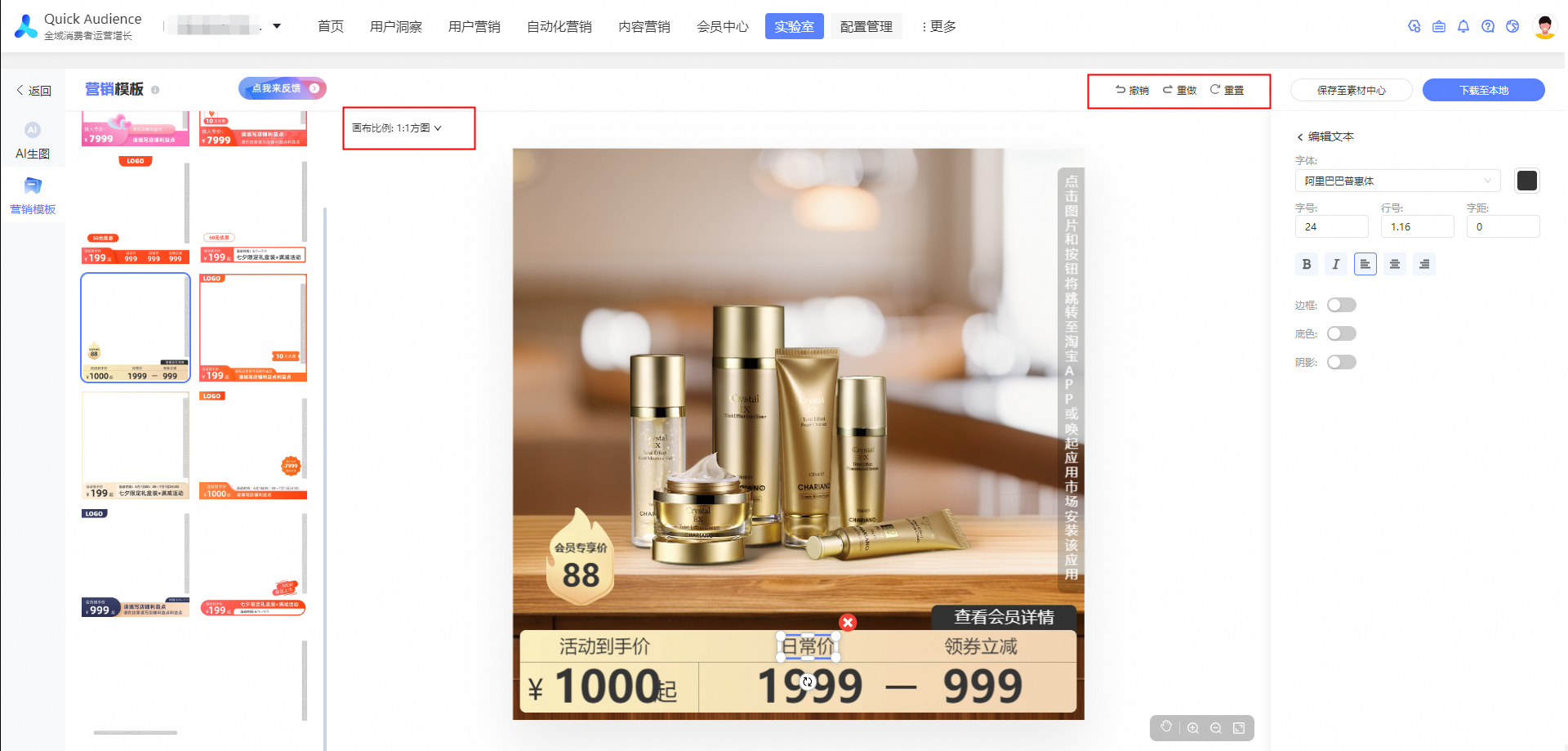
Operation area: You can adjust the canvas size and undo redo operations here.
Canvas section: You can drag and drop the canvas to modify the canvas content.
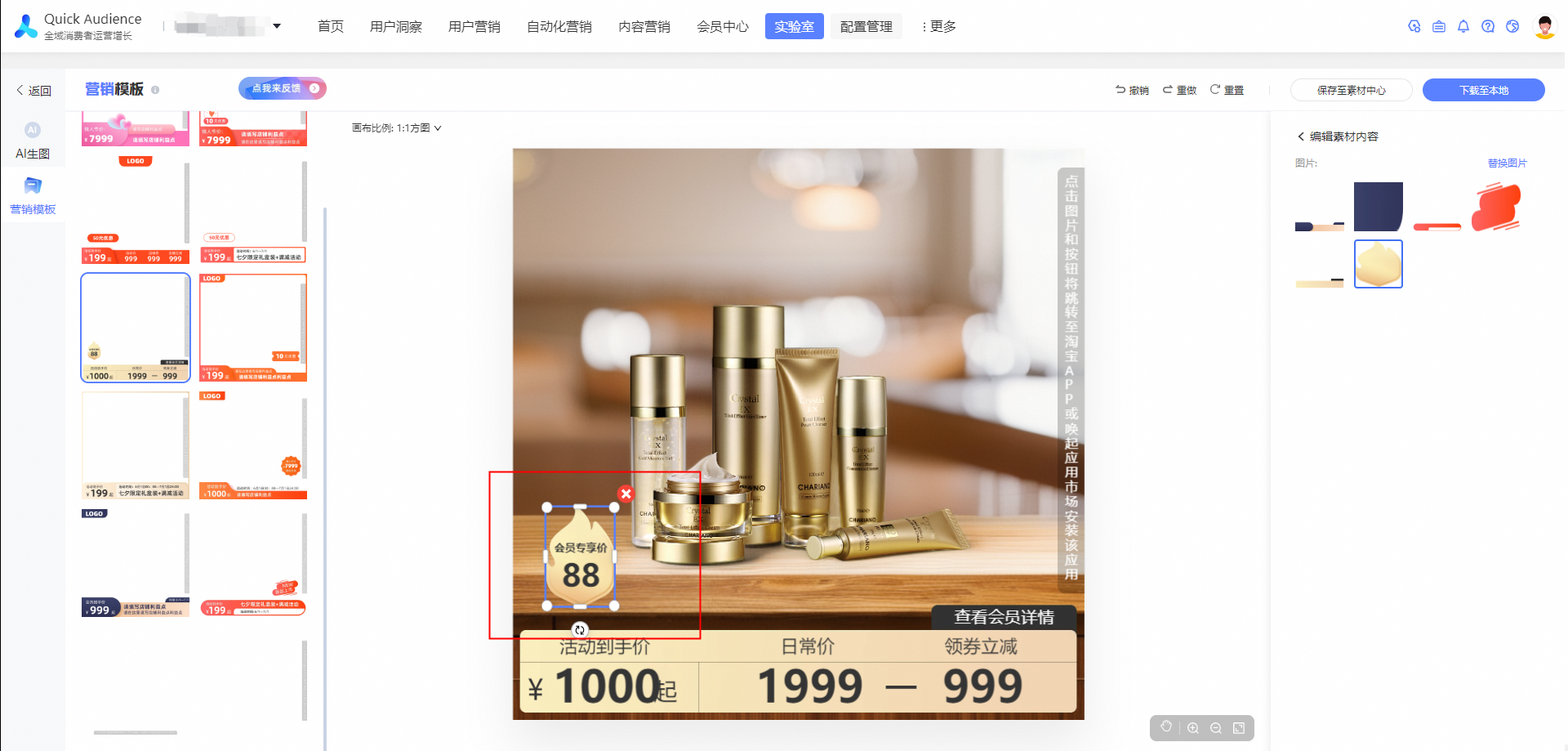
Canvas operation area: You can adjust the layer order and add text or images.
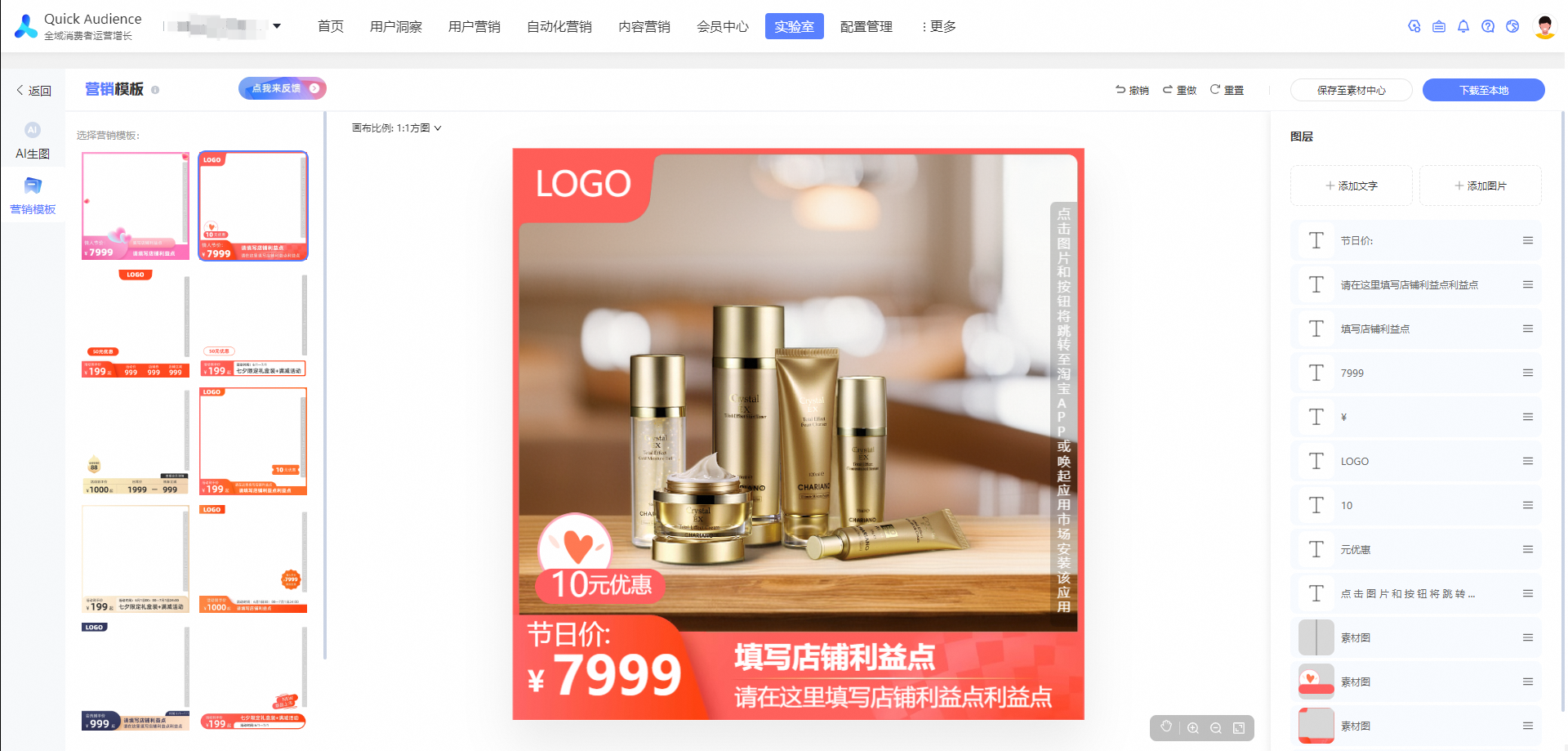
In the template selection area, you can select the desired template to use. If you change the canvas size, the template will be updated accordingly.
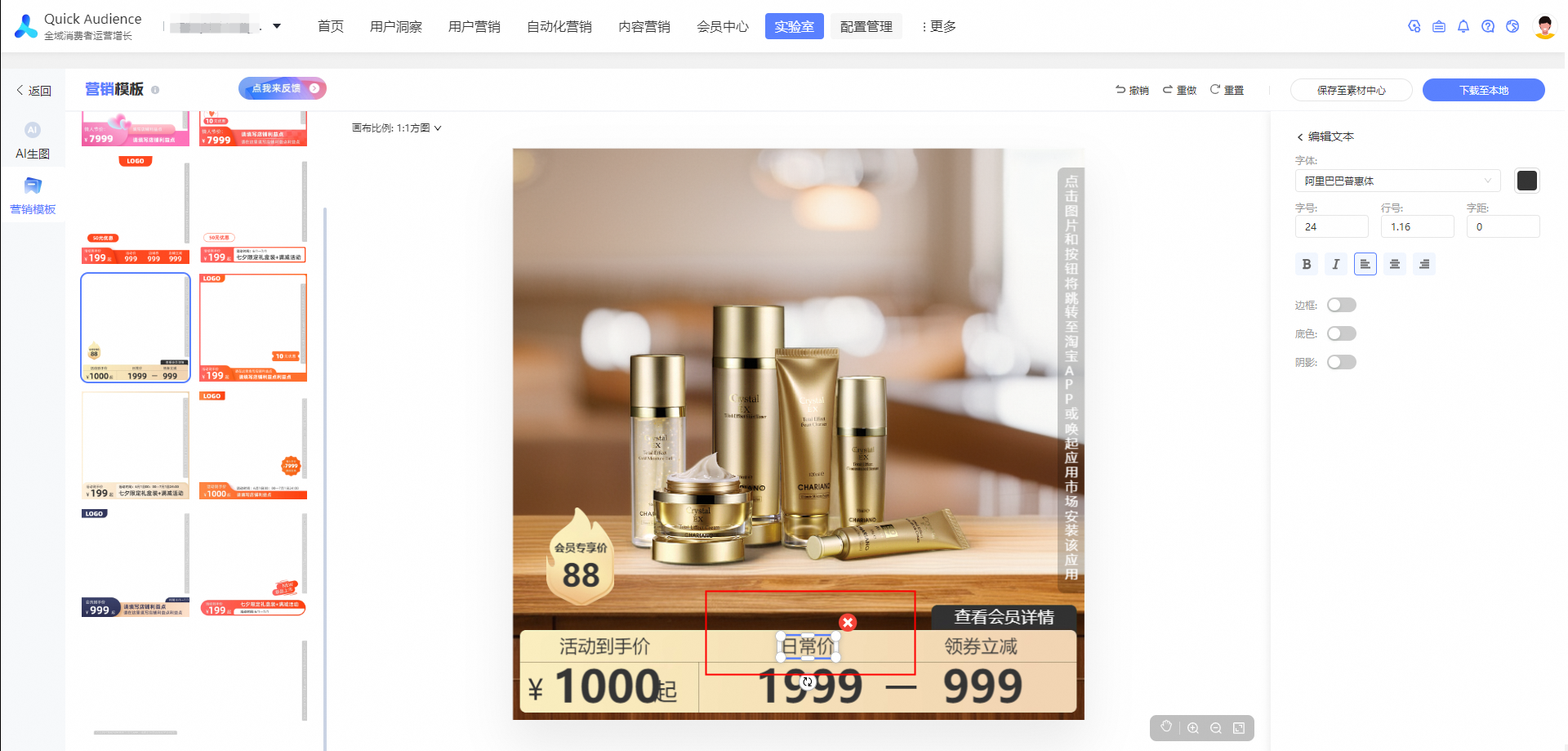
In the canvas area, you can modify the text, delete the content, or drag and drop elements to adjust their positions.
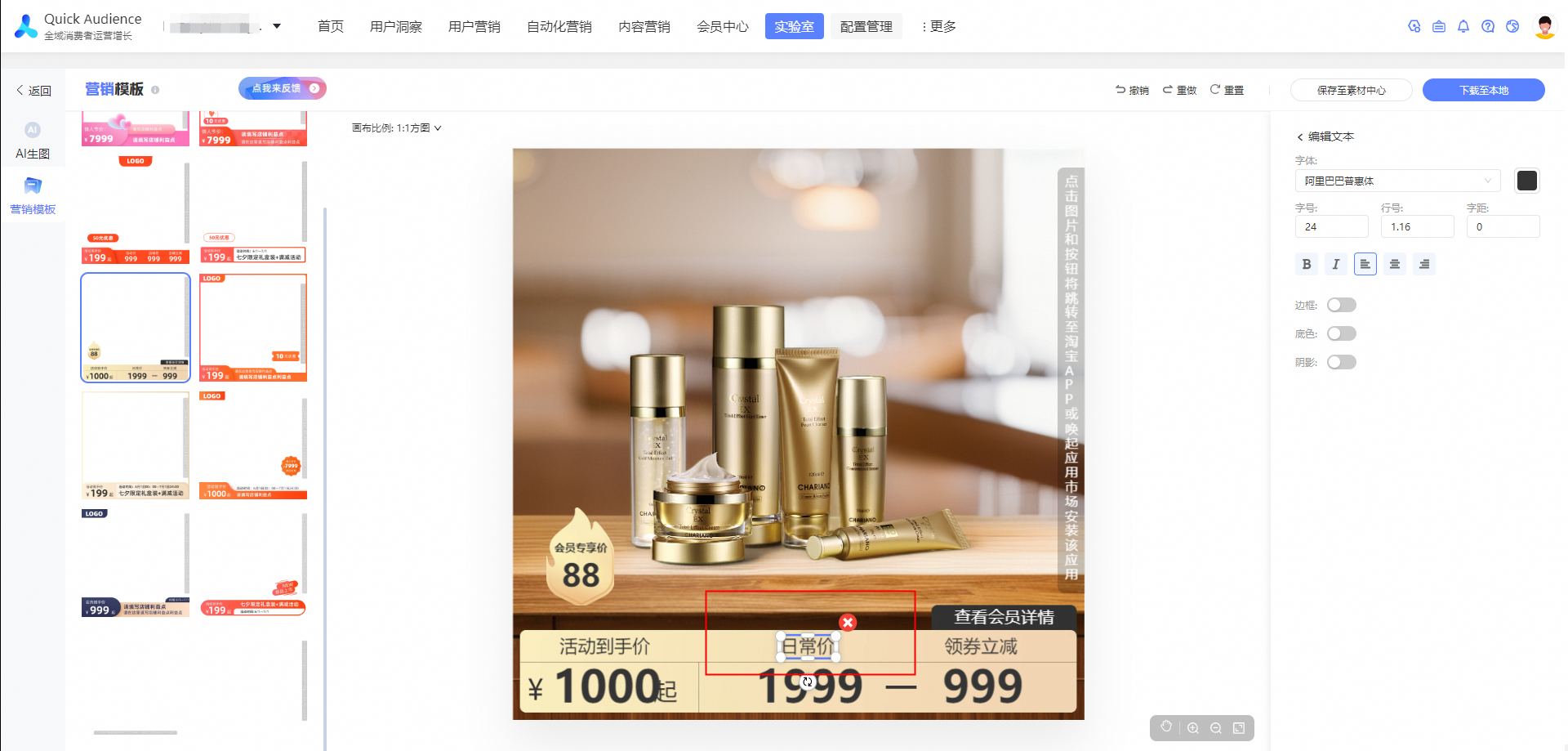
In the canvas operation area, you can adjust the material level, change the font style, or add image text.
In the operation area, you can adjust the canvas size and perform operations such as undo and redo. Please note that adjusting the canvas size will empty the canvas content.
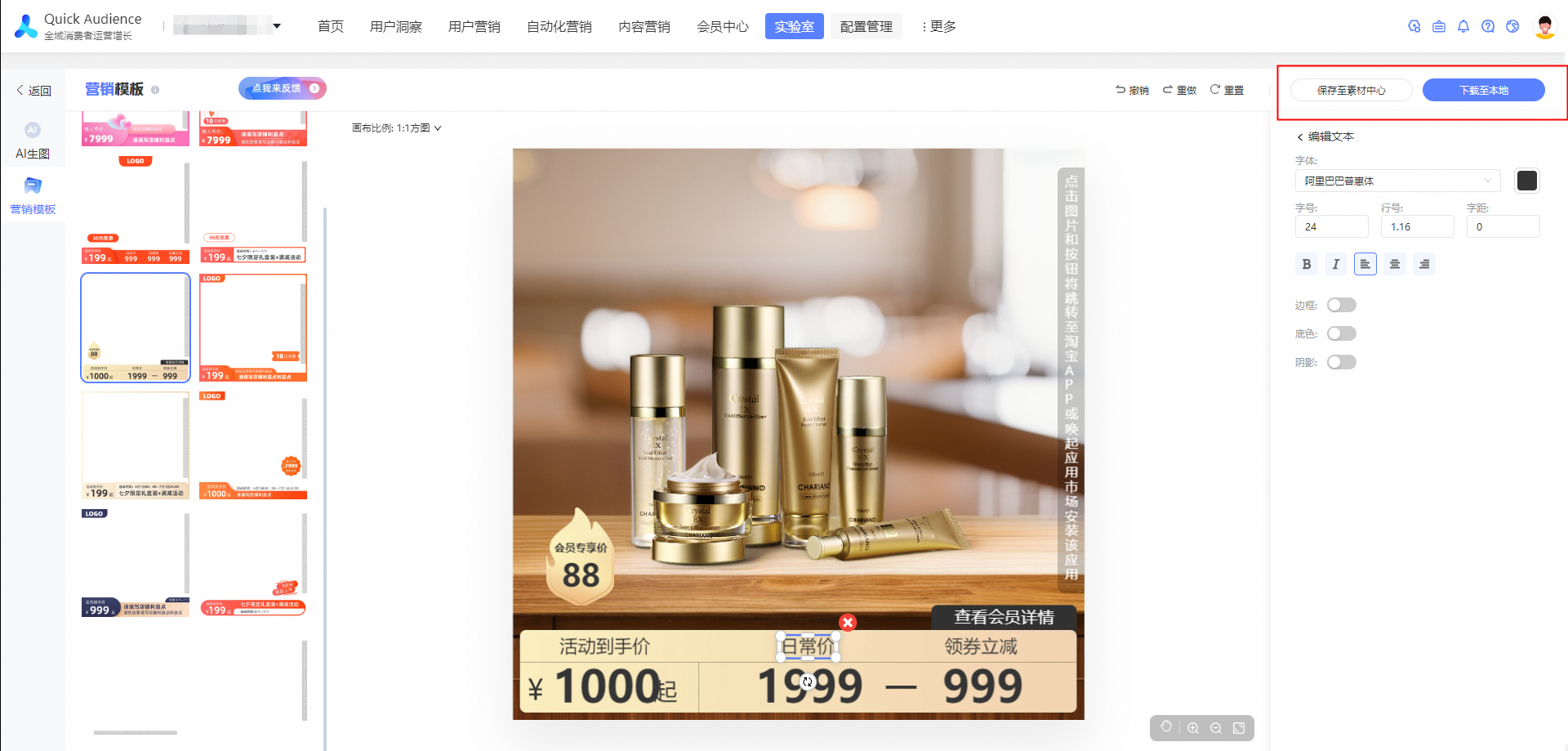
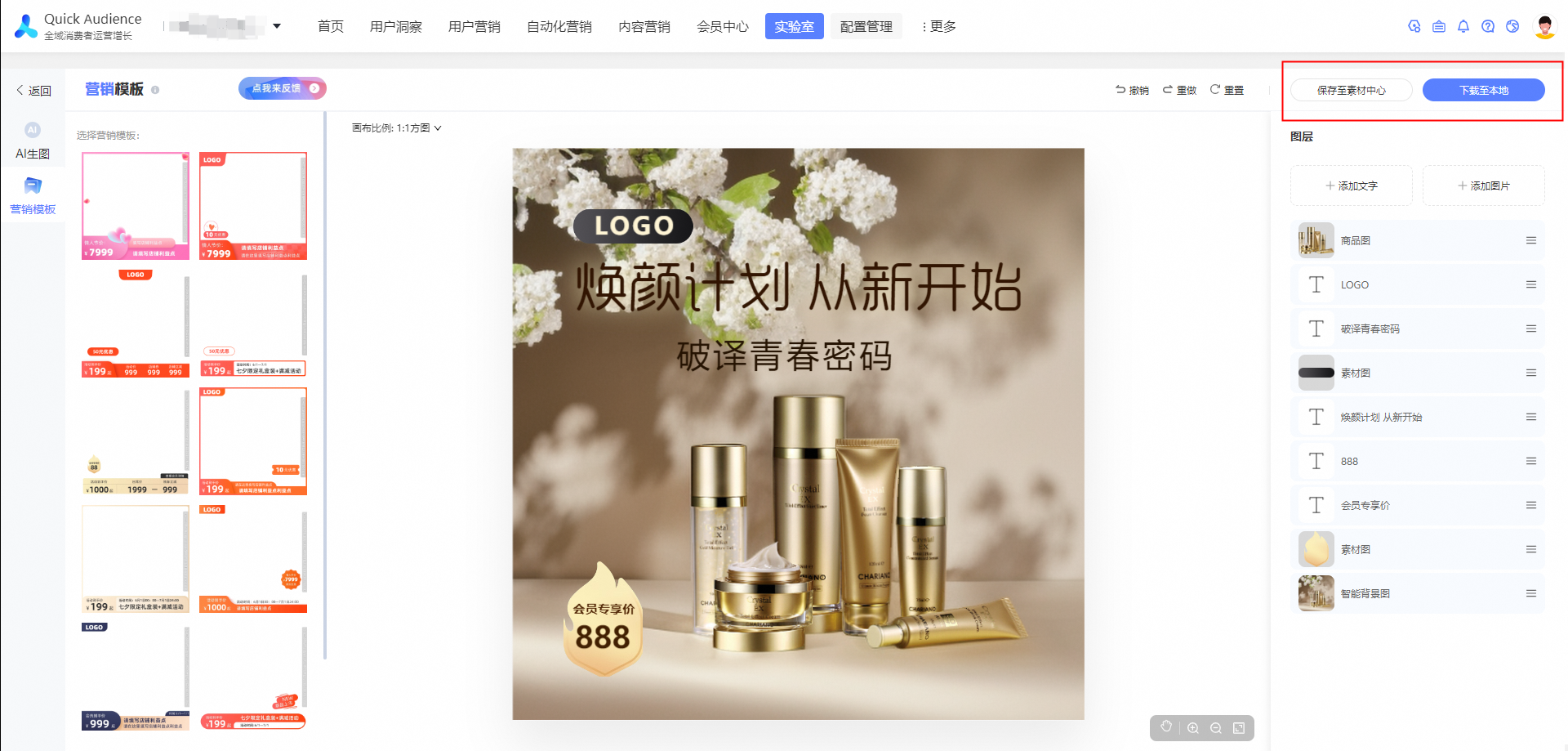
After the production of a marketing material is complete, you can click to download the poster to the local or click to save it to the material center for marketing delivery.
3.3 One-click Poster Maker
Ling Yang has carefully prepared industry templates for you. There are all kinds of industries and industries of various sizes. You only need to upload your product map and generate the same poster with one click.
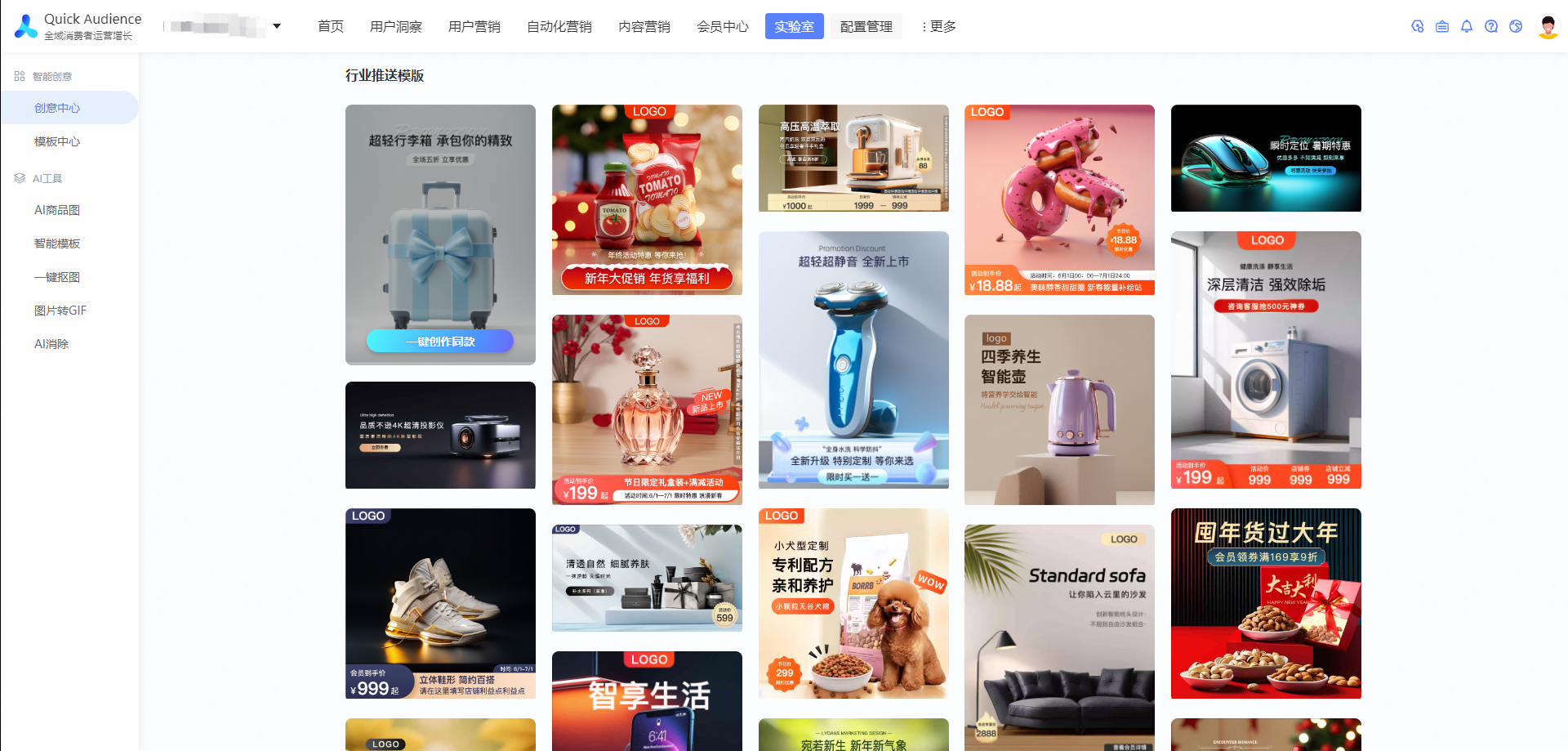
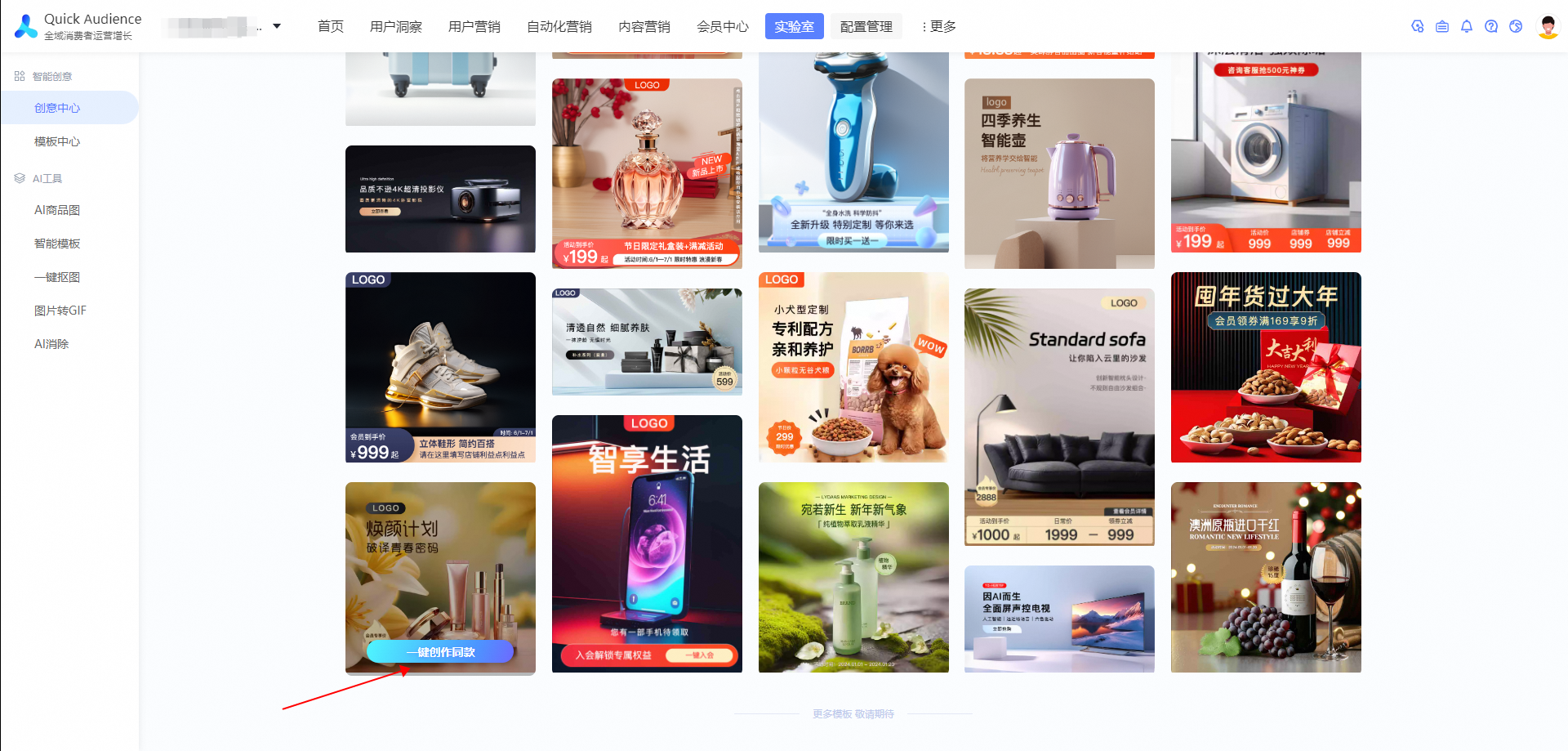
Find your favorite poster and click on one key to make the same paragraph.
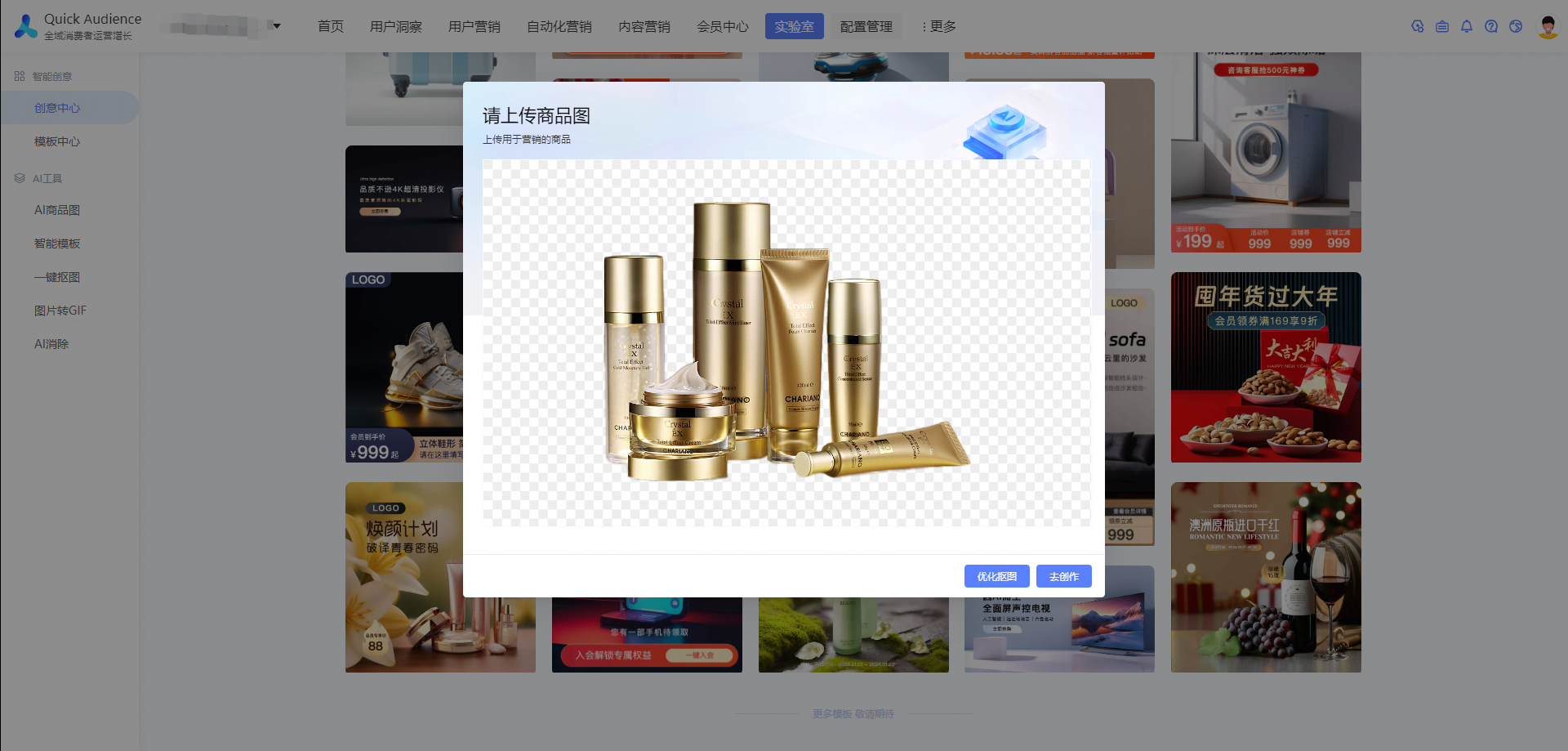
Upload your product image, the system will automatically matting processing, click to create function.
The system will automatically generate the same marketing poster based on the template.
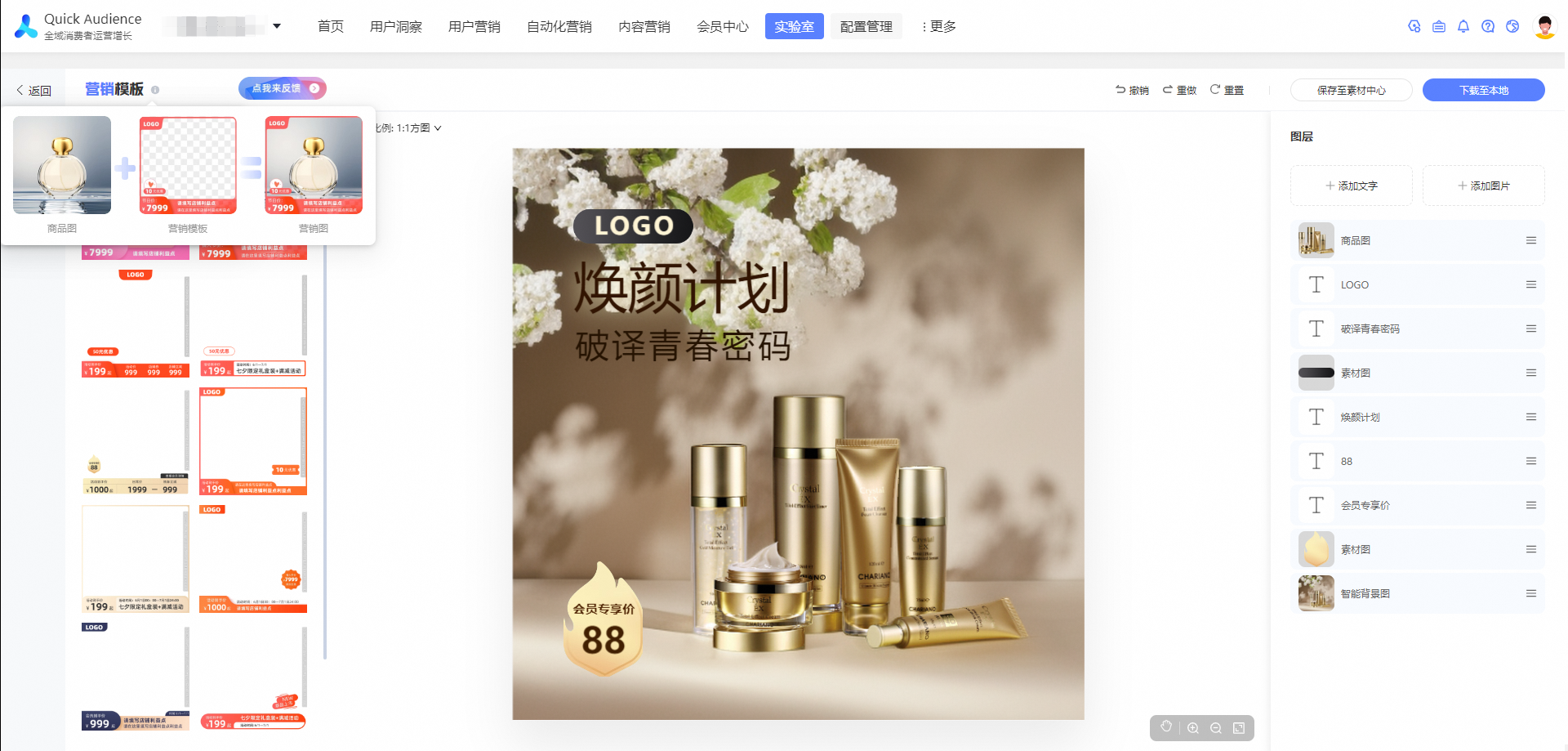
You can modify your marketing copy in the canvas, or add new ones.
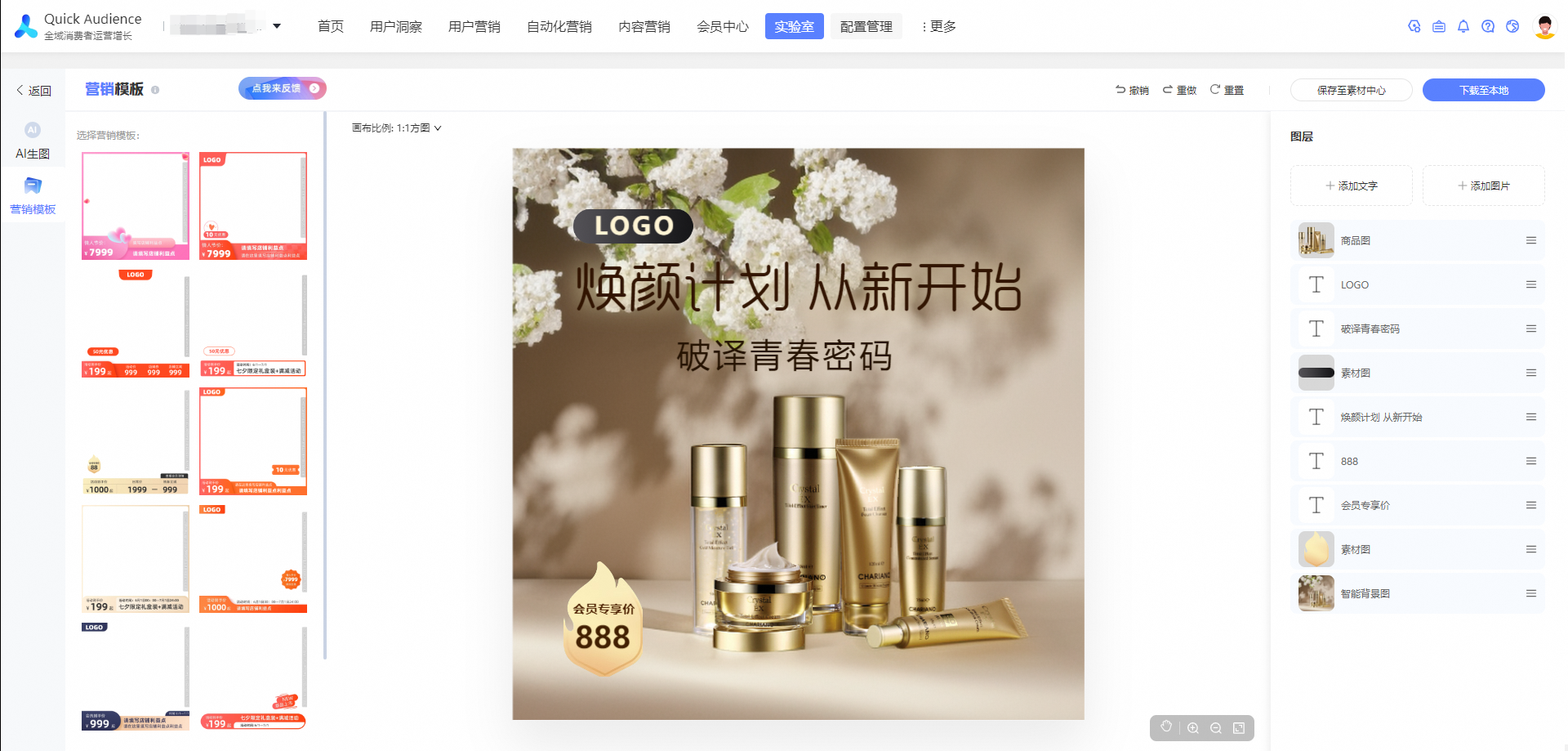
When a marketing template is completed, you can click to download the poster to the local or click to save it to the material center for marketing delivery.
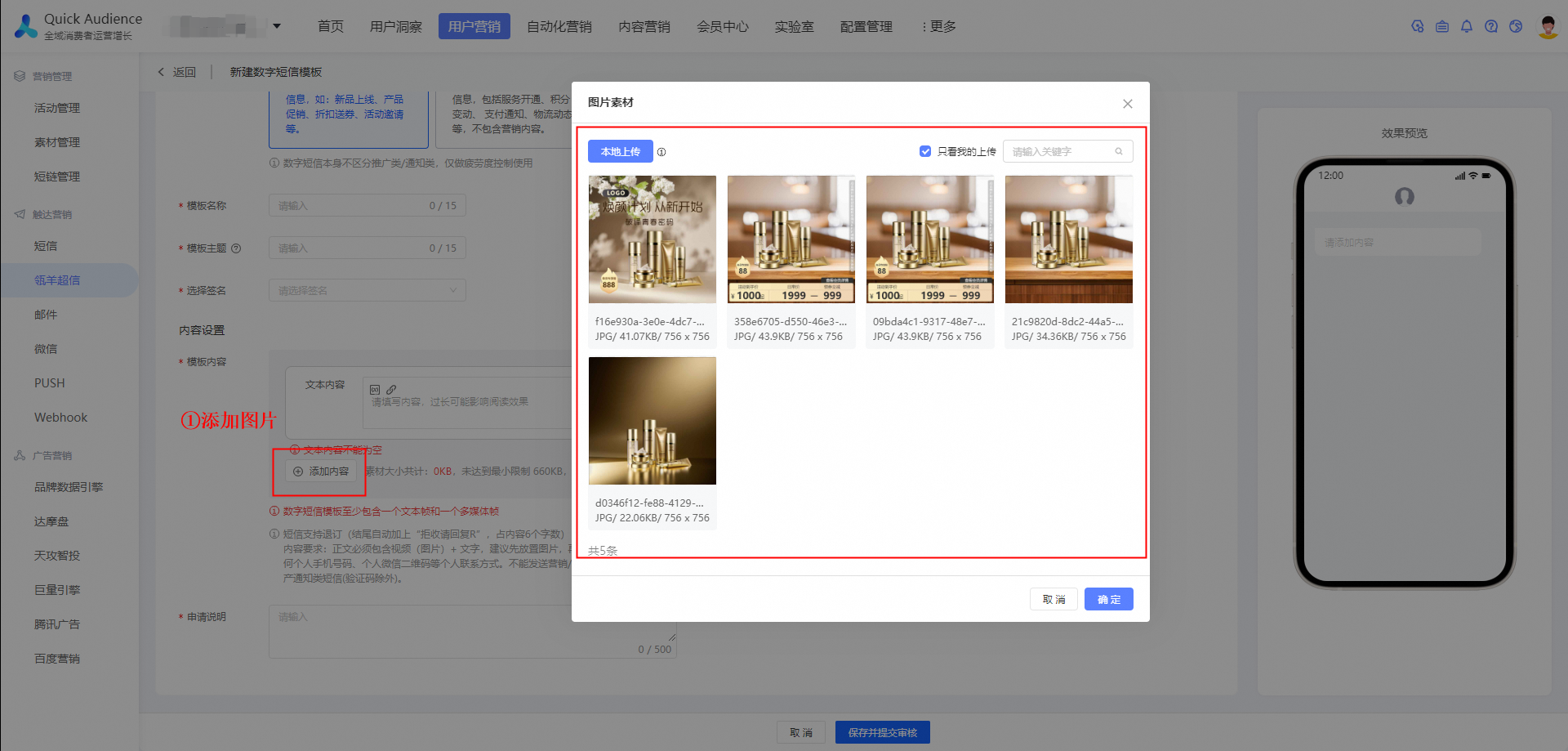
4. Marketing push
In User Marketing-Lingyang SuperSMS, create a new digital SMS template and add picture materials. You can select the picture template saved to the material center or the template uploaded and downloaded to the local.
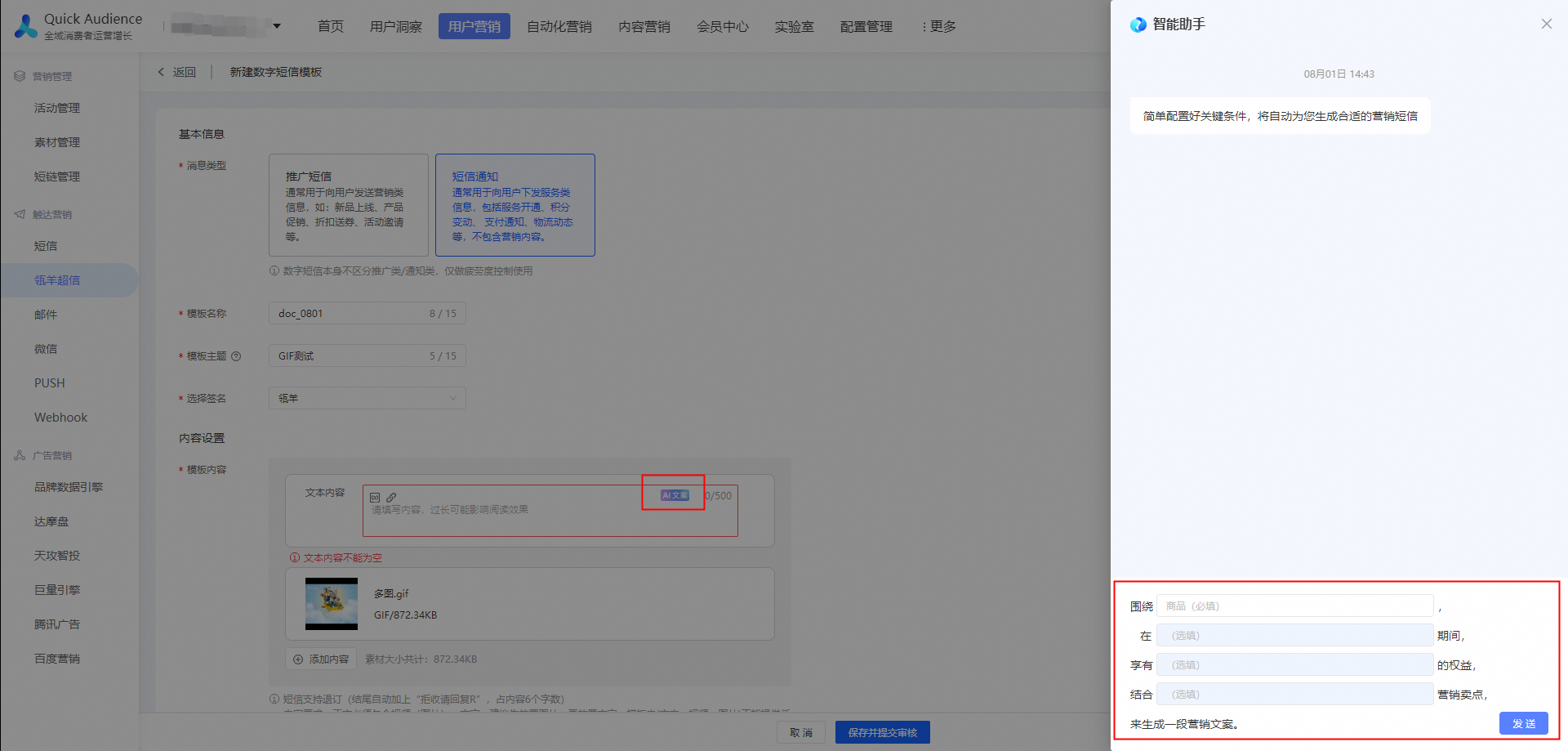
The template content supports AI copywriting. You need to configure product keywords.
For more information about other configurations of the SMS template, see Lingyang SuperSMS Templates.
Create a marketing push task.
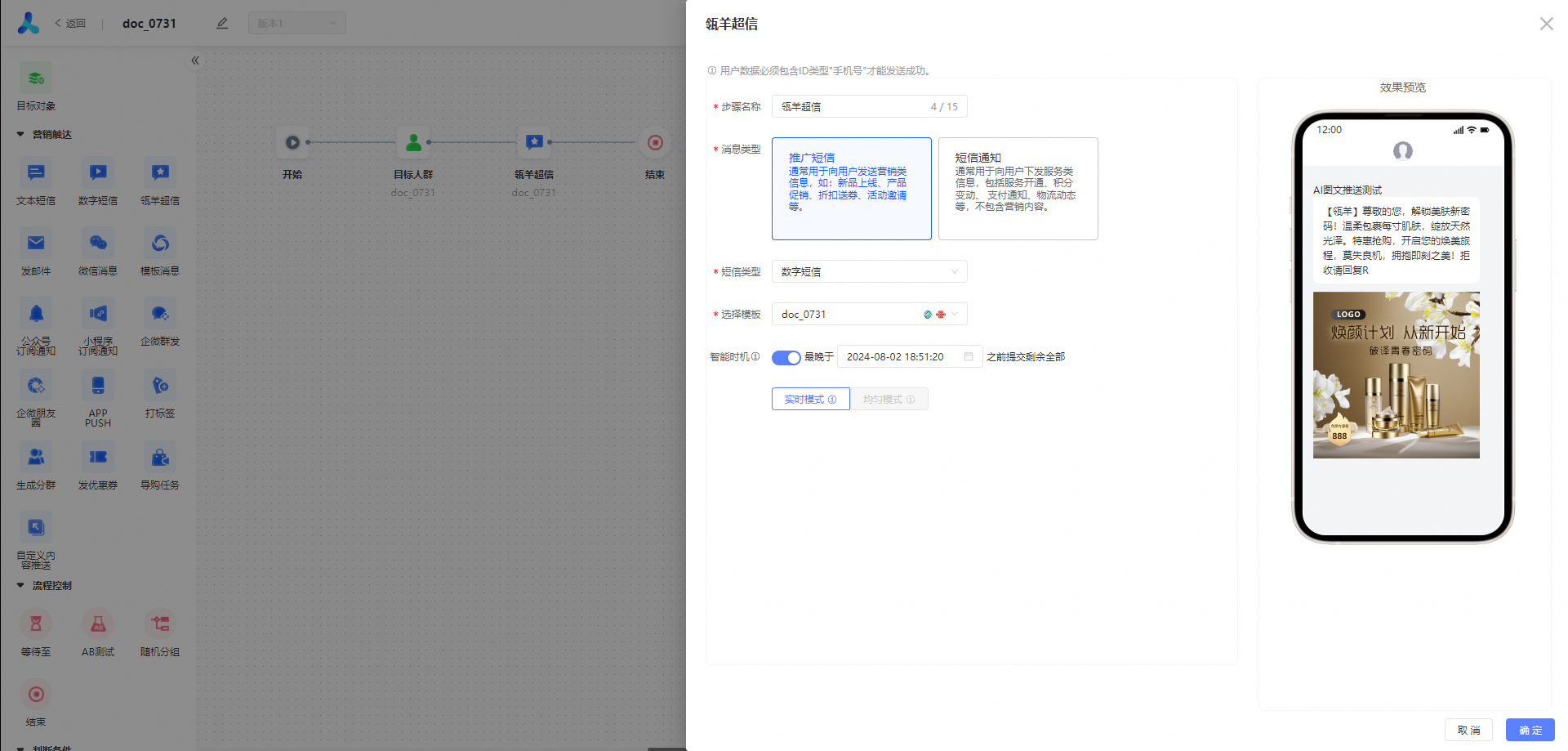
After the task is pushed, the user's mobile phone can receive an SMS notification.