You can send WeChat text, text, image, audio, or video messages to fans or specified groups.
Procedure:
Choose Workspace> User Marketing > Touch Marketing > WeChat.
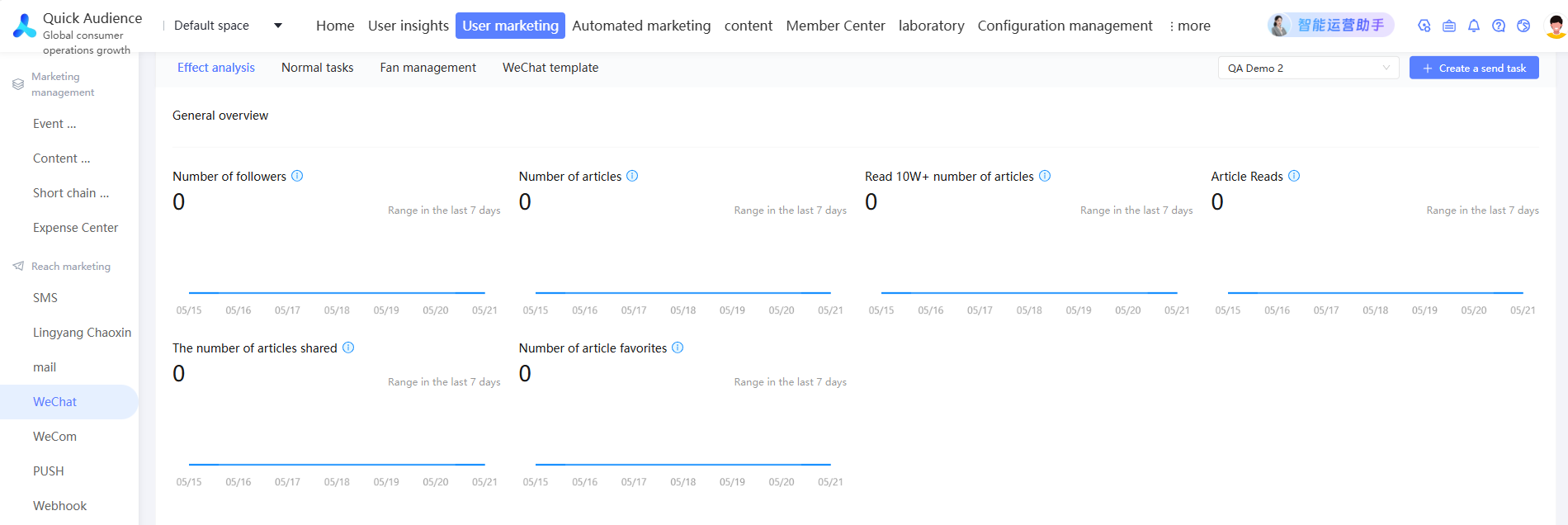
Click Create Send Task in the upper-right corner.
Select the public number for sending WeChat and set the task name. The task name does not affect the message content.
Select the sending object. You can select specified fans and specified people to send the object.
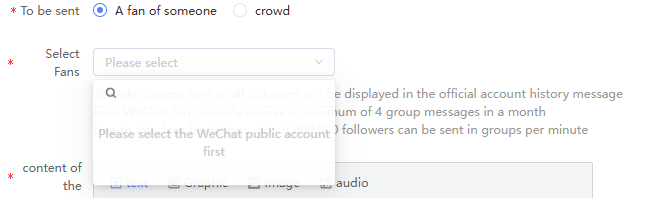
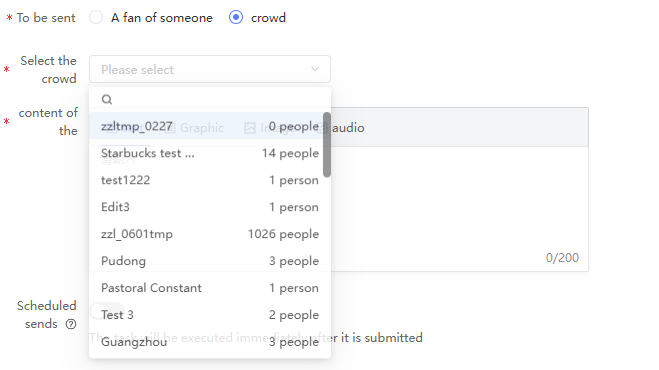
The message content can be text, graphic, image, audio, or video.
For graphic messages:
The following figure shows the configuration of the graphic message.
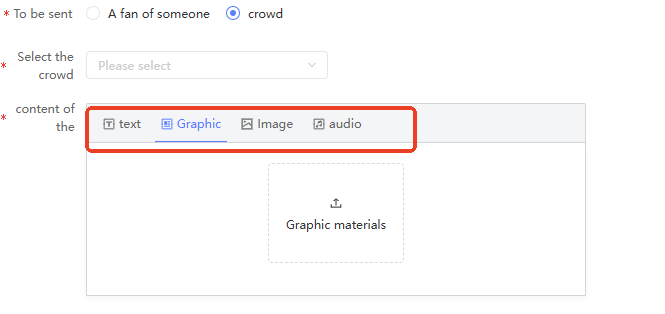
Template Selection: The default value is No Template. You can also select an existing template from the drop-down list. For more information about how to create a WeChat template, see Create a WeChat template.
Title, Enter Author, Article Body, and Cover Summary:
If you are not using a template, you will need to edit it.
If you use a template, they are all included in the template. You can continue editing after you select a template.
After you configure the Cover Summary and Title settings, the page appears at the top of the article editing area, as shown in the following figure.

If you want to send multiple articles this time, click the + icon in the preceding figure to add one article. You can add up to eight articles.
Click the article cover, the article editing area will switch to the content of the article, and then you can edit the article.
You can adjust the order of the articles. Move the pointer over the cover of the article. The
 icon appears in the upper-left corner of the cover. You can click the icon to switch the order with the adjacent articles. The display style of the cover and title of the first article will be different from that of other articles. Please refer to the content preview on the right side of the page. Please pay attention to reset the cover after adjusting the order.
 Move the pointer over the article cover. The
 icon appears in the upper-right corner of the cover. Click the icon and confirm to delete the article.
Original Text Link: After you add a link, you can click Read Original Text at the end of an article to go to the link.
For text, image, audio, or video messages:
Enter text to send, or upload pictures, audio, video to send, add recommend.
The image format must be JPG, JPEG, or PNG.
The audio format must be MP3. The audio format must be less than 2MB in size and less than 60 seconds in duration.
The video format is MP4 and the size is ≤ 10MB.
Specify whether to send messages at a specified time.
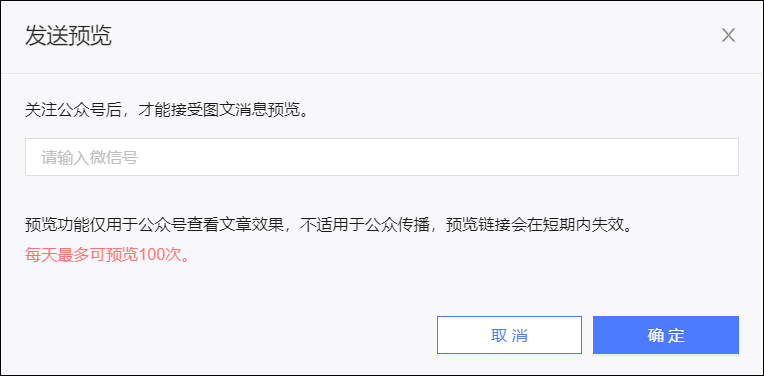
(Optional) Click Mobile Preview. In the dialog box that appears, enter the WeChat account that is used to receive the preview article and click OK. The micro signal will receive the preview article message and is only used to view the effect of the article. The link will be invalid in a short period of time and cannot be used for dissemination.
Click Submit to save the message settings.