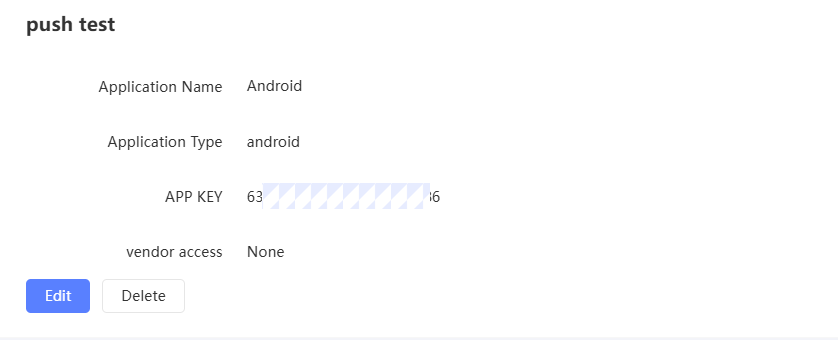
The APP PUSH application API is used for PUSH marketing tasks. Each PUSH application under the APP PUSH account corresponds to an API. Create an APP PUSH API to enable PUSH marketing.
Procedure:
-
In the upper-right corner
 of the page, choose Organizations > API Management.
 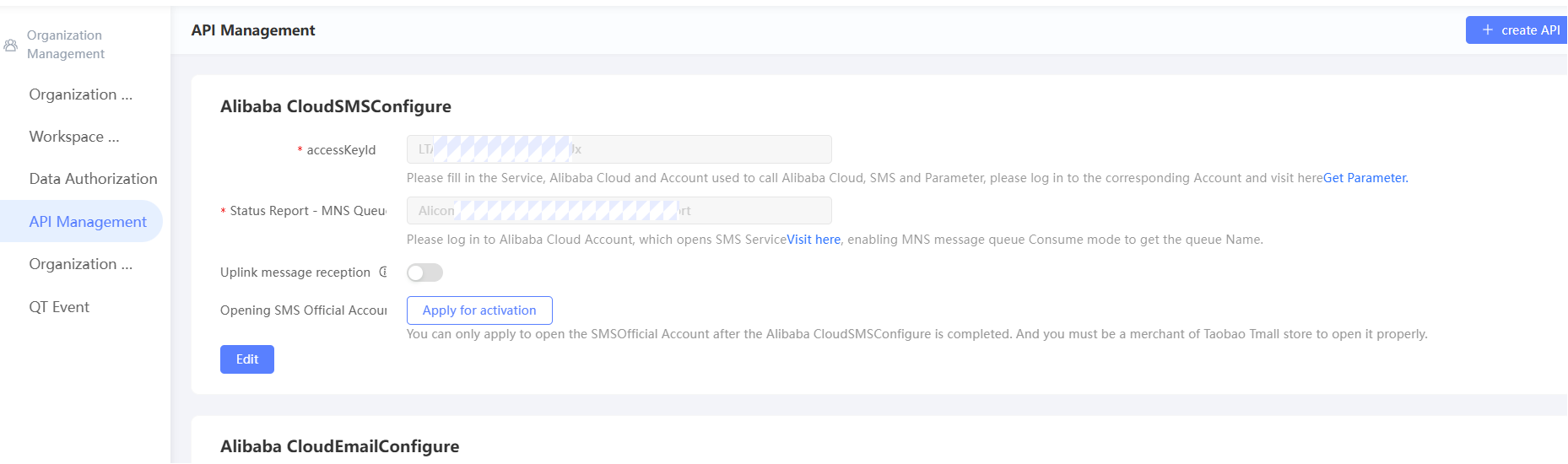 In the upper-right corner, click Create API. In the dialog box, configure the following parameters:
 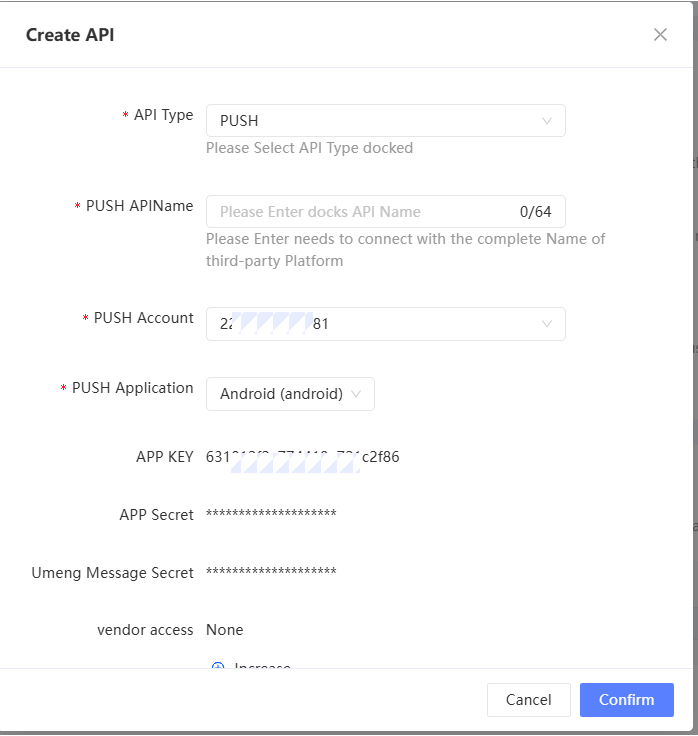 Parameter Description Select PUSH for API Type. PUSH API Name Set the API name, for example, Umeng PUSH API.
 -
PUSH Account Select the Umeng account used to configure the PUSH API.
-
To add a Umeng account, choose Configuration Management > Marketing Configuration > Marketing Accounts. For more information, see Account Authorization.
-
PUSH Application Select an application under your account. You can also click Go to your Umeng account to create an application to go to the Umeng console and select an application. After you configure the parameters, the APP Key and APP Secret are automatically populated in the lower part of the dialog box. Click OK to save the configuration. The new PUSH API is displayed on the API Management page, where you can edit or delete it.