Data pulled from a computing source is imported into the analysis source. Subsequent insight analysis reads data directly from the analysis source.
Quick Audience supports Hologres and AnalyticDB for MySQL 3.0 as analysis sources.
Hologres is recommended because it offers lower costs.
Add ADB 3.0
-
Quick Audience only supports access to ADB 3.0 versions 3.1.4.12 and above. You can refer to How do I query the minor version of an AnalyticDB for MySQL cluster to check the version of your ADB 3.0 instance. If the version is earlier than 3.1.4.12, submit a ticket to request an upgrade.
-
ADB3.0 in the China (Qingdao) region is not supported. We recommend that you deploy ADB3.0 and MaxCompute in the same region. If you use OSS when calling the API operation to create a crowd, OSS and ADB 3.0 must also be in the same region.
-
Enterprise Edition and Basic Edition are supported. Lake Warehouse Edition and Data Warehouse Edition are not supported.
To add ADB3.0, perform the following steps:
-
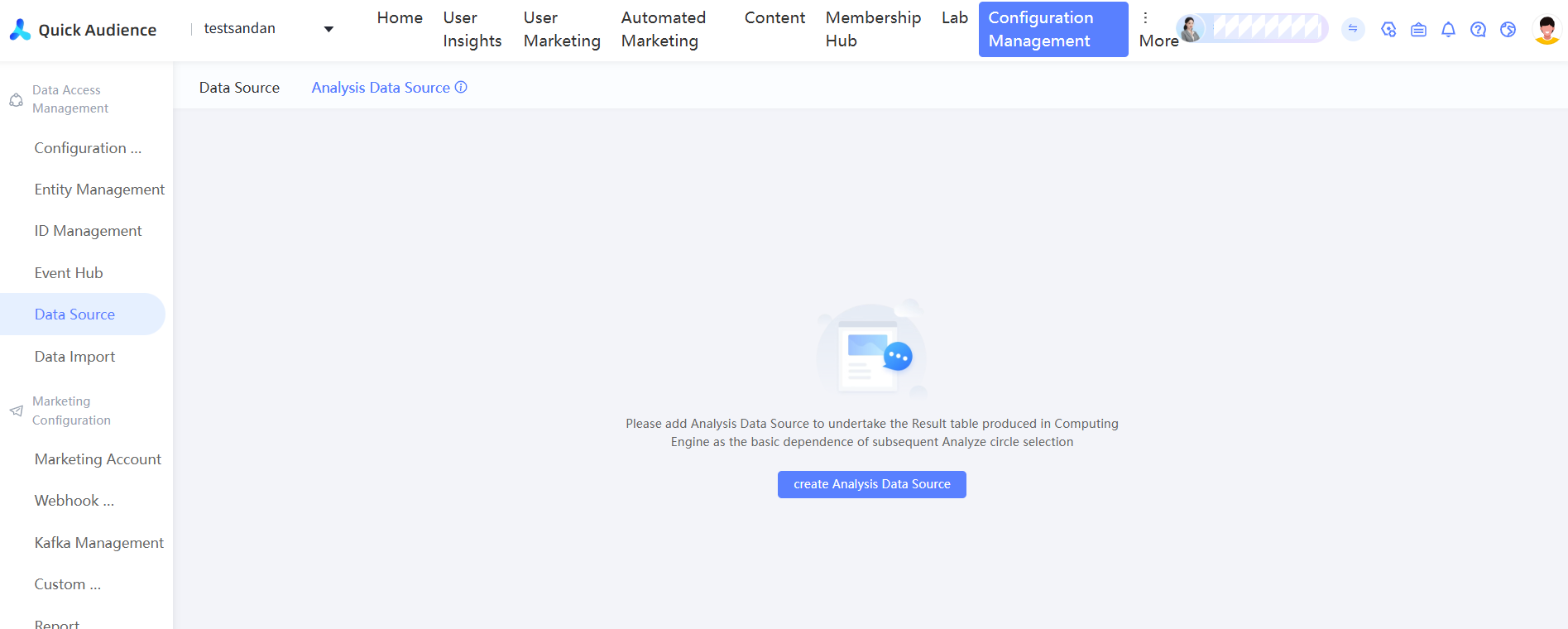
Choose Workspace> Configuration Management > Data Import Management > Data Sources > Analysis Sources. The Analysis Sources page appears.
-
In the upper-right corner, click Create Analysis Source.
-
In the pop-up window, select the AnalyticDB for MySQL 3.0.
-
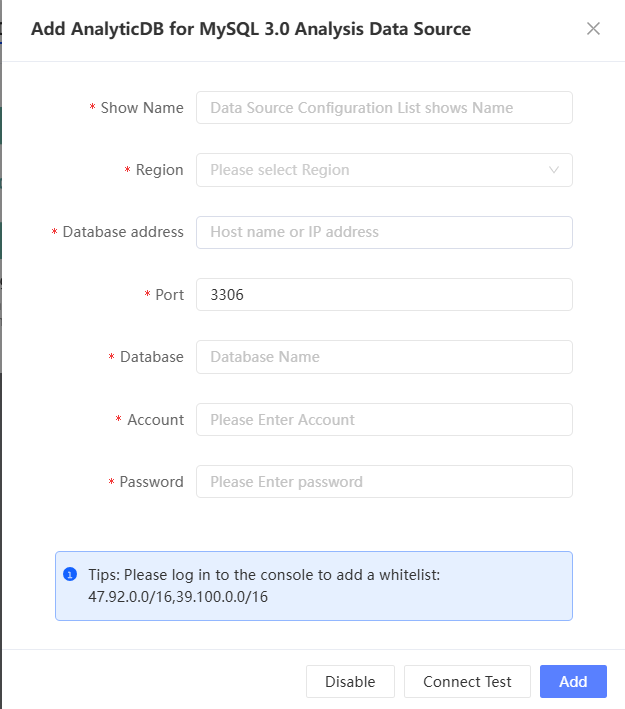
Configure the parameters, as shown in the following table.
Item
Example value
Name
Enter the display name of the analysis source, for example: XX Usage_ADB3.0.
Regions
Select the region where the analysis source resides.
Database Address
Enter the public endpoint of the analysis source. See Apply for or release a public endpoint.
Port
Enter the public port number.
Databases
The name of the database to access.
Username
Enter the account of the database user.
NoteThe account can be a privileged account or a standard account. The standard account must be granted all permissions on the database. For more information, see Quick start for Data Warehouse Edition.
Password
Enter the password that is paired with the account.
-
Log on to the AnalyticDB Console and add the CIDR blocks of Quick Audience to the whitelist to allow Quick Audience to access the source cluster. For more information, see Whitelist.
-
Click Test Connectivity to test the connectivity of the analysis source.
If the test fails, check and modify the configuration.
-
After the connectivity test is passed, click Add.
Add a Hologres data source
Quick Audience supports only Hologres versions later than 1.1.49. If your version is earlier than 1.1.49, submit a ticket to request an upgrade.
To add a Hologres data source, perform the following steps:
-
Choose Workspace> Configuration Management > Data Ingestion Management > Data Sources > Analysis Sources. The Analysis Sources page appears.
-
In the upper-right corner, click Create Analysis Source.
-
In the pop-up window, select the Hologres.
-
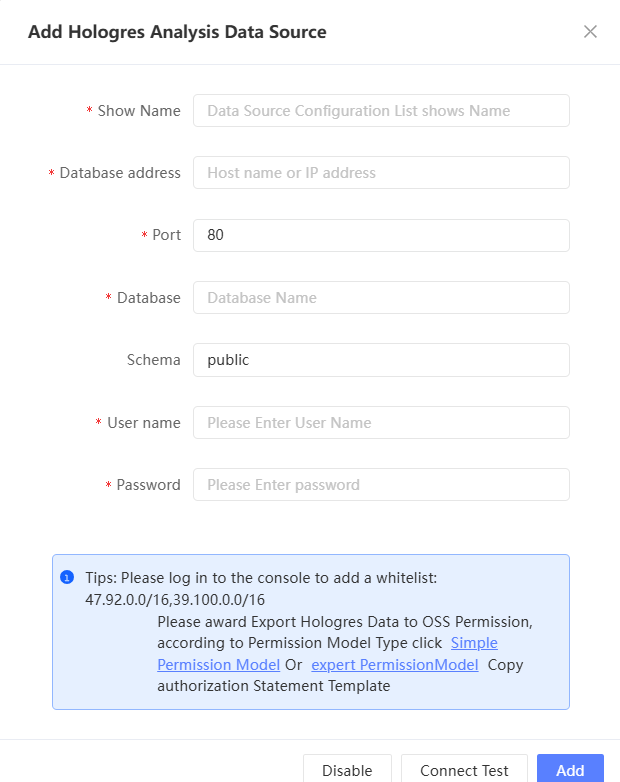
Configure the parameters, as shown in the following table.
Parameter
Guide
Name
Enter the display name of the analysis source.
Database Address
Enter the public endpoint. For more information, see Endpoints for connecting to Hologres.
Port
Enter the public port number.
Databases
The name of the database to access.
Schema
The schema of the database. Default value: public.
The username.
Enter the AccessKey ID of the Hologres user.
Note-
The user can be an Alibaba Cloud account or a RAM user. You can obtain the AccessKey ID and AccessKey secret from the RAM Console. If you use a RAM user, note down the AccessKey pair when you create the RAM user.
-
RAM users must be authorized. You can use the simple permission model or the expert permission model to grant Developer permissions. For more information, see Grant Development Permission of Example to RAM user.
Password
Enter the AccessKey Secret that is paired with the AccessKey ID.
-
-
Log on to the Hologres Console and add the CIDR blocks of Quick Audience to the whitelist so that Quick Audience can access the Hologres instance. For more information, see IP whitelist.
-
In the Hologres instance, authorize the user to export data to OSS. You can click Simple permission model or Expert permission model in the Hologres permission models to obtain the authorization statement. For more information, see Export data to OSS.
-
Click Test Connectivity to test the connectivity of the analysis source.
If the test fails, check and modify the configuration.
-
After the connectivity test is passed, click Add.
Manage analysis sources
After you add an analysis source, you can search for it by name in the search box.
You can edit or remove an analysis source and view the fields of its data tables. 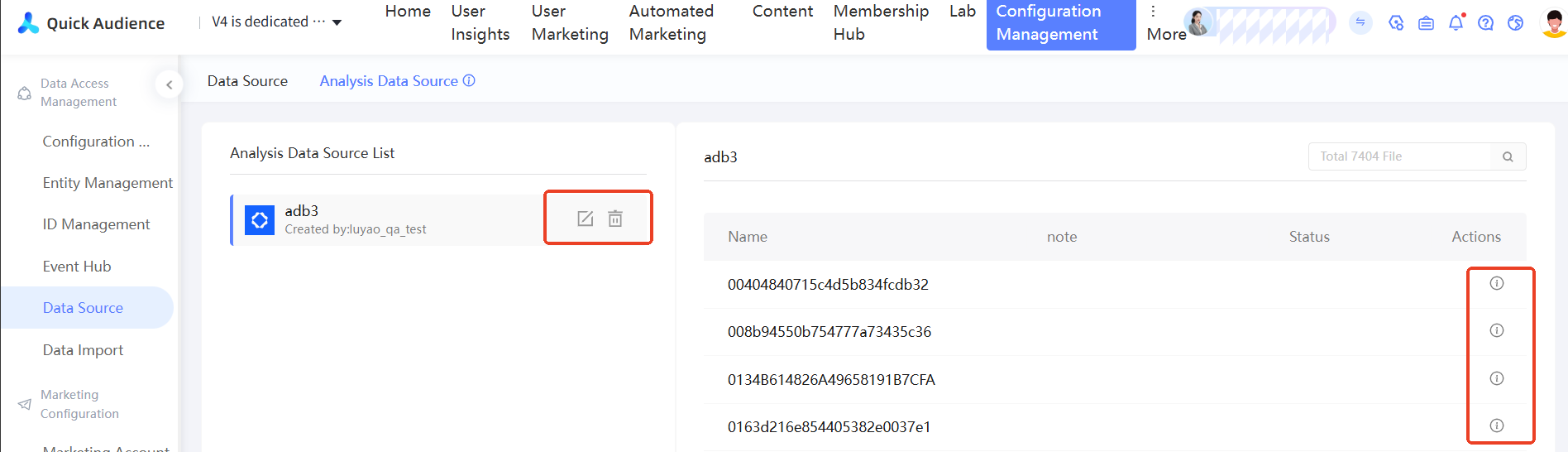
-
Click the
 icon to edit the analysis source. You can modify the display name, username/account, and password.
 -
Click the
 icon to remove the analysis source.
 -
Click the
 icon next to a table to view its field information.