When every virtual user in a stress test sends identical requests, server-side caching inflates hit rates and produces misleading results. Performance Testing Service (PTS) solves this by connecting Object Storage Service (OSS) files to parameter nodes in a JMeter scenario, so each virtual user receives unique data -- such as a distinct username and password pair -- from a CSV file stored in OSS.
Parameter file requirements
Requirement | Details |
Supported formats | CSV, ZIP (a ZIP archive must contain exactly one CSV file) |
Maximum file size | 2 GB |
Maximum row length | 20,000 characters per row |
Header row | Optional. If the first row does not contain parameter names, specify a name for each column manually on the Data Source Parameters tab |
Do not rename an XLSX file to .csv by changing the file extension. Instead, use Excel, Numbers, or Apache Commons CSV to export or generate a properly formatted CSV file.
Sample CSV structure
username,password
user1,Password1
user2,Password2
user3,Password3
If the first row contains parameter names (like username and password above), PTS automatically maps each column to the corresponding parameter. Otherwise, assign parameter names manually on the Data Source Parameters tab.
Combine data from multiple files
Add each file separately on the Data Source Parameters tab of the parameter node. PTS combines them into one parameter set -- there is no need to merge all data into a single file.
When you reference parameters from multiple files, designate one parameter as the Baseline Column. The file containing that parameter becomes the benchmark for data alignment across files. If you select neither Baseline Column nor Use Once, PTS assigns a random parameter as the baseline column. For details, see PTS read method of multi-file parameters in virtual user or RPS mode.
Parameters with strict one-to-one mappings (for example, a username that must always pair with its corresponding password) must be in the same file. Make sure every column in each row contains complete data -- empty fields can lead to incorrect test results.
Get the OSS object URL
Before importing a parameter file into PTS, make the file publicly readable and copy its URL from the OSS console.
Prerequisites
Before you begin, make sure you have:
An OSS bucket with the parameter file (CSV or ZIP) already uploaded
Permissions to modify the object's Access Control List (ACL)
Procedure
Log on to the OSS console.
In the left-side navigation pane, click Buckets, then click the bucket name.
On the Objects page, click the object name or click View Details in the Actions column.
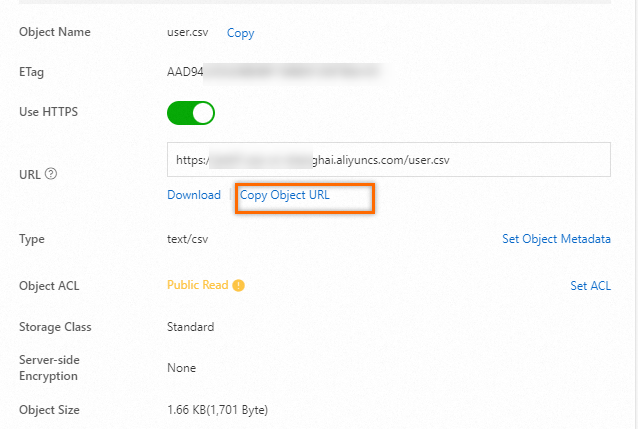
In the View Details panel, click Set ACL. Select Public Read and click OK.
Click Copy Object URL.
Import the parameter file into PTS
Log on to the PTS console.
Choose Performance Test > Create Scenario, then click JMeter.
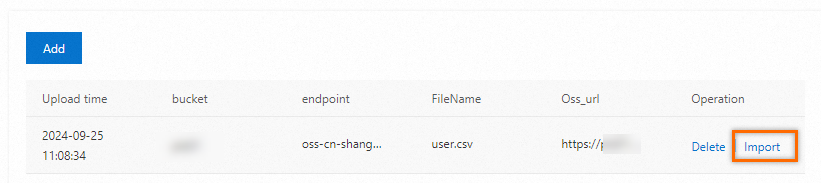
Click Data Sources. On the OSS Files tab, click Add.
Paste the OSS object URL and click OK.
Click Import.
Click Save.
Return to the JMeter Scenario page and click Save Settings. The imported parameter file appears in the Scenario Settings section.
