PTS provides features to help you manage scenarios and orchestrate tests more efficiently.
Duplicate scenario
If you need a new scenario that is similar to an existing one, you can duplicate it and make adjustments. This avoids configuring a new scenario from scratch.
-
Log on to the PTS console and choose .
-
On the Scenarios page, find the scenario to duplicate, click Copy in the Actions column, and then click Copy in the confirmation dialog box.
By default, the name of the duplicated scenario ends with the _Copy suffix.
NoteFor readability, scenario names are limited to 30 characters. If the name exceeds this limit after the _Copy suffix is added, the _Copy suffix is not applied.
Enable or disable business sessions
A scenario can contain multiple business sessions. To focus your debugging or performance test on specific sessions, you can temporarily disable the sessions you want to exclude. A disabled business session is skipped during a test run but retains all its configurations and can be re-enabled at any time.
-
Log on to the PTS console and choose .
-
On the Scenarios page, find the scenario to edit and click Edit in the Actions column.
-
Find the business session you want to manage. To disable it, choose ... > Invalid. To enable it, choose ... > Valid.

The name and icon of a disabled business session turn gray.
Copy an API
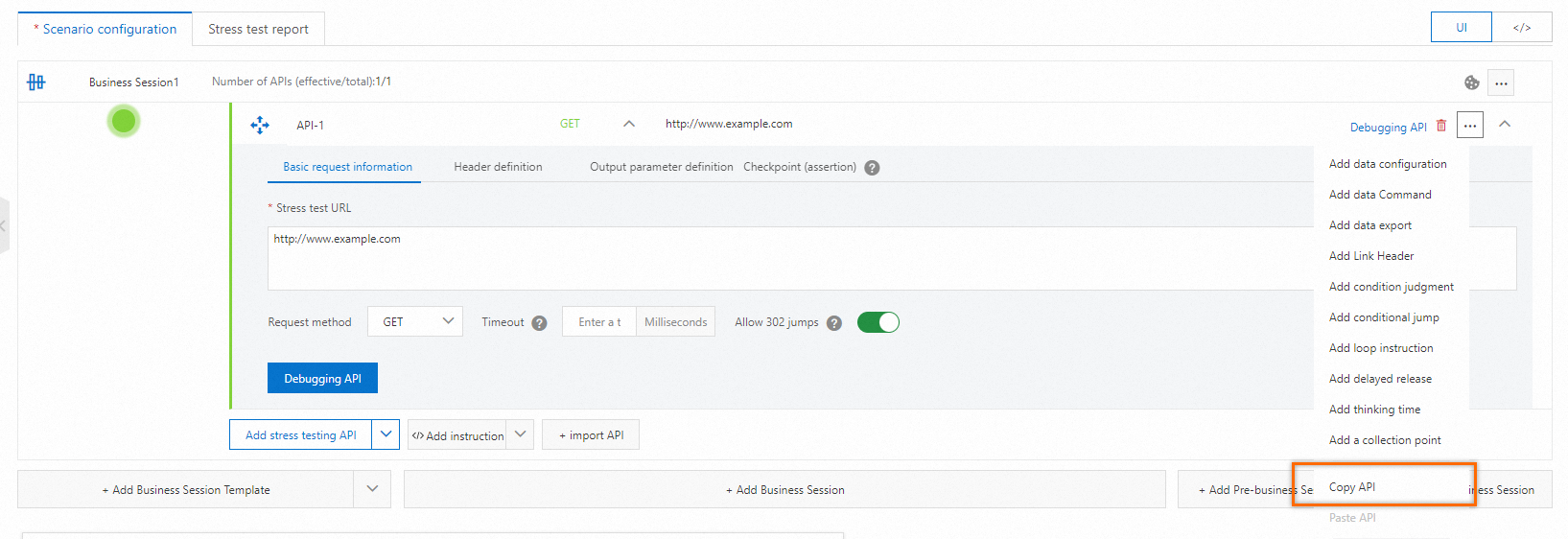
When multiple business sessions within a scenario use the same API request, you can copy it from one session and paste it into another. This improves efficiency and helps prevent configuration errors.
-
Find the API request to copy and choose ... > Copy API.
-
In the target business session, find the API request after which to paste the copied one, and then choose ... > Paste API.
Merge scenarios
You can merge multiple scenarios into a single new scenario. This combines the business sessions from all selected scenarios, allowing them to run in parallel during a performance test.
-
On the Scenarios page, select the scenarios to merge, and then click Merge Scenarios in the lower-left corner.
-
In the dialog box that appears, enter a New Scenario, select a Test Mode, and then click Merge Scenarios.
-
You are redirected to the Edit Scenario page. Here, you can edit the scenario configuration, load configuration, and other settings.