Diagnosing performance issues across a PolarDB for PostgreSQL cluster is difficult when you have to check each node separately. Global Automatic Workload Repository (AWR) collects second-level performance metrics from every primary and read-only node simultaneously and surfaces them in a single Grafana dashboard—so you can correlate database load with resource consumption, trace performance jitter to the exact second, and identify top SQL statements, top tables, and top indexes without switching between nodes.
How it works
Global AWR uses a three-layer pipeline to move data from nodes to your dashboard:
| Layer | Component | Role |
|---|---|---|
| Collection | UE (proxy process on physical machines) | Collects performance data and event information from all PolarDB for PostgreSQL cluster nodes |
| Storage | Local database (polar_gawr_collection schema in postgres) | Optionally stores collected data in the cluster for continuous fine-grained reporting |
| Presentation | Grafana dashboards | Visualizes performance trends and events; requires the cluster as a PostgreSQL data source |

What you can analyze
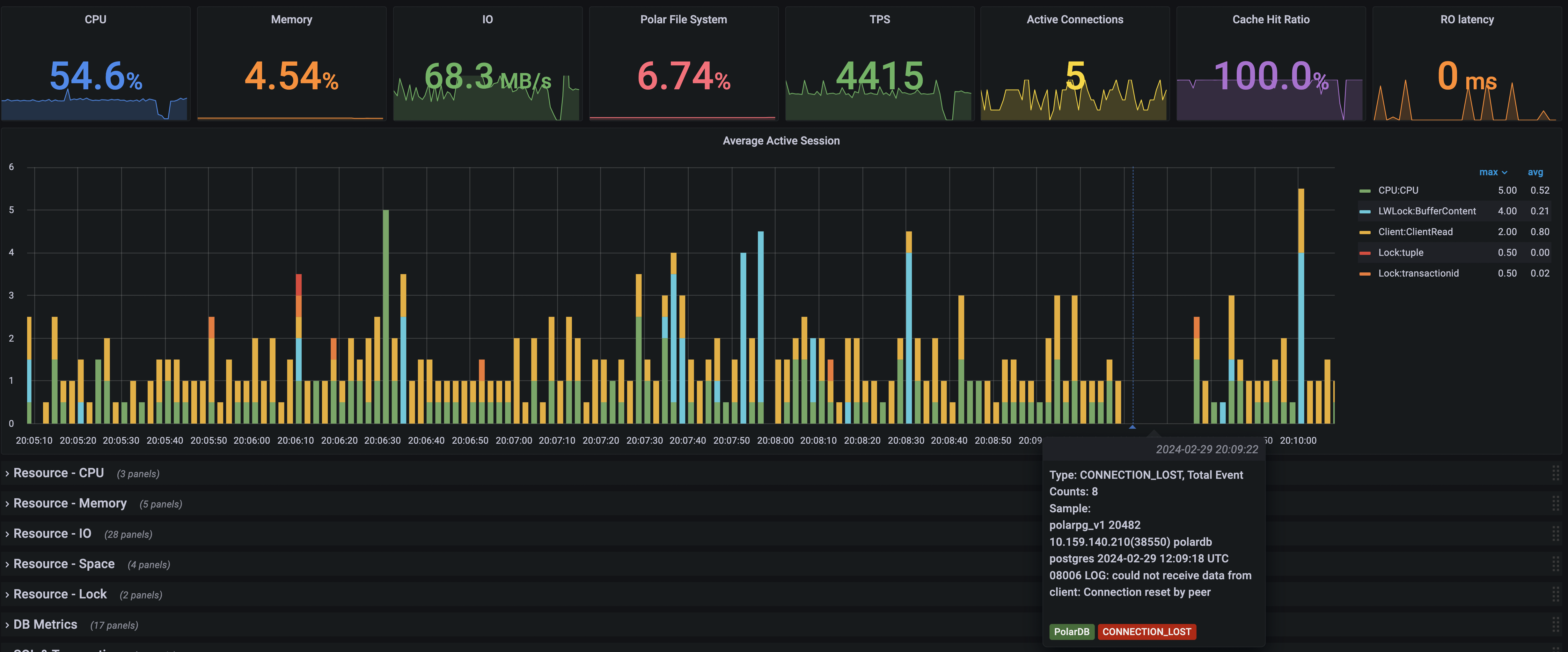
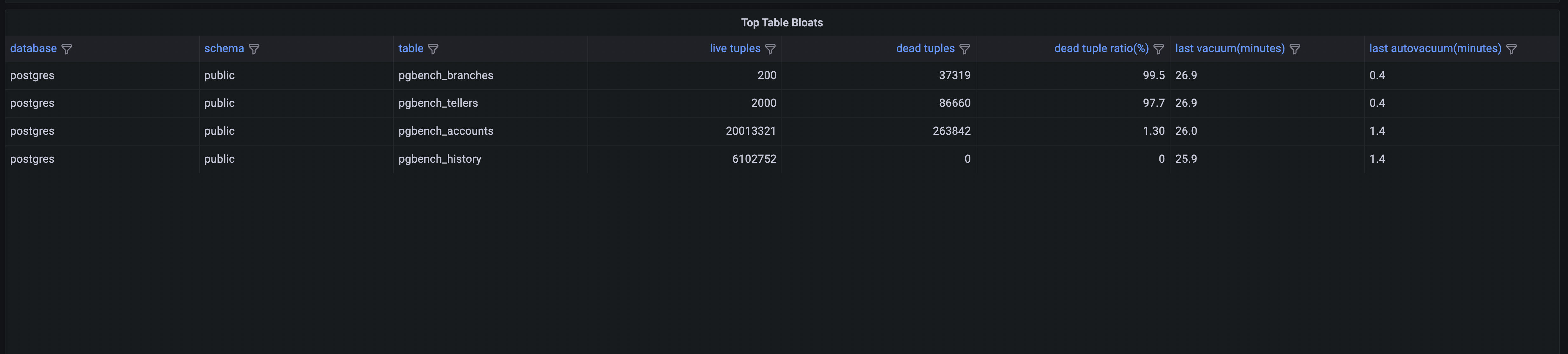
The Grafana dashboard provides four diagnostic views:
| View | When to use it |
|---|---|
| Average Active Sessions trend | Correlate database load with resource consumption to find performance bottlenecks. The chart shows event-level detail—for example, the following chart identifies a disconnection at 20:09:22. |
| Memory usage and memory context | Inspect per-statement memory allocation to diagnose memory pressure on specific SQL statements. |
| Top SQL statements and top tables | Identify the heaviest resource consumers across the cluster. |
| Top indexes | Identify the most-accessed indexes to diagnose index-level performance issues. |

Before you begin
Confirm the following before you enable global AWR:
| Requirement | Details |
|---|---|
| Kernel version | PolarDB for PostgreSQL kernel version 20211231 or later |
| Permissions | Control and data permissions for global AWR are PUBLIC |
| Time zone | The cluster default time zone is UTC. Account for the time difference when you interpret performance data. |
To check your kernel version, run:
show polar_release_date;Expected output:
 polar_release_date
--------------------
 20211231
(1 row)
Enable local storage for global AWR data
Local storage lets global AWR generate fine-grained performance reports continuously, without requiring periodic snapshot triggers.
Enabling local storage adds overhead to your cluster. Evaluate the following before proceeding:
Performance overhead: Overall performance loss is within 10%.
Storage overhead: Data is retained for 3 days by default. The most fine-grained data for 3 days must be less than 10 GB.
Run all statements in the postgres database.
Enable local storage:
SELECT polar_gawr_collection.enable_store_in_localdb();Expected output:
 enable_store_in_localdb
-------------------------

(1 row)
Disable local storage:
SELECT polar_gawr_collection.disable_store_in_localdb();Expected output:
 disable_store_in_localdb
--------------------------

(1 row)
Check whether local storage is enabled:
SELECT polar_gawr_collection.show_store_in_localdb();Expected output (t = enabled):
 show_store_in_localdb
-----------------------
 t
(1 row)
Set up Grafana
Install Grafana
Download and install Grafana 8.1.2 or later from the Grafana download page.
Add a data source
Start Grafana. In the left-side navigation pane, choose Configuration > Data sources.
On the Data sources tab, click Add data source in the upper-right corner.
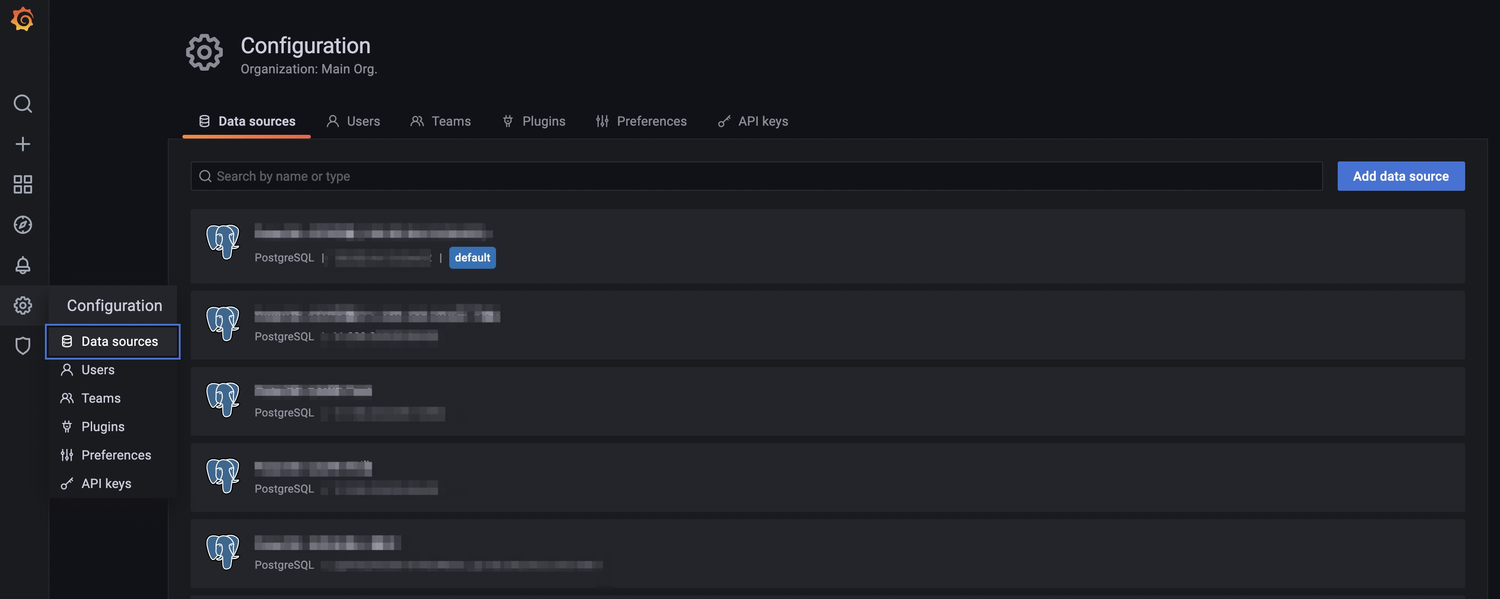
Enter the connection information for the cluster.
In the Database field, enter
postgres.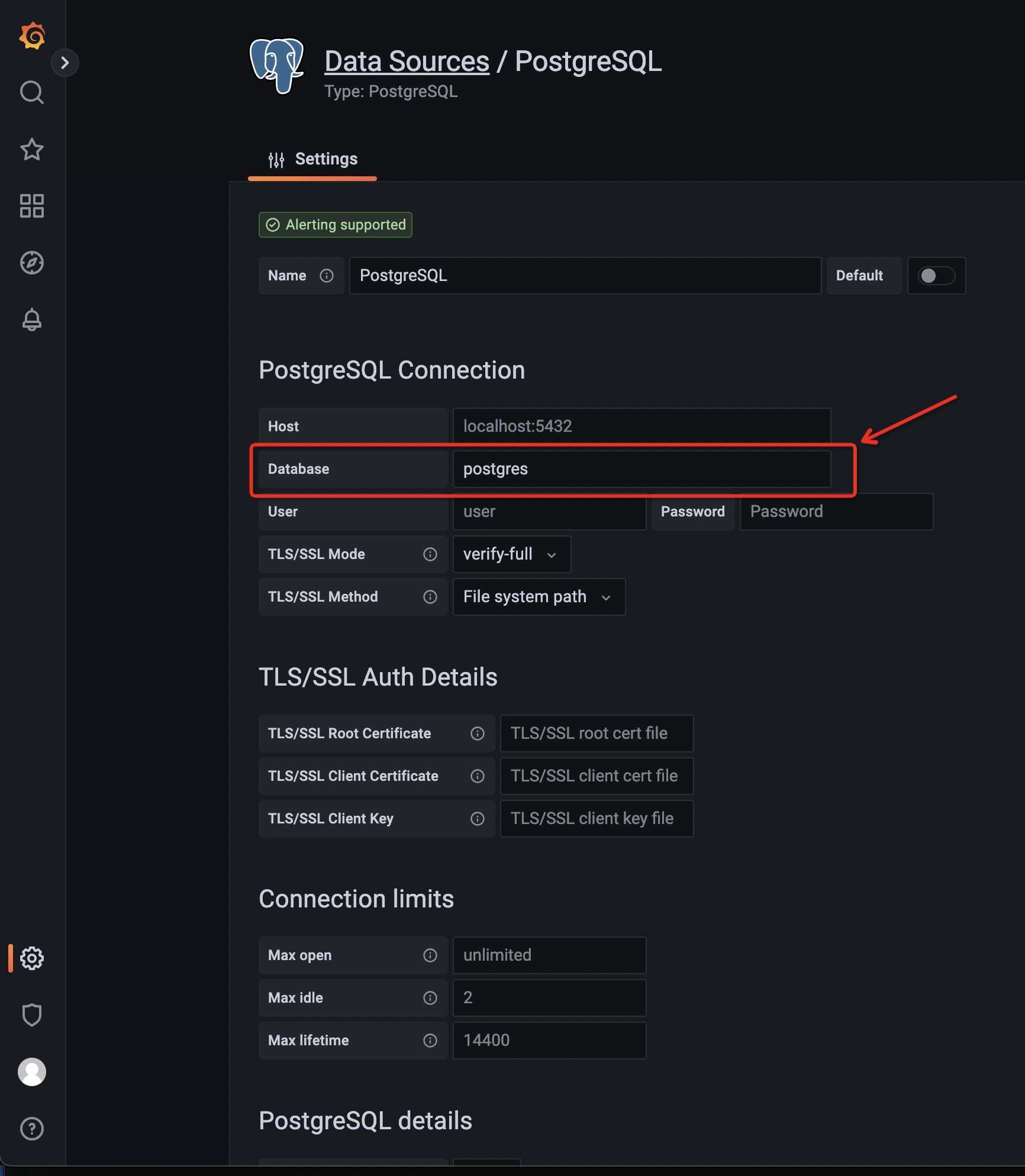
Import the dashboard configuration file
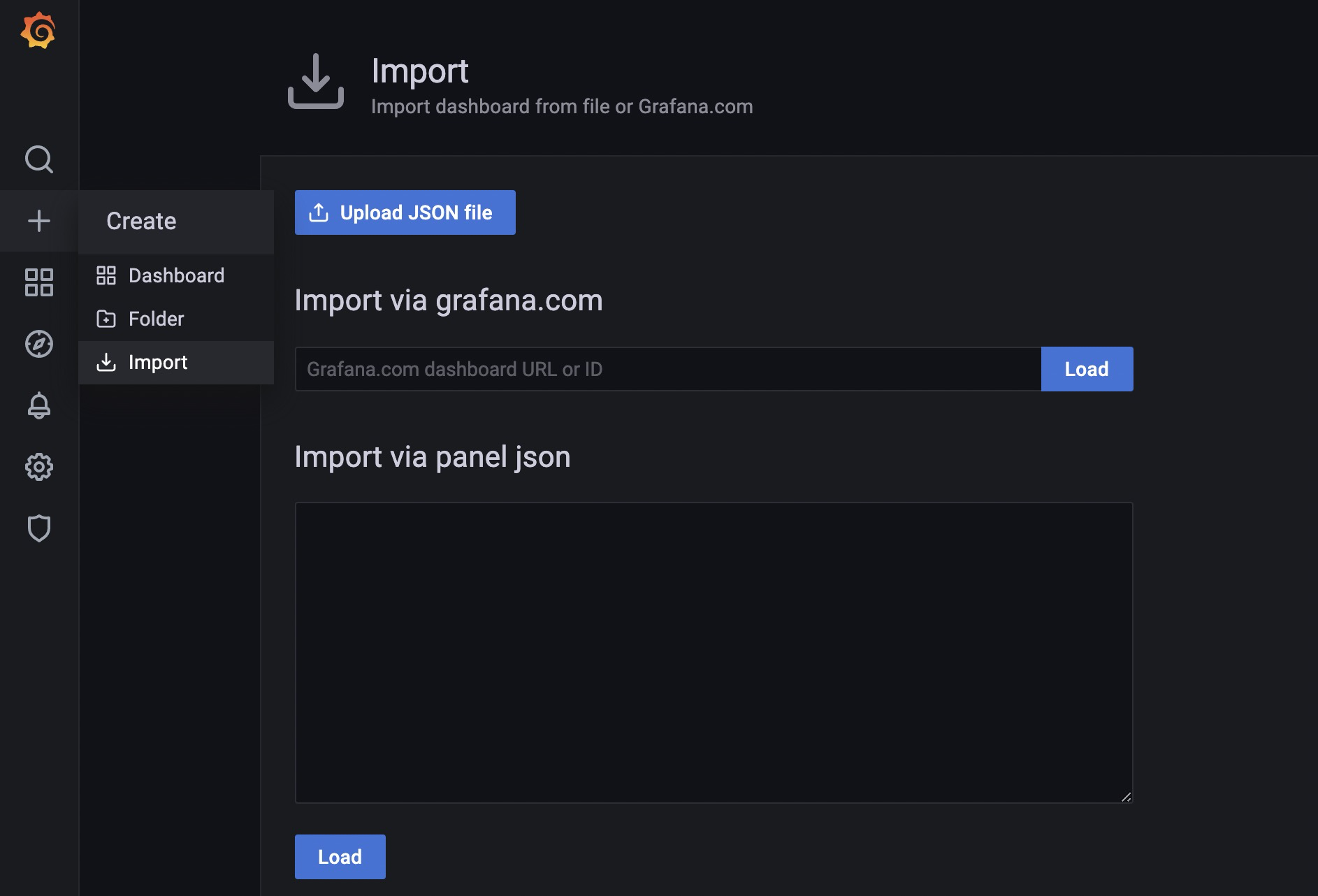
In the left-side navigation pane, choose + > Import.
On the Import page, click Upload JSON file and select the dashboard configuration file.
Download the dashboard configuration file from PolarDB Global AWR-1712645731515.json. Decompress the file before importing.