Database and table restoration lets you recover specific databases or tables in a PolarDB cluster without touching the rest of your data. For example, a database administrator at a gaming company can use this feature to restore data for a single player or a group of players. This topic covers one of two available methods: restore from a backup set.
To restore data to a point in time instead, see .
How it works
Restoring from a backup set creates new databases or tables in the cluster — it does not overwrite or modify any existing data. Specify a new database or table name during the process to store the recovered data separately.
For example, restore backup data from db1 into a new database named db2. After verifying the restored data, migrate what you need back to the original database.
The restoration runs without interrupting cluster access. Expect increased CPU utilization and IOPS during the process.
Limitations
If the cluster has no read-only nodes and contains more than 50,000 tables, this feature is unavailable. To restore data in this case, restore the entire cluster to a new cluster and then migrate the data. See Restoration method 1 and .
In-Memory Column Indexes (IMCIs) cannot be restored using this feature.
Triggers in a table cannot be restored.
Foreign keys in a table cannot be restored.
Usage notes
Only level-1 backup sets are supported as the restoration source.
Only the tables you select are restored. Select all tables you need before starting.
If a destination database or table name already exists in the cluster, the task fails. Use a unique name.
For partial database restoration, up to 100 tables can be restored at a time. Restoring a large number of tables in a single task takes significantly longer — split into smaller batches or use a full cluster restore instead.
For full database restoration, all tables in the database are restored.
Clusters with more than 50,000 tables (including system tables): This feature is available in canary release. To enable it, contact us. To check your table counts:
-- Total table count, including system tables
SELECT COUNT(*) FROM information_schema.tables;

-- System table count only
SELECT COUNT(*) FROM pg_class WHERE oid < 16384 AND relkind = 'r';
Restore databases or tables from a backup set
Log on to the PolarDB console. In the left-side navigation pane, click Clusters. In the upper-left corner, select the region of the cluster. In the cluster list, click the cluster ID to go to its Basic Information page.
In the left-side navigation pane, choose Settings and Management > Backup and Restoration.
On the Backup and Restoration page, click Restore Databases/Tables.
In the dialog box, set Restoration Type to Backup Set and select the backup set to restore from.

In the Databases and Tables to Restore section, select the database on the left, then select the specific tables to restore on the right.
If no destination name is specified, the system appends
_backupto the original name automatically. For example, a table namedtestbecomestest_backup. If no tables are selected after choosing a database, all tables in that database are restored.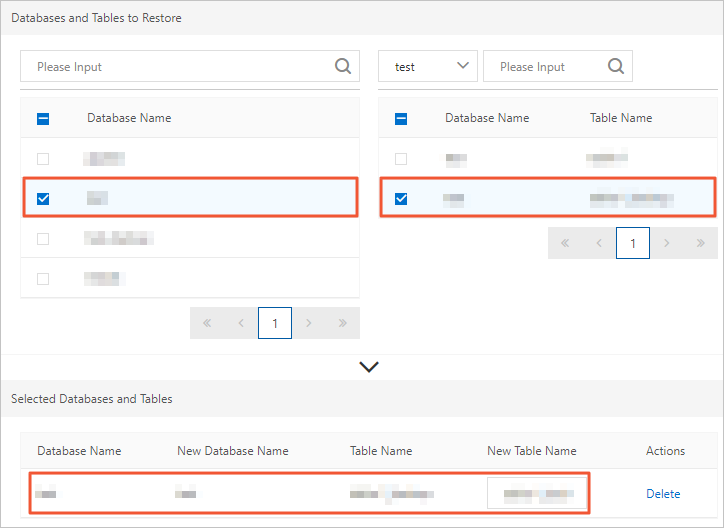
Click OK. The cluster enters the Restoring from Backup state. The cluster remains accessible, but CPU usage and IOPS may increase during restoration.
API reference
Operation | Description |
Queries the metadata of databases or tables that can be restored | |
Restores the databases or tables of a PolarDB cluster |