PolarSearch is a distributed search service provided by PolarDB that supports full-text search and vector search. Built on OpenSearch and compatible with the Elasticsearch ecosystem, PolarSearch is tightly integrated with PolarDB to meet your one-stop data retrieval needs.
This guide assumes familiarity with Elasticsearch or OpenSearch. For more information, see OpenSearch Documentation.
Applicable scope
Cluster requirements
Product edition: Enterprise Edition.
Database engine:
PostgreSQL 18 (minor version 2.0.18.3.2.0 or later)
PostgreSQL 17 (minor version 2.0.17.9.6.0 or later)
PostgreSQL 16 (minor version 2.0.16.11.15.0 or later)
PostgreSQL 15 (minor version 2.0.15.17.8.0 or later)
PostgreSQL 14 (minor version 2.0.14.22.43.0 or later)
PolarSearch is not supported for Serverless clusters. For more information, see Serverless.
Supported regions and zones
PolarSearch is available in the following zones:
Region | Zone |
China (Hangzhou) | Zone K, Zone J |
China (Shanghai) | Zone E, Zone F, Zone L, Zone N |
China (Shenzhen) | Zone C, Zone D, Zone F |
China (Beijing) | Zone F, Zone L, Zone I |
China (Hong Kong) | Zone B, Zone D |
Singapore | Zone B |
To request support for additional zones, submit a ticket.
Billing
PolarSearch uses dedicated search nodes to provide search capabilities, and charges apply. Search nodes are billed at the same rate as regular compute nodes. Indexes and data stored on search nodes also consume storage space and incur billing rules.
Add PolarSearch search nodes
To add search nodes to an existing cluster that meets the Applicable scope:
Log on to the PolarDB console, click Clusters in the navigation pane on the left, select the Region where the cluster is deployed, and then find the target cluster.
Click the cluster ID to go to the Basic Information page.
In the Database Nodes section, click Add/Remove Node.

In the Add/Remove Node dialog box, select to add search nodes.
Create search node accounts
Set up the admin account
The account you add is a standard database account.
This standard database account serves as the admin account for PolarSearch.
Log on to the PolarDB console, click Clusters in the navigation pane on the left, select the Region where the cluster is deployed, and then find the target cluster.
Click the cluster ID to go to the Basic Information page.
In the Database Nodes section, hover over Search Node and click Set Database Account.
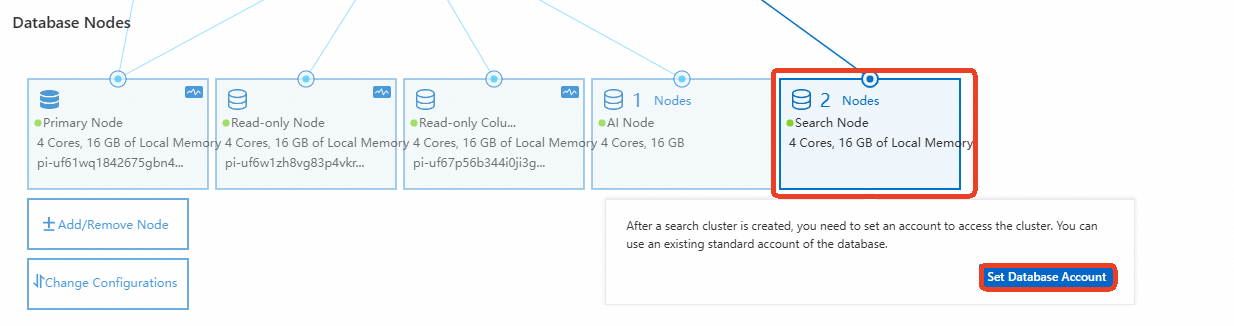
In the dialog box, select an existing standard database account or create a new one, and then enter the account password.
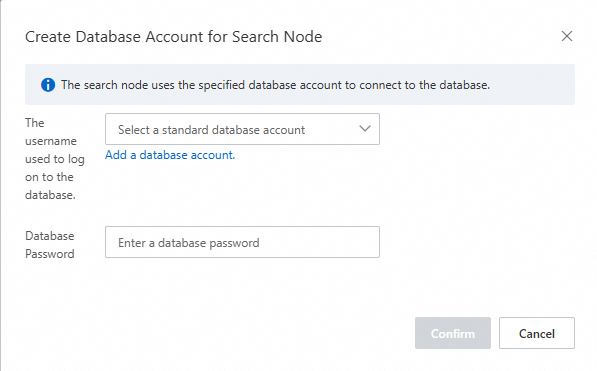 Important
The database account name must not be a case-insensitive substring of the password. For example, if the account name is
search_test, the password cannot beSEARCH_test@123, but can beSEARCHtest@123orSEARCH@_test.
Set up standard accounts
Standard accounts allow you to control index-level access. You can configure account permissions in two ways: through the Dashboard UI or through the REST API.
Dashboard
The account must have the security_rest_api_access role. Otherwise, the Security page is not displayed.
Create a user:
In the left navigation pane, go to , select Internal users, and click Create internal user.

Enter the username and password. For example, create a user named
testuserwith the passwordUSER@test123, and then click Create.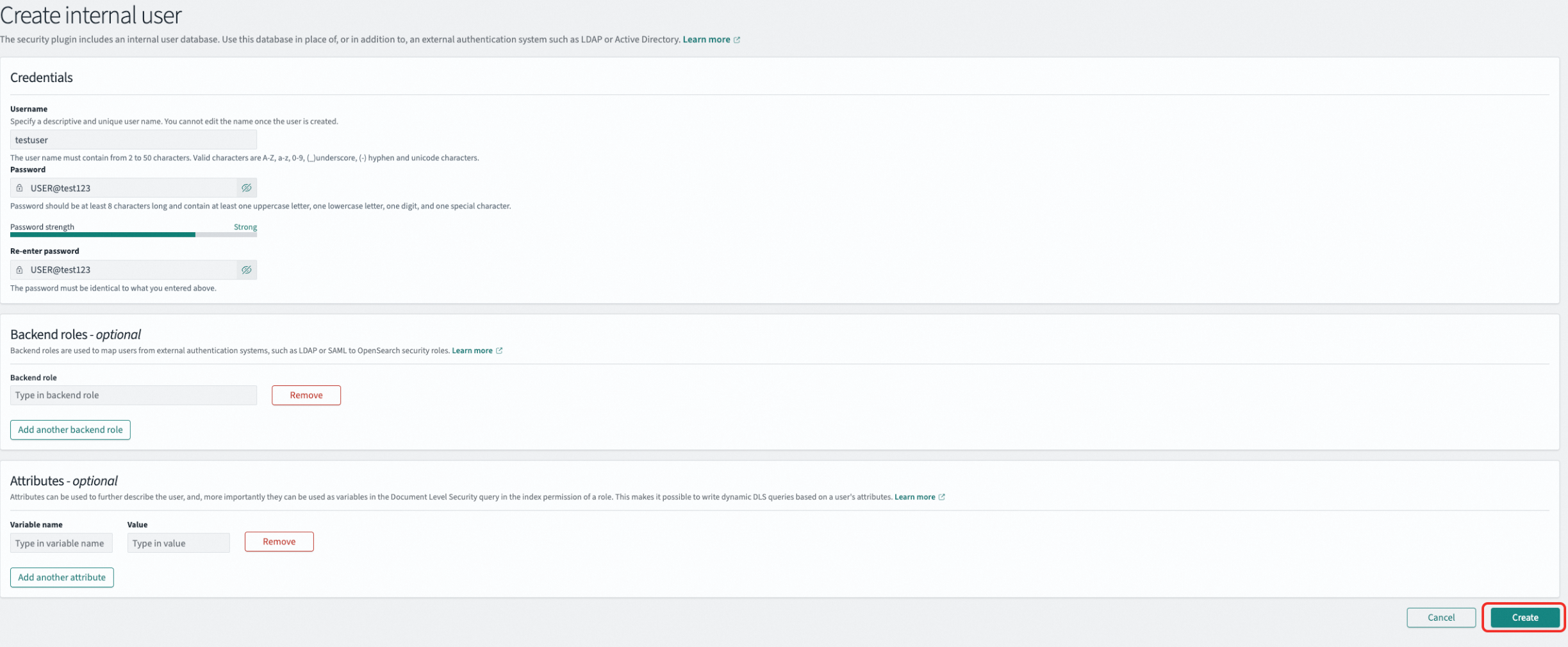
Create a role
In the left navigation pane, go to , select Roles, and click Create role.

Role permissions include cluster permissions and index permissions. You can add permissions through action groups. In the Index field, specify the index name or use the
*wildcard to match a group of indexes. In Index permissions, select the required permissions, such as read-only or read-write.Example: Create a role named
onlyreadrolethat has full cluster permissions (unlimited) and read-only access to all indexes prefixed withindextest.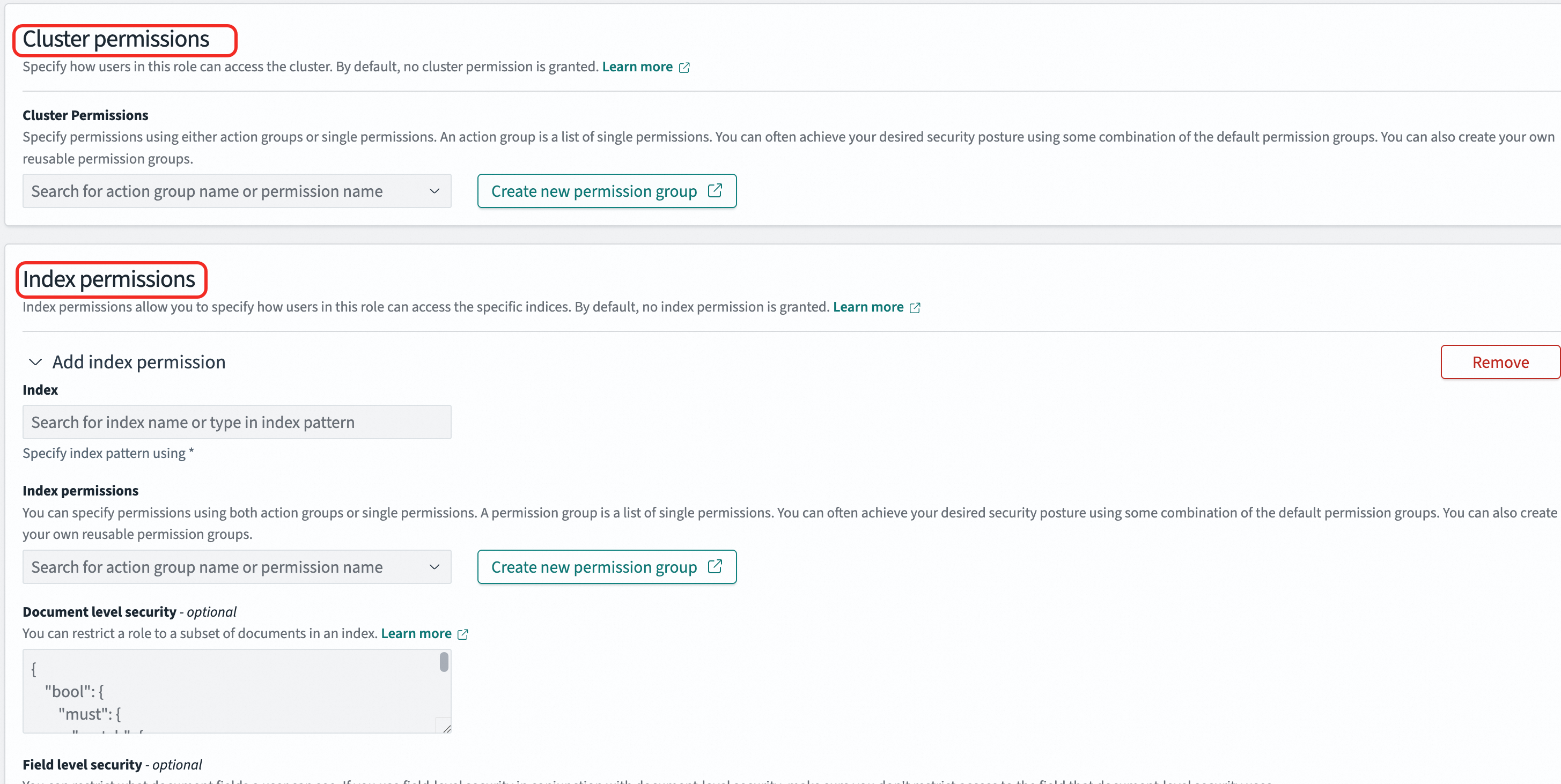
Map the role to a user
In the left navigation pane, go to , select Roles, and click the target role.
On the Mapped users tab, add the user mapping. A user can be mapped to multiple roles and inherits the permissions of all mapped roles.
Example: Map the
onlyreadrolerole to thetestuseruser. Thetestuseruser then inherits all permissions of theonlyreadrolerole.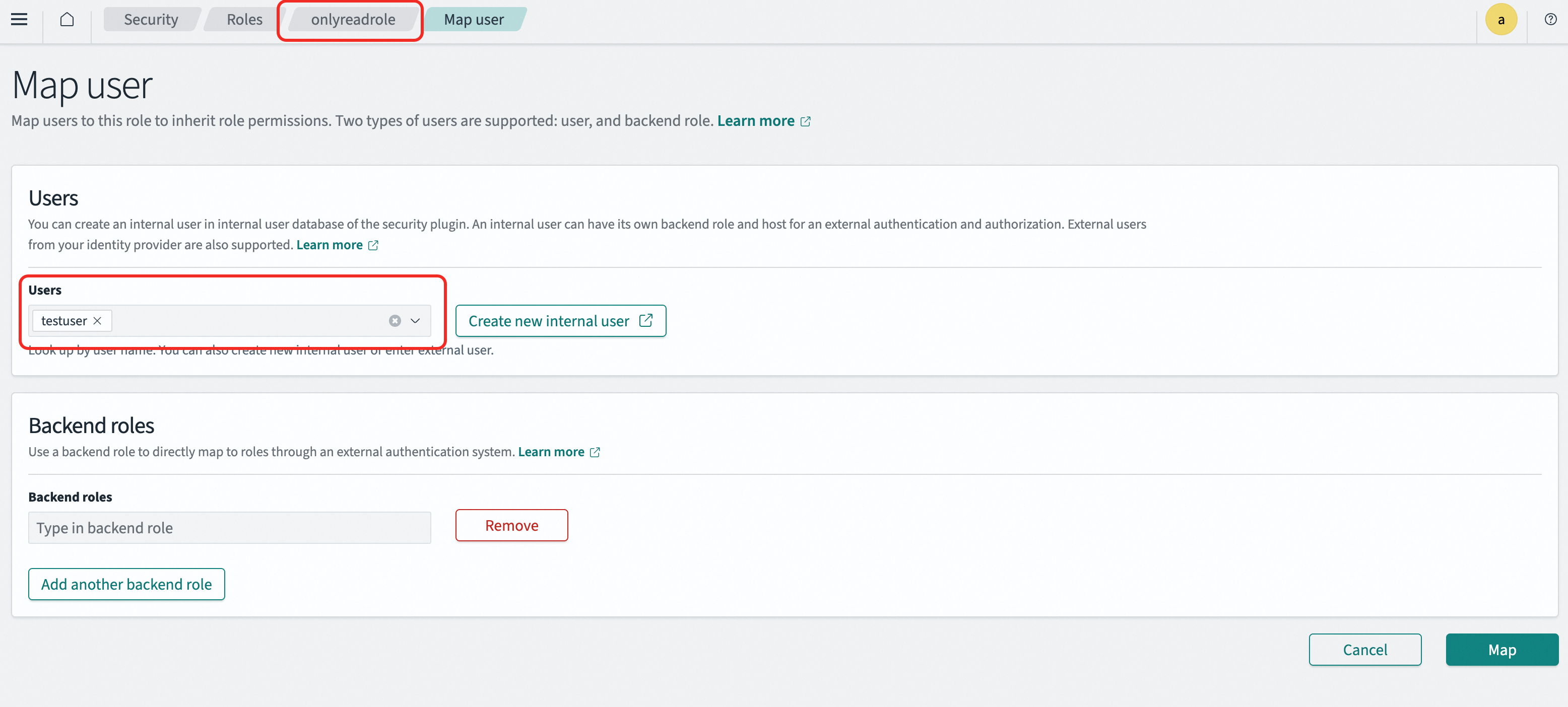
REST API
You can manage access control through the REST API. For more information, see OpenSearch API.
Create a user
curl -X PUT "http://<endpoint>:<port>/_plugins/_security/api/internalusers/<new_user>" \
  --user "<user_name>:<passwd>" \
  -H "Content-Type: application/json" \
  -d '{
    "password": "<new_password>",
    "backend_roles": [],
    "attributes": {}
  }'
Example: Create a user named
testuserwith the passwordUSER@test123.curl -X PUT "http://<endpoint>:<port>/_plugins/_security/api/internalusers/testuser" \ --user "<user_name>:<passwd>" \ -H "Content-Type: application/json" \ -d '{ "password": "USER@test123", "backend_roles": [], "attributes": {} }'Create a role
curl -X PUT "http://<endpoint>:<port>/_plugins/_security/api/roles/<role_name>" \ --user "<user_name>:<passwd>" \ -H "Content-Type: application/json" \ -d '{ "cluster_permissions": ["*"], "index_permissions": [ { "index_patterns": ["*"], "allowed_actions": ["*"] } ] }'index_patterns: The index name pattern. Use the*wildcard to match multiple indexes.allowed_actions: The permissions to grant, such asreadorwrite.
Example: Create a role named
onlyreadrolethat has full cluster permissions and read-only access to all indexes prefixed withindextest.curl -X PUT "http://<endpoint>:<port>/_plugins/_security/api/roles/onlyreadrole" \ --user "<user_name>:<passwd>" \ -H "Content-Type: application/json" \ -d '{ "cluster_permissions": ["*"], "index_permissions": [ { "index_patterns": ["indextest*"], "allowed_actions": ["read"] } ] }'Map a role
curl -X PUT "http://<endpoint>:<port>/_plugins/_security/api/rolesmapping/<role_name>" \
  --user "<user_name>:<passwd>" \
  -H "Content-Type: application/json" \
  -d '{
    "backend_roles": [],
    "hosts": [],
    "users": ["<new_user>"]
  }'
Example: Map the
onlyreadrolerole to thetestuseruser. Thetestuseruser then inherits the permissions of theonlyreadrolerole.curl -X PUT "http://<endpoint>:<port>/_plugins/_security/api/rolesmapping/onlyreadrole" \ --user "<user_name>:<passwd>" \ -H "Content-Type: application/json" \ -d '{ "backend_roles": [], "hosts": [], "users": ["testuser"] }'
Obtain connection endpoints
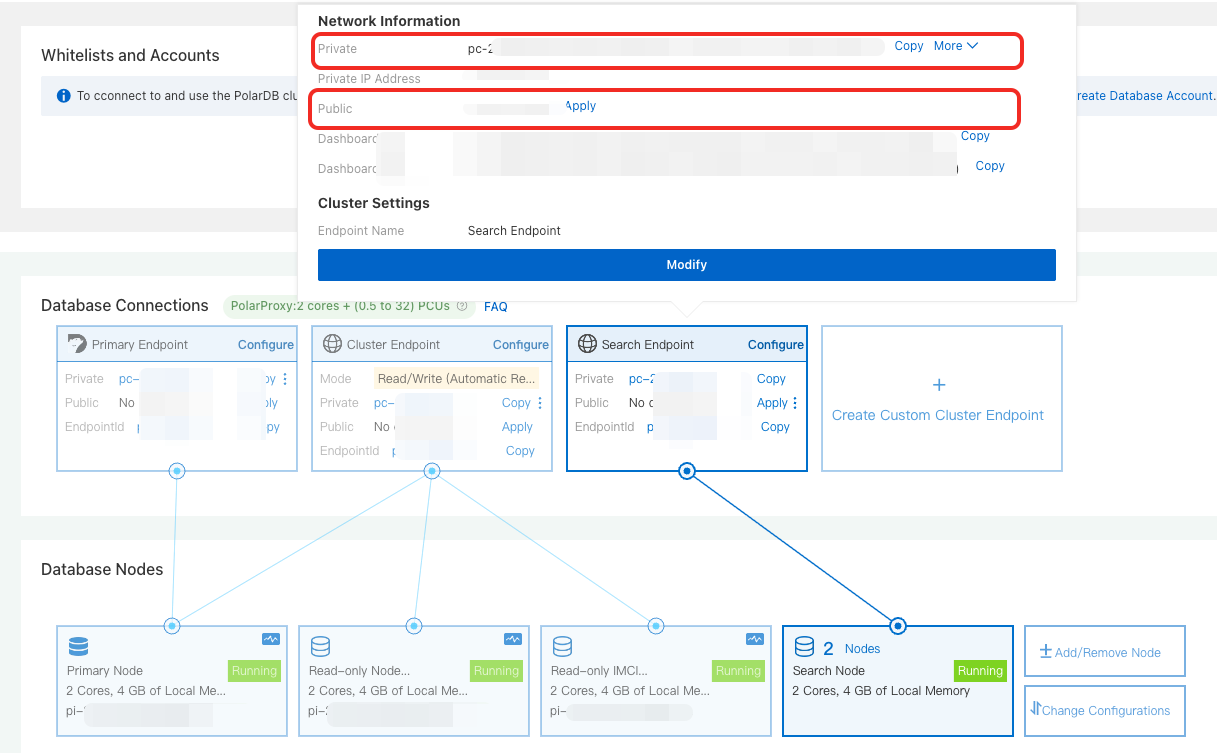
Search endpoint
In the Database Nodes section, hover over Search Node and copy the private or public endpoint based on your network environment.
Dashboard endpoint
In the Database Nodes section, hover over Search Node and copy the private or public Dashboard endpoint based on your network environment.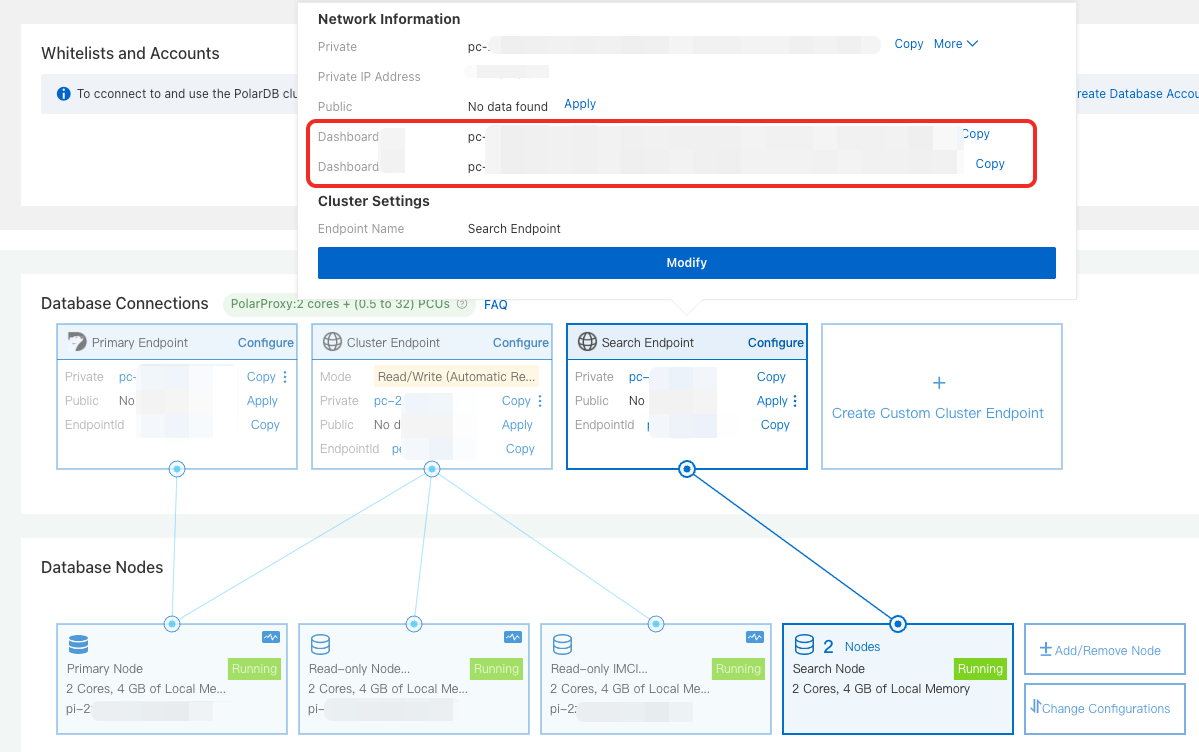
Log on to PolarSearch
Access through the search endpoint
To manage indexes and data through the API, access PolarSearch through the search endpoint. The following example uses an ECS instance:
Set whitelists for a cluster: Add the IP address of your ECS instance to the PolarDB for PostgreSQL cluster whitelist.
NoteIf the ECS instance and the PolarDB for PostgreSQL cluster are in the same virtual private cloud (VPC), use the private IP address of the ECS instance.
If the ECS instance and the PolarDB for PostgreSQL cluster are not in the same VPC, use the public IP address of the ECS instance.
Connect to PolarSearch: Run the following command. If the cluster information is returned, the cluster is available. Replace
<endpoint>:<port>with the PolarSearch Search endpoint, and replace<user_name>:<passwd>with the PolarSearch admin account.curl http://<endpoint>:<port>/ -u <user_name>:<passwd>
Access through the Dashboard
To manage PolarSearch through a graphical interface, access PolarSearch through the Dashboard. The following example uses a local browser:
Set whitelists for a cluster: Add the IP address of your local environment to the PolarDB for PostgreSQL cluster whitelist.
Log on to the PolarSearch Dashboard:
In the browser address bar, enter
http://<endpoint>:<port>and press Enter. Replace<endpoint>:<port>with the PolarSearch Dashboard public endpoint.On the logon page, enter the PolarSearch admin account credentials to log on to the Kibana-compatible PolarSearch Dashboard.
Examples
All examples in this section are run from an ECS instance through the command line.
PolarSearch is fully compatible with the OpenSearch 2.19.0 SDK and REST API. Other versions may have compatibility issues. For more information, see OpenSearch.
Create an index
An index in PolarSearch is equivalent to a table in a relational database. You can create an index through the Elasticsearch-compatible REST API or directly in the Dashboard. Example:
CLI
curl -XPUT "http://<endpoint>:<port>/articles" \
--user "<user_name>:<passwd>" \
-H 'Content-Type: application/json' \
-d '{
  "settings": {
    "number_of_shards": 1,
    "number_of_replicas": 1
  },
  "mappings": {
    "properties": {
      "title": {
        "type": "text"
      },
      "content": {
        "type": "text"
      },
      "author": {
        "type": "keyword"
      }
    }
  }
}'
Dashboard
PUT articles
{
  "settings": {
    "number_of_shards": 1,
    "number_of_replicas": 1
  },
  "mappings": {
    "properties": {
      "title": {
        "type": "text"
      },
      "content": {
        "type": "text"
      },
      "author": {
        "type": "keyword"
      }
    }
  }
}
Import data
CLI
curl -XPOST "http://<endpoint>:<port>/articles/_bulk" \
--user "<user_name>:<passwd>" \
-H 'Content-Type: application/json' \
-d '
{"index": {}}
{"title": "Introduction to PolarSearch", "content": "PolarSearch is a powerful search engine.", "author": "Allen"}
{"index": {}}
{"title": "Advanced Search Techniques", "content": "Learn how to use full-text search and filters in PolarDB.", "author": "Lang"}
{"index": {}}
{"title": "Elasticsearch vs PolarSearch", "content": "A comparison of Elasticsearch and PolarSearch features.", "author": "Zhao"}
'
Dashboard
POST articles/_bulk
{"index": {}}
{"title": "Introduction to PolarSearch", "content": "PolarSearch is a powerful search engine.", "author": "Allen"}
{"index": {}}
{"title": "Advanced Search Techniques", "content": "Learn how to use full-text search and filters in PolarDB.", "author": "Lang"}
{"index": {}}
{"title": "Elasticsearch vs PolarSearch", "content": "A comparison of Elasticsearch and PolarSearch features.", "author": "Zhao"}
Run a search query
After you import data, you can run full-text search queries through the SDK, REST API, or Dashboard. Example:
CLI
curl -XGET "http://<endpoint>:<port>/articles/_search" \
--user "<user_name>:<passwd>" \
-H 'Content-Type: application/json' \
-d '
{
  "query": {
    "match": {
      "content": "PolarSearch"
    }
  }
}'
Dashboard
GET articles/_search
{
  "query": {
    "match": {
      "content": "PolarSearch"
    }
  }
}For more search query syntax, see OpenSearch.
Create a vector index
CLI
curl -XPUT "http://<endpoint>:<port>/my-vector-index" \
--user "<user_name>:<passwd>" \
-H "Content-Type:application/json" \
-d '
{
  "settings": {
    "index": {
      "knn": true
    }
  },
  "mappings": {
    "properties": {
      "vector_field": {
        "type": "knn_vector",
        "dimension": 4
      },
      "metadata": {
        "type": "text"
      }
    }
  }
}
'
Dashboard
PUT my-vector-index
{
  "settings": {
    "index": {
      "knn": true
    }
  },
  "mappings": {
    "properties": {
      "vector_field": {
        "type": "knn_vector",
        "dimension": 4
      },
      "metadata": {
        "type": "text"
      }
    }
  }
}
Insert vector data
CLI
curl -XPOST "http://<endpoint>:<port>/my-vector-index/_bulk" \
--user "<user_name>:<passwd>" \
-H "Content-Type:application/json" \
-d '
{"index": {}}
{"vector_field": [0.1, 0.5, -0.3, 0.8], "metadata": "Document 1"}
{"index": {}}
{"vector_field": [-0.2, 0.7, 0.4, -0.1], "metadata": "Document 2"}
'
Dashboard
POST my-vector-index/_bulk
{"index": {}}
{"vector_field": [0.1, 0.5, -0.3, 0.8], "metadata": "Document 1"}
{"index": {}}
{"vector_field": [-0.2, 0.7, 0.4, -0.1], "metadata": "Document 2"}
Run a vector search
CLI
curl -XGET "http://<endpoint>:<port>/my-vector-index/_search" \
--user "<user_name>:<passwd>" \
-H "Content-Type:application/json" \
-d '
{
  "size": 2,
  "query": {
    "knn": {
      "vector_field": {
        "vector": [0.1, 0.5, -0.3, 0.8],
        "k": 2
      }
    }
  }
}
'
Dashboard
GET my-vector-index/_search
{
  "size": 2,
  "query": {
    "knn": {
      "vector_field": {
        "vector": [0.1, 0.5, -0.3, 0.8],
        "k": 2
      }
    }
  }
}