The always-confidential database feature encrypts sensitive columns so that only clients with the correct master encryption key (MEK) can read plaintext values. This page shows how to connect from three client types—EncJDBC, EncDB SDK, and psql—and query encrypted data.
Prerequisites
Before you begin, make sure that you have:
Enabled the always-confidential database feature on your cluster. See Enable the always-confidential database feature.
Defined which columns are sensitive. See Define sensitive data.
The cluster connection details: hostname, port, database name, username, and password. See View or apply for an endpoint.
A Java development environment (Java 1.8 or later, Maven 3.9.2, and IntelliJ IDEA Community Edition 2022.3.2 or equivalent).
Usage notes
Store your MEK securely. The always-confidential database feature does not generate, store, or back up your MEK. If you lose your MEK, you can no longer access the existing encrypted data. Back up your MEK to a secure location before you start.
Choose a client
| Client | Code changes required | When to use |
|---|---|---|
| EncJDBC (recommended) | None — drop-in driver replacement | Java applications that should work transparently without modifying business logic |
| EncDB SDK | Yes — call cryptor.encrypt() / cryptor.decryptXXX() explicitly | Applications that need fine-grained control over per-column encryption |
| psql | None | Ad-hoc queries; returns ciphertext for encrypted columns |
| DMS console | None | Browser-based queries; returns ciphertext for encrypted columns |
EncJDBC
EncJDBC is a drop-in replacement for the standard PostgreSQL JDBC driver. It automatically detects encrypted column types and handles encryption and decryption transparently—your business code requires no changes beyond the driver class and the connection URL.
Step 1: Download and install the driver
EncJDBC depends on the community PostgreSQL JDBC driver.
| PolarDB for PostgreSQL version | EncDB version on cluster | Client dependency package |
|---|---|---|
| 14: 20231030 (14.9.14.0) or later | 1.1.13 | encjdbc-1.0.6.jar |
Install the JAR to your local Maven repository:
mvn install:install-file \
  -DgroupId=com.alibaba.encdb \
  -DartifactId=encjdbc \
  -Dversion=1.0.6 \
  -Dpackaging=jar \
  -Dfile=<path-to-encjdbc-1.0.6.jar>
Maven 3.9.2 is required. If you use an earlier version, upgrade Maven before running this command.
Step 2: Add Maven dependencies
Add the following to the <dependencies> section of your pom.xml:
<dependency>
  <groupId>com.alibaba.encdb</groupId>
  <artifactId>encjdbc</artifactId>
  <version>1.0.6</version>
</dependency>
<!-- Bouncy Castle crypto provider -->
<dependency>
  <groupId>org.bouncycastle</groupId>
  <artifactId>bcprov-jdk15on</artifactId>
  <version>1.62</version>
</dependency>
<dependency>
  <groupId>org.bouncycastle</groupId>
  <artifactId>bcpkix-jdk15on</artifactId>
  <version>1.62</version>
</dependency>
<dependency>
  <groupId>com.alibaba.fastjson2</groupId>
  <artifactId>fastjson2</artifactId>
  <version>2.0.2</version>
</dependency>
<dependency>
  <groupId>org.postgresql</groupId>
  <artifactId>postgresql</artifactId>
  <version>42.2.23</version>
</dependency>
<dependency>
  <groupId>com.google.guava</groupId>
  <artifactId>guava</artifactId>
  <version>24.1.1-jre</version>
</dependency>
<dependency>
  <groupId>com.alibaba</groupId>
  <artifactId>druid</artifactId>
  <version>1.2.4</version>
</dependency>
<!-- jgrapht 1.4.0: versions 1.5.0+ drop Java 1.8 support -->
<dependency>
  <groupId>org.jgrapht</groupId>
  <artifactId>jgrapht-core</artifactId>
  <version>1.4.0</version>
</dependency>
Step 3: Connect and query
The sample code below is for demonstration only. Do not hardcode password or mek values in production code. Load them from environment variables or an external configuration file instead.
The connection URL uses the encjdbc:postgresql:// scheme and carries encryption parameters as query string fields:
String dbUrl = String.format(
    "encjdbc:postgresql://%s:%s/%s?mek=%s&enc_algo=%s",
    hostname, port, dbname, mek, encAlgo
);
Class.forName("com.alibaba.encdb.encjdbc.EncDriver");
Connection dbConnection = DriverManager.getConnection(dbUrl, username, password);Complete example
// Load credentials from environment variables in production code.
String hostname = "hostname";
String port     = "port";
String dbname   = "db";
String username = "user";
String password = "password";

// Example MEK — use a stronger, randomly generated value in production.
String mek     = "00112233445566778899aabbccddeeff";
String encAlgo = "SM4_128_CBC";

String dbUrl = String.format(
    "encjdbc:postgresql://%s:%s/%s?mek=%s&enc_algo=%s",
    hostname, port, dbname, mek, encAlgo
);
Class.forName("com.alibaba.encdb.encjdbc.EncDriver");
Connection dbConnection = DriverManager.getConnection(dbUrl, username, password);

// Create table
dbConnection.createStatement().executeUpdate("DROP TABLE IF EXISTS example");
dbConnection.createStatement().executeUpdate(
    "CREATE TABLE example " +
    "(id INTEGER, name VARCHAR, price enc_int4, miles enc_float4, secret enc_text, PRIMARY KEY (id))"
);

// Insert encrypted data — EncJDBC encrypts automatically
PreparedStatement stmt = dbConnection.prepareStatement(
    "INSERT INTO example (id, name, price, miles, secret) VALUES(?,?,?,?,?)"
);
int    price  = 1234;
float  miles  = 12.34f;
String secret = "aliyun";
stmt.setInt(1, 1);
stmt.setString(2, "name");
stmt.setInt(3, price);
stmt.setFloat(4, miles);
stmt.setString(5, secret);
stmt.execute();

// Query — EncJDBC decrypts automatically; the result set contains plaintext values
String sqlCmd = "SELECT * FROM example WHERE price > ?";
PreparedStatement query = dbConnection.prepareStatement(sqlCmd);
query.setInt(1, 100);
ResultSet rs = query.executeQuery();
while (rs.next()) {
    int    id     = rs.getInt(1);
    String name   = rs.getString(2);
    int    priceV = rs.getInt(3);
    float  milesV = rs.getFloat(4);
    String secretV = rs.getString(5);
    System.out.println(id + ", " + name + ", " + priceV + ", " + milesV + ", " + secretV);
}
Expected output:
1, name, 1234, 12.34, aliyunOnly the driver class and the URL scheme differ from standard JDBC. All other database operations—inserts, queries, prepared statements—work identically to a plain JDBC program.
EncDB SDK
EncDB SDK gives you explicit control over encryption and decryption. Use this approach when your application needs to manage ciphertext directly, for example when processing data outside of standard SQL queries.
Step 1: Download and install the SDK
| PolarDB for PostgreSQL version | EncDB version on cluster | Client dependency package |
|---|---|---|
| 14: 20231030 (14.9.14.0) or later | 1.1.13 | libencdb-1.2.12.jar |
Install the JAR to your local Maven repository:
mvn install:install-file \
  -DgroupId=com.alibaba.encdb \
  -DartifactId=libencdb \
  -Dversion=1.2.12 \
  -Dpackaging=jar \
  -Dfile=<path-to-libencdb-1.2.12.jar>
Maven 3.9.2 is required. If you use an earlier version, upgrade Maven before running this command.
Step 2: Add Maven dependencies
<dependency>
  <groupId>com.alibaba.encdb</groupId>
  <artifactId>libencdb</artifactId>
  <version>1.2.12</version>
</dependency>
<dependency>
  <groupId>org.bouncycastle</groupId>
  <artifactId>bcprov-jdk15on</artifactId>
  <version>1.70</version>
</dependency>
<dependency>
  <groupId>org.bouncycastle</groupId>
  <artifactId>bcpkix-jdk15on</artifactId>
  <version>1.70</version>
</dependency>
<dependency>
  <groupId>com.google.code.gson</groupId>
  <artifactId>gson</artifactId>
  <version>2.10.1</version>
</dependency>
<dependency>
  <groupId>org.postgresql</groupId>
  <artifactId>postgresql</artifactId>
  <version>42.2.23</version>
</dependency>
<dependency>
  <groupId>com.google.guava</groupId>
  <artifactId>guava</artifactId>
  <version>31.1-jre</version>
</dependency>
Step 3: Initialize the SDK and query data
The sample code below is for demonstration only. Do not hardcode password or mek values in production code. Load them from environment variables or an external configuration file instead.
EncDB SDK uses a standard PostgreSQL JDBC connection with binaryTransfer=true. After connecting, initialize an EncdbSDK object with your MEK and encryption algorithm. In most cases, the only required settings are setMek and setEncAlgo; use the defaults for everything else.
The MEK and other security parameters are set on the client side and transmitted to the server using envelope encryption, keeping the MEK value confidential in transit.
Complete example
// Load credentials from environment variables in production code.
String hostname = "hostname";
String port     = "port";
String dbname   = "db";
String username = "user";
String password = "password";

// Standard JDBC connection with binary transfer enabled for encrypted column types
String dbUrl = String.format(
    "jdbc:postgresql://%s:%s/%s?binaryTransfer=true",
    hostname, port, dbname
);
Class.forName("org.postgresql.Driver");
Connection dbConnection = DriverManager.getConnection(dbUrl, username, password);

// Initialize the SDK with your MEK and encryption algorithm
// Example MEK — use a stronger, randomly generated value in production.
String mek = "00112233445566778899aabbccddeeff";
Constants.EncAlgo encAlgo = Constants.EncAlgo.SM4_128_CBC;

EncdbSDK sdk = EncdbSDKBuilder.newInstance()
        .setDbConnection(dbConnection)
        .setMek(mek)
        .setEncAlgo(encAlgo)
        .build();
Cryptor cryptor = sdk.getCryptor();

// Create table
dbConnection.createStatement().executeUpdate("DROP TABLE IF EXISTS example");
dbConnection.createStatement().executeUpdate(
    "CREATE TABLE example " +
    "(id INTEGER, name VARCHAR, price enc_int4, miles enc_float4, secret enc_text, PRIMARY KEY (id))"
);

// Insert — encrypt each sensitive value explicitly before binding
PreparedStatement stmt = dbConnection.prepareStatement(
    "INSERT INTO example (id, name, price, miles, secret) VALUES(?,?,?,?,?)"
);
int    price  = 1234;
float  miles  = 12.34f;
String secret = "aliyun";
stmt.setInt(1, 1);
stmt.setString(2, "name");
stmt.setBytes(3, cryptor.encrypt("example", "price",  price));   // table name + column name
stmt.setBytes(4, cryptor.encrypt("example", "miles",  miles));
stmt.setBytes(5, cryptor.encrypt("example", "secret", secret));
stmt.execute();

// Query — decrypt each sensitive column explicitly after reading the raw bytes
String sqlCmd = "SELECT * FROM example WHERE price > ?";
PreparedStatement query = dbConnection.prepareStatement(sqlCmd);
query.setBytes(1, cryptor.encrypt("example", "price", 100));
ResultSet rs = query.executeQuery();
while (rs.next()) {
    int    id      = rs.getInt(1);
    String name    = rs.getString(2);
    int    priceV  = cryptor.decryptInt(rs.getBytes(3));
    float  milesV  = cryptor.decryptFloat(rs.getBytes(4));
    String secretV = cryptor.decryptString(rs.getBytes(5));
    System.out.println(id + ", " + name + ", " + priceV + ", " + milesV + ", " + secretV);
}
Expected output:
1, name, 1234, 12.34, aliyunPass the correct table name and column name to cryptor.encrypt(). If the names do not match the column definition, the SDK cannot look up the correct data encryption key (DEK) and the operation will fail.SDK API reference
psql
Connect to the cluster with psql as you normally would, then run your queries. Encrypted columns return ciphertext; plaintext columns return their values normally.
For example, running SELECT * FROM example; produces output similar to:
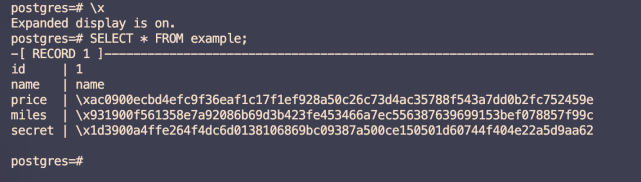
In this output, id and name are plaintext columns. price, miles, and secret are ciphertext columns—their encrypted values are visible on the cluster, but the underlying data remains protected at all times.
DMS console
Run queries in the Data Management (DMS) console the same way you would for any PolarDB for PostgreSQL cluster.

The behavior is the same as psql: id and name appear as plaintext, while price, miles, and secret appear as ciphertext.
FAQ
What does error `0xf7070000` mean when connecting?
This error code indicates that your MEK could not be imported. Data encrypted with one MEK cannot be accessed with a different MEK. If you connect to the same always-confidential database with the same account but different MEK values across sessions, this error occurs. Use the same MEK consistently across all connections to the same database.