Each PolarDB for MySQL cluster has a maximum storage capacity. As data, logs, and temporary files accumulate, storage can fill up — causing the cluster to enter a read-only state and disrupting your workload. This topic explains what consumes storage space, how to monitor usage, and how to free up space when needed.
Storage space composition

PolarDB for MySQL storage consists of four types of files:
Data files — Store your business data, including tables and indexes.
Log files — Include binary logs, redo logs, and undo logs. These can grow rapidly during large transactions or high-concurrency write operations.
Temporary files — Generated by operations such as sorting (
ORDER BY), grouping (GROUP BY), and join queries. Uncommitted large transactions also generate temporary binary log cache files.System files — Store core components required for database operation, such as the data dictionary, transaction information, and the doublewrite buffer. These are managed internally by the InnoDB engine and cannot be modified directly.
Binary logging is disabled by default for PolarDB for MySQL clusters. A more efficient physical log (redo log) is used instead. If binary logging is not enabled for your cluster, ignore binary log-related information in this topic.
View storage usage
Check your cluster's storage usage in either of these ways:
In the PolarDB console, go to the Basic Information page of your cluster and check the Distributed Storage area.

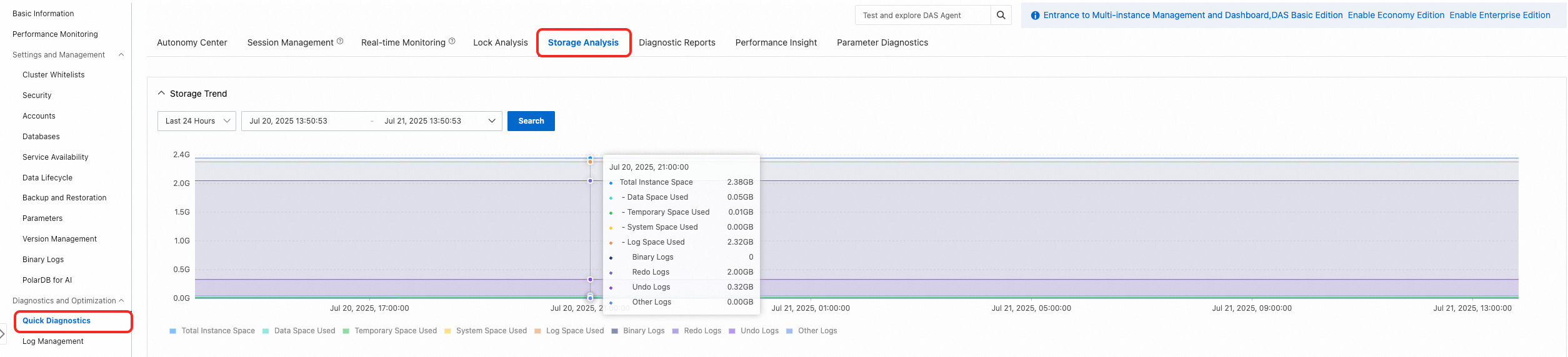
In the PolarDB console, go to Diagnostics and Optimization > Quick Diagnostics > Storage Analysis to view storage usage at a specific point in time.
Reclaim data file space
Over time, data fragmentation accumulates in PolarDB for MySQL tables. When you delete rows with DELETE, the database marks those positions as reusable but does not shrink the physical file. The space remains allocated until you explicitly reclaim it.
After reclaiming space, the console may take some time to reflect the updated usage.
Drop tables you no longer need
For tables that are no longer needed, run TRUNCATE TABLE or DROP TABLE to immediately release all occupied space.
Back up your data before running these commands.
Reclaim tablespace for tables you want to keep
For tables with significant fragmentation that you need to retain, run OPTIMIZE TABLE during off-peak hours. This command rebuilds the table, eliminates fragmentation, and reclaims free space. Alternatively, use Data Management (DMS), which supports rate limiting to reduce the impact on your workload (at the cost of slower execution).
Usage notes
Check the
DATA_FREEfield ininformation_schema.tablesbefore running the command. If the fragmentation rate is low,OPTIMIZE TABLEmay not meaningfully reduce tablespace size.During execution, table data is copied to a new temporary table, temporarily increasing total storage usage.
For tables without a full-text index,
OPTIMIZE TABLEruns as Online DDL and supports concurrent reads and writes.On large tables,
OPTIMIZE TABLEcauses a burst in I/O and buffer pool usage, which can lead to table locks and resource contention. Running this during peak hours risks cluster unavailability. Always run it during off-peak hours.
Choose a reclamation method
| Method | Concurrent reads/writes | Speed | Rate limiting | When to use |
|---|---|---|---|---|
OPTIMIZE TABLE command | Yes | Fast | No | Light workload; execution efficiency is the priority |
| Data Management (DMS) | Yes | Slow | Yes | Workload-sensitive environment; business impact must be minimized |
Reclaim tablespace using OPTIMIZE TABLE
OPTIMIZE TABLE [Database1].[Table1],[Database2].[Table2]Replace[Database1],[Database2]with your database names, and[Table1],[Table2]with your table names.
When runningOPTIMIZE TABLEon an InnoDB table, the messageTable does not support optimize, doing recreate + analyze insteadis returned. This is expected. Confirm thatokis returned before proceeding. For more information, see OPTIMIZE TABLE Statement.
Reclaim tablespace using DMS
In the PolarDB console, go to the Basic Information page of your cluster and click Log on to Database to connect to the cluster through DMS.
In the left pane, select the target cluster ID, double-click the destination database, right-click any table name, and select Batch Operations On Tables.
On the Batch Operations on Tables page, select the tables for which you want to release space, then click Table Maintenance > Optimize Table.
Clean up log files
Log files — binary logs, redo logs, and undo logs — can grow rapidly when processing large transactions, consuming or filling available storage. If your cluster's storage is filling up due to log accumulation, expand the storage capacity first, then investigate the root cause of log growth.
After cleaning up log files, the console may take some time to reflect the updated usage.
Binary logs
Binary logging is disabled by default. PolarDB for MySQL uses redo logs for data synchronization between the primary node and read-only nodes. If binary logging is not enabled on your cluster, refer to the redo log and undo log cleanup sections instead.
Data retention policy
Binary log files follow these retention rules:
When binary logging is enabled, files are retained for 3 days by default. Files older than 3 days are automatically deleted.
- For clusters purchased before November 23, 2023, the default retention period is 14 days. - For clusters purchased before January 17, 2024, the default retention period is 7 days.
When binary logging is disabled, existing binary log files are retained indefinitely and are not automatically deleted. To delete them, set the retention period parameter to a small value while binary logging is still enabled, wait for the expired files to be purged, then disable binary logging.
Modify the retention period
Modifying the binary log retention period does not cause transient connections or require a cluster restart.
If a large number of files will be purged (for example, 10 TB), a short-term write exception may occur during deletion. Shorten the retention period in multiple steps during off-peak hours to purge data in batches.
Purged binary log files cannot be recovered.
Set the retention period using the parameter that matches your MySQL version:
| MySQL version | Parameter | Unit | Range | Default | Value of 0 |
|---|---|---|---|---|---|
| MySQL 5.6 | loose_expire_logs_hours | Hours | 0–2376 | 72 | Disables automatic deletion |
| MySQL 5.7 or MySQL 8.0 | binlog_expire_logs_seconds | Seconds | 0–4,294,967,295 | 259,200 | Disables automatic deletion |
Purge historical files
After modifying the retention period parameter, historical files are not purged immediately. Use one of these methods to trigger purge:
| Method | How | Business impact |
|---|---|---|
| Wait for automatic purge | When the last binary log file reaches its maximum size (max_binlog_size), the system switches to a new file and automatically purges expired files. | None |
| Manual purge | Run flush binary logs using a privileged account to immediately trigger a log file switch and purge expired files. | None |
| Restart the cluster | After the cluster restarts, expired binary log files are automatically purged. | Causes a brief failover; connections are interrupted |
Undo logs
Undo logs serve as historical versions for multiversion concurrency control (MVCC). If a long-running uncommitted transaction on a read-only node or read/write node holds an old read view, the undo log cleanup process is blocked and space accumulates.
Identify and terminate uncommitted transactions
In the PolarDB console, go to the Basic Information page of your cluster and click Log on to Database to connect through DMS.
Run the following query to find long-running uncommitted transactions:
SELECT * FROM INFORMATION_SCHEMA.innodb_trx;Focus on transactions where
trx_startedis significantly old, or wheretrx_statehas beenRUNNINGfor a long time. Record thetrx_mysql_thread_idfor any such transactions.After confirming the transaction can be safely terminated, run:
kill [Thread ID];
Monitor cleanup progress
After terminating the blocking transaction, check whether the undo history length is decreasing.
Under high write pressure, PolarDB prioritizes current write performance, which may cause a lag in undo log cleanup.
Run the following query to observe the undo history length:
SELECT COUNT FROM INFORMATION_SCHEMA.innodb_metrics WHERE name = 'trx_rseg_history_len';If the value exceeds 1,000,000, or continues to rise under sustained write pressure, the cleanup speed cannot keep up with the write speed. To improve cleanup throughput:
Increase
innodb_purge_batch_sizeto process more records per cleanup cycle.Increase
innodb_purge_threadsto add more purge threads. Set this to the number of CPU cores in your cluster specification.Changing
innodb_purge_threadsrequires a cluster restart. Perform this during off-peak hours.
Reclaim occupied space
After the undo history length stabilizes, enable undo log truncation to release the occupied space:
Set
innodb_undo_log_truncatetoON.Truncation is triggered automatically when a single undo file exceeds
innodb_max_undo_log_size.
Some earlier minor versions have known bugs with undo log truncation. If modifying this parameter is not permitted on your cluster, upgrade to the latest minor version first.
Undo log truncation adds overhead during cluster switchovers and restarts. After space is reclaimed, set
innodb_undo_log_truncateback toOFF— especially before maintenance operations such as a minor version upgrade. Enable this feature only when needed.
Redo logs
PolarDB for MySQL uses redo logs instead of binary logs for data synchronization between the primary node and read-only nodes.
Local redo log space usage:
Excluding log backups — Local redo logs occupy 2 GB to 11 GB of storage: eight logs in the buffer pool (8 GB total), the log currently being written (1 GB), a pre-created log (1 GB), and the last log (1 GB).
Including log backups — Local redo logs are retained for approximately one hour after a backup completes. If the write speed exceeds 35 MB/s, temporary redo log accumulation may occur.
Cleanup rules
Redo logs do not support manual cleanup. They are automatically cleaned up after a log backup completes. Adjust the log backup policy in the PolarDB console as needed. The default log backup retention period is 7 days.
Clean up temporary files
Complex queries and large transactions generate temporary files. If temporary files fill the storage, you may see:
error: 1114 The table '/home/mysql/log/tmp/#sqlxxx_xxx_xxx' is fullHandle this with either of the following methods.
Terminate sessions generating temporary files
Terminate sessions with a state of Copy to tmp table or Sending data:
In the PolarDB console, go to the Basic Information page of your cluster and click Log on to Database to connect through DMS.
Run the following command to view session status:
SHOW PROCESSLIST;In the results, click the
Statecolumn to sort by state. Find sessions with a state ofCopy to tmp tableorSending data, and record the session ID.Terminate the target session:
ImportantConfirm the session is safe to terminate before running this command.
kill [Session ID];
If terminating sessions does not release enough space, restart each node in the cluster to release temporary file space.
Increase the temporary table size limit
In the PolarDB console, go to Settings and Management > Parameters and increase the values of tmp_table_size and max_heap_table_size. Larger limits reduce the likelihood of temporary files spilling to disk.