The media transcoding feature in PDS lets you preview audio and video files in the web interface. Call APIs or use SDKs to transcode media files with specified parameters and retrieve preview URLs. Before you use media transcoding, enable the service. The following sections explain the service and usage flow.
How it works
Usage flow
1. Enable the media transcoding service.
2. Upload audio or video files.
3. Get media transcoding information.
Transcoding behavior
Offline transcoding processes the entire file before returning a preview URL. Quick transcoding returns a playable result sooner by processing media in smaller units. For template selection rules and parameter details, see Reference information.
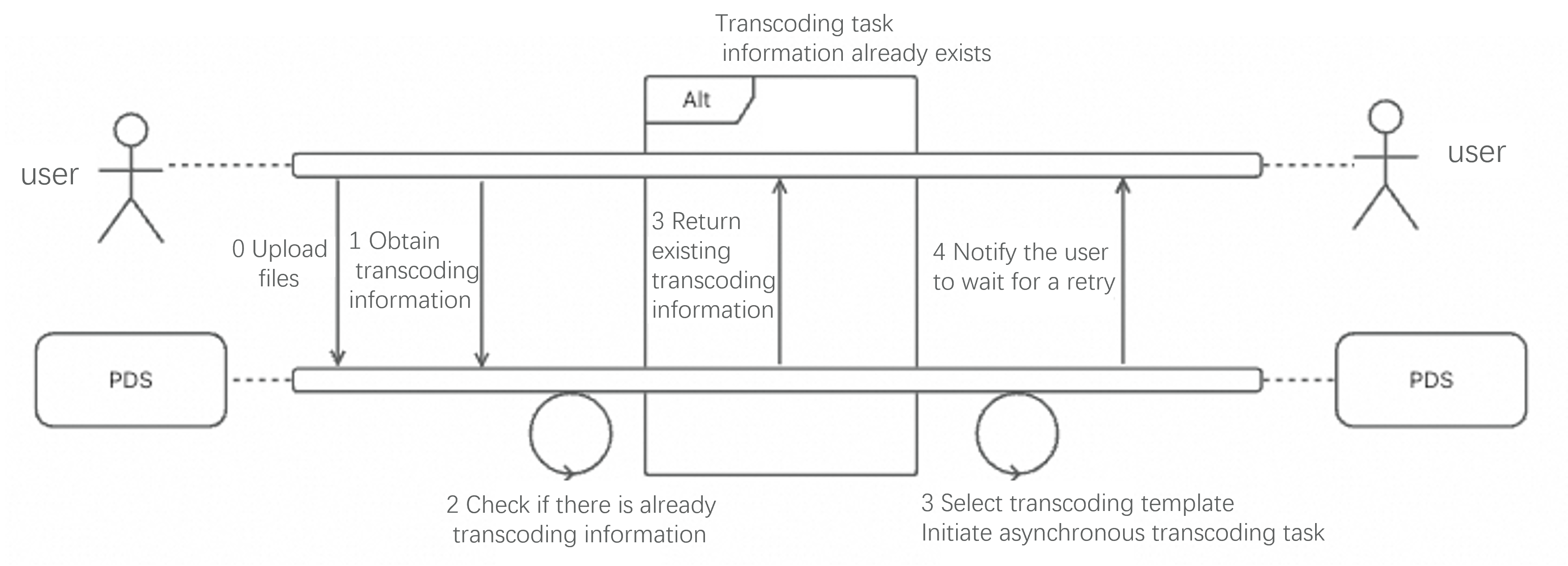
For the same media file on a domain (files with the same hash are treated as the same file), each template triggers transcoding only once. Repeated requests for the same file and template do not start another transcoding job.
The transcoding workflow includes three steps: check transcoding information, select transcoding templates, and initiate transcoding tasks. The following figure shows this workflow.
Enable media transcoding
PDS Enterprise Edition (Alibaba Cloud Drive Enterprise Edition) has quick transcoding and offline audio transcoding enabled by default.
For the Developer Edition, contact us through the official DingTalk group to enable these features. Enabling media transcoding is free of charge, but usage fees are incurred. For more information about pricing, see Value-added billable items.
Upload audio or video files
Use either newly uploaded or existing audio and video files. In this step, obtain the drive_id and file_id of the source media file. You need these values to retrieve transcoding results.
Get media transcoding information
Call /v2/file/get_video_preview_play_info. Set transcoding type to a domain-enabled capability, for example quick_video. Set template_id (for example, 264_480p) to query one template. If template_id is empty, the response includes all templates. If transcoding is still running, the response is 202 VideoPreviewWaitAndRetry. Otherwise, the preview URL is returned in the URL field.
Request example
{
    "drive_id": "1",
    "file_id": "abcd",              // The media file.
    "category": "quick_video", // The transcoding type.
    "template_id": "264_480p"       // The ID of the template for the preview.
}
Response examples
-
Wait and retry response
{
  "Code": "VideoPreviewWaitAndRetry",
  "Message": "media is transcoding, please wait and retry. xxx"
}-
Untranscodable video response
{
  "Code": "NotFound.VideoPreviewInfo",
  "Message": "ErrVideoPreviewLastErrorExist"
}-
Offline video transcoding response
{
    "domain_id": "xxxxx",
    "drive_id": "1",
    "file_id": "abcd",                    // The video file.
    "video_preview_play_info": {
        "category": "offline_video",      // The transcoding type in the request parameters.
        // Other information...
        "offline_video_transcoding_list": [
            {
                "template_id": "264_480p",           // The template ID.
                "status": "finished"                 // The transcoding job is complete.
                "url": "https://example.aliyundoc.com/c/d?e=f...", // The preview URL.
            }
        ]
    }
}-
Offline audio transcoding response
{
    "domain_id": "xxxxx",
    "drive_id": "1",
    "file_id": "abcd",                     // The audio file.
    "video_preview_play_info": {
        "category": "offline_audio",      // The transcoding type in the request parameters.
        // Other information...
        "offline_audio_list": [
            {
                "template_id": "264_480p",           // The template ID.
                "status": "finished"                 // The transcoding job is complete.
                "url": "https://example.aliyundoc.com/c/d?e=f...", // The preview URL.
            }
        ]
    }
}-
Quick transcoding response
{
    "domain_id": "xxxxx",
    "drive_id": "1",
    "file_id": "abcd",                   // The video file.
    "video_preview_play_info": {
        "category": "quick_video",      // The transcoding type in the request parameters.
        // Other information...
        "quick_video_list": [
            {
                "template_id": "264_480p",           // The template ID.
                "status": "finished"                 // The playlist generation is complete.
                "url": "https://example.aliyundoc.com/c/d?e=f...", // The preview URL.
            }
        ]
    }
}
Migrate from live transcoding to quick transcoding
Compared with quick transcoding, earlier live transcoding can cause longer seek buffering in some players. We provide a seamless migration path from live transcoding to quick transcoding. This path reuses existing code and most previously transcoded audio and video files. Before migration, note the following limitations:
-
After the migration, the billable item for transcoding changes to Live Transcoding. The usage of the original
Transcoding-Transcode-xxxbillable items, such as Transcoding-Transcode264-HD, will gradually decrease to zero. -
After the migration, Range Get requests are not supported when you use the returned playback URL to retrieve TS segment files from the corresponding M3U8 playlist.
-
After the migration, the query value of the returned playback URL contains unencoded
{and}characters. For example:
http://sample.oss-cn-hangzhou.aliyuncs.com/xxx/media-token-0.ts?x-oss-process=if_status_eq_404{hls/ts,from_dGFyZ2V0L2ZhbmdhbmxhaS92aWRlby8xMDgwcC8xMDgwcDMzLm0zdTg}&x-oss-expires=12345&x-oss-signature-version=OSS2&x-oss-access-key-id=ak&x-oss-signature=skFor iOS platforms, decode and then re-encode the returned URL to prevent decoding errors when using the system's NSURL library. For a sample implementation, see the following code:
#import "NSString+URLReEncode.h"

@implementation NSString (URLEncoding)

- (NSString *)urlReEncode {
    NSRange queryStartRange = [self rangeOfString:@"?"];
    if (queryStartRange.location == NSNotFound) {
        return self;
    }

    NSString *baseURL = [self substringToIndex:queryStartRange.location];
    NSMutableCharacterSet *allowedCharacterSet = NSCharacterSet.URLQueryAllowedCharacterSet.mutableCopy;
    [allowedCharacterSet removeCharactersInString:@"=&+"];

    NSString *query = [self substringFromIndex:queryStartRange.location + 1];
    NSArray *parameters = [query componentsSeparatedByString:@"&"];
    NSMutableArray *encodedParameters = [NSMutableArray arrayWithCapacity:[parameters count]];

    for (NSString *parameter in parameters) {
        NSArray *keyValue = [parameter componentsSeparatedByString:@"="];
        if ([keyValue count] == 2) {
            NSString *key = keyValue[0];
            NSString *value = [keyValue[1] stringByRemovingPercentEncoding];
            NSString *encodedValue = [value stringByAddingPercentEncodingWithAllowedCharacters:allowedCharacterSet];
            [encodedParameters addObject:[NSString stringWithFormat:@"%@=%@", key, encodedValue]];
        } else {
            [encodedParameters addObject:parameter];
        }
    }

    NSString *encodedQuery = [encodedParameters componentsJoinedByString:@"&"];
    return [NSString stringWithFormat:@"%@?%@", baseURL, encodedQuery];
}

@end
Reference information
This section provides detailed template selection rules and parameter references.
|
Parameter\Template |
LQ |
HQ |
SQ |
|
Audio encoder |
mp3 |
mp3 |
mp3 |
|
Audio sampling rate (Hz) |
44100 |
44100 |
44100 |
|
Number of audio channels |
2 |
2 |
2 |
|
Audio bitrate (kbps) |
128 |
320 |
640 |
For video files, PDS selects all templates with a lower resolution than the source video, plus the first template whose resolution is not lower than the source. To compare resolutions, PDS normalizes source dimensions by swapping width and height when needed, so width is always greater than or equal to height. The source is considered higher resolution if either normalized dimension is greater than the corresponding template dimension. If a selected template resolution is higher than the source resolution, transcoding uses the source resolution. The preview URL includes the keep_original_resolution flag to indicate this behavior.
For example, assume a domain has templates with resolutions of 720×480, 1280×720, and 1920×1080. If the source video resolution is 540×720, PDS selects the 720×480 and 1280×720 templates. The output resolutions are 720×480 and 720×540. The following table lists the default templates for the three video transcoding capabilities on a domain.
|
Parameter\Template |
264_480p |
264_720p |
264_1080p |
|
Video encoder |
h264 |
h264 |
h264 |
|
Video resolution |
720x480 |
1280x720 |
1920x1080 |
|
Video bitrate (kbps) |
600 |
1500 |
3000 |
|
Video frame rate (fps) |
25 |
25 |
25 |
|
Audio encoder |
aac |
aac |
aac |
|
Audio sampling rate (Hz) |
44100 |
44100 |
44100 |
|
Number of audio channels |
2 |
2 |
2 |
|
Audio bitrate (kbps) |
72 |
128 |
160 |
If default templates or selection policies do not meet your requirements, contact us for custom options. PDS Enterprise Edition does not support custom templates or custom template selection policies. The following table lists all template parameters supported by PDS:
|
Parameter name |
Parameter type |
Required |
Description |
|
TemplateID |
string |
Yes |
The ID of the audio or video template. |
|
Width |
int64 |
Yes |
The width of the output video. The value must be a positive even integer. Valid values: (0, 4096]. |
|
Height |
int64 |
Yes |
The height of the output video. The value must be a positive even integer. Valid values: (0, 4096]. Warning
If the value of this parameter is greater than the value of the Width parameter, this template is ignored during transcoding. |
|
VideoCodec |
string |
Yes |
The video encoding format. Valid values are as follows:
Warning
If you set this parameter to copy, the video stream is directly copied to the output file. In this case, other video-related template parameters are invalid. The copy option cannot be used for video splicing and is typically used for container format conversion.
|
|
VideoFrameRate |
int64 |
Yes |
The video frame rate. |
|
VideoBitrate |
int64 |
Yes |
The video bitrate, in kbit/s. Note
This parameter and the VideoCRF parameter are mutually exclusive. If both this parameter and the VideoCRF parameter are empty, the video is encoded with the VideoCRF parameter set to 23. |
|
VideoBFrames |
int64 |
No |
This parameter is valid only if the transcoding type is offline_video or quick_video. The number of consecutive B-frames. Default value: 3. |
|
VideoBufferSize |
int64 |
No |
This parameter is valid only if the transcoding type is offline_video or quick_video. The size of the decoding buffer for dynamic bitrates, in bit/s. Note
This parameter is valid only when used with the VideoCRF parameter. |
|
VideoCRF |
float64 |
No |
This parameter is valid only if the transcoding type is offline_video or quick_video. Specifies the constant quality mode. This parameter is mutually exclusive with the VideoBitrate parameter. Valid values: [0, 51]. A larger value indicates lower video quality. The recommended value range is [18, 38]. |
|
VideoGOPSize |
int64 |
No |
This parameter is valid only if the transcoding type is offline_video or quick_video. The number of frames in a Group of Pictures (GOP). Default value: 150. |
|
VideoMaxBitrate |
int64 |
No |
This parameter is valid only if the transcoding type is offline_video or quick_video. The maximum bitrate for dynamic bitrates. You must specify the VideoBufferSize parameter when you use this parameter. Note
This parameter is valid only when used with the VideoCRF parameter. |
|
VideoRefs |
int64 |
No |
This parameter is valid only if the transcoding type is offline_video or quick_video. The number of reference frames. Default value: 2. |
|
VideoResolution |
string |
No |
This parameter is valid only if the transcoding type is offline_video or quick_video. The resolution of the output video, in the format of Note
If the source video contains rotation information, the width, height, long side, and short side are determined based on the rotated video, which is the playback resolution. |
|
VideoPreset |
string |
No |
This parameter is valid only if the transcoding type is offline_video or quick_video. |
|
VideoResolutionFixPolicy |
string |
No |
This parameter is valid only if the transcoding type is offline_video. The policy to fix a specific side to a constant value when the Resolution parameter is a single-sided resolution. Valid values are as follows:
Example: Set Resolution to Note
This parameter must be used with the VideoResolution parameter. The VideoResolution parameter must be configured in single-sided resolution mode, such as 480x. |
|
AudioCodec |
int64 |
Yes |
The audio encoding format. Valid values are as follows:
Note
If you set this parameter to copy, the audio stream is directly copied to the output file. In this case, other audio-related template parameters are invalid. The copy option cannot be used for audio splicing and is typically used for container format conversion. |
|
AudioBitrate |
int64 |
Yes |
The audio bitrate, in kbit/s. Valid values: [1, 10000]. |
|
AudioSampleRate |
int64 |
Yes |
The audio sample rate, in Hz. Valid values: 8000, 12025, 12000, 16000, 22050, 24000, 32000, 44100, 48000, 64000, 88200, and 96000. Note
Supported sample rates vary by format. mp3 supports only 48 kHz and lower. opus supports 8 kHz, 12 kHz, 16 kHz, 24 kHz, and 48 kHz. ac3 supports 32 kHz, 44.1 kHz, and 48 kHz. amr supports only 8 kHz and 16 kHz. |
|
AudioChannel |
int64 |
Yes |
The number of audio channels. Valid values: [1, 8]. |
|
AudioStream |
[]int64 |
No |
A list of indexes for the audio streams in the source file to be processed. By default, the first audio stream is processed. An index greater than 100 indicates that all audio streams are processed.
Note
Only audio streams with existing indexes are processed. If an audio stream corresponding to an index does not exist, the index is ignored. |