This topic describes how to configure settings on the PAI-RAG web UI. These settings include knowledge bases, the Code sandbox, models, search services, and MCP tools.
Configure models
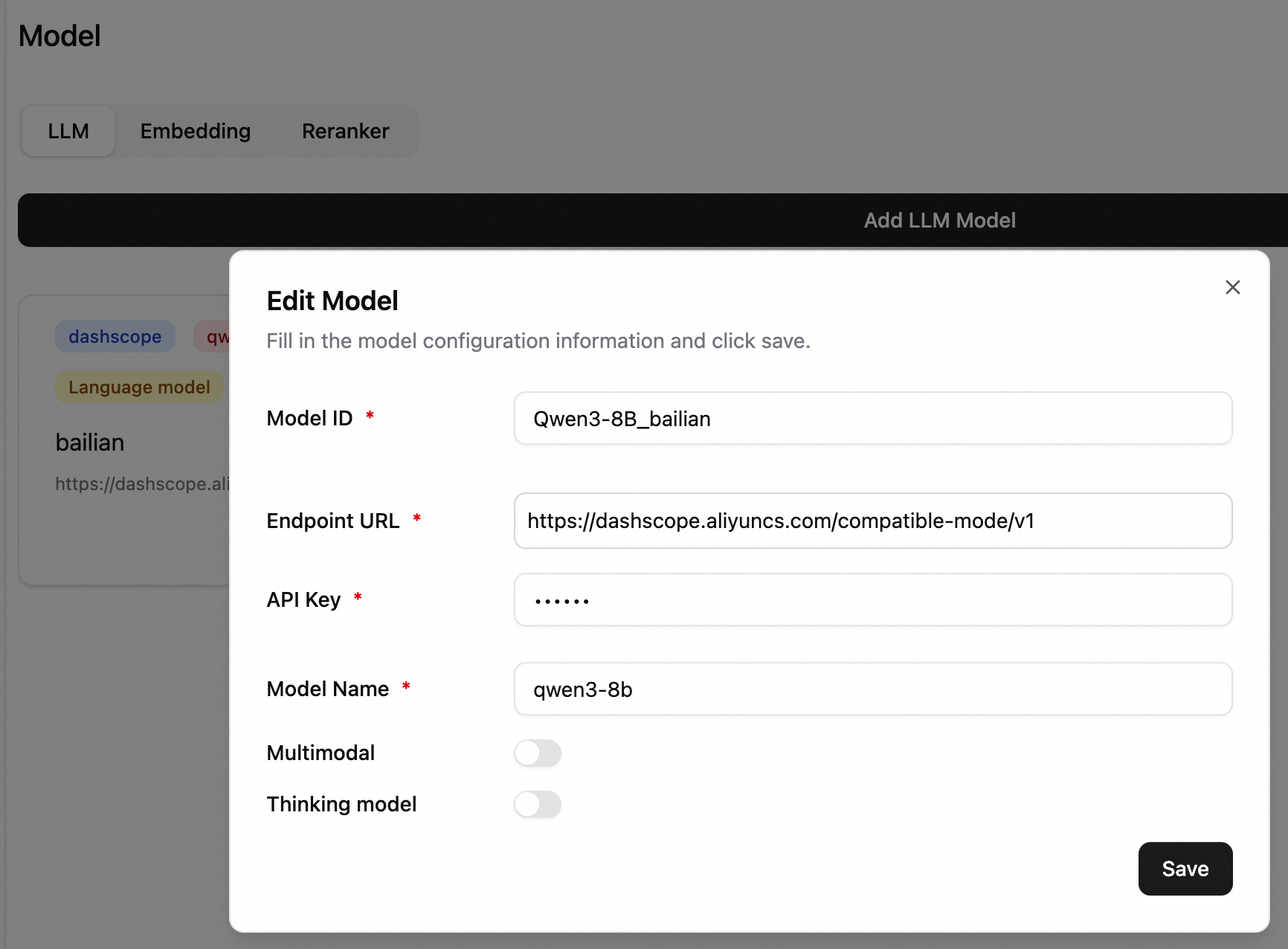
In the lower-left corner, click Settings > Model to go to the model configuration page. On the LLM tab, add a model.
If you use an all-in-one deployment, a model configuration record is automatically generated. You can also add models from other sources.
-
Model ID: Distinguishes different model configurations.
-
Endpoint URL: The service endpoint of the model.
Note-
Calls to Alibaba Cloud Model Studio models are billed separately. For more information, see Billing of Alibaba Cloud Model Studio.
-
If this is an EAS model service, in the service details page, click Basic Information, and then click View Endpoint Information. Note: Add
/v1to the endpoint URL.-
To use an Internet endpoint, you must configure a VPC with public network access for the RAG service.
-
To use a VPC endpoint, the RAG service and the LLM service must be in the same VPC.
-
-
-
API Key: For Alibaba Cloud Model Studio, obtain an API key. For more information, see Obtain an API key. For an EAS service, enter the token from the endpoint information.
-
Model Name: Enter the name of the model. If you use an LLM service deployed on EAS with the vLLM inference engine, you must enter the specific model name. You can obtain the model name using the
/v1/modelsAPI. For other deployment modes, simply set the model name todefault. -
Multimodal Model: Select this option if the model is multimodal. This option is not selected by default.
-
Thinking Model: For models that support both thinking and non-thinking modes, use this option to control whether the model performs thinking operations. This option is not selected by default.
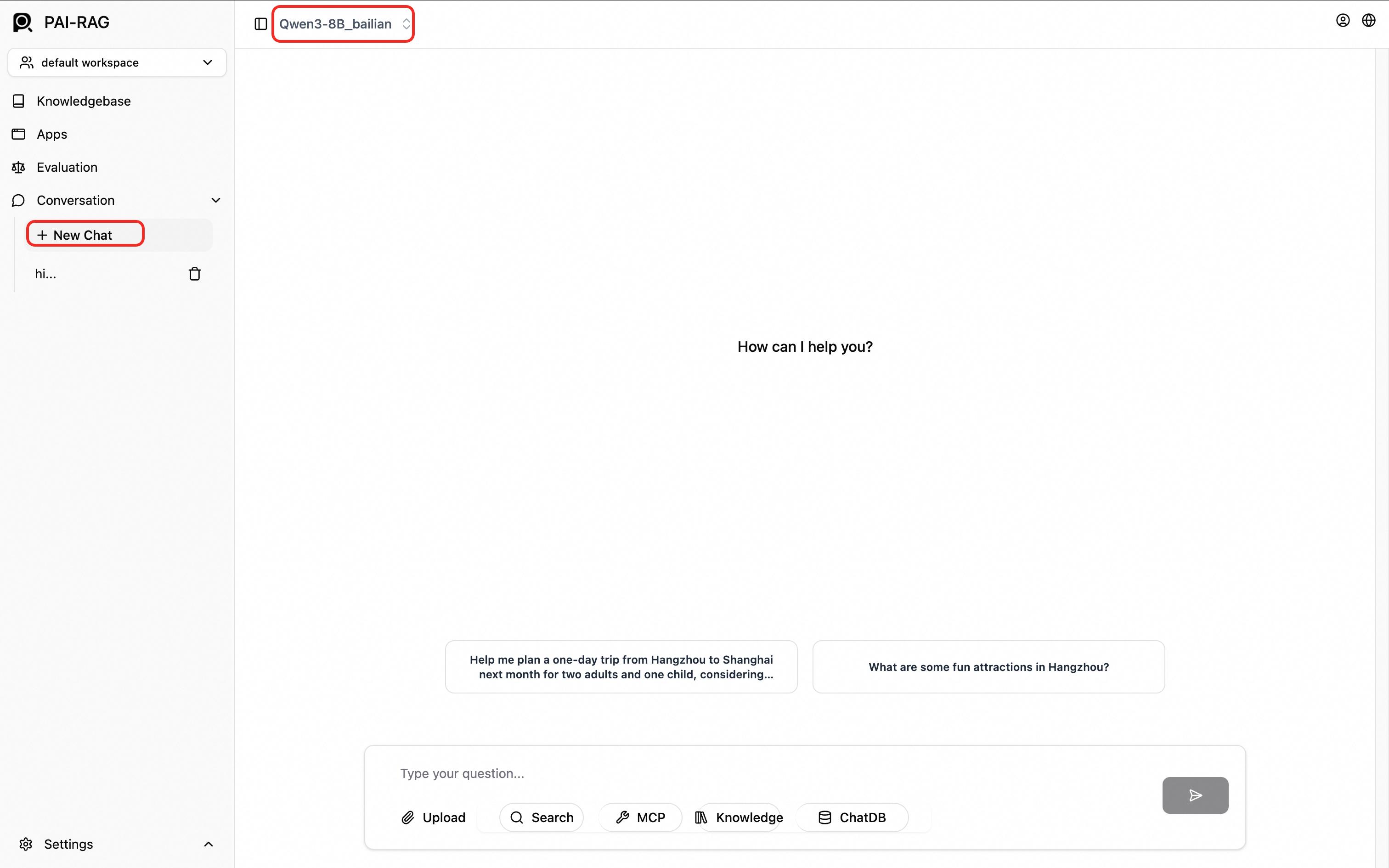
After the configuration is successful, test the model configuration. In the navigation pane on the left, click New Chat. On the chat page, select the model at the top to start a test conversation.
Configure MCP
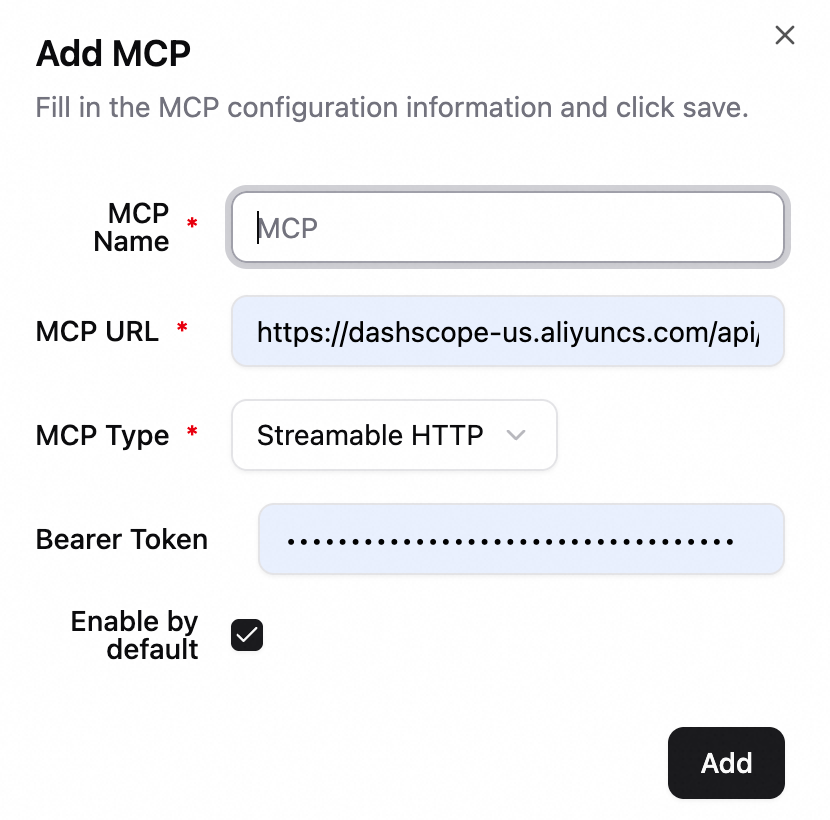
In the lower-left corner, click Settings > MCP to add an MCP.
-
MCP Link: The full endpoint URL of the MCP service.
-
MCP Type: Supported types are SSE, STDIO, and Streamable HTTP.
-
Bearer Token: (Optional) For Bearer token authentication, enter a valid access token.
Configure search
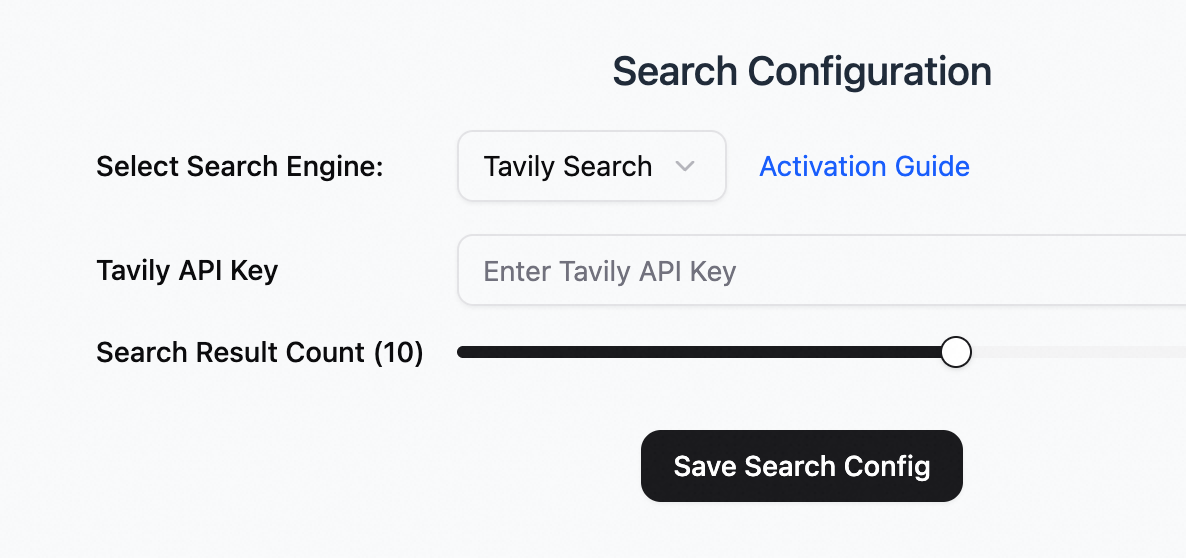
If the knowledge base content does not cover a user's question, or if real-time information is needed, you can enable a search service (Tavily ) as a supplement.
In the lower-left corner, click Settings > Search to go to the search configuration page.
Tavily search
Go to the official Tavily website to register an account and obtain an API key.
Configure the Code sandbox
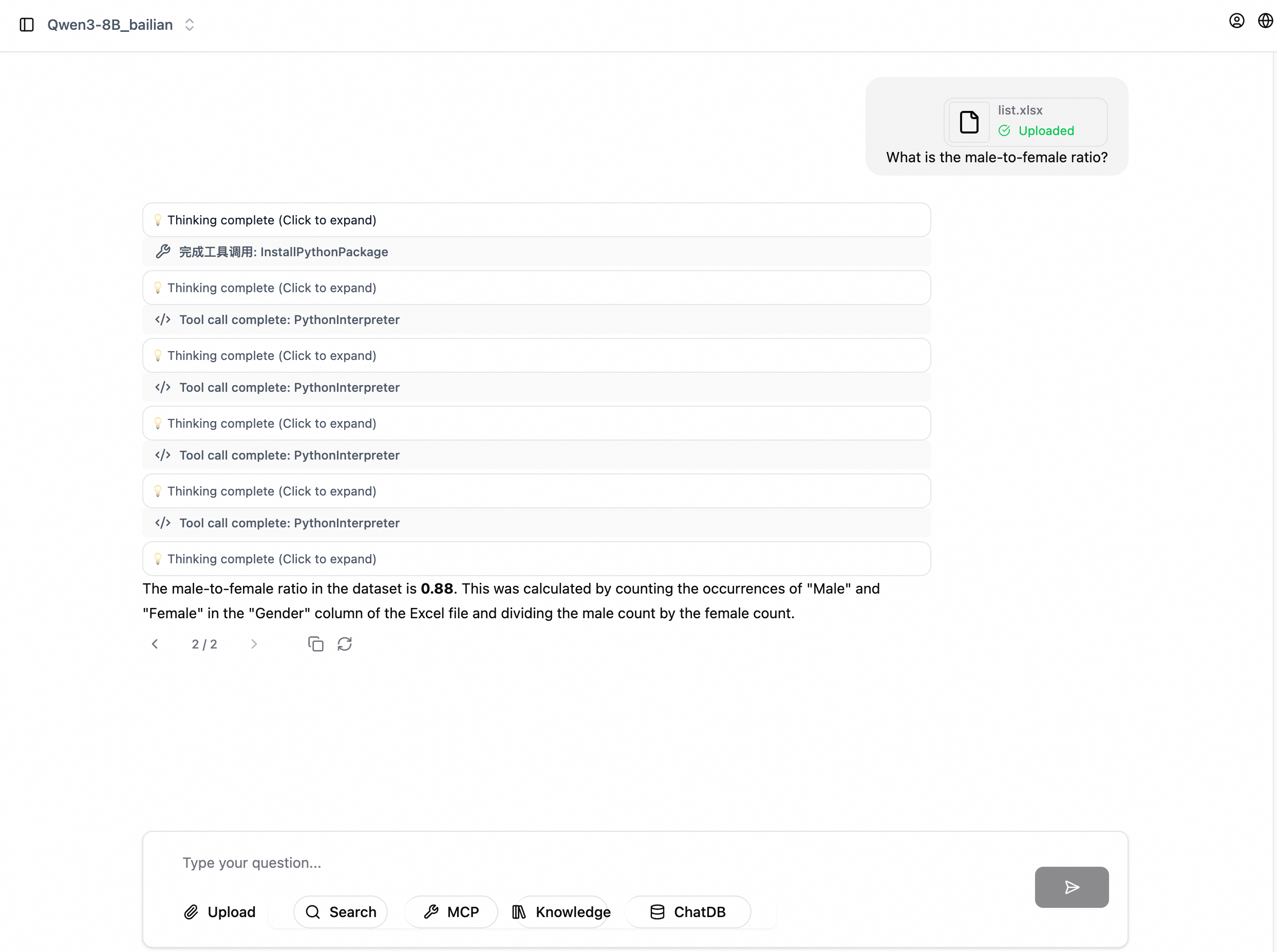
The Code sandbox provides a secure Python code execution environment. After you enable the Code sandbox feature, the AI assistant automatically calls the Code sandbox tool when it needs to execute code.
Scenarios
-
Data analytics: Perform operations such as data statistics, aggregation, and filtering. For example: "Analyze the sales data and calculate the average sales for each region."
-
Data visualization: Generate charts and plot trend graphs. For example: "Plot the sales trend graph for the past year."
-
Mathematical operations: Perform complex mathematical operations and solve equations. For example: "Calculate the standard deviation of this sequence."
-
File processing: Parse files such as CSV and Excel files to extract and transform data.
-
Other tasks that require code execution
Prerequisites
Before you configure the Code sandbox, complete the following preparations:
-
Activate Function Compute: Go to the Function Compute console and follow the prompts to activate the service.
-
Create an AgentRun interpreter: Go to the AgentRun console. In the navigation pane on the left, choose Sandbox. Create a sandbox template and set the type to Code Interpreter. Note:
NoteFor Network Type, the default option is Allow the default NIC to access the public network. This requires the RAG service to have public network access.
You can select Allow access to VPC and make sure that the same VPC is configured for the RAG service.
-
Obtain access credentials: Retrieve the Alibaba Cloud account ID and Sandbox ID for configuration. If you have set up access credentials, you also need an API key.
Configuration
In the lower-left corner, click Settings > Code Sandbox and configure the following parameters:
-
Enable Sandbox: Enables or disables the sandbox feature.
-
Sandbox Type: Currently, only Alibaba Cloud FC sandboxes are supported.
-
Alibaba Cloud ID: Your Alibaba Cloud account ID.
-
Interpreter ID: The sandbox ID.
-
Interpreter Name: The name of the code interpreter.
-
API Key: The AccessKey pair used for identity verification.
-
Default Timeout (s): The maximum duration for code execution, in seconds. The default value is 50.
Configure the file chunking policy
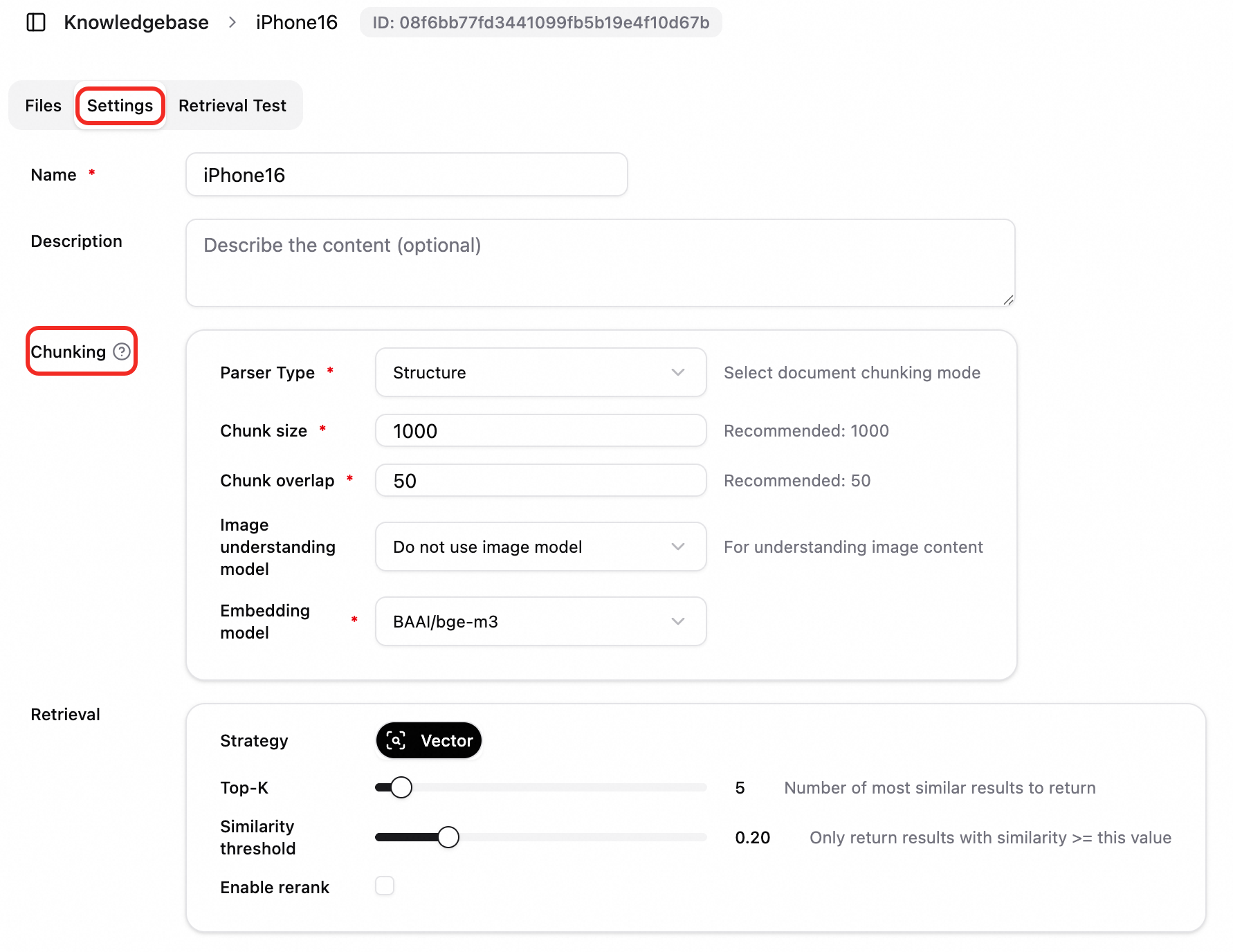
Chunking settings are used to configure the chunking method for documents in a knowledge base. This determines how a document is split into chunks for subsequent vectorization and retrieval. Proper chunking settings can improve the retrieval hit rate and the quality of answers.
Configuration is supported at the knowledge base level and the file level:
-
Knowledge base chunking settings: When you upload a file to a knowledge base, the chunking settings of the knowledge base are used by default to parse the file.
-
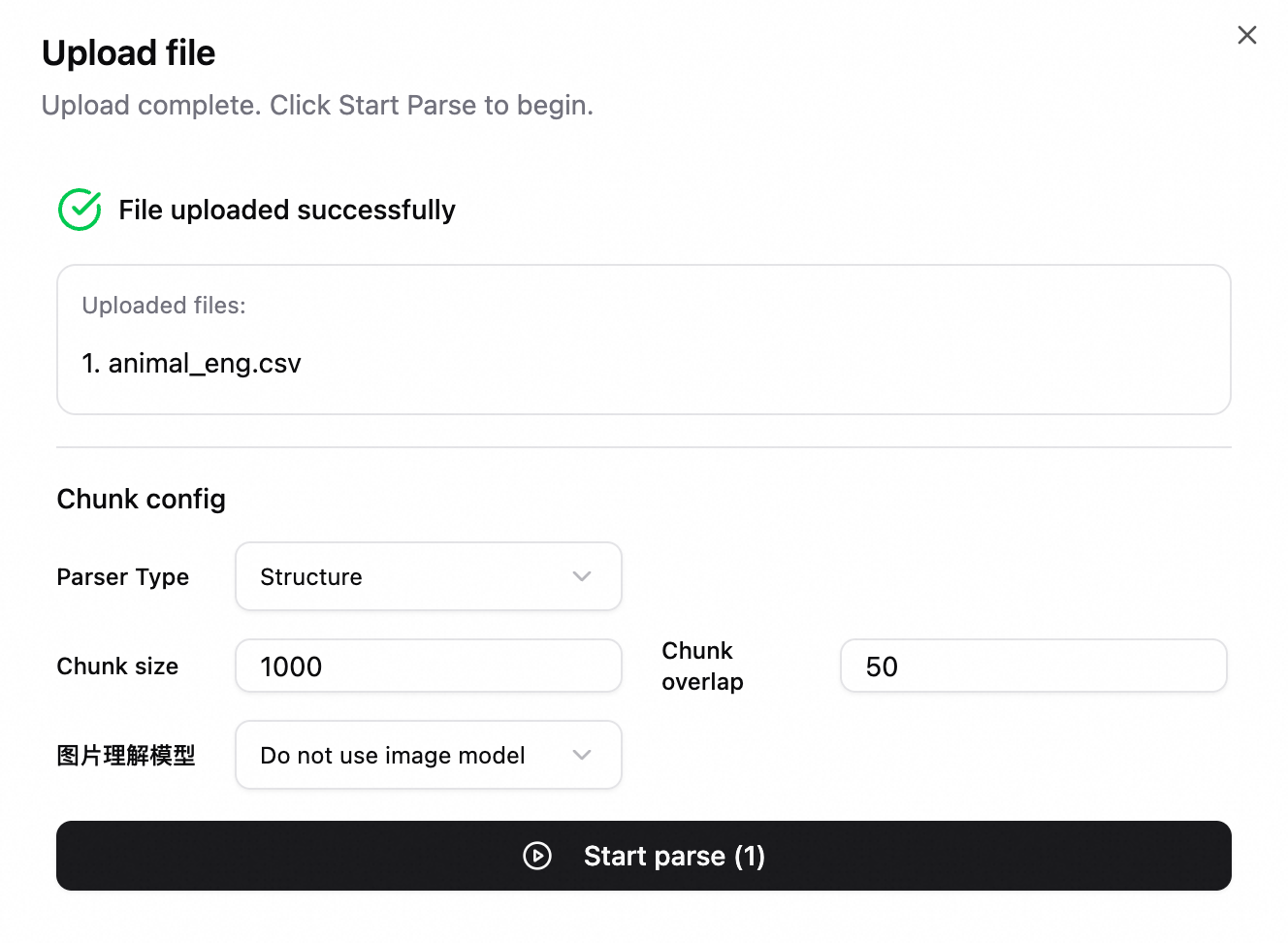
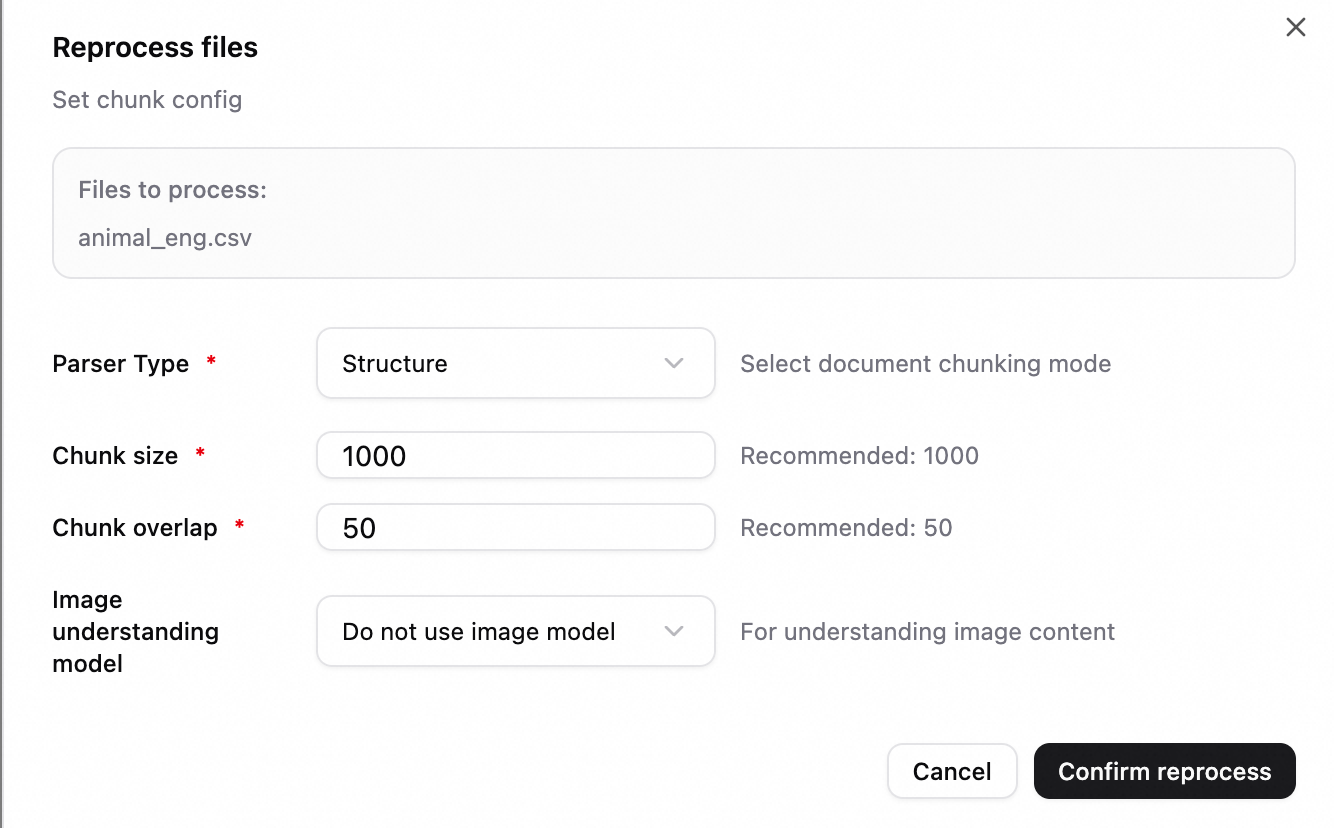
Specify chunking settings for a file:
-
When you upload a file, you can specify chunking parameters for that file.
-
When you re-parse an existing file, you can also specify chunking settings to trigger reprocessing.
-
Prerequisites
Before you use chunking settings, you need the following:
-
A knowledge base: You have an active knowledge base in the system.
-
An embedding configuration: At least one embedding model has been added to the system.
-
(Optional) A multimodal model: To use an image understanding model, you must configure a vision model in the system.
Parameter description
|
Parameter |
Description |
|
Chunk Type |
Select a chunk type based on the document's characteristics:
|
|
Chunk Size |
The maximum length of each chunk, in characters or tokens, depending on the chunk type. Recommended value: 1000. |
|
Chunk Overlap |
The length of the overlap between adjacent chunks. This helps preserve context and prevent semantic truncation. Recommended value: 50. Important
The chunk size must be greater than the chunk overlap. |
|
Image Understanding Model |
|
|
Vector Model |
|
Tuning suggestion: We recommend that you first upload a few documents using the default configurations for testing. Analyze the recall and accuracy rates in the evaluation module, and then adjust the parameters based on the results.
Usage suggestions
-
RAG for long documents: Set Chunk Type to Structured, Chunk Size to 1000, and Chunk Overlap to 50. This controls the chunk length while preserving context.
-
Strict document chunking by separator: Use the Paragraph chunking method and specify a custom separator.
-
Tabular data: Set Chunk Type to Table. Configure the table header row and row delimiter to retrieve data from Excel or CSV files by row or by block. If you do not select the Merge rows option, the data is chunked by row. If you select the Merge rows option, rows are merged into blocks based on the chunk size limit.
-
Multimodal documents: Enable the Image Understanding Model to include the content of images in PDFs and documents with images in retrieval and answer generation.
Configure the application FAQ
The FAQ feature lets you maintain a question and answer knowledge base for each application. This is useful for product manuals, customer service scripts, and frequently asked questions.
After you enable the FAQ feature for an application and configure the entries, the conversation flow is as follows:
-
The AI assistant first retrieves the entry from the FAQ that is most similar to the user's question.
-
If a match is found and the similarity score threshold is met, the system either directly returns the FAQ answer or generates an answer with the model based on the FAQ result, depending on the configuration.
-
If no match is found or the direct return option is not enabled, the system uses other capabilities, such as the knowledge base and search, to answer the question.
Configuration:
-
Log on to the system and go to the configuration page of the target application.
-
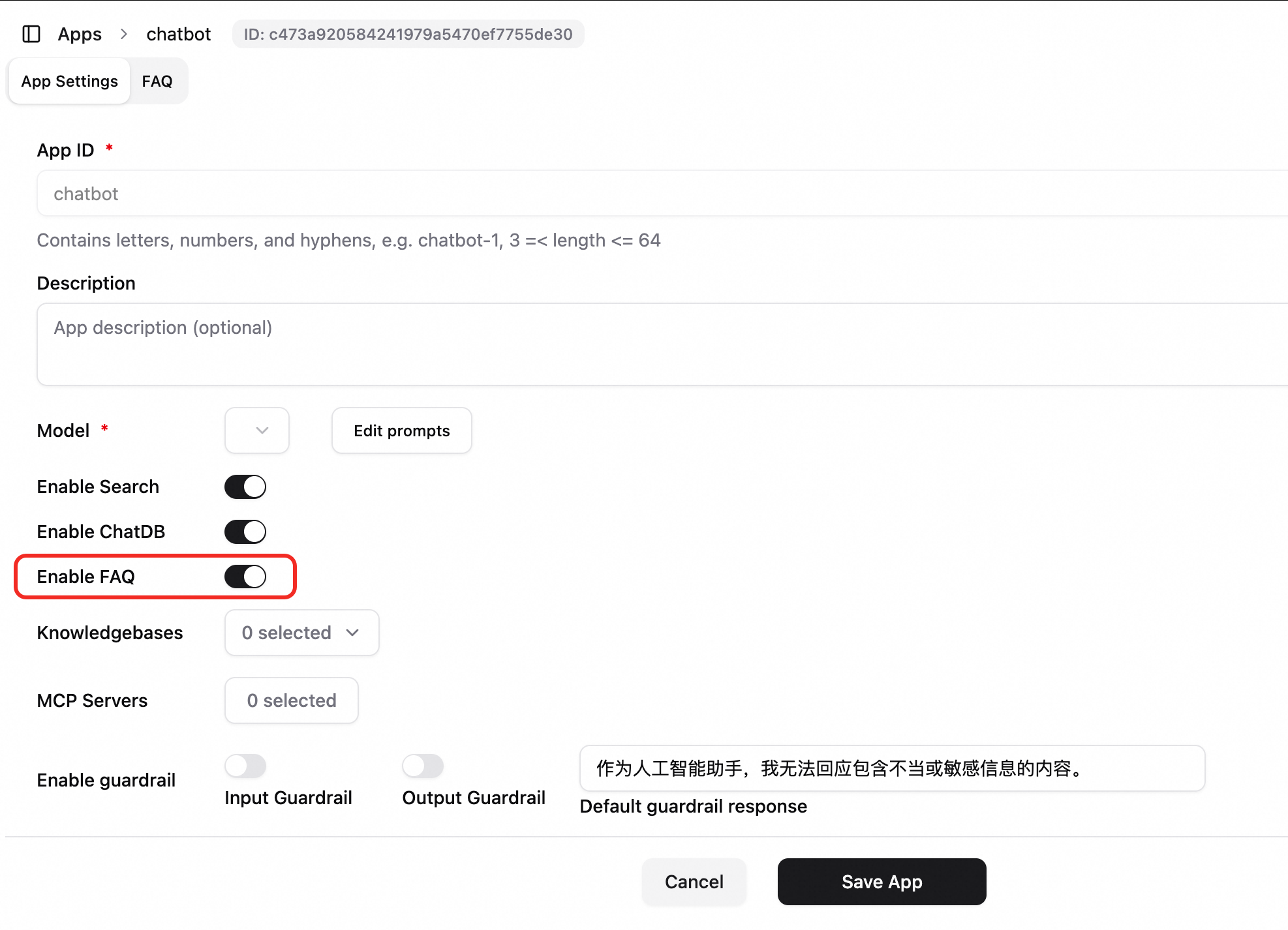
Enable FAQ: In the application configuration, turn on the Enable FAQ switch and save the settings.
-
Open the FAQ management page. On this page, you can perform the following operations:
-
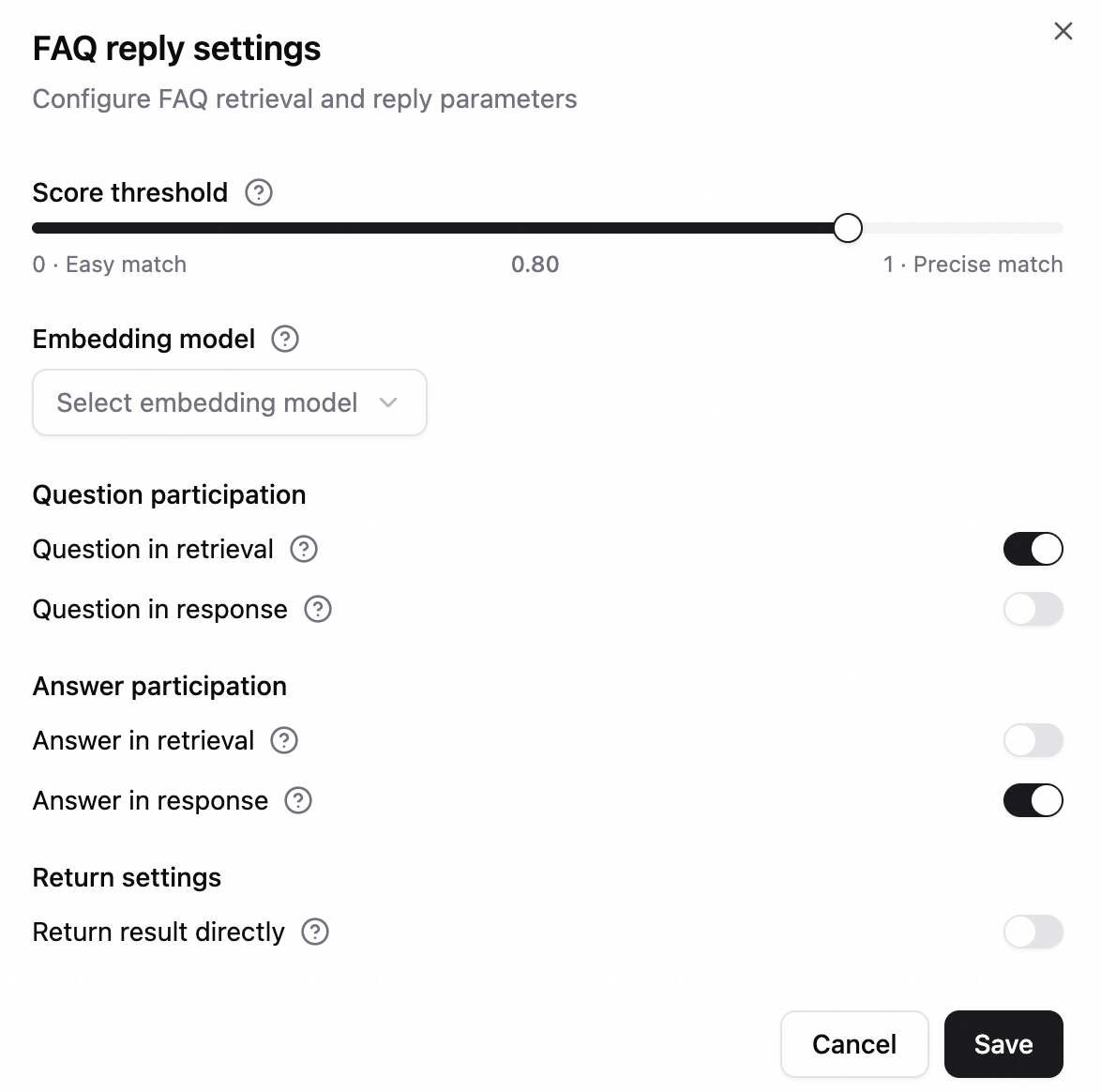
FAQ Reply Settings: Click the Settings button. Configure the similarity score threshold (a value from 0.8 to 1.0 is recommended), the embedding model, whether to include questions or answers in retrieval and display, and whether to directly return tool results.
-
Manage FAQs:
-
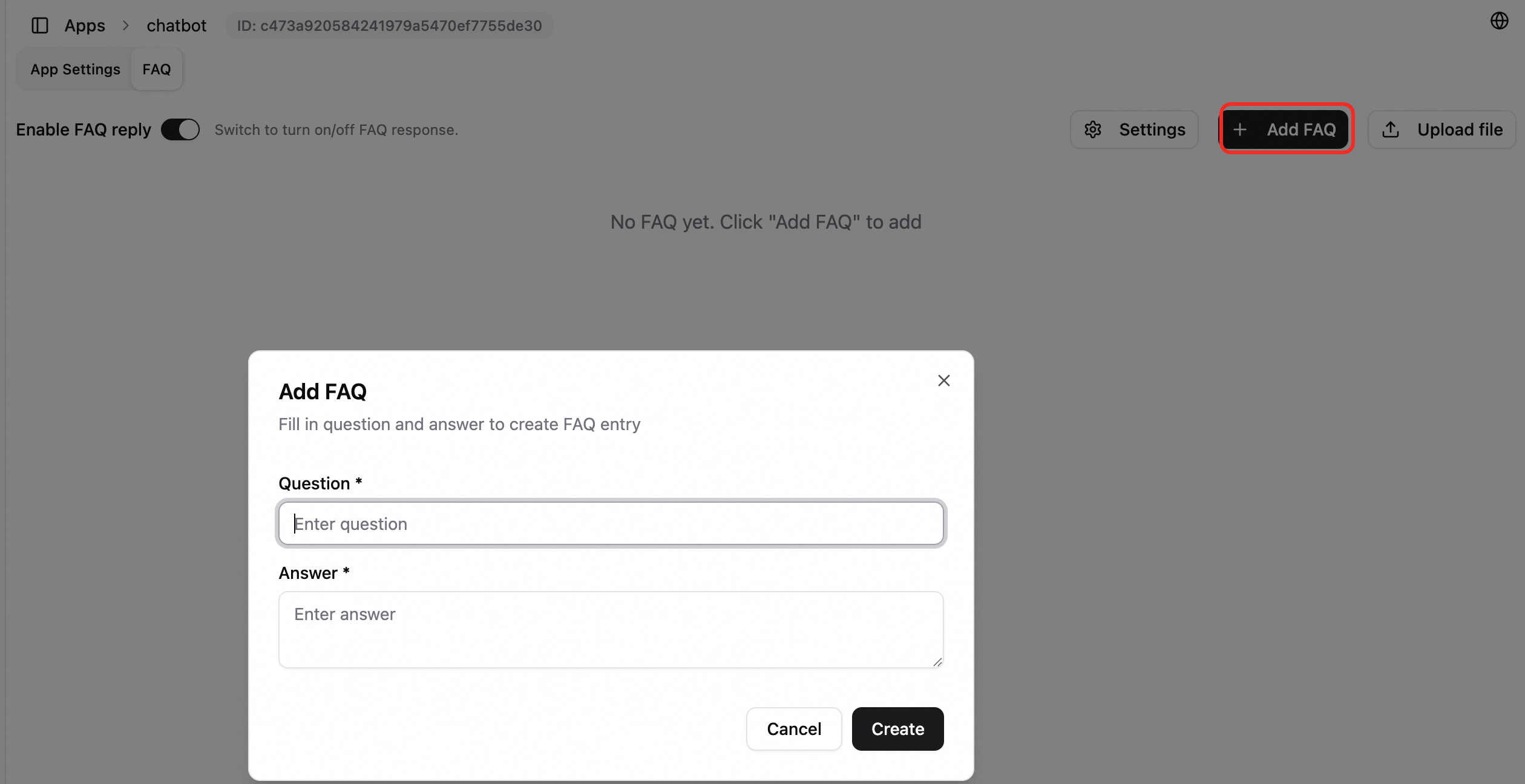
Add, edit, or delete a single FAQ entry.
-
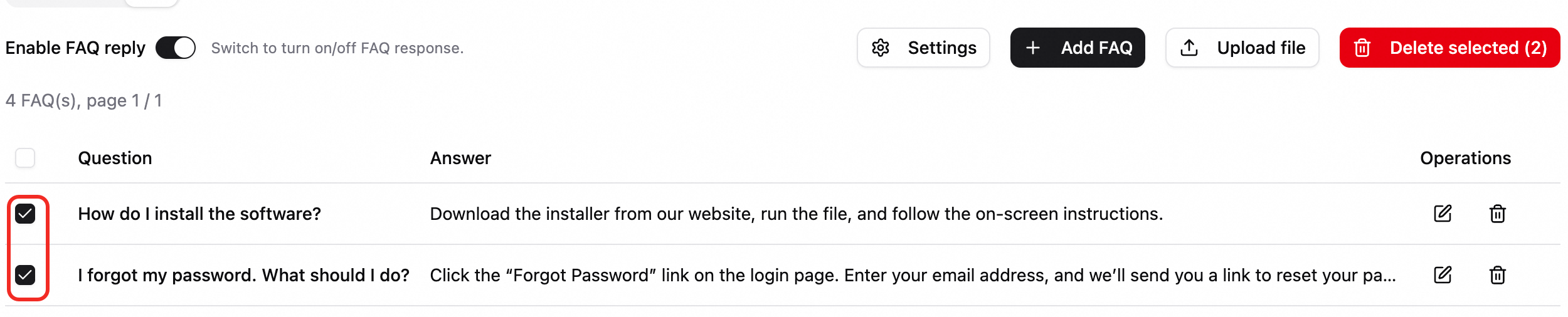
Batch delete entries.
-
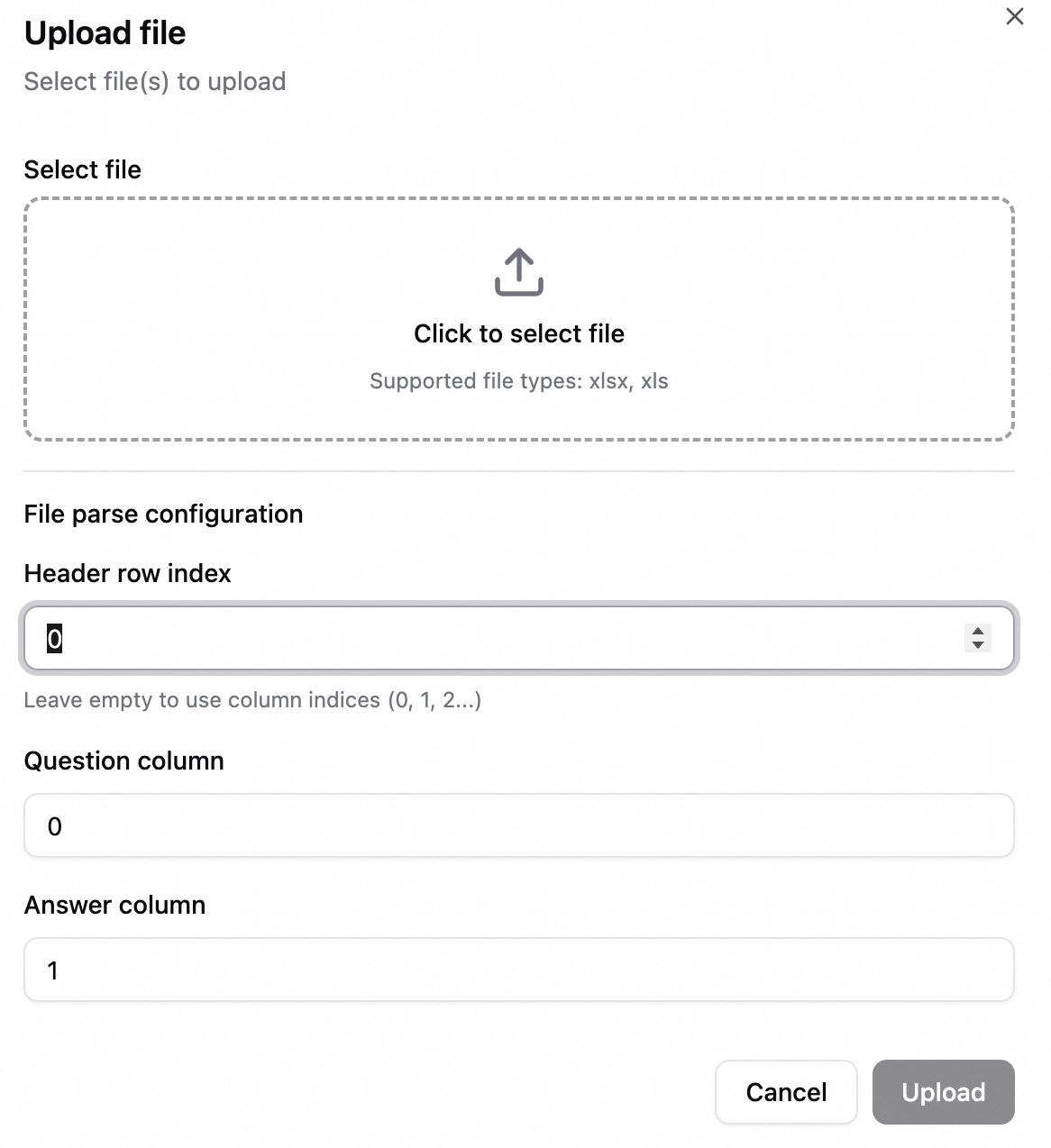
Batch import: Upload an Excel file, map the question and answer columns, and then import the entries.
-
-
-
After you save the settings, conversations in this application automatically prioritize FAQ retrieval results.