Deploy Stable Diffusion V1.5 model, test it with WebUI, and fine-tune for custom image generation.
Prerequisites
Create an OSS bucket. For more information, see Create buckets in the console.
Step 1: Open model details page
-
Open Model Gallery page.
-
Log on to the PAI console.
-
In the left-side navigation pane, click Workspaces. On the workspace list page, click your workspace name.
-
In the left-side navigation pane, click Getting Started > Model Gallery.
-
-
On Model Gallery page, search for and click the Stable_Diffusion_V1.5 model card.
Step 2: Deploy and test model
-
On the model details page, click Deploy in the upper-right corner. In the Deploy panel, select a deployment resource (such as
ecs.gn6e-c12g1.3xlarge) and keep default settings for other parameters. -
Click Deploy. In the Billing Reminder dialog box, click OK.
The page redirects to the Service Details page. In the Basic Information section, view deployment status. When Status changes to Running, deployment is complete.
-
In the upper-right corner of the service details page, click View WEB Application to open WebUI.
-
Test the model on WebUI page.
On the Text-to-Image tab, enter the following text in the Prompt field:
An eagle flying in the sky, with vast snowfields in the distance and a grassland below a snow-capped mountain. Click Generate. The following inference result is generated.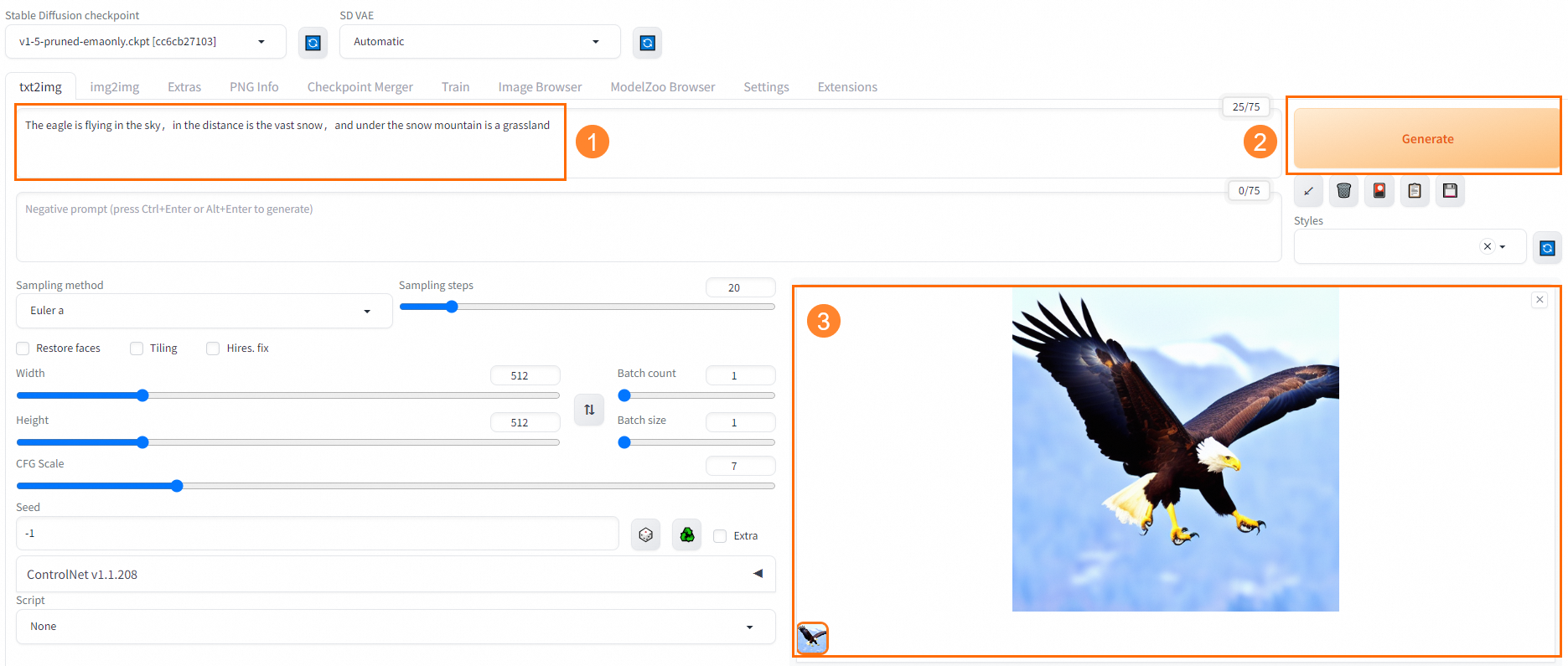
Step 3: Fine-tune model
Fine-tune the model to meet specific business requirements.
-
On the model details page, click Train in the upper-right corner.
-
In the Train panel, expand configuration sections to view or modify the following key settings. Keep default values for other parameters. For more information about parameter settings, see Train models.
Configuration option
Description
Dataset Configuration
This tutorial uses the default dataset provided by PAI. To use a custom dataset, complete these steps:
-
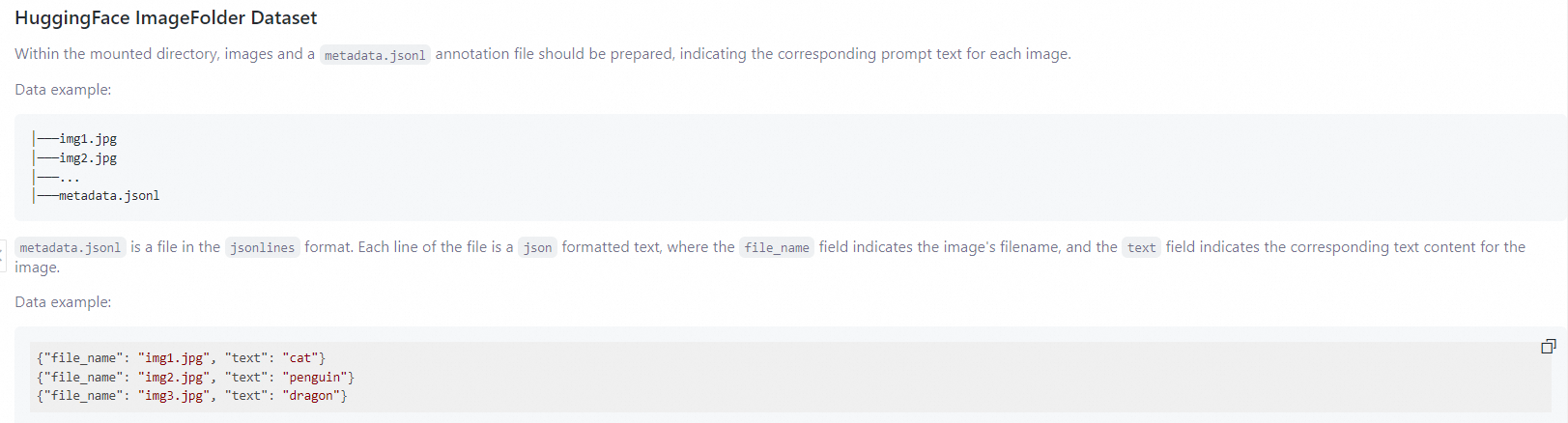
On the model details page, prepare training data according to Training Data Format. Refer to the sample dataset.
-
Upload training data to your OSS bucket. For more information, see Upload files in the console.
-
Update training dataset. For more information, see Train models.
Hyperparameter Configuration
Keep default configuration for training_method: standard. Keep default values for other parameters.
Output Configuration
Set Model Output Path to an OSS bucket path. For information about creating an OSS bucket, see Quick Start.
-
-
Click Train.
The page redirects to Task Details page.
After training task completes, click Deploy in the upper-right corner of the Task Details page. Follow the same deployment process described in Step 2: Deploy and test model.