Submit a PyTorch transfer learning training job in Deep Learning Containers (DLC).
Step 1: Prepare data
The training data is pre-stored in a public storage medium. Download the data directly without additional preparation.
Step 2: Prepare training code and model storage file
The training code package is pre-stored in a public storage medium. Download the code package directly without additional development.
Step 3: Create a job
-
Go to the Create Job page.
-
Log on to the PAI console. Select a region and a workspace. Then, click Enter Deep Learning Containers (DLC).
-
On the Deep Learning Containers (DLC) page, click Create Job.
-
-
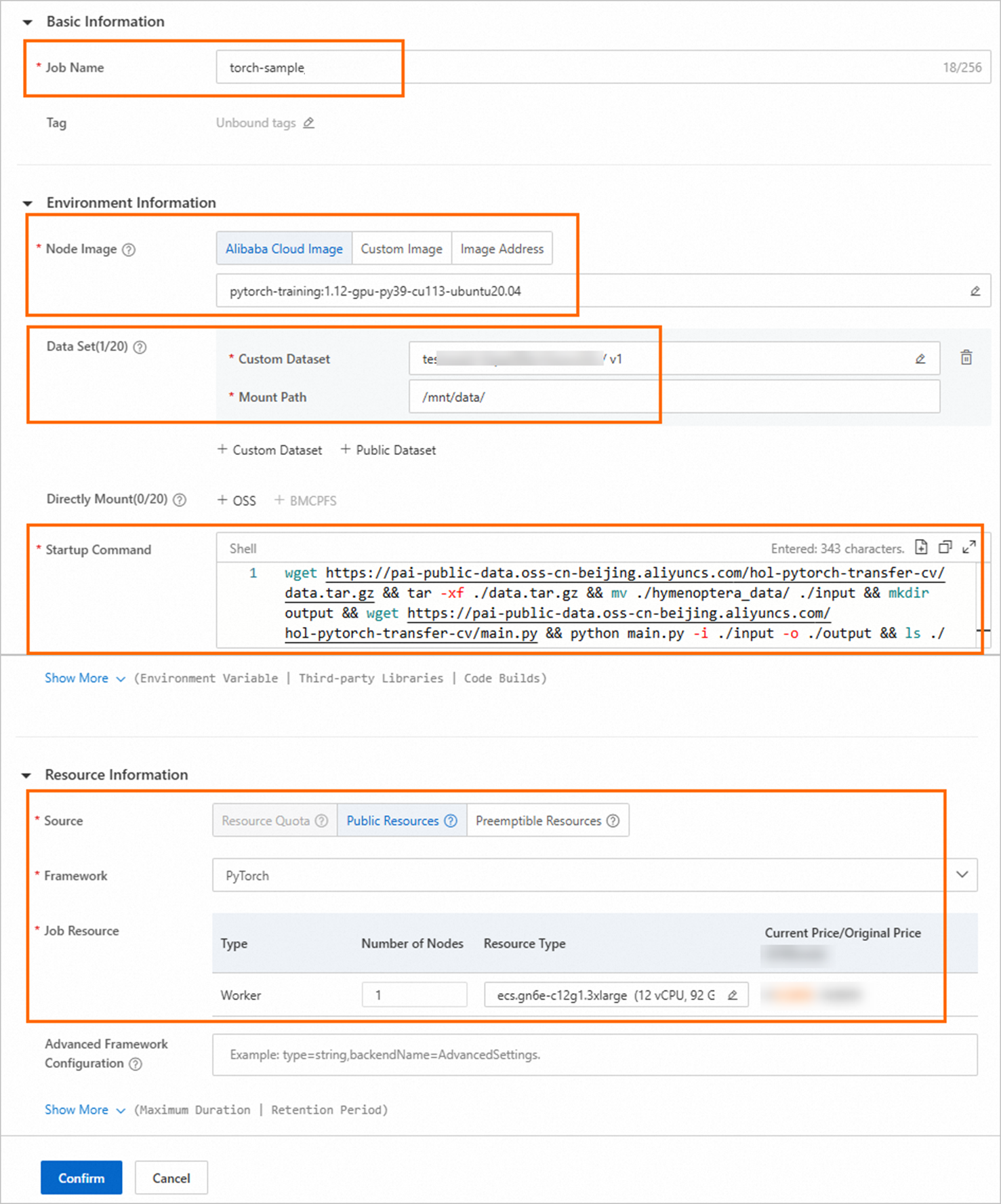
On the Create Job page, configure the parameters listed in the following table. Use default values for the remaining parameters.
Parameter
Description
Basic Information
Job Name
Enter a job name. Example: torch-sample.
Environment Information
Image config
Click Alibaba Cloud Image and select a PyTorch image.
Mount dataset
To save training results to your local machine, mount a custom dataset and save results to the dataset's file system. For an OSS dataset, click Custom Dataset and configure the following parameters:
-
Custom Dataset: Select a created OSS dataset. For information about creating datasets, see Create and manage datasets.
-
Mount Path: Set to
/mnt/data/.
Startup Command
Enter the following command to download data, download code package, run training jobs, check models, and save training results to the mounted dataset:
wget https://pai-public-data.oss-cn-beijing.aliyuncs.com/hol-pytorch-transfer-cv/data.tar.gz && tar -xf ./data.tar.gz && mv ./hymenoptera_data/ ./input && mkdir output && wget https://pai-public-data.oss-cn-beijing.aliyuncs.com/hol-pytorch-transfer-cv/main.py && python main.py -i ./input -o ./output && ls ./output && cp -r ./output /mnt/dataResource Information
Source
Select Public Resources.
Framework
Select PyTorch.
Job Resource
-
Quantity: Set to 1.
-
Resource Type: Click
 and select an instance type (e.g., ecs.gn6e-c12g1.3xlarge). If the type is unavailable in your current region, create a job in another region. For information about regions supporting pay-as-you-go billing, see Distributed Training (DLC).
-
-
Click OK.
The Deep Learning Containers (DLC) page appears.
Step 4: View training job details and logs
-
On the Deep Learning Containers (DLC) page, click the job name.
-
On the job details page, view Basic Information and Resource Information.
-
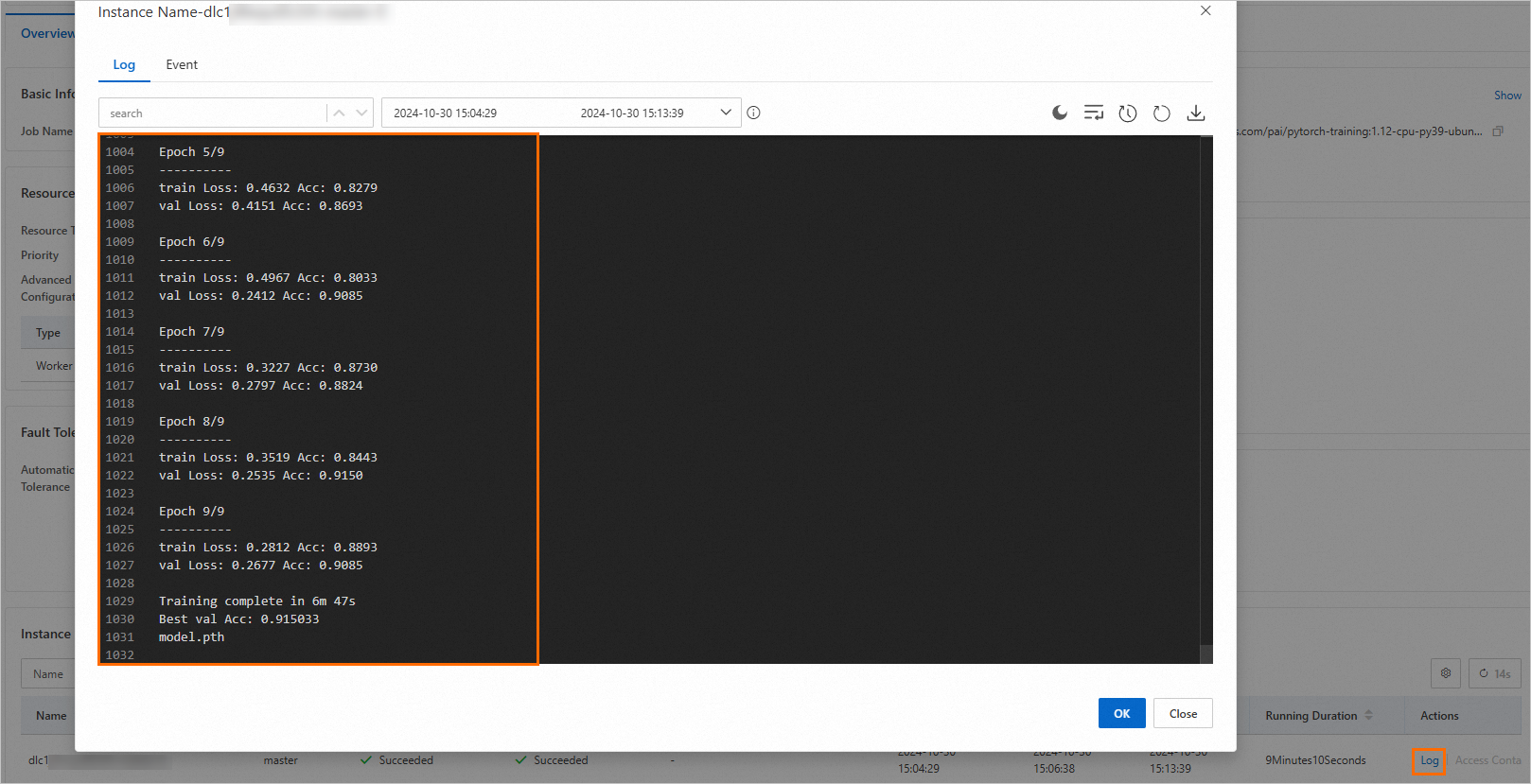
In the Instance section at the bottom of the job details page, find the desired node and click Log in the Actions column to view node logs.
-
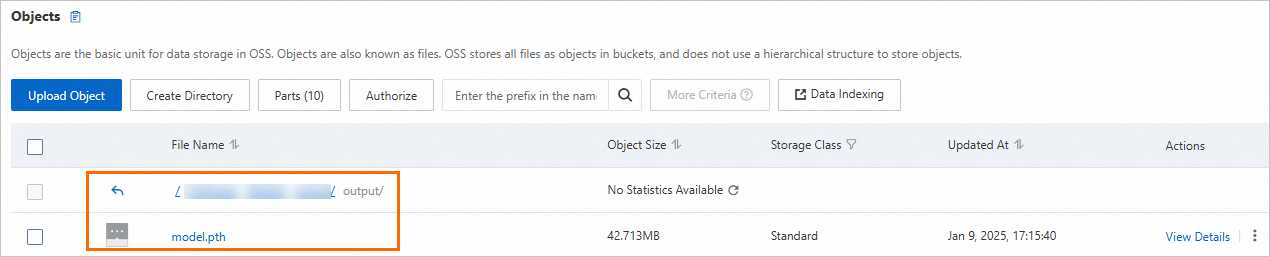
Go to the mounted dataset file system to view results. For OSS: