PS Linear Regression is a machine learning algorithm that combines a linear regression model and a parameter server (PS) architecture. It handles linear relationships between a dependent variable and multiple independent variables. This makes it suitable for training tasks on large-scale datasets with hundreds of billions of samples and billions of features. Using the parameter server architecture, PS Linear Regression can efficiently perform distributed computing and store model parameters to improve training efficiency and scalability.
Configure the component
Method 1: Use the visual interface
Add the PS Linear Regression component to the workflow in Designer, and configure its parameters in the pane on the right:
|
Parameter Type |
Parameter |
Description |
|
Fields setting |
Feature Columns |
The feature columns from the input data source to use for training. |
|
Label Column |
Supports DOUBLE and BIGINT data types. |
|
|
Is it a sparse format? |
The KV format represents the sparse format. |
|
|
KV pair separator |
The default separator is a space. |
|
|
Key-value separator |
The default separator is a colon (:). |
|
|
Parameters setting |
L1 weight |
The L1 regularization coefficient. A larger value indicates that the model has fewer non-zero elements. Increase this value if overfitting occurs. |
|
L2 weight |
The L2 regularization coefficient. A larger value indicates that the absolute values of the model parameters are smaller. Increase this value if overfitting occurs. |
|
|
Maximum iterations |
The maximum number of iterations for the algorithm. If Maximum iterations is set to 0, the number of iterations is not limited. |
|
|
Minimum convergence deviance |
The termination condition for the optimization algorithm. |
|
|
Maximum feature ID |
The maximum feature ID or feature dimension. This value can be greater than the actual value. If you do not configure this parameter, the system starts an SQL task to calculate it automatically. |
|
|
Execution tuning |
Number of cores |
By default, the system allocates it automatically. |
|
Memory size per core |
By default, the system automatically allocates the memory. |
Method 2: Use a PAI command
Use a PAI command to configure the parameters for the PS Linear Regression component. You can run PAI commands using the SQL script component. For more information, see SQL Script.
# Train.
PAI -name ps_linearregression
    -project algo_public
    -DinputTableName="lm_test_input"
    -DmodelName="linear_regression_model"
    -DlabelColName="label"
    -DfeatureColNames="features"
    -Dl1Weight=1.0
    -Dl2Weight=0.0
    -DmaxIter=100
    -Depsilon=1e-6
    -DenableSparse=true
# Predict.
drop table if exists logistic_regression_predict;
PAI -name prediction
    -DmodelName="linear_regression_model"
    -DoutputTableName="linear_regression_predict"
    -DinputTableName="lm_test_input"
    -DappendColNames="label,features"
    -DfeatureColNames="features"
-DenableSparse=true|
Parameter |
Required |
Default value |
Description |
|
inputTableName |
Yes |
None |
The name of the input table. |
|
modelName |
Yes |
None |
The name of the output model. |
|
outputTableName |
No |
None |
The name of the output model evaluation table. This parameter is required if enableFitGoodness is true. |
|
labelColName |
Yes |
None |
The name of the label column in the input table. Supports DOUBLE and BIGINT data types. |
|
featureColNames |
Yes |
None |
The names of the feature columns in the input table to use for training. If the input data is in dense format, DOUBLE and BIGINT data types are supported. If the input data is in sparse format, the STRING data type is supported. |
|
inputTablePartitions |
No |
None |
The partitions of the input table. |
|
enableSparse |
No |
false |
Specifies whether the input data is in sparse format. Valid values are {true,false}. |
|
itemDelimiter |
No |
Space |
The separator between key-value pairs. This parameter takes effect only if enableSparse is true. |
|
kvDelimiter |
No |
Colon (:) |
The separator between a key and a value. This parameter takes effect only if enableSparse is true. |
|
enableModelIo |
No |
true |
Specifies whether to output the model as an offline model. If enableModelIo is false, the model is output to a MaxCompute table. Valid values are {true,false}. |
|
maxIter |
No |
100 |
The maximum number of iterations for the algorithm. The value must be a non-negative integer. |
|
epsilon |
No |
0.000001 |
The termination condition for the optimization algorithm. The value must be in the range of [0,1]. |
|
l1Weight |
No |
1.0 |
The L1 regularization coefficient. A larger value indicates that the model has fewer non-zero elements. Increase this value if overfitting occurs. |
|
l2Weight |
No |
0 |
The L2 regularization coefficient. A larger value indicates that the absolute values of the model parameters are smaller. Increase this value if overfitting occurs. |
|
modelSize |
No |
0 |
The maximum feature ID or feature dimension. This value can be greater than the actual value. If you do not configure this parameter, the system starts an SQL task to calculate it automatically. The value must be a non-negative integer. |
|
coreNum |
No |
System allocated |
By default, it is automatically assigned. |
|
memSizePerCore |
No |
System allocated |
By default, the system automatically allocates the memory. |
Examples
-
Use the SQL script component to run the following SQL statement to generate input data. This example uses data in key-value (KV) format.
drop table if exists lm_test_input;
create table lm_test_input as
select
*
from
(
select cast(2 as BIGINT) as label, '1:0.55 2:-0.15 3:0.82 4:-0.99 5:0.17' as features
    union all
select cast(1 as BIGINT) as label, '1:-1.26 2:1.36 3:-0.13 4:-2.82 5:-0.41' as features
    union all
select cast(1 as BIGINT) as label, '1:-0.77 2:0.91 3:-0.23 4:-4.46 5:0.91' as features
    union all
select cast(2 as BIGINT) as label, '1:0.86 2:-0.22 3:-0.46 4:0.08 5:-0.60' as features
    union all
select cast(1 as BIGINT) as label, '1:-0.76 2:0.89 3:1.02 4:-0.78 5:-0.86' as features
    union all
select cast(1 as BIGINT) as label, '1:2.22 2:-0.46 3:0.49 4:0.31 5:-1.84' as features
    union all
select cast(0 as BIGINT) as label, '1:-1.21 2:0.09 3:0.23 4:2.04 5:0.30' as features
    union all
select cast(1 as BIGINT) as label, '1:2.17 2:-0.45 3:-1.22 4:-0.48 5:-1.41' as features
    union all
select cast(0 as BIGINT) as label, '1:-0.40 2:0.63 3:0.56 4:0.74 5:-1.44' as features
    union all
select cast(1 as BIGINT) as label, '1:0.17 2:0.49 3:-1.50 4:-2.20 5:-0.35' as features
) tmp;
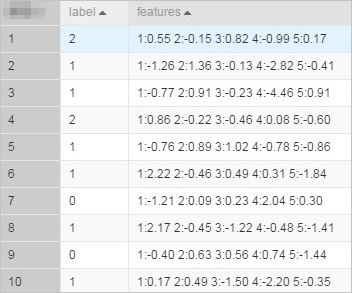
The generated data is shown in the following figure.
 Note
NoteFor data in KV format, feature IDs must be positive integers and feature values must be real numbers. If feature IDs are strings, you must serialize the data. If feature values are categorical strings, you must perform feature discretization.
-
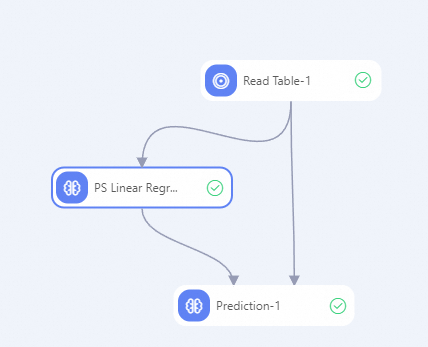
Build a workflow as shown in the following figure. For more information, see Algorithm modeling.
-
Configure the component parameters.
-
Click the Read Table-1 component. In the pane on the right, on the Select Table tab, set Table Name to lm_test_input.
-
Configure the parameters for the PS Linear Regression component as described in the following table. Use the default values for the other parameters.
Parameter Type
Parameter
Description
Fields setting
Is the format sparse?
Select true.
Feature Columns
Select the features column.
Label Column
Select the label column.
Execution tuning
Number of cores
Set to 3.
Memory size per core
Set to 1024 MB.
-
Configure the parameters for the Prediction component as described in the following table. Use the default values for the other parameters.
Parameter Type
Parameter
Description
Fields setting
Feature Columns
Select the features column.
Verbatim Output Column
Select the label and features columns.
Sparse Matrix
Select the Sparse Matrix check box.
Key-value separator
Set to a colon (:).
KV pair separator
Leave this parameter empty to use a space as the separator.
-
-
Click the Run button
 on the canvas to run the workflow.
 -
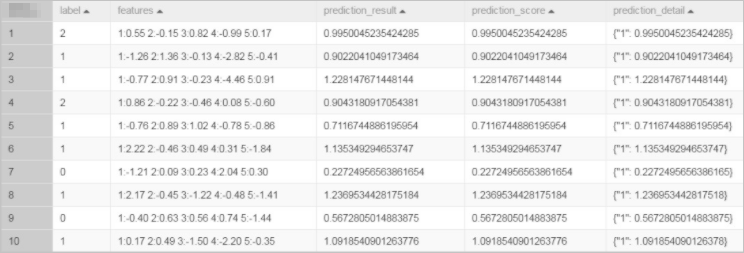
After the workflow runs, right-click the Prediction-1 component and choose from the shortcut menu.