Alibaba Cloud Platform for AI (PAI) is an authorized NVIDIA NIM partner in China.
NVIDIA NIM provides pre-built containers for deploying AI models for inference on the cloud, in data centers, and on workstations. NIM models are optimized with NIM optimization tools to deliver inference performance improvements over their original open-source counterparts.
PAI offers several NIM models in Model Gallery. To find them, select NIM from the Model Source filter. Two deployment methods are available:
Supported NIM models
PAI Model Gallery supports the following NIM models:
|
Model name |
Model Gallery link |
Instance types |
|
qwen2.5-7b-instruct-NIM |
ecs.gn7e series ecs.gn8is series |
|
|
MolMIM |
General-purpose GPU instance |
|
|
Earth-2 FourCastNet |
General-purpose GPU instance |
|
|
NVIDIA Retrieval QA Mistral 7B Embedding v2 |
ecs.gn7e series |
|
|
Eye Contact |
General-purpose GPU instance |
|
|
NV-CLIP |
ecs.gn7e series ecs.gn7i series |
|
|
AlphaFold2-Multimer |
General-purpose GPU instance |
|
|
Snowflake Arctic Embed Large Embedding |
ecs.gn7e series ecs.gn7i series |
|
|
NVIDIA Retrieval QA Mistral 4B Reranking v3 |
ecs.gn7e series ecs.gn7i series |
|
|
NVIDIA Retrieval QA E5 Embedding v5 |
ecs.gn7e series ecs.gn7i series |
|
|
Parakeet CTC Riva 1.1b |
General-purpose GPU instance |
|
|
FastPitch HifiGAN Riva |
General-purpose GPU instance |
|
|
VISTA-3D |
General-purpose GPU instance |
|
|
AlphaFold2 |
General-purpose GPU instance |
|
|
ProteinMPNN |
General-purpose GPU instance |
|
|
megatron-1b-nmt |
General-purpose GPU instance |
Deploy from PAI Model Gallery
-
Go to the PAI Model Gallery.
-
On the left, set Model Source to NIM to filter the available NIM models.
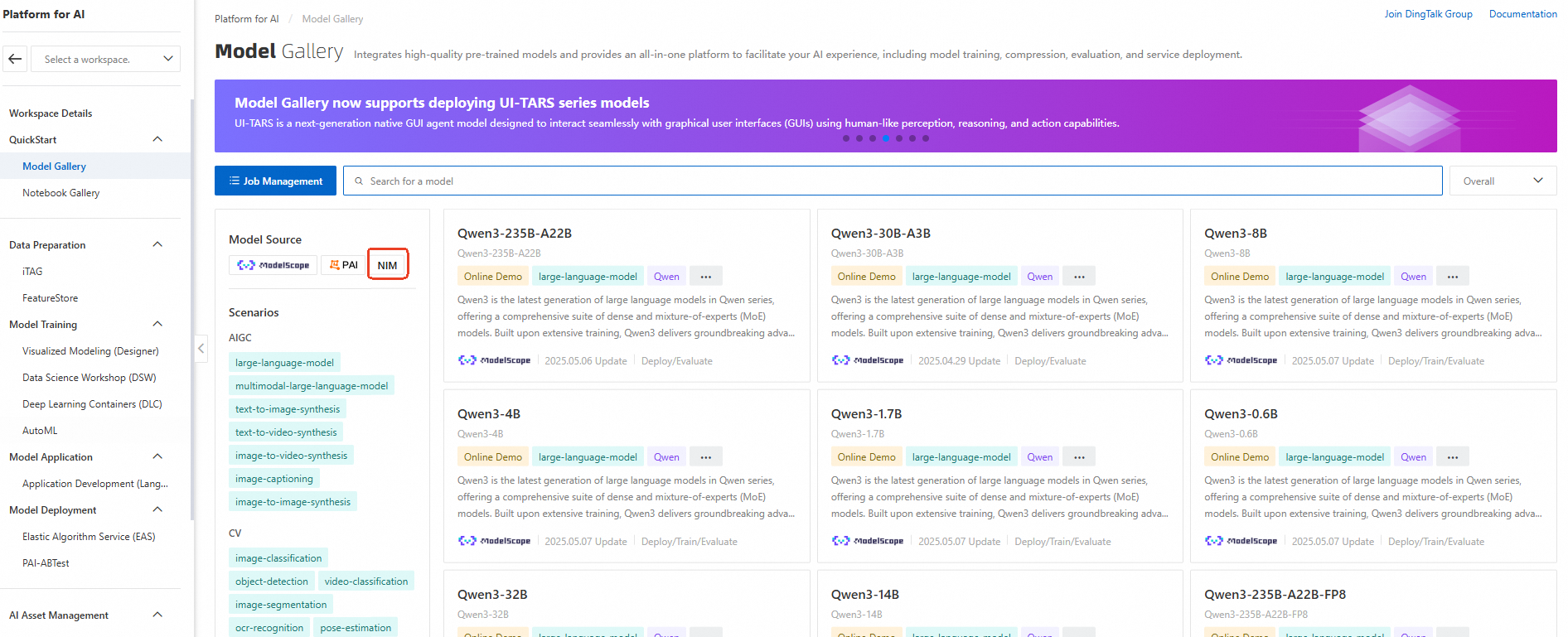
-
Select a NIM model to open its details page, and then click Deploy in the upper-right corner. Deploying NIM models in PAI requires membership in the NVIDIA AI Enterprise or NVIDIA Developer Program.
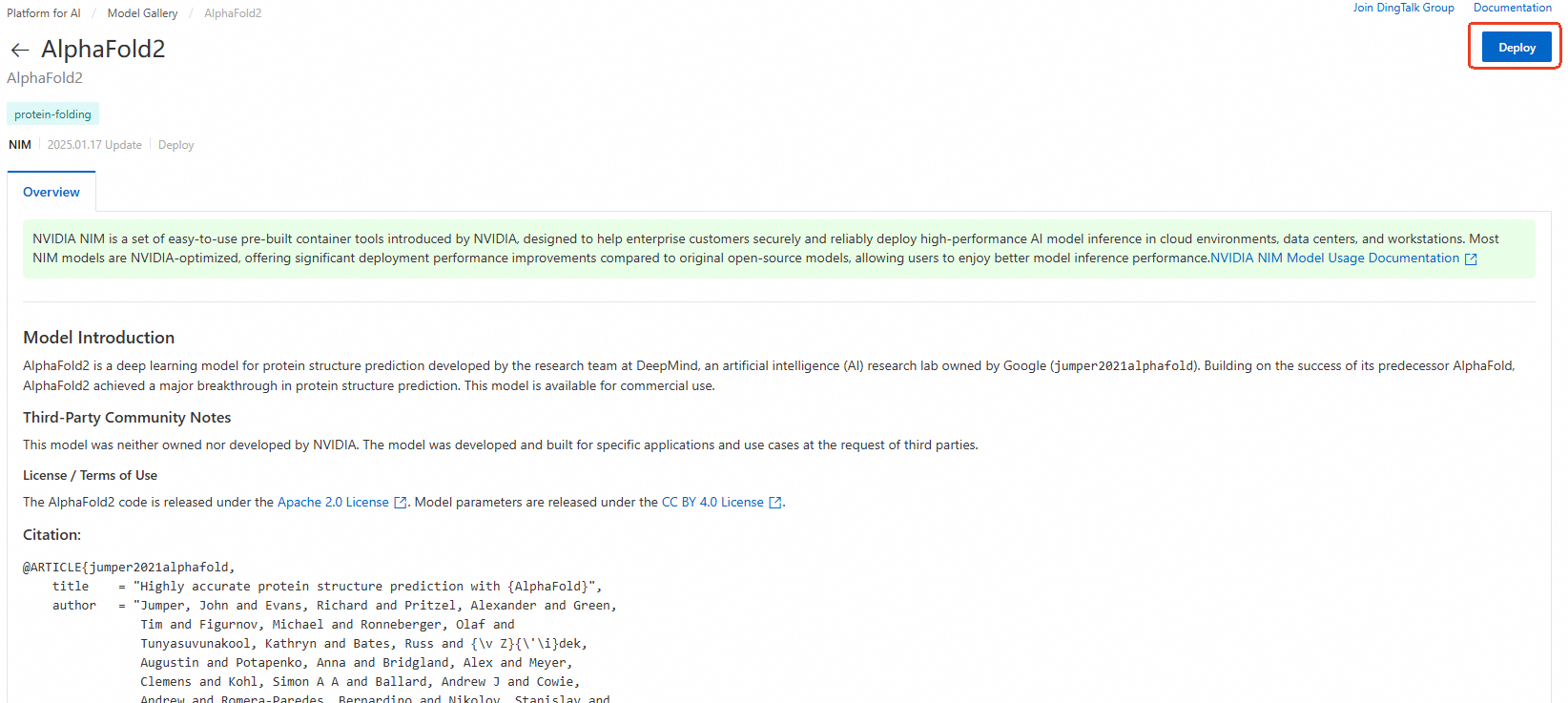
-
Configure deployment settings such as compute resources, and then click Deploy to create the model service. For service invocation details, see the model description.

Deploy on-premises
Download the image and model files to deploy a NIM model on-premises. This requires membership in the NVIDIA AI Enterprise or NVIDIA Developer Program.
-
Set up your environment. See NVIDIA's Getting Started documentation.
-
On the model details page, click Resource Download. Review and accept the NVIDIA license agreement to obtain the image and model download URLs.
-
Pull the container image. Replace
${IMAGE_URL}with the image download URL.docker pull ${IMAGE_URL} -
Download the model files by using ossutil.
-
Start the container. In this example, model files are saved to /local/model/. Replace
${MOUNT_PATH}with the mount path inside the container and${IMAGE_URL}with the image download URL.docker run --rm \ --runtime=nvidia \ --gpus all \ -u $(id -u) \ -v /local/model/:${MOUNT_PATH} ${IMAGE_URL}
Get started with PAI
New Alibaba Cloud users can follow these steps to access PAI Model Gallery:
-
Go to the Alibaba Cloud homepage. Click Sign in in the upper-right corner to log in or register.

-
After logging in and completing real-name verification, go to Platform for AI (PAI).
First-time PAI users must complete real-name verification and grant the required authorizations. Keep the default settings and confirm activation. After activation completes, go to the default workspace to deploy models.
