All Products
Search
Document Center

Platform For AI:Manage and use multimodal data

Last Updated:Dec 11, 2025

1. Overview

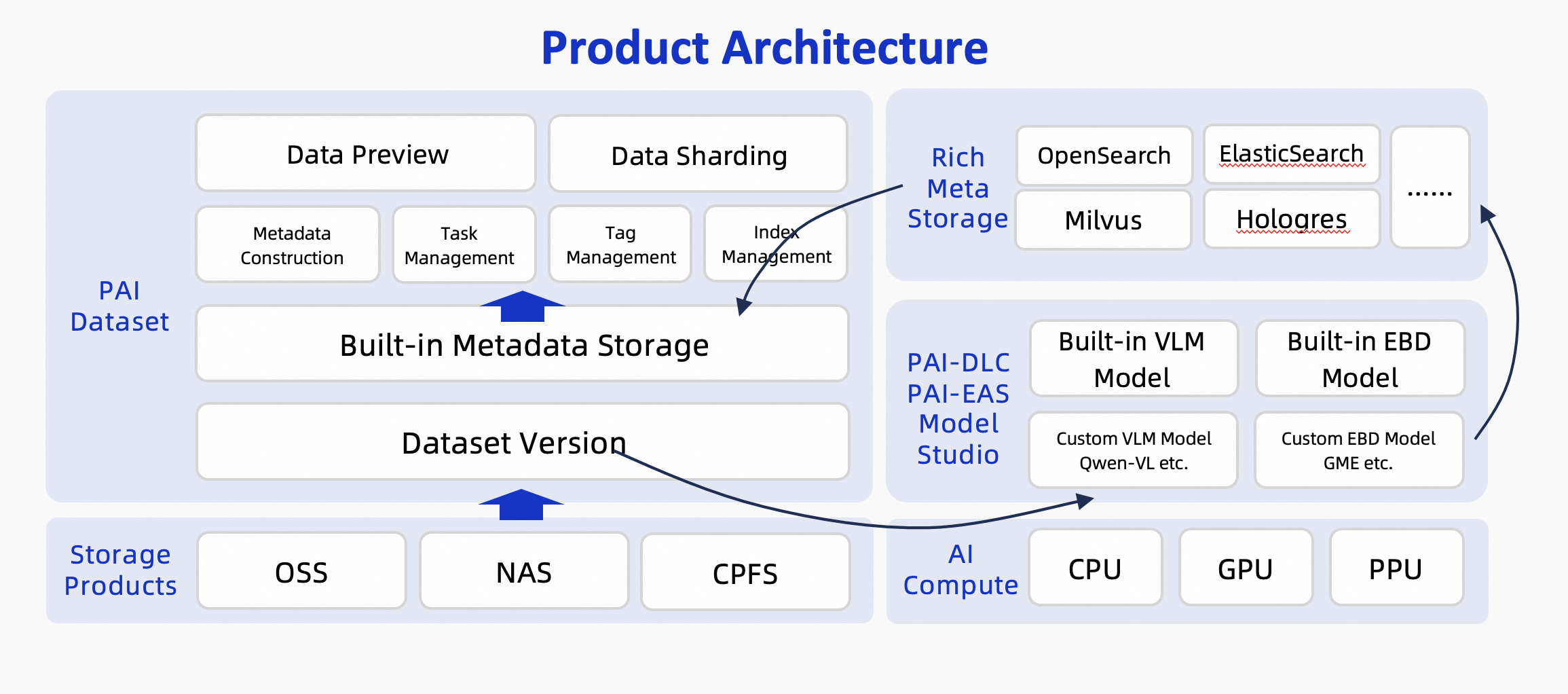
Multimodal data management uses large multimodal models and embedding models to preprocess data, such as images. This process generates rich metadata through smart tagging and semantic indexing. This metadata lets you search and filter your data. You can quickly find data subsets for specific scenarios to use in processes such as data annotation and model training. PAI datasets also provide a full set of OpenAPI operations, which allows for easy integration with your own platforms. The service architecture is shown in the following figure:

image

2. Limits

The following limits apply to multimodal data management in PAI:

  • Regions: Currently available in Hangzhou, Shanghai, Shenzhen, Ulanqab, Beijing, Guangzhou, Singapore, Germany, US (Virginia), China (Hong Kong), Tokyo, Jakarta, Guangzhou, US (Silicon Valley), Kuala Lumpur, and Seoul.

  • Storage class: Multimodal data management can only be used with Object Storage Service (OSS).

  • File types: Only image files are supported. Supported file formats include JPG, JPEG, PNG, GIF, BMP, TIFF, and WEBP.

  • Number of files: A single dataset version can contain a maximum of 1,000,000 files. If you have special requirements, contact a PAI Product and Solution Architect (PDSA) to increase the limit.

  • Usage model:

    • Tagging models: Supports the Qwen-VL Max and Qwen-VL Plus models from the Model Studio platform.

    • Indexing models: Supports the General Multimodal Embedding (GME) model from PAI-Model Gallery for indexing. The model is deployed on PAI-Elastic Algorithm Service (EAS).

  • Metadata storage:

    • Metadata: Metadata is securely stored in the built-in PAI metadatabase.

    • Embedding vectors: You can store embedding vectors in the following custom vector databases:

      • Elasticsearch (Vector-enhanced Edition, version 8.17.0 or later)

      • OpenSearch (Vector Search Edition)

      • Milvus (version 2.4 or later)

      • Hologres (version 4.0.9 or later)

  • Dataset processing mode: Currently, smart tagging and semantic indexing tasks can run in full mode only. Incremental mode is not supported.

3. Procedure

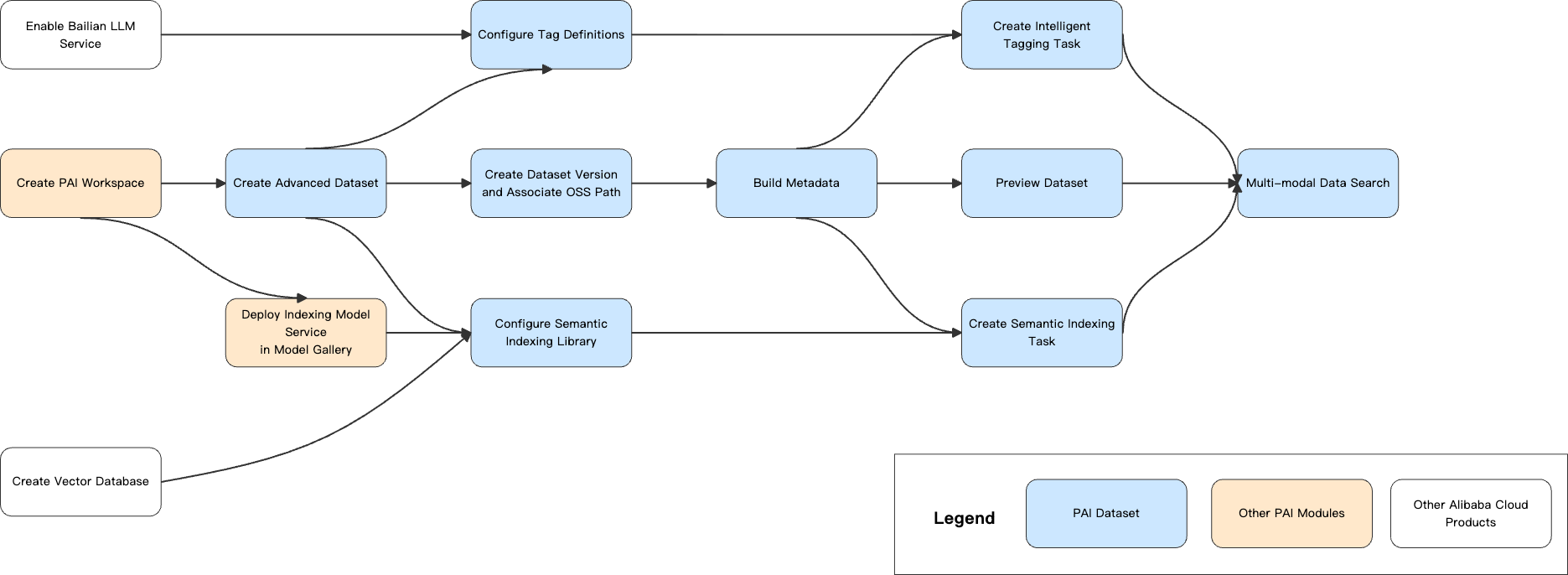
PAI多模态数据管理使用说明

3.1. Prerequisites

3.1.1. Activate PAI, create a default workspace, and obtain administrator permissions

  1. Use your Alibaba Cloud account to activate PAI and create a workspace. Log on to the PAI console, select a region in the upper-left corner, and then authorize and activate the service. For more information, see Activate PAI and create a workspace.

  2. Grant permissions to the operating account. You can skip this step if you are using your Alibaba Cloud account. If you are using a Resource Access Management (RAM) user, you must have the administrator role for the workspace. For more information about how to grant permissions, see the "Configure member roles" section of Manage workspaces.

3.1.2. Activate Model Studio and create an API key

For more information about how to activate Alibaba Cloud Model Studio and create an API key, see Obtain an API key.

3.1.3. Create a vector database

Create a vector database instance

Multimodal dataset management currently supports the following Alibaba Cloud vector databases:

  • Elasticsearch (Vector-enhanced Edition, version 8.17.0 or later)

  • OpenSearch (Vector Search Edition)

  • Milvus (version 2.4 or later)

  • Hologres (version 4.0.9 or later)

For information about how to create an instance for each cloud vector database, see the documentation for the corresponding product.

Configure the network and whitelist

  • Public network access

    If your vector database instance has a public endpoint, add the following IP addresses to the instance's public access whitelist. This allows the multimodal data management service to access the instance over the public network. For information about how to configure the whitelist for Elasticsearch, see Configure a public or private IP address whitelist for an instance.

    Region

    IP address list

    Hangzhou

    47.110.230.142, 47.98.189.92

    Shanghai

    47.117.86.159, 106.14.192.90

    Shenzhen

    47.106.88.217, 39.108.12.110

    Ulanqab

    8.130.24.177, 8.130.82.15

  • Private network access

    To apply, submit a ticket.

Create a vector index table (Optional)

In some vector databases, a vector index table is also called a collection or an index.

The index table schema must be defined as follows:

Table schema definition

{
    "id":"text",                    // Primary key ID. This must be defined in OpenSearch. In other databases, it exists by default and does not need to be defined.
    "index_set_id": "keyword",      // Index set ID. Must support indexing.
    "file_meta_id": "text",         // File metadata ID.
    "dataset_id": "text",           // Dataset ID.
    "dataset_version": "text",      // Dataset version.
    "uri": "text",                  // URI of the OSS file.
    "file_vector": {                // Vector field.
        "type": "float",            // Vector type: float.
        "dims": 1536,               // Vector dimensions. Customizable.
        "similarity": "DotProduct"  // Vector distance algorithm. Cosine distance or dot product.
    }
}

This topic uses Elasticsearch as an example to demonstrate how to create a semantic index table using Python. For information about how to create index tables for other types of vector databases, see the documentation for the corresponding cloud product. The following code provides an example:

Sample code for creating a semantic index table in Elasticsearch

from elasticsearch import Elasticsearch

# 1. Connect to the Alibaba Cloud Elasticsearch instance.
# Note:
# (1) Python 3.9 or later is required: python3 -V
# (2) The Elasticsearch client must be version 8.x: pip show elasticsearch
# (3) If you use a VPC endpoint, the caller must be able to access the VPC of the ES instance. Otherwise, use a public endpoint and add the public IP address of the caller to the ES whitelist.
# The default userName is elastic.
es_client = Elasticsearch(
    hosts=["http://es-cn-l4p***5z.elasticsearch.aliyuncs.com:9200"],
    basic_auth=("{userName}", "{password}"),
)

# 2. Define the index name and structure. The HNSW index algorithm is used by default.
index_name = "dataset_embed_test"
index_mapping = {
    "settings": {
        "number_of_shards": 1,          # Number of shards.
        "number_of_replicas": 1         # Number of replicas.
    },
    "mappings": {
        "properties": {
            "index_set_id": {
                "type": "keyword"
            },
            "uri": {
                "type": "text"
            },
            "file_meta_id": {
                "type": "text"
            },
            "dataset_id": {
                "type": "text"
            },
            "dataset_version": {
                "type": "text"  
            },
            "file_vector": {
                "type": "dense_vector",  # Define file_vector as a dense vector type.
                "dims": 1536,  # The vector dimension is 1536.
                "similarity": "dot_product"  # The similarity calculation method is dot product.
            }
        }
    }
}

# 3. Create the index.
if not es_client.indices.exists(index=index_name):
    es_client.indices.create(index=index_name, body=index_mapping)
    print(f"Index {index_name} created successfully!")
else:
    print(f"Index {index_name} already exists. It will not be created again.")

# 4. View the structure of the created index table (Optional).
# indexes = es_client.indices.get(index=index_name)
# print(indexes)

3.2. Create a dataset

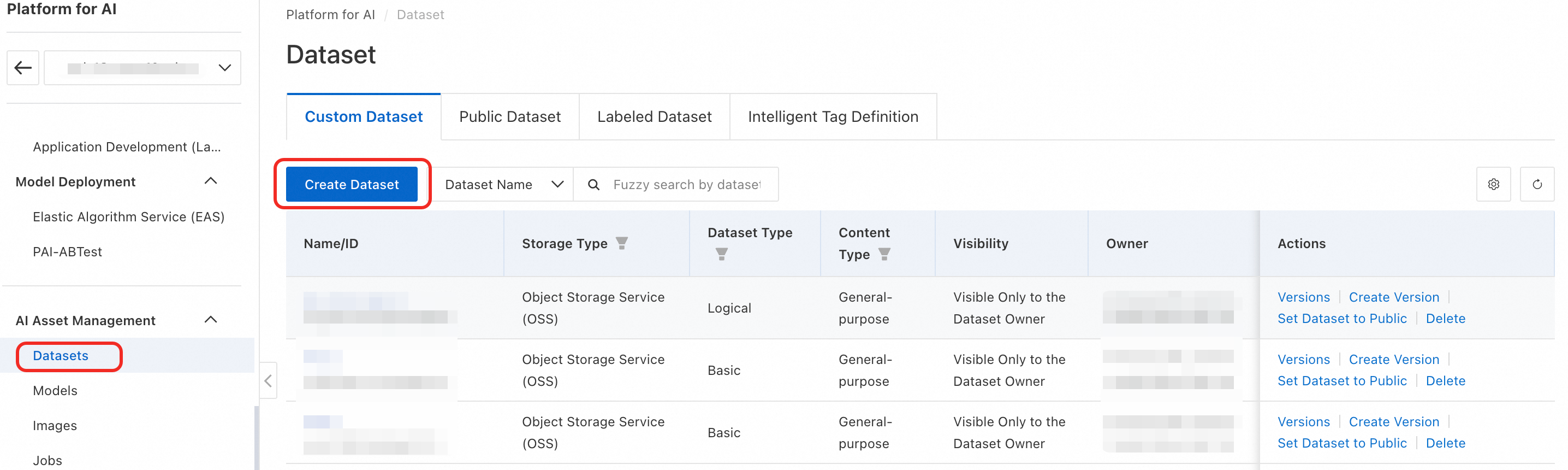
  1. Go to the PAI workspace. In the navigation pane on the left, click AI Asset Management > Datasets > Create Dataset to go to the dataset configuration page.

    image

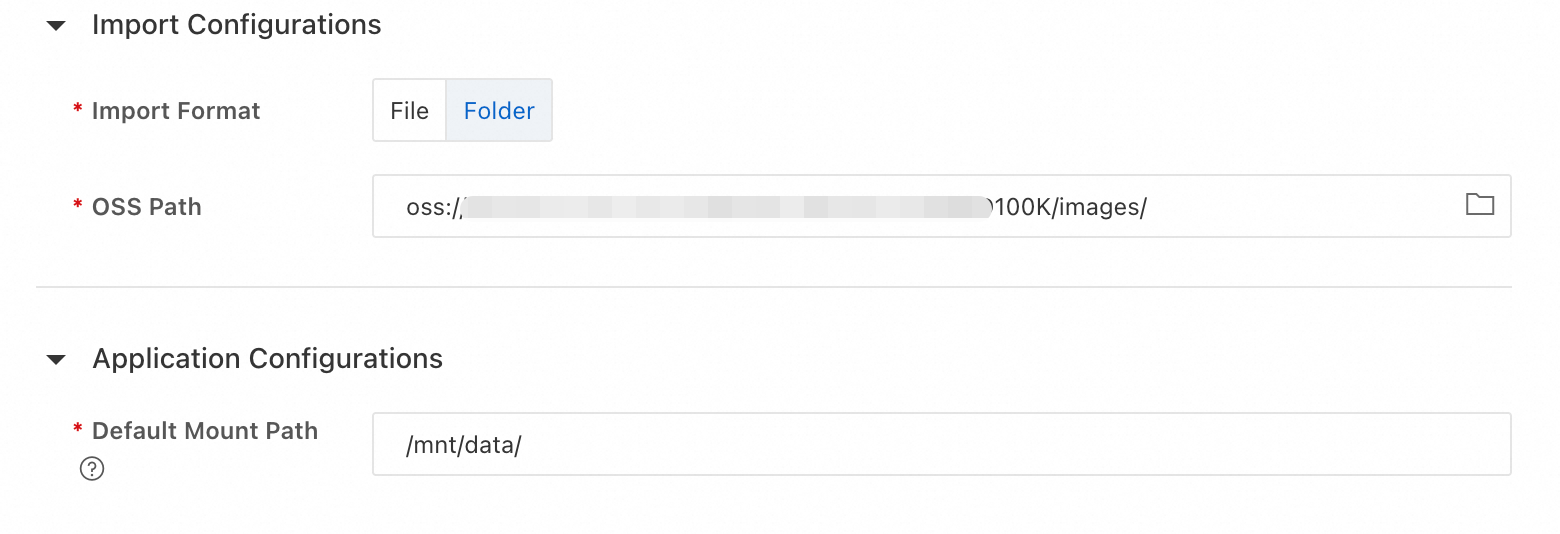
  2. Configure the dataset parameters. The key parameters are described in the following list. You can use the default values for the other parameters.

    1. Storage Type: Object Storage Service (OSS).

    2. Set Type to Advanced.

    3. Set Content Type to Image.

    4. Set OSS Path to the OSS storage path of the dataset. If you do not have a dataset, you can download the sample dataset retrieval_demo_data and upload it to OSS to test the multimodal data management feature.

    Note

    When you import a file or folder, only the path is recorded. The data is not copied.

    image

    Then, click OK to create the dataset.

3.3. Create connections

3.3.1. Create a smart tagging model connection

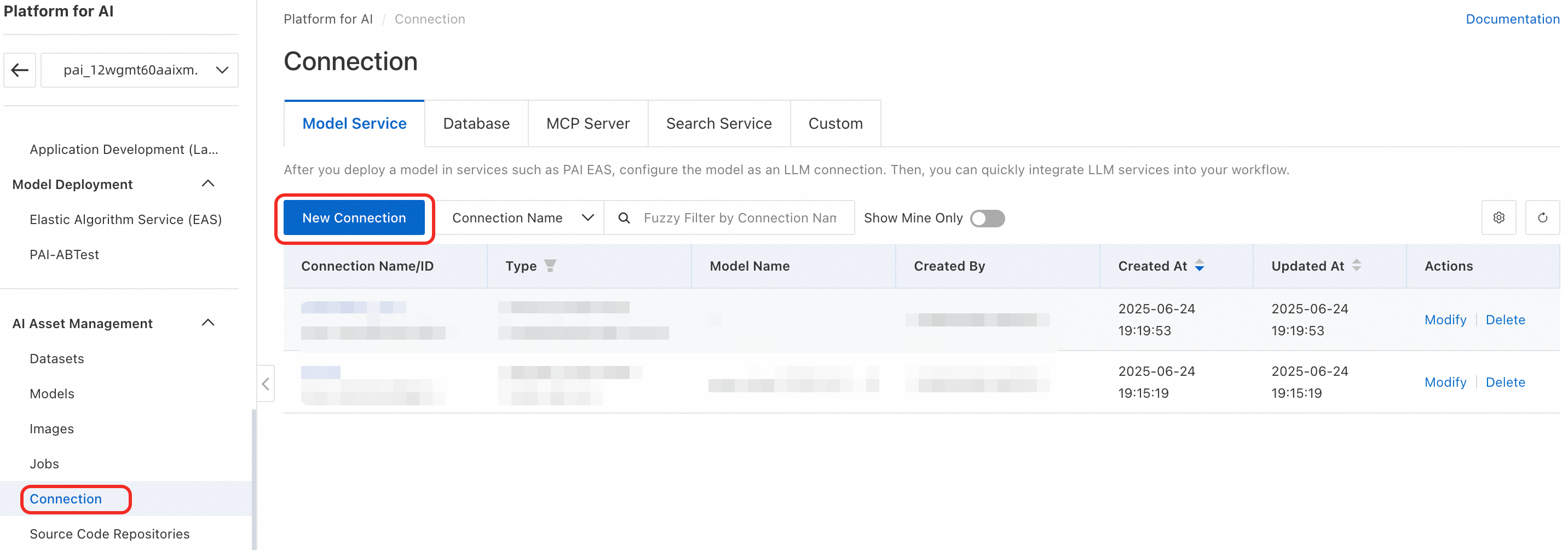
  1. Go to the PAI workspace. In the navigation pane on the left, click AI Asset Management > Connections > Model Services > Create Connection to open the Create Connection page.

    image

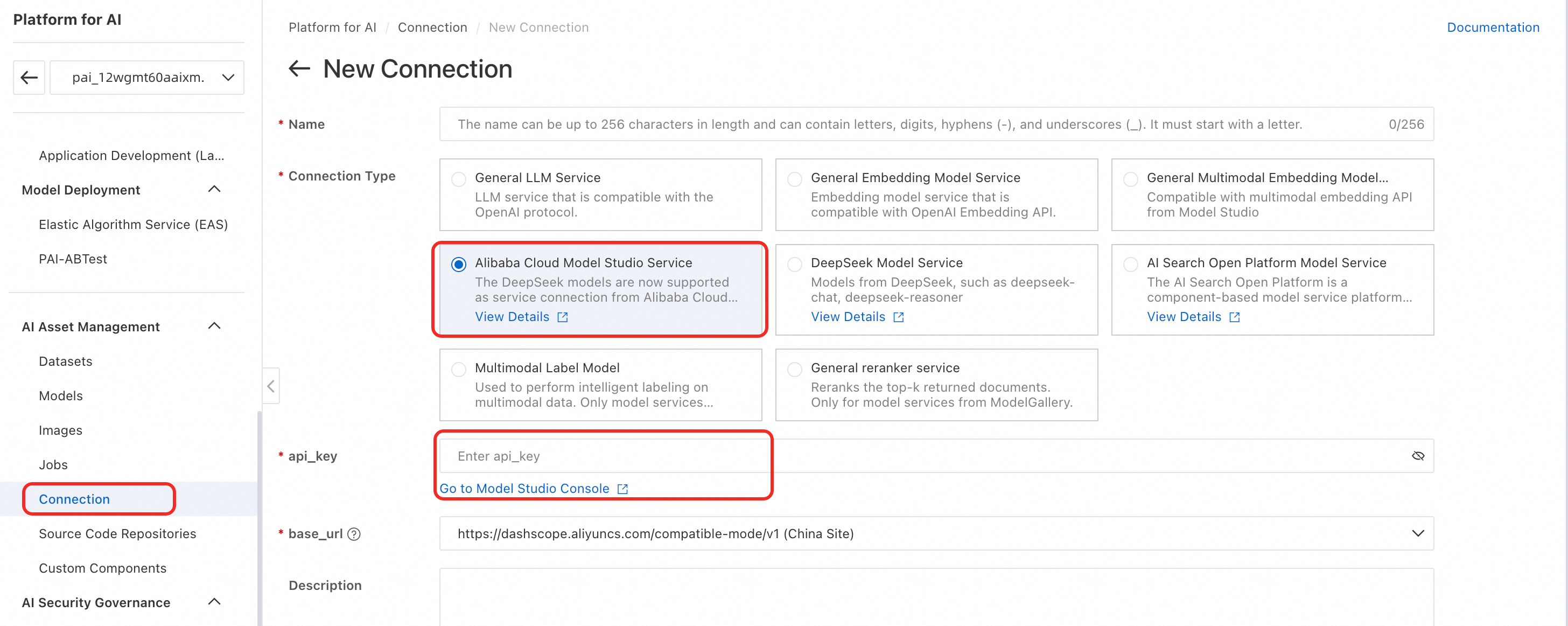
  2. Select Model Studio Large Model Service and configure the Model Studio api_key.

    image

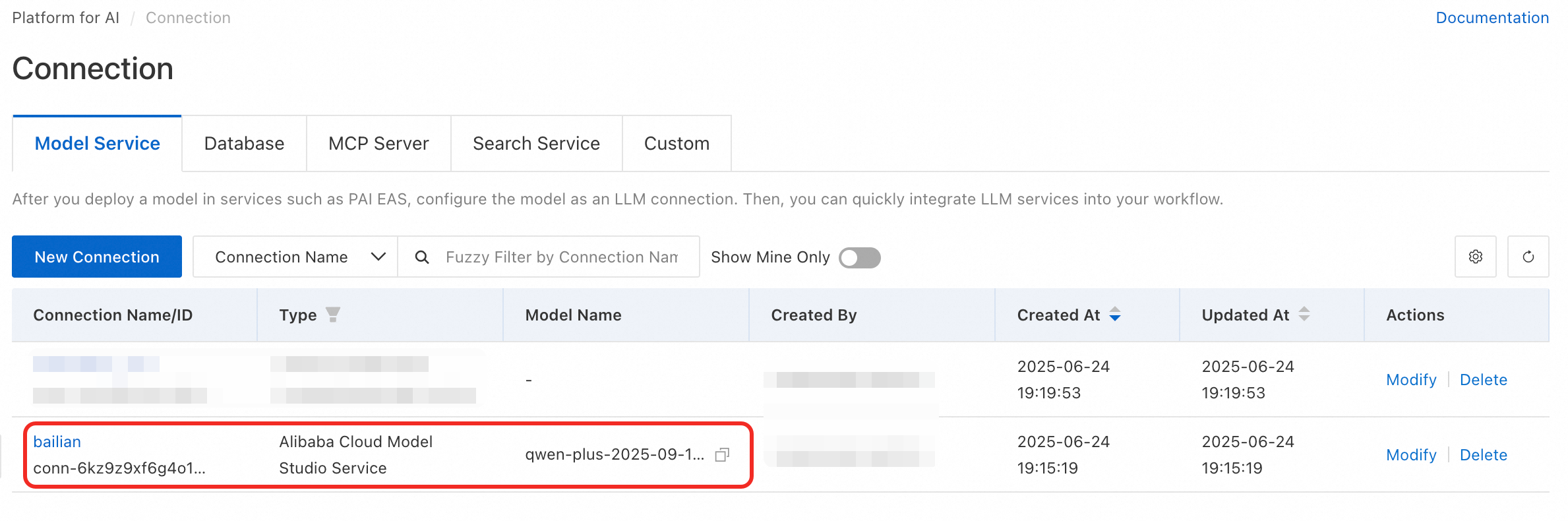
  3. After the connection is created, the Model Studio large model service appears in the list.

    image

3.3.2. Create a custom semantic indexing model connection

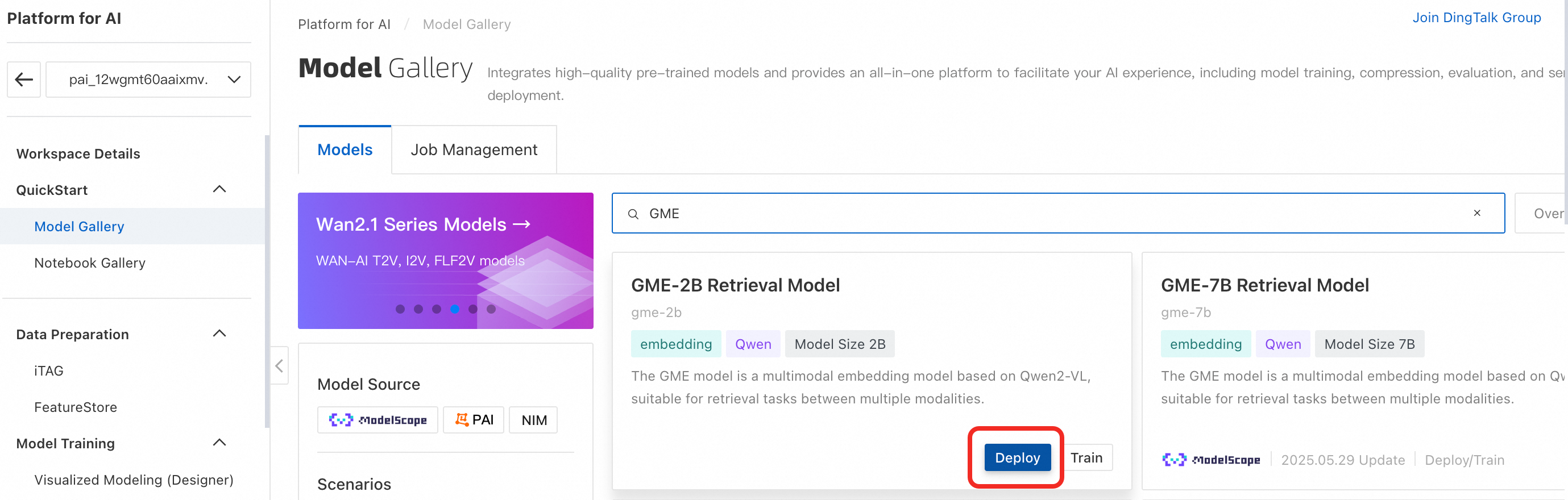
  1. In the navigation pane on the left, click Model Gallery. Find and deploy the GME multimodal retrieval model to obtain an EAS service. The deployment takes about 5 minutes. The deployment is successful when the status changes to Running.

    Important

    When you no longer need the index model, stop and delete the service to avoid further charges.

    image

  2. Go to the PAI workspace. In the navigation pane on the left, click AI Asset Management > Connections > Model Services > Create Connection to open the Create Connection page.

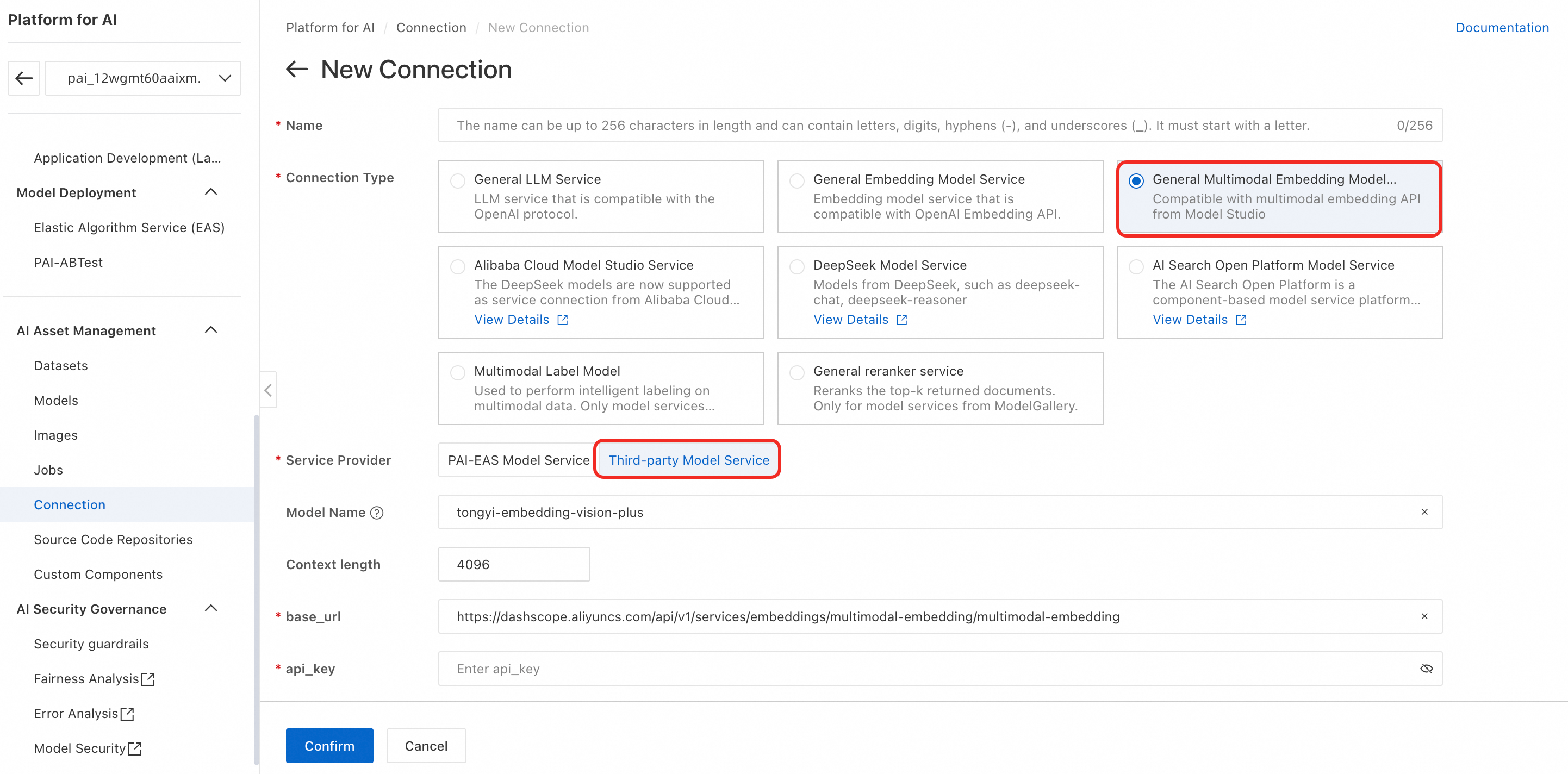
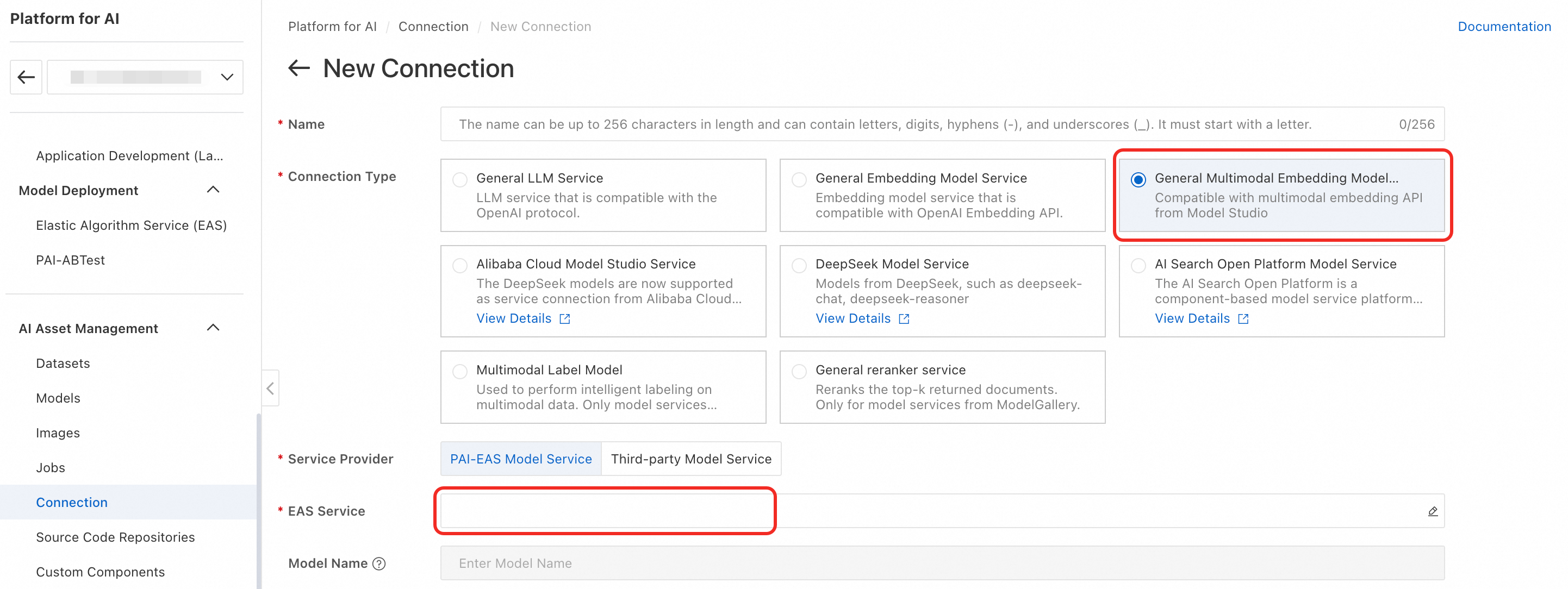
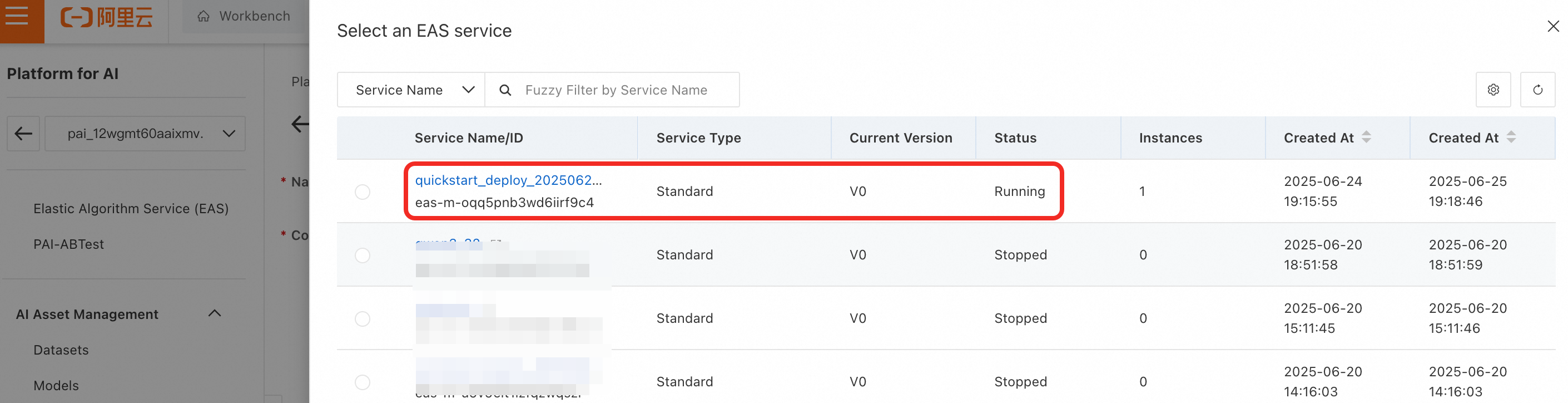
  3. Select General Multimodal Embedding Model Service. Click the EAS Service input box and select the GME multimodal retrieval model that you deployed. If the service provider is not under your current account, you can select a third-party model service.

    image

    image

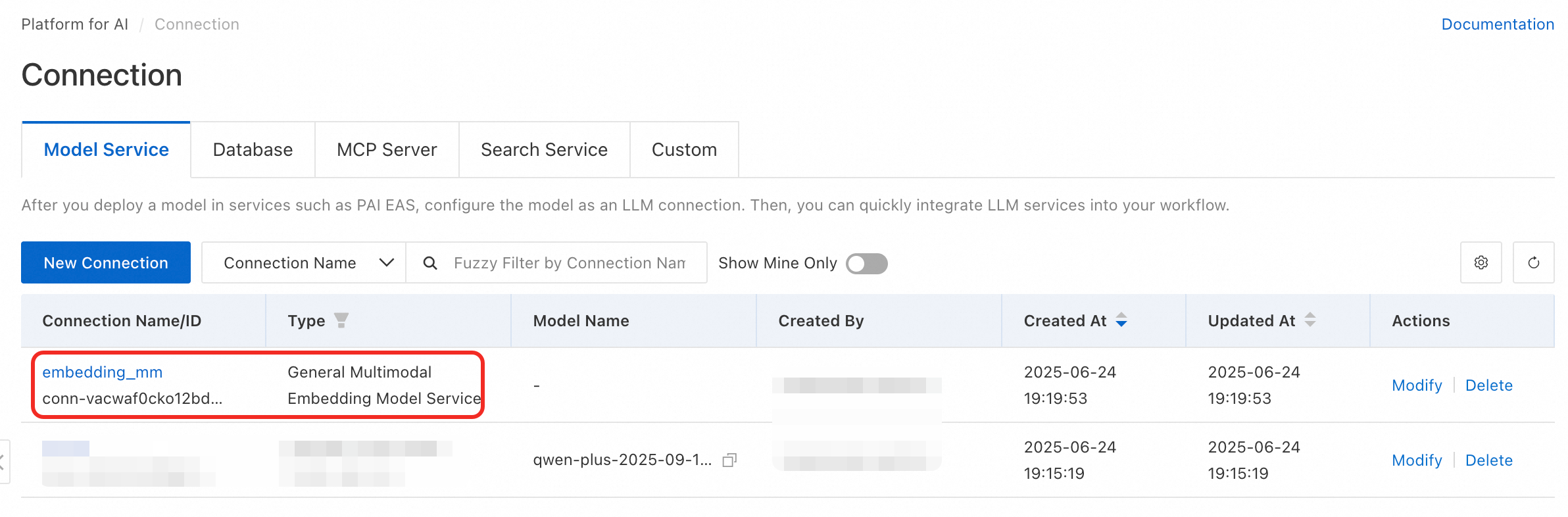
  4. After the connection is created, the model connection service appears in the list.

    image

3.3.3. Create a vector database connection

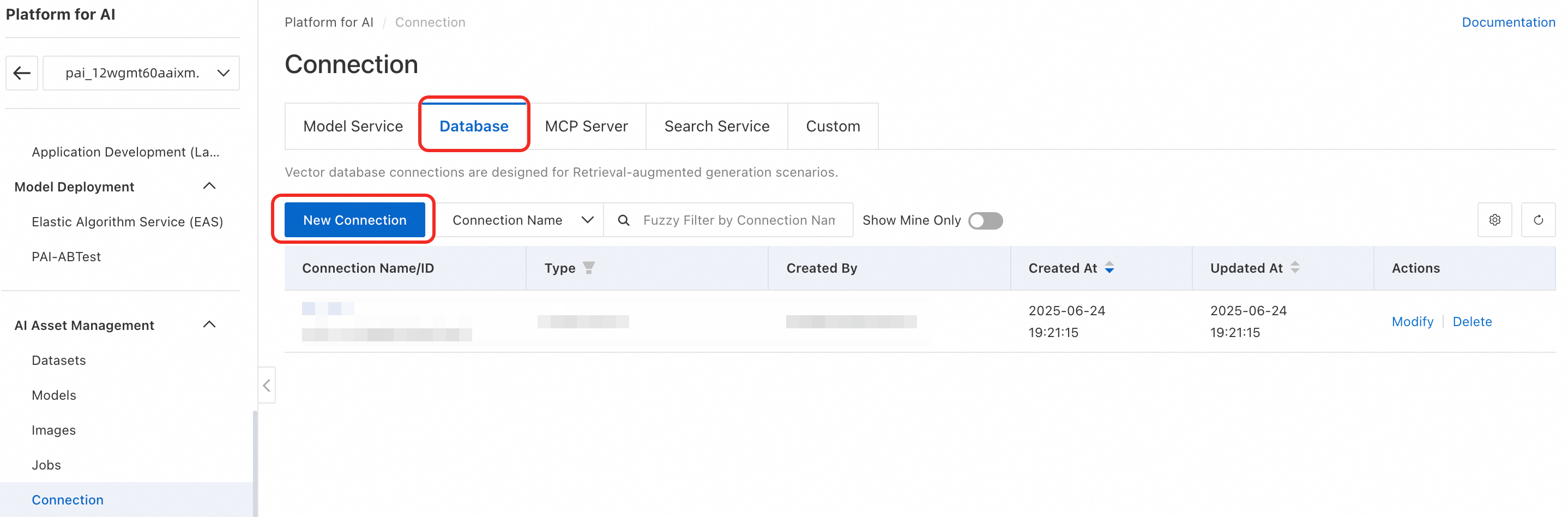
  1. In the navigation pane on the left, click AI Asset Management > Connections > Databases > Create Connection to open the Create Connection page.

    image

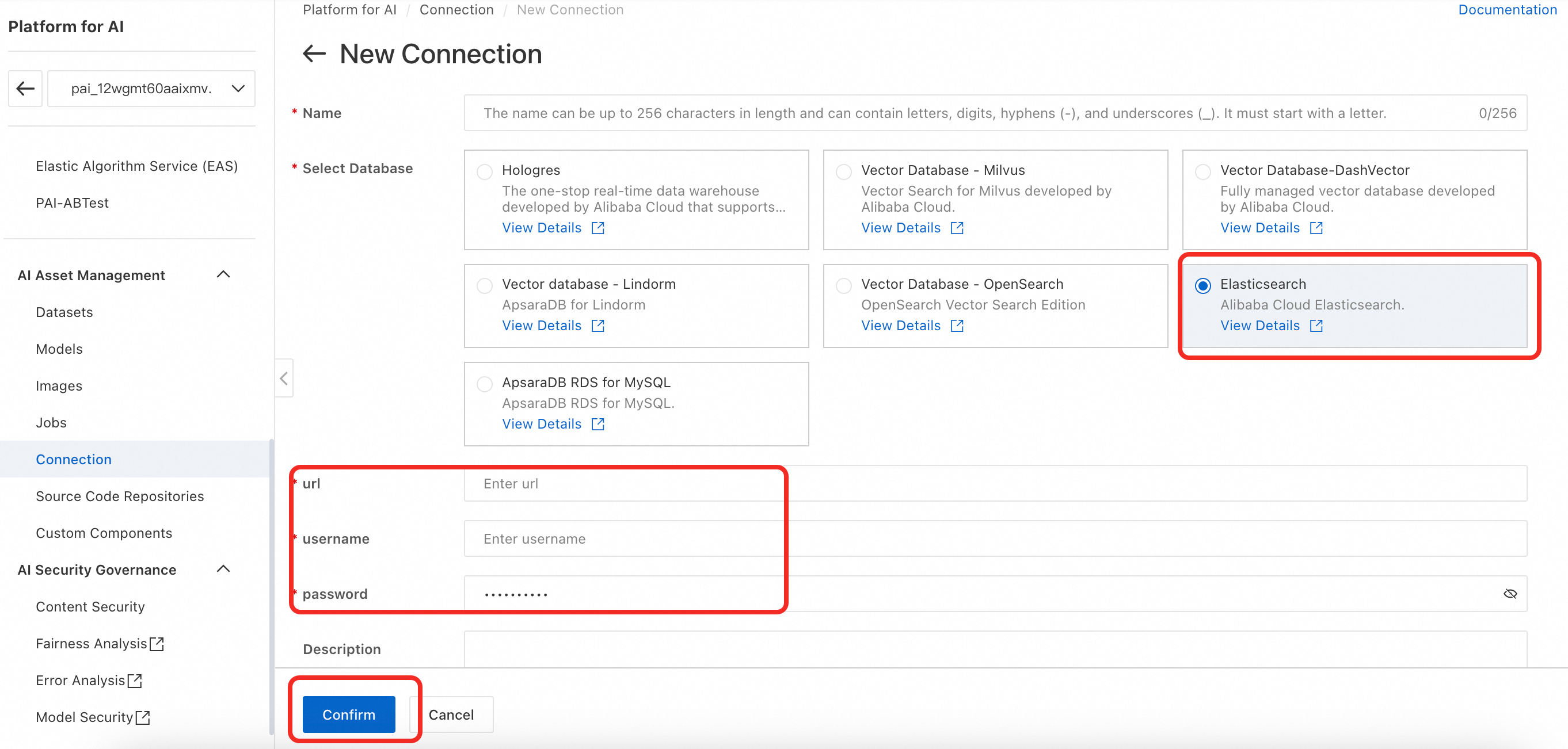
  2. The multimodal retrieval service supports Milvus, Lindorm, OpenSearch, and Elasticsearch vector databases. This section uses Elasticsearch as an example to show how to create a connection. Select Search And Analytics Service - Elasticsearch and configure parameters such as uri, username, and password. For more information about the configuration, see Create a database connection.

    image

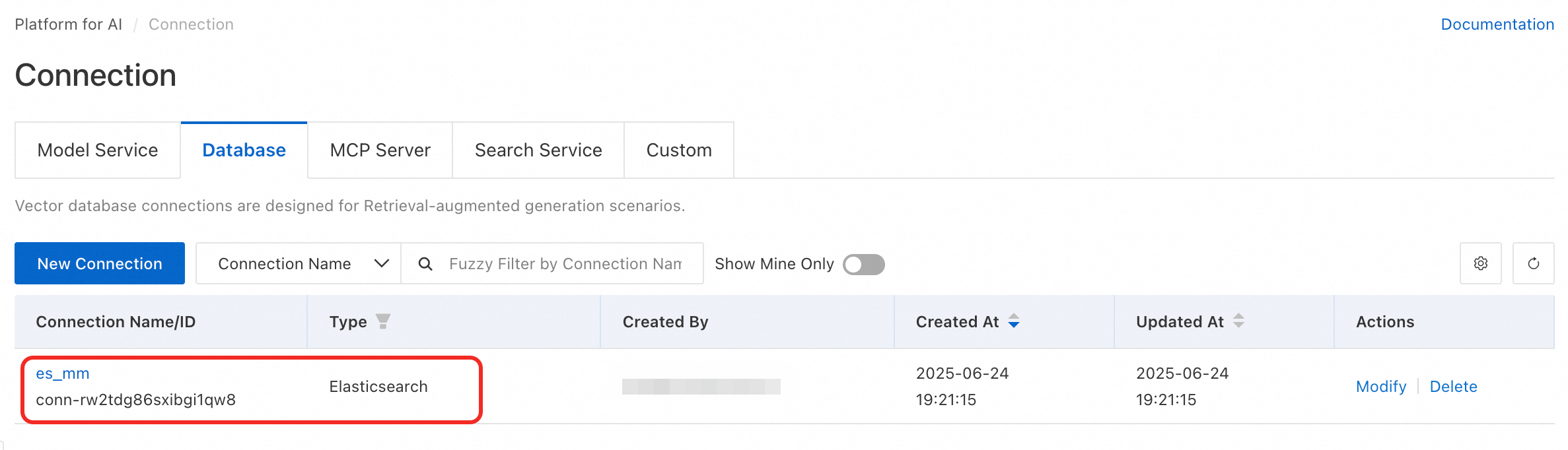
  3. After the connection is created, the vector database connection appears in the list.

    image

3.4. Create a smart tagging task

3.4.1. Create smart tag definitions

  1. In the navigation pane on the left, click AI Asset Management > Datasets > Smart Tag Definitions > Create Smart Tag to open the tag configuration page. The following example shows how to configure the tags:

    • Set Guiding Prompt to: As an expert driver with many years of experience, you are highly experienced in driving on both highways and urban roads.

    • Set Tag Definition to:

      Sample tag definitions for autonomous driving

      {
          "Reflective strips": "Usually yellow, or yellow and black, attached to permanent protruding obstacles such as wall corners to alert drivers to avoid them. They are strip-shaped, not traffic cones, parking locks, or water-filled barriers!",
          "Parking lock": "Also known as a parking space lock. When raised, it can prevent the parking space from being occupied. If a parking lock is present, you must specify whether it is in the raised or lowered state. It is in the raised state if the frame is up, otherwise it is in the lowered state.",
          "Construction vehicle with lights on": "The target is a vehicle with two arrow-shaped lights on the left and right that are lit. Otherwise, it does not exist.",
          "Overturned vehicle": "A vehicle that has overturned on the ground.",
          "Fallen water-filled barrier": "A water-filled barrier is a plastic shell obstacle used to divide the road or form a barrier, usually in the form of a red plastic wall. It is commonly used in road traffic facilities and is often seen on highways, urban roads, and at overpass intersections. It is significantly larger than a traffic cone and has a sheet-like structure. Water-filled barriers are normally upright. If one is lying on the ground, it needs to be clearly indicated.",
          "Fallen traffic cone": "Also known as a cone-shaped traffic marker or pylon. It is a cone-shaped temporary road sign. Rod-shaped or sheet-like obstacles are not traffic cones because they are not cone-shaped. A traffic cone may be knocked over by a car. If a traffic cone is present in the image and you need to determine if it has fallen, observe whether the bottom of the cone (the base of the cone) is in contact with the ground. If it is, it has not fallen. Otherwise, it has fallen.",
          "Charging space": "A parking space against a wall with a visible charging gun and charging pile equipment, or marked as a new energy vehicle space, is a charging space. It can only appear in a parking lot (both indoor and outdoor are possible). Note that parking locks are not related to charging.",
          "Speed bump": "Usually yellow and black, or just yellow. It is a narrow raised strip across the road, perpendicular to the road edge, used to slow down vehicles. It cannot appear within a parking space.",
          "Rumble strips": "Fishbone-shaped dashed lines on both sides of the lane, inside the solid line. Both sides must have them to be considered rumble strips.",
          "Ramp": "Can only be determined to exist if a large curve on a highway is clearly visible. Ramps are usually on the right side of the main highway road, for entering and exiting toll stations.",
          "Ground shadow": "There are obvious shadows on the ground.",
          "Cloudy": "Can only be determined to exist if the sky is visible and there are obvious clouds in the sky.",
          "Car with glare": "The front lights are causing glare (the light has changed from a single point to a line of light), which usually occurs at night or on rainy days.",
          "Left turn, right turn, U-turn arrow": "A milky white arrow sign painted on the road surface of the lane (a few are yellow), not the green and white arrow on a highway sign indicating a right curve. When determining if these arrows exist, only the clear arrow signs in the middle of the lane surface are the target. Others, such as those on the roadside, are not. If there is an arrow on the ground, the method to determine its direction is: a right-turn arrow rotates clockwise from the base to the tip; a left-turn arrow rotates counter-clockwise from the base to the tip; a U-shaped arrow is a U-turn arrow.",
          "Crosswalk": "Can only exist on the road surface (also possible in a parking lot) or at an intersection. It must be white lines distributed at repeated intervals parallel to the roadside, for pedestrian crossing. It cannot appear on highways, highway ramps, or in tunnels.",
          "Overexposure": "During the day, direct sunlight causes lens overexposure (can only happen during the day).",
          "Motor vehicle": "There are other motor vehicles in the field of view.",
          "Merging in and out": "Where multiple highway lanes become one, or one lane divides into multiple lanes.",
          "Intersection": "An intersection, and there are no lane lines within the intersection (meaning none within the intersection section, it does not matter if there are any outside the intersection).",
          "No parking sign": "A sign hanging or standing on the ground with the words 'No Parking' or a symbol of a P in a circle with a diagonal line through it.",
          "Lane line": "Lane lines on the road, with special attention to blurry lane lines.",
          "Fallen rocks, tires on the road": "Obstacles on the road that affect traffic.",
          "Tunnel": "Pay special attention to distinguish when entering or exiting a tunnel.",
          "Wet ground on a rainy day": "The ground is wet and slippery on a rainy day.",
          "Non-motor vehicle": "Includes non-motorized objects such as bicycles, electric bikes, wheelchairs, unicycles, and shopping carts. They may be parked on the roadside, in parking spaces, or moving on the road."
        }

3.4.2. Create an offline smart tagging task

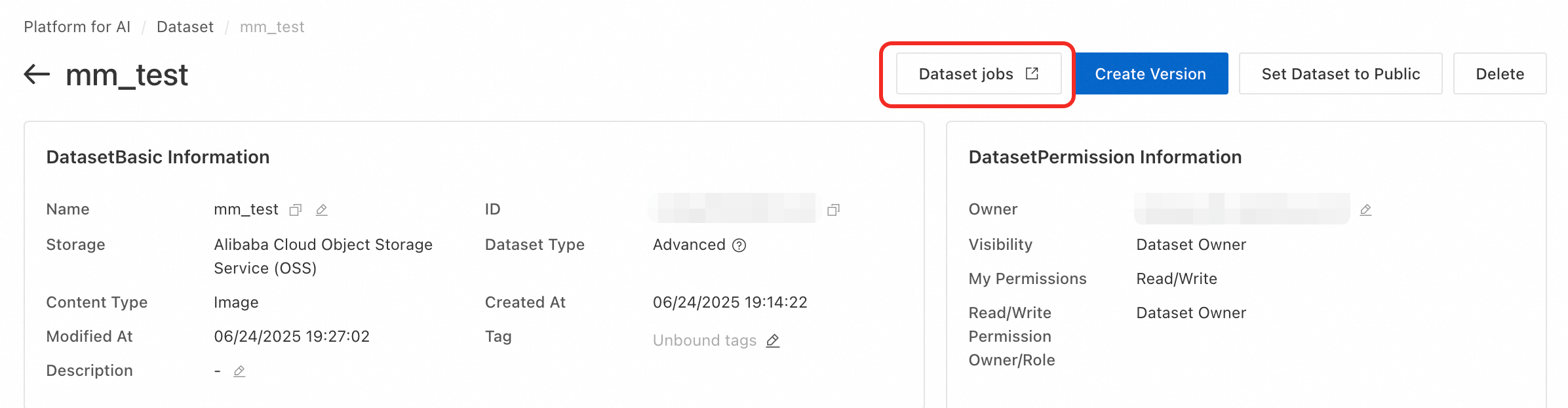
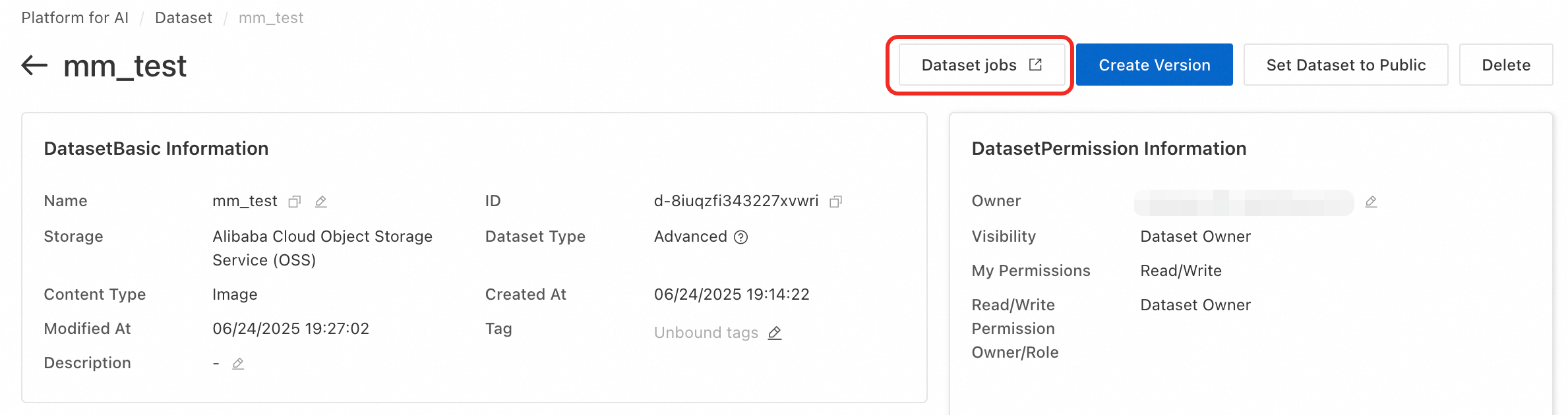
  1. Click Custom Datasets. Click the name of the dataset to go to its details page. Then, click the Dataset jobs tab.

    image

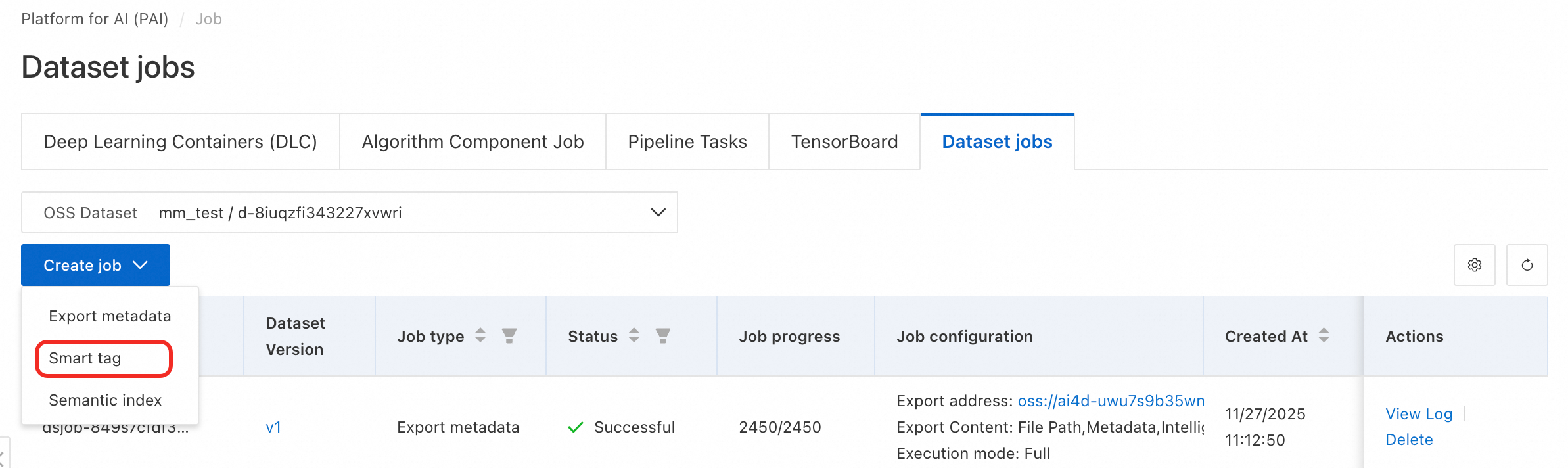
  2. On the tasks page, click Create Task > Smart Tagging and configure the task parameters.

    image

    • Set Dataset Version to the version that you want to tag, such as v1.

    • Set Smart Tagging Model Connection to the Model Studio model connection that you created.

    • Set Smart Tagging Model. Qwen-VL Max and Qwen-VL Plus are supported.

    • Set Maximum Concurrency based on the specifications of the EAS model service. For a single GPU, the recommended maximum concurrency is 5.

    • Set Smart Tag Definition to the smart tag definition that you created.

    Note

    Currently, the tagging mode supports tagging only all files in a dataset version.

  3. After the smart tagging task is created, it appears in the task list. You can monitor the running task and click the link on the right side of the list to view logs or stop the task.

    Note

    When you start a smart tagging task for the first time, metadata is built. This process may take a long time.

3.5. Create a semantic indexing task

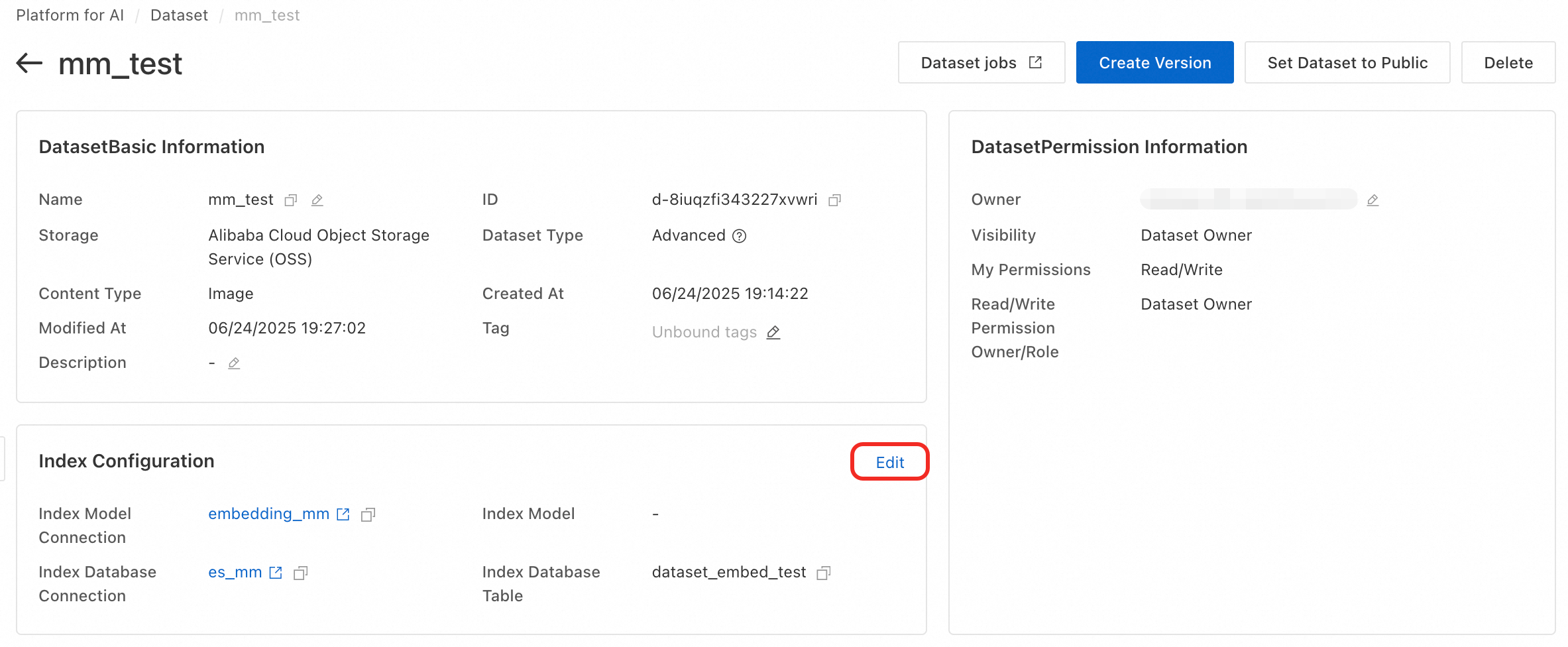
  1. Click the name of the dataset to go to its details page. In the Index Library Configuration section, click the edit icon.

    image

  2. Configure the index library.

    • Set Index Model Connection to the index model connection that you created in section 3.3.2.

    • Set Index Database Connection to the index library connection that you created in section 3.3.3.

    • Set Index Database Table to the name of the index table that you created in the Create a vector index table (Optional) section, which is `dataset_embed_test`.

    Click Save and then click Refresh Now. A semantic indexing task is created for the selected dataset version. This task updates the semantic index for all files in the version. You can click Semantic Indexing Task in the upper-right corner of the dataset details page to view the task details.

    Note

    When you start a semantic indexing task for the first time, metadata is built. This process may take a long time.

    If you click Cancel instead of Refresh Now, you can create the task manually by following these steps:

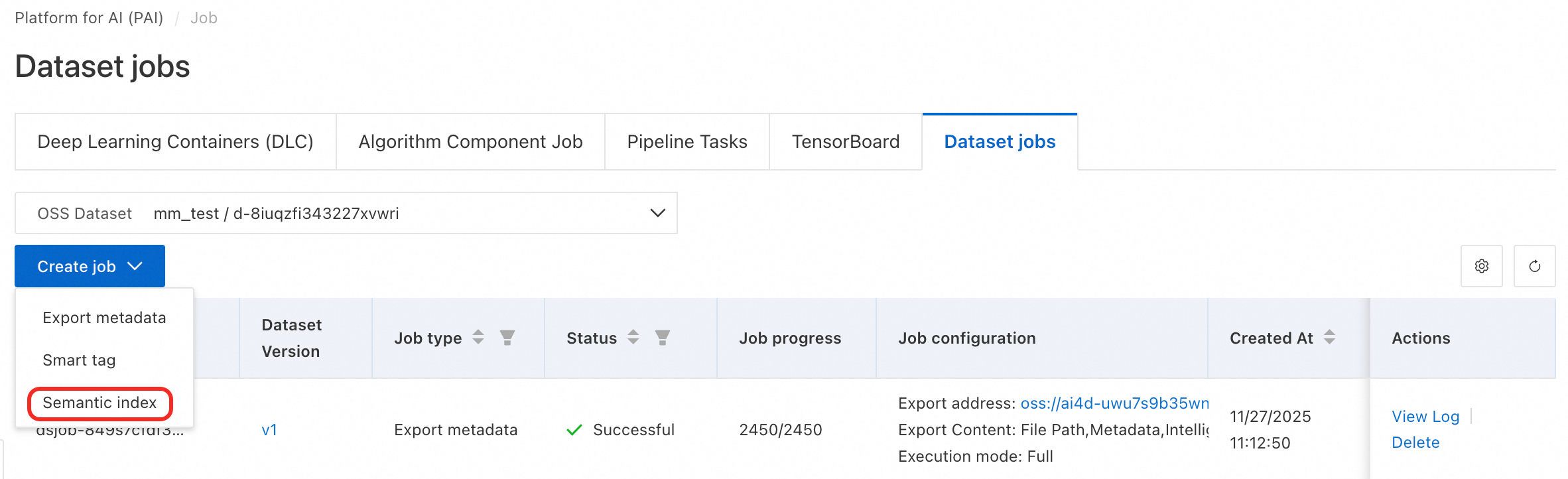
    On the dataset details page, click the Dataset Tasks tab to go to the tasks page.

    image

    Click Create Task > Semantic Indexing. Configure the dataset version and set the maximum concurrency based on the specifications of the Elastic Algorithm Service (EAS) model service. For a single GPU, a maximum concurrency of 5 is recommended. Then, click OK to create the task.

    image

3.6. Preview data

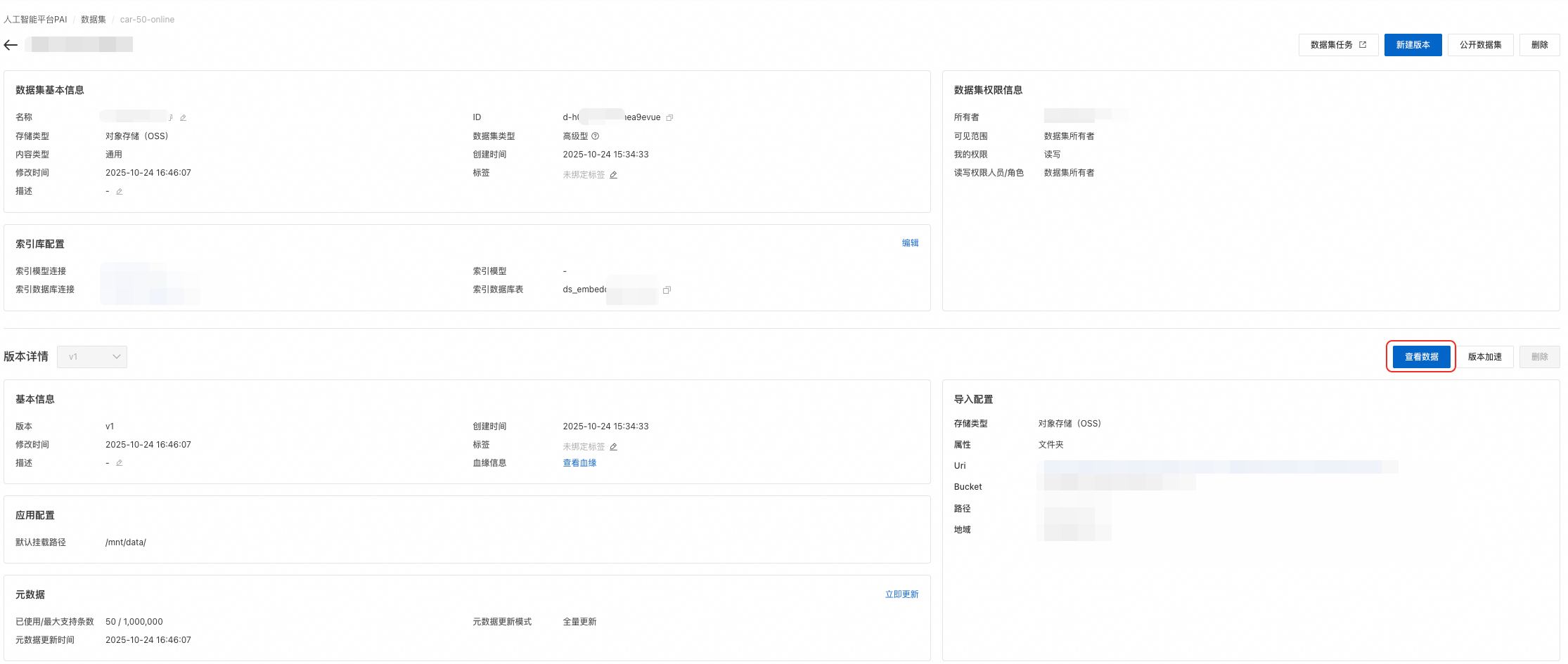
  1. After the smart tagging and semantic indexing tasks are complete, on the dataset details page, click View Data to preview the images in the dataset version.

    image.png

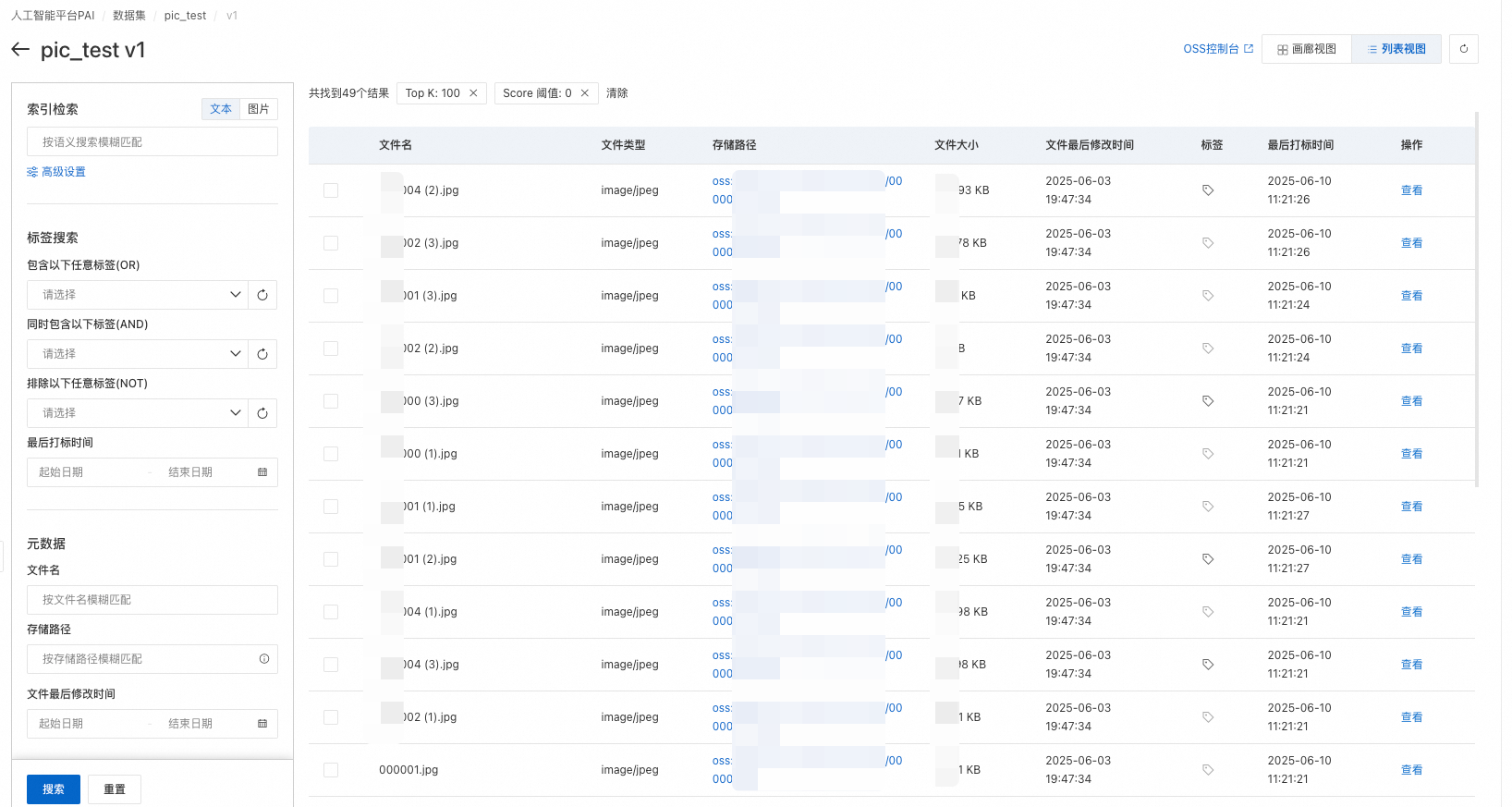
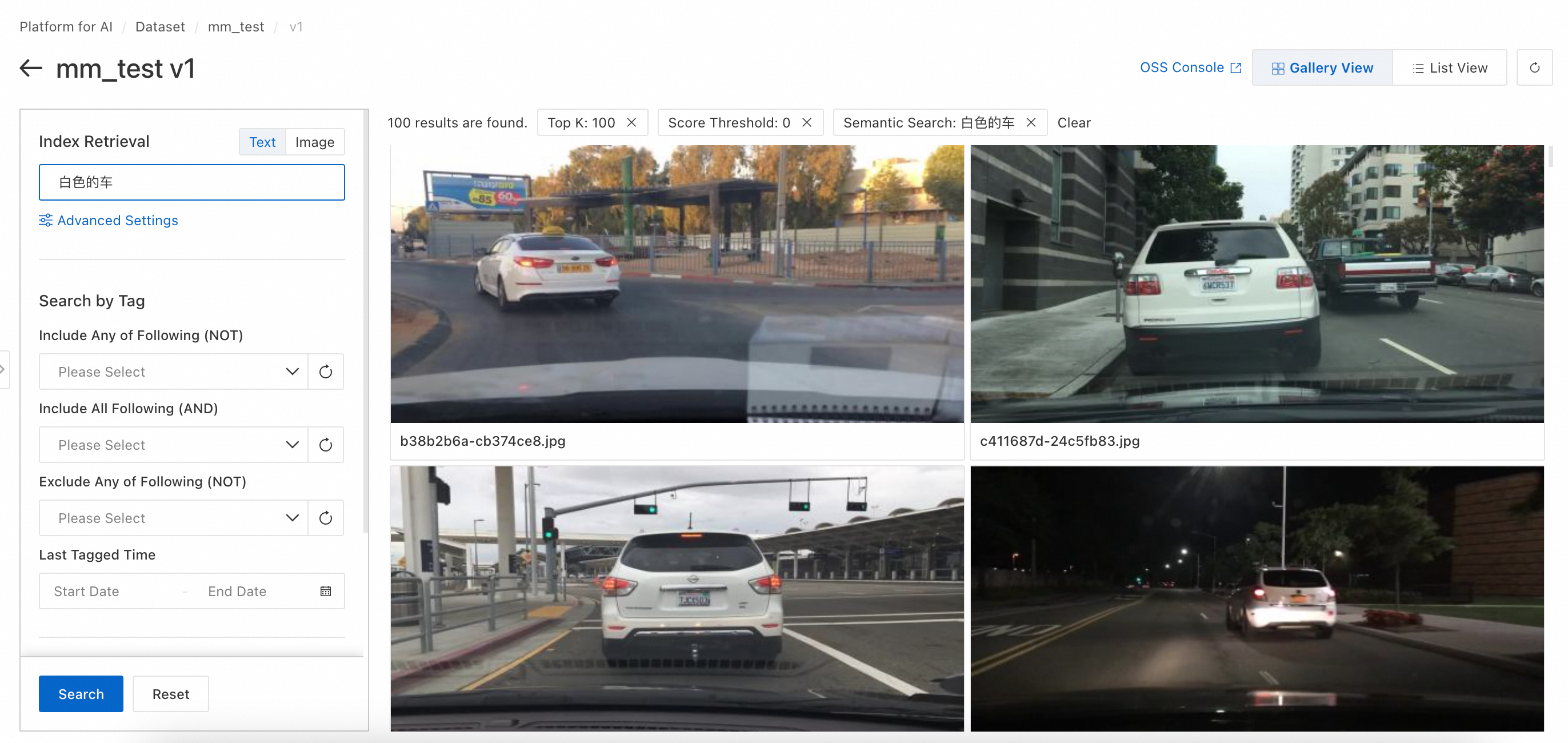
  2. On the View Data page, you can preview the images in the dataset version. You can switch between Gallery View and List View.

    image.png

    image.png

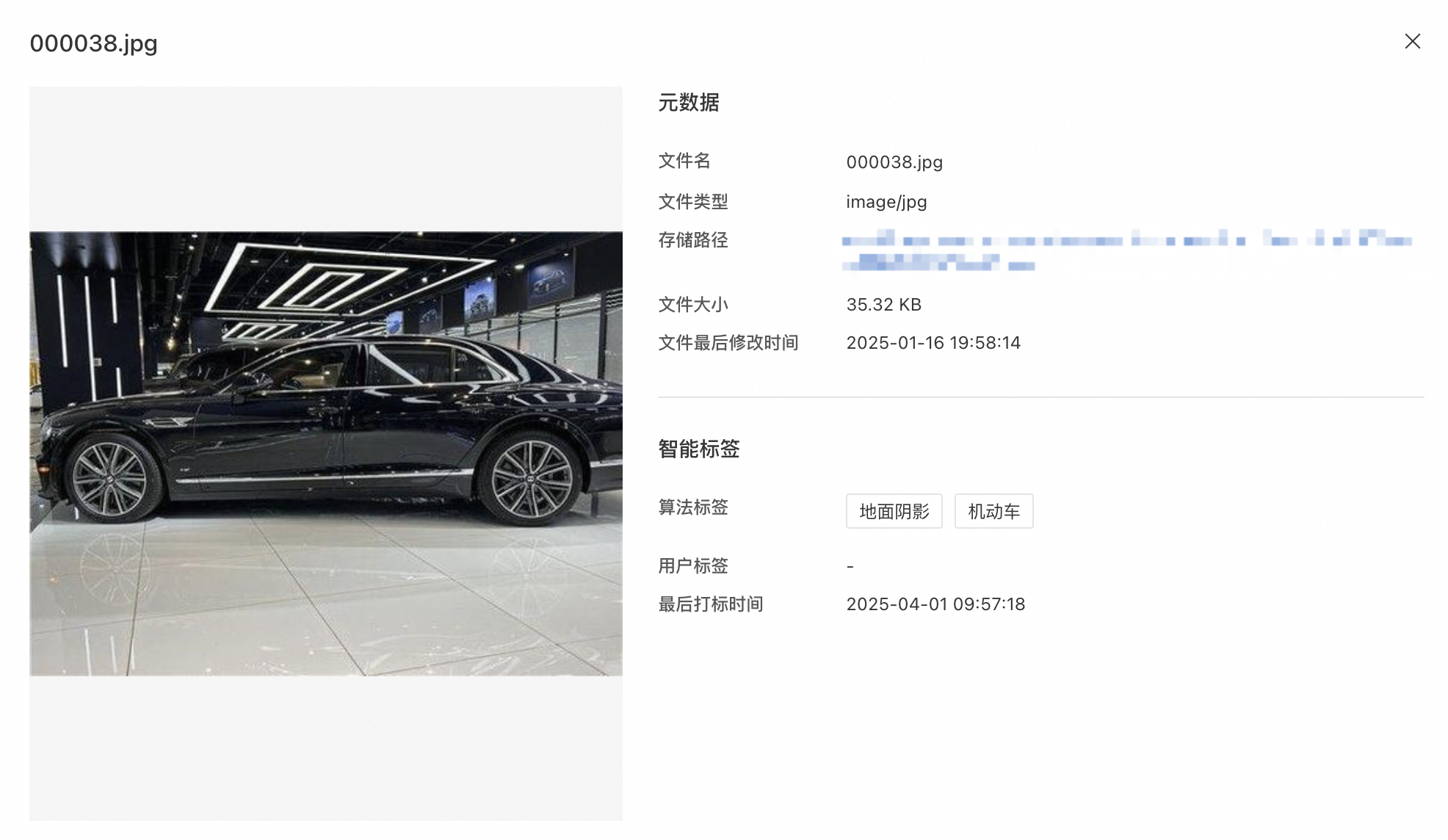
  3. Click an image to view a larger version and see its tags.

    image.png

  4. Click the checkbox in the upper-left corner of a thumbnail to select the image. You can select multiple images this way. You can also hold down the Shift key and click a checkbox to select multiple rows of data at once.

    image.png

3.7. Basic data search

  1. In the toolbar on the left side of the View Data page, you can perform an Index Search and a Tag Search. Press Enter or click Search to begin.

  2. An Index Search lets you search using text keywords. The search is based on the results of the semantic index and works by matching the keyword vector with the image index results. In "Advanced Settings", you can set parameters such as top-k and the score threshold.

    image

  3. For an Index Search, you can also search by image. This search uses semantic index results. You can upload an image from your local computer or select an image from OSS. The search matches the vector of the uploaded image with the image index results in the dataset. In "Advanced Settings", you can set parameters such as top-k and the score threshold.

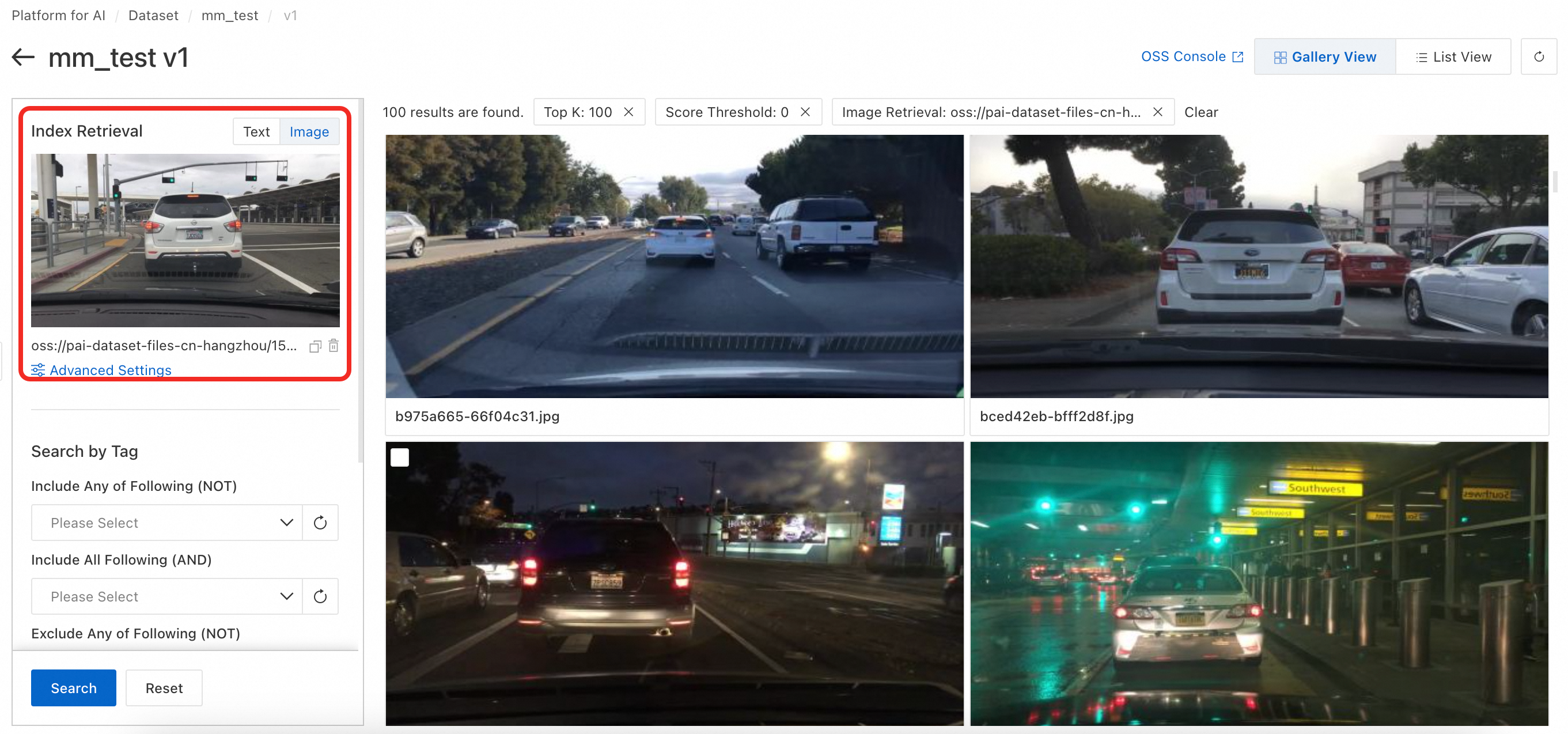
    image

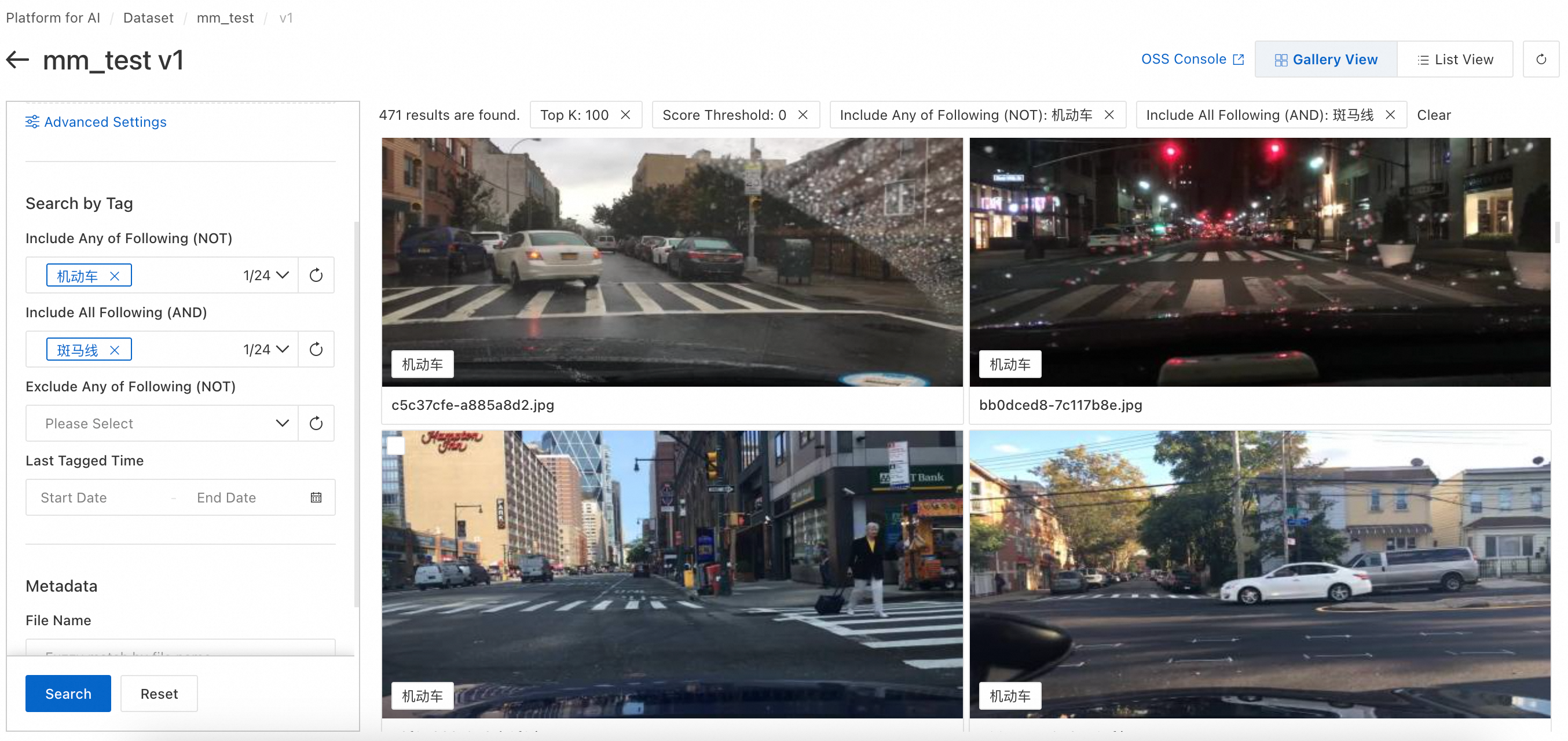
  4. For a Tag Search, you can search by keyword. This search is based on the results of smart tagging and works by matching the keyword with the image tags. You can combine the logic of Contains Any Of The Following Tags, Contains All Of The Following Tags, and Excludes Any Of The Following Tags in a single search.

    image

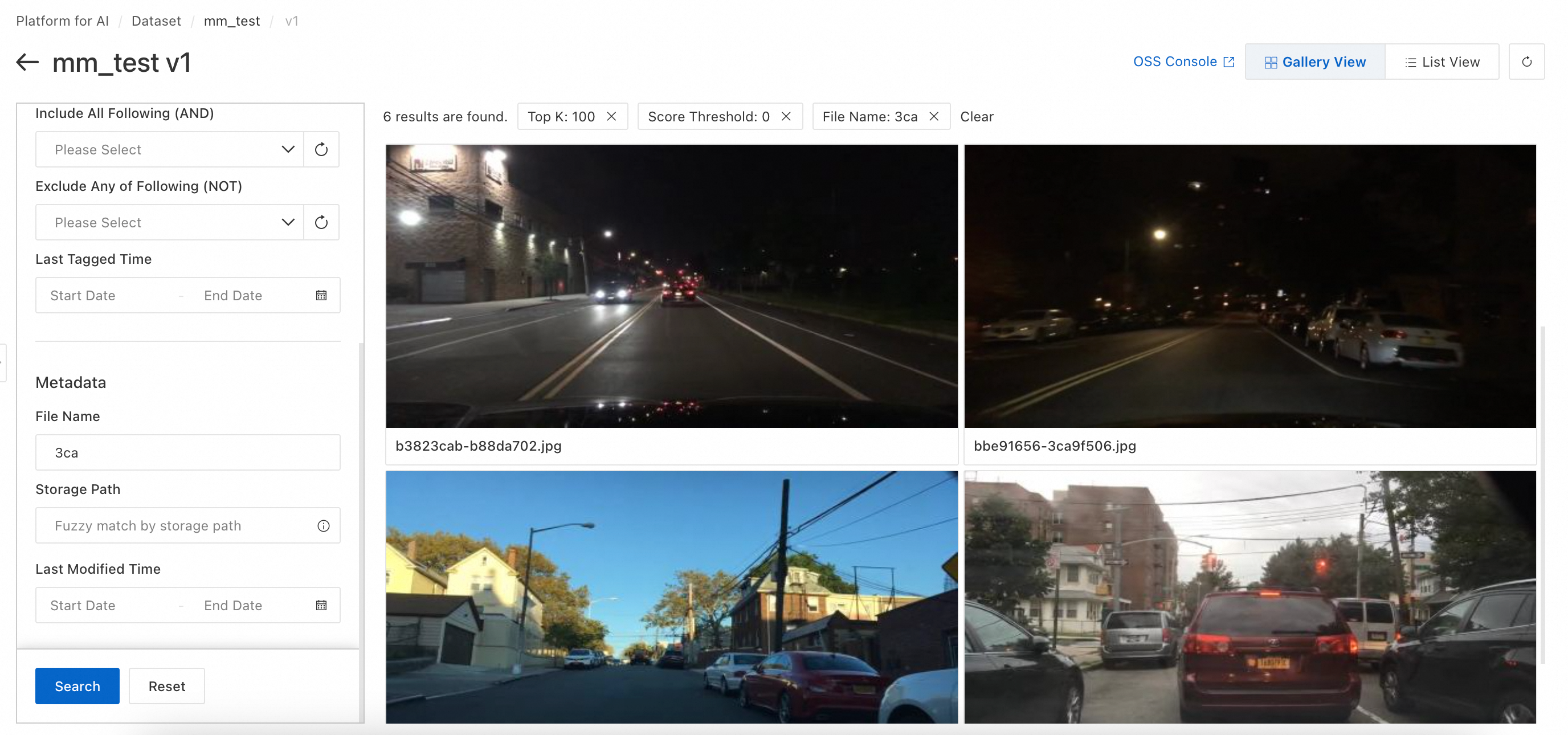
  5. For a Metadata search, you can search by file name, storage path, or last modified time.
    image

    All the preceding search conditions are combined using an AND operator.

3.8. Advanced data search (DSL)

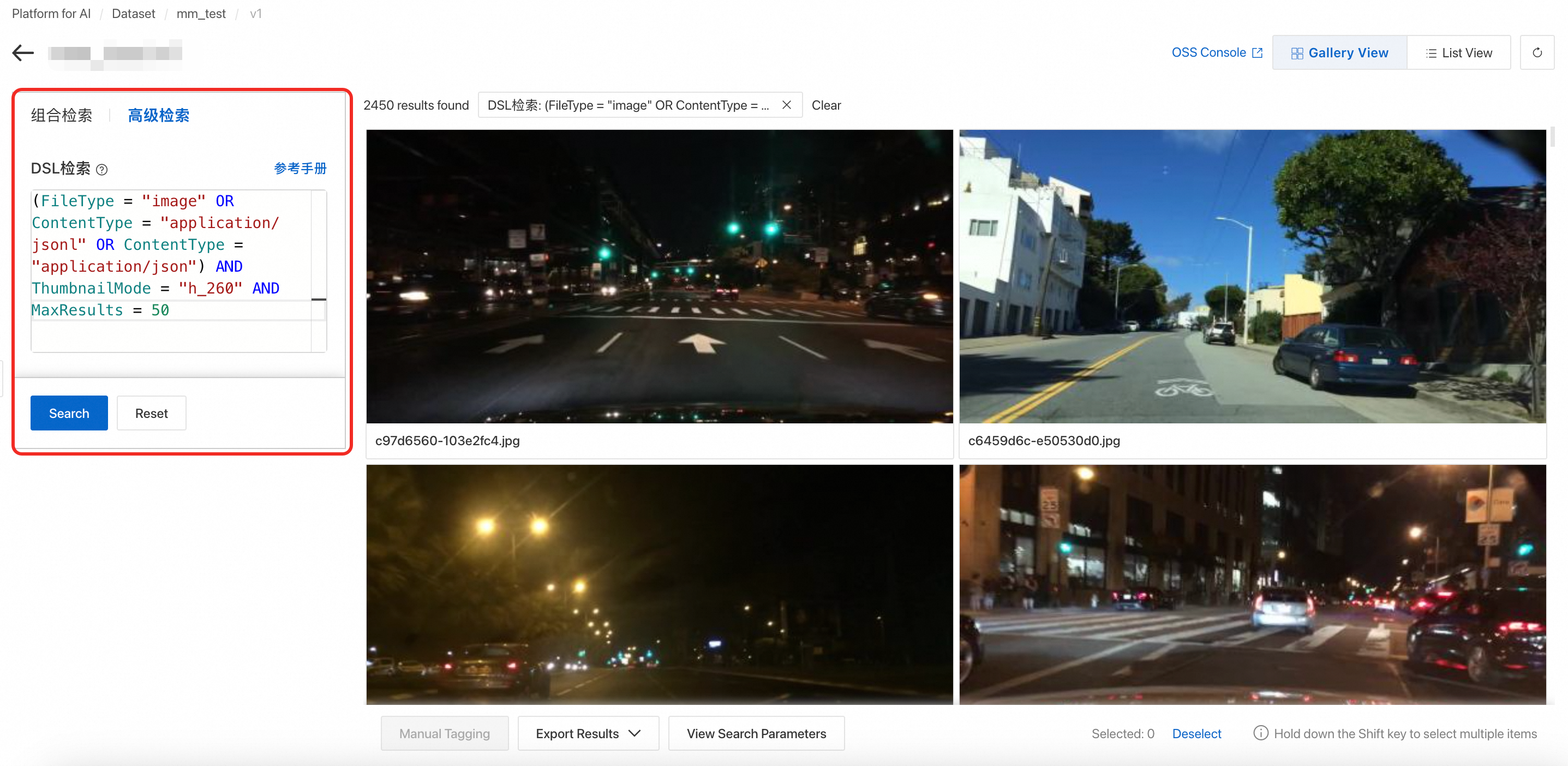
For an Advanced Search, you can use a DSL Search. Domain-Specific Language (DSL) is a language used to express complex search conditions. It supports features such as grouping, Boolean logic (AND, OR, and NOT), range comparisons (>, >=, <, and <=), property existence (HAS and NOT HAS), token matching (:), and exact matching (=). DSL is suitable for advanced search scenarios. For more information about the syntax, see Obtain a list of file metadata in a dataset.

image

3.9. Export search result sets

Note

This step exports the search results as a file list index for subsequent model training or data analytics.

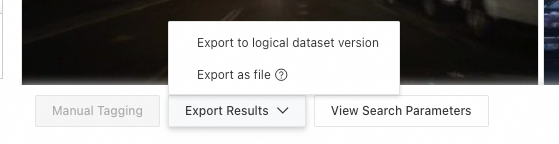
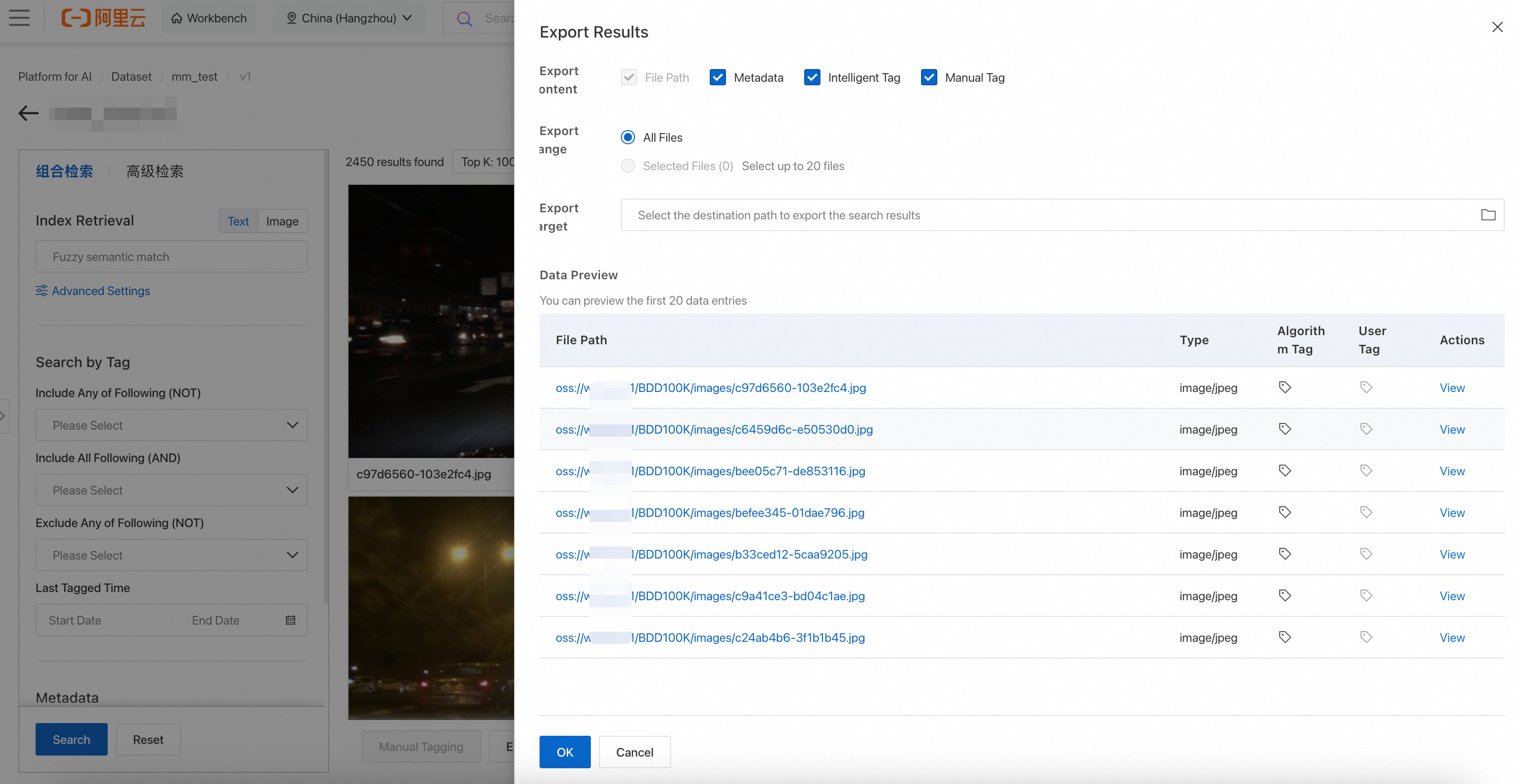
After the search is complete, you can click the Export Search Results button at the bottom of the page. Two export modes are supported:

image

3.9.1. Export to a file

  1. Click Export To File. On the configuration page, set the export content and the destination OSS directory. Then, click OK.

    image.png

  2. To view the export progress, in the navigation pane on the left, click AI Asset Management > Tasks > Dataset Tasks.

  3. Use the exported results. After the export is complete, you can mount the exported result file and the original dataset to the corresponding training environment, such as a Deep Learning Containers (DLC) or Data Science Workshop (DSW) instance. Then, you can use code to read the exported result file index and load the object files from the original dataset for model training or analysis.

3.9.2. Export to a logical dataset version

You can import the search results from an advanced dataset into a version of a logical dataset. You can then use the dataset software development kit (SDK) to access the data in that logical dataset version.

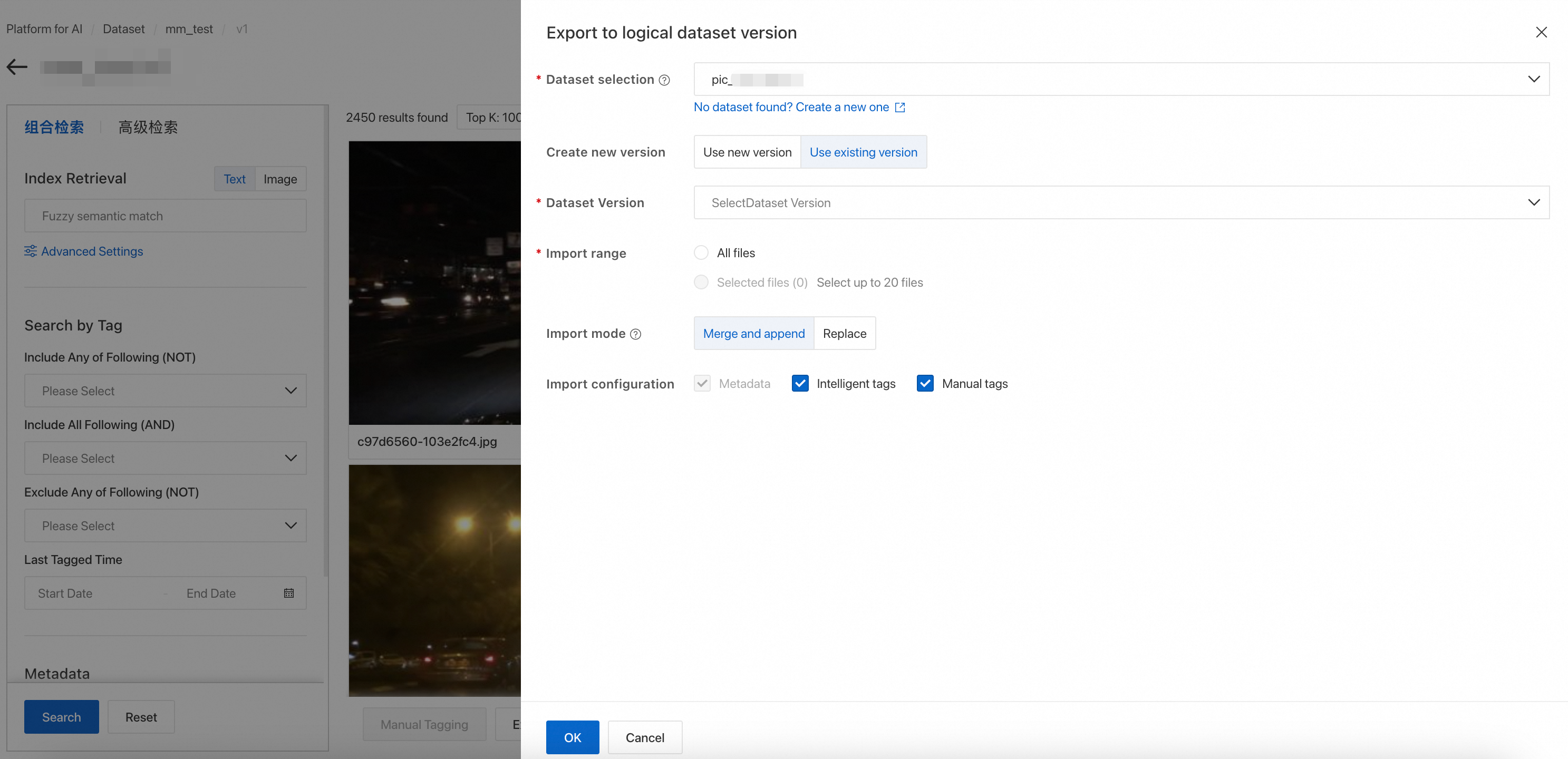
  1. Click Export To Logical Dataset Version, select the destination logical dataset, and click Confirm.

    image.png

    If no logical datasets are available to select, see the following information:

    Create a logical dataset

    Create a logical dataset. In the navigation pane on the left, click AI Asset Management > Datasets > Create Dataset. Then, configure the following key parameters. Configure other parameters as needed:

    • Set Dataset Type to Logical.

    • Set Metadata OSS path to an OSS path for export.

    • Set Import method to Import later.

    Click OK to create the dataset.

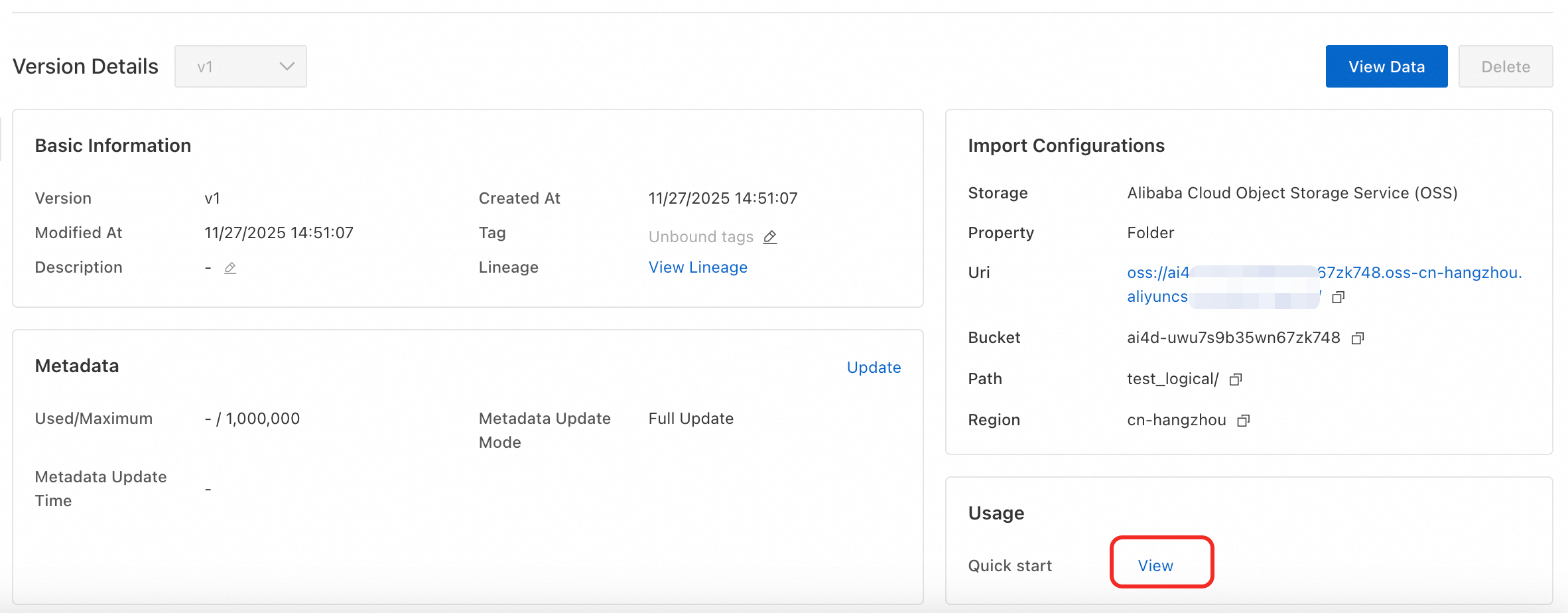
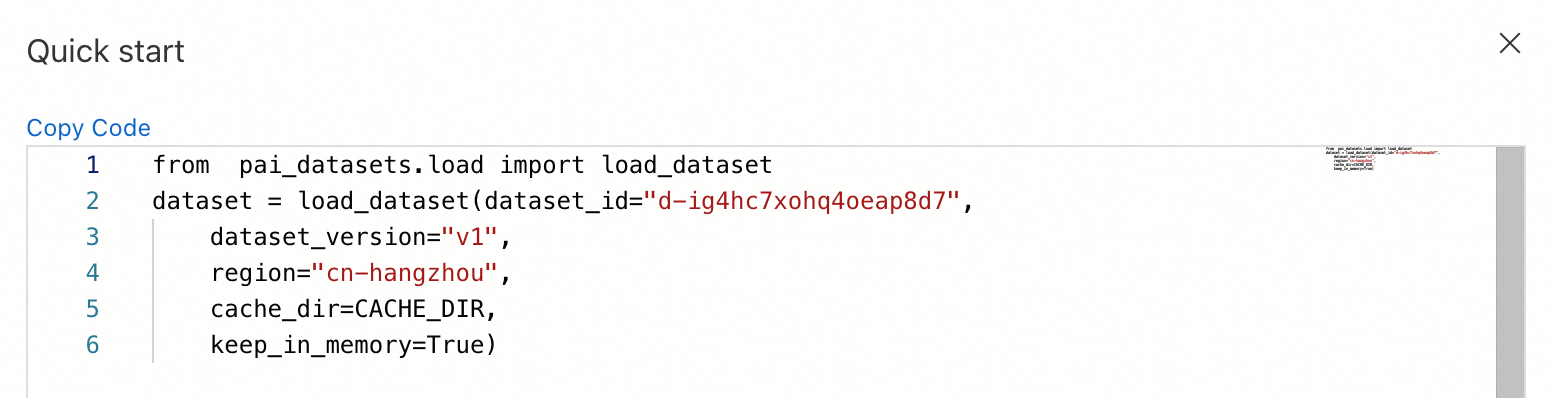
  2. Use the logical dataset. After the import task is complete, the destination logical dataset contains the exported metadata. You can use the SDK to load and use the data. For information about how to use the SDK, see the dataset's details page.

    image

    image

    The command to install the SDK is:

    pip install https://pai-sdk.oss-cn-shanghai.aliyuncs.com/dataset/pai_dataset_sdk-1.0.0-py3-none-any.whl

4. (Optional) Customize a semantic indexing model

You can fine-tune a custom semantic retrieval model. After the model is deployed on EAS, you can follow the steps in section 3.3.2 to create a model connection and use it for multimodal data management.

4.1. Prepare data

This topic provides sample data. You can download retrieval_demo_data.

4.1.1. Data format requirements

Each data sample is saved as a line in JSON format in the `dataset.jsonl` file. Each sample must contain the following fields:

  • `image_id`: A unique identifier for the image, such as the image name or a unique ID.

  • `tags`: A list of text tags associated with the image. The tags are a string array.

Example:

{  
    "image_id": "c909f3df-ac4074ed",  
    "tags": ["silver sedan", "white SUV", "city street", "snowing", "night"], 
}

4.1.2. File organization structure

Place all image files in a folder named `images`. Place the `dataset.jsonl` file in the same directory as the `images` folder.

Example directory structure:

├── images
│   ├── image1.jpg
│   ├── image2.jpg
│   └── image3.jpg
└── dataset.jsonl  
Important

You must use the original file name `dataset.jsonl`. The folder name `images` cannot be changed.

4.2. Model training

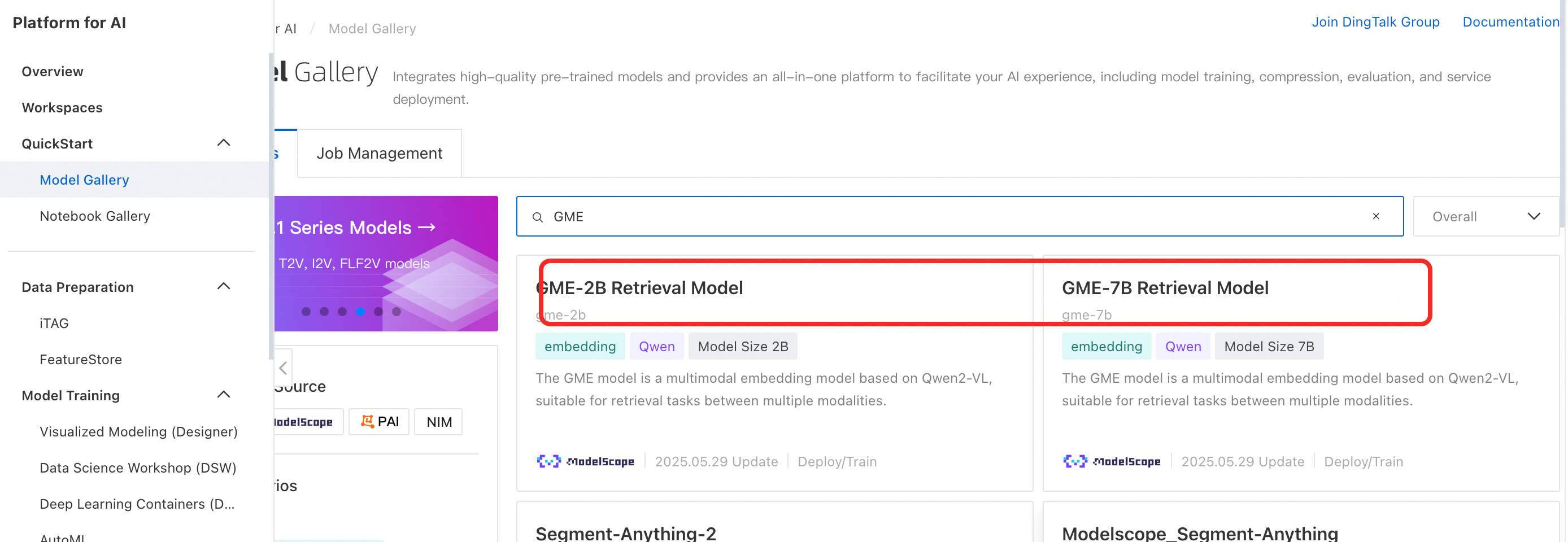
  1. In Model Gallery, find a retrieval-related model. Select a suitable model for fine-tuning and deployment based on your required model size and compute resources.

    image

    Fine-tuning VRAM bs=4

    Fine-tuning (4 × A800) train_samples/second

    Deployment VRAM

    Vector dimensions

    GME-2B

    14 GB

    16.331

    5G

    1536

    GME-7B

    35 GB

    13.868

    16 GB

    3584

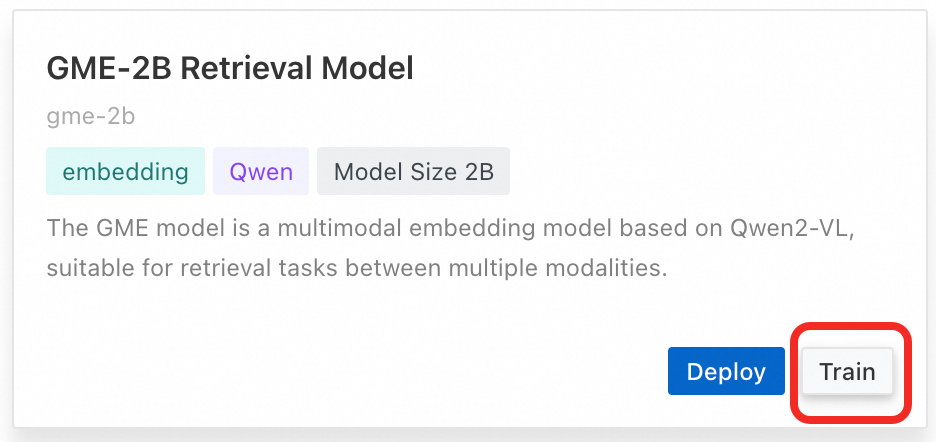
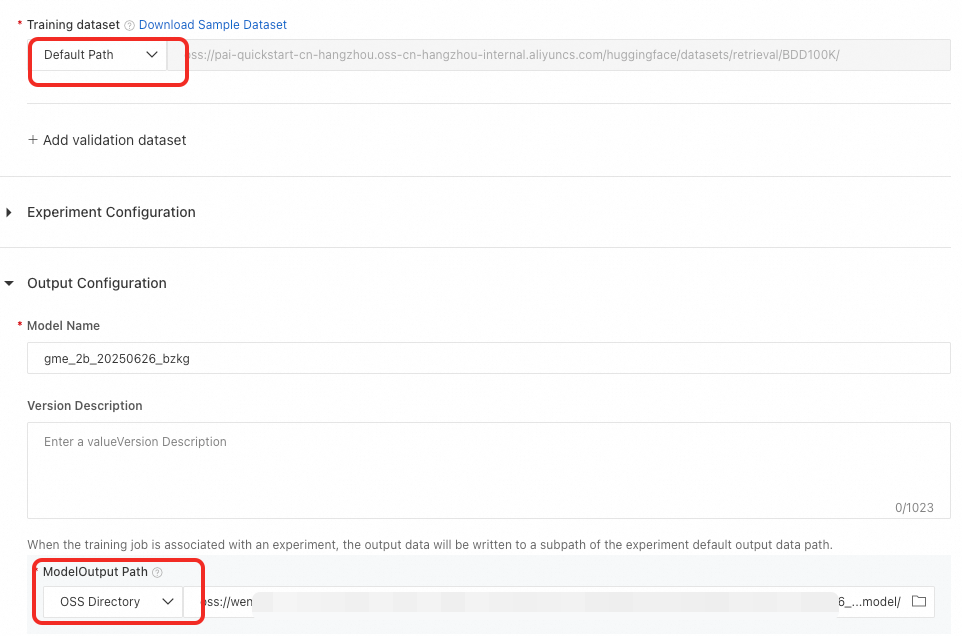
  2. This section uses the GME-2B model as an example. Click Train, enter the data address (the default address is the sample data address), and specify the model output path to start training the model.

    image

    image

4.3. Model deployment

After the model is trained, you can click Deploy in the training task to deploy the fine-tuned model.

Click the Deploy button on the model card in Model Gallery to deploy the original GME model.

image

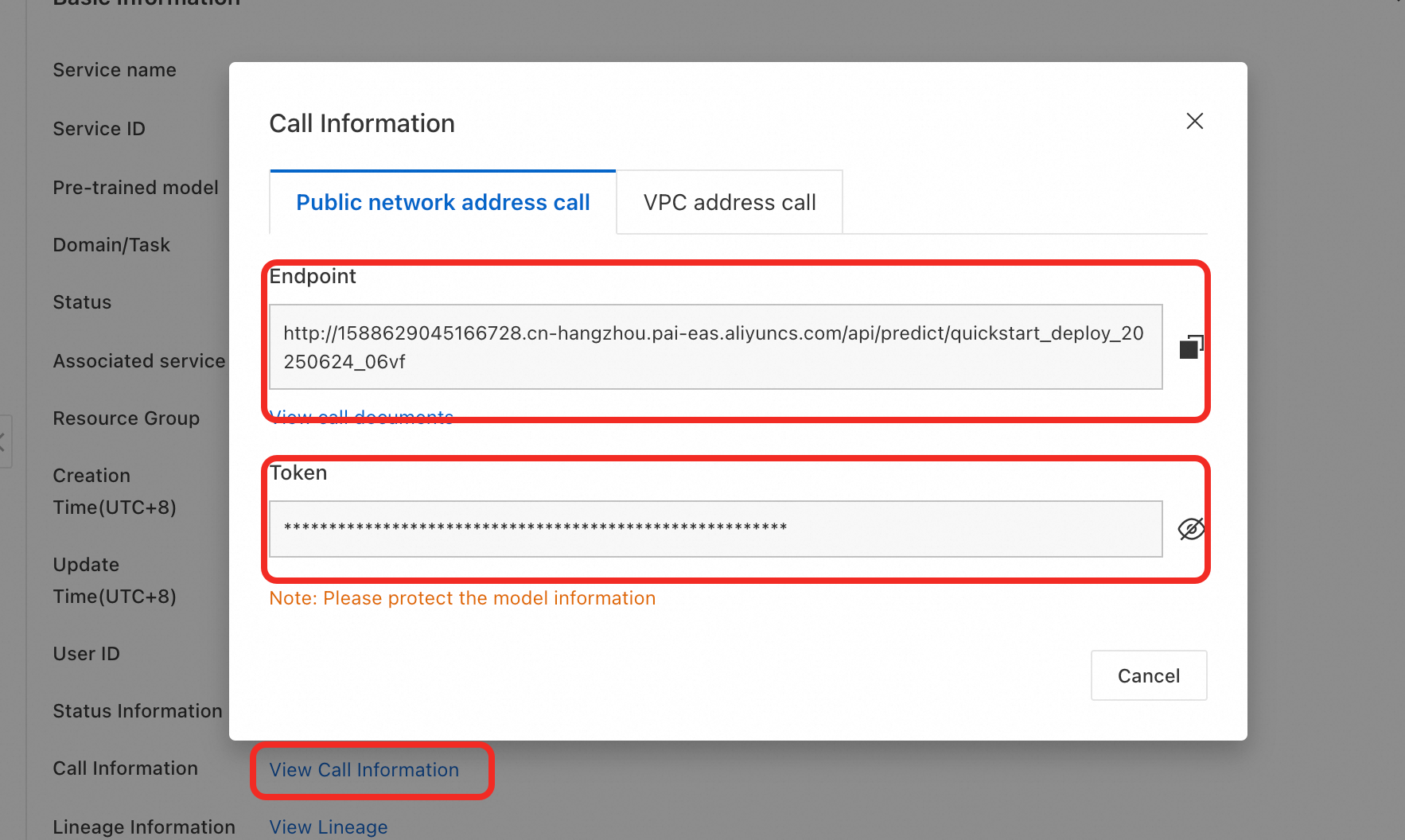
After the deployment is complete, you can obtain the corresponding EAS Endpoint and Token on the page.image

4.4. Service invocation

Input parameters

Name

Type

Required

Example

Description

model

String

Yes

pai-multimodal-embedding-v1

The model type. Support for custom user models or base model version iterations may be added later.

contents.input

list(dict) or list(str)

No

input = [{'text': text}]

input=[xxx,xxx,xxx,...]

input = [{'text': text},{'image', f"data:image/{image_format};base64,{image64}"}]

The content to be embedded.

Currently, only text and image are supported.

Response parameters

Name

Type

Example

Description

status_code

Integer

200

HTTP status code.

200: The request was successful.

204: The request was partially successful.

400: The request failed.

message

list(str)

['Invalid input data: must be a list of strings or dict']

Error message.

output

dict

See the table below.

Embedding result.

The dashscope response is a {'output', {'embeddings': list(dict), 'usage': xxx, 'request_id':xxx}}. The 'usage' and 'request_id' fields are not currently used.

The elements in `embeddings` contain the following keys. If an index fails, the reason is added to the `message` field.

Name

Type

Example

Description

index

Data ID

0

HTTP status code.

200, 400, 500, etc.

embedding

List[Float]

[0.0391846,0.0518188,.....,-0.0329895,

0.0251465]

1536

The vector after embedding.

type

String

"Internal execute error."

Error message.

Sample invocation code

import base64
import json
import os
import sys
from io import BytesIO

import requests
from PIL import Image, PngImagePlugin
import numpy as np

ENCODING = 'utf-8'

hosts = 'EAS URL'
head = {
    'Authorization': 'EAS TOKEN'
}

def encode_image_to_base64(image_path):
    """
    Encode the image file into a Base64 string.
    """
    with open(image_path, "rb") as image_file:
        # Read the binary data of the image file.
        image_data = image_file.read()
        # Encode into a Base64 string.
        base64_encoded = base64.b64encode(image_data).decode('utf-8')
    
    return base64_encoded

if __name__=='__main__':
    image_path = "path_to_your_image"
    text = 'prompt'

    image_format = 'jpg'
    input_data = []
    
    image64 = encode_image_to_base64(image_path)
    input_data.append({'image': f"data:image/{image_format};base64,{image64}"})

    input_data.append({'text': text})

    datas = json.dumps({
        'input': {
            'contents': input_data
        }
    })
    r = requests.post(hosts, data=datas, headers=head)
    data = json.loads(r.content.decode('utf-8'))

    if data['status_code']==200:
        if len(data['message'])!=0:
            print('Part failed for the following reasons.')
            print(data['message'])

        for result_item in data['output']['embeddings']:
            print('The following succeed.')
            print('index', result_item['index'])
            print('type', result_item['type'])
            print('embedding', len(result_item['embedding']))
    else:
        print('Processed fail')
        print(data['message'])

Sample output:

{
    "status_code": 200,
    "message": "",
    "output": {
        "embeddings": [
            {
                "index": 0,
                "embedding": [
                    -0.020782470703125,
                    -0.01399993896484375,
                    -0.0229949951171875,
                    ...
                ],
                "type": "text"
            }
        ]
    }
}

4.5. Model evaluation

The following table shows the evaluation results on our sample data. The evaluation file used is available at the provided link:

Original Model Precision

Fine-tuned Model Precision (1 epoch)

gme2b

Precision@1 0.3542

Precision@5 0.5280

Precision@10 0.5923

Precision@50 0.5800

Precision@100 0.5792

Precision@1 0.4271

Precision@5 0.6480

Precision@10 0.7308

Precision@50 0.7331

Precision@100 0.7404

gme7b

Precision@1 0.3958

Precision@5 0.5920

Precision@10 0.6667

Precision@50 0.6517

Precision@100 0.6415

Precision@1 0.4375

Precision@5 0.6680

Precision@10 0.7590

Precision@50 0.7683

Precision@100 0.7723

Sample script for model evaluation

import base64
import json
import os
import requests
import numpy as np
import torch
from tqdm import tqdm
from collections import defaultdict


# Constants
ENCODING = 'utf-8'
HOST_URL = 'http://1xxxxxxxx4.cn-xxx.pai-eas.aliyuncs.com/api/xxx'
AUTH_HEADER = {'Authorization': 'ZTg*********Mw=='}

def encode_image_to_base64(image_path):
    """Encode the image file into a Base64 string."""
    with open(image_path, "rb") as image_file:
        image_data = image_file.read()
        base64_encoded = base64.b64encode(image_data).decode(ENCODING)
    return base64_encoded


def load_image_features(feature_file):
    print("Begin to load image features...")
    image_ids, image_feats = [], []
    with open(feature_file, "r") as fin:
        for line in tqdm(fin):
            obj = json.loads(line.strip())
            image_ids.append(obj['image_id'])
            image_feats.append(obj['feature'])
    image_feats_array = np.array(image_feats, dtype=np.float32)
    print("Finished loading image features.")
    return image_ids, image_feats_array


def precision_at_k(predictions, gts, k):
    """
    Calculate the precision at K.
    
    :param predictions: [(image_id, similarity_score), ...]
    :param gts: set of ground truth image_ids
    :param k: int, the top K results
    :return: float, the precision
    """
    if len(predictions) > k:
        predictions = predictions[:k]
    
    predicted_ids = {p[0] for p in predictions}
    relevant_and_retrieved = predicted_ids.intersection(gts)
    precision = len(relevant_and_retrieved) / k
    return precision


def main():
    root_dir = '/mnt/data/retrieval/data/'
    data_dir = os.path.join(root_dir, 'images')
    tag_file = os.path.join(root_dir, 'meta/test.jsonl')
    model_type = 'finetune_gme7b_final'
    save_feature_file = os.path.join(root_dir, 'features', f'features_{model_type}_eas.jsonl')
    final_result_log = os.path.join(root_dir, 'results', f'retrieval_{model_type}_log_eas.txt')
    final_result = os.path.join(root_dir, 'results', f'retrieval_{model_type}_log_eas.jsonl')

    os.makedirs(os.path.join(root_dir, 'features'), exist_ok=True)
    os.makedirs(os.path.join(root_dir, 'results'), exist_ok=True)

    tag_dict = defaultdict(list)
    gt_image_ids = []
    with open(tag_file, 'r') as f:
        lines = f.readlines()
        for line in lines:
            data = json.loads(line.strip())
            gt_image_ids.append(data['image_id'])
            img_id = data['image_id'].split('.')[0]
            for caption in data['tags']:
                tag_dict[caption.strip()].append(img_id)

    print('Total tags:', len(tag_dict.keys()))

    prefix = ''
    texts = [prefix + text for text in tag_dict.keys()]
    images = [os.path.join(data_dir, i+'.jpg') for i in gt_image_ids]
    print('Total images:', len(images))

    encode_images = True
    if encode_images:
        with open(save_feature_file, "w") as fout:
            for image_path in tqdm(images):
                image_id = os.path.basename(image_path).split('.')[0]
                image64 = encode_image_to_base64(image_path)
                input_data = [{'image': f"data:image/jpg;base64,{image64}"}]

                datas = json.dumps({'input': {'contents': input_data}})
                r = requests.post(HOST_URL, data=datas, headers=AUTH_HEADER)

                data = json.loads(r.content.decode(ENCODING))
                if data['status_code'] == 200:
                    if len(data['message']) != 0:
                        print('Part failed:', data['message'])
                    for result_item in data['output']['embeddings']:
                        fout.write(json.dumps({"image_id": image_id, "feature": result_item['embedding']}) + "\n")
                else:
                    print('Processed fail:', data['message'])

    image_ids, image_feats_array = load_image_features(save_feature_file)

    top_k_list = [1, 5, 10, 50, 100]
    top_k_list_precision  = [[] for _ in top_k_list]

    with open(final_result, 'w') as f_w, open(final_result_log, 'w') as f:
        for tag in tqdm(texts):
            datas = json.dumps({'input': {'contents': [{'text': tag}]}})
            r = requests.post(HOST_URL, data=datas, headers=AUTH_HEADER)
            data = json.loads(r.content.decode(ENCODING))

            if data['status_code'] == 200:
                if len(data['message']) != 0:
                    print('Part failed:', data['message'])

                for result_item in data['output']['embeddings']:
                    text_feat_tensor = result_item['embedding']
                    idx = 0
                    score_tuples = []
                    batch_size = 128
                    while idx < len(image_ids):
                        img_feats_tensor = torch.from_numpy(image_feats_array[idx:min(idx + batch_size, len(image_ids))]).cuda()
                        batch_scores = torch.from_numpy(np.array(text_feat_tensor)).cuda().float() @ img_feats_tensor.t()
                        for image_id, score in zip(image_ids[idx:min(idx + batch_size, len(image_ids))], batch_scores.squeeze(0).tolist()):
                            score_tuples.append((image_id, score))
                        idx += batch_size
                    
                    predictions = sorted(score_tuples, key=lambda x: x[1], reverse=True)
            else:
                print('Processed fail:', data['message'])

            gts = tag_dict[tag.replace(prefix, '')]

            # Write result
            predictions_tmp = predictions[:10]
            result_dict = {'tag': tag, 'gts': gts, 'preds': [pred[0] for pred in predictions_tmp]}
            f_w.write(json.dumps(result_dict, ensure_ascii=False, indent=4) + '\n')

            for top_k_id, k in enumerate(top_k_list):
                need_exit = False

                if k > len(gts):
                    k = len(gts)
                    need_exit = True

                prec = precision_at_k(predictions, gts, k)

                f.write(f'Tag {tag}, Len(GT) {len(gts)}, Precision@{k} {prec:.4f} \n')
                f.flush()

                if need_exit:
                    break
                else:
                    top_k_list_precision[top_k_id].append(prec)
                    
    for idx, k in enumerate(top_k_list):
        print(f'Precision@{k} {np.mean(top_k_list_precision[idx]):.4f}')


if __name__ == "__main__":
    main()