Mount OSS, NAS, datasets, code sets, or models to EAS services to share data across instances and update content without rebuilding images.
Select a storage solution
To configure a storage mount, first select an underlying storage type, then choose a mounting method.
1. Select an underlying storage type
Select a storage type based on your data characteristics and performance requirements.
|
Storage type |
File characteristics |
Read/write pattern |
Performance characteristics |
Typical use cases |
|
OSS |
Massive volumes of large files |
Read-heavy |
High throughput, low cost |
Model file storage, static asset management |
|
General-purpose NAS |
Medium to large files |
Mixed read/write, multi-instance sharing |
Moderate IOPS, moderate latency |
Shared directories for multiple instances, configuration file management |
|
Extreme NAS |
Numerous small files |
High-frequency, low-latency read/write operations |
Low latency, high IOPS |
AI training, high-performance computing |
|
CPFS |
Ultra-large-scale files |
Massive parallel read/write |
Extremely low latency, extremely high throughput |
Distributed training, large-scale parallel computing |
Recommendations:
-
For cost-sensitive applications: OSS has the lowest storage cost and suits large-volume data where performance is not critical.
-
For performance-sensitive applications: Performance ranks as follows: CPFS > Extreme NAS > General-purpose NAS > OSS. Select the type that fits your budget and performance needs.
-
Use a combination: Mount multiple storage types simultaneously. For example, use OSS for large models and General-purpose NAS for shared configuration files.
-
Migration path: Start with OSS for quick validation, then upgrade to NAS or CPFS for production based on performance requirements and budget.
-
CPFS file systems can be mounted only when deploying EAS services with Lingjun computing resource quotas.
-
To access NAS storage over an internal network, the EAS service must be in the same VPC as the NAS mount target. For network configuration details, see Access public or internal resources from EAS.
2. Select a mounting method
After selecting a storage type, choose a mounting method.
|
Mounting method |
Use case |
Key advantage |
Description |
|
Directly mount a storage path |
Quick validation, temporary use |
Simple configuration, on-demand use |
Directly specify an OSS or NAS path |
|
Mount a PAI dataset |
Data version management, team collaboration |
Version control, asset reuse |
Register an OSS or NAS path as a dataset |
|
Mount from Git |
Deploy application code and scripts |
Code version control |
Pull from a Git repository, read-only mount |
|
Mount a PAI code set |
Enterprise code asset management |
Standardized management, audit and traceability |
Register a Git repository as a code set |
|
Mount a PAI model |
Model version management |
Model iteration, team collaboration |
Register a model as a PAI AI Asset |
Basic storage mounts
OSS mount
Use cases
-
Store large model files (GB-level or larger).
-
Store static assets required for inference, such as images, videos, and configuration files.
-
Read-heavy workloads where data reading is the primary operation.
-
Cost-sensitive applications that require low-cost storage.
Configuration
OSS mount is the most common method. The following figure shows the console configuration page.
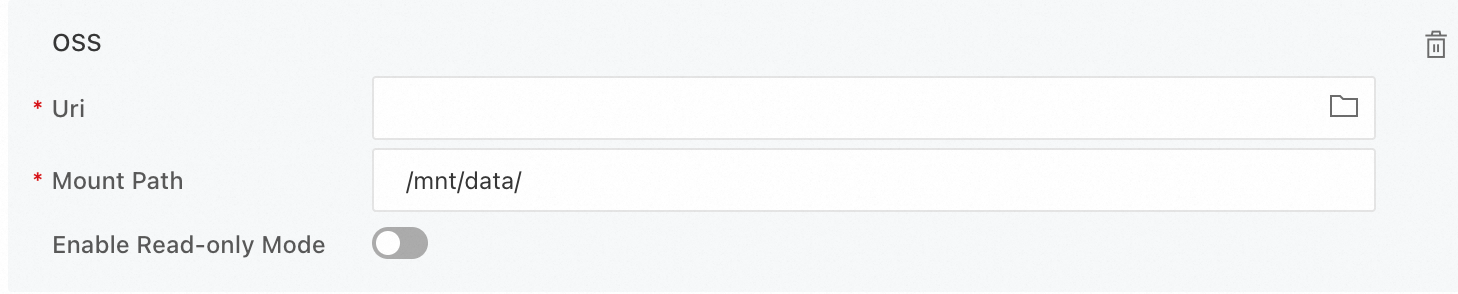
The following code provides a JSON configuration example:
{
  "storage": [
        {
            "oss": {
                "path": "oss://bucket/path/",
                "readOnly": false
            },
            "mount_path": "/mnt/data/"
        }
    ]
}
Parameters:
|
Parameter (Console) |
Parameter (JSON) |
Description |
|
Uri |
oss.path |
Source OSS bucket path. To create a bucket, see Quick start. |
|
Mount Path |
mount_path |
Destination path in the service instance. Access source files from this path. Example: |
|
Read-only |
oss.readOnly |
Specifies whether to mount the storage in read-only mode. |
NAS mount
NAS mounts support general-purpose NAS, extreme NAS, and CPFS. For network requirements and usage limitations, see Select a storage solution.
The following figure shows the configuration page in the console.
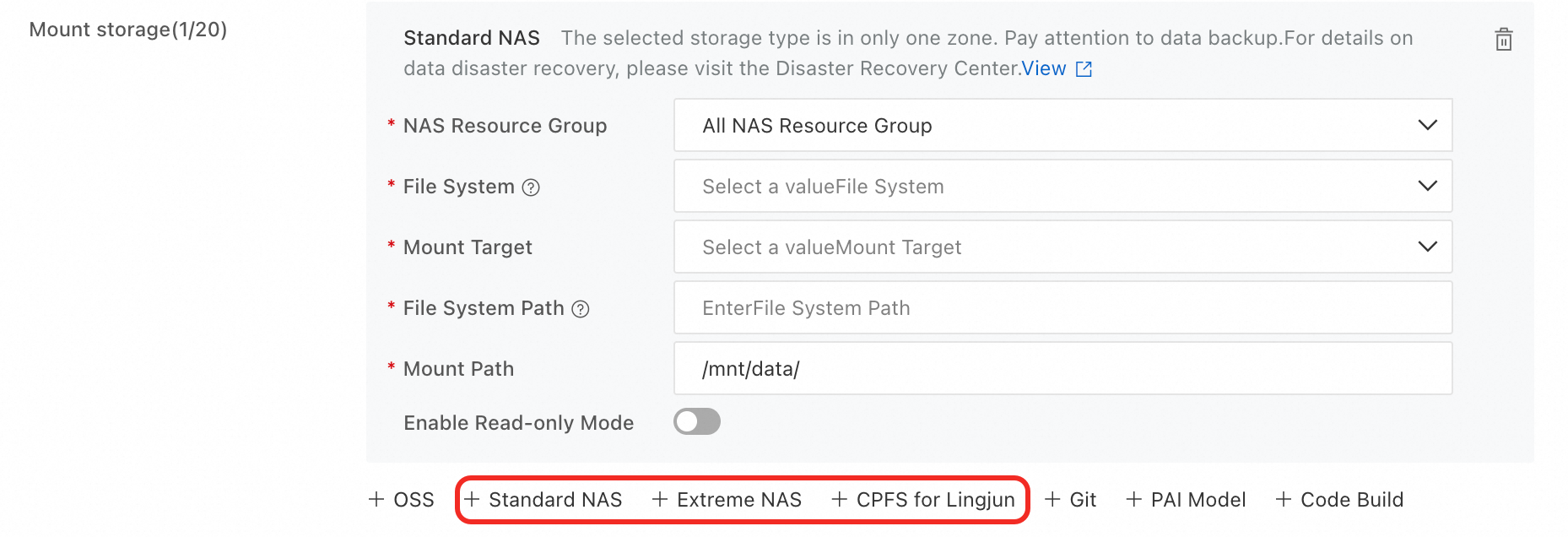
The following code provides a JSON configuration example:
{
  "storage": [
        {
            "nfs": {
                "path": "/",
                "server": "06ba74****-a****.cn-hangzhou.nas.aliyuncs.com",
                "readOnly": false
            },
            "mount_path": "/mnt/data/"
        }
    ]
}
Parameters:
|
Parameter (Console) |
Parameter (JSON) |
Description |
|
Storage Permission Resource Group |
nfs.resourceGroup |
Resource group that owns the file system. Filters file systems by resource group. For more information, see Best practices for designing resource groups. If you select All Storage Permission Resource Groups, you do not need to configure this parameter in the JSON file. |
|
Select File System |
N/A |
The ID of the created NAS file system. You can find this ID in the NAS console in the corresponding region. |
|
File System Mount Target |
nfs.server |
NAS mount target address that EAS uses to access the file system. To view the address, see View mount target addresses. Note
After you select a mount target in the console, the system automatically selects the VPC that is associated with the mount target. |
|
File System Path |
nfs.path |
The source path in the NAS file system to mount. This is the path within the NAS instance, such as |
|
Mount Path |
mount_path |
The destination path in the service instance for the mount. You can access the source files or data from this path. For example, |
|
Read-only |
nfs.readOnly |
Specifies whether to mount the storage in read-only mode. |
Git mount
The following figure shows the configuration page in the console.

The following code provides a JSON configuration example:
{
  "storage": [
        {
            "git": {
                "repo": "https://codeup.aliyun.com/xxx/eas/aitest.git",
                "branch": "master",
                "commit": "xxx",
                "username": "username",
                "password": "password or access token"
            },
            "mount_path": "/mnt/data/"
        }
    ]
}
Parameters:
|
Parameter (Console) |
Parameter (JSON) |
Description |
|
Git URL |
git.repo |
The HTTPS URL of the Git repository to mount. The Git protocol is not supported. |
|
Branch |
git.branch |
The branch of the Git repository to pull. Default value: master. |
|
Commit |
git.commit |
The commit ID of the Git repository to pull. |
|
Git Username |
git.username |
The username for logging in to a private Git repository. |
|
Access Token |
git.password |
The password or access token for logging in to a private Git repository. For information about how to obtain a token, see Appendix: Obtain a token for your GitHub account. |
|
Mount Path |
mount_path |
The destination path in the service instance for the mount. You can access the source files or data from this path. For example, |
Platform asset mounts
You can mount datasets, code sets, and models registered in PAI as AI Assets to your service instances. This enables centralized asset management and reuse.
Dataset mount
Create a PAI dataset from your data or configuration files and register it as a public AI Asset for unified version control and reuse across service deployments.
You can mount custom datasets backed by OSS, general-purpose NAS, extreme NAS, and CPFS.
The following figure shows the configuration page in the console.

The following code provides a JSON configuration example:
"storage": [
        {
            "dataset": {
                "id": "d-pcsah1t86bm8******",
                "version": "v1",
                "read_only": false
            },
            "mount_path": "/mnt/data/"
        }
    ]
Parameters:
|
Parameter (Console) |
Parameter (JSON) |
Description |
|
Custom Dataset |
dataset.id |
A registered custom dataset. To learn how to create a custom dataset and find its ID, see Create and manage datasets. |
|
Version |
version |
The version of the dataset. For example, v1. |
|
Read-only |
dataset.read_only |
Specifies whether to mount the dataset in read-only mode. |
|
Mount Path |
mount_path |
The destination path in the service instance for the mount. You can access the source files or data from this path. For example, |
Code set mount
Create a PAI code set from a Git repository and register it as a public AI Asset. The code set is mounted to service instances in read-only mode.
The following figure shows the configuration page in the console.

The following code provides a JSON configuration example:
"storage": [
        {
            "code": {
                "id": "code-4d3b42a1152****"
            },
            "mount_path": "/mnt/data/"
        }
    ]
Parameters:
|
Parameter (Console) |
Parameter (JSON) |
Description |
|
Code Configuration |
code.id |
A registered code set. To learn how to create a code set and find its ID, see Code configuration. |
|
Mount Path |
mount_path |
The destination path in the service instance for the mount. You can access the source files or data from this path. For example, |
PAI model mount
You can register models as PAI AI Assets to centrally manage their versions and metadata. These models can then be mounted to service instances in read-only mode during deployment. For more information, see Register and manage models.
The following figure shows the configuration page in the console.

Parameters:
|
Parameter (Console) |
Description |
|
PAI Model |
A registered PAI model. To learn how to create a model, see Register and manage models. |
|
Mount Path |
The destination path in the service instance where the model is mounted. For example, |
Advanced mounting options
EAS also supports the following advanced mounting methods:
-
Image mount: Copies files from a specified path in a Docker image to a temporary local volume, then mounts it to the service instance. Large directories consume significant local storage and increase startup time. Use only when necessary.
-
EmptyDir mount: Provides temporary local storage for a running instance. Content persists even if the instance restarts unexpectedly. Suitable for local caching or temporary file storage.
Image mount
This feature can only be configured by using a JSON file:
{
    "storage": [
        {
            "image": {
                "image": "registry-vpc.cn-xxxx.aliyuncs.com/eas/image_name:v1",
                "path": "/path/to/mount/"
            },
            "mount_path": "/data_image"
        }
    ]
}Images can only be mounted from an internal network address in the same region. For private images, use the dockerAuth parameter to provide authentication credentials. For more information about dockerAuth, see Use a custom image.
Parameters:
|
Parameter (JSON) |
Description |
|
image.image |
The internal network address of the image repository to mount. |
|
image.path |
The source path within the image from which to copy files. |
|
mount_path |
The destination path in the service instance where the copied files are mounted. For example, |
EmptyDir mount
This feature can only be configured by using a JSON file:
{
    "storage": [
        {
            "empty_dir": {},
            "mount_path": "/mnt/temp"
        }
    ]
}
Parameters:
|
Parameter (JSON) |
Description |
|
mount_path |
The destination path in the service instance. |
|
empty_dir |
EmptyDir type with an empty map value. Stores data on the local disk. No other properties are supported. |
Configure shared memory
For higher storage performance, use the following configuration to mount a shared memory volume (tmpfs).
{
    "storage": [
        {
            "empty_dir": {
              "medium": "memory",
              "size_limit": 20
            },
            "mount_path": "/dev/shm"
        }
    ]
}
Parameters:
|
Parameter (JSON) |
Description |
|
medium |
Set this parameter to memory. |
|
mount_path |
Set this parameter to |
|
size_limit |
The memory size limit in GB. |
JSON configuration example
The following code provides a complete configuration example. For more information, see Deploy services by using JSON.
{
    "name": "service_name",
    "model_path": "http://path/to/model",
    "processor": "pmml",
    "storage": [
        {
            "oss": {
                "path": "oss://bucket/path/",
                "readOnly": false
            },
            "mount_path": "/mnt/oss_data/"
        },
        {
            "nfs": {
                "path": "/",
                "server": "06ba74****-a****.cn-hangzhou.nas.aliyuncs.com",
                "readOnly": false
            },
            "mount_path": "/mnt/nfs_data/"
        },
        {
            "image": {
                "image": "registry-vpc.cn-shanghai.aliyuncs.com/eas/test_image:v1",
                "path": "/path/to/mount/"
            },
            "mount_path": "/data_image"
        },
        {
            "empty_dir": {
              "medium": "memory",
              "size_limit": 20
            },
            "mount_path": "/dev/shm"
        },
        {
            "git": {
                "repo": "https://codeup.aliyun.com/xxx/eas/aitest.git",
                "branch": "master",
                "commit": "xxx",
                "username": "username",
                "password": "password or access token"
            },
            "mount_path": "/mnt/git_code/"
        }
    ],
    "metadata": {
        "cpu": 1,
        "instance": 1,
        "resource": "eas-r-xxx"
    }
}
FAQ
-
Why do I receive a "file not found" error after I mount an OSS bucket?
This error is usually caused by an incorrect path. Check your mount configuration and access path.
For example, if you mount
oss://my-bucket/to/mnt/data, the file atoss://my-bucket/subfolder/myfile.txtin OSS must be accessed from the path/mnt/data/subfolder/myfile.txtin the container, not/mnt/data/myfile.txt. -
What do I do if a NAS mount fails due to a network connection issue?
A NAS mount requires that the EAS service and the NAS mount target are in the same VPC. Check the following items:
-
VPC Consistency: Ensure the VPC ID is the same for both the EAS service and the NAS mount target.
-
Network Configuration: To access NAS, configure the network by following the instructions in Access public or internal resources from EAS.
-
Mount Target Status: Verify that the NAS mount target exists and is in the
Availablestate.
-
-
What do I do if a Git mount fails due to an authentication error?
Check the following configuration settings:
-
Access Token Validity: Confirm that your Git access token has not expired and has read permissions for the repository.
-
Repository Permissions: For a private repository, ensure that the username and password or token are correct and have read permissions.
-
Repository Address Format: Use the HTTPS protocol, such as
https://github.com/user/repo.git. The Git protocol is not supported. -
Branch/Commit Existence: Confirm that the specified branch name or commit ID exists in the repository.
-
-
What do I do if a service fails to start due to a mount path conflict?
A mount path conflict can be caused by the following reasons:
-
Duplicate mount path: In the same service, multiple storage configurations use the same mount path. Ensure that the
mount_pathfor each storage is unique. -
System directory conflict: The mount path cannot be a critical system directory, such as
/bin,/etc,/usr, or/lib. Use a path under/mntor/datainstead. -
Incorrect Path Format: The mount path must be an absolute path that starts with a forward slash (
/).
-
-
Can I use an FTP or SSH tool to connect to an instance to upload or download files?
No. EAS instances do not provide FTP or SSH access.
-
Can I mount an OSS bucket that is in a different region from my EAS service?
No. EAS cannot mount OSS buckets across regions. Use the cross-region replication feature of OSS to synchronize data to an OSS bucket in the same region as the EAS service.
-
If no storage is mounted, where are the files that I download to the instance stored?
Files are saved to the instance's system disk, which is ephemeral. Data on the system disk is lost when the instance is restarted or updated. To persist data, mount external storage.