OpenClaw is an open-source, self-hosted AI agent framework that transforms large language models from chat assistants into task executors. Using natural language instructions, it handles file processing, code writing, and workflow automation. This topic describes how to deploy a dedicated OpenClaw agent using PAI-EAS. You can call services from Alibaba Cloud Model Studio or custom model services deployed on PAI-EAS.
Deploy as EAS service
-
Log on to the PAI console. Select a region on the top of the page. Then, select the desired workspace and click Elastic Algorithm Service (EAS).
On the Inference Service page, click Deploy Service. In the Scenario-based Model Deployment section, click OpenClaw Deployment.
Configure key parameters:
Parameter
Description
Service Name
Enter a service name. Example: openclaw_demo
Image Configuration
Select the
latestversion.Resource Configuration
Select a CPU instance type based on your actual resource needs. By default,
ecs.c7a.largeis selected.Model Settings
Select an OSS path to persistently store the OpenClaw configuration, such as
oss://examplebucket/openclaw/.VPC
Create and configure VPC, vSwitch, and security group.
NoteOpenClaw requires internet access for features like web search and browser automation. To ensure full functionality, select a VPC configured with internet access.
Click Deploy. Wait for the service status to change to Running, indicating a successful deployment.
Configure public network access
EAS services require Internet NAT Gateway for public internet access. Follow these steps to configure one. For more information, see Use the SNAT feature of an Internet NAT Gateway to access the internet.
1. Create Internet NAT Gateway and attach EIP
Go to NAT Gateway - Internet NAT Gateway purchase page.
-
Billing Method: Select pay-as-you-go.
-
Region: Select Region where your EAS service is deployed.
-
Network and Availability Zone: Select VPC configured for your EAS service. This setting cannot be changed after creation.
-
Elastic IP Address (EIP): Select unassociated EIP or purchase new one.
2. Configure SNAT entry
Go to Internet NAT Gateway page. Find your Internet NAT Gateway. In Actions column, click Configure SNAT, and then click Create SNAT Entry.
-
SNAT Entry: Select VPC granularity.
-
Select Elastic IP Address: Select configured EIP.
Launch WebUI
In Invoke/Log/Monitoring column, click
 button to open Web UI.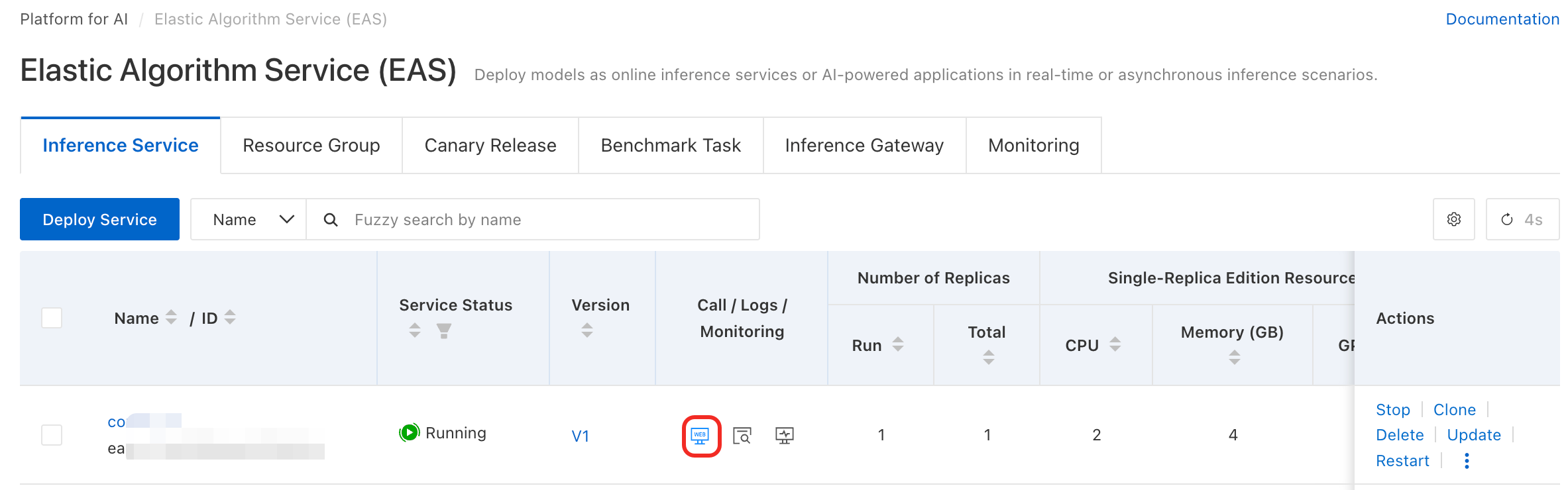
Configure the model. By default, WebUI uses an Alibaba Cloud Model Studio model in the China (Beijing) region. Obtain the API key for your region, enter it in WebUI, and save the configuration. You can also configure Alibaba Cloud Model Studio Coding Plan or an EAS model service. For more information, see Configure multiple model providers.
Note: For security reasons, after you click Save, the key information is automatically hidden and replaced by
__OPENCLAW_REDACTED__.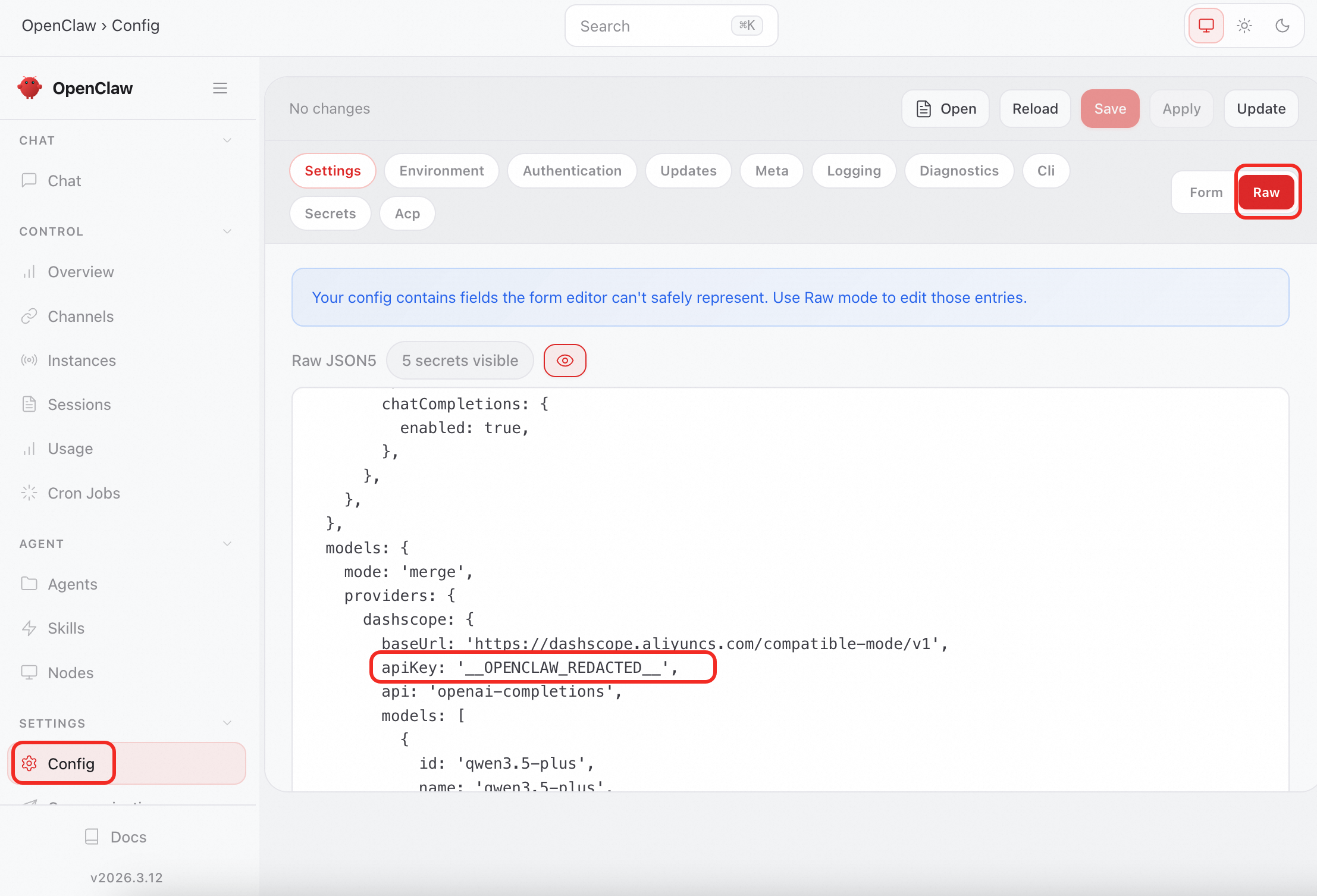
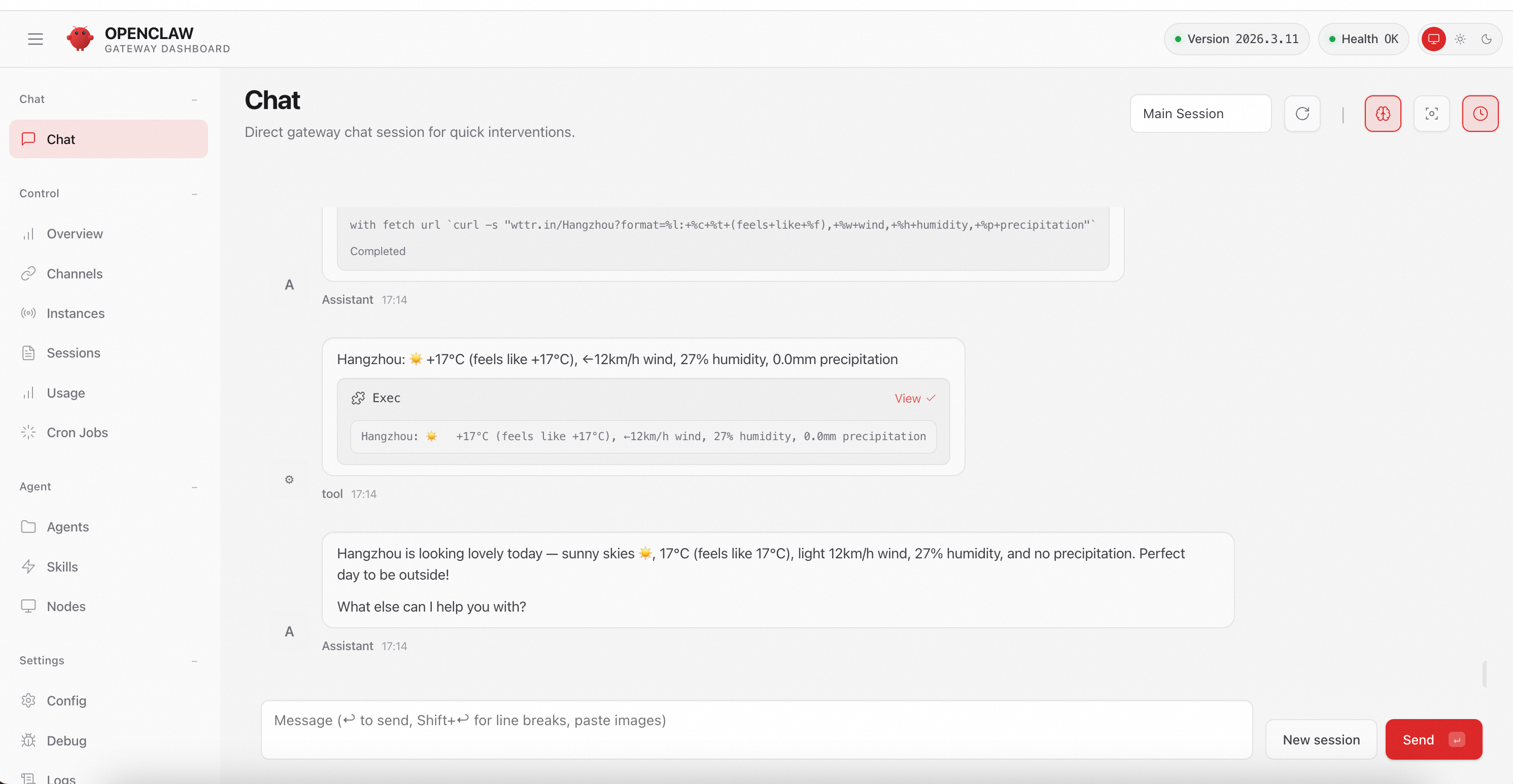
On the WebUI page, chat with your private OpenClaw assistant and assign tasks.
Configure channel
DingTalk
Create a DingTalk bot and obtain its
Client IDandClient Secret. For more information, see Create an OpenClaw bot with one click.In the OpenClaw WebUI, under Configuration > RAW, find
dingtalk-connectorin thechannelsconfiguration block, enter the Client ID and Client Secret, and save.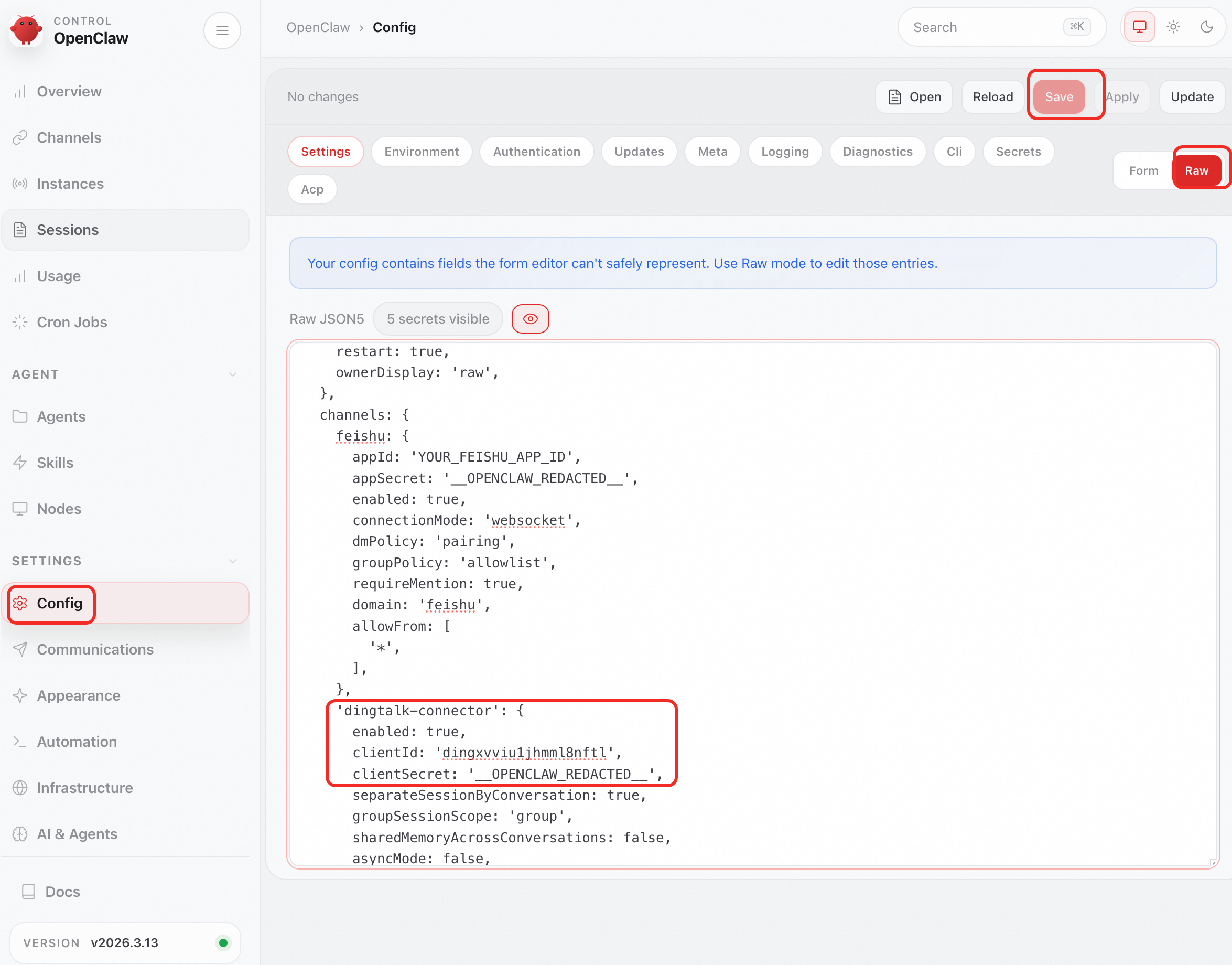
Lark
Go to the Lark Open Platform. Click Create Enterprise Self-Built App. Enter an app name and description, select an app icon, and click Create.
In the left-side navigation pane, go to the Credentials and Basic Information page. Copy App ID (format:
cli_xxx) and App Secret.In the left-side navigation pane, go to the Permission Management page. Click Batch Import/Export Permissions, paste the following JSON configuration, click Next, Confirm New Permissions, and click Request Activation.
In the left-side navigation pane, click Add App Capabilities. On the Add by Capability tab, find the Bot card and click Configure.
Configure event subscription
In OpenClaw WebUI, go to Configuration > RAW. In the JSON field, locate the channels section for feishu. Add the App ID and App Secret obtained earlier, and click Save. Note: For security, after you click Save, the secret is automatically hidden and displayed as
__OPENCLAW_REDACTED__.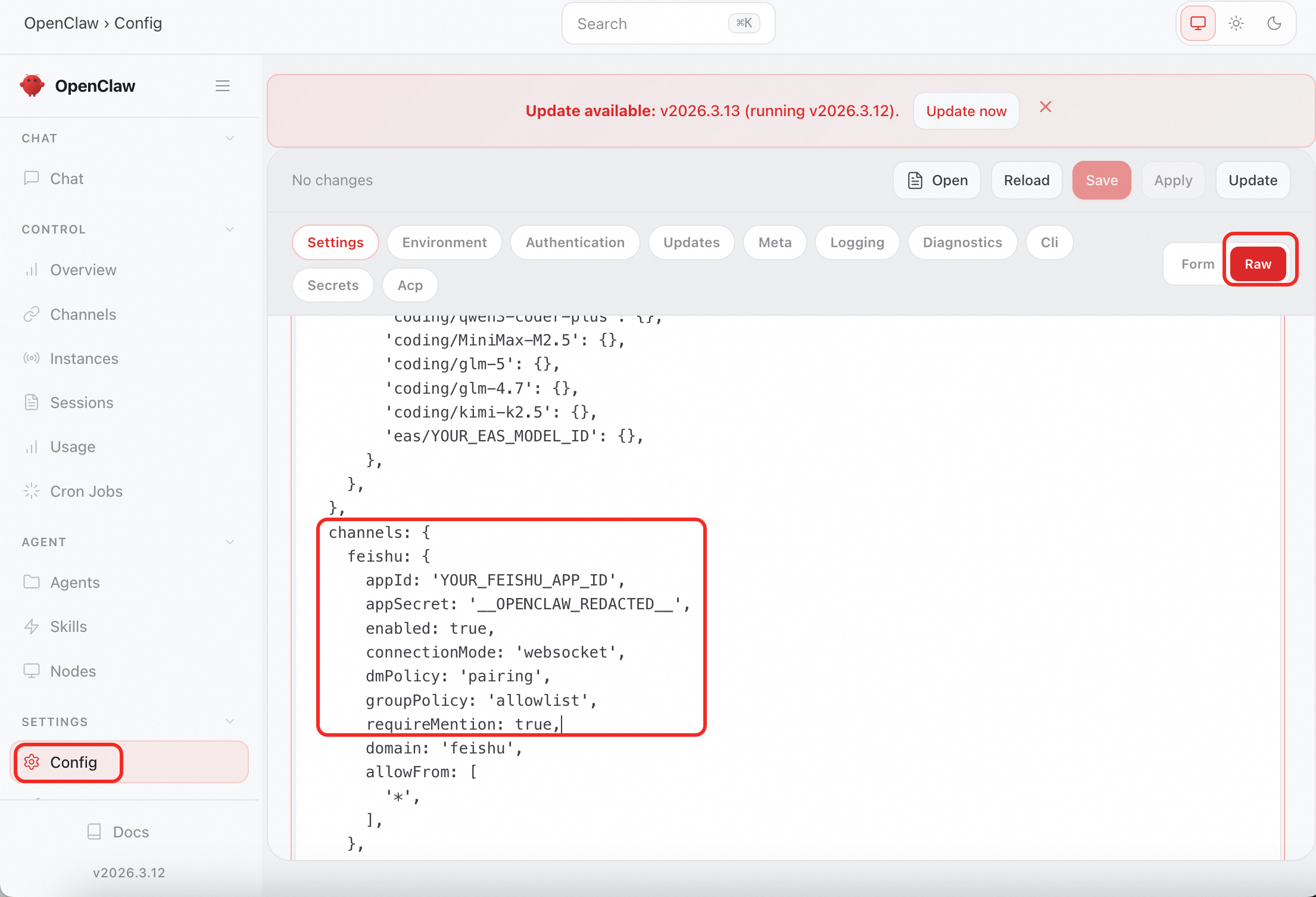
On the Lark Open Platform, click Events and Callbacks in the left-side navigation pane. On the Event Configuration tab, for Subscription Method, select Receive Events via Persistent Connection, and then click Save.
On the event configuration page, click Add Event, search for the Accept Message event, and click Confirm Add.
On the Version Management and Publishing page, create a version. Enter Application Version Number and Update Description, click Save, and submit the version for review and publish it.
Add the bot to your favorites. In Workbench, click Add to Favorites. Search for the bot you just created and click Add. The bot appears in your favorites. Double-click the bot to open the chat interface.
WeCom
Create a WeCom bot and obtain its
Bot IDandSecret. For more information, see How to integrate OpenClaw with WeCom.In Configuration->RAW on the OpenClaw WebUI, add the WeCom configuration to the
channelsconfiguration block. Replace the values for the botId and secret fields in the example with your actual content."wecom": { "enabled": true, "botId": "${WECOM_BOT_ID}", // Replace this with your actual content. "secret": "${WECOM_SECRET}", // Replace this with your actual content. "allowFrom": [ "*" ], "dmPolicy": "open" }
Additional WebUI configurations
Configure multiple model providers
In WebUI, go to Configuration > RAW. In the JSON, locate the models block. Under providers, configure multiple model providers:
{
  // Other configurations omitted ...
  models: {
    mode: 'merge',
    providers: {
      dashscope: {},
      codingplan:{},
      eas:{},
    },
   },
}
Configuration examples for common model providers:
Alibaba Cloud Coding Plan
baseUrl:
https://coding.dashscope.aliyuncs.com/v1apiKey: Visit the or the Coding Plan page to subscribe to the service and obtain your API key.
providers: {
  codingplan : {
    baseUrl: 'https://coding.dashscope.aliyuncs.com/v1',
    apiKey: '__OPENCLAW_REDACTED__',        // Replace with your actual value
    api: 'openai-completions',
    models: [
      {
        id: 'qwen3.5-plus',
        name: 'qwen3.5-plus',
        reasoning: false,
        input: [
          'text',
          'image',
        ],
        contextWindow: 1000000,
        maxTokens: 65536,
      },
      {
        id: 'qwen3-coder-next',
        name: 'qwen3-coder-next',
        reasoning: false,
        input: [
          'text',
        ],
        contextWindow: 262144,
        maxTokens: 65536,
      },
    ],
  },
},
EAS Model Service
Obtain the endpoint and token of the EAS service. Then configure:
baseUrl: URL used to invoke the EAS service. Append
/v1to it.apiKey: Token of your EAS service.
    providers: {
      eas: {
        baseUrl: 'http://xxxxxx.cn-hangzhou.pai-eas.aliyuncs.com/api/predict/quickstart_deploy_xxxx/v1/',
        apiKey: '__OPENCLAW_REDACTED__',
        api: 'openai-completions',
        models: [
          {
            id: 'Qwen3.5-27B',
            name: 'Qwen3.5-27B',
            api: 'openai-completions',
            reasoning: false,
            input: [
              'text',
            ],
            cost: {
              input: 0,
              output: 0,
              cacheRead: 0,
              cacheWrite: 0,
            },
            contextWindow: 1000000,
            maxTokens: 65536,
          },
        ],
      },
    },
DashScope
baseUrl: Default value is
https://dashscope.aliyuncs.com/compatible-mode/v1.apiKey: Enter the API key for the same region as baseUrl.
  models: {
    mode: 'merge',
    providers: {
      dashscope: {
        baseUrl: 'https://dashscope.aliyuncs.com/compatible-mode/v1',
        apiKey: '__OPENCLAW_REDACTED__',    // Replace with your actual value
        api: 'openai-completions',
        models: [
          {
            id: 'qwen3.5-plus',
            name: 'qwen3.5-plus',
            reasoning: false,
            input: [
              'text',
              'image',
            ],
            contextWindow: 1000000,
            maxTokens: 65536,
          },

        ],
      },
    },
  },
Configure default model
In WebUI, go to Configuration > RAW. In the JSON file, locate the agents block.
agents.defaults.model.primary: Specifies the default model.Model name format:
provider/model.providerspecifies the model provider name, andmodelis the model ID.
  agents: {
    defaults: {
      model: {
        primary: 'dashscope/qwen3.5-plus',
      },
      models: {
        'dashscope/qwen3.5-plus': {},
        'coding/qwen3-coder-next': {},
        'eas/Qwen3.5-27B': {}
      },
    },
  },