Create distributed training jobs in Deep Learning Containers (DLC), monitor execution status, search logs by keyword, and clone or delete jobs.
Prerequisites
Before you begin, ensure that you have:
An Alibaba Cloud account (no additional authorization required)
A RAM user added as a workspace member with a role that has the required permissions. For each role's permissions, see Appendix: Roles and permissions list.
Create a training job
Log on to the PAI console.
In the left navigation pane, click Workspace List, and then click the workspace name.
In the left navigation pane of the workspace page, choose AI Asset Management > Jobs.
On the Deep Learning Containers (DLC) tab, click Create Job.
Configure the parameters and click OK.
For parameter descriptions, see Create a training task.
Manage training jobs
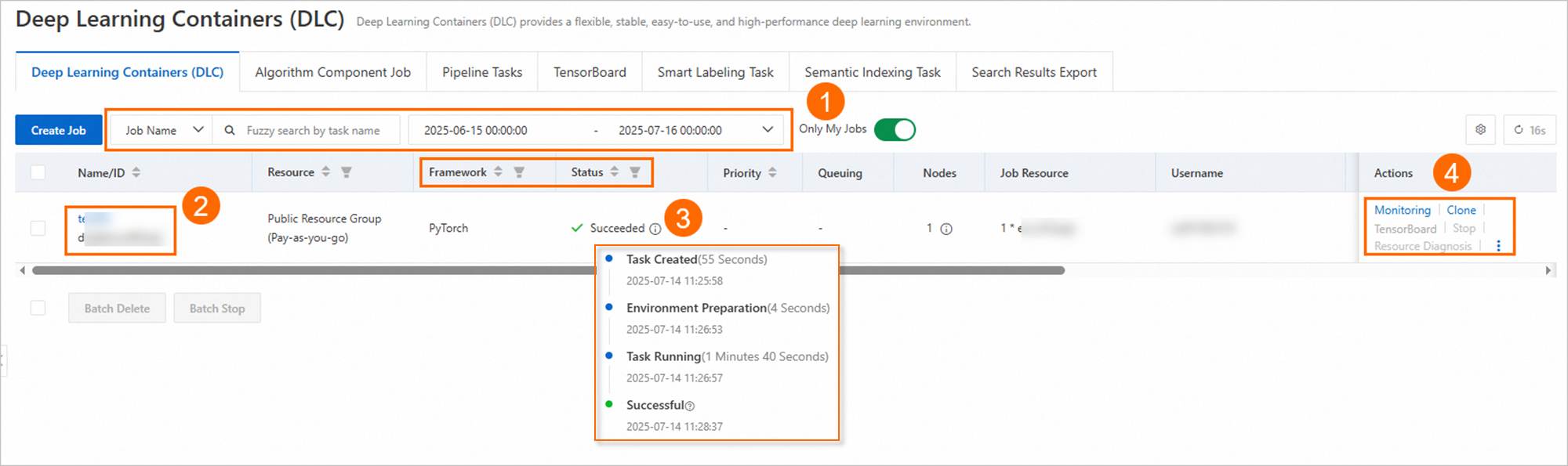
The job list aggregates jobs from DLC, Designer algorithm nodes running on DLC, and the DLC command line interface (CLI):
Deleted jobs cannot be recovered.
| Callout | Action |
|---|---|
| ① | Search jobs by name, ID, time range, framework, or status. |
| ② | Click a job name to view execution status, instance status, resource view, and logs. |
| ③ | Hover over the status icon to view execution status. |
| ④ | Clone a job, or click TensorBoard in the Actions column to create a TensorBoard instance for viewing training results. |
Search logs by keyword
Run a log search
In the left navigation pane, choose AI Asset Management > Jobs. On the Deep Learning Containers (DLC) page, click the job name.
Click the Log tab.
Above Job Information, select a time range for log collection.
NoteLog collection may extend beyond the job end time. Select a time range that covers the full period you want to inspect.
In Instance List, select the instances to include.
In the search box, enter keywords to search for logs or events.
Basic query rules
SLS tokenizes log content before indexing. A multi-word keyword like loss acc matches logs that contain loss and logs that contain acc — it does not search for the exact phrase loss acc.
SLS does not support exact phrase matching. Use the most specific single token that identifies the log entry you are looking for.
Example — multi-word keyword behavior:
| Keyword | Returns | Does not return |
|---|---|---|
loss acc | Logs containing loss AND logs containing acc | Logs that contain only the exact phrase loss acc |
Error 404 | Logs containing Error AND logs containing 404 | Logs that contain only the exact phrase Error 404 |
Fuzzy query rules
Use * (asterisk) or ? (question mark) for wildcard searches. Other special characters are not supported.
| Wildcard | Matches | Example |
|---|---|---|
* | Multiple characters | abc* matches abcd, abcdef |
? | Exactly one character | ab?d matches abcd but not abcdef |
Wildcards must appear in the middle or at the end of a keyword — not at the start. *abc and ?abc return no results.
A fuzzy query searches up to 100 matching terms in the Logstore. If a short prefix like a* matches more than 100 terms, results may be inaccurate. Use a more specific prefix to narrow the match.
Tokenizer limitations
SLS splits log content into tokens using these delimiter characters:
, ' " ; = ( ) [ ] { } ? @ & < > / : \n \t \rKeywords made up entirely of delimiters return no results. Build keywords from the surrounding content instead.
| Query goal | What to use | Why |
|---|---|---|
Find logs with & && | No direct match possible | & && consists only of delimiters |
Find logs with a &b | a &b | Returns logs containing both a and b |
More specific keywords produce more accurate results.
Query examples
| Query goal | Keyword |
|---|---|
Logs containing Error | Error |
Logs containing both loss and acc | loss acc |
All logs related to Traceback | Traceback* |
Logs containing abc &def | abc &def |