FeatureStore supports offline and online data stores. Configure data stores before creating a FeatureStore project to enable FeatureStore access to your data.
An offline data store uses MaxCompute to store feature entity attribute tables (such as users or items) and derived statistical data. Offline data is not accessed directly by online services. Use FeatureStore data synchronization to write data to an online data store for low-latency serving.
Online data stores support FeatureDB, Hologres, and Tablestore, providing millisecond-level latency for online requests.
Prerequisites
-
PAI is activated and a workspace is created. Activate PAI and create a default workspace.
-
A project or instance is created based on the data store type.
-
Offline data store
For MaxCompute, create a MaxCompute project.
-
Online data store
-
For FeatureDB, activate it by following on-screen instructions when you create the data store.
To configure a VPC direct connection, prepare a VPC, vSwitch, and security group. Create and manage a VPC and Manage a security group.
-
For Hologres, purchase a Hologres instance.
Note: For Hologres VPC configuration, see Instance details.
A database is configured for the Hologres instance. Create a database.
-
For Tablestore, create an instance.
-
-
Procedure
-
Go to the FeatureStore page.
-
Log on to the PAI console. In the left-side navigation pane, choose Data Preparation > FeatureStore.
-
Select a workspace and click Enter FeatureStore.
-
-
Click Store. On the Data Stores page, click Create Store. In the panel, configure an offline or online data store.
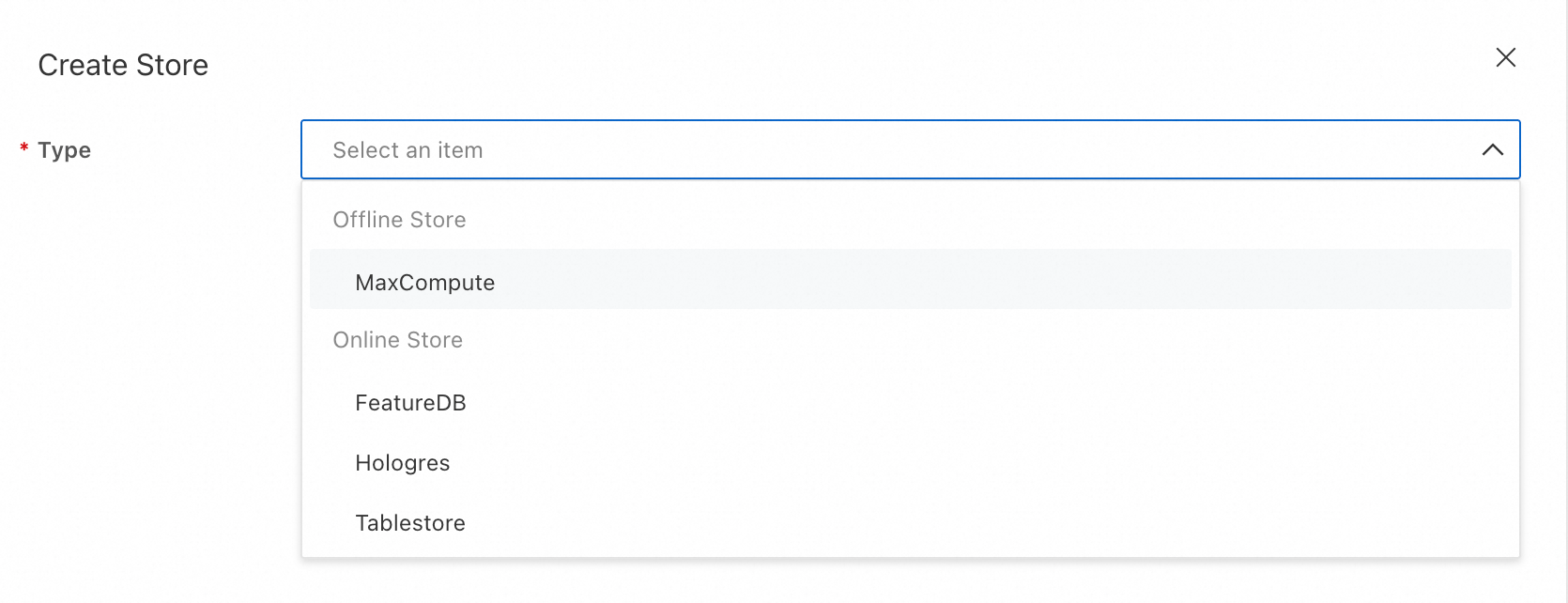
MaxCompute
-
Configure the parameters.
-
Type: MaxCompute
-
Name: Custom name for the data store.
-
MaxCompute Project Name: Select the MaxCompute project.
-
-
Click Submit.
FeatureDB
-
Configure the parameters.
-
Activate FeatureDB: For first-time use, follow on-screen instructions to activate FeatureDB. FeatureDB uses pay-as-you-go billing based on storage and read/write operations. Billing of FeatureStore.
-
Name: Not customizable. Defaults to feature_db.
-
Username: Username for the FeatureDB instance.
-
Password: Password for the FeatureDB instance.
-
-
(Optional) Configure the VPC Direct Connection Configurations. This enables the FeatureStore SDK to access FeatureDB over a private network from your VPC, reducing latency.
-
VPC: Select the VPC for your online service.
-
Zone and vSwitch: Select the zone and vSwitch for your online service. For high availability, choose vSwitches in at least two zones.
-
-
Click Submit.
Hologres
-
Configure the parameters.
-
Type: Hologres
-
Name: Custom name for the data store.
-
Instance ID: Select the Hologres instance.
-
Database Name: Select the database of the Hologres instance.
-
(Optional) vSwitch: If the Hologres instance lacks a public endpoint, select a vSwitch within the instance's VPC to enable network access.
-
(Optional) If prompted about incomplete Hologres authorization, grant the required permissions:
-
Log on to the Hologres console. In the left-side navigation pane, click Instances. Click the target instance and then click Account Management.
-
On the Account Management page, click Add User. In the dialog box, select the RAM user that uses FeatureStore, assign the Superuser or Regular User role, and then click OK.
-
(Optional) If the user has the Regular User role, grant database-level permissions. On the instance details page:
-
Click Database Management.
-
Find the target database and click Authorize User in the Actions column.
-
In the upper-right corner, click Grant Permissions.

-
Grant the RAM user that uses FeatureStore the Developer role and click OK.
-
-
-
(Optional) If the authorization prompt persists, check if your Hologres instance is earlier than version 2.0.18 and upgrade if needed.
-
-
Click Submit.
Create an online data store: Tablestore
-
Configure the parameters.
-
Type: Tablestore
-
Name: Custom name for the data store.
-
Instance ID: Select the Tablestore instance.
-
-
Click Submit.
If the Authorize dialog box appears, click Authorize.
-
Next steps
Create a FeatureStore project. Configure a FeatureStore project.