Associate an EAS service with NLB to enable load balancing and access control for high-traffic deployments.
Prerequisites
-
Create an NLB instance. For more information, see Create and manage an NLB instance.
-
Create a VPC, vSwitch, and security group to enable VPC direct connection. Ensure the security group is dedicated to this service and the vSwitch has sufficient available IPs. For more information, see Create and manage a VPC and Manage security groups.
Billing
NLB usage incurs charges. For more information, see NLB billing rules.
How it works

-
Create an NLB instance in the designated VPC and vSwitch. Ensure the network environment matches the VPC direct connection configuration.
-
During service deployment or updates, enable VPC direct connection and associate the NLB instance with the listener port. EAS attaches the elastic network interface (ENI) under the vSwitch to the EAS pod and adds a TCP listener to the NLB instance, enabling access to the EAS service using
NLB domain:listener port.
Associate NLB instance
Include the following parameters in the JSON configuration file when deploying or updating a service. For information about deploying or updating EAS services, see Deploy a custom inference service and Run commands to use the EASCMD client.
"cloud": {
        "networking": {
            "vpc_id": "vpc-bp15jr4ggze4rvow39****",
            "vswitch_id": "vsw-bp11dobkizy0jjsgn****",
            "security_group_id": "sg-bp1dz9lad9s0615r****"
        }
    },
"networking": {
        "nlb": [
            {
               "id": "nlb-5q4sp7u6oorkha****",
                "listener_port": 9090
            }
        ]
}Configuration for the NLB instance (networking) must be at the same level as cloud.
|
Parameter |
Description |
||
|
cloud |
networking |
vpc_id |
Enables VPC direct connection by configuring VPC, vSwitch, and security group. Important
|
|
vswitch_id |
|||
|
security_group_id |
|||
|
networking |
nlb |
id |
ID of the created NLB instance. |
|
listener_port |
Custom port. When deploying a service, EAS automatically creates it as the listener port of the NLB instance. After successful deployment, access the EAS service through Note
|
||
Verify network connectivity
After successful service deployment, verify network connectivity for NLB domain name:listener port:
-
View the NLB domain name in the NLB console. Check the Domain Name column for the instance.
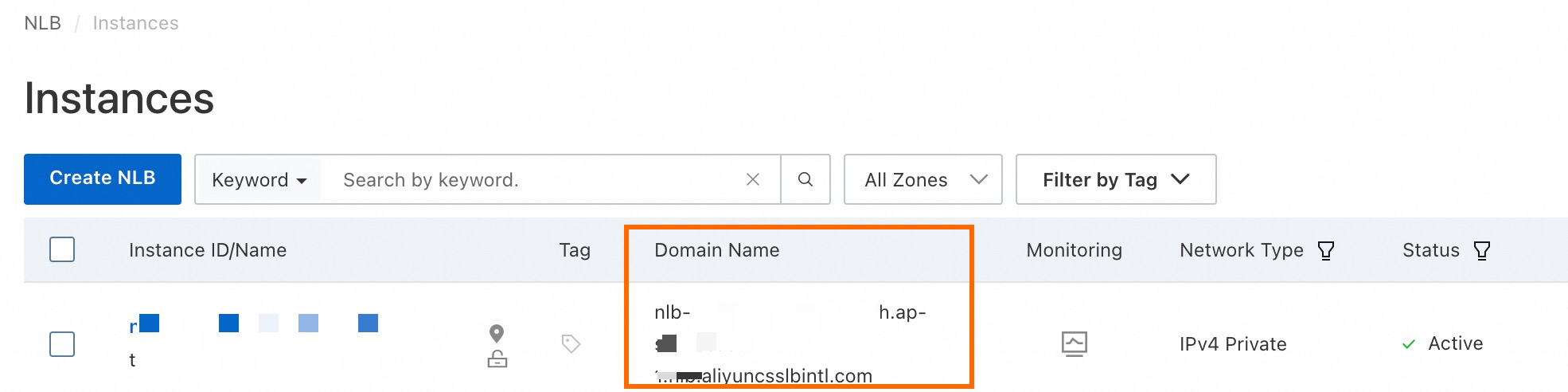
-
Test connectivity using
telnet domain name listener port. Use the listener_port you specified during service deployment and the domain name from the previous step.-
For internet NLB, run the command on your local terminal.
-
For intranet NLB, run the command on a terminal within the VPC.
Sample result:

-
Access the EAS service using the NLB domain name and port. Sample command:
# Sample command
curl http://<NLB domain>:<listener port>/api/predict/<service_name> -H 'Authorization:<service_token>' -d '[{"What is the capital city of Zhejiang?"}]'
# Sample result
{"response":"The capital city of Zhejiang is Hangzhou.","history":[["[{\"What is the capital city of Zhejiang?\"}]","The capital city of Zhejiang is Hangzhou."]]}
Parameter descriptions:
-
Service access address is
http://<NLB domain name>:<listener port>/api/predict/<service_name>. To view it:-
Click the desired service name on the Elastic Algorithm Service (EAS) page.
-
Click View Endpoint Information in the Basic Information section.
-
Replace the shared gateway domain address in the endpoint with
<NLB domain name>:<listener port>.-
NLB domain name: Domain name checked earlier.
-
Listener port: Use the listener_port specified during service deployment.
-
-
-
Service token: View by following steps a and b.