Data processing components for large language models (LLMs) provide a suite of tools to transform, filter, and deduplicate your dataset. You can combine these components into a workflow to perform data cleaning and generate high-quality text for LLM training. This topic uses a small sample from the open-source RedPajama-Data project to demonstrate how to use a preset workflow in PAI to clean and process a GitHub code dataset.
The Deep Learning Containers (DLC) components run on the distributed Ray framework for large-scale data processing. They also support intelligent aggregation to improve efficiency and resource utilization by minimizing unnecessary data storage operations. For more information, see Group and Aggregate Large Model Data Processing Components.
Dataset
The preset template used in this topic, LLM Data Processing - GitHub Code - DLC Component, is available in Visualized Modeling (Designer). It uses a dataset of 5,000 samples extracted from the open-source RedPajama-Data project.
Create and run the workflow
Go to the Visualized Modeling (Designer) page.
Log on to the PAI console.
In the upper-left corner, select the region where your resources are located.
In the left-side navigation pane, choose Workspaces and click the name of the workspace that you want to open.
In the left-side navigation pane, choose Model Training > Visualized Modeling (Designer) to open the Designer page.
Create a workflow.
On the Preset Templates tab, select Business Area > LLM, and then click Create on the LLM Data Processing - GitHub Code - DLC Component template card.
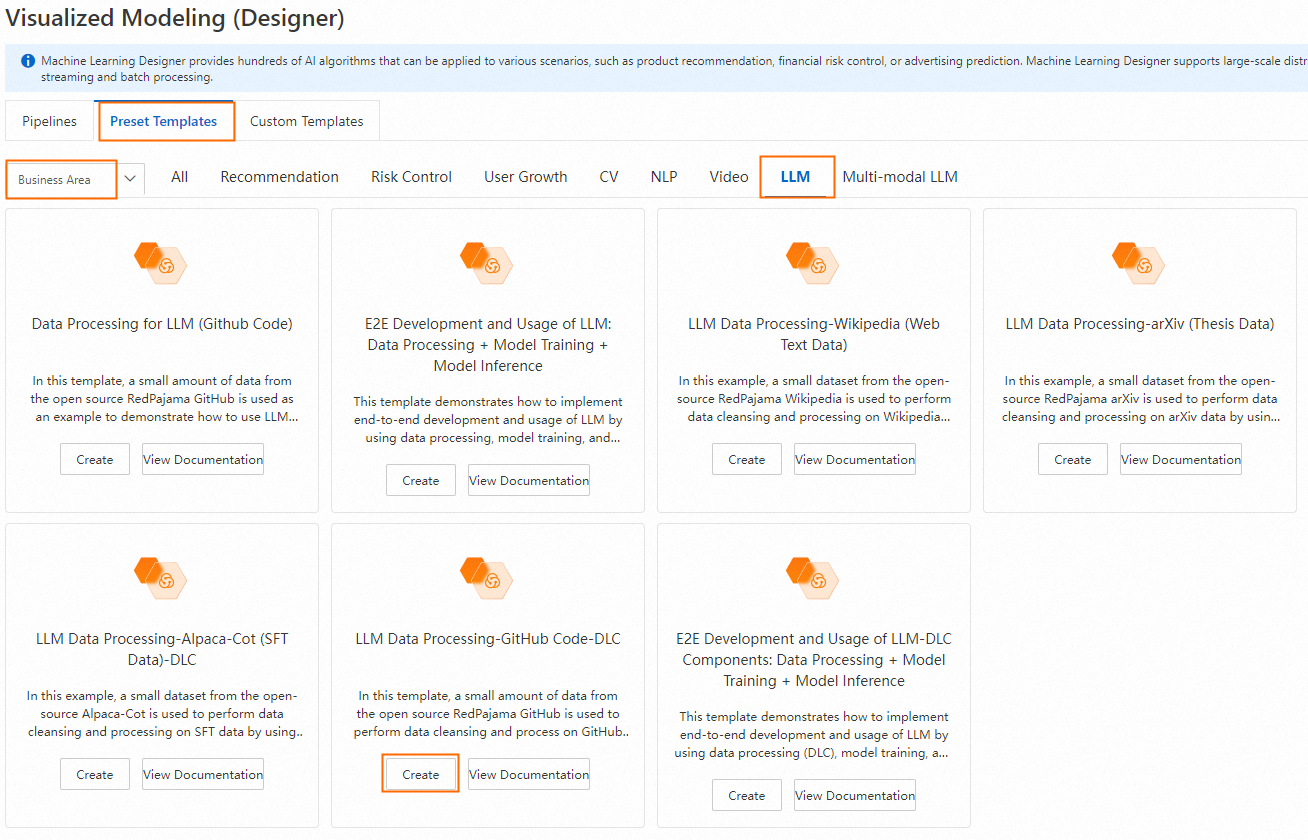
In the dialog box, configure the workflow parameters or keep the default settings, and then click Confirm.
In the workflow list, select the created workflow and click Open.
Workflow overview:

The workflow uses several key components to process the data:
LLM-Sensitive Content Mask (DLC)-1
Masks sensitive information in the
contentfield. For example:Replaces email addresses with
[EMAIL].Replaces phone numbers with
[TELEPHONE]or[MOBILEPHONE].Replaces ID card numbers with
IDNUM.
LLM-Clean Special Content (DLC)-1
Removes URLs from the
contentfield.LLM-Text Normalizer (DLC)-1
Applies Unicode normalization to the text in the
contentfield.LLM-Clean Copyright Information (DLC)-1
Removes copyright notices from the
contentfield.LLM-Count Filter (DLC)-1
Removes samples from the
contentfield that do not meet specified thresholds for the ratio of alphanumeric characters and the ratio of alphabetic characters to total tokens. This component is effective for removing dirty data because most characters in a code dataset are letters and numbers.LLM-Length Filter (DLC)-1
Filter samples based on the length of the 'content' field, average length, and maximum line length. The average and maximum line lengths are calculated by splitting the sample by the newline character
\n.LLM-N-Gram Repetition Filter (DLC)-1
Samples are filtered based on the character-level and word-level N-Gram repetition rates of the "content" field, where all words are first converted to lowercase for the word-level calculation. The character-level rate is determined by applying a sliding window of size N to the text to create a sequence of fragments (grams), counting the occurrences of all grams, and then calculating the repetition rate as the ratio of the
sum of frequencies of grams that appear more than once / sum of frequencies of all grams.LLM-Length Filter (DLC)-2
Applies another filter based on the length of the
contentfield.LLM-Document Deduplicator (DLC)-1
Removes near-duplicate samples based on the configured
window_size,num_blocks, andhamming_distancevalues.
Run the workflow and view the results.
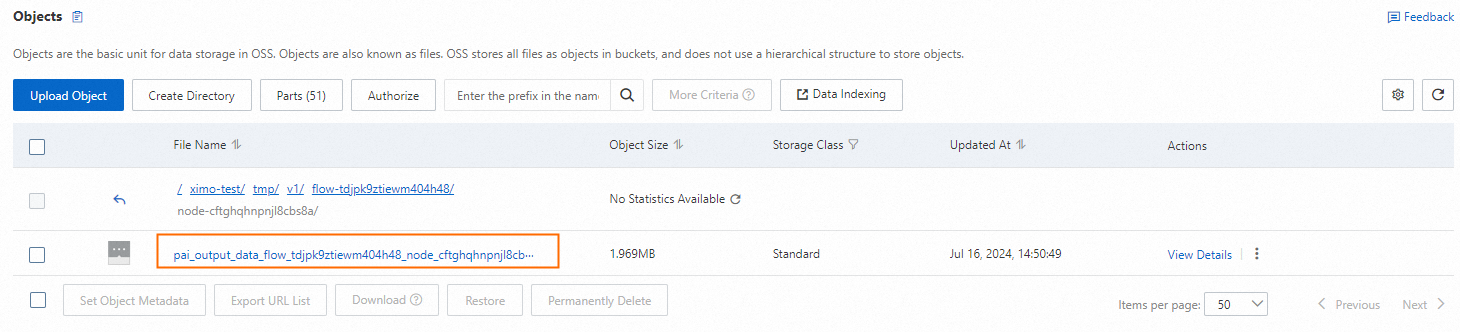
When the workflow completes, right-click the LLM-Document Deduplicator (DLC)-1 component and choose View Data > Output Data (OSS). You can view the output file, which contains the processed samples, in Object Storage Service (OSS).
References
For more information about the LLM algorithm components, see LLM Data Processing (DLC).