The Factorization Machine (FM) algorithm is a nonlinear model that incorporates feature interactions, suitable for recommendation scenarios in e-commerce, advertising, and live streaming. Platform for AI (PAI) Machine Learning Designer provides a preset FM algorithm template that you can use to build an FM recommendation model based on the Alink framework.
Procedure
Go to the Machine Learning Designer page.
Log on to the PAI console.
In the left-side navigation pane, click Workspaces. On the Workspaces page, click the name of the workspace that you want to manage.
In the left-side navigation pane, choose .
-
Create a pipeline.
-
On the Visualized Modeling (Designer) page, click the Preset Templates tab.
-
On this tab, find the [Alink]FM-Embedding for Rec-System template and click Create.
-
In the Create Pipeline dialog box, configure the parameters. You can use the default settings for all parameters.
The Data Storage parameter specifies an OSS Bucket path to store temporary data and models generated during the pipeline run.
-
Click Confirm.
It takes about 10 seconds to create the pipeline.
-
On the Pipelines tab, click the created pipeline. In the Basic Information section on the right side, click Open.
On the pipeline configuration tab, you can view the created pipeline on a canvas.

The pipeline supports two methods for FM training and prediction with the Alink algorithm:
-
Method 1: Use encapsulated FM Train and FM Prediction components to perform FM training and prediction.
FM Train and FM Prediction are Alink components marked with a purple dot and can be run in groups. For more information about group execution, see Alink component.
-
Method 2: Use PyAlink components to perform FM training and prediction.
Custom PyAlink components achieve the same result as Method 1 through Python code. For supported operators, see Overview of Alink.
-
-
-
Configure the parameters of the FM Train-1 node.
-
Click the FM Train-1 node on the canvas.
-
On the Fields Setting tab in the right-side panel, configure the parameters that are described in the following table.
Parameter
Description
Feature Columns
The name of the feature column. The data in the feature column is in the key:value format. Multiple key-value pairs in the feature column are separated by commas (,).
Label column
The name of the label column. The label column must be of the DOUBLE data type.
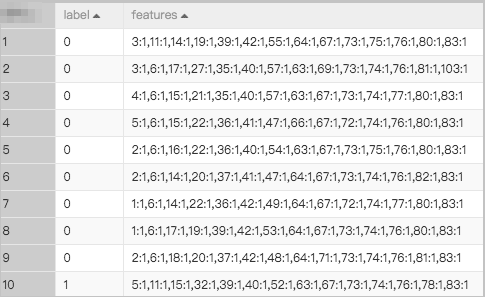
The FM algorithm that is provided by Machine Learning Designer supports only data in the LIBSVM format. You can convert data that is in another format to the LIBSVM format by using a one-hot encoding component. For more information, see One-hot encoding. The input data must include a feature column and a label column, as shown in the following figure.
-
On the Parameters Setting and Tuning tabs in the right-side panel, configure the training parameters.
For a pipeline with 120 million samples and 1.3 million features, use the recommended values in the following table and keep defaults for other parameters. Adjust these values based on your data volume.
Tab
Parameter
Description
Parameters Setting
Learning rate
The learning rate. Recommended value: 0.005. If the training is divergent, set this parameter to a smaller value.
Dimensions
The number of dimensions. Recommended value: 1,1,16.
Block size
-
The size of the block. If less than two million feature data records are involved, we recommend that you set this parameter to 1000000.
-
If two million feature data records or more are involved, you do not need to set this parameter.
Tuning
Number of Workers
The number of nodes to be used. Recommended value: 32. If a large amount of data is involved, set this parameter to a greater value.
Memory Size per Node (MB)
The memory size to be allocated to each node. Recommended value: 16384. Unit: MB.
-
-
-
Write code for the PyAlink FM training node and PyAlink FM prediction node.
-
Write code for the PyAlink FM training node.
from pyalink.alink import * def main(sources, sinks, parameter): print('start') # Mode 1 for calling the Alink algorithm. # train = HugeFmTrainBatchOp().setVectorCol('features').setLabelCol('label').linkFrom(sources[0]) # Mode 2 for calling the Alink algorithm. train = HugeFmTrainBatchOp( vectorCol='features', labelCol='label', task='binary_classification', numEpochs=10) # Obtain the training data from input port 0. The trained model is generated from output port 0 and passed downstream. sources[0].link(train).link(sinks[0]) BatchOperator.execute() print('end') -
Write code for the PyAlink FM prediction node.
from pyalink.alink import *

def main(sources, sinks, parameter):
    predictor = HugeFmPredictBatchOp().setPredictionCol("prediction_result")\
    .setPredictionDetailCol("prediction_detail").setReservedCols(["label"])
    output = predictor.linkFrom(sources[0], sources[1])
    # The prediction result is generated from the first output port and passed downstream.
    output.link(sinks[0])
    BatchOperator.execute()
    print('predict end')
-
-
In the upper-left corner of the canvas, click the Run icon.
-
After the pipeline is run, right-click a Binary Classification Evaluation node on the canvas and select Visual Analysis.
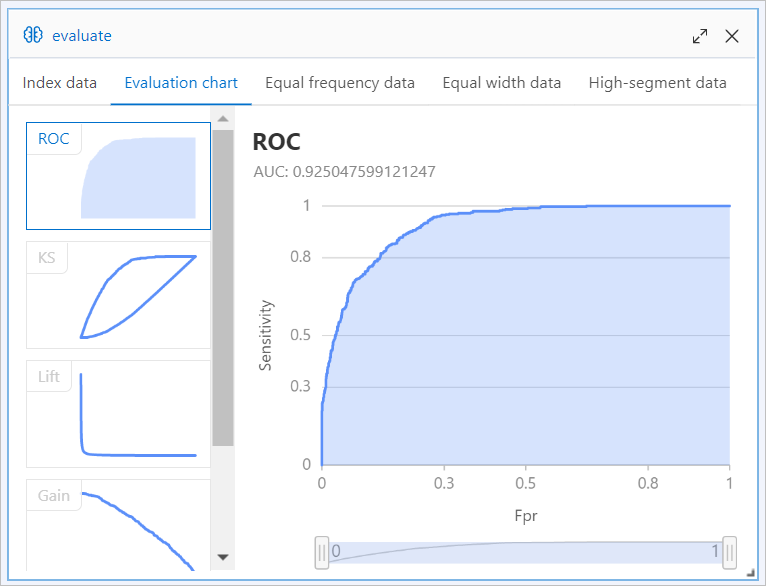
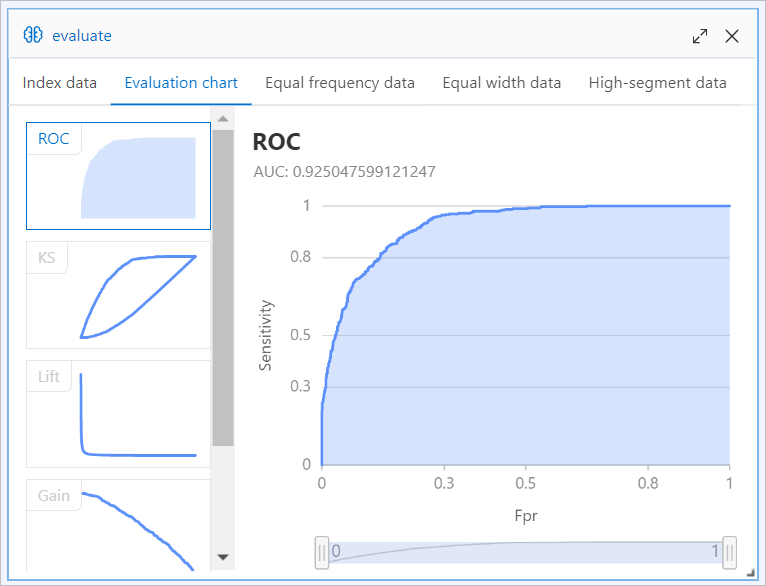
With the [Alink]FM-Embedding for Rec-System template data, the FM algorithm achieves an area under curve (AUC) close to 0.92.
-
Evaluation report generated by using Method 1
-
Evaluation report generated by using Method 2
-