Build an automatic product tag classification system using PAI text analytics components to cluster similar product tags.
Background
Product descriptions contain tags from multiple dimensions such as time, origin, and style. For example, a shoe description might be "girly British style lace-up Martin boots for women frosted genuine leather thick-soled casual short boots". A bag description might be "daily special offer bags 2016 new autumn winter crossbody bag Korean style handbag tassel shell bag women's bag shoulder bag". Extracting and classifying these dimensional tags across thousands of products is challenging for E-commerce platforms. PAI text analytics components automatically learn tag words to perform classification.
Prerequisites
-
A workspace is created. For more information, see Create and manage a workspace.
-
MaxCompute resources are associated with the workspace. For more information, see Create and manage a workspace.
Prepare the dataset
The dataset for this workflow is a curated 2016 Double 11 shopping list containing over 2,000 product descriptions. Each row represents tag aggregation for a single product.
In the DataStudio module of DataWorks, create a table containing a single column named content and upload the dataset to the table. For more information, see Create a table and upload data.
Classify similar tags
-
Go to the Machine Learning Designer page.
-
Log on to the PAI console.
-
In the left-side navigation pane, click Workspaces. On the Workspaces page, click the name of the workspace that you want to manage.
-
In the left-side navigation pane, choose .
-
-
Create a custom pipeline and open the pipeline page. For more information, see Create a custom pipeline.
-
Build and run the pipeline.
-
From the component list on the left, drag the Read Table component from Source/Destination to the canvas and rename it shopping_data-1.
-
From the component list on the left, drag the Split Word, Word Count, and Word2Vec components from to the canvas.
-
From the component list on the left, drag the Add ID Column and Type Transform components from the Data Preprocessing section to the canvas.
-
From the component list on the left, drag the K-Means Clustering component from to the canvas.
-
From the component list on the left, drag the SQL Script component from the Custom Script category onto the canvas.
-
Connect the components to build the pipeline. Configure the key parameters for each component as described in the following table, and then run the pipeline.
-
On the canvas, click the shopping_data-1 component. On the Select Table tab, configure the prepared table name.
-
On the canvas, click the Split Word-1 component. On the Field Settings tab, select the content column.
-
Click the shopping_data-1 component and click Execute Node from the shortcut menu. After the component finishes running, run the Split Word-1 component in the same way.
-
On the canvas, click the Word Count-1 component. On the Field Settings tab, set Select Document ID Column to append_id and Select Document Content Column to content.
-
Click the Word Count-1 component and click Execute Node.
-
Words with a small vector distance have similar meanings.
-
Distance differences between words have specific meanings.
-
On the canvas, click the Word2Vec-1 component. On the Field Settings tab, set Select Word Column to word. On the Parameters tab, select Use hierarchical softmax.
-
Click the Word2Vec-1 component and click Execute Node.
-
On the canvas, click the K-Means Clustering-1 component. On the Field Settings tab, set Feature Column(s) to f0 and Append Column(s) to word.
NoteThe number of rows in the upstream input data table must be greater than or equal to the number of clusters set in the component parameters.
-
Click the K-Means Clustering-1 component and click Execute Node.
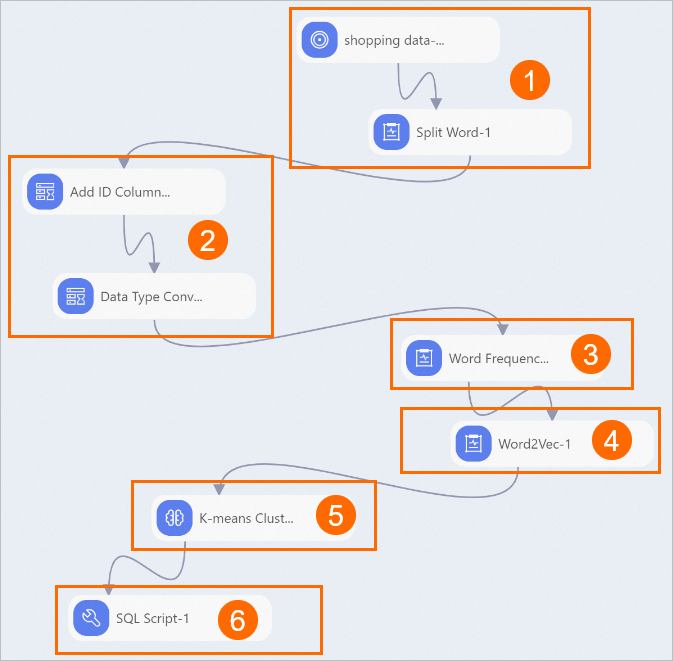
No.
Description
①
Upload the shopping_data data and use the Split Word component to tokenize the data:
②
Add an ID column. This is required because the uploaded data has only one field. The ID column serves as a primary key for each data entry.
Click the Add ID Column-1 component and click Execute Node from the shortcut menu. After the component finishes running, run the Type Transform-1 component in the same way.
③
Count word frequencies to show the number of words that appear in each product description.
④
Use the Word2Vec component to expand each word into vector dimensions based on its meaning to generate word embeddings. Word embeddings have the following properties:
The Word2Vec component maps each word to a 100-dimensional space.
⑤
Cluster word embeddings. Use the k-means clustering algorithm to calculate distances between word embeddings and automatically classify tag words by meaning.
⑥
Verify the result. Use the SQL Script-1 component to select a random cluster category to check whether tags of the same category are automatically classified together. This pipeline selects the 10th cluster group. On the canvas, click the SQL Script-1 component. On the Parameters tab, set SQL Script to
select * from ${t1} where cluster_index=10.In the result, the system automatically classifies geography-related tags together. However, some tags such as nuts that clearly do not fit the category are mixed in. This may be because the training samples are insufficient. With sufficient training samples, the tag clustering result will be more accurate.
-
References
For more information about the algorithm components, see the following topics: