PAI Deep Learning Containers (DLC) runs Ray training jobs without manual cluster setup or Kubernetes configuration.
Prerequisites
To submit a training job by using the SDK, configure environment variables. For more information, see Install the Credentials tool and Configure environment variables on Linux, macOS, and Windows.
Preparations
Node image
A Ray cluster consists of Head and Worker nodes. A DLC job uses the specified node image to build containers for both node types. After a job is created, DLC automatically builds a Ray cluster. When the cluster is ready, DLC starts a Submitter node to submit the job. The Submitter node uses the same image.
The Ray image version must be 2.6 or later and must include at least the components in ray[default]. Supported image types:
-
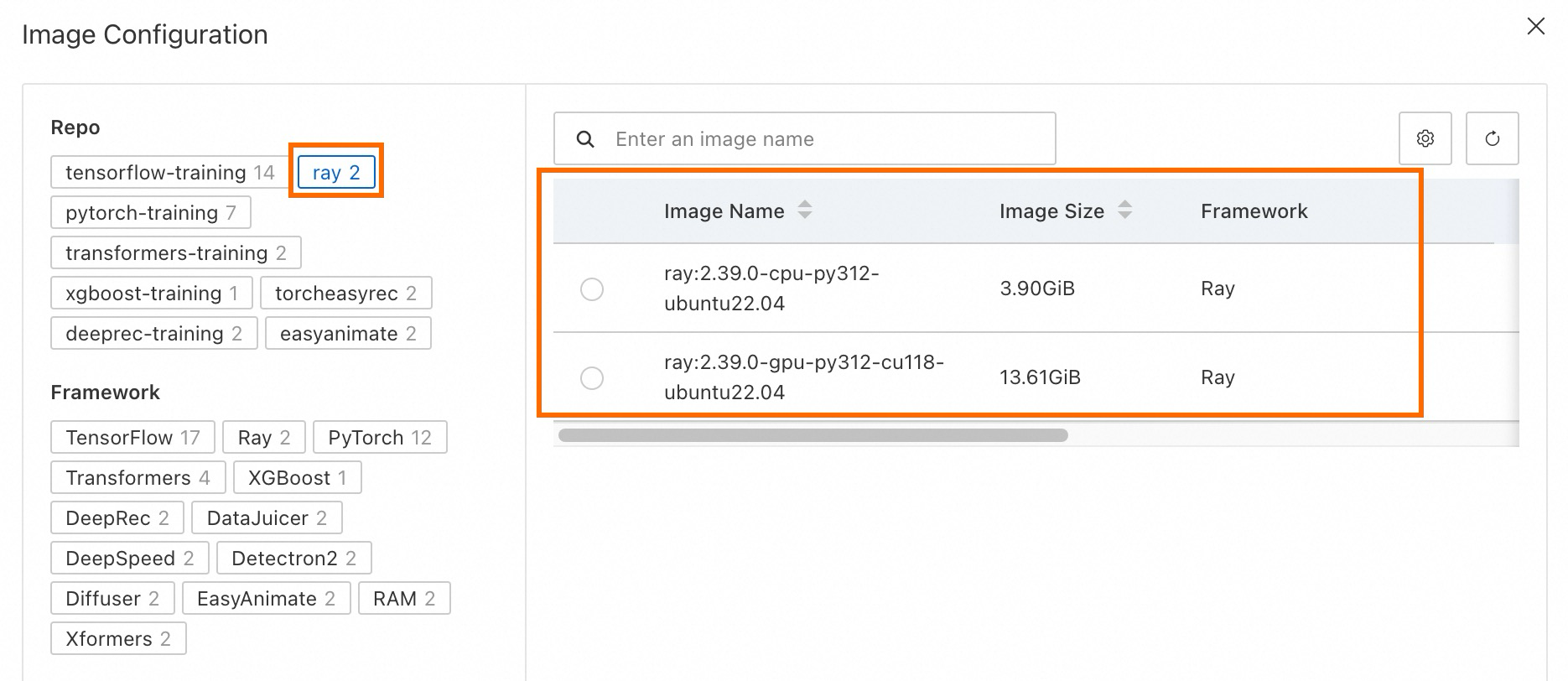
PAI official images: PAI provides official images with Ray components pre-installed.
-
Ray community images:
-
Recommended: the
rayproject/rayDocker image. -
Alternatively, use the
rayproject/ray-mlimage, which includes machine learning frameworks such as PyTorch and TensorFlow.
For GPU workloads, provide a CUDA-enabled image. For supported image versions, see the official Docker image documentation.
-
Entrypoint command and script file
The entrypoint command for a DLC job is the command submitted with ray job submit. Enter the command on a single line or multiple lines. For example, python /root/code/sample.py, where:
-
sample.pyis the Python script to run. Mount the script file into the DLC container by using a dataset or Code Builds. Sample script:import ray import os ray.init() @ray.remote class Counter: def __init__(self): # Used to verify runtimeEnv self.name = os.getenv("counter_name") # assert self.name == "ray" self.counter = 0 def inc(self): self.counter += 1 def get_counter(self): return "{} got {}".format(self.name, self.counter) counter = Counter.remote() for _ in range(50000): ray.get(counter.inc.remote()) print(ray.get(counter.get_counter.remote())) -
/root/code/is the mount path.
Submit a training job
Console
-
Go to the Create Job page.
-
Log on to the PAI console. Select a region and a workspace. Then, click Enter Deep Learning Containers (DLC).
-
On the Deep Learning Containers (DLC) page, click Create Job.
-
-
On the Create Job page, configure the following key parameters. For more information about the other parameters, see Create a training job.
Parameter
Description
Example
Environment Information
Node Image
On the Alibaba Cloud Image tab, select a preconfigured official Ray image.
ray:2.39.0-cpu-py312-ubuntu22.04Startup Command
Command to run for the job.
python /root/code/sample.pyThird-party Libraries
Configure Ray runtime environment dependencies (
runtime_env) by specifying third-party libraries.NoteIn production, use pre-built images to avoid job failures from on-the-fly dependency installations.
Not configured
Code Builds
Upload the script file to the DLC container by using Online configuration or Local Upload.
Using the Local Upload method:
-
Sample code file: sample.py
-
Mount path:
/root/code/
Resource Information
Source
Select Public Resources or Resource Quota.
Public Resources
Framework
Framework type.
Ray
Job Resource
-
Node count:
A Ray cluster has Head and Worker nodes. Set the number of Head nodes to 1. The Head node runs only the entrypoint script and does not act as a Ray Worker node. A job typically requires at least one Worker node, but this is not mandatory. DLC automatically creates a Submitter node for each Ray job to run the startup command. View the job log through the Submitter log. For subscription-based jobs, the Submitter node shares a small amount of user resources. For pay-as-you-go jobs, DLC creates a node of the smallest available instance type.
-
Resource count:
Logical resources on Ray cluster Worker nodes match the physical resources configured when submitting the job. For example, a GPU node with eight GPUs gives the Ray Worker node eight GPUs by default.
Ensure the resource configuration meets job requirements. Use fewer large nodes instead of many small nodes. Allocate at least 2 GiB of memory per node. Increase memory as task or actor count grows to avoid out-of-memory (OOM) errors.
-
Number of nodes: Set to 1 for both Head and Worker.
-
Instance Type: Select ecs.g6.xlarge.
-
-
With a Resource Quota, click the
 icon to scale Worker nodes. Set the minimum and maximum instance count for a role. The system dynamically adjusts running instances based on resource availability and load, which helps run multiple jobs and optimize resource utilization.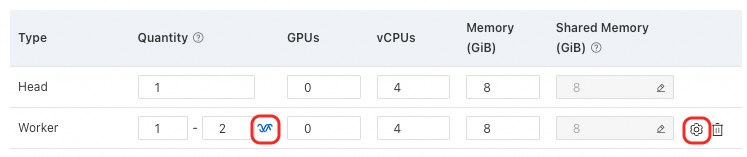
Click the auto scaling configuration, enter the role count, GPU, CPU, and memory size, and select a Scaling Policy. Supported scaling policies:
-
Default-Maximize Nodes: Maximizes the number of nodes when resources are available.
-
RayAutoscaler-Dynamic Scaling: Ray-specific. Automatically adjusts node count based on cluster workload.
-
CloudMonitorMetric-CloudMonitor Metrics: Adjusts node count based on CloudMonitor metrics. Configure target values for CPU utilization, memory utilization, GPU compute utilization, and GPU memory utilization.
-
-
After you configure the parameters, click OK.
SDK
-
Install the Python SDK for DLC.
pip install alibabacloud_pai_dlc20201203==1.4.0 -
Submit a DLC Ray job. Example:
#!/usr/bin/env python3

from alibabacloud_tea_openapi.models import Config
from alibabacloud_credentials.client import Client as CredClient

from alibabacloud_pai_dlc20201203.client import Client as DLCClient
from alibabacloud_pai_dlc20201203.models import CreateJobRequest

region_id = '<region-id>'
cred = CredClient()
workspace_id = '12****'

dlc_client = DLCClient(
    Config(credential=cred,
           region_id=region_id,
           endpoint='pai-dlc.{}.aliyuncs.com'.format(region_id),
           protocol='http'))

create_job_resp = dlc_client.create_job(CreateJobRequest().from_map({
    'WorkspaceId': workspace_id,
    'DisplayName': 'dlc-ray-job',
    'JobType': 'RayJob',
    'JobSpecs': [
        {
            "Type": "Head",
            "Image": "dsw-registry-vpc.<region-id>.cr.aliyuncs.com/pai/ray:2.39.0-gpu-py312-cu118-ubuntu22.04",
            "PodCount": 1,
            "EcsSpec": 'ecs.c6.large',
        },
        {
            "Type": "Worker",
            "Image": "dsw-registry-vpc.<region-id>.cr.aliyuncs.com/pai/ray:2.39.0-gpu-py312-cu118-ubuntu22.04",
            "PodCount": 1,
            "EcsSpec": 'ecs.c6.large',
        },
    ],
    "UserCommand": "echo 'Prepare your ray job entrypoint here' && sleep 1800 && echo 'DONE'",
}))
job_id = create_job_resp.body.job_id
print(f'jobId is {job_id}')
Parameters:
-
region_id: Alibaba Cloud region ID. Example:
cn-hangzhoufor China (Hangzhou). -
workspace_id: Workspace ID. View this on the workspace details page. For more information, see Manage workspaces.
-
Image: Replace
with the actual region ID. Example: cn-hangzhoufor China (Hangzhou).
-
For more information about how to use the SDK, see Python SDK.
CLI
-
Download the DLC client and complete user authentication. For more information, see Preparations.
-
Submit a DLC Ray job. Example:
./dlc submit rayjob --name=my_ray_job \
  --workers=1 \
  --worker_spec=ecs.g6.xlarge \
  --worker_image=dsw-registry-vpc.<region-id>.cr.aliyuncs.com/pai/ray:2.39.0-cpu-py312-ubuntu22.04 \
  --heads=1 \
  --head_image=dsw-registry-vpc.<region-id>.cr.aliyuncs.com/pai/ray:2.39.0-cpu-py312-ubuntu22.04 \
  --head_spec=ecs.g6.xlarge \
  --command="echo 'Prepare your ray job entrypoint here' && sleep 1800 && echo 'DONE'" \
  --workspace_id=4****
For more information about CLI parameters, see Submit command.
FAQ
Ray job timeout during environment preparation
-
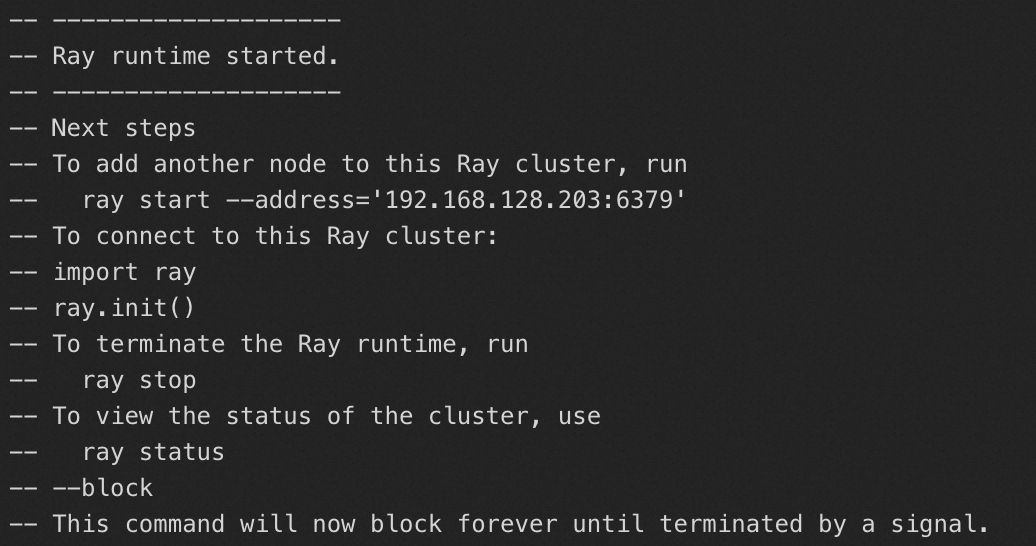
Check the log of the Head node to verify that the Ray environment started normally. If not, Ray is unavailable in the instance. Prepare an image that supports Ray as described in the Preparations section.
-
Check the event log of the Head node. If a
Readiness probe failed...error appears, the image may be missing readiness check dependencies or some indirect dependencies may be unavailable. Reinstallray[default]in the original image by using pip or conda, or rebuild the image based on an official Ray image.