Adjust replica count based on predefined schedules. Scale out before traffic peaks and scale in during off-peak hours to optimize costs.
Console configuration
Enable scheduled auto scaling
Log on to the PAI console. Select a region on the top of the page. Then, select the desired workspace and click Enter Elastic Algorithm Service (EAS).
-
In the service list, click the target service to open its Overview page.
-
On the Auto Scaling tab, in the Scheduled Scaling section, click Enable Scheduled Scaling.
-
In the CronHPA Settings dialog box, configure the following parameters. Click Add to add multiple tasks. Click OK when finished.
Parameter
Description
Task Name
Scheduled scaling task name.
Target Replicas
Target replica count.
Scaling Schedule
Task execution time. Set using one of these options:
-
Week: Recurring weekly schedule.
-
Day: Recurring daily schedule.
-
Cron Expression: Custom schedule using a cron expression.
-
Update configuration
-
On the Auto Scaling tab, in the CronHPA section, click Manage CronHPA.
-
In the CronHPA Settings dialog box, modify Task Name, Target Replicas, or Scaling Schedule as needed.
-
Click Update.
Disable scheduled auto scaling
-
On the Auto Scaling tab, in the CronHPA section, click Disable Scheduled Scaling.
-
In the Confirm Disable dialog box, click Confirm.
Local client configuration
Enable or update scheduled auto scaling
Scheduled Scaling is disabled by default. Log on to the eascmd client and run the cronscale subcommand to enable or update it. For logon instructions, see Download and authenticate the client.
Command format (Windows 64-bit)
eascmdwin64.exe cronscale [region]/[service_name] -s cronscale.jsonConfigure the cronscale.json file as described in the following table. Sample configuration:
{
  "ExcludeDates": ["* * * * * 6,0"],
  "ScaleJobs": [
    {
      "Schedule": "0 15,45 * * * *",
      "TargetSize": 6
    },
    {
      "Schedule": "0 0,30 * * * *",
      "TargetSize": 1
    },
    {
      "Schedule": "0 7,22,37,52 * * * *",
      "TargetSize": 3
    }
  ]
}|
Parameter |
Description |
Example |
|
ExcludeDates |
Excluded times specified as cron expressions. Scheduled tasks matching these expressions are skipped. For cron expression syntax, see Cron expressions. Note
If a cron expression in |
["* * * * * 0,6"] Scheduled scaling tasks do not execute on Saturdays or Sundays. |
|
ScaleJobs |
Scheduled scaling tasks. Each task contains Schedule, TargetSize, and Name parameters:
|
[ { "Schedule": "0 0 18 * * *", "TargetSize": 10, "Name": "scale-up" }, { "Schedule": "0 0 22 * * *", "TargetSize": 3, "Name": "scale-down" }] Scales out to 10 replicas at 18:00 every day and scales in to 3 replicas at 22:00 every day. |
View configurations
Command format (Windows 64-bit)
eascmdwin64.exe cronscale show [region]/[service_name]
[RequestId]: F4C38D2D-4B38-5CB7-B706-9A1C41D4617E
+--------------+----------------------------+---------+------------+----------------------+
|     NAME     |          SCHEDULE          |  STATE  | TARGETSIZE |    LASTPROBETIME     |
+--------------+----------------------------+---------+------------+----------------------+
| scale-jobs-1 | 0 5,15,25,35,45,55 * * * * | Succeed |          1 | 2022-03-03T13:45:00Z |
| scale-jobs-0 | 0 0,10,20,30,40,50 * * * * | Succeed |          4 | 2022-03-03T13:50:00Z |
+--------------+----------------------------+---------+------------+----------------------+
Disable scheduled auto scaling
Command format (Windows 64-bit)
eascmdwin64.exe cronscale rm [region]/[service_name]Compatibility between scheduled and horizontal auto scaling
Scheduled Scaling (Cronscaler) and Horizontal Auto Scaling (Autoscaler) can run simultaneously. When both are enabled, Cronscaler modifies the Autoscaler min or max values.
Cronscaler permanently modifies the Autoscaler configuration. The original configuration remains in effect until the next scheduled scaling event. Service updates or upgrades revert the Autoscaler settings to their original values.
The following rules determine the min and max values when both are enabled.
|
Horizontal auto scaling min/max |
Scheduled auto scaling |
Current number of replicas |
Final result |
Description |
|
1/10 |
5 |
5 |
|
Target matches current replica count. No change occurs. |
|
1/10 |
4 |
5 |
|
Target is lower than current replica count. Count is retained. |
|
1/10 |
6 |
5 |
|
|
|
5/10 |
4 |
5 |
|
|
|
5/10 |
11 |
5 |
|
|
Cron expressions
Scheduled Scaling uses cron expressions to define task schedules.
Cron expression
-
Special characters
-
Asterisk (*)
Represents any value. For example,
0 0 0 1 * *represents 00:00 on the first day of each month. -
Hyphen (-)
Represents a continuous range of values. For example,
0 0 12-14 * * *represents 12:00, 13:00, and 14:00 every day. -
Comma (,)
Represents multiple discrete values. For example,
0 0 12,14 * * *represents 12:00 and 14:00 every day. -
Slash (/)
Represents an incremental interval. For example,
0 */15 * * * *triggers at 0, 15, 30, and 45 minutes past each hour. Combine with hyphen (-). For example,0 5-40/15 * * * *triggers every 15 minutes from minute 5 to minute 40 of each hour. Valid time points are 5, 20, and 35 minutes past the hour.
-
-
Time parameter descriptions
Name
Valid values
Valid special characters
Second
0-59
* / , -
Minute
0-59
* / , -
Hour
0-23
* / , -
Day
1-31
* / , -
Month
1-12 or JAN-DEC
* / , -
Week
0-6 or SUN-SAT
* / , -
FAQ
-
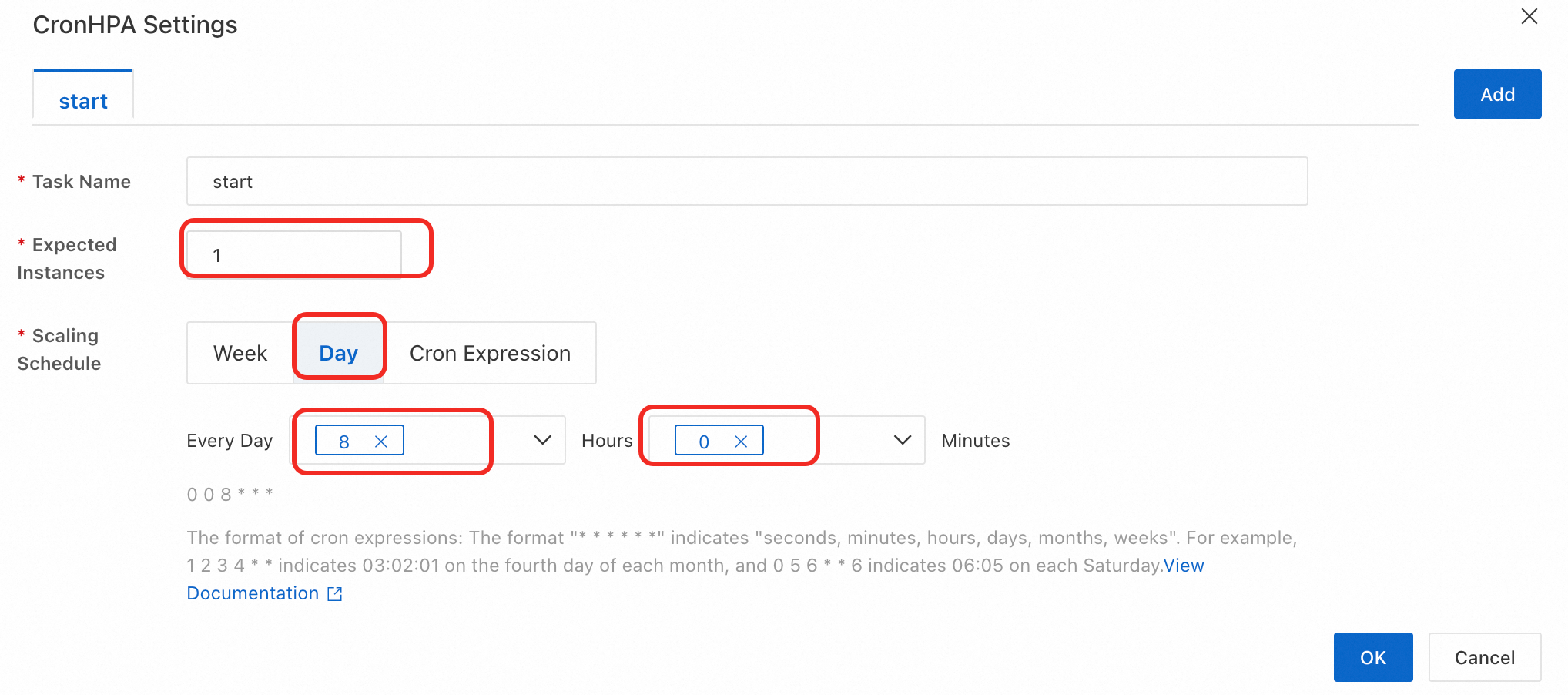
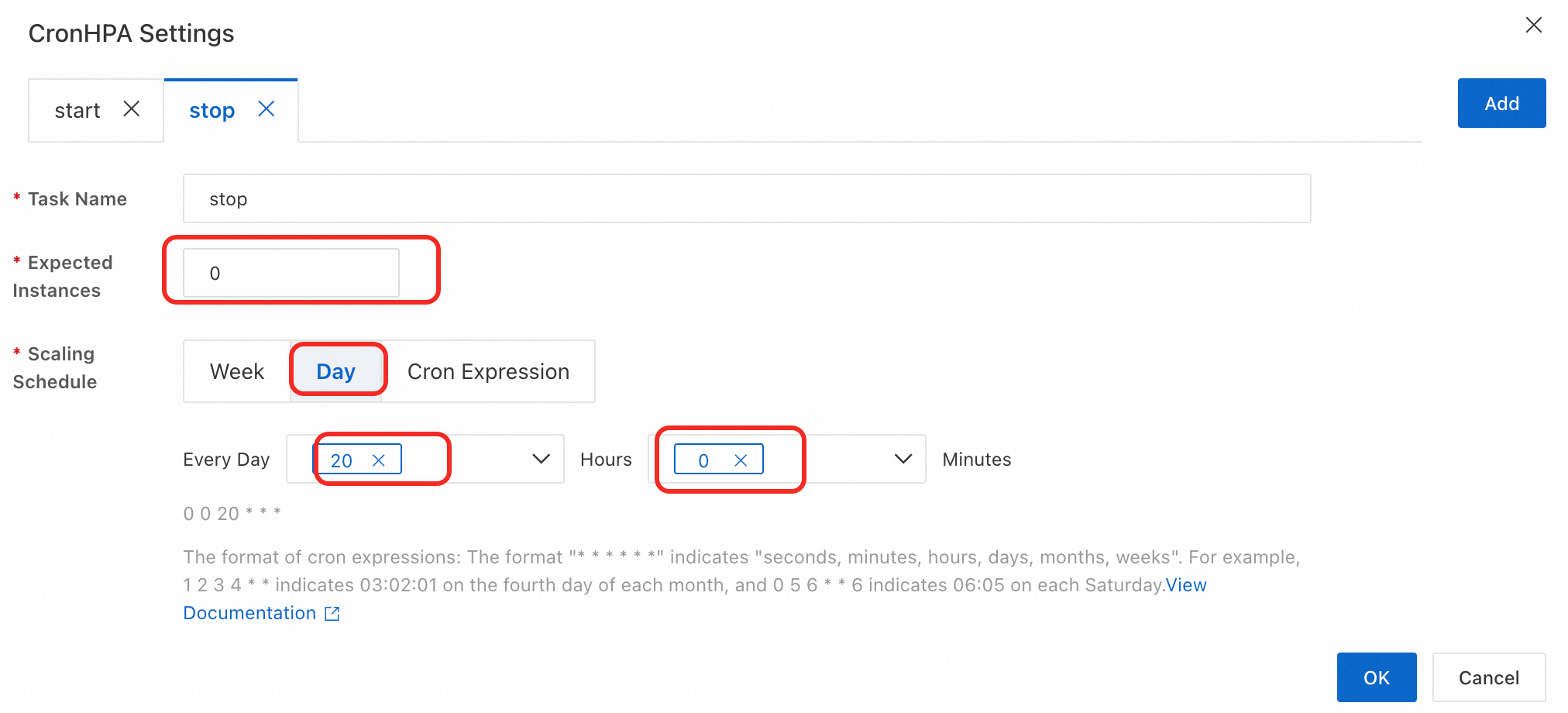
How do I use scheduled scaling to automatically start and stop a service?
Set the replica count to a positive value to start the service and to zero to stop it.
Configure two scheduled tasks:
-
Scale-up (Start): Scale
Expected Instancesto1at your desired start time (e.g., 8:00 AM). -
Scale-down (Stop): Scale
Expected Instancesto0at your desired stop time (e.g., 8:00 PM).
The service runs and incurs costs only during the scheduled active hours.
-
References
-
For metric-based auto scaling, enable horizontal auto scaling. For more information, see Horizontal auto scaling.
-
For unlimited scaling capacity in dedicated resource groups, use the EAS elastic resource pool. For more information, see Elastic resource pool.