When debugging model training issues — such as loss not converging, vanishing gradients, or poor convergence — you need a way to visualize metrics in real time. In Platform for AI (PAI), TensorBoard instances connect to your training data through a dataset or a Deep Learning Containers (DLC) job, and render an interactive dashboard so you can inspect loss curves, gradients, and custom scalars as training runs.
Prerequisites
Before you begin, make sure you have:
An Alibaba Cloud account, or a Resource Access Management (RAM) user added as a workspace member with the required roles and permissions. See Appendix: Roles and permissions
Limitations
TensorBoard is not supported for DLC jobs created in the Malaysia (Kuala Lumpur) region.
Create a TensorBoard instance
Log on to the PAI console.
In the left-side navigation pane, click Workspaces. On the Workspaces page, click the name of the workspace you want to manage.
In the left-side navigation pane, choose AI Asset Management > Jobs to go to the Distributed Training Jobs page.
Click the TensorBoard tab, then click Create TensorBoard.
On the Create TensorBoard page, configure the parameters described in the following tables, then click OK.
Basic information
| Parameter | Description |
|---|---|
| Name | The name of the TensorBoard instance. |
| Configuration type | Select a mount type and enter the summary path. See the details below. |
Mount type
Choose one of the following options based on where your training logs are stored:
Mount Dataset (recommended): Select a dataset and enter the relative path of the summary directory within the dataset.
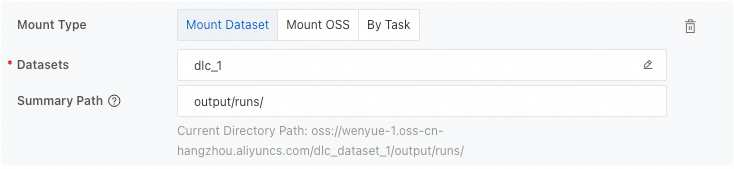
Mount OSS: Select an Object Storage Service (OSS) bucket path and enter the relative path of the summary directory in OSS.

By Task: Select a DLC job and enter the complete path of the log files in the container.

Summary path
The path where TensorBoard summary logs are stored. Get the complete path from the SummaryWriter class in your training code.
Resource configuration
| Resource type | Description |
|---|---|
| Free Quota | A fixed allocation of free resources per instance: up to 2 vCPUs and 4 GiB of memory. To free up capacity, disable any running free-quota instances before creating a new one. |
| General Computing | Two billing options: Public Resources (pay-as-you-go, select an instance type) or Resource Quota (subscription billing, requires purchasing computing resources and creating quotas). |
When using Resource Quota, configure these additional parameters:
Resource Quota is available only to users in the whitelist. Contact your account manager to configure the whitelist.
| Parameter | Description |
|---|---|
| Priority | Scheduling priority for the instance. Valid values: 1–9. 1 is the lowest priority. |
| Job resource | The number of vCPUs and the amount of memory (in GiB) allocated to the instance. |
VPC
VPC configuration is available only when using Public Resources.
Without a VPC, the instance uses an Internet connection, which may cause stuttering during startup or when loading reports due to limited bandwidth. Configure a VPC to ensure stable performance.
Select a VPC, a vSwitch, and a security group in the current region. The instance can then access services within the selected virtual private cloud (VPC) and apply the specified security group rules.
If your dataset requires a VPC — for example, a Cloud Parallel File Storage (CPFS) dataset or a NAS dataset that has a mount target in the VPC — you must configure a VPC.
After the instance enters the Running state, click View TensorBoard in the Actions column to open the TensorBoard dashboard.
TensorBoard displays your training metrics and summary logs in an interactive visualization.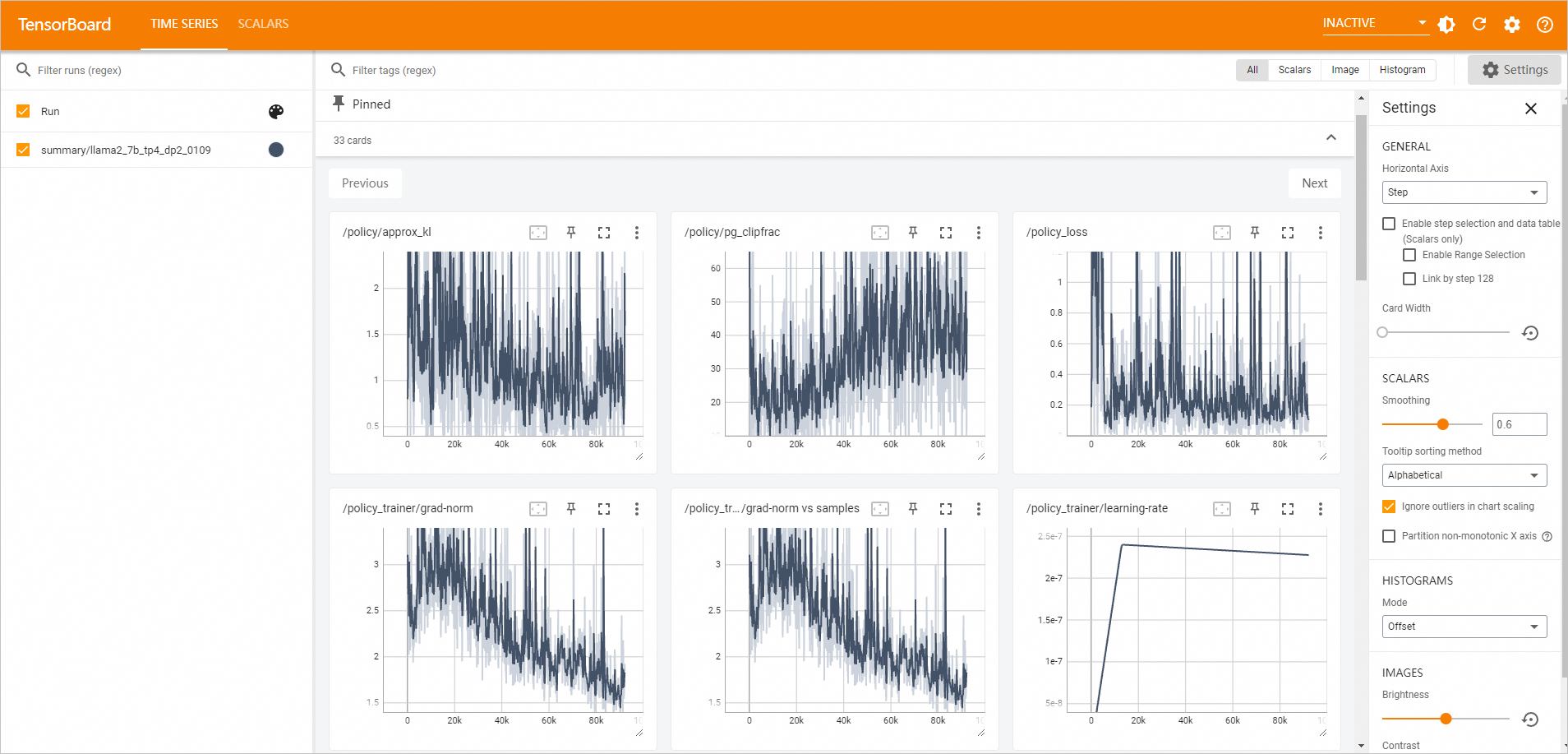
Tip: If you are using General Computing resources, stop the instance when you are done to avoid unnecessary charges. Set up auto-stop to handle this automatically — see Manage a TensorBoard instance.
Manage a TensorBoard instance
On the TensorBoard tab, use the following actions to manage your instances:
Start an instance
Click Start in the Actions column to restart a stopped instance.
View instance details
Click the instance name to open the details page, where you can review Basic Information and Configuration Information.
View associated DLC jobs
View the number of the DLC jobs that you associate with the TensorBoard instance. In the Associated Task column, hover over  to see the ID of the associated DLC job. Click the ID to go to the job's details page.
View associated datasets
View the number of the datasets that you associate with the TensorBoard instance. In the Associated Dataset column, hover over to see the ID of the associated dataset. Click the ID to go to the dataset's details page.
View running duration
The Running Duration column shows how long the instance has been running since it last started. After you stop the TensorBoard instance, the running duration is reset.
Stop an instance
Click Stop in the Actions column to stop the instance immediately.
Click Auto-stop Settings in the Actions column to schedule an automatic stop time.
What's next
TensorBoard instances can also be created and managed from the Deep Learning Containers (DLC) page. See TensorBoard.